.NET on AWS Blog
Modernize VB.NET applications to .NET 10 with AWS Transform
AWS Transform is an agentic service that accelerates modernization, including .NET applications. With it, you can transform various types of .NET Framework projects to modern versions of .NET including .NET 10. Until recently that support was limited to projects written in C#, the most-used .NET language. AWS Transform can now transform projects written in Visual Basic .NET (VB.NET), and can also transform more project types (WPF, Windows Forms, or Xamarin). This is a preview feature, currently available in Visual Studio IDE in us-east-1 region. In this post, I’ll walk you through transformation of a VB.NET project with AWS Transform.
In the walkthrough that follows, I’ll review the steps to transform DotsAndBoxes, a public VB.NET sample with an MIT license. We’ll transform the .NET Framework 3.5 project, a Windows Forms (WinForms) application, to .NET 10 using AWS Transform in Visual Studio 2026. The transformed application will still require Windows, due to the use of WinForms, but will be running on a modern, supported version of .NET.
Prerequisites
To complete the walkthrough on your own machine, you’ll need the following:
- A Windows development machine.
- Visual Studio 2026 installed.
- The latest AWS Toolkit installed in Visual Studio.
- AWS Transform setup is complete.
- An IAM Identity Center user credential for AWS Transform.
Walkthrough
Step 1: Setup
In this step, you’ll download the sample application and get familiar with it.
- Download the DotsAndBoxes sample from https://github.com/gigacycle/DotsAndBoxes/tree/master.
- Open the solution in Visual Studio. Accept Visual Studio’s offer to update the project to .NET Framework 4.8.
- Confirm the Dot Game project is a .NET Framework 4.8 Windows Forms application, and that it builds, as shown in Figure 1.
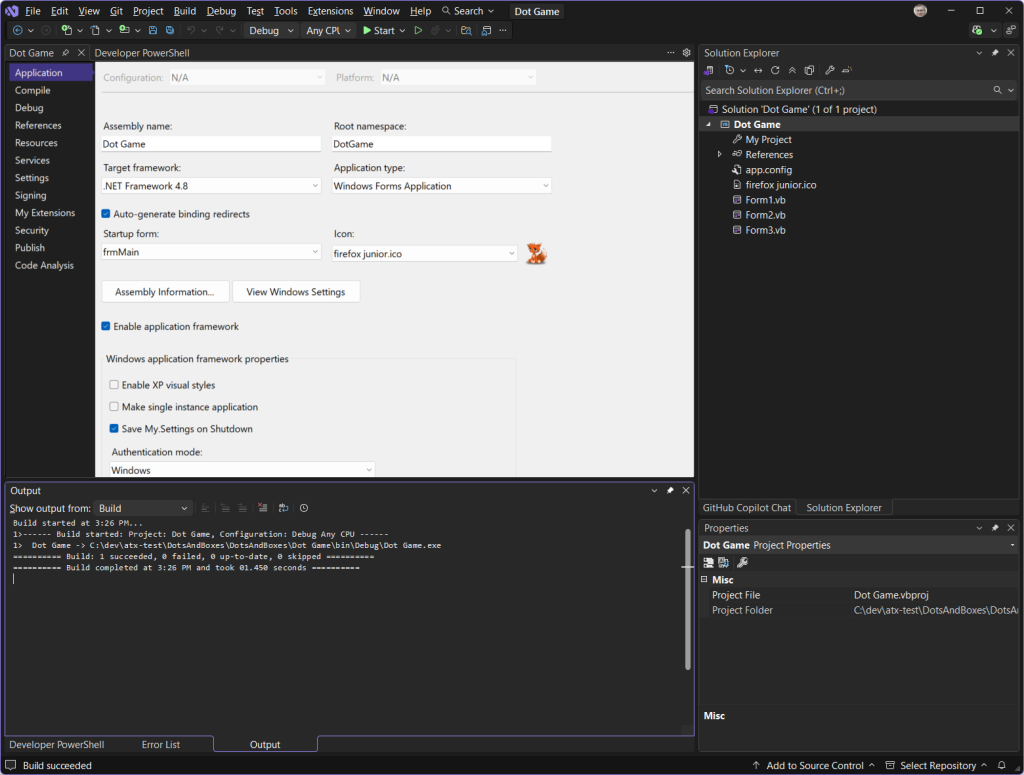
Figure 1: Dot and Boxes project in Visual Studio
- Run the application with F5 or Debug > Start Debugging to see its appearance and behavior, then stop debugging. It will look like Figure 2.
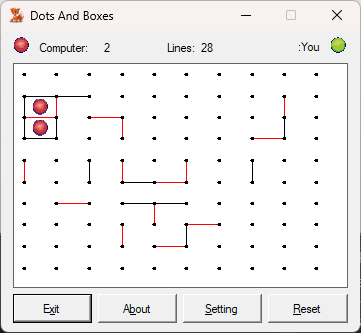
Figure 2: Original VB.NET application running
Step 2: Sign in to AWS Transform
Next, sign in to AWS Transform.
- From the Visual Studio menu, select Extensions > AWS Transform > Getting Started.
- On the AWS Transform panel, sign-in to AWS Transform with your IAM Identity Center credentials. Once you complete sign-in, Connected with IAM Identity Center should appear in the panel, as shown in Figure 3.
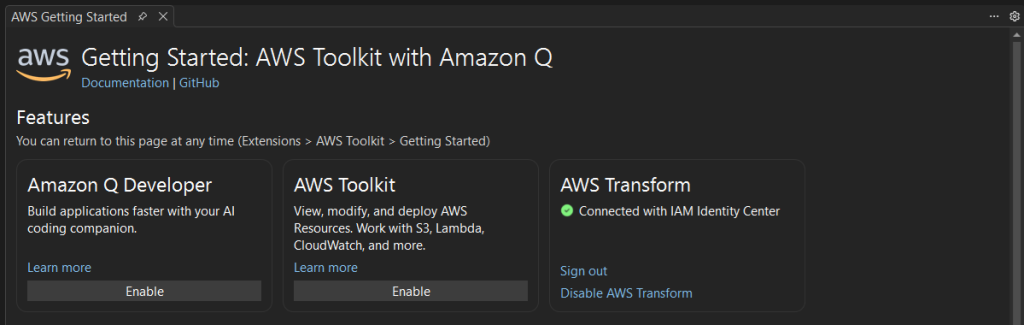
Figure 3: Signed in to AWS Transform
Step 3: Transform the Application
Now you’re ready to transform. Follow these steps to start a transformation job:
- Open .vb code file
Form1.vbin the code editor. Opening a code file is necessary to activate AWS Transformation. On the Output tab, select Amazon Web Services, and you should see the Amazon Q Language Client initialize with messageInitialized: Amazon Q Language Client. This confirms you have a connection to the AWS Transform service. - In Solution Explorer, right-click the
Dot Gameproject and choose Port project with AWS Transform. - On the Port project with AWS Transform dialog, shown in Figure 4, create or select a workspace and set the .NET target to net10.0.
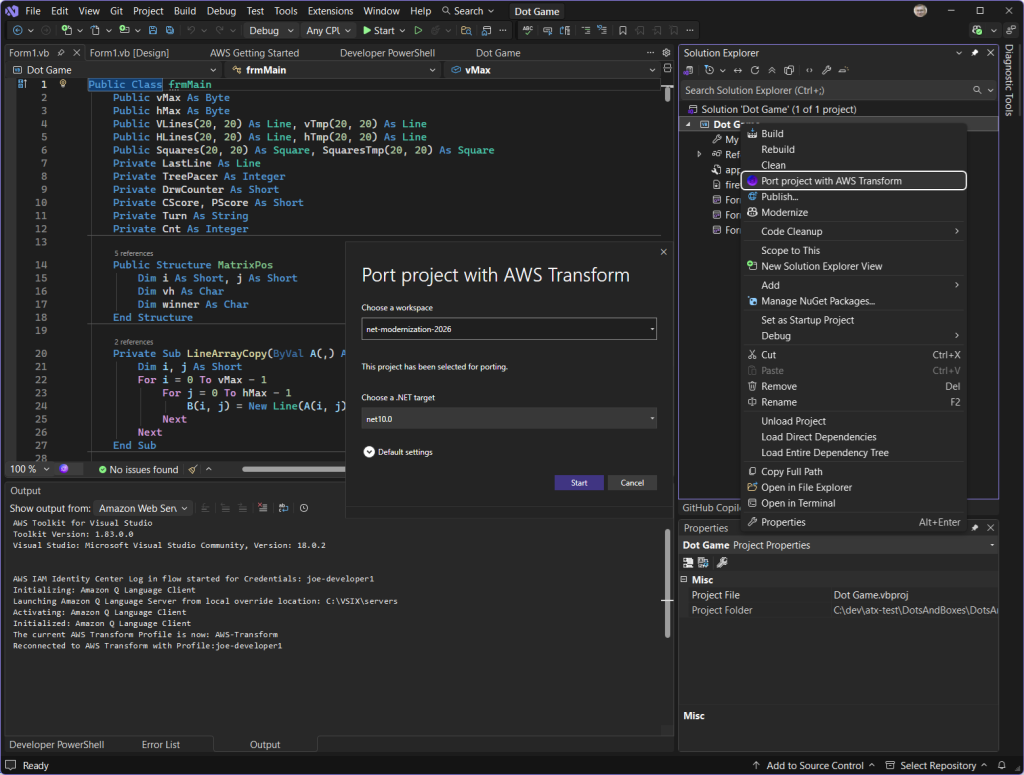
Figure 4: Starting a transformation
- Choose Start to begin the transformation. You’ll soon see a notification at the top confirming that a transformation job is in progress. Job progress will be shown in the AWS Transform Hub pane.
- After a few minutes, AWS Transform will ask if you want to review a transformation plan. Choose Edit Plan to review or modify the plan, shown in Figure 5. Then choose Start transformation to begin the transformation.
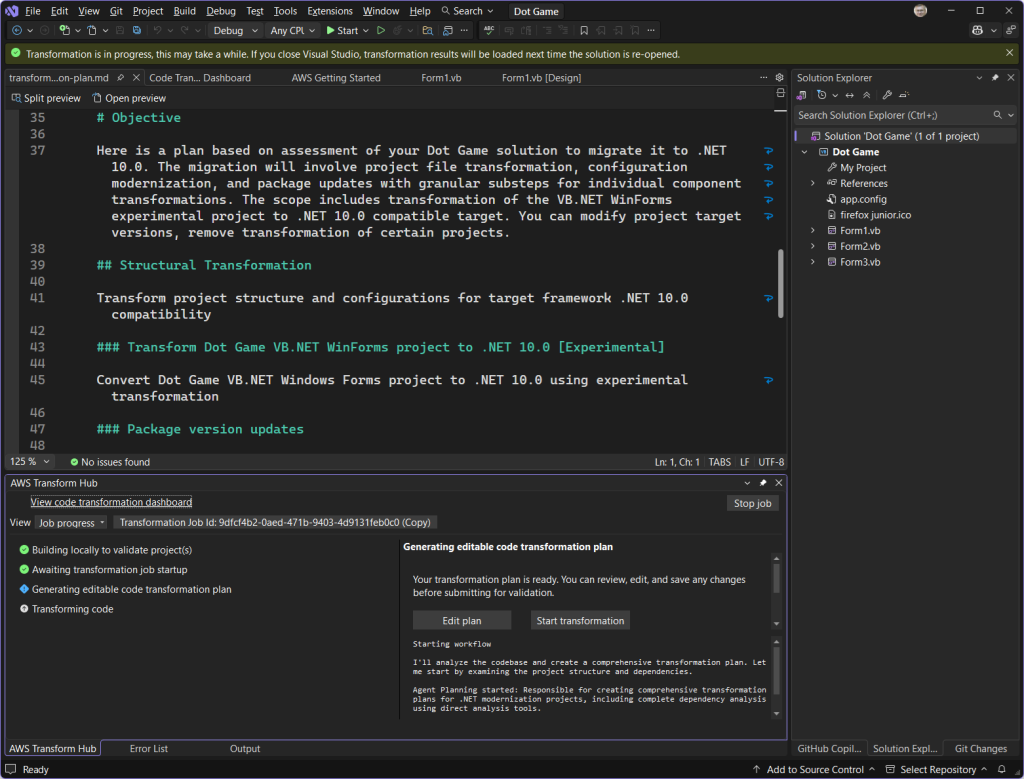
Figure 5: Transformation plan
- As the code is transformed, monitor transformation progress and view details in the AWS Transform Hub window. You can select any sub-step under Transforming code to see activity details. Figure 6 shows the project transformation step details, which includes validating project structure and files, updating the project file to the newer SDK-style format, setting the target to .NET 10, generating .NET start-up code, and updating application configuration.
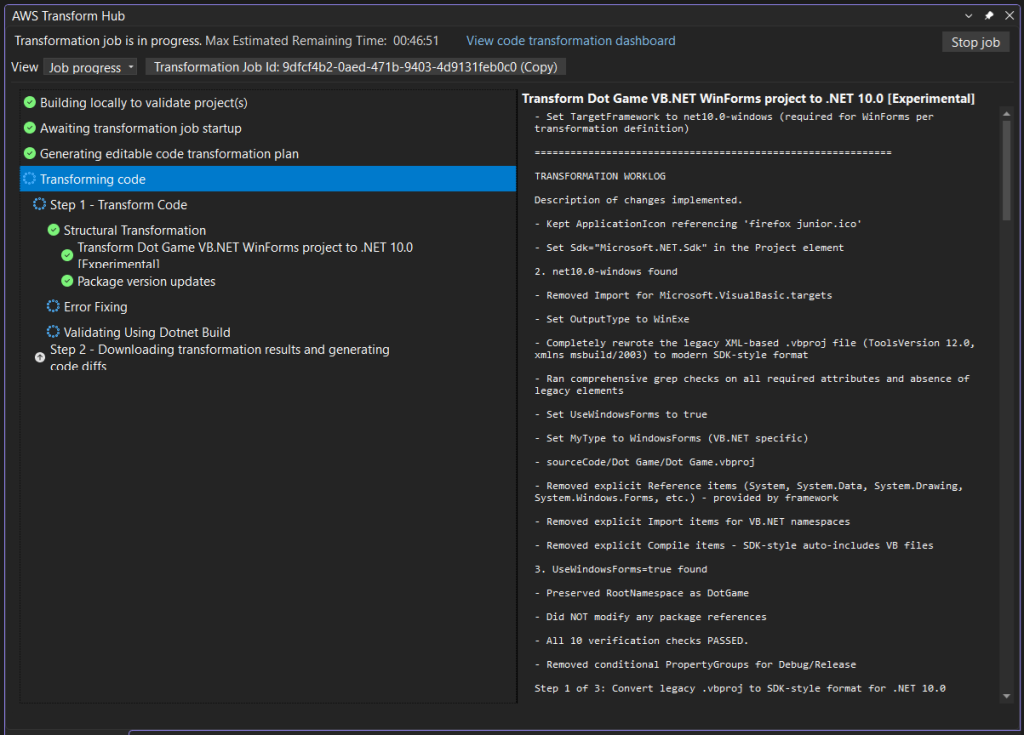
Figure 6: AWS Transformation Hub
- Wait for the transformation to complete. When it finishes, a notification Your transformation is completed will appear at the top of Visual Studio. The AWS Transform Hub will show Transformation Complete, as shown in Figure 7. In our case, the transformation completed successfully.
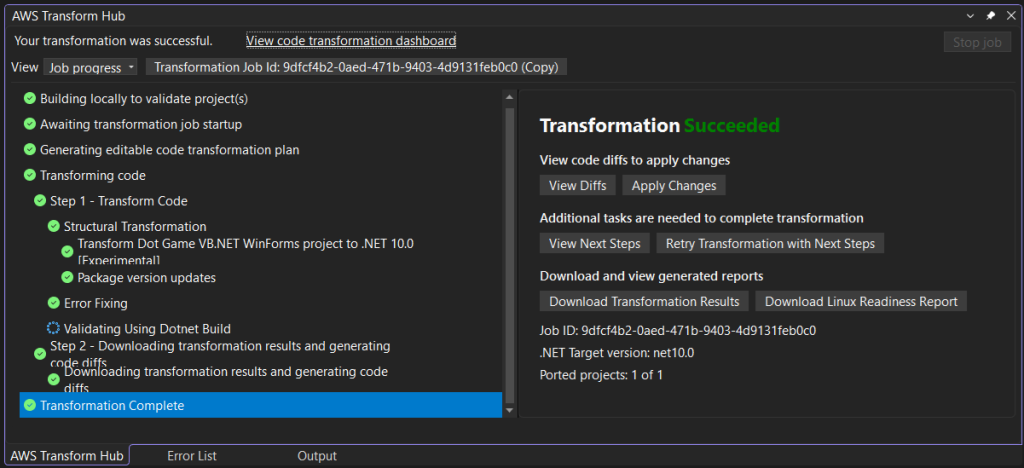
Figure 7: Transformation Complete
Step 4: Review the transformation report
Let’s understand what AWS Transform did, and why.
- You can learn about the changes made and the reasons for them by viewing the transformation report. In AWS Transform Hub, select Progress View and choose Download transformation results.
- Open the HTML transformation report and review the description of what changed, shown in Figure 8. In this case, the report tells us the project was updated to SDK-style, target framework to .NET 10, and some minor code file changes.
- Choose View Next Steps to view recommended post-transformation tasks. If your application needs additional work, you can use the next steps as prompts for an AI code companion.
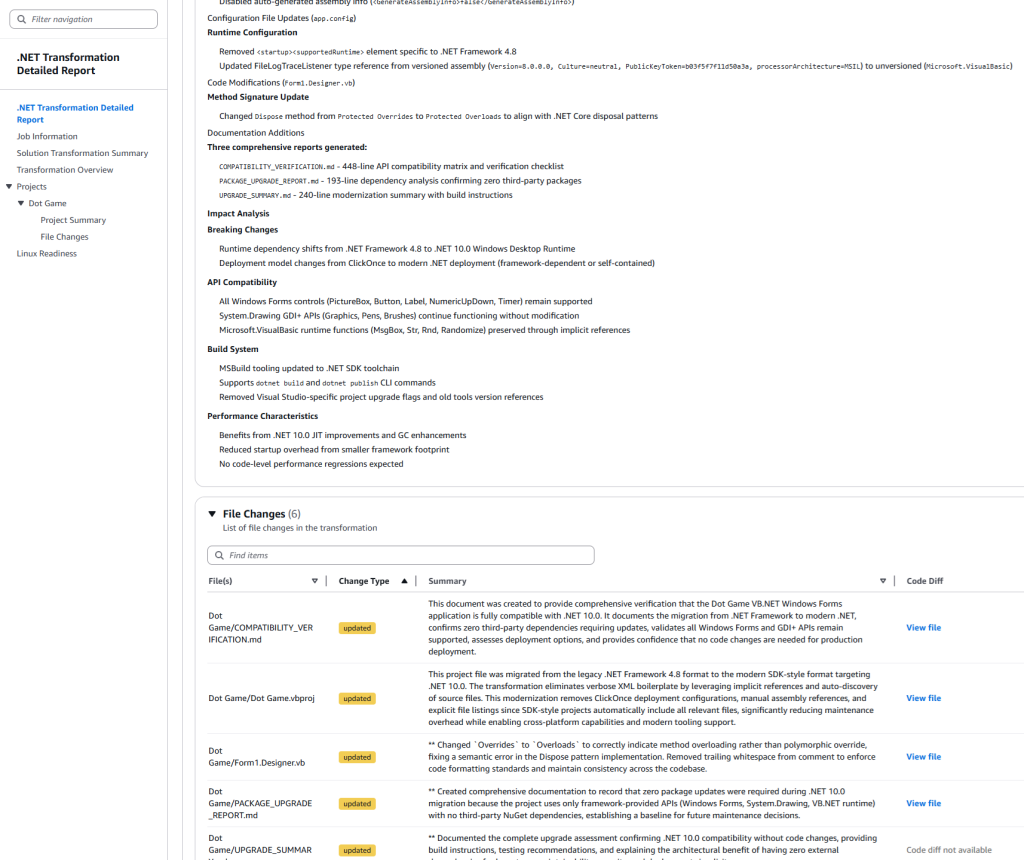
Figure 8: Transformation report markdown
- View the file changes to see what was added, removed, or modified. You can do this in either of two ways: 1) view the transformation report’s File Changes section, or 2) View file change in the IDE, by choosing View diffs in AWS Transform Hub. Both views show you file changes side-by-side. In our case, the .vbproj project, a .vb file, and a .config file were modified.
Step 5: Apply the code changes
Now, apply the code changes and examine the updated application.
- In the AWS Transform Hub, choose Apply changes. The file changes are applied to your project, and Visual Studio prompts you to reload all files.
- In Solution Explorer, check the project properties. Dot Game is now a .NET 10 project, as shown in Figure 9.
- Next, build the solution. In our case, there were no build errors.
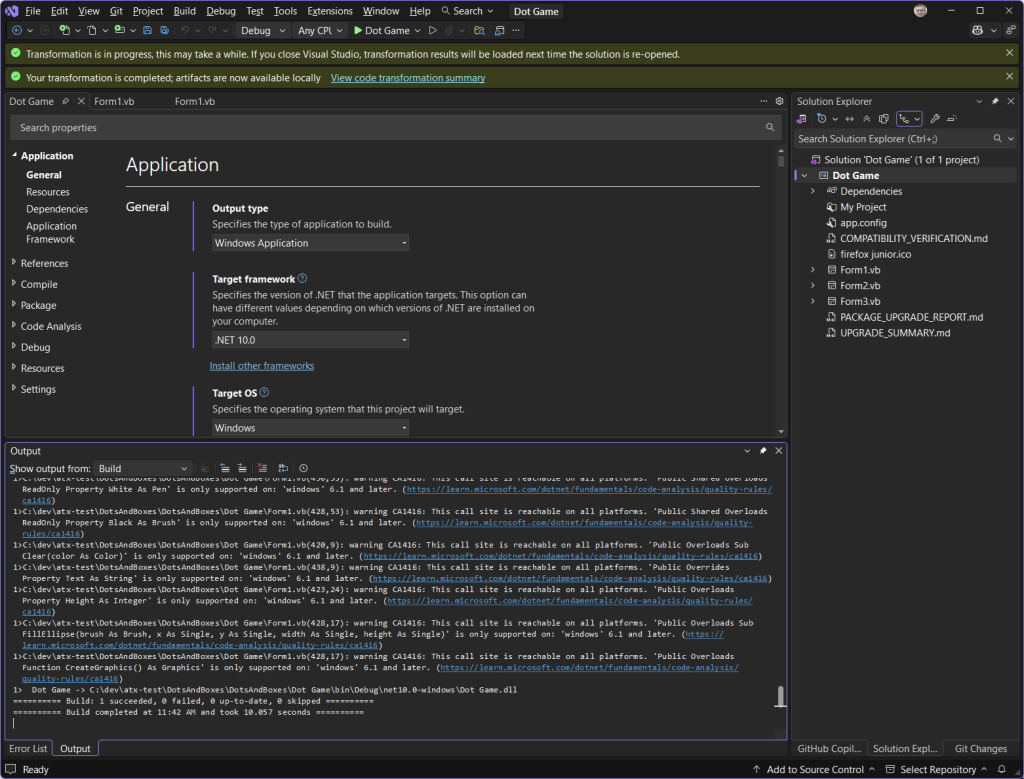
Figure 9: Application is .NET 10 and builds successfully
Step 6: Review ported application
AWS Transform handles the heavy lifting in modernizing your code, but a transformed application is not necessarily complete, even if it builds. As the developer, your role is to review the application for correctness and complete any remaining porting tasks. There may be build errors or runtime errors to address. In my example, I had no runtime errors. If the project does not build, review the transformation report and next steps markup from Step 4 for advice and recommendations. Figure 10 shows the transformed solution running on .NET 10.
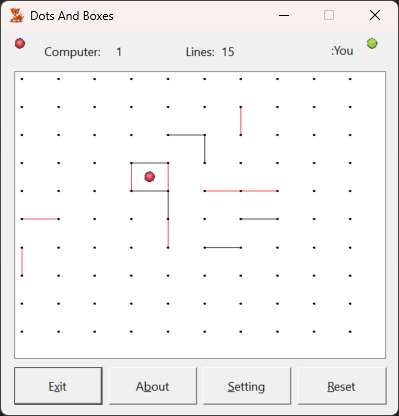
Figure 10: Transformed Dots and Boxes application running
Conclusion
AWS Transform provides full-stack Windows modernization, and that now includes VB.NET language projects as well as C#. In this post, you saw how to port a VB.NET WinForms application from .NET Framework to modern .NET. For more information about AWS Transform, refer to the AWS Transform User Guide.