Containers
Accessing private Git repositories from Amazon EKS capability for Argo CD
Organizations adopting GitOps on Amazon Elastic Kubernetes Service (Amazon EKS) often need to pull application manifests from private Git repositories that are not publicly accessible. Amazon EKS capability for Argo CD (referred to as ‘Argo CD capability’ throughout this post) can access publicly hosted Git repositories using Argo CD repository secrets. However, connecting Argo CD capability to private Git repositories presents challenges, because the capability cannot directly access repositories that are not publicly accessible. The Argo CD capability doesn’t have direct access to the customer’s Amazon Virtual Private Cloud (VPC) network, so it can’t reach privately hosted Git servers. When you want to securely connect Argo CD capability to private repositories within your VPC, AWS CodeConnections provides authentication based on AWS Identity and Access Management (IAM) while maintaining your security posture.
In this post, we walk you through three main steps: First, you create an AWS CodeConnections host in your VPC with connectivity to your private Git server. Second, you establish a connection that Argo CD can use. Finally, you deploy a sample application to verify the integration. By the end, you have a secure way to deploy applications from private repositories.
Architecture overview
The architecture diagram illustrates a secure GitOps workflow in which an Amazon EKS cluster with Argo CD capability accesses private Git repositories through AWS CodeConnections. An AWS CodeConnection is created in a VPC which has private network connectivity to an on-premises data center where a private Git server is hosted. Argo CD capability uses an IAM role to access the connection, and then pulls the latest configurations and synchronizes them to an EKS cluster. This integration deploys or updates applications to the EKS cluster while maintaining an enhanced security posture throughout the pipeline.
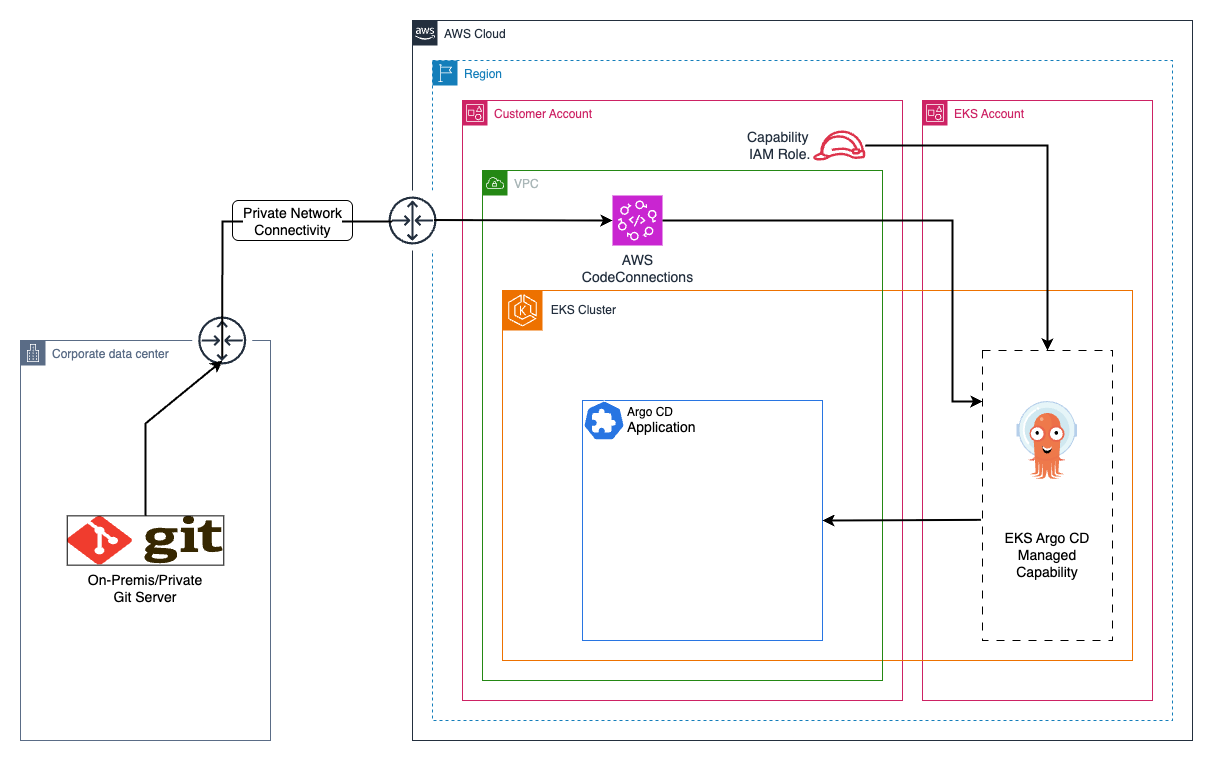
Figure 1
Solution walkthrough
Start by creating the AWS CodeConnections host in a VPC that acts as a git-proxy for accessing your private repository. For private repositories, AWS CodeConnections currently supports GitHub Enterprise Server and self-managed GitLab. This walkthrough uses GitHub Enterprise Server, but the configuration is analogous for GitLab self-managed servers.
Prerequisites
Before you begin, verify that you have:
- An AWS account with permissions to create CodeConnections and VPC resources.
- An Amazon EKS cluster with Argo CD capability enabled.
- AWS Command Line Interface (AWS CLI) version 2.x or later installed and configured.
- kubectl configured to access your EKS cluster.
- A private Git server (GitHub Enterprise Server or GitLab self-managed) accessible from your VPC.
- Admin permissions to install the GitHub App.
Connect private Git server with AWS CodeConnections
To connect your private Git server with AWS CodeConnections, follow these steps:
- Set the environment variables required for the setup.
Verify the subnets meet the following requirements:
- Route table entries that allow traffic to your Git server (either through a VPN, Direct Connect, or Transit Gateway for on-premises servers).
- Domain Name System (DNS) resolution configured if using domain names (enable DNS hostnames and DNS resolution on your VPC).
- Security group rules allowing outbound HTTPS (port 443) traffic to your Git server.
- Each subnet in a different Availability Zone for high availability (HA).
- Create the host VPC configuration file:
Note: Include the ‘TlsCertificate’ field only if your Git server uses a privately signed certificate. If your server uses a publicly trusted certificate, you can omit this field.
- Create the host and capture the HostArn with the following command.
- Navigate to the host dashboard on the AWS Management Console. Wait for the host to reach Pending status.
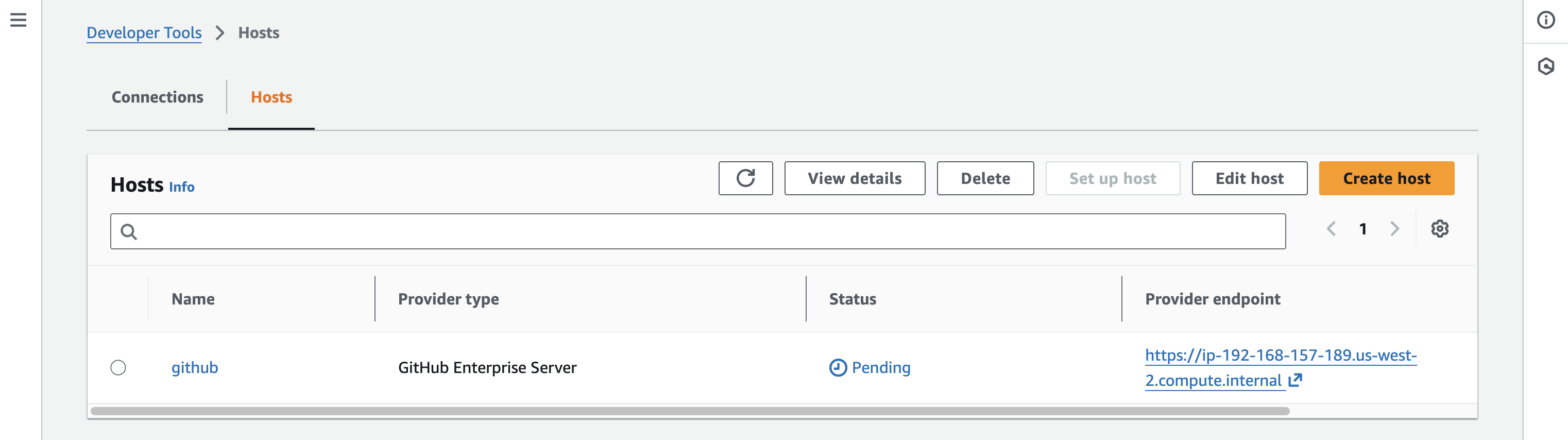 Figure 2After the host is in the Pending state, select the host and choose Set up host. The page notifies you about redirection to the Git endpoint. Here, choose Continue. For GitLab, enter the personal access token and then choose Continue.
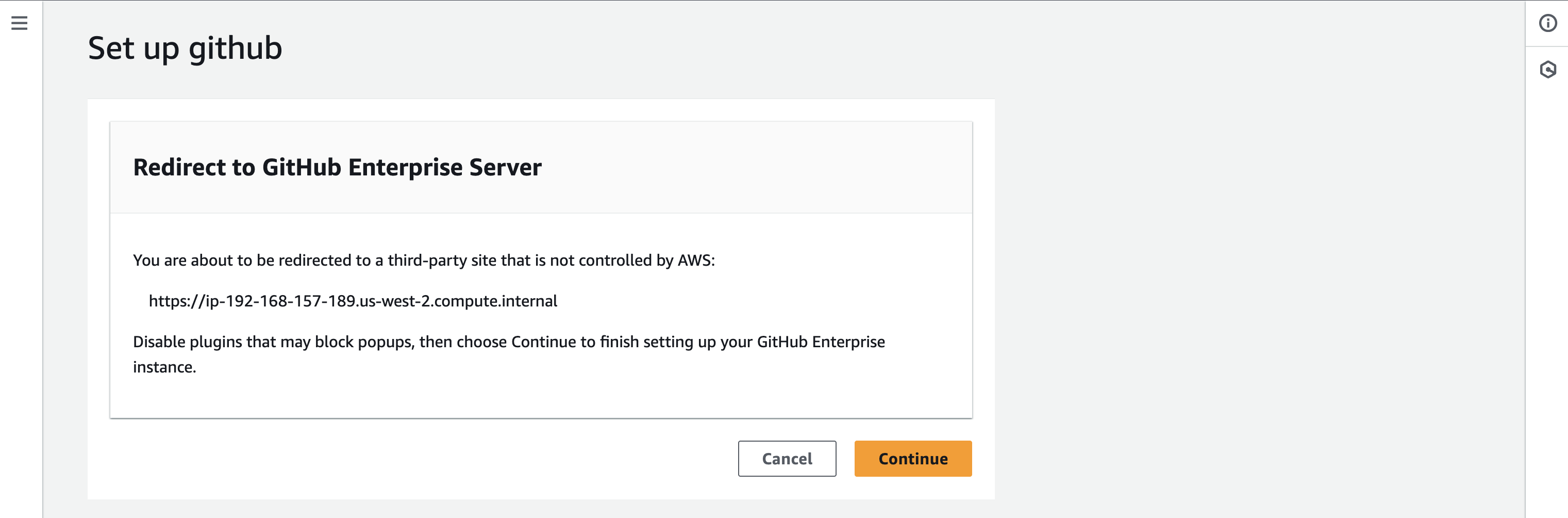
Figure 3
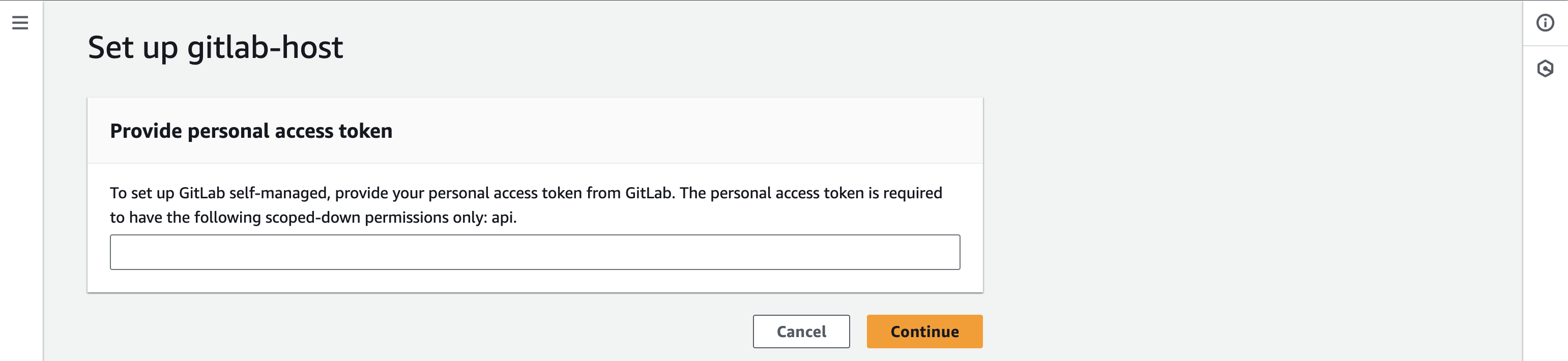
Figure 4
- Complete the guided host setup after redirection. If an issue occurs, follow the steps in the AWS CodeConnections troubleshooting guide. After successful setup, the host shows the Available status, and you can revoke or delete the personal access token for GitLab.
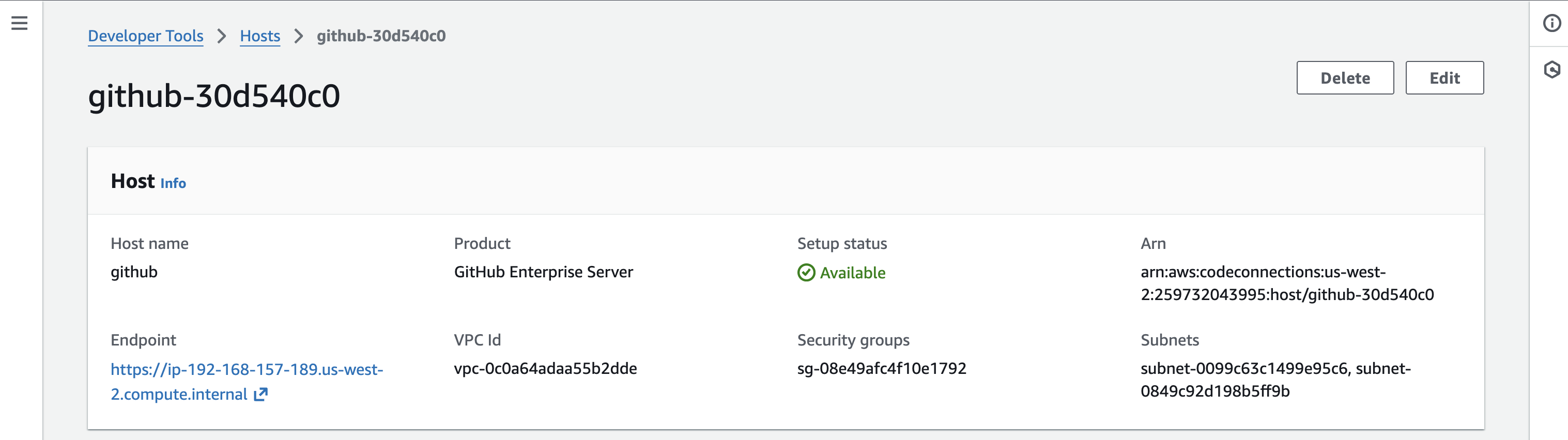 Figure 5
 - Create a connection to use with the Argo CD capability.
- Navigate to the Connections dashboard on the console and select the connection created earlier. The status of the connection should show Pending.
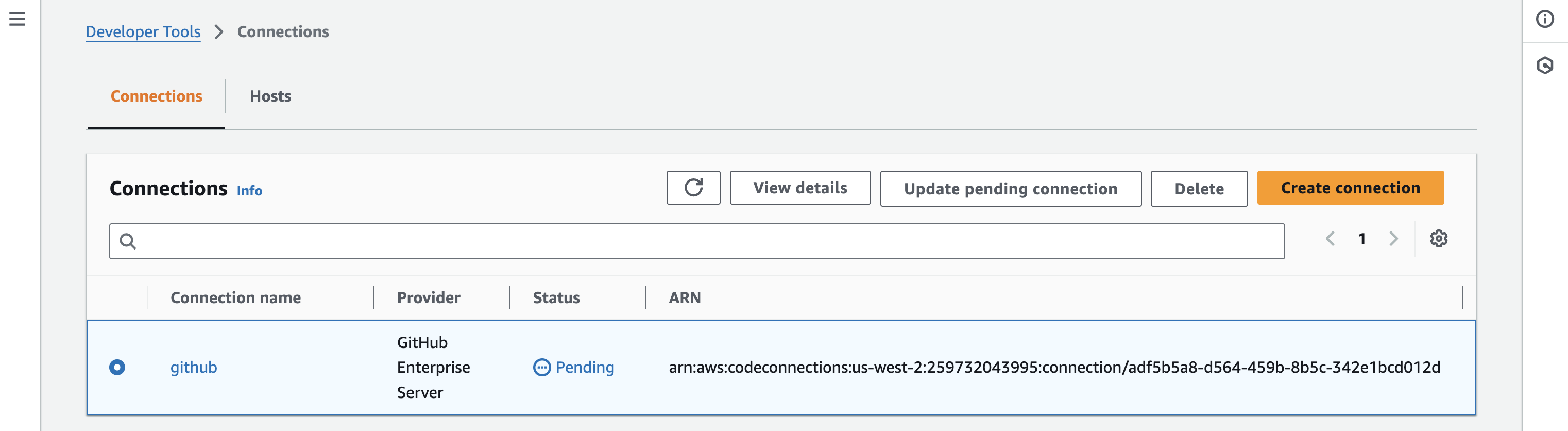 Figure 6
 - Select the connection and choose Update pending connection. The console redirects you to the Git server. Follow the guided steps to continue.
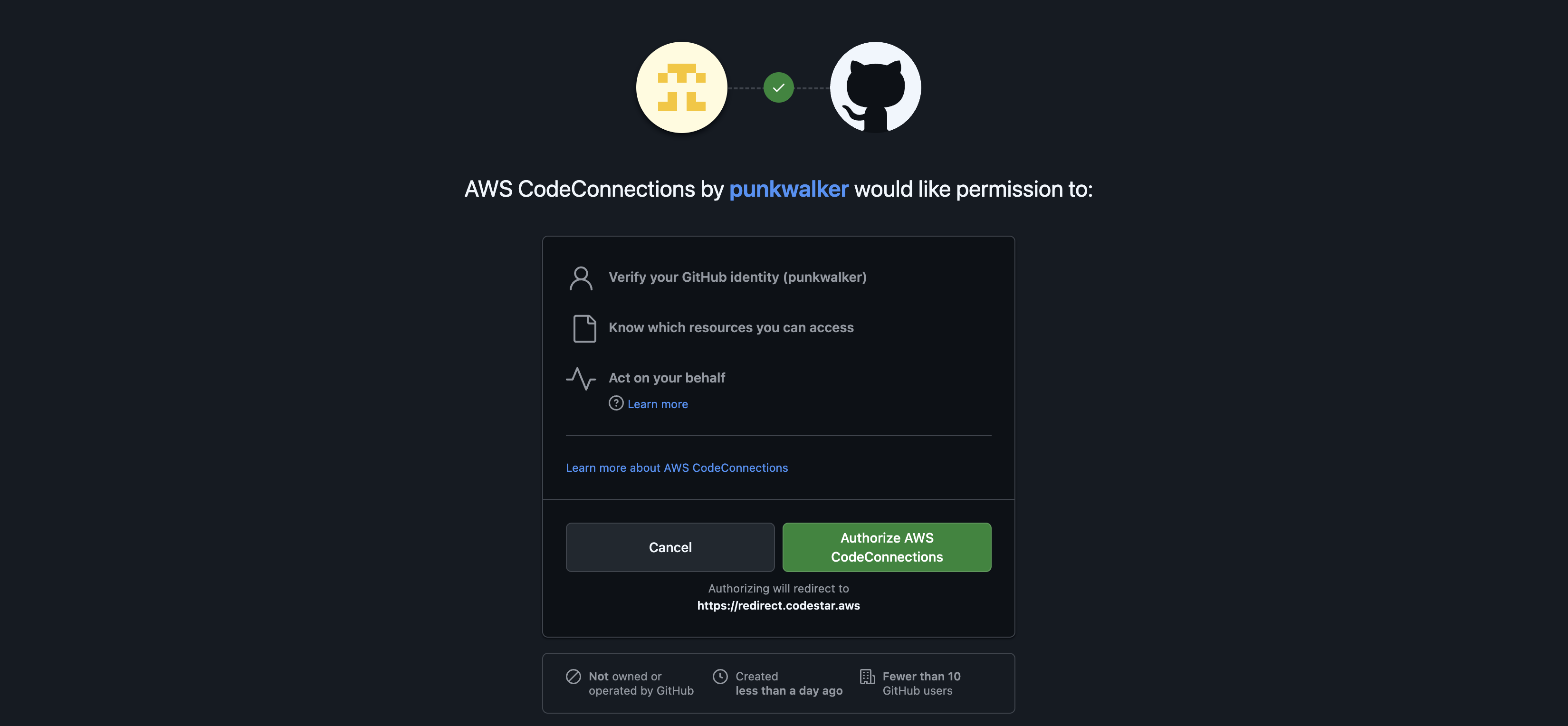 Figure 7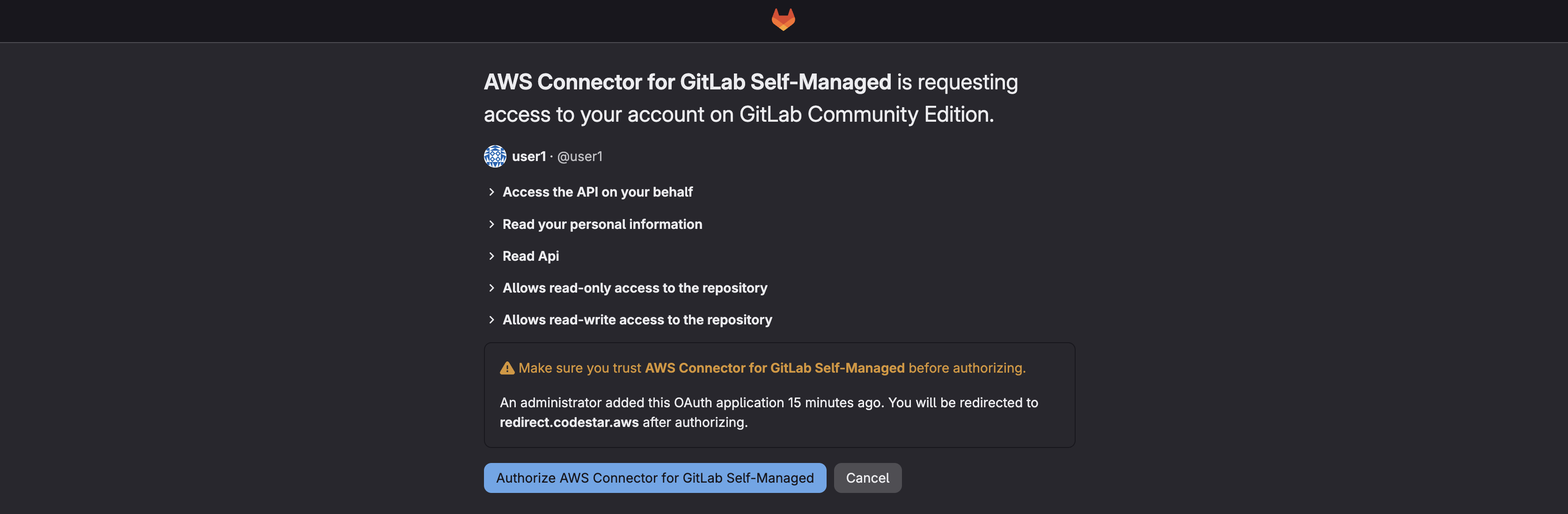
Figure 8
After the authorization step, the page redirects to the console.
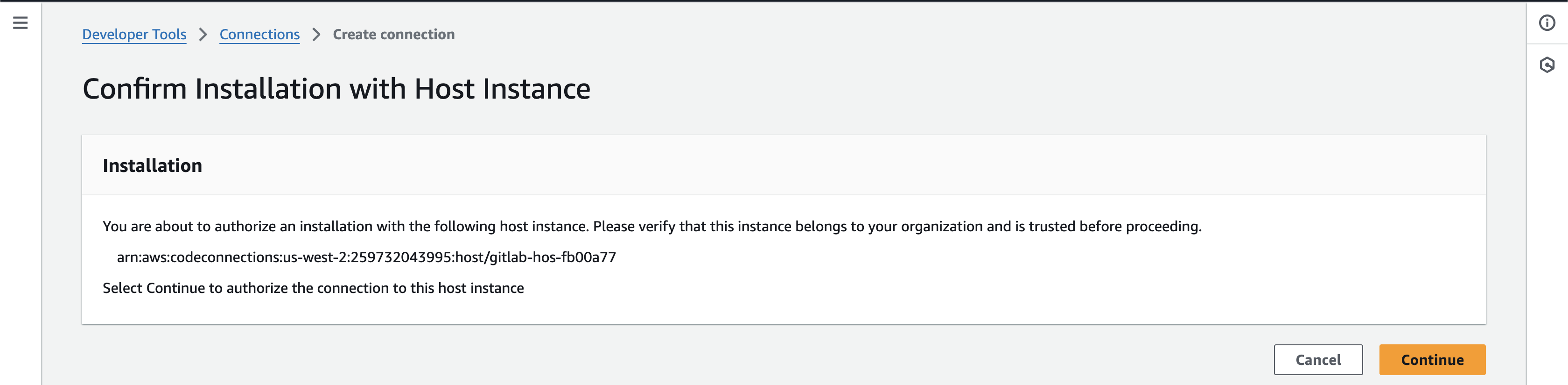
Figure 9
- Choose Continue to complete the connection setup. For GitHub, the page redirects again to GitHub for installing the app for a particular user or organization. Follow the steps and configure the GitHub App.
 Figure 10
With this, the connection status should change to Available. Now you can use this connection with Argo CD capability and deploy the application to the EKS cluster.
Create a sample Argo CD application
Before moving forward, verify that the Argo CD configurations such as the Cluster Secret and AppProject roles are added to the cluster, as shown in the AWS blog post Deep dive: Streamlining GitOps with Amazon EKS capability for Argo CD.
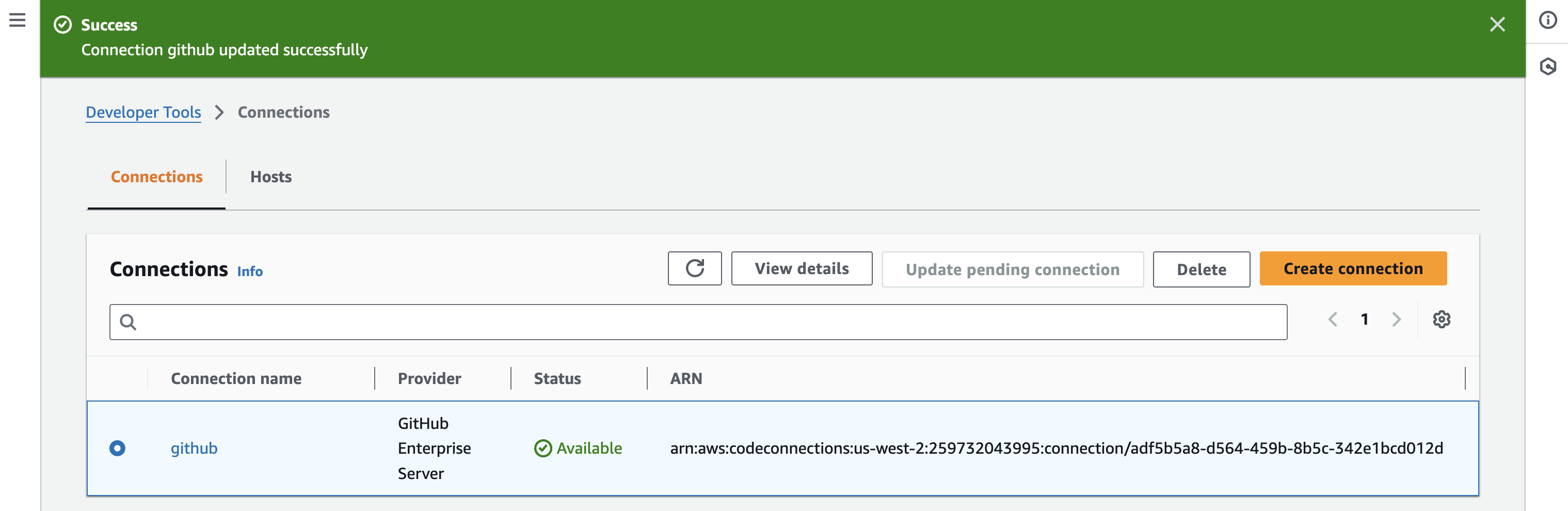
Figure 11
You will use the Argo CD sample guestbook application, which is pushed to your private Git server. You can also use your existing application, or clone this repository and push it to the private Git server for which you created the connection in the previous section.
Create a file guestbook.yaml and paste the following content into it. Replace the placeholders with values applicable to you.
Note: The repoURL follows the CodeConnections Git HTTP proxy format. Replace the placeholders with your actual values:
<CodeConnection_Region>– The AWS Region where your CodeConnection was created (for example, us-west-2).<Your_Account_ID>– Your 12-digit AWS account ID.<Connection_ID>– The unique identifier of the CodeConnection you created in Step 6. You can retrieve it from the connection Amazon Resource Name (ARN) (the segment after connection/), or find it in the console under Developer Tools > Settings > Connections.<Git_Username/Git_Organization/Project>– The owner or organization name on your Git server that contains the repository.<Git_Repository>– The name of the repository you want Argo CD to sync from.
Apply this manifest to the EKS cluster where Argo CD capability is enabled.
Navigate to the Argo CD endpoint URL and monitor the application until it reaches the Healthy status.
Under the hood
Understanding how CodeConnections works behind the scenes can help you troubleshoot issues and design your network security. Here’s what happens when you create an AWS CodeConnections host in a VPC. It creates a cross-account elastic network interface (ENI) in each provided subnet and attaches the provided security group to it. These ENIs connect with the private Git server endpoint that you specified during host creation. This gives AWS CodeConnections a private and secure network path while interacting with the Git server.
Creating the connection using this host installs the AWS Connector app on the repository, organization, or project. This app gets temporary credentials for each interaction between AWS CodeConnections and private Git servers.
Argo CD capability uses IAM authentication with an associated IAM role to access the specified connection in the application manifest. The network path looks like the following:
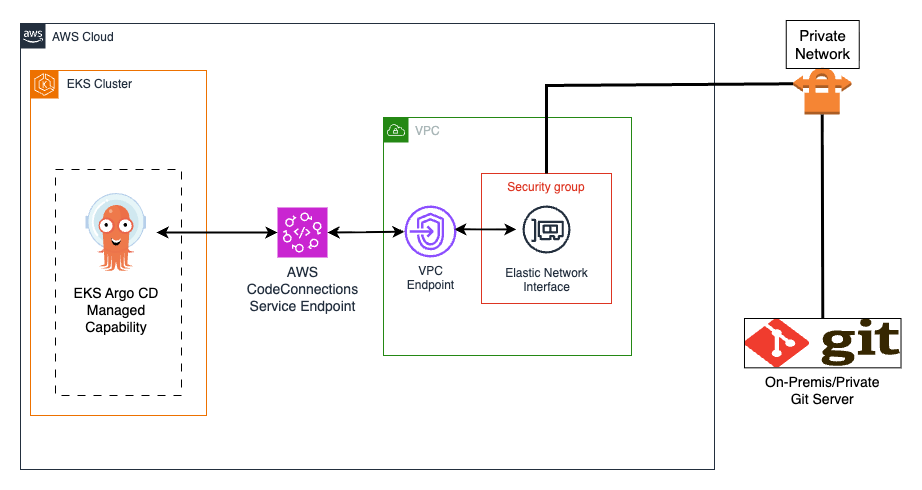
Figure 12
Clean up
To avoid incurring future charges, delete the resources you created:
- Delete the Argo CD application:
- Delete the AWS CodeConnection:
- Delete the CodeConnection host:
- If you created an EKS cluster specifically for this tutorial, delete the EKS cluster and associated resources.
Conclusion
In this post, we showed you how to securely connect private Git servers to the Amazon EKS capability for Argo CD using AWS CodeConnections. You created an AWS CodeConnections host in your VPC, established a connection to your private Git server, and deployed a sample application without managing long-term credentials.
Using AWS CodeConnections to access repositories hosted on private Git servers from Argo CD capability provides multiple benefits. With this setup, you can:
- Connect to fully private Git servers over private networking.
- Use Cross-Region AWS CodeConnections with Argo CD capability, which makes integration with private repositories easier.
- Control access to the private Git server by allowlisting IP addresses from the VPC Classless Inter-Domain Routing (CIDR) block.
- Avoid repository configuration for Argo CD capability when using AWS CodeConnections.
- Avoid configuring long-term credentials or permissions for the AWS Connector application on the Git server.
To learn more, check out Create an Argo CD capability, Working with AWS CodeConnections hosts, Working with AWS CodeConnections, and Configure repository access with AWS CodeConnections.