Containers

Announcing zone-aware routing in Amazon ECS Service Connect

In microservices architecture, traffic patterns and service placement decisions directly impact both cost and performance. With zone-aware routing for Amazon ECS Service Connect, Amazon Elastic Container Service (Amazon ECS) now prioritizes requests to healthy endpoints in the same Availability Zone as the client. This helps reduce cross-zone data transfer costs and minimize latency without compromising availability.

In 2022, ECS introduced Amazon ECS Service Connect, a managed service mesh that simplifies building resilient distributed applications. Service Connect lets you refer to services by logical names using AWS Cloud Map namespaces and automatically distribute traffic between ECS tasks without deploying load balancers. Each task runs an Envoy sidecar proxy that handles service discovery, load balancing, and now zone-aware routing. Services communicate using client aliases, which are logical names that abstract the underlying network details.

Service Connect supports two service types:

  • Client-server services can both initiate and receive connections, acting as a client in some interactions and a server in others.
  • Client-only services can only initiate outbound connections to other services.

Amazon ECS Service Connect turns on zone-aware routing by default for new and existing services, and you don’t need to make any infrastructure or application code changes. Existing services (both client and server services) require you to perform a one-time redeployment to activate the new routing behavior. In this post, we explain how zone-aware routing works and walk you through setting up a multi-AZ ECS cluster to see it in action.

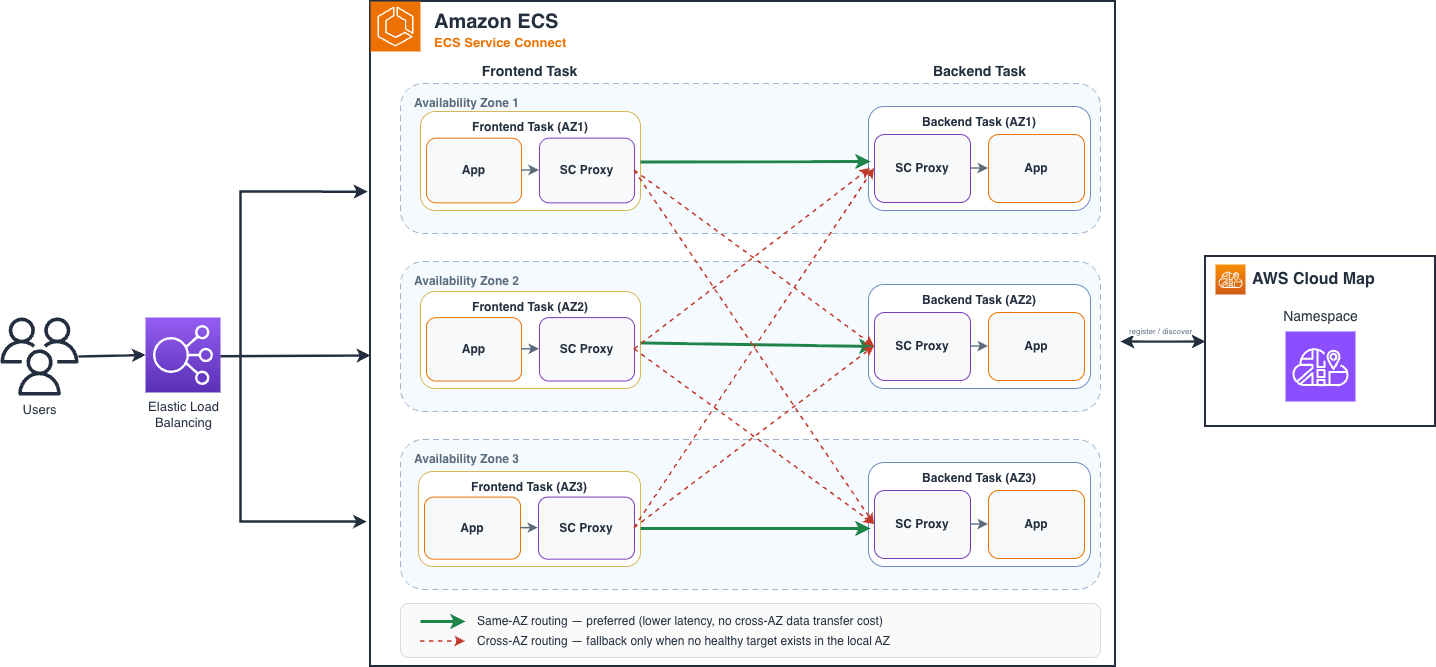
Architecture diagram showing zone-aware routing in Amazon ECS Service Connect, with client tasks routing to backend endpoints in the same Availability Zone across a multi-AZ cluster

Zone-aware routing in Amazon ECS Service Connect

How it works

ECS Service Connect routes most traffic to endpoints in the same AZ, reducing cross-AZ network calls. The algorithm uses Envoy’s zone-aware routing feature to:

  1. Discover endpoints – The proxy maintains an up-to-date view of all endpoints in the destination service, including their AZ placement.
  2. Prioritize local AZ – When routing a request, the proxy prioritizes sending traffic to endpoints in the same AZ as the client task initiating the request.
  3. Route based on residual capacity – Rather than computing a local weight, the algorithm compares endpoint distribution percentages between the source and destination clusters in each AZ. When a destination AZ has proportionally more endpoints than the source, the surplus capacity (“residual”) absorbs cross-zone traffic from overloaded AZs, so no single zone is overwhelmed.
  4. Fall back gracefully – If there are insufficient healthy endpoints in the local AZ, traffic automatically spills over to healthy endpoints in other AZs based on residual capacity, so availability is not compromised.
  5. Rebalance dynamically – As endpoints scale up or scale down, the routing decisions update in real time without requiring redeployment.

Benefits of zone-aware routing

  • Reduced data transfer costs
  • Lower latency
    • Each AZ traversal adds network latency.
    • By keeping traffic local to an AZ, zone-aware routing can deliver approximately a 24% reduction in median network latency in multi-AZ deployments when endpoints are balanced. Intra-AZ communication latency can be as low as 300 to 400 μs, compared to 1.5 ms or more for cross-AZ calls.
  • No application code changes
    • The Envoy sidecar proxy handles zone-aware routing. You don’t need to change your application code.
    • With ECS Service Connect, it is on by default, with no additional configuration needed.
  • Preserved high availability
    • If local endpoints are unhealthy or insufficient, traffic automatically spills over to healthy endpoints in other AZs.

Getting started with zone-aware routing

The following walkthrough sets up a multi-AZ Amazon ECS cluster on EC2 instances, deploys a frontend and a backend service with Service Connect, and verifies that zone-aware routing keeps traffic within each Availability Zone.

Prerequisites

Step 1: Set up environment variables

Define the environment variables used throughout the walkthrough. These identify subnets across 3 AZs in your default VPC:

export REGION="us-east-1" #Update region as appropriate - this walkthrough uses us-east-1 
export CLUSTER_NAME="az-aware-cluster-ec2"
export LB_NAME="az-aware-routing-ec2-lb"
export NAMESPACE_NAME="az-aware-routing-ec2-ns"
export ASG_NAME="az-aware-ec2-asg"
export TASK_COUNT="${TASK_COUNT:-6}"
export ACCOUNT_ID="$(aws sts get-caller-identity --query Account --output text)"

# Get Default VPC ID
VPC_ID=$(aws ec2 --region $REGION describe-vpcs \
--filters "Name=isDefault,Values=true" \
--query "Vpcs[0].VpcId" --output text)

# Get subnets from 3 different AZs
SUBNETS=$(aws ec2 --region $REGION describe-subnets \
--filters "Name=vpc-id,Values=$VPC_ID" "Name=map-public-ip-on-launch,Values=true" \
--query "Subnets | sort_by(@, &AvailabilityZone) | [].[SubnetId, AvailabilityZone]" \
--output text)

SUBNET_1=$(echo "$SUBNETS" | awk 'NR==1 {print $1}')
AZ_1=$(echo "$SUBNETS" | awk 'NR==1 {print $2}')

SUBNET_2=$(echo "$SUBNETS" | awk -v az="$AZ_1" '$2 != az {print $1; exit}')
AZ_2=$(echo "$SUBNETS" | awk -v az="$AZ_1" '$2 != az {print $2; exit}')

SUBNET_3=$(echo "$SUBNETS" | awk -v az1="$AZ_1" -v az2="$AZ_2" '$2 != az1 && $2 != az2 {print $1; exit}')
AZ_3=$(echo "$SUBNETS" | awk -v az1="$AZ_1" -v az2="$AZ_2" '$2 != az1 && $2 != az2 {print $2; exit}')

echo "VPC ID: $VPC_ID"
echo "Subnet 1: $SUBNET_1 (AZ: $AZ_1)"
echo "Subnet 2: $SUBNET_2 (AZ: $AZ_2)"
echo "Subnet 3: $SUBNET_3 (AZ: $AZ_3)"

Step 2: Create security groups

Create security groups for the load balancer, frontend (client), and backend (server). Configure ingress rules to allow traffic from the ALB to frontend port 8080, and from frontend to backend port 8090.

# LB security group
LB_SG=$(aws ec2 --region $REGION create-security-group \
--group-name az-aware-routing-lb-sg \
--description "Security group for az aware routing LB" \
--vpc-id $VPC_ID \
--query "GroupId" --output text)

# Client (frontend) security group
CLIENT_SG=$(aws ec2 --region $REGION create-security-group \
--group-name az-aware-routing-client-sg \
--description "Security group for az aware routing client" \
--vpc-id $VPC_ID \
--query "GroupId" --output text)

# Server (backend) security group
SERVER_SG=$(aws ec2 --region $REGION create-security-group \
--group-name az-aware-routing-server-sg \
--description "Security group for az aware routing server" \
--vpc-id $VPC_ID \
--query "GroupId" --output text)

# Ingress rules
aws ec2 --region $REGION authorize-security-group-ingress \
--group-id $LB_SG --protocol tcp --port 80 --cidr 0.0.0.0/0

aws ec2 --region $REGION authorize-security-group-ingress \
--group-id $CLIENT_SG --protocol tcp --port 8080 --source-group $LB_SG

aws ec2 --region $REGION authorize-security-group-ingress \
--group-id $SERVER_SG --protocol tcp --port 8090 --source-group $CLIENT_SG

Step 3: Create an ECS cluster with a Service Connect namespace

Create the ECS cluster with a Service Connect default namespace. This namespace allows services to discover each other by logical name:

aws ecs --region $REGION create-cluster \
--cluster-name $CLUSTER_NAME \
--service-connect-defaults '{
"namespace": "az-aware-routing-ec2-ns"
}'

Step 4: Create a launch template and Auto Scaling group

Create a launch template using the ECS-optimized AMI. The instances auto-register to the cluster through UserData. Then create an Auto Scaling group spanning all 3 AZs with enough capacity for your tasks (at least 2× the number of AZs for zone-aware routing to activate):

# Get ECS-optimized AMI
AMI_ID=$(aws ssm get-parameter \
--region $REGION \
--name /aws/service/ecs/optimized-ami/amazon-linux-2/recommended \
--query 'Parameter.Value' --output text | jq -r '.image_id')

# Create user data script
USER_DATA=$(cat <<'EOF'
#!/bin/bash
set -e
echo ECS_CLUSTER=az-aware-cluster-ec2 >> /etc/ecs/ecs.config
echo AWS_DEFAULT_REGION=us-east-1 >> /etc/ecs/ecs.config
EOF
)

# Create launch template
LT_ID=$(aws ec2 --region $REGION create-launch-template \
--launch-template-name az-aware-ec2-launch-template \
--version-description "ECS optimized launch template" \
--launch-template-data "{
\"ImageId\": \"$AMI_ID\",
\"InstanceType\": \"t3.medium\",
\"IamInstanceProfile\": {
\"Arn\": \"arn:aws:iam::${ACCOUNT_ID}:instance-profile/ecsInstanceRole\"
},
\"SecurityGroupIds\": [\"$CLIENT_SG\", \"$SERVER_SG\"],
\"MetadataOptions\": {
\"HttpEndpoint\": \"enabled\",
\"HttpTokens\": \"required\",
\"HttpPutResponseHopLimit\": 2
},
\"UserData\": \"$(echo "$USER_DATA" | base64 | tr -d '\n')\",
\"TagSpecifications\": [{
\"ResourceType\": \"instance\",
\"Tags\": [{
\"Key\": \"Name\",
\"Value\": \"az-aware-ecs-instance\"
}]
}]
}" \
--query 'LaunchTemplate.LaunchTemplateId' \
--output text)

# Create ASG --- desired capacity = TASK_COUNT * 2 (one instance per task)
aws autoscaling --region $REGION create-auto-scaling-group \
--auto-scaling-group-name $ASG_NAME \
--launch-template "LaunchTemplateId=$LT_ID" \
--min-size 1 \
--max-size 30 \
--desired-capacity $((TASK_COUNT * 2)) \
--vpc-zone-identifier "$SUBNET_1,$SUBNET_2,$SUBNET_3" \
--health-check-type EC2 \
--health-check-grace-period 300 \
--tags "Key=Name,Value=az-aware-ecs-instance,PropagateAtLaunch=true"

Note: desired-capacity = TASK_COUNT *2 = 12 because each t3.medium used in this walkthrough fits one task (1024 CPU / 2048 MB) and you run 6 backend and 6 frontend tasks.

Step 5: Create a load balancer

Create an Application Load Balancer (ALB) to route external traffic to the frontend service:

# Create ALB
ALB_ARN=$(aws elbv2 --region $REGION create-load-balancer \
--name $LB_NAME \
--subnets $SUBNET_1 $SUBNET_2 $SUBNET_3 \
--security-groups $LB_SG \
--query "LoadBalancers[0].LoadBalancerArn" --output text)

# Create target group
TG_ARN=$(aws elbv2 --region $REGION create-target-group \
--name $LB_NAME \
--protocol HTTP --port 80 \
--vpc-id $VPC_ID \
--target-type ip \
--health-check-path /ping \
--health-check-interval-seconds 10 \
--query "TargetGroups[0].TargetGroupArn" --output text)

# Create listener
aws elbv2 --region $REGION create-listener \
--load-balancer-arn $ALB_ARN \
--protocol HTTP --port 80 \
--default-actions Type=forward,TargetGroupArn=$TG_ARN

Step 6: Register task definitions

Register task definitions for backend and frontend services. The portMappings include a named port and appProtocol (required for Service Connect), and the command field configures the container to run as an HTTP server.

# Backend Task Definition

aws ecs register-task-definition \
--region $REGION \
--family az-aware-backend-service-ec2 \
--requires-compatibilities EC2 \
--network-mode awsvpc \
--cpu 1024 \
--memory 2048 \
--execution-role-arn arn:aws:iam::${ACCOUNT_ID}:role/ecsTaskExecutionRole \
--runtime-platform cpuArchitecture=X86_64,operatingSystemFamily=LINUX \
--container-definitions '[
{
"name": "backend-app",
"image": "public.ecr.aws/h5t0a8k7/serviceconnect/az-aware-routing-test:latest",
"cpu": 512,
"memory": 1024,
"portMappings": [
{
"name": "http",
"containerPort": 8090,
"protocol": "tcp",
"appProtocol": "http"
}
],
"essential": true,
"command": ["server","-port=8090","-protocol=http","-name=product","-routes=[]"],
"logConfiguration": {
"logDriver": "awslogs",
"options": {
"awslogs-group": "/ecs/az-aware-backend-service-ec2",
"awslogs-region": "us-east-1",
"awslogs-stream-prefix": "ecs",
"awslogs-create-group": "true"
}
}
}
]'

The frontend is configured with an egress route to proxy requests to the backend service through Service Connect’s DNS alias (sc.test.az.aware.backend:8090). This is triggered when the azAwareRouting header is present:

# Frontend Task Definition

aws ecs register-task-definition \
--region $REGION \
--family az-aware-fe-service-ec2 \
--requires-compatibilities EC2 \
--network-mode awsvpc \
--cpu 1024 \
--memory 2048 \
--execution-role-arn arn:aws:iam::${ACCOUNT_ID}:role/ecsTaskExecutionRole \
--runtime-platform cpuArchitecture=X86_64,operatingSystemFamily=LINUX \
--container-definitions '[
{
"name": "fe-app",
"image": "public.ecr.aws/h5t0a8k7/serviceconnect/az-aware-routing-test:latest",
"cpu": 512,
"memory": 1024,
"portMappings": [
{
"name": "http",
"containerPort": 8080,
"protocol": "tcp",
"appProtocol": "http"
}
],
"essential": true,
"command": ["server","-port=8080","-protocol=http","-name=fe","-routes=[{\"match\":\"product\", \"destination\": \"http://sc.test.az.aware.backend:8090\",\"method\":\"Egress\"}]"],
"logConfiguration": {
"logDriver": "awslogs",
"options": {
"awslogs-group": "/ecs/az-aware-fe-service-ec2",
"awslogs-region": "us-east-1",
"awslogs-stream-prefix": "ecs",
"awslogs-create-group": "true"
}
}
}
]'

Step 7: Create services

Deploy both services with Service Connect enabled. The key configuration is the serviceConnectConfiguration block, which registers each service in the namespace and makes it discoverable through a client alias:

# Backend Service

aws ecs --region $REGION create-service \
--cluster $CLUSTER_NAME \
--service-name az-aware-backend-service-ec2 \
--task-definition az-aware-backend-service-ec2 \
--desired-count $TASK_COUNT \
--launch-type EC2 \
--network-configuration "awsvpcConfiguration={subnets=[$SUBNET_1,$SUBNET_2,$SUBNET_3],securityGroups=[$SERVER_SG]}" \
--service-connect-configuration '{
"enabled": true,
"logConfiguration": {
"logDriver": "awslogs",
"options": {
"awslogs-group": "/ecs/az-aware-backend-service-ec2",
"awslogs-region": "us-east-1",
"awslogs-stream-prefix": "service-connect"
}
},
"services": [{
"portName": "http",
"discoveryName": "sc-test-az-aware-backend",
"clientAliases": [{
"port": 8090,
"dnsName": "sc.test.az.aware.backend"
}]
}]
}'

The frontend service uses Service Connect as a client, routing egress traffic to the backend. It’s also attached to the ALB for external access:

# Frontend Service

aws ecs --region $REGION create-service \
--cluster $CLUSTER_NAME \
--service-name az-aware-fe-service-ec2 \
--task-definition az-aware-fe-service-ec2 \
--desired-count $TASK_COUNT \
--launch-type EC2 \
--network-configuration "awsvpcConfiguration={subnets=[$SUBNET_1,$SUBNET_2,$SUBNET_3],securityGroups=[$CLIENT_SG]}" \
--load-balancers "[{
\"targetGroupArn\": \"$TG_ARN\",
\"containerName\": \"fe-app\",
\"containerPort\": 8080
}]" \
--service-connect-configuration '{
"enabled": true,
"logConfiguration": {
"logDriver": "awslogs",
"options": {
"awslogs-group": "/ecs/az-aware-fe-service-ec2",
"awslogs-region": "us-east-1",
"awslogs-stream-prefix": "service-connect"
}
},
"services": [{
"portName": "http",
"discoveryName": "sc-test-az-aware-fe",
"clientAliases": [{
"port": 8080,
"dnsName": "sc.test.az.aware.fe"
}]
}]
}'

Step 8: Verify the deployment

Check that both services are running and retrieve the ALB DNS name:

# Check cluster status
aws ecs --region $REGION describe-clusters \
--clusters $CLUSTER_NAME \
--query "clusters[0].registeredContainerInstancesCount"

# Check services
aws ecs --region $REGION describe-services \
--cluster $CLUSTER_NAME \
--services az-aware-backend-service-ec2 az-aware-fe-service-ec2 \
--query "services[].[serviceName, runningCount, desiredCount]"

# Get ALB DNS name
ALB_DNS=$(aws elbv2 --region $REGION describe-load-balancers \
--names $LB_NAME \
--query "LoadBalancers[0].DNSName" --output text)

echo $ALB_DNS

To test the endpoint, send traffic to the ALB with the azAwareRouting header. This triggers the frontend to proxy to the backend through Service Connect:

# Send traffic --- must include the azAwareRouting header to trigger backend proxy
curl -H "azAwareRouting: true" -H "Connection: keep-alive" http://$ALB_DNS/

The response is JSON showing which AZ handled the frontend and backend requests.

Step 9: Verify zone-aware routing

Zone-aware routing is on by default for all Service Connect services. Send multiple requests and observe that frontend and backend AZs match (traffic stays local):

for i in $(seq 1 20); do
curl -s -H "azAwareRouting: true" -H "Connection: keep-alive" http://$ALB_DNS/ | jq .
done

Response fields:

  • availabilityZoneId — the AZ where the frontend task handled the request.
  • upstreamAvailabilityZoneId — the AZ where the backend task processed it.

With endpoints evenly distributed (2 tasks per AZ), both fields should match, which indicates that zone-aware routing is active.

Step 10: Test failover behavior

To see how zone-aware routing handles AZ imbalance, scale down the backend so one AZ has no endpoints. This demonstrates the automatic cross-AZ spillover:

# Scale backend to 2 tasks --- one AZ will have zero backend endpoints
aws ecs update-service \
--region $REGION \
--cluster $CLUSTER_NAME \
--service az-aware-backend-service-ec2 \
--desired-count 2

# Wait for tasks to drain
echo "Waiting for backend to scale down..."
sleep 60

# Now send traffic --- you should see some cross-AZ routing
for i in $(seq 1 20); do
curl -s -H "azAwareRouting: true" -H "Connection: keep-alive" http://$ALB_DNS/ | jq '{frontend: .availabilityZoneId, backend: .upstreamAvailabilityZoneId}'
done

Frontend tasks in the AZ with no backend route cross-zone, so the frontend and backend AZ differ for those requests.

Restore balanced state:

aws ecs update-service \
--region $REGION \
--cluster $CLUSTER_NAME \
--service az-aware-backend-service-ec2 \
--desired-count $TASK_COUNT

Step 11: Inspect Envoy stats

The container image used in this walkthrough exposes AZ information directly in the HTTP response (availabilityZoneId and upstreamAvailabilityZoneId). For your own application containers that don’t expose AZ data, you can inspect Envoy stats directly to confirm that zone-aware routing is working.

Connect to an EC2 instance through SSM and query the Envoy admin endpoint through its Unix socket:

# Get an EC2 instance running frontend tasks
CONTAINER_INSTANCE=$(aws ecs --region $REGION list-container-instances \
--cluster $CLUSTER_NAME \
--query 'containerInstanceArns[0]' --output text)

INSTANCE_ID=$(aws ecs describe-container-instances \
--region $REGION \
--cluster $CLUSTER_NAME \
--container-instances $CONTAINER_INSTANCE \
--query 'containerInstances[0].ec2InstanceId' --output text)

# Connect via SSM
aws ssm start-session --region $REGION --target $INSTANCE_ID

After you connect to the EC2 instance, find the Service Connect agent container and query Envoy stats through the Unix socket:

sudo -i

# Find the Service Connect agent container
SC_AGENT_CONTAINER_ID=$(docker ps --filter "name=ecs-service-connect" -q | head -1)

# Query Envoy stats via Unix socket
docker exec -it $SC_AGENT_CONTAINER_ID \
curl --unix-socket /tmp/envoy_admin.sock http://unix/stats | grep -E "zone\."

Key metrics:

Metric What to check
lb_zone_routing_cross_zone 0 means all traffic stays in the same AZ.
lb_zone_cluster_too_small A non-zero value during startup is fine. It should stabilize after all tasks are healthy.

A healthy deployment shows lb_zone_routing_cross_zone: 0.

Clean up

# Delete services
aws ecs --region $REGION delete-service \
--cluster $CLUSTER_NAME --service az-aware-fe-service-ec2 --force
aws ecs --region $REGION delete-service \
--cluster $CLUSTER_NAME --service az-aware-backend-service-ec2 --force

# Wait for tasks to drain
sleep 60

# Delete cluster
aws ecs --region $REGION delete-cluster --cluster $CLUSTER_NAME

# Delete ASG
aws autoscaling --region $REGION delete-auto-scaling-group \
--auto-scaling-group-name $ASG_NAME --force-delete

# Delete launch template
aws ec2 --region $REGION delete-launch-template \
--launch-template-name az-aware-ec2-launch-template

# Delete load balancer
aws elbv2 --region $REGION delete-load-balancer --load-balancer-arn $ALB_ARN
aws elbv2 --region $REGION delete-target-group --target-group-arn $TG_ARN

# Delete security groups (wait for ENIs to detach)
sleep 30
aws ec2 --region $REGION delete-security-group --group-id $LB_SG
aws ec2 --region $REGION delete-security-group --group-id $CLIENT_SG
aws ec2 --region $REGION delete-security-group --group-id $SERVER_SG

Key considerations

  • Minimum cluster size – To activate zone-aware routing, the total number of endpoints in the destination service must be at least 2× the number of Availability Zones (for example, at least 6 tasks for a 3-AZ deployment). This threshold is enforced internally by the Envoy proxy and is not customer configurable.
  • Automatic fallback – If the endpoint count falls below this threshold, zone-aware routing is automatically disabled, and traffic is distributed evenly across all AZs to preserve availability.
  • Works with existing Service Connect features – Zone-aware routing works with existing Service Connect capabilities, including service discovery, cross-account connectivity, and traffic metrics.

Conclusion

Zone-aware routing is now available in all AWS Regions that support Amazon ECS.

Zone-aware routing reduces cross-AZ data transfer costs and latency. Because it’s on by default, you don’t need to modify application code or deploy additional infrastructure. For existing services, redeploy once to activate the feature.

To get started, open the Amazon ECS console and redeploy your existing services to activate zone-aware routing. To learn more, see Service Connect in the Amazon ECS Developer Guide.

About the authors

Sai Charan Teja Gopaluni

Sai Charan Teja Gopaluni

Sai is a Senior Specialist Solutions Architect at Amazon Web Services, specializing in container networking, machine learning infrastructure, and Agentic AI. He helps customers design and deploy modern, scalable, and secure workloads that accelerate their cloud transformation and AI initiatives.

Radhika Nayar

Radhika Nayar

Radhika is a Senior Product Manager on the Amazon Elastic Container Service (ECS) team, focusing on product strategy for Application Networking, Managed Daemon services, and ECS Anywhere.

Jin Wang

Jin Wang

Jin is a Software Engineer on the Amazon Elastic Container Service (ECS) team, working on the control plane and data plane of Service Connect feature. He is an expert on distributed systems, application networking, and envoy proxy.