Containers
Running containerized hybrid nodes with Amazon Elastic Kubernetes Service
EKS hybrid nodes is a feature of Amazon Elastic Kubernetes Service (EKS) that allows you to use an EKS managed control plane with worker nodes that reside outside of the AWS cloud. Starting a small Proof of Concept (PoC) with hybrid nodes can be challenging because hybrid nodes require network connectivity between the remote network (where you’re deploying your worker nodes) and the cluster Virtual Private Cloud (VPC). Additionally, you may have trouble finding enough physical hardware or virtual machines to adequately test hybrid nodes. To address these challenges, we created the containerized hybrid nodes project. The project is a proof of concept that allows you to quickly run a hybrid node as a container on a modestly equipped laptop. Connectivity between the remote network, i.e. your laptop, and the cluster VPC is established through a Tailscale network. For now, think of the Tailscale network as an encrypted peer to peer mesh network. Once network connectivity is established, you can run a containerized hybrid node and begin scheduling workloads onto it. Pods that are targeted to run on the hybrid node(s) are run as nested containers, a.k.a Docker in Docker (DnD).
In this blog post, we’ll explore how to run a Docker container that connects to an EKS cluster as a hybrid node.
Prerequisites
To implement this solution, you’ll need the following prerequisites:
- An AWS account (see How to Create an AWS Account)
- An Amazon EKS Cluster (see Prerequisite setup for hybrid nodes)
- An Amazon EC2 Instance (see Launch an Amazon EC2 Instance)
- A host running Linux OS (e.g. Ubuntu)
- Docker Engine for Linux (see Install Docker Docs)
Bootstrapping the container
We use KIND as the base image for this project because it is known to work with Cilium, which is the Container Network Interface (CNI) that “hybrid-pods” use for communicating with other pods as well as network resources that run outside the cluster. During bootstrapping, we install nodeadm, a command-line utility for installing all of the software prerequisites needed for hybrid nodes, along with several scripts that prepare the “host” OS, i.e. the host container, for hybrid nodes.
Note: The Dockerfile is currently configured to pull the amd64 binary. If you are running this on Apple silicon, change the URL to match your system’s architecture, e.g. arm64.
entrypoint.sh and hybrid-node-setup.sh scripts
Several OS modifications are required for hybrid nodes to function properly inside a container. The entrypoint.sh file is used to prepare the OS for running nested containers and Cilium, specifically, eBPF. The hybrid-node-setup.sh file is used finish setting up the environment and for running a couple nodeadm commands. The first of these installs all the software required for nodeadm, e.g. the kubelet, containerd, etc. The second command configures these components from the settings in the NodeConfig.yaml file.
Establishing network connectivity with Tailscale
Hybrid nodes requires connectivity between your remote network (such as your laptop) and the VPC network where your EKS cluster resides. In an enterprise setting, this typically requires access to a dedicated leased line, an MPLS connection, or a VPN. These may be difficult to acquire or configure for a simple proof of concept. Additionally, there may be intervening firewall rules that need to be created/modified to allow the hybrid nodes to communicate with the Kubernetes API. For this project, we rely on Tailscale for network connectivity to the AWS cloud. Comparatively speaking, Tailscale is lightweight and relatively simple to configure.
By default, the hybrid node container is configured to use host networking. This means that it shares the network namespace and IP address of its host. The Tailscale agent runs on the physical host as a daemon process.
If you attempt to run a hybrid node without host networking, you will need to create a static route between the host and the container, e.g. Docker, network.
The Tailscale agent is configured as part of a peer network that connects it to a Tailscale router that runs in the cluster’s VPC as shown in the diagram below:
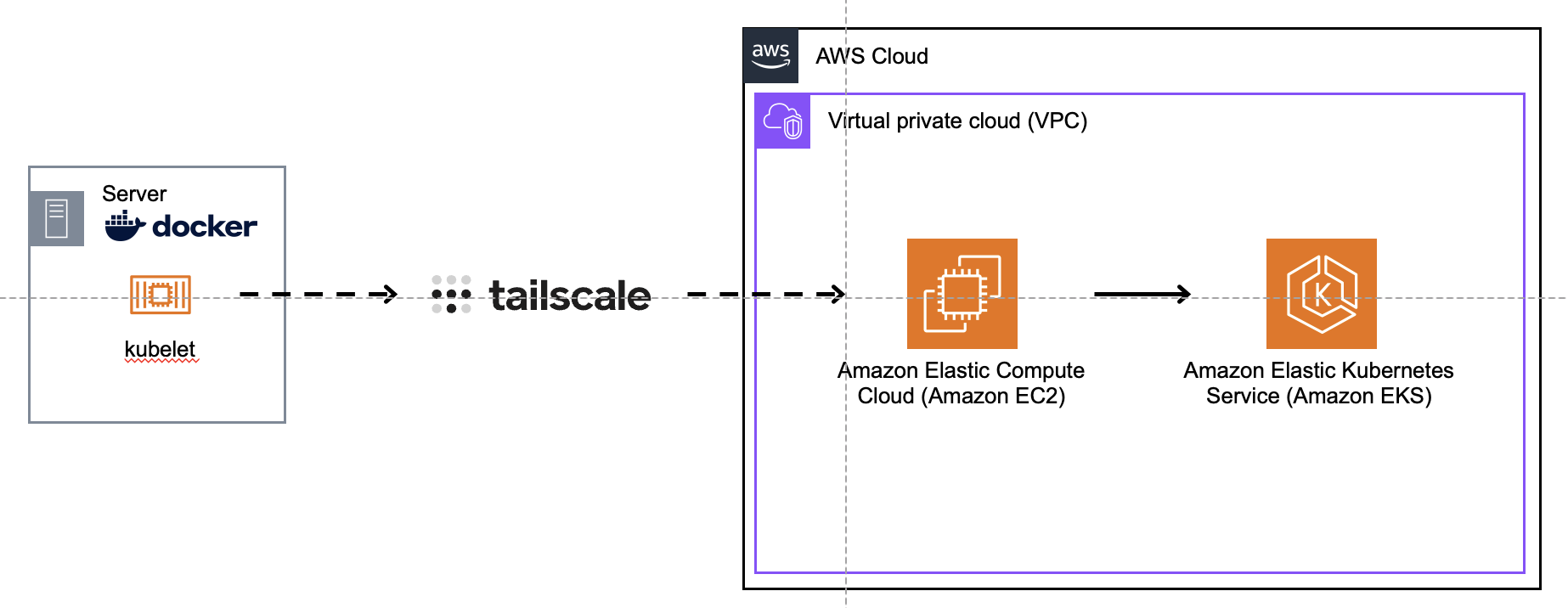
This setup provides connectivity between the host/laptop and the cluster VPC. For further information about how to configure a Tailscale network for hybrid nodes (see Simplify network connectivity using Tailscale with Amazon EKS Hybrid Nodes).
If you are interested in trying this solution, be sure to establish network connectivity first, otherwise pods that need to communicate with the Kubernetes API, e.g. kube-proxy, Cilium, etc will fail to start. You can often workaround this by adding the KUBERNETES_SERVICE_HOST environment variable to the pod (and specifying the URL of the API server endpoint as its value), but you shouldn’t have to if the [network] link is in place from the very beginning.
Setting up the Tailscale VPN
Tailscale provides VPN services for on- or off- cloud private network access, and can help to greatly simplify connectivity for EKS Hybrid Nodes. We use Tailscale to allow Hybrid Nodes to connect to AWS VPC networking from any location, as described in Simplify network connectivity using Tailscale with Amazon EKS Hybrid Nodes. Specifically, Tailscale VPN running on a local system will support connectivity for our Docker container that will run the kubelet and identify as the Hybrid Node for EKS.
Begin by installing Tailscale VPN on the system where Docker will run and on the EC2 instance running Tailscale:
You can confirm that Tailscale is running with this command:
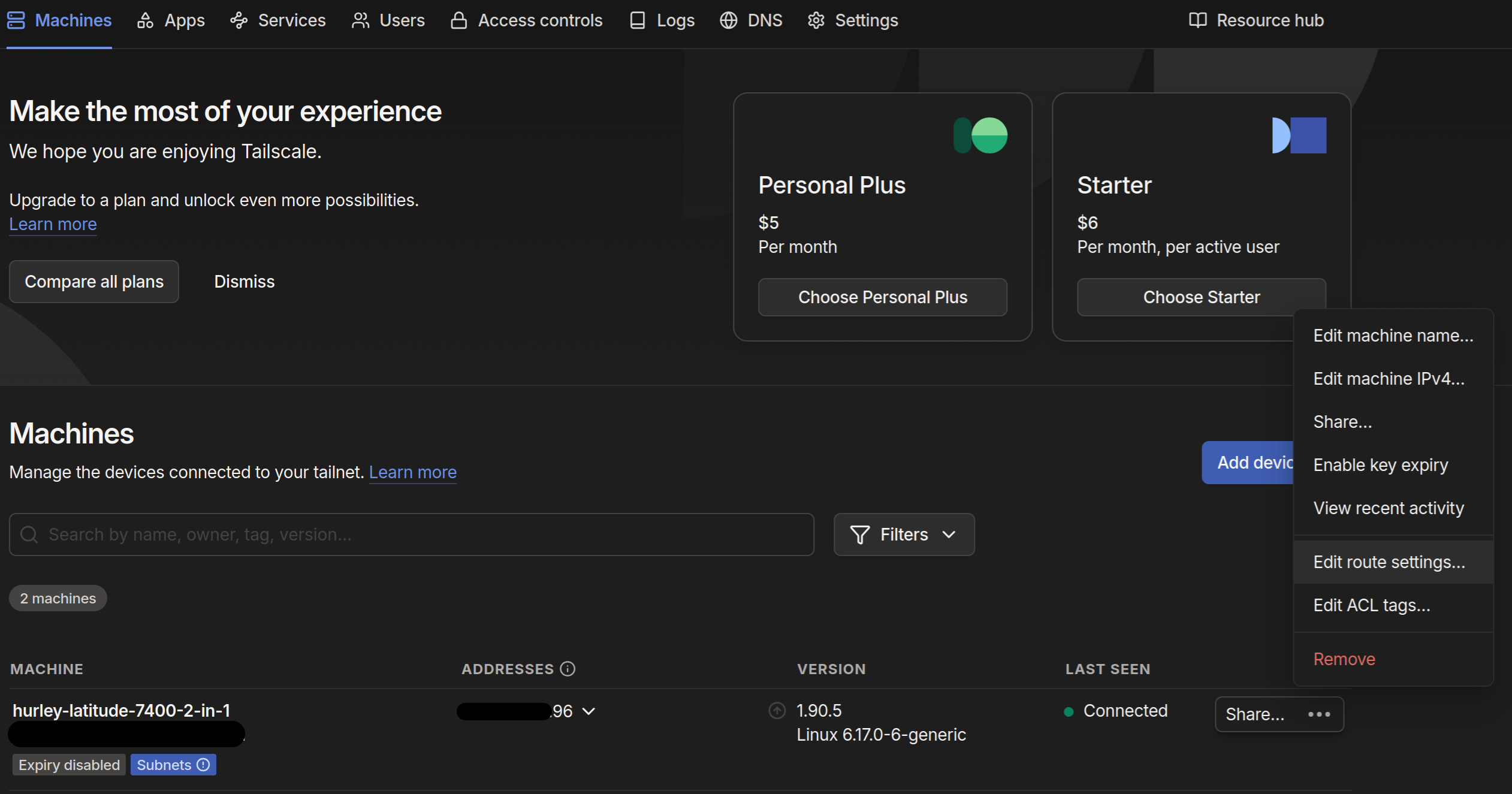
Now the VPN is running on both hosts, but the hosts aren’t talking to each other. To configure connectivity, browse to tailscale and confirm that each host is listed in the Machines dialog. Use the menu to edit the route settings of the machine that will run Docker:
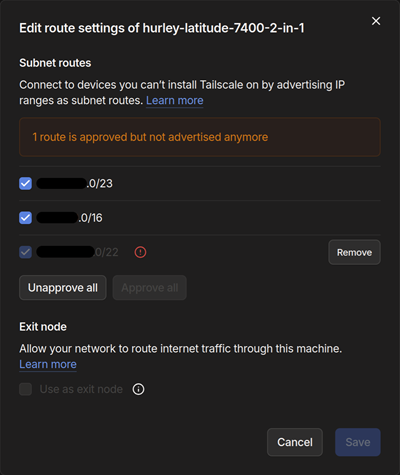
In the dialog that opens, ensure that there are at least two routes advertised – one route for the network of the host itself and the other representing the service network of the EKS cluster:
To verify connectivity, use the ping utility from the Docker host and send ICMP packets to the private Elastic Network Interface (ENI) of the EC2 instance hosting Tailscale. If setup has been successful, expect 0% packet loss in the ping command output.
Repeat the test in reverse from the Tailscale EC2 host targeting the private IP address of the Docker system.
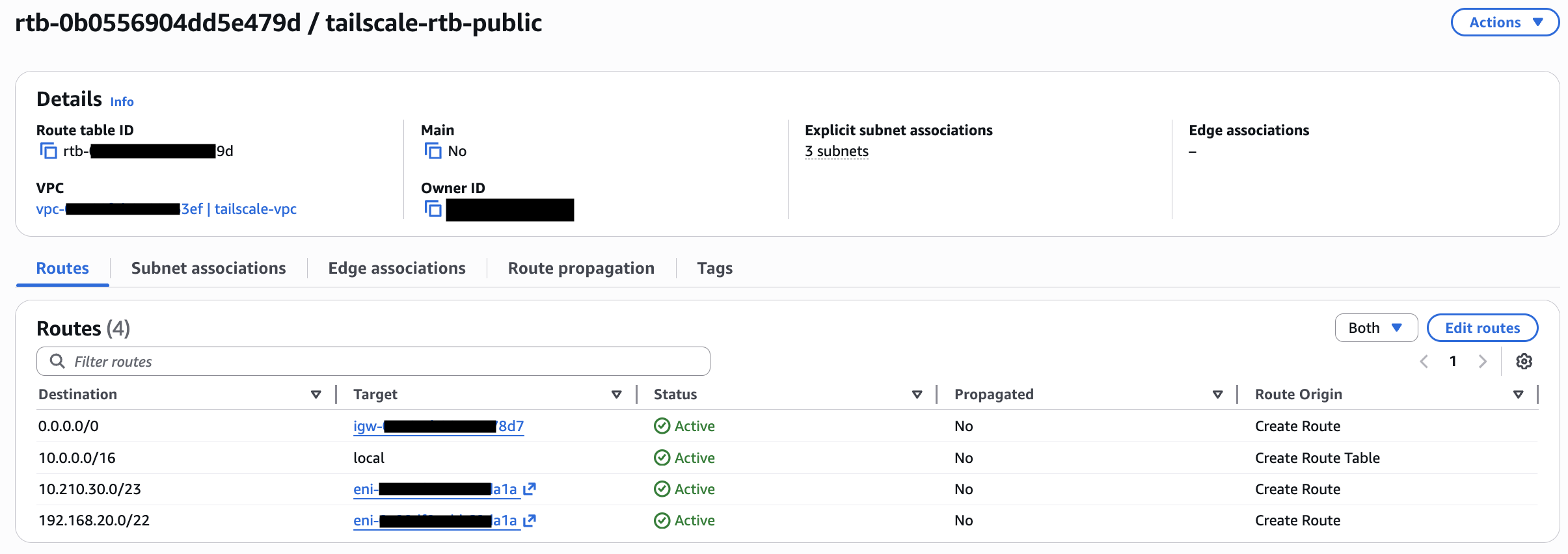
Routes will also need to be added to the AWS VPC so that the EKS cluster knows to send traffic destined for the Docker host to the Tailscale EC2 instance – note that the routes target the ENI of the EC2 instance:
Installing and configuring the Cilium CNI
The Cilium Container Network Interface (CNI) (see High Performance Cloud Native Networking) is one of the recommended CNI’s for EKS Hybrid Nodes (see Configure CNI for hybrid nodes). Cilium will run on our EKS cluster and launch Pods on the Hybrid Node running in Docker on the remote system.
For now, simply install the Helm chart on the EKS cluster:
You can check on the status of this installation by running:
You should see output similar to the following:
Or check on the status of the Pods by running:
Expected output similar to (expect one Pod per EKS cluster Node):
Configuring the EKS remote network
In order to be able to connect to the Hybrid Node for management, the EKS control plane needs to be configured with the CIDR block corresponding to the Node. Because we are building only one Hybrid Node, this can be the /32 address of the host/laptop.
Additionally, in order for the EKS control plane to connect to webhooks in the Hybrid Node Pods we should configure the Remote pod network setting to match the Cilium configuration for the pod network; by default Cilium configures 10.0.0.0/8 per the Cilium Cluster Scope documentation.
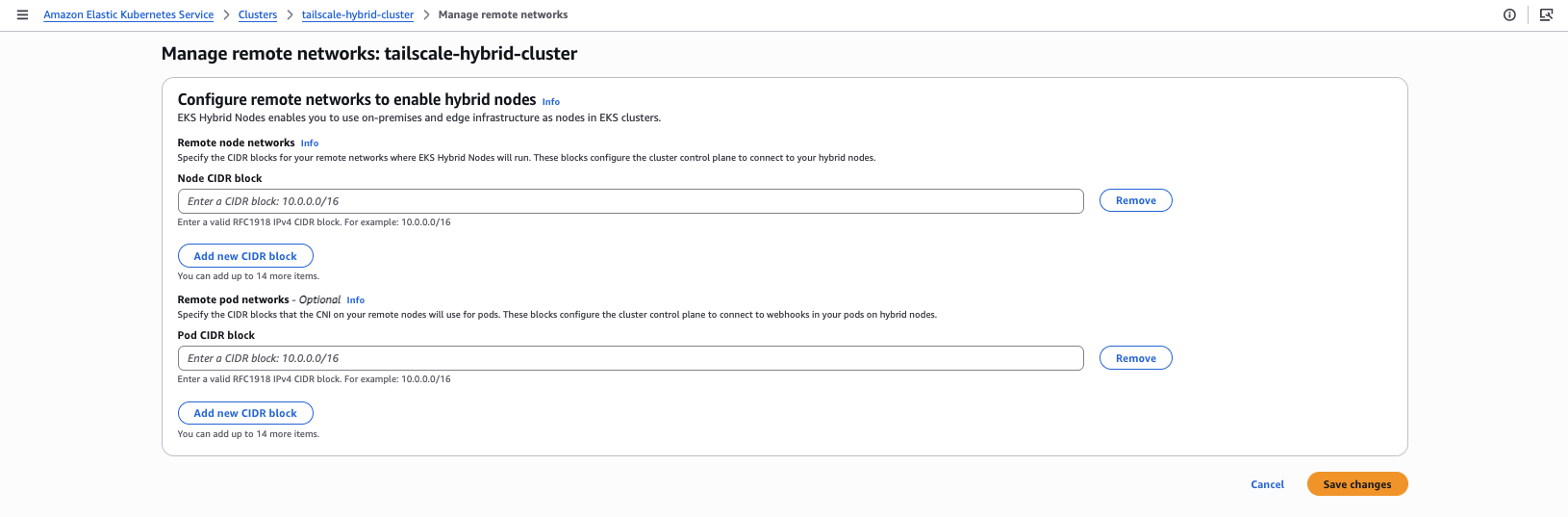
Additional information about networking concepts for EKS Hybrid Nodes can be found in the AWS EKS Hybrid Nodes documentation.
Configuring a containerized hybrid node
Docker setup
Before starting up the Hybrid Node container in Docker, make sure to update the xx values in the nodeConfig.yaml file which will be used by the container to authenticate and connect to the EKS cluster.
nodeConfig.yaml
Once updated, it’s time to build and launch the container – the command below will both launch the container and open a shell into the running container:
Behind the scenes, the container is launched with the --network host argument, which instructs Docker to share the host interface with the container and by extension allows the container to communicate over the Tailscale VPN. You can learn more about Docker networking in the Docker Networking overview documentation.
For debugging, check the log file for status and any errors from the container shell:
Example application
With the Hybrid Node connected and working, we can launch a simple application Pod to validate full functionality. Use this manifest to create a Pod:
With proper routing and CNI in place, interacting with the Pod is possible:
Troubleshooting
As mentioned in the previous section (Docker setup), you can troubleshoot issues that arise by inspecting the hybrid node setup log at, /var/log/hybrid-node-setup.log. You can also use journalctl to periodically inspect the logs for the kubelet and containerd, e.g. journalctl -u kubelet. The issues you are likely to encounter when configuring hybrid nodes will often be revealed in these logs.
Additional troubleshooting steps
- Verify that source/destination check has been disabled on the EC2 instance that is running the tailscale router
- Verify that communication between the Tailscale router and your remote network in unhindered by security groups
- Verify that you’re passing the
--advertise-routeand--accept-routesflags when running thetailscale upcomand - Verify that you’ve updated the route table in the VPC to route traffic destined for the remote network through the ENI of the tailscale router.
- Verify that the Cilium CRDs (see Cilium Operator CRD Registration documentation) have been registered by the Cilium operator
When connectivity is working, you should be able to ping nodes on either side of the network.
Cleanup
If you’ve launched an Amazon EKS cluster and/or EC2 Instance architecture to experiment with the steps provided, please feel free to delete those resources as appropriate:
- see AWS delete-cluster documentation
- see AWS terminate-instances documentation
Summary
Hybrid nodes is a feature of EKS that allows you to join worker nodes that run outside of the AWS cloud to an EKS cluster. This blog post illustrates how you can quickly test the viability of hybrid nodes by running a hybrid node as a container on your laptop (using the containerized hybrid nodes project) rather than trying to procure a VM or a bare metal machine.
We open-sourced this project to encourage community contributions. Potential enhancements include adding Calico CNI support, using IAM Roles Anywhere instead of the SSM agent, or running containerized hybrid nodes as pods in KIND clusters with HPA autoscaling. We look forward to seeing how we, together with the broader open source community, can evolve the project going forward.
About the authors
 Jeremy Cowan is a Specialist Solutions Architect for containers at AWS, although his family thinks he sells “cloud space”. Prior to joining AWS, Jeremy worked for several large software vendors, including VMware, Microsoft, and IBM. When he’s not working, you can usually find on a trail in the wilderness, far away from technology.
 Jonathan Hurley is a Sr. Technical Account Manager supporting customers across a variety of industries in the Small to Medium Business segment of AWS. In addition to his regular responsibilities, Jonathan enjoys assisting customers through his specializations in both container solutions and HashiCorp tools.