.NET on AWS Blog
Modernize Xamarin.Forms to .NET MAUI with AWS Transform
AWS Transform is an agentic service that accelerates modernization, including .NET applications. With it, you can transform legacy .NET applications to modern cross-platform .NET. AWS Transform can port your Xamarin.Forms mobile applications to .NET Multi-platform App UI (MAUI). In this post, I’ll show you how to transform your Xamarin.Forms projects to modern .NET MAUI.
Why Migrate from Xamarin.Forms to .NET MAUI?
Xamarin.Forms reached end of support on May 1, 2024, meaning it no longer receives security updates, bug fixes, or new features from Microsoft. Continuing to use unsupported frameworks exposes your applications to security vulnerabilities and compatibility issues with newer operating systems and devices. Migrating to .NET MAUI is essential for maintaining a secure, performant, and future-proof mobile applications.
.NET MAUI is the evolution of Xamarin.Forms, offering key improvements:
- Single Project Structure: All platforms (Android, iOS, macOS, and Windows) in one project, reducing complexity and maintenance.
- Improved Performance: Faster startup times and lower memory usage.
- Modern .NET: Built on .NET 8+ with the latest C# features and better tooling.
- Enhanced Controls: Improved UI controls with better customization and native integration.
- Hot Reload: Faster development with .NET Hot Reload for XAML and C# changes.
- Blazor Hybrid Support: Embed Blazor web components directly in native mobile apps.
Now, let’s transform a sample Xamarin.Forms application to .NET MAUI using AWS Transform in Visual Studio 2026. At the end, you’ll have transformed the Xamarin.Forms application to .NET MAUI on .NET 10, including the XAML UI layer and platform-specific implementations.
Walkthrough
Prerequisites
To follow along and perform the walkthrough on your own machine, be sure you have the following:
- A Windows development machine.
- Visual Studio 2026 installed with .NET MAUI workload.
- AWS Toolkit installed from Visual Studio Marketplace (if already installed, confirm you are on the latest version).
- AWS Transform setup is complete.
- An IAM Identity Center user credential for AWS Transform.
Note: Xamarin.Forms to .NET MAUI transformation is currently a preview feature in AWS Transform, only available through IDE in us-east-1 region. While it handles most common scenarios, you may need to perform additional manual adjustments after transformation.
Step 1: Setup
In this step, you’ll download the sample application and get familiar with it. FlyMe is a public Xamarin Forms sample with an MIT license.
- Download/clone the FlyMe sample from GitHub at https://github.com/davidortinau/FlyMe.
- Open the solution in Visual Studio.
- Confirm the FlyMe project is a Xamarin.Forms project, and that it builds without errors.
Since Visual Studio 2026 does not support Xamarin.Forms, the platform-specific projects (FlyMe.Android, FlyMe.iOS) will not load. You might see a warning like the one in Figure 1. Choose OK to continue. The solution will load all other projects as shown in Figure 2 and should build successfully.
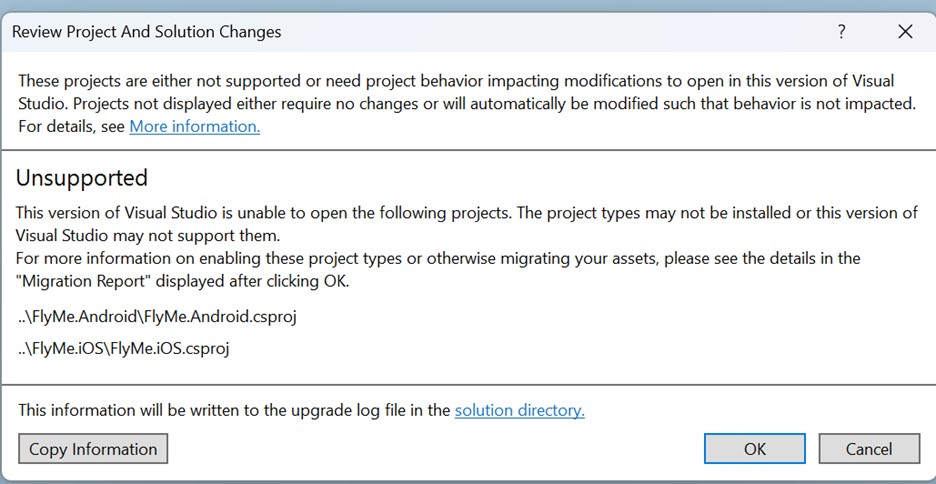
Figure 1: Unsupported Projects warning dialog in Visual Studio 2026
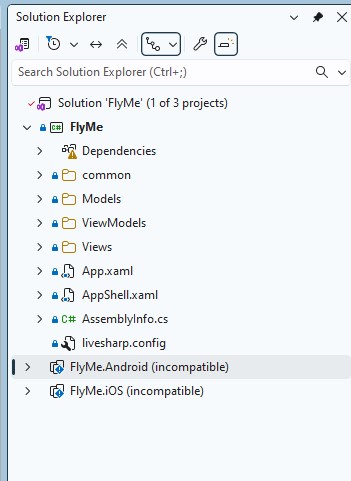
Figure 2: Visual Studio Solution Explorer showing FlyMe Xamarin.Forms solution with platform-specific projects unloaded
You can build the project without loading platform specific projects. Your solution must build successfully to continue.
Figure 3 shows a few screenshots from the legacy application running on Xamarin.Forms.
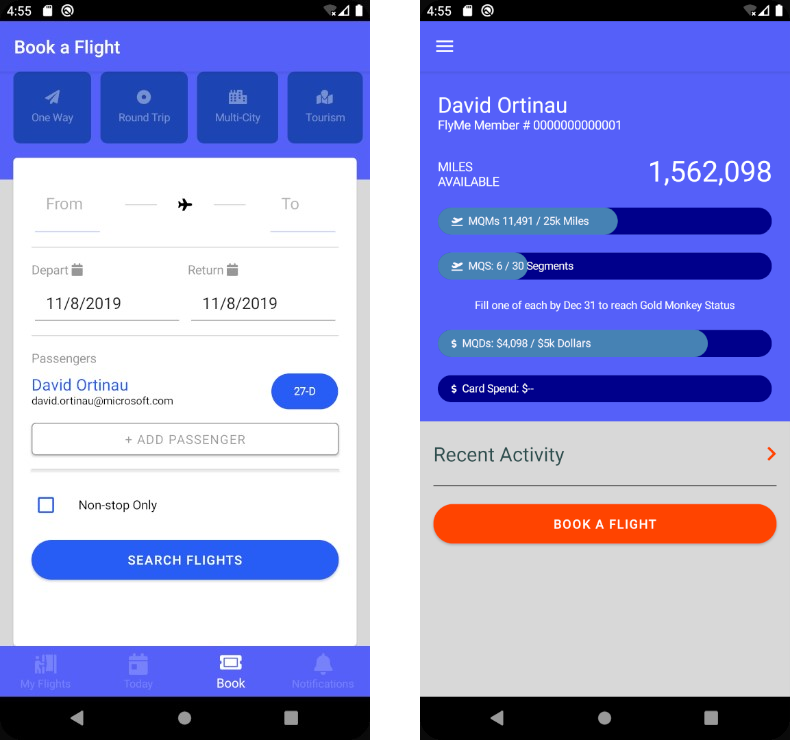
Figure 3: FlyMe Xamarin.Forms application screenshot
Step 2: Sign in to AWS Transform
Next, you’ll Sign in to AWS Transform.
- From the Visual Studio menu, select Extensions > AWS Toolkit > Getting Started.
- On the AWS Transform panel, sign-in to AWS Transform with your IAM Identity Center credential. If you have multiple profiles, then select appropriate profile as shown in Figure 4. If you have not created a profile, select Add new profile as shown in Figure 5.
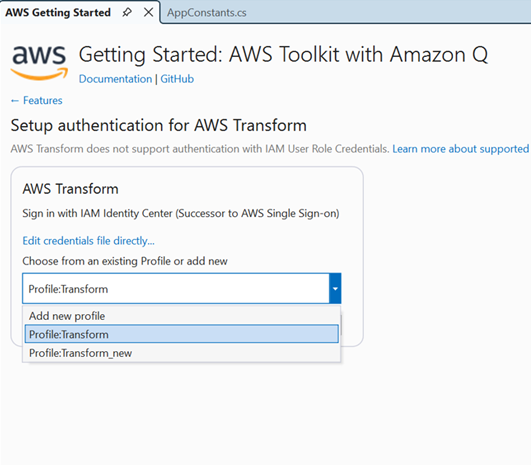
Figure 4: Select the appropriate profile for AWS Transform if you have multiple profile
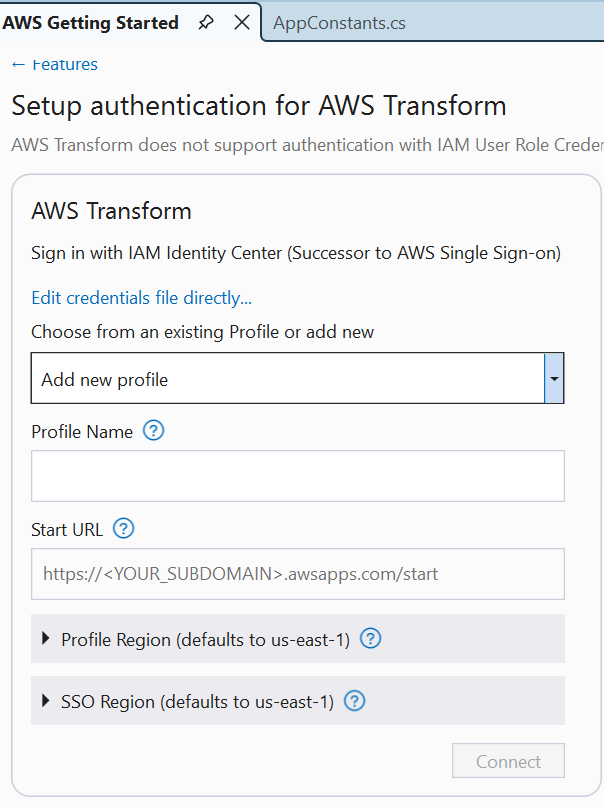
Figure 5: Add new profile for AWS Transform
Once your sign-in is complete, Connected with IAM Identity Center will appear in the panel.
Step 3: Transform the application
Now you’re ready to transform. Let’s start a transformation job.
- Open a .cs code file from the solution in the code editor, such as
App.xaml.cs. - In the Solution Explorer, right-click the
FlyMesolution and choose Port project with AWS Transform. - This opens the Port project dialog shown in Figure 6. Create or choose a workspace and set the .NET target to net10.0.
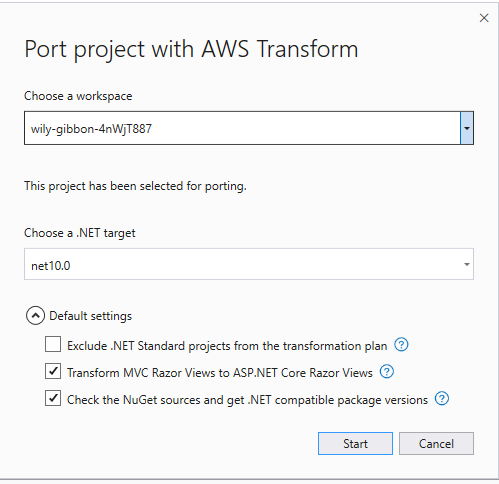
Figure 6: Port project dialog
- Choose Start to begin the transformation. You’ll soon see a notification at the top confirming that a transformation job is in progress as shown in Figure 7. You will see the job progress in the AWS Transform Hub pane.
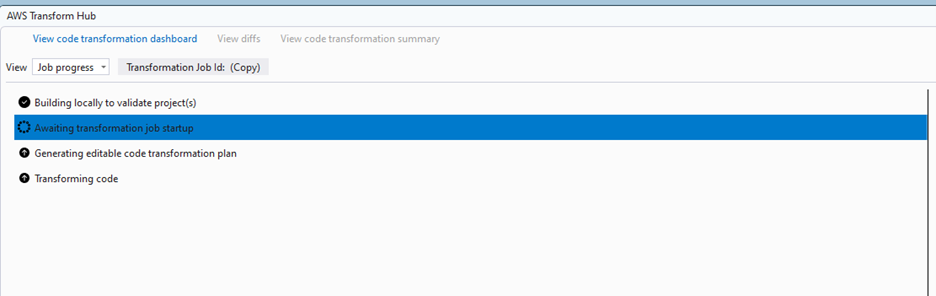
Figure 7: AWS Transform Hub showing the AWS Transform job has started
- After a few minutes, AWS Transform will ask if you want to review a transformation plan as shown in Figure 8. Choose Edit Plan.
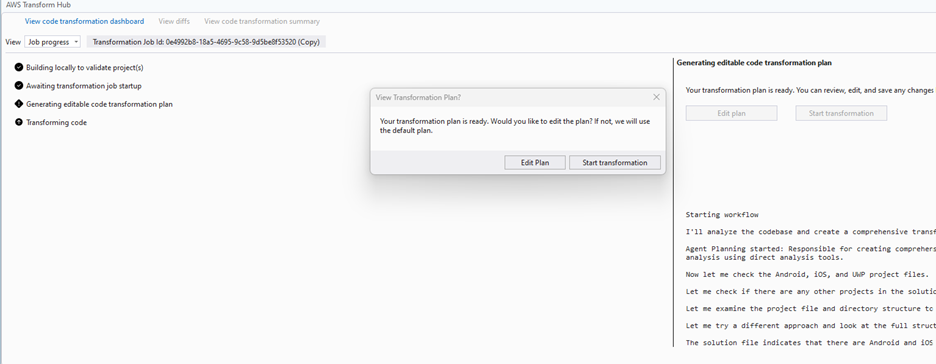
Figure 8: AWS Transform confirmation dialog for Edit Plan or Start Transformation
- Since the platform-specific projects
(FlyMe.AndroidandFlyMe.iOS) didn’t load in Visual Studio, you can add instructions as shown in Figure 9 to move this platform-specific code to a MAUI project.
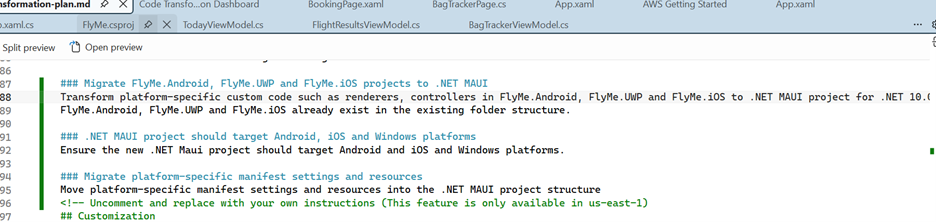
Figure 9: Edit Transform plan to add instructions to transform platform specific code
- Once you edit the plan, choose Start transformation to start the transformation. You can monitor the transformation progress and view details in the AWS Transform Hub window, as shown in Figure 10.
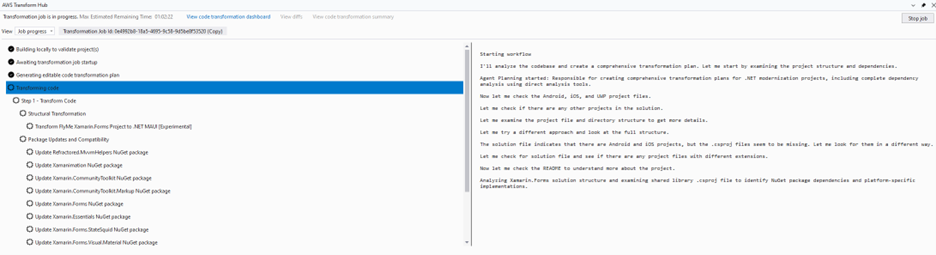
Figure 10: Showing AWS Transformation Job progress
- Wait for the transformation to complete. When it finishes, a Your transformation is completed notification will appear at the top of Visual Studio as shown in Figure 11.
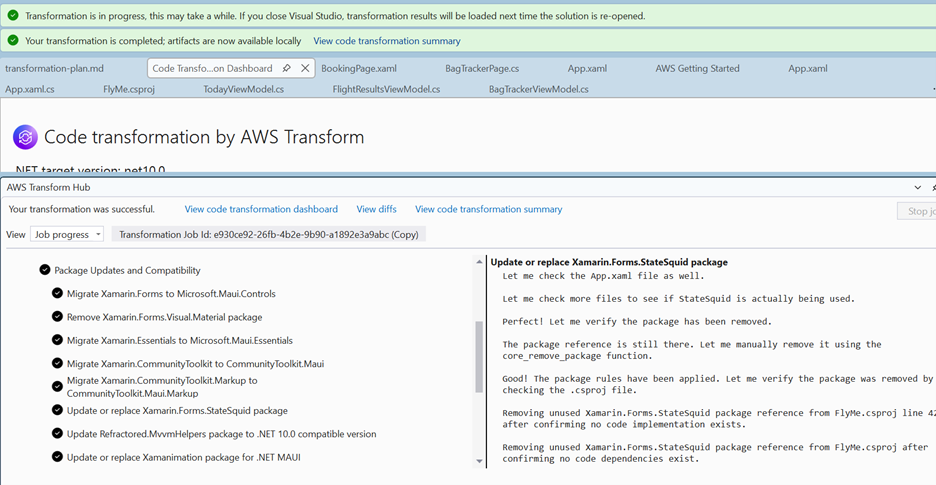
Figure 11: Transformation completed notification
Step 4: Review of the transformation report
Let’s understand what AWS Transform did, and why.
- Choose View code transformation summary and then Download transformation report as shown in Figures 12 and 13.
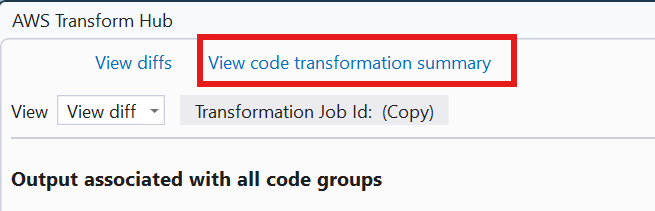
Figure 12: View Code transformation summary
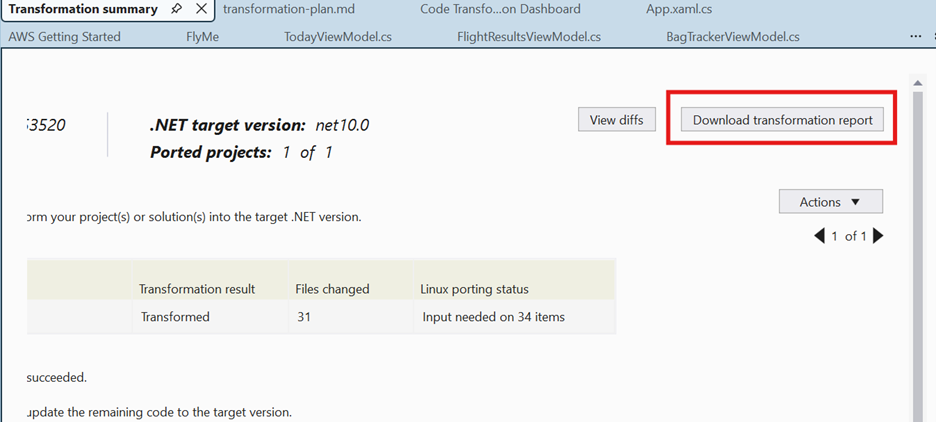
Figure 13: Download transformation report
- Open the HTML transformation report and review the description of what changed. Here, you’ll see UI-related changes, including:
-
Xamarin.Formsnamespace updates toMicrosoft.MauiandMicrosoft.Maui.Controls.- XAML namespace declarations updated for MAUI.
- Platform-specific code migrations (iOS, Android renderers to handlers).
- Navigation and dependency injection pattern updates.
- Single project structure implementation.
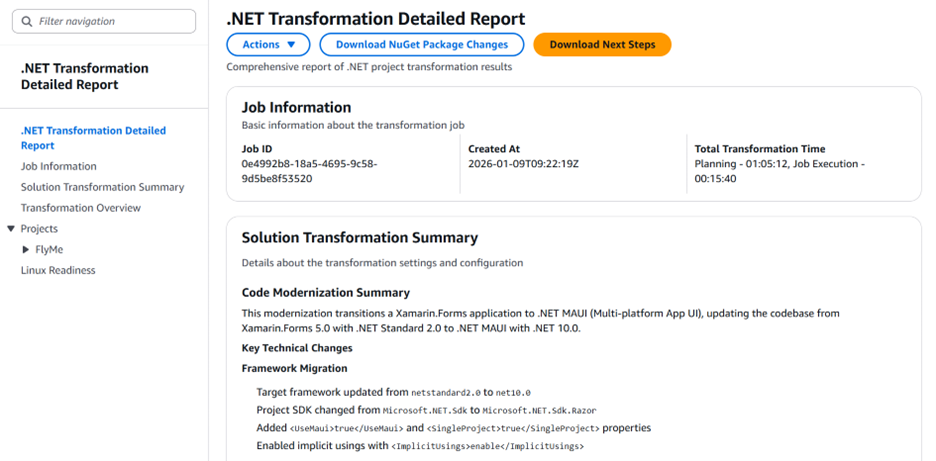
Figure 14: Transformation report showing summary of changes with sections for XAML, platform code, and dependencies
- Choose View diffs. A list of file changes appears as shown in Figure 15.
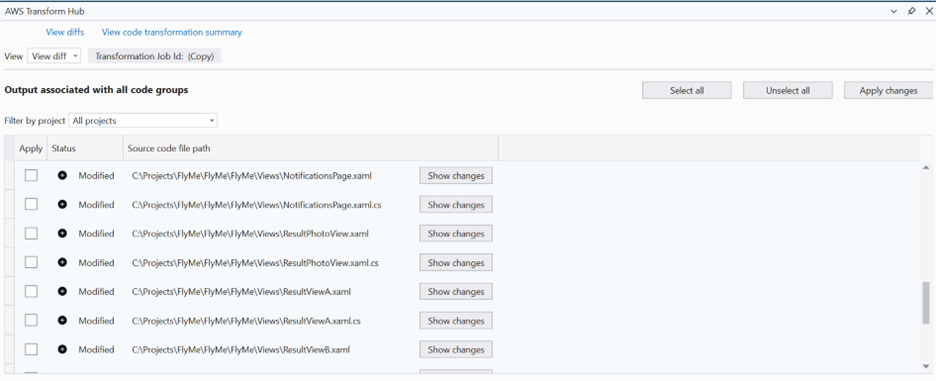
Figure 15: List of changes made by AWS Transform
- Review the file changes to see what AWS Transform added, removed, and modified. Give special attention to:
-
- XAML files with updated namespace declarations (
xmlns:mauiinstead ofxmlns:xamarin). App.xaml.cschanges to the MAUI application lifecycle.- Platform-specific code moved to the
Platformsfolder structure. - Custom renderer conversions to MAUI handlers.
- Dependency service updates to use MAUI dependency injection.
- XAML files with updated namespace declarations (
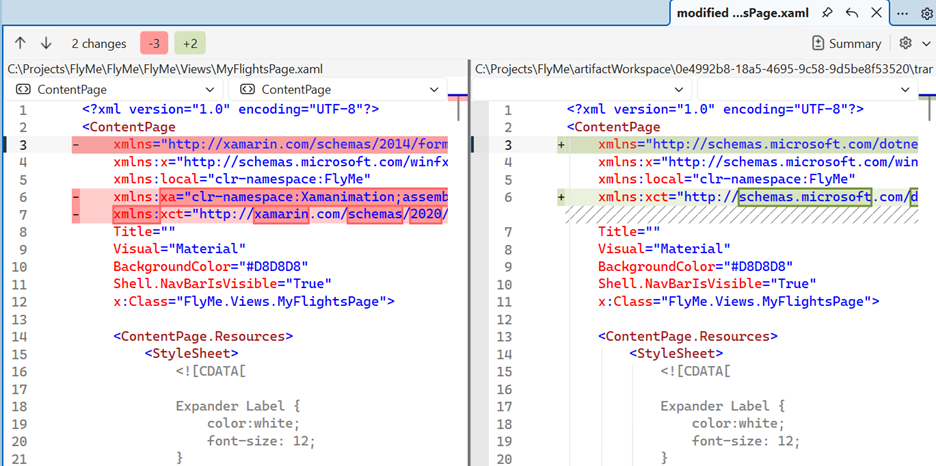
Figure 16: Code diff view showing side-by-side comparison of Xamarin.Forms and MAUI code
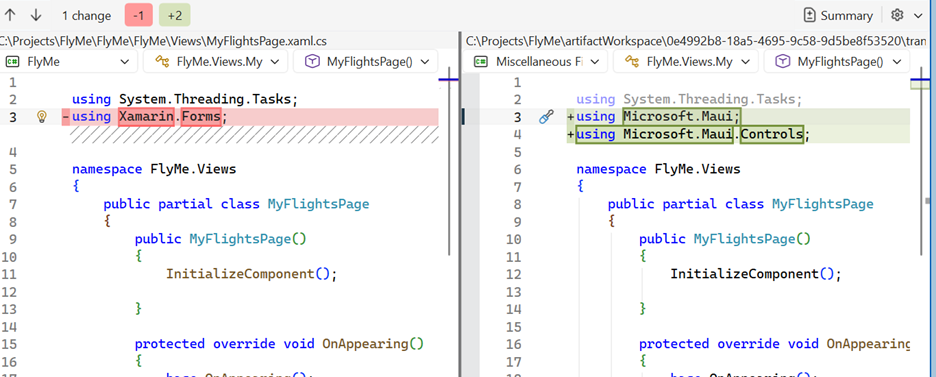
Figure 17: Code diff view showing side-by-side comparison of Xamarin.Forms and MAUI code
Step 5: Apply the code changes
Now, you’ll apply the code changes and examine the updated application.
- On the View diff list, choose Select all and then Apply changes. After applying the file changes to your project, Visual Studio prompts you to reload all files.
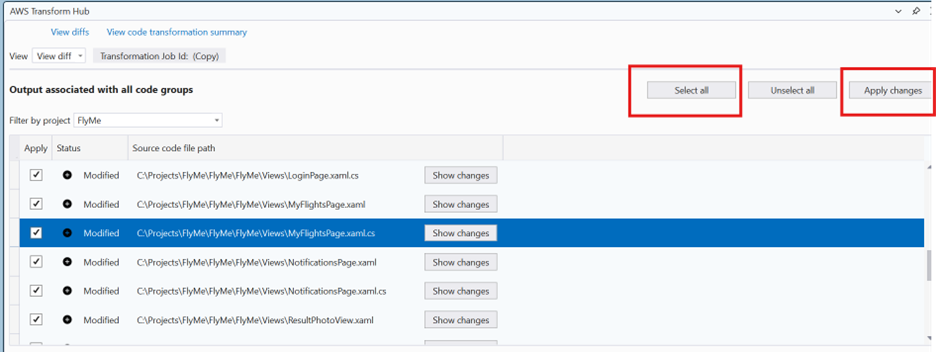
Figure 18: Select and apply changes to the project
- In Solution Explorer, check the project properties. FlyMe is now a .NET 10 MAUI project with a single project structure as shown in Figure 19.
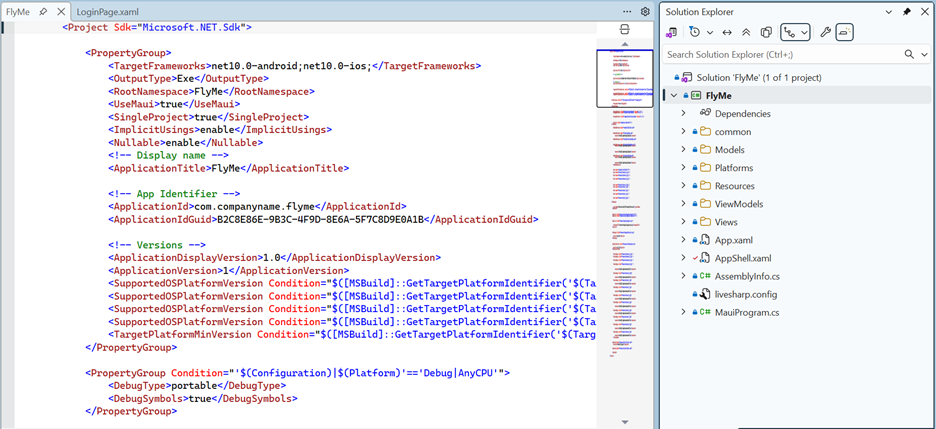
Figure 19: Visual Studio Solution Explorer displaying .NET MAUI project structure with Platforms folder and .NET 10 target framework.
- To clean up, remove the Android and iOS projects from the solution, since the specific code moved to the
Platformsfolder. - Next, build the solution. Review any warnings or errors that might require attention.
- After the transformation, you might find a few minor issues as shown in Figure 20. Here are the manual actions to fix the following issues:
-
- Color.White to Colors.White: Update color references to use the Colors class.
- Rect ‘HasShadowProperty’ error: In .NET MAUI, the Frame control no longer has a HasShadow property. Use the Shadow property instead, or remove the HasShadowProperty line.
- Frame to Border: Update Frame controls to Border controls where appropriate.
- RoundRectangle namespace: Add using Microsoft.Maui.Controls.Shapes;
- IconTintColorEffect: Remove this effect and use the Color property directly in FontImage.
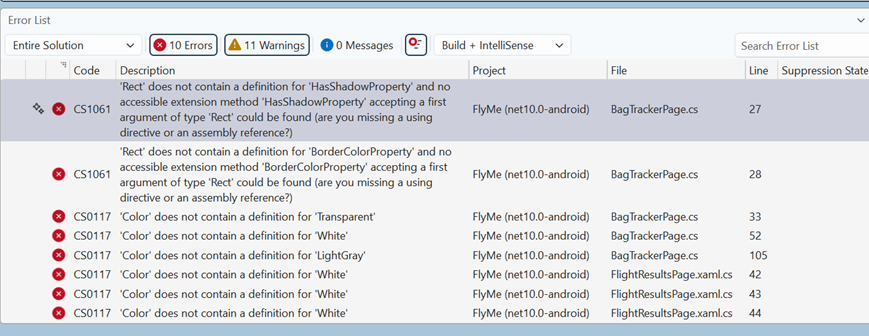
Figure 20: Build errors after transformation
If AWS Transform doesn’t migrate manifest files and other assets, move AndroidManifest.xml and Info.plist to platform-specific folders, and move images to Resources/Images as shown in Figure 21.

Figure 21: Application assets and Manifest files
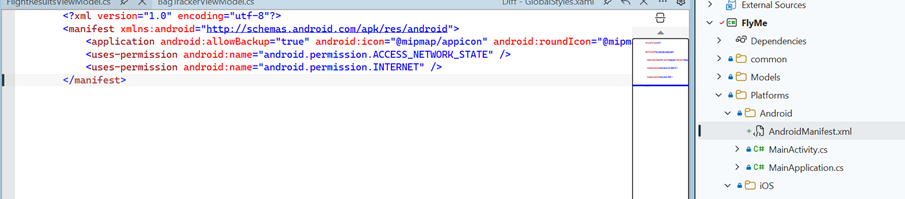
Figure 22: Android specific manifest file
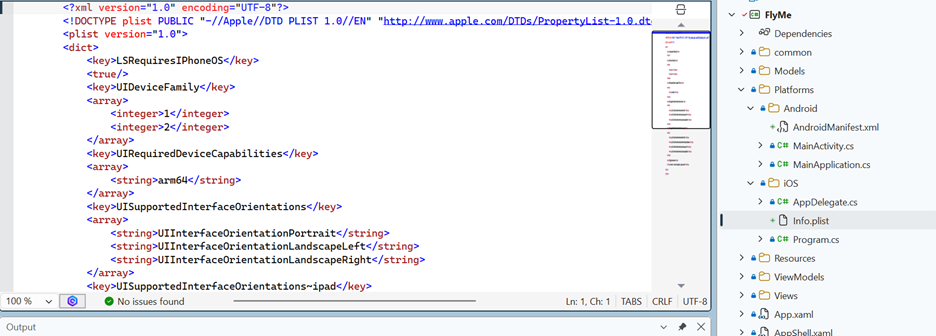
Figure 23: iOS specific manifest file
Step 6: Complete porting
AWS Transform does the heavy lifting in modernizing your code, but a transformed application is not necessarily complete, even if it builds. As the developer, your role is to review the application for correctness and complete any remaining porting tasks. There may be build or runtime errors to address.
Common tasks you might need to complete:
- Update NuGet packages to MAUI-compatible versions.
- Review and test custom renderers converted to handlers.
- Verify platform-specific functionality (permissions, native features).
- Test navigation flows and ensure the proper page lifecycle.
- Validate data binding and MVVM patterns.
- Test on multiple platforms (iOS, Android, Windows, macOS).
- If the project is not built, review the transformation report from Step 4, which provides details and advice about build errors, as well as a downloadable Next Steps prompt.
You can see the transformed .NET MAUI application running on .NET 10 in Figure 24:
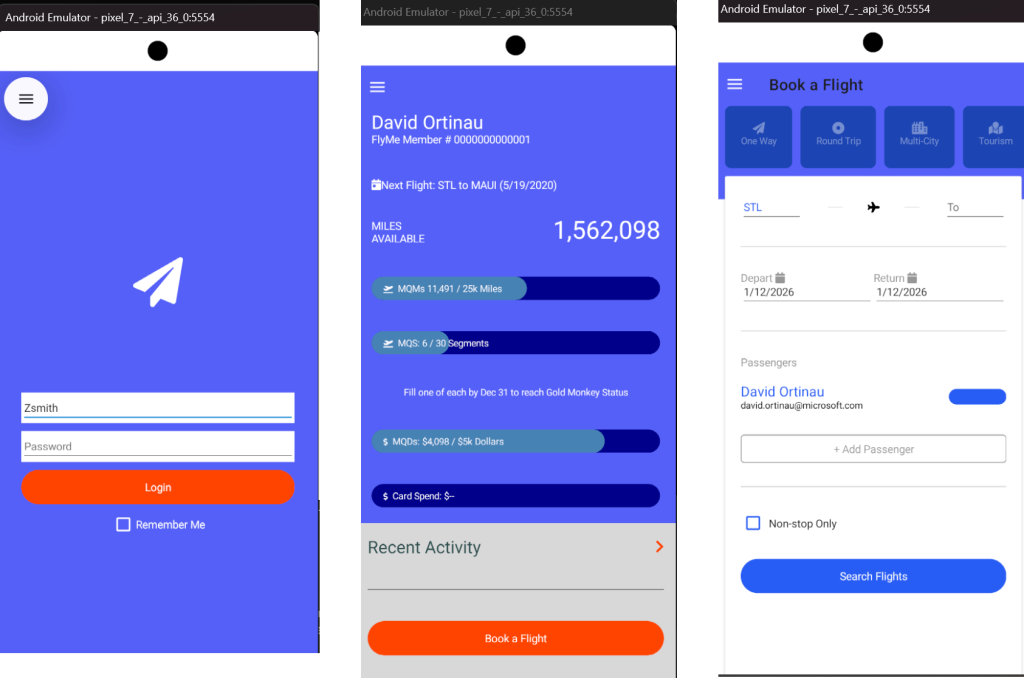
Figure 24: Transformed FlyMe app showing the same Login interface
Conclusion
AWS Transform provides mobile application modernization, including Xamarin.Forms to .NET MAUI porting. In this post, you learned how to transform a Xamarin.Forms application with complex UI, navigation, and platform-specific code to modern .NET MAUI. By migrating from the no longer supported Xamarin.Forms framework to .NET MAUI, you ensure your mobile applications remain secure, performant, and compatible with the latest platform updates.
AWS Transform handles complex code transformations, namespace updates, and project structure changes, allowing you to focus on testing and refining your modernized application. For more information about AWS Transform, refer to the AWS Transform User Guide.