Migration & Modernization
Accelerating VMware Cloud Migration with AWS Transform and PowerCLI
For years, cloud migration projects have been slowed by fragmented, manual processes. Discovery required deploying multiple tools and navigating lengthy approvals. Assessments relied on manual analysis or tools requiring significant time. Migration itself depended on manual scripting for wave planning, network conversion, and server orchestration. This end-to-end journey often stretched across many months, delaying cloud adoption and modernization benefits.
AWS Transform changes this pattern. As the first agentic AI service built to accelerate enterprise modernization of VMware workloads, Windows, mainframe, software code and libraries. It draws on 19 years of AWS migration experience to deploy specialized AI agents that automate what was previously manual work, from assessments and code analysis to refactoring and transformation planning. By executing many tasks in parallel, it can modernize hundreds of applications simultaneously. Its natural language chat interface and collaborative workspaces enable cross-functional teams to work together in real time, helping organizations reduce modernization costs, ongoing maintenance expenses, and legacy licensing fees.
To help customers migrate VMware workloads, AWS Transform carries 2 distinct offerings:
- AWS Transform Assessments – Provides complimentary, data-driven Business Case of your VMware infrastructure, including cost analysis and migration recommendations
- AWS Transform for VMware – Automates the migration process through AI-powered migration recommendations, wave planning, network conversion, and server migration
Both services require accurate infrastructure data. Traditional discovery tools like RVTools or AWS Migration Evaluator often face deployment challenges due to security requirements, lengthy approval processes, and operational constraints. Additionally, some tools capture only point-in-time data, missing crucial historical usage patterns that can lead to sizing misalignments during migration.
The Solution: PowerShell-based VMware Inventory Collector
To address these challenges, I developed a PowerShell-based collector that streamlines data gathering for AWS Transform while eliminating the deployment friction of traditional discovery tools. The script connects directly to vCenter using existing PowerCLI capabilities, requiring no agent installation or lengthy approval processes. It also helps you accelerate the discovery by using data that is pre-collected by VMware, saving time otherwise required for deploying and collecting the data using other mechanisms supported by AWS Transform.
What makes this approach particularly valuable for AWS Transform users, is its focus on migration-critical data. The collector can discover SQL Server databases across your VMware infrastructure which is a requirement for accurate migration planning. It also captures historical performance data (up to 365 days) using P95 percentile analysis, ensuring right-sized recommendations that reflect actual workload patterns rather than point-in-time snapshots.
Security and compliance are built into the core design. The tool implements enterprise-grade credential protection with automatic memory cleanup, and SSL/TLS certificate validation. For organizations handling sensitive data, the tool offers built-in anonymization capabilities that anonymize server names, hostnames, and IP addresses across all output formats while maintaining a reversible mapping file for de-anonymization when needed. Advanced filtering capabilities let you scope the collection to specific VMs, clusters, datacenters, or environments, with automatic infrastructure scoping that ensures only relevant infrastructure data is captured.
Output Format Options
The collector supports three output formats. By default, it generates the AWS Migration Portfolio Assessment (MPA) format for optimal performance. You can specify different formats or combinations using the -outputFormat parameter:
1. Migration Portfolio Assessment (MPA) Format (Default)
- Optimized for AWS Transform Assessments and AWS MPA platforms
- Database Detection Sheet: Separate worksheet with detected database instances, editions, and versions (when enabled)
- Fastest collection option
2. Migration Evaluator (ME) Format
- ME Data Import Template
- Compatible with AWS Migration Evaluator
- Similar performance to MPA format
3. RVTools Similar Format
- Includes all infrastructure components (VMs, hosts, networks, storage, clusters)
- Ready for import into AWS Transform for VMware for migration planning and/or AWS Transform Assessments for migration assessment
- Comprehensive infrastructure relationships and dependencies
- Generates 27 detailed CSV files (slower collection)
All three formats support optional anonymization with reversible mapping:
- Anonymized server names, hostnames, and IP addresses
- Separate mapping file for de-anonymization
- Maintains data relationships across all formats
For detailed documentation and the complete feature set, visit the AWS Samples GitHub repository.
Getting Started
Prerequisites
- PowerShell 5.1 or later on a supported Operating System
- VMware PowerCLI module
- ImportExcel PowerShell module
- vCenter Server 6.7 or later with read-only access
- Statistics collection enabled (Please refer to VMware vSphere docs)
Installation
# Install required PowerShell modules
Install-Module -Name VMware.PowerCLI -Force
Install-Module -Name ImportExcel -Force

# Configure PowerCLI
Set-PowerCLIConfiguration -InvalidCertificateAction Warn -Confirm:$false
Set-PowerCLIConfiguration -ParticipateInCEIP $false -Confirm:$false
Download the collector from the GitHub repository (see README for details).
Basic Usage
# Standard collection (7 days of performance data, MPA format)
.\vmware-collector.ps1 `
    -address "vcenter.company.com" `
    -username "readonly-user" `
    -password "password"
This command collects data from all powered-on VMs and generates the MPA Template output file (default format) in the VMware_Export_YYYYMMDD_HHMMSS/ folder.
Common Usage Scenarios
Extended Performance Collection (30 days):
.\vmware-collector.ps1 `
    -address "vcenter.company.com" `
    -username "readonly-user" `
    -password "password" `
    -collectionDays 30
Generate Multiple Output Formats:
# Generate both MPA and ME formats
.\vmware-collector.ps1 `
    -address "vcenter.company.com" `
    -username "readonly-user" `
    -password "password" `
    -outputFormat "MPA,ME"

# Generate all three formats (slower)
.\vmware-collector.ps1 `
    -address "vcenter.company.com" `
    -username "admin" `
    -password "password" `
    -outputFormat "All"
With Data Anonymization:
.\vmware-collector.ps1 `
    -address "vcenter.company.com" `
    -username "readonly-user" `
    -password "password" `
    -anonymize
Key Parameters
Required Parameters:
| Parameter | Type | Description | Example |
|---|---|---|---|
| address | string | vCenter Server IP address or FQDN | “vcenter.company.com” |
| username | string | vCenter username | “user” |
| password | string | vCenter password | “password123” |
Core Optional Parameters:
| Parameter | Type | Description | Default |
|---|---|---|---|
| collectionDays | int | Days of performance data to collect (1-365) | 7 |
| filterVMs | string | ‘Y’ for powered-on VMs only, ‘N’ for all VMs | “Y” |
| outputFormat | string | Output format: ‘MPA’ (default), ‘ME’, ‘RVTools’, ‘MPA,ME’, or ‘All’ | “MPA” |
| anonymize | switch | Create anonymized versions of outputs | Disabled |
| enableLogging | switch | Enable debug logging to file | Disabled |
| disableSSL | switch | Disable SSL certificate validation (enabled by default) | Disabled |
| fastMode | switch | Enable fast mode (skip detailed analysis) | Disabled |
| skipPerformanceData | switch | Skip historical performance collection, defaulting to 25% and 60% for CPU and Memory utilization respectively | Disabled |
| maxParallelThreads | int | Parallel threads for processing (1-50) | 20 |
For additional advanced parameters and usage examples, refer to the technical README.
Once it is running, the script will start to execute the provisioning and utilization discovery as shown in Figure 1.
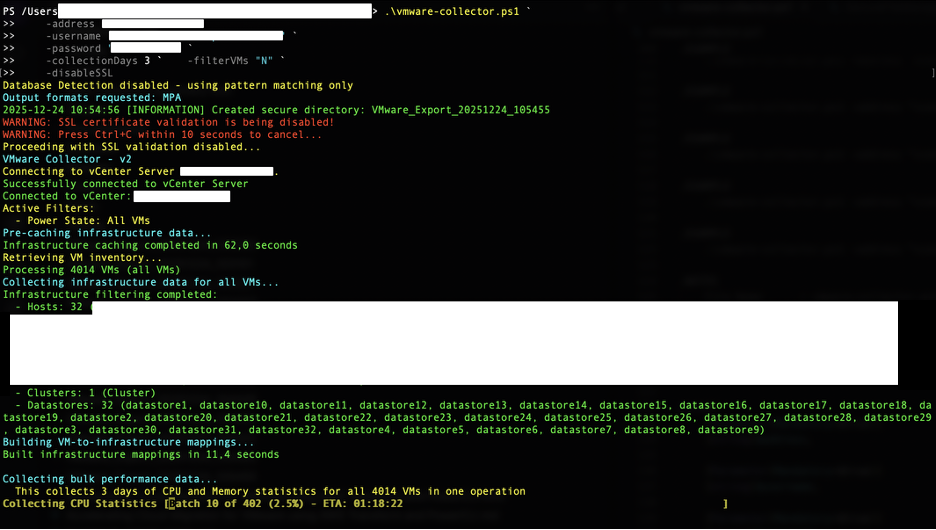
Figure 1: VMware Collector PowerShell Script Execution
Output Files and Integration
The collector generates three output formats, each optimized for specific AWS migration tools:
- RVTools Format – Complete infrastructure data for AWS Transform for VMware (upload
VMware_collector_export_{date}.zip) - MPA Format – Enhanced template for AWS Transform Assessments and Migration Portfolio Assessment (upload
MPA_Template_{date}.xlsx) - ME Format – Data import for AWS Migration Evaluator (upload
ME_ConsolidatedDataImport_{date}.xlsx)
AWS Transform Integration
For AWS Transform Assessments:
- Use the
MPA_Template_{date}.xlsxfile - Contains all required data including database detection
- Upload to AWS Transform Assessments
For AWS Transform for VMware:
- Use the
VMware_collector_export_{date}.zipfile - Contains complete infrastructure data (clusters, switches, networking)
- Upload to AWS Transform for VMware
Conclusion
In this post, I introduced an enhanced PowerShell script that simplifies VMware data collection for AWS Transform and Migration Evaluator assessments, generating AWS Transform-compatible outputs with accurate historical performance data and advanced database detection capabilities.
Ready to accelerate your VMware migration? Download the collector from the AWS Samples GitHub repository, gather your infrastructure data in minutes, and get started with AWS Transform Assessments for a complimentary Business Case or dive straight into AWS Transform for VMware to let AI agents automate your migration journey.
For detailed technical documentation and advanced configuration options, refer to the README file in the repository.