Networking & Content Delivery
Introducing the next-generation AWS VPN Client with CLI support and admin controls
Today, we’re announcing the next-generation AWS VPN Client — a ground-up rebuild that introduces a fully functional command-line interface (CLI), enterprise administrative controls, and a modernized architecture built on OpenVPN3. With the new client, you get full backward compatibility with existing AWS Client VPN endpoints while delivering the automation capabilities and security posture that enterprise networking teams have been asking for.
Why a new client?
With the AWS VPN Client, many organizations have connected their remote workforce to AWS Client VPN endpoints. But as enterprises scale their VPN deployments across thousands of devices, the limitations of a Graphical User Interface (GUI)-only application become clear. You cannot script profile distribution, automate connections in CI/CD pipelines, or enforce consistent configuration across your fleet without third-party tooling.
We heard this feedback. Organizations wanted to integrate VPN connectivity into their existing automation workflows such as deployment scripts, golden image builds, headless servers, and infrastructure-as-code pipelines. They also wanted stronger administrative controls: the ability to lock down profile management and restrict connection access. With the next-generation AWS VPN Client, you get all of these benefits while also improving the underlying architecture for better security, stability, and extensibility.
What’s New
Command-line Interface (CLI)
The new client ships with aws-vpn-client, a CLI that provides full feature parity with the GUI. Every operation currently available in the GUI is accessible from the terminal — connecting, disconnecting, importing profiles, and retrieving connection status. The CLI also includes preference and profile management operations.
The CLI is designed for automation:
- Structured JSON output on stdout, parseable by jq or any scripting language
- Deterministic exit codes (0 = success, 1 = user error, 2 = application failure) for reliable scripting
- No localization on CLI strings — scripts don’t break when a user changes their locale
Here’s what connecting to a VPN profile looks like using the CLI (Linux):
# Connect to a profile

          aws-vpn-client connect --profile-name production-vpc
# Check connection status with details
aws-vpn-client get-connection-status –profile-name production-vpc –show-details true
# Output:

          {

          "user": "jdoe",

          "connection-status": "Connected",

          "last-updated-at": "2026-07-15T10:30:45-08:00",

          "details": {

          "tunnel-bytes-in": 1048576,

          "tunnel-bytes-out": 524288

          }

          }
For password-based authentication, you can pass credentials via a file to avoid interactive prompts in automated environments:
aws-vpn-client connect --profile-name corp-vpn \

          --auth-user-pass /path/to/credentials.txt
The credentials file follows the standard OpenVPN format: username on the first line, password on the second. Credential files should have restricted access and never be committed to source control systems.
Redesigned AWS Client VPN desktop application
Alongside the release of the aws-vpn-client CLI, AWS Client VPN introduces a redesigned desktop application with a modernized and streamlined user experience. The new application maintains feature parity with the previous client while making it easier to select connection profiles, establish and manage VPN connections, and access commonly used settings.
Figure 1 shows that the redesigned interface provides a focused connection experience. You can select your preferred profile from the drop-down menu and connect directly from the main window. In the previous application, shown on the left, profiles appear under separate Connected and Disconnected headings. The redesigned application, shown on the right, presents a single compact window with a Status line, one drop-down listing the available authentication profiles, and a Connect button.
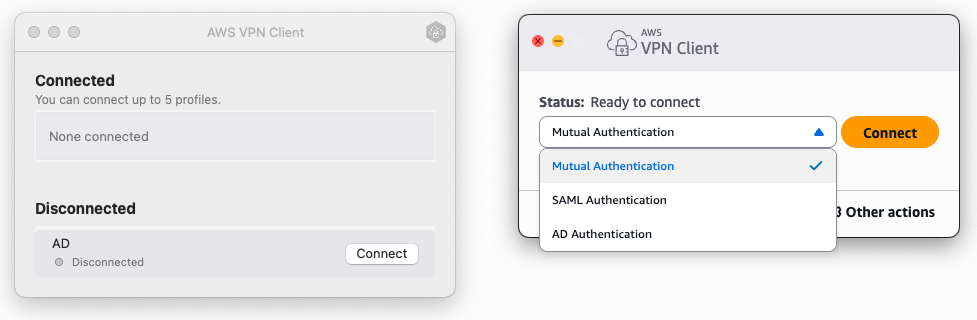
Figure 1 – Previous AWS Client VPN desktop application (left) and redesigned application (right)
You can also connect to a profile directly from the menu bar without opening the main application window. The new menu bar provides quick access to available profiles, connection status, settings, and other common actions. Figure 2 shows an example on macOS. The drop-down reports which profile is connected at the top, lists each available profile as a selectable option under Click to connect, and provides commands to open Settings, show or hide the application window, and quit the client, each with its keyboard shortcut.
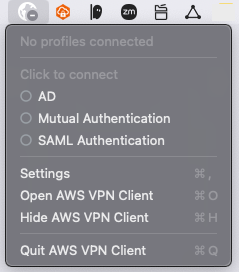
Figure 2 – Client VPN quick menu on macOS
The Other actions menu provides access to additional configuration and diagnostic capabilities. You can review connection statistics, add or remove connection profiles, manage preferences, and access diagnostic logs from one location. Figure 3 shows the Statistics pane of the Settings window, which opens beside the compact connection window and offers a navigation list containing Preferences, Statistics, Profiles, and Diagnostic logs. The pane reports connection status and byte counters for both the TUN/TAP interface and the TCP/UDP transport for the profile you select.
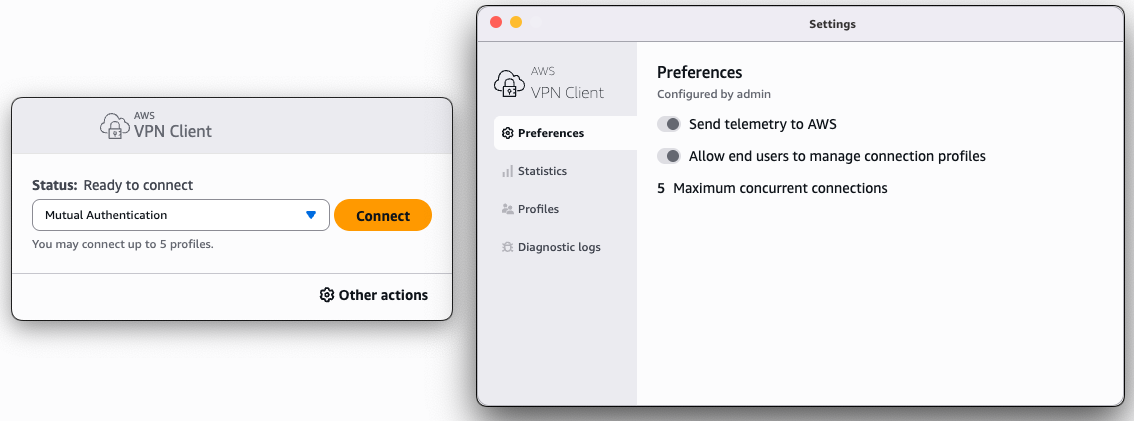
Figure 3 – Client VPN connection statistics panel
The Profiles panel provides a centralized view of configured connection profiles and allows you to add or remove profiles. Figure 4 shows the pane listing each configured profile by name in a single Profile name table, with Add and Remove buttons at the top of the pane.
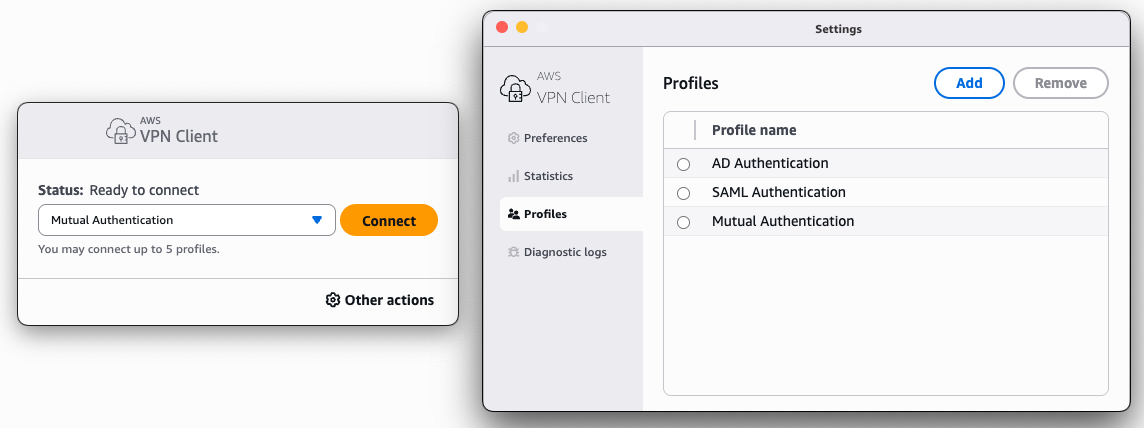
Figure 4 – Client VPN profile management panel
The Preferences panel displays available application settings and administrator-configured options, such as telemetry, profile management, and the maximum number of concurrent connections. Figure 5 shows the pane marked Configured by admin, with toggle switches for Send telemetry to AWS and Allow end users to manage connection profiles, followed by Maximum concurrent connections. A setting an administrator has locked appears here as read-only, which is how an end user sees an enforced policy.
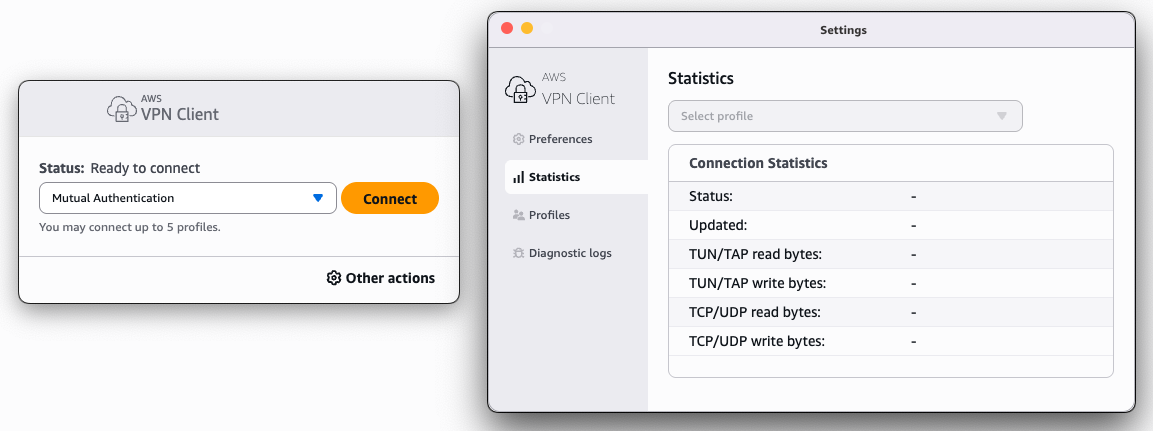
Figure 5 – Client VPN preferences panel
Enterprise administration controls
Administrators can now enforce organizational policies directly on the client using Profile Permissions with the following characteristics:
Profile ownership — Profiles are scoped to specific users. When a non-privileged user imports a profile, it’s automatically restricted to that user only, preventing other users on the same device from connecting to potentially unauthorized endpoints. Profiles are always visible to all users on the device for operational transparency, but connection access is available only to the profile owner and administrators.
Global profiles — Administrators (running CLI as root/admin) can import profiles at the global level, making them available to all users on the device. Only administrators can delete global profiles.
Disable user profile management — Administrators can lock down profile management entirely through a global configuration setting, preventing end users from importing, modifying, or deleting profiles. This assures that only organizationally approved VPN configurations are available on managed devices.
Modernized architecture
Under the hood, the client has been rebuilt from scratch. The result: connections are more stable, the security surface is smaller, and both GUI and CLI share a single source of truth for connection state. The new architecture has the following features:
Single-process daemon architecture — A privileged system service manages all VPN connections, profile storage, and network configuration. This replaces the legacy model where each VPN tunnel ran as a separate OpenVPN process. The new architecture eliminates race conditions and allows tunnels to persist even when the GUI or CLI exits.
Common client core — The VPN business logic is shared across all supported platforms (Windows, macOS, Linux). Platform-specific code is limited to network operations, DNS management, and routing.
OpenVPN3 + AWS-LC — The new client uses OpenVPN3 (replacing OpenVPN2) and AWS-LC (replacing OpenSSL) for improved performance and a reduced security surface.
GUI and CLI as equals — Both interfaces are stateless, unprivileged applications that communicate with the daemon. They can run concurrently and either can exit without disrupting active connections.
VPN performance — The single-process architecture and OpenVPN3 migration deliver measurable improvements in connection establishment time. For certificate-based profiles, the following improvements were observed:
- macOS — 42% faster (4.25s → 2.46s average), measured on a MacBook Pro with an Apple M4 Pro chip running macOS Tahoe 26, averaged over 10 connections
- Windows — 30% faster (20.44s → 14.20s average), measured on a Windows 11 PC with an Intel Core Ultra 7 265U chip, averaged over 10 connections
In addition to connection performance improvements, the time to detect and remove a conflicting route via the Client Route Enforcement (CRE) feature has been reduced to 1-5 ms down from 300-500 ms in the previous client. Figure 6 shows how these components fit together in the new client architecture.
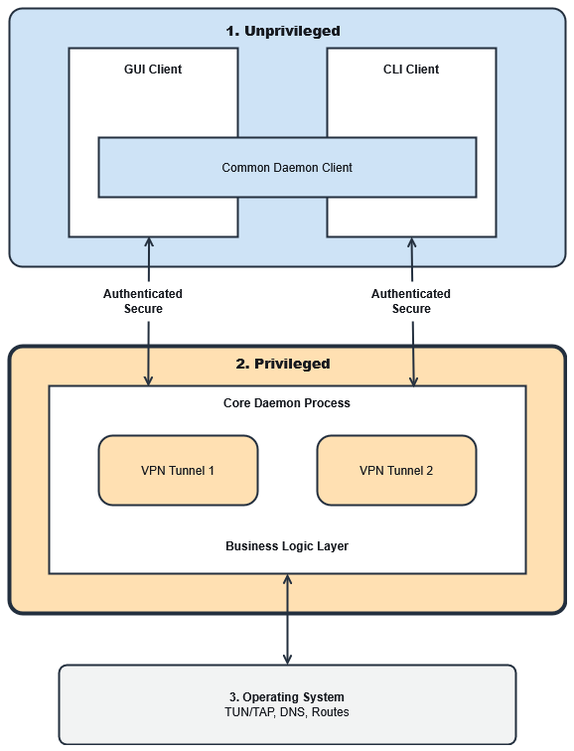
Figure 6 – VPN Client 6.x Architecture
The diagram is arranged in three stacked layers. The unprivileged layer at the top holds the GUI client and the CLI client, which share a common business logic component that spans both. The privileged layer in the middle holds the core daemon process, which owns the individual VPN tunnels along with profile management, connection control, CRE, and telemetry. Each of the two unprivileged clients connects to the daemon over its own authenticated, secure channel, drawn as a two-way arrow, and the daemon exchanges TUN/TAP, DNS, and route operations with the operating system layer at the base of the diagram over a third two-way arrow. Because connection state and privilege live in the daemon rather than in either front end, the GUI and the CLI stay consistent with each other, and tunnels survive when either one exits.
Backward compatibility
The new client reads existing .ovpn configuration files downloaded from AWS Client VPN. On first launch, it automatically imports profiles from the legacy client while preserving the existing files. No server-side changes are required — the new client connects to existing AWS Client VPN endpoints without modification.
How it works
Let’s walk through a typical enterprise deployment workflow using the CLI on Linux.
Step 1: Import a profile (administrator)
# Import a global profile available to all users on this device

          sudo aws-vpn-client import-profile \

          --profile-name production-vpc \

          --openvpn-config-path /etc/vpn/production.ovpn \

          --global
Step 2: Lock down profile management
# Prevent non-admin users from importing or deleting profiles

          sudo aws-vpn-client put-preference enable-user-profile-management false
Step 3: Connect (end user)
# End user connects — profile was pre-provisioned by admin aws-vpn-client connect --profile-name production-vpc
For SAML-based authentication, the CLI opens the system browser for the identity provider flow and returns once authentication completes:
aws-vpn-client connect --profile-name sso-profile

          # Output:

          {

          "status": "WaitingForIdentity",

          "message": "Enter credentials in browser"

          }

          # After browser auth completes, status transitions to "Connected"
Step 4: Monitor connections
# List all active connections

          aws-vpn-client list-connections

          # Output:

          [

          {

          "profile-name": "production-vpc",

          "user": "jdoe",

          "connection-status": "Connected",

          "last-updated-at": "2026-07-15T10:30:45-08:00"

          }

          ]
Step 5: Send diagnostics (if troubleshooting)
aws-vpn-client send-diagnostic-logs

          # Output:

          {

          "reference-id": "ABCD-EFGH-1234-5678"

          }
The reference ID can be provided to AWS Support for troubleshooting.
The complete list of commands available for the aws-vpn-client (Linux) in admin mode is shown here:
# sudo aws-vpn-client --help

          CLI for the AWS VPN Client

          Usage: aws-vpn-client <COMMAND>

          Commands:

          connect         Connect a profile through the AWS VPN Client

          disconnect        Disconnect a profile from the AWS VPN Client

          delete-profile Delete a profile from the AWS VPN Client

          import-profile Import a VPN connection profile

          list-profiles      List all VPN profiles

          get-config       Get configuration for a profile

          put-preference Put a preference value

          list-preferences    List all preferences

          get-connection-status Get the current connection status for a VPN profile

          list-connections     List all active VPN connections

          send-diagnostic-logs   Send diagnostic logs to AWS for troubleshooting

          help           Print this message or the help of the given subcommand(s)

          Options:

          -h, --help   Print help

          -V, --version Print version
Things to know
Platform support — Windows (x64/ARM), macOS (x64/ARM), and Linux x64 at launch. The architecture is designed to be extensible for the introduction of new features and platforms.
CLI executable — The CLI binary is named aws-vpn-client (or aws-vpn-client.exe on Windows). In the initial release, the installer does not automatically add it to your system PATH — you’ll need to reference the full installation path or add it manually.
Concurrent GUI and CLI — Both can run simultaneously. A connection started from the CLI is visible in the GUI and vice versa.
Authentication types — Existing AWS Client VPN authentication types are supported: mutual certificate, Active Directory (username/password), and SAML (browser-based). For AD authentication in automated scripts, use the –auth-user-pass flag to avoid interactive prompts.
Multiple connections — Multiple simultaneous VPN connections are supported, provided they don’t conflict (e.g., overlapping route configurations).
Profile ownership with elevated privileges — When importing profiles with elevated privileges (sudo or Run as Administrator), ownership is attributed to the invoking user, not the root/admin account. This means administrators can script profile setup and still connect as their regular user without re-importing.
Headless CLI Operation — Automating VPN client connections is supported using mutual certificate and Active Directory authentication. SAML authentication requires browser interaction which precludes headless operation.
Availability and next steps
The next-generation AWS VPN Client is available today. You can download it from the Release Notes page for each platform: macOS, Windows, and Linux. It connects to your existing AWS Client VPN endpoints with no server-side changes required.
To get started, install the client and launch either the GUI or CLI to import your existing profiles, then try a few CLI commands to see how they fit your workflow. If you manage devices for an organization, review the global configuration options and how profile permissions can be applied across your fleet.
Conclusion
The next-generation AWS VPN Client is a rebuilt foundation for how enterprises work today. The CLI brings VPN into your automation workflows, and the new administration controls give networking teams the guardrails they asked for. The OpenVPN3 architecture delivers faster, more stable connections. Because it stays compatible with your existing Client VPN endpoints, you can adopt it at your own pace. Start with your current profiles and layer in automation and policy controls as you go.
We built this release around feedback from teams running VPN at scale, and that feedback continues to shape where it goes next.
About the authors

Calvin Bock
Calvin is a Senior Cloud Support Engineer at AWS, based in Cape Town, South Africa. He specializes in AWS networking and serves as a subject matter expert in VPN, VPC, Transit Gateway/CloudWAN, and Direct Connect. Calvin works closely with customers to troubleshoot complex networking challenges and architect robust, scalable network solutions on AWS. Through his deep technical expertise and hands-on approach, he enables organizations to optimize their cloud networking infrastructure and achieve reliable, secure connectivity.

Bruce Pinsky
Bruce Pinsky is a Senior Network Specialist Solutions Architect for Strategic Accounts at Amazon Web Services based in San Jose, CA. He focuses on helping customers create cloud-native and hybrid network architectures that result in resilient and scalable environments. Outside of work, he enjoys travel, concerts and music festivals, and stage-managing musical theater productions.