AWS Compute Blog
Plan and measure EC2 flexibility with Amazon EC2 Capacity Manager
Global enterprises that run thousands of workloads across hundreds of accounts often configure them to use multiple instance types and Availability Zones. This flexibility gives Amazon Elastic Compute Cloud (Amazon EC2) more options to fulfill each request. At that scale, you need to decide which instance types and Availability Zones to include, and have visibility into how well those choices are working.
To gain these insights, Amazon EC2 Capacity Manager offers real-time supportability checks and capacity fulfillment metrics. Supportability checks help you find capacity when you plan a workload by scoring how well each instance type and Availability Zone can support a request. They do this without launching or reserving instances. Capacity fulfillment metrics show whether you configured your launch requests to use multiple instance types and Availability Zones, their fulfillment rate, and where that capacity came from. They measure your actual launches, not the accuracy of a check. Together, they cover both sides of a scale up: deciding where to run, and measuring what was delivered.
Both capabilities are included with AWS Unified Operations, the AWS Support plan for global enterprises that run workloads at large scale. You can query data from all commercial AWS Regions using the Region in which you enabled EC2 Capacity Manager.
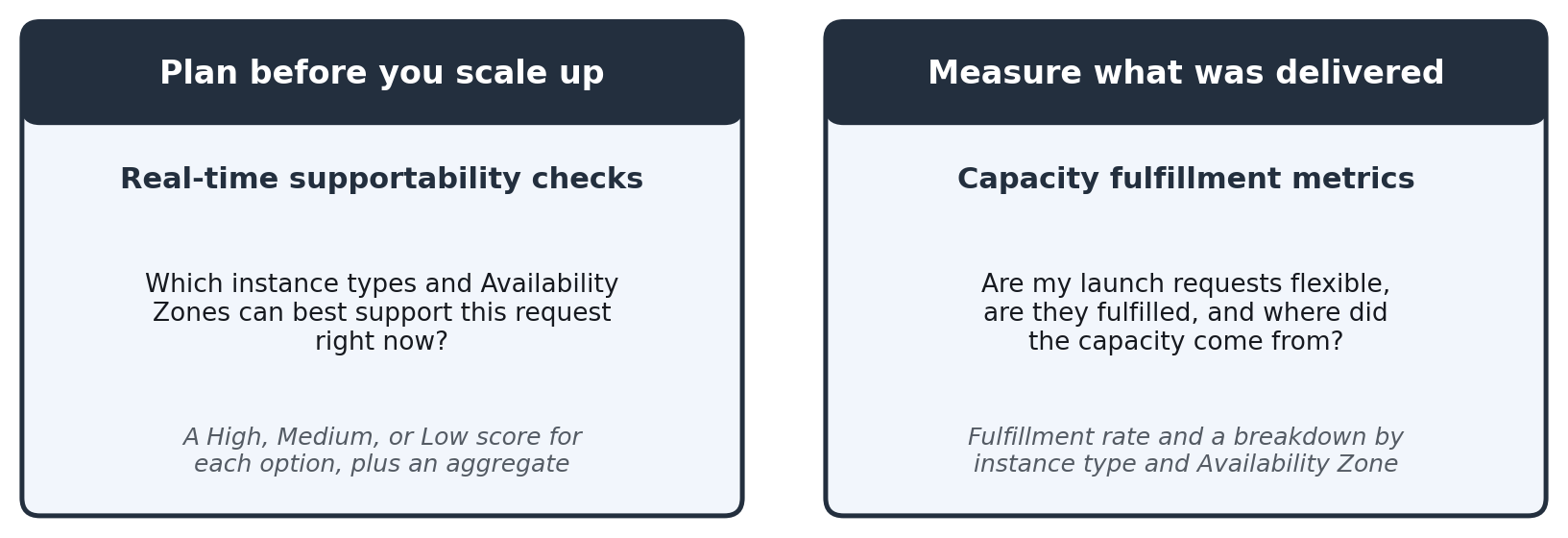
Figure 1: Supportability checks score options before you scale up. Fulfillment metrics measure how your actual launches were fulfilled.
This post follows the platform team at AnyCompany, a global enterprise that supports several large scale ups each year. Before each one, the team wants to know which instance types and Availability Zones will best support a workload. In this post, a combination means one instance type in one Availability Zone, such as r5.16xlarge in use1-az5. Capacity Manager measures capacity in vCPUs, and each step shows the AWS Management Console path and the AWS Command Line Interface (AWS CLI) command.
Before you begin
- Turn on Capacity Manager at the organization level (from the management account or a delegated administrator) or for a single account. Both capabilities work at either level. See Enabling EC2 Capacity Manager.
- Confirm your support plan. Your account must be covered by AWS Unified Operations.
- (Optional) To see metrics by workload, activate a workload tag as a monitored tag key. Some tags, including aws:eks:cluster-name and aws:autoscaling:groupName, are always available and need no activation. This post uses aws:eks:cluster-name. For more information, see Managing monitored tag keys.
Step 1: See whether your workloads are getting the capacity they need
Capacity fulfillment metrics start at the request level. A request that can use several combinations is fulfilled if any one of them delivers, so a high request fulfillment rate means flexibility is working. Capacity Manager tracks four request-level metrics.
| Metric | Console label | What it tells you |
| CapacityTotalRequestedVcpu | Requested (vCPUs) | Capacity requested. Retries within five minutes for the same configuration count once. |
| CapacityTotalFulfilledVcpu | Fulfilled (vCPUs) | Capacity delivered. |
| CapacityRequestFulfillmentRate | Request fulfillment rate | Fulfilled divided by requested, vCPU-weighted. |
| AvgInstAzCountPerRequestedVcpu | Instance Type x AZ count (avg) | Combinations each request is configured to use. A value above 1 means the request is flexible. |
These metrics break down by account, Region, and tag. To review them on the console, complete the following steps.
- Open the Fulfillment tab.
- Choose a date range and a metric set (On-Demand or Spot).
- Filter by a dimension, such as Region, account, or tag, to see one row for each value.
- Sort by Requested (vCPUs) to see your largest workloads first, or by request fulfillment rate to find the ones with the most room to improve.
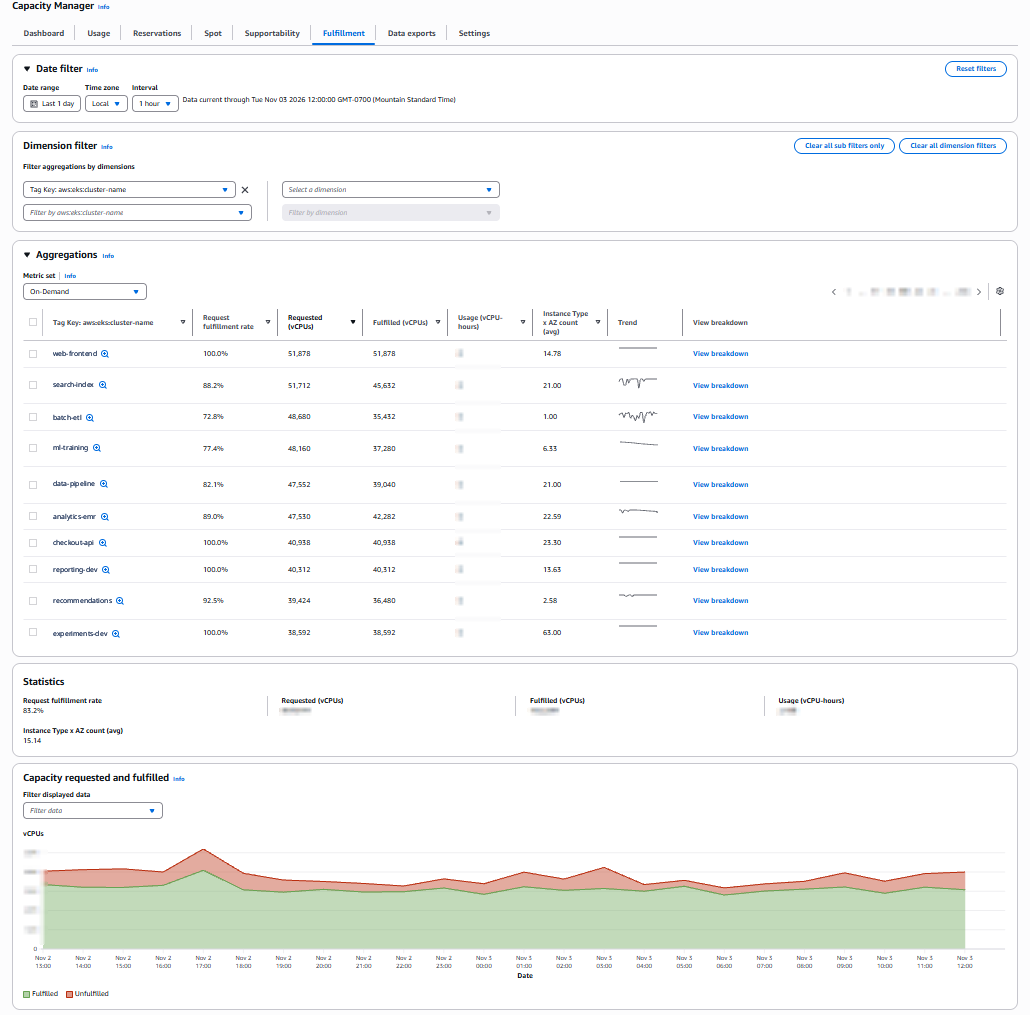
Figure 2: The Fulfillment tab for an example account, filtered by the aws:eks:cluster-name tag. Each row shows one workload’s request fulfillment rate and Instance Type x AZ count.
At AnyCompany, the search-index workload requested 51,712 vCPUs and received 45,632, an 88.2 percent request fulfillment rate. Its requests could use an average of 21 combinations. Compare batch-etl, which can use only one combination and fulfills 72.8 percent. Step 2 shows where the search-index capacity came from and where it fell short.
To get the same data with the AWS CLI, call get-capacity-manager-metric-data. Spot metrics use a Spot prefix, such as SpotCapacityRequestFulfillmentRate.
Step 2: See where your flexibility is paying off
The breakdown measures each combination on its own, so per-combination rates are usually lower than the request rate, which includes the benefit of diversification.
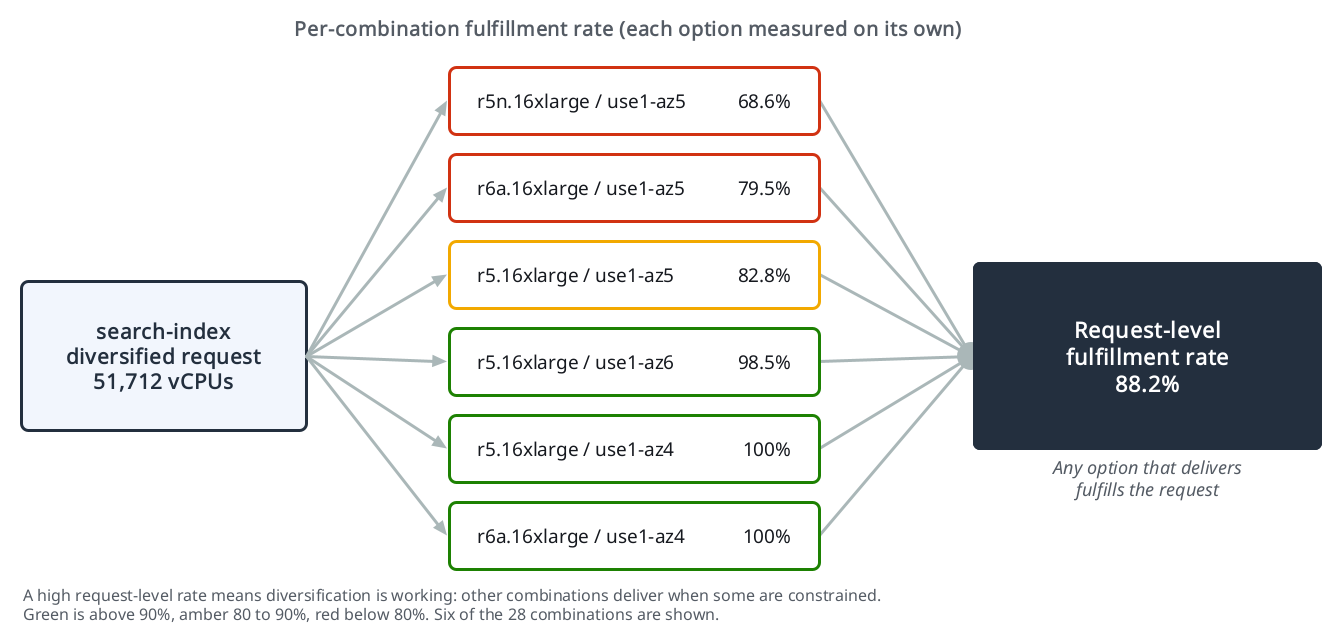
Figure 3: The search-index request is 88.2 percent fulfilled, while each combination is measured on its own.
In Figure 3, the three search-index combinations in use1-az5 deliver 68.6–82.8 percent of what is asked. Outside use1-az5, r5.16xlarge delivers 98.5–100 percent in use1-az4 and use1-az6, and r6a.16xlarge delivers 100 percent in use1-az4. Because the request can use any of these combinations, the other zones cover part of what use1-az5 can’t. So those zones are worth keeping, and use1-az5 is where to add options or reserve capacity.
On the console, choose View breakdown on any row of the Fulfillment tab. The breakdown lists each combination, and you can sort by fulfillment rate, fulfilled vCPUs, or usage. It adds instance type, instance family, and Availability Zone to the dimensions from Step 1.
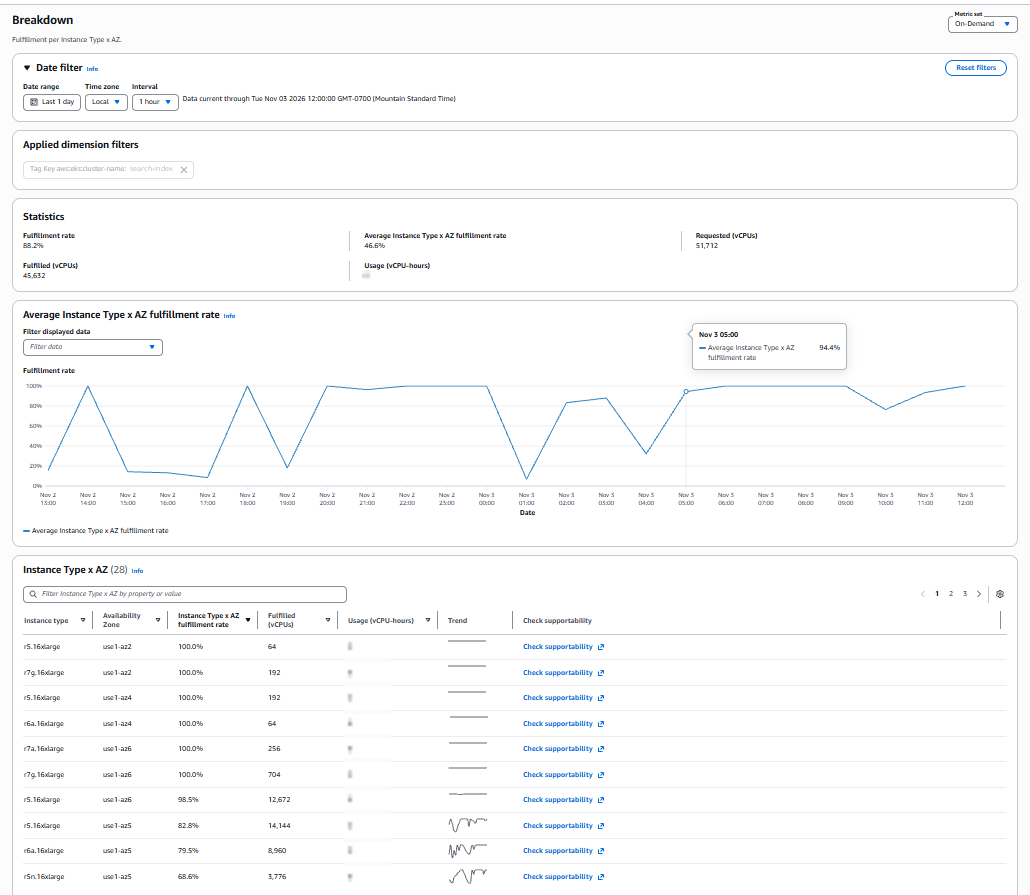
Figure 4: The breakdown for the search-index workload, with a Check supportability link on each row.
In Figure 4, search-index fulfills 88.2 percent of requested capacity, while its 28 combinations average 46.6 percent on their own. The difference is what flexibility adds: when some combinations come up short, others deliver. The three use1-az5 combinations delivered 26,880 vCPUs, more than half of the 45,632 total, so that zone has the most room to improve. The Check supportability link on each row opens a check for that combination.
Through the API, query InstAzFulfillmentRate. The request must include the availability-zone-id dimension and either instance-type or instance-family.
Step 3: Find where capacity is strongest before you scale up
Before a large scale up or migration, the platform team runs a supportability check. They provide the market type (On-Demand or Spot), the capacity amount, the Availability Zones, and the instance types to consider. The check returns a High, Medium, or Low score for each combination, plus an aggregate score for the set. The following example checks a scale up for search-index: 100 instances across its three Availability Zones, with its three current instance types and two candidates, r6i.16xlarge and r7i.16xlarge.
Instead of a list, you can also pass --instance-requirements-with-metadata, with the vCPU and memory ranges inside an InstanceRequirements object. Capacity Manager scores each matching instance type. For Spot, set the market type to spot.
The Supportability tab on the console runs the same check. Enter the amount, type, Availability Zones, and instance types or attributes, then choose Check supportability. One check can include up to 10 Availability Zones, from more than one Region, and up to 100 combinations. Figure 5 shows the search-index check on the console. The aggregate score is High, so together the set can support 100 instances. r5.16xlarge scores High in all three zones, and r7a.16xlarge scores High in use1-az6. r6a.16xlarge scores Medium in all three zones, and the new candidate r7i.16xlarge scores Medium in use1-az4 and use1-az6. The other six combinations, including every r6i.16xlarge combination, score Low.
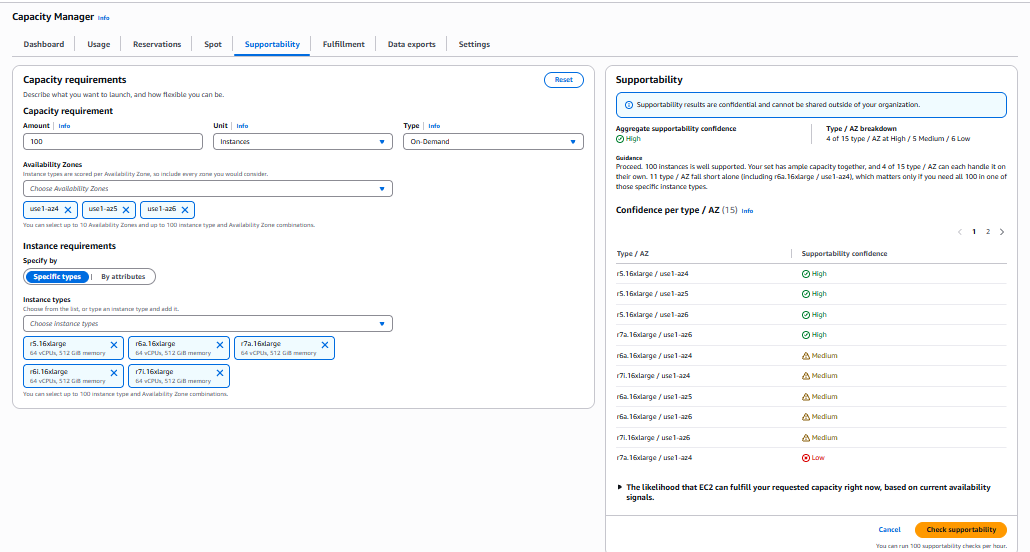
Figure 5: A check for 100 instances of five instance types across the three search-index Availability Zones, with High aggregate confidence.
High means a combination holds more than enough to serve your request. Medium means it can cover the request with little to spare, and Low means it holds less than you asked for. For details, see What the scores mean and What to do based on your score in the Amazon Elastic Compute Cloud User Guide.
Scores are guidance, not commitments. If you need assurance capacity will be there when you launch, use Capacity Reservations or future-dated Capacity Reservations.
Run the check when you plan a workload, not on every launch. You call it in the Region where Capacity Manager is turned on, so per-launch calls would add a cross-Region dependency and use up the hourly quota.
Step 4: Add the flexibility to your fleet
After a check shows which combinations can support a workload, add them to your Auto Scaling group, Amazon EC2 Fleet, or Karpenter configuration. You configure flexibility once, and every later launch benefits from it.

Figure 6: Use the capabilities to plan flexibility, then configure it in your fleet.
Add flexibility
For an Auto Scaling group, a mixed instances policy lists instance types in priority order. This example keeps r5.16xlarge, r6a.16xlarge, and r7a.16xlarge, which each delivered 98.5–100 percent outside use1-az5 in Figure 4. It adds r7i.16xlarge, which the check in Figure 5 scored Medium in two zones, and leaves out r6i.16xlarge, which scored Low.
For workloads defined by vCPU and memory, attribute-based instance type selection draws on every type that fits. Afterward, watch AvgInstAzCountPerRequestedVcpu (the Instance Type x AZ count (avg) column) to confirm the change.
Reserve where you need certainty
In use1-az5, r5.16xlarge delivered 82.8 percent in Figure 4, even though the check in Figure 5 scores it High right now. If the team needs that type in that zone, it can reserve its steady-state baseline with an On-Demand Capacity Reservation and let the rest stay flexible.
AWS bills you for Capacity Reservations whether or not you use them, so size them to your baseline. If you create one to try this example, cancel it when you no longer need it. Use the reservation ID from the create-capacity-reservation output.
Canceling an active reservation that has no commitment duration, like this one, has no charge. Any instances running in it keep running at On-Demand rates.
Conclusion
Real-time supportability checks and capacity fulfillment metrics in Amazon EC2 Capacity Manager make flexibility visible. You can find the best instance types and Availability Zones before you scale up, see where flexibility is paying off, and know where to add more.
To make this routine, review fulfillment rates each week and open the breakdown for any workload below target. Add a supportability check to change management, so capacity is validated before a change that adds or scales a workload goes live.
To get started, open the Fulfillment tab on the AWS console under Capacity Manager. To learn more, go to EC2 Capacity Manager on AWS Console.