Migration & Modernization
Lessons from Production Migrations: Troubleshooting Complex Issues with AWS Transform MGN
No matter how thorough your planning, large-scale migrations will surface edge cases that no runbook anticipates. The difference between a stalled project and a successful one often comes down to how quickly your team can diagnose, resolve the unexpected and whether those lessons feed back into your process.
This post distills that operational knowledge into four real-world scenarios encountered during an enterprise migration using AWS Transform MGN (MGN). From agent installation failures and post-launch disk corruption to encrypted volume crashes and performance issues masquerading as infrastructure problems – each case study gives you a ready-made troubleshooting playbook: symptoms to recognize, root cause analysis, step-by-step resolution, and preventive measures you can apply to your own migration waves.
Whether you’re running agent-based or agentless replication across Windows and Linux workloads, these patterns will help you reduce mean time to resolution, avoid repeat failures, and build confidence with every successive wave.
Overview
These issues were encountered across multiple migration waves involving production workloads. The servers ranged from Linux application servers running middleware platforms to Windows servers hosting line-of-business applications.
Table 1: Summary of migration issues
| # | Workload type | OS | Issue | Resolution approach |
|---|---|---|---|---|
| 1 | Middleware application server | Linux | MGN agent installation failure; disk corruption during agentless fallback | Switched to agentless migration; used rsync for corrupted disk |
| 2 | Line-of-business application (2-tier) | Windows | Non-root drive inaccessible post cutover due to disk encryption | Drive copy, offline swap, and MGN agent reinstall |
| 3 | Java-based web application | Linux | Website blocking every 2 hours and slowness post cutover | Amazon Elastic Block Store (Amazon EBS) initialization wait, volume extension, connection pool tuning |
| 4 | ERP/payroll application | Linux | Test launch failing – initramfs rename and XFS metadata corruption | Source-side filesystem repair before migration |
Architectural Reference for Above Issues
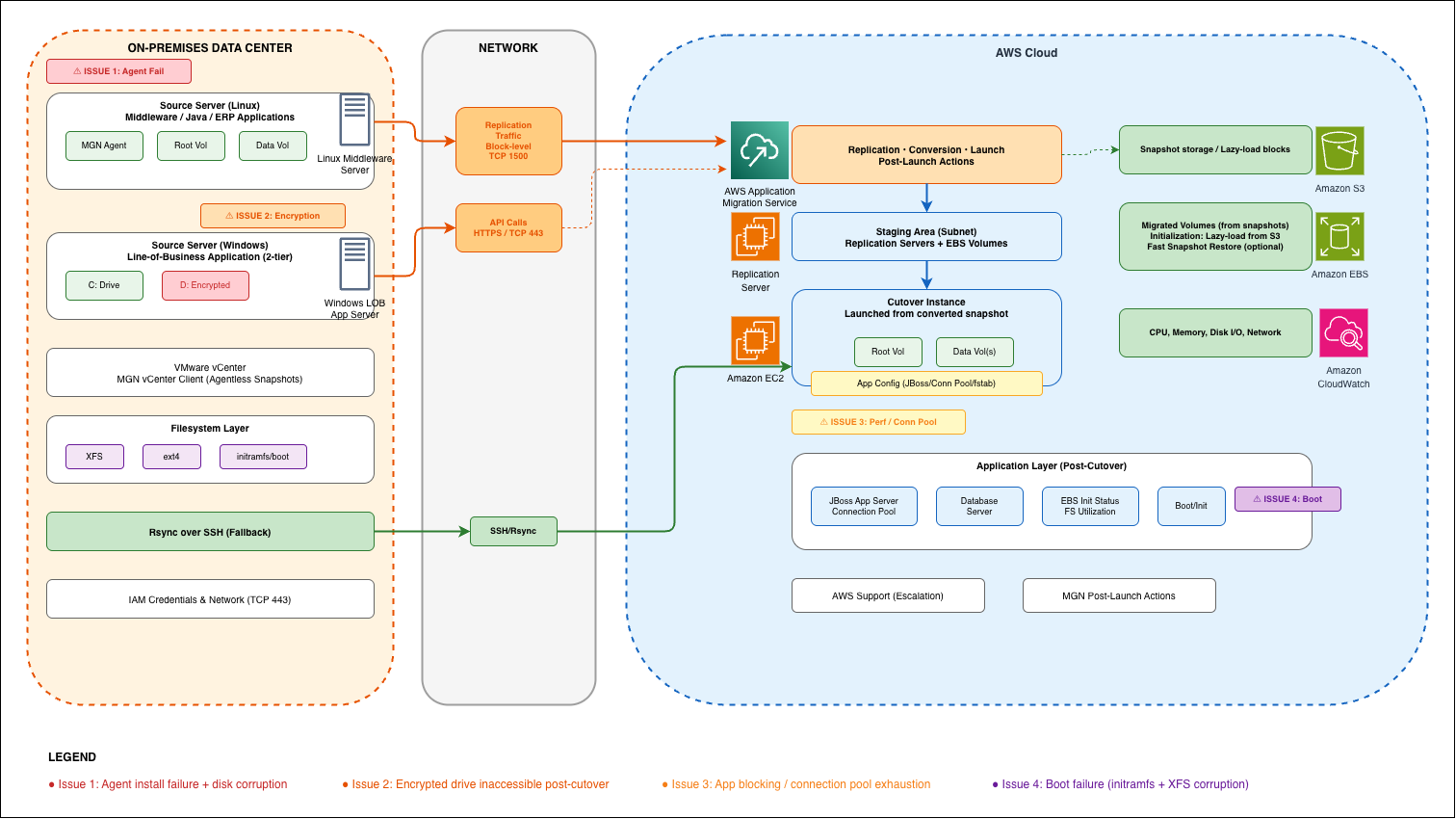
Issue 1: MGN agent installation failure and disk corruption during agentless migration
Symptoms
During the migration of a Linux middleware application server, the MGN agent installation failed. The agent logs showed a credential authentication error during the registration phase. The credentials were validated independently and confirmed correct – the same credentials worked for other servers in the same wave.
Investigation
We reviewed the agent installation logs located at /var/log/aws-replication-agent-install.log on the source server. The error indicated an authentication failure during the agent’s initial handshake with the AWS MGN service endpoint. Standard troubleshooting steps included:
- Verifying AWS Identity and Access Management (IAM) credentials and permissions
- Confirming network connectivity to the MGN service endpoints on TCP port 443
- Validating that the source server’s system clock was synchronized (clock skew can cause signature validation failures)
- Checking for proxy or firewall interference
Despite these checks, the agent failed to register.
Resolution: Switching to agentless migration
Due to timeline constraints, we switched to the vCenter-based agentless migration approach. AWS MGN supports agentless replication for VMware environments through the MGN vCenter Client, which takes snapshots of the source VM and replicates them to AWS without requiring an agent on the source server.The agentless migration successfully replicated the root volume. However, after launching the instance in AWS, the additional (non-root) disk was found to be corrupted. The root volume booted and functioned normally.
Resolution: Rsync for the corrupted disk
Since the non-root disk contained application data (not the operating system), we used rsync as an alternative data transfer method:
- Launched the cutover instance with the healthy root volume
- Created a new, empty EBS volume of the same size as the corrupted disk
- Attached and formatted the new EBS volume on the cutover instance
- Mounted the original (corrupted) disk on the source server in read-only mode where possible
- Used rsync over SSH to transfer the data from the source server to the new EBS volume on the cutover instance:
rsync -avzP --progress /source/mount/ ec2-user@<cutover-instance-ip>:/target/mount/ - Validated file counts, directory structure, and checksums between source and target
- Updated /etc/fstab on the cutover instance to mount the new volume at the correct mount point
Lessons learned
- Have a fallback plan for agent installation failures. If the source environment is VMware-based, agentless migration is a viable alternative. Factor this into your migration runbook.
- Validate all disks post-launch, not just the root volume. Snapshot-based replication may capture application-consistent or crash-consistent states depending on workload activity during snapshot creation. High write activity on non-root volumes should be validated carefully after launch, particularly if the disk has active I/O during the snapshot window.
- Rsync is a practical workaround for individual disk failures. When a single disk fails to replicate cleanly, transferring the data at the filesystem level avoids re-running the entire migration.
Issue 2: Non-root drive inaccessible post cutover due to disk encryption
Symptoms
A two-tier line-of-business application consisted of an application server and a database server, both running Windows. Both were migrated using MGN agent-based replication. The database server migrated successfully. However, post cutover, the application team reported that the secondary data drive (D:) on the application server was inaccessible.
Investigation
Remote Desktop access to the server confirmed the D drive was visible in Disk Management but could not be accessed. The volume properties indicated the drive was encrypted with a third-party encryption tool. The encryption had been applied at the source before migration, and MGN faithfully replicated the encrypted blocks to AWS.The application team was informed that the drive needed to be decrypted before the application could function. However, during the decryption process, the server crashed.
Recovery and resolution
The server was restored from a backup snapshot, which brought back the encrypted D drive in its pre-crash state.
Note on the initial crash: The initial decryption attempt failed because the third-party encryption tool itself crashed during the process-causing the server to become unresponsive. This was not a credentials issue but a tool stability problem when decrypting in-place on a live system. After restoring the server from the backup snapshot, the team coordinated with the application vendor to obtain the vendor-specific decryption credentials (distinct from the standard domain or RDP credentials used for server access). With these vendor credentials in hand, the team proceeded with the safer copy-and-decrypt approach described below.
The operations team implemented the following workaround:
- Created an EBS snapshot of the encrypted D drive
- Created a new volume from the snapshot (assigned as G drive)
- Decrypted the G drive using the vendor-specific decryption credentials obtained from the application vendor
- Set the original encrypted D drive offline in Disk Management
- Reassigned the G drive letter to D, making it appear at the expected path for the application
- Rebooted the server
- Reinstalled the MGN agent to establish fresh replication from the now-decrypted state
- Ran a test launch and validated all drives, files, and folders.
The application was confirmed functional with the decrypted drive accessible at the expected path.
Lessons learned
- Inventory disk encryption before migration. Add encryption status to your pre-migration server assessment checklist. Encrypted volumes will replicate successfully but remain encrypted and inaccessible on the target.
- Obtain decryption credentials before cutover. Coordinate with application teams and vendors to ensure decryption keys or credentials are available before the migration window.
- The drive copy-and-swap technique is a safe workaround. When direct decryption risks data loss or server instability, copying the volume first provides a safety net. If decryption fails on the copy, the original remains intact.
- Reinstall the MGN agent after significant disk changes. After drive letter reassignments or volume swaps, a fresh agent installation ensures replication state is clean.
For additional reference, see: EBS Snapshots documentation | MGN post-launch actions
Issue 3: Web application blocking and slowness post cutover
Symptoms
After cutover, a Java-based production web application began experiencing periodic blocking (approximately every 2 hours) with overall slowness reported by end users. Troubleshooting began several days after the cutover. It had major business impact as App users were repeatedly getting sign-out in mid of work and due to that job got delayed.
Investigation timeline
Days 1–3: EBS volume initialization
The first finding was that the primary EBS volume (approximately 460 GB), which was created from a migration snapshot, was still initializing. The EBS initialization status showed only 63% complete. When EBS volumes are created from snapshots, the storage blocks are lazily loaded from Amazon S3 on first access. Until initialization completes, I/O operations that access unloaded blocks experience higher latency.
EBS initialization completed after approximately 5 days. However, the blocking and slowness persisted.
Day 4: Filesystem at capacity
Further investigation revealed that one filesystem (approximately 360 GB volume group) was at 96% utilization. The EBS volume was extended by 100 GB and the volume group and filesystem were expanded to use the additional space. Disk optimization took approximately 5 hours post-extension.The issue persisted after the volume extension.
Day 4: AWS Support engagement
A troubleshooting call with AWS Support confirmed no infrastructure-level issues. Amazon CloudWatch metrics for CPU, memory, network, and disk I/O were all within normal ranges. The EBS volumes were performing at their provisioned IOPS and throughput levels.
Day 5: Application-level investigation
The application timeout was increased from 30 seconds to 120 seconds, but the issue continued. This ruled out simple timeout mismatches.
Day 7: Final resolution
The root cause was identified as a database connection pool configuration issue. The Data Source configuration on the JBoss application server had connection pool minimum and maximum values that were appropriate for the on-premises environment but insufficient for the AWS deployment. Additionally, database-level connection attributes needed adjustment.
How the database issue was identified: JBoss application server logs showed repeated ConnectionTimeout exceptions that correlated precisely with the 2-hour blocking cycle-the connection pool’s idle timeout was configured at 2 hours. Further analysis revealed that increased network latency between the application and database tiers in AWS (compared to the co-located on-premises environment) caused database connections to be held longer, exhausting the pool faster than in the original environment.
The resolution involved:
- Updating the Data Source connection pool min-pool-size and max-pool-size values in the JBoss configuration
- Adjusting database-level connection attributes
- Restarting the application server
After the restart, the application performed normally with no further blocking or slowness.
Note: Connection pool tuning is highly application-specific. The optimal values for min-pool-size, max-pool-size, and idle-timeout depend on your application’s concurrency requirements, database capacity, and network characteristics. For JBoss/WildFly DataSource configuration guidance, refer to the Red Hat JBoss EAP Configuration Guide. For general database connection best practices on AWS, see Best Practices for Amazon RDS.
Lessons learned
- EBS volume initialization causes temporary performance degradation. Volumes created from snapshots require initialization. For performance-sensitive workloads, consider using EBS fast snapshot restore or pre-warming volumes with fio or dd before cutover. See also: Initialize Amazon EBS volumes.
- Don’t stop at the infrastructure layer. When CloudWatch metrics look normal but the application is still slow, the issue is likely in the application configuration. Connection pools, thread pools, and timeout settings often need tuning for the new environment.
- Monitor filesystem utilization as part of post-cutover validation. A filesystem at 96% can cause severe performance degradation for applications that write temporary files or logs.
- Allocate a post-cutover stabilization window. In this case, a 5-day stabilization window was planned, and the issue was reported on Day 2 with investigation starting immediately. Plan for 3-5 days of active monitoring and tuning after cutover. Migration doesn’t end when the instance launches. Establish monitoring coverage that includes: Amazon CloudWatch dashboards tracking CPU, memory, disk I/O, and network metrics; EBS volume performance and initialization status; filesystem utilization alerts at 85% and 95% thresholds; and application-level health checks. For detailed guidance on EC2 monitoring, see Monitoring Amazon EC2. Consider installing the CloudWatch agent for custom metrics including memory and disk utilization, and leverage MGN post-launch actions to automate monitoring setup on migrated instances.
Issue 4: Test launch failing due to initramfs rename and XFS metadata corruption
Symptoms
Test launch for a Linux-based ERP application server failed the Amazon Elastic Compute Cloud (Amazon EC2) instance status check (1 of 2 checks passed) and dropped into emergency/maintenance mode.
Investigation
Using the EC2 serial console and the instance screenshot from the EC2 console, we identified two distinct issues.
Issue 1: initramfs file renamed during MGN conversion
The initramfs file had been renamed during the MGN post-launch conversion process:
Original: initramfs-3.10.0-1160.119.1.el7.x86_64.img
Renamed: initramfs-3.10.0-1160.119.1.el7.x86_64.img.bak
Without the correctly named initramfs file, the kernel could not load the initial RAM filesystem required to mount the root partition and complete the boot process.
Issue 2: XFS metadata corruption on source volumes
Two source volumes had pre-existing XFS metadata corruption that was carried over during migration:
- /opt/app1 (dm-38): XFS metadata LSN ahead of current LSN
- /opt/app2 (dm-37): XFS metadata LSN ahead of current LSN
The “Metadata LSN ahead of current LSN” error indicates that the XFS filesystem journal contains entries with log sequence numbers that are higher than what the filesystem expects. This is typically caused by an unclean shutdown or filesystem inconsistency on the source server.Additionally, mount failures were observed for several other non-critical mount points that referenced external or optional storage.AWS Support confirmed that the XFS corruption existed on the source server and was not introduced by MGN.
Resolution
For the initramfs rename:
The initramfs file needed to be restored to its original name. This was addressed by booting into rescue mode and renaming the file:mv /boot/initramfs-3.10.0-1160.119.1.el7.x86_64.img.bak \/boot/initramfs-3.10.0-1160.119.1.el7.x86_64.imgAlternatively, regenerating the initramfs on the source server before migration ensures a clean file is replicated:dracut -f /boot/initramfs-$(uname -r).img $(uname -r)For the XFS metadata corruption:
The XFS corruption needed to be repaired on the source server before migration. The repair was performed using xfs_repair:
# Unmount the affected filesystems
umount /opt/app1
umount /opt/app2

# Run xfs_repair
xfs_repair /dev/mapper/<volume-1>
xfs_repair /dev/mapper/<volume-2>

# Remount and validate
mount /opt/app1
mount /opt/app2
For the remaining mount failures on non-critical mount points, the fstab entries were updated with the nofail option to prevent boot failures, consistent with the approach described in our previous post on LVM and Oracle migrations.After applying these fixes on the source server and allowing replication to sync, the subsequent test launch passed both EC2 status checks.
Lessons learned
- Run filesystem health checks on source servers before migration. Use
xfs_repair -n (dry run)for XFS andfsck for ext4to identify corruption before it gets replicated to AWS. - Verify initramfs integrity before cutover. Confirm that the initramfs file for the running kernel exists and is correctly named in /boot.
- Pre-existing source issues will be faithfully replicated. MGN performs block-level replication. It does not fix or filter filesystem corruption – what exists on the source will exist on the target.
- Add nofail to non-critical fstab entries. This prevents a single mount failure from blocking the entire boot process, giving you a running system troubleshooting from.
Best practices summary
Based on these four scenarios, we recommend incorporating the following into your migration runbooks:
- Pre-migration server assessment. Audit disk encryption status, filesystem health (XFS, ext4), fstab configuration, and initramfs integrity on every source server before replication begins.
- Maintain fallback approaches. Document alternative migration paths (agentless, rsync, DataSync) for each server in case the primary approach fails. Time-constrained migrations cannot afford single points of failure.
- Validate all volumes post-launch. Check every disk, not just the root volume, after test launch. Verify mount points, filesystem integrity, data accessibility, and encryption status.
- Plan for EBS initialization. For large volumes created from snapshots, expect degraded I/O performance until initialization completes. Use fast snapshot restore for performance-critical workloads or schedule pre-warming during the cutover window. See: Initialize Amazon EBS volumes.
- Tune application configuration post-cutover. Connection pools, timeouts, and thread settings from the on-premises environment may not be optimal for AWS. Work with application teams to validate and adjust these settings during the stabilization window.
- Coordinate with application teams early. Encryption keys, vendor credentials, and application-specific configurations must be available before the cutover window – not discovered during it.
- Fix source issues before migration. Filesystem corruption, misconfigured fstab entries, and renamed system files should be repaired on the source server. Migrating known issues to AWS only moves the problem.
AWS Reference Links: MGN post-launch actions | Initialize Amazon EBS volumes | EBS fast snapshot restore | CloudWatch agent installation | Monitoring Amazon EC2
Conclusion
Migration troubleshooting is rarely about a single root cause. The issues described in this post involved interactions between agent authentication, VMware snapshot consistency, disk encryption, EBS initialization behavior, application connection pooling, filesystem corruption, and boot loader configuration. By documenting these scenarios and their resolutions, migration teams can build more resilient runbooks and reduce the time spent troubleshooting during future waves.The common thread across all four issues: thorough pre-migration assessment catches most problems before they become cutover blockers. Invest the time in source server audits, and your migration windows will be significantly smoother.
To learn more about AWS Transform MGN, visit the MGN documentation, review the best practices guide, and see troubleshooting agentless replication. For EBS volume performance considerations, see Initialize Amazon EBS volumes.