AWS Security Blog
Explore scaling options for AWS Directory Service for Microsoft Active Directory
You can use AWS Directory Service for Microsoft Active Directory as your primary Active Directory Forest for hosting your users’ identities. Your IT teams can continue using existing skills and applications while your organization benefits from the enhanced security, reliability, and scalability of AWS managed services. You can also run AWS Managed Microsoft AD as a resource forest. In this configuration, AWS Managed Microsoft AD serves supported AWS services while users’ identities remain under exclusive control of your organization on a self-managed Active Directory. As your organization grows and scales, so will your AWS Managed Microsoft AD deployments.
In this post, you’ll learn how to use Amazon CloudWatch dashboards to monitor key performance metrics of your AWS Managed Microsoft AD deployment to track and analyze a directory’s performance over time. You can then use that information to determine when and how best to scale directory services for optimal performance.
Scaling your Active Directory
When you deploy AWS Managed Microsoft AD, the service initially creates two domain controller instances in two separate subnets of the same virtual private cloud (VPC). This architecture economically provides resiliency and high availability with a minimal set of resources. This initial configuration enables every feature that AWS Managed Microsoft AD offers. As your organization grows, its workflows will become larger and more complex, requiring that you scale your directories accordingly. AWS Managed Microsoft AD simplifies and makes the scaling process secure with minimal administrative effort. When it’s time to scale a directory, AWS Managed Microsoft AD offers two options: scale-up or scale-out.
Understanding scale-up and scale-out
Scale-up—also called upgrading your AWS Managed Microsoft AD—means changing the edition of an AWS Managed Microsoft AD from Standard to Enterprise. Enterprise Edition delivers larger domain controller instances, with higher compute capacity and larger storage for Active Directory objects. When a directory scales up, it retains the same number of domain controller instances that it previously had with larger quotas. Instances are replaced one at a time to minimize disruptions to production workflows.
A few features offered by the service are a better fit for the size and compute power of Enterprise Edition AWS Managed Microsoft AD and so are only available in Enterprise Edition. Consider scaling-up your directory if you encounter any of the following scenarios:
- You plan to replicate your directory across multiple AWS Regions. Multi-Region replication is only available in Enterprise Edition.
- The number of Active Directory objects in the directory will exceed the recommended threshold of 30,000 objects for Standard Edition. Enterprise Edition can accommodate up to 500,000 directory objects.
- You plan to share your directory with more than 25 other AWS accounts. The default directory sharing quota is 25 accounts for Standard Edition and 500 for Enterprise Edition.
Important: Scaling up a directory from Standard to Enterprise is a one-way operation that cannot be reverted and operates at a higher hourly price.
Scale-out means deploying additional domain controllers for your AWS Managed Microsoft AD. You can scale out both Standard or Enterprise directories and can scale out different Regions independently. You don’t need to scale every Region to the same number of domain controller instances. When scale-out takes place, additional domain controller instances with the same compute resources and storage capacity as existing ones are launched in the same subnets.
Because some operations cannot be reverted, it’s important to understand the impact of each scaling operation. It’s preferable to scale out the number of domain controllers first, because you can revert that change if necessary. Consider scaling up first only if you need a feature that’s only available in Enterprise Edition.
Making an informed decision using CloudWatch
Since December 2021, AWS Managed Microsoft AD helps optimize scaling decisions with directory metrics in Amazon CloudWatch. Amazon CloudWatch metrics are a time-ordered set of data-points about performance indicators of a system that you can use to monitor and analyze performance over time. Metrics are stored as a time-series set and each data point has an associated timestamp. By using CloudWatch, you can create alarms based on metrics and visualize and analyze metrics to derive new insights.
To understand the performance of a directory over time, define the key performance metrics based on your workload when you create the directory. Record the initial values of those metrics to create a performance baseline. Periodically revisit and compare data points for the same metrics to understand trends and use of resources over time. Based on the information provided by the performance baseline and periodic follow-ups, you can decide when to scale your directory and what scaling method to use. This process is depicted in Figure 1.
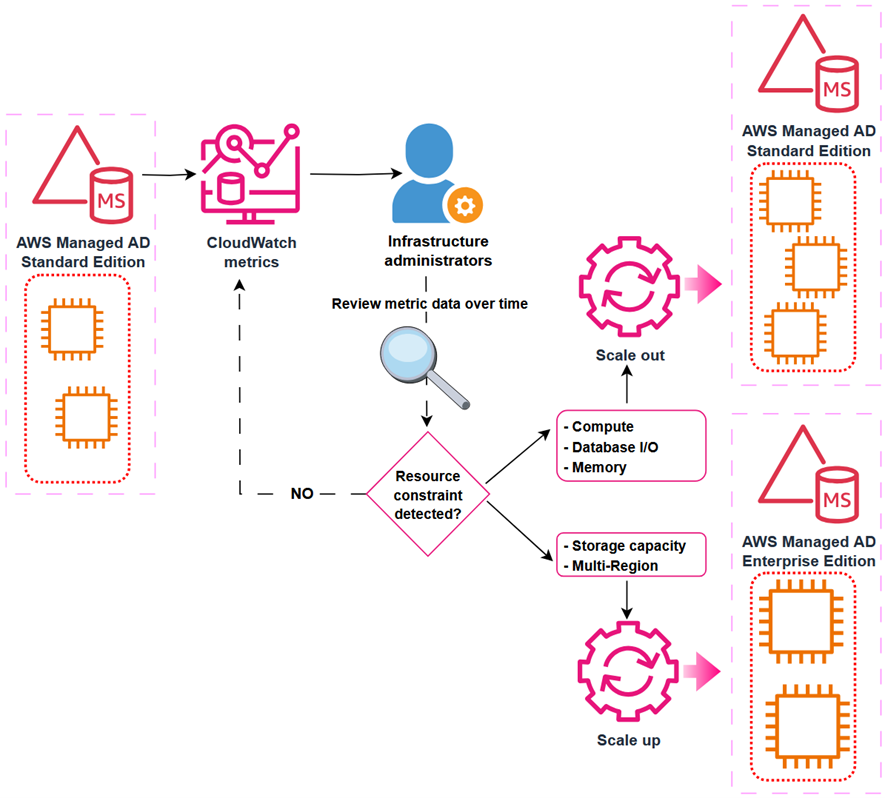
Figure 1: Decision-making process for scaling an Active Directory implementation
Depending on the characteristics of your workload, you might face different resource constraints in your directory system. From an infrastructure perspective, the more commonly demanded resources are:
- Network Interface: Current Bandwidth
- Processor: % Processor Time
- LogicalDisk: % Free Space
From an Active Directory perspective, consider metrics such as:
- NTDS: LDAP Searches/sec
- NTDS: ATQ Estimated Queue Delay
The following table is an example decision matrix based on which resource is constrained.
| Constrained resource | Recommended action |
| % Processor Time | Scale out |
| I/O Database Reads Average Latency | Scale out |
| Committed Bytes in Use | Scale out |
| % Free Space | Scale up |
For example, you can create a CloudWatch alarm that will trigger when Processor: % Processor Time is over 80% for more than 5 minutes. If this alarm triggers often, it could be a signal that domain controller instances are struggling to service the regular volume of user authentication requests. In such a scenario, you might consider scaling-out an additional domain controller to guarantee the service’s SLA. Conversely, if the LogicalDisk: % Free Space drops below 10% and trends downwards, you might consider scaling-up to Enterprise Edition, because it provides a larger capacity for directory objects.
To facilitate tracking and analyzing performance of AWS Managed Microsoft AD over time, you can use Amazon CloudWatch to create a custom dashboard including relevant metrics.
Prerequisites
Before you get started, make sure that you have the following prerequisites in place:
- An AWS account
- An AWS Identity and Access Management (IAM) user or role with permissions to perform AWS Directory Service operations and CloudWatch operations
- An Amazon Virtual Private Cloud (Amazon VPC) VPC configured in each Region
- At least two private subnets in the VPC
- An AWS Managed Microsoft AD directory
Create a CloudWatch dashboard
With the prerequisites in place, you’re ready to create a CloudWatch dashboard to track directory service metrics. For more information, see Getting started with CloudWatch automatic dashboards.
To create a dashboard:
- Open the AWS Management Console for CloudWatch.
- In the navigation pane, choose Dashboards, and then choose Create dashboard.
- In the Create new dashboard dialog box, enter a name for the dashboard and then choose Create dashboard.
- When the Add widget window appears:
- Under Data sources types, select CloudWatch.
- Under Data type, select Metrics.
- Under Widget type, select Line.
- Choose Next.
- In the Add metric graph window, choose DirectoryService and then select Processor as the Metric category and % Processor Time under Metric name. Select each instance of the metric, represented as the Domain Controller IP, for one Directory ID.
- Choose Create widget.
Note: if there are multiple directories in the same Region, all instances (domain controllers IPs) will be available for selection. To help ensure effective monitoring and alarms, create a separate dashboard for each directory.
- Choose the plus sign (+) at the top of the window to add more widgets. Repeat steps 1–6 to add additional widgets for other relevant metrics. In this example the metric categories and names added are:
- Processor: % Processor Time
- LogicalDisk: % Free Space
- Memory: Committed Bytes in Use
- Database: I/O Database Reads Average Latency
- Network Interface: Current Bandwidth
- DNS: Recursive Queries/Sec
- After adding the desired metrics, choose Save.
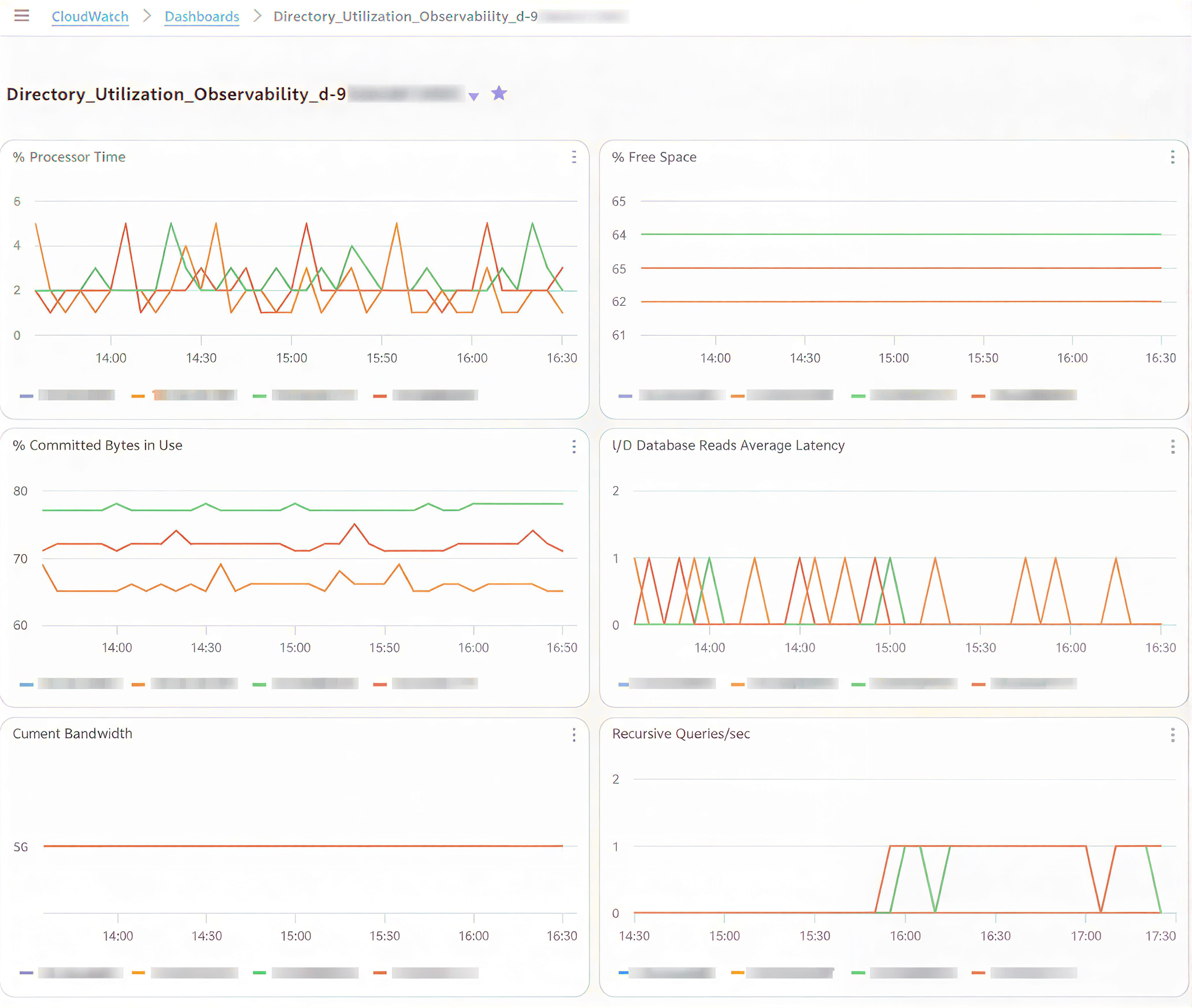
Figure 2: CloudWatch dashboard showing directory services metrics
(Optional) Create an alarm in CloudWatch
Now that you have a dashboard where you can view metrics, consider setting up CloudWatch alarms to alert you when a metric reaches or goes beyond a specified threshold. For more information, see Create a CloudWatch alarm based on a static threshold and Adding an alarm to a CloudWatch dashboard.
The following are recommended thresholds to monitor when determining the need to scale an AWS Managed Microsoft AD. These are general recommendations based on standard use cases. You might have to adjust these thresholds to make the best scaling decisions for your organization.
- Processor: % Processor Time: Monitor CPU utilization to understand computational demands on your domain controllers. Set CloudWatch alarms at 80% for a period of 5 minutes. Sustained high values indicate potential sizing issues that might require scaling out your directory.
- LogicalDisk: % Free Space: Maintain at least 25% free space on volumes containing Active Directory data for optimal performance. Set CloudWatch alarms to trigger when free space drops below 20%. Low disk space can severely impact directory operations and require implementing cleanup procedures or scaling up the directory.
- Network Interface: Current Bandwidth: Average network utilization should be kept below 50% of available bandwidth during peak operations for optimal directory responsiveness. Set CloudWatch alarms at 70% utilization to allow room for spikes in activity. Consistently high values suggest network constraints that might require scaling out your directory.
- Memory: Committed Bytes in Use: Monitor memory commitment levels to help ensure that your domain controllers have sufficient memory resources for Active Directory operations. This metric tracks the amount of virtual memory that has been committed, indicating the total memory load on your domain controllers. Set CloudWatch alarms at 80% of the commit limit. Sustained high values can lead to excessive paging, significantly degrading directory performance and potentially causing authentication delays.
- Database: I/O Database Reads Average Latency: Maintain average read latencies below 25 milliseconds. Set CloudWatch alarms at a threshold of 50 milliseconds. If read latencies are consistently elevated, consider scaling-out your directory.
- DNS: Recursive Queries/sec: Given the tight integration of Active Directory with DNS, monitor this metric for stability and predictable patterns. Use CloudWatch anomaly detection rather than fixed thresholds to identify unexpected behaviors that could indicate DNS configuration issues or potential security concerns.
Post-scaling considerations
Different resources across your architecture might contain references to the IP addresses of the AWS Managed Microsoft AD. After a scale-out operation that deploys additional domain controller instances on a directory, update existing references to maintain full functionality of workloads. References for the directory’s IP addresses can be found (but might not be limited to) the following services:
- Firewall rules
- Amazon Virtual Private Cloud (Amazon VPC) security groups
- Amazon Route 53 Resolver endpoint rules
- DNS conditional forwards
- CloudWatch dashboards
To maintain the full functionality of your workloads after a directory scaling operation, update the following:
- Firewall rules that allow traffic to and from the IP addresses of domain controller instances
- Route53 Resolver endpoint rules and DNS conditional forwarders that forward queries to the directory instances
- CloudWatch dashboards that display metric data about the directory to include dimensions for the new IP addresses
Clean up resources
In this post, you created components that generate costs. Clean up these resources when no longer required to avoid additional charges.
- Remove added domain controller’s IP addresses from firewall rules, resolver endpoint rules and DNS conditional forwarders.
- Delete the custom CloudWatch dashboards you don’t plan to keep.
- Scale back existing directories to the previous number of domain controller instances.
Conclusion
In this post, you learned how to monitor directory performance metrics using Amazon CloudWatch. By combining performance baselines, monitoring, and planning, you can make informed decisions about when and how to scale a directory safely and efficiently. By scaling directories in a timely manner, you can optimize efficiency and reduce the risk of outages by having a right-sized directory service to support your organization’s workloads.
Scale out your directory when your Active Directory-aware workflows have grown over time and the solution requires additional domain controller instances to maintain the service SLA. Scale up your directory when you require a feature that’s only available in Enterprise Edition AWS Managed Microsoft AD, such as multi-Region replication or additional storage to accommodate Active Directory objects. By using the flexible scaling capabilities and independent Regional expansion, you can optimize costs while maintaining appropriate service levels.
To learn more about AWS Managed Microsoft AD optimization and monitoring with Amazon CloudWatch, see: