AWS Cloud Financial Management
Improve Cost Visibility and Observability with AWS Cost Categories – Part 2: Hierarchical Structures and Programmatic Implementation
In Part 1 of our series on improving cost visibility and observability, “Improve Cost Visibility and Observability with AWS Cost Categories – Part 1: Fundamentals and Basic Grouping Techniques”, we explored the fundamentals of AWS Cost Categories and demonstrated how to implement basic grouping techniques using regional dimensions, multiple dimensions, and split charges to enhance cost visibility across your AWS environment. Building on these fundamentals, this second installment of our AWS Cost Categories series explores advanced techniques and automation capabilities that can further enhance your cost management strategy.
As your cloud environment expands to support new business workloads, implementing effective cost categorization becomes increasingly valuable. In this blog, we’ll dive deeper into advanced AWS Cost Categories features by:
- Setting up Hierarchical Cost Categories to reflect your organizational structure
- Programmatically creating and managing Cost Categories through AWS APIs and the JSON editor
These advanced techniques will help you scale your cost management throughout AWS environments of any size while maintaining consistent reporting structures that align with your business organization. Whether you’re managing costs for a large enterprise with multiple departments or looking to automate Cost Category creation across multiple accounts, these approaches will provide the tools needed to implement a comprehensive cost management strategy.
By the end of this two-part series, you will have a complete toolkit for implementing AWS Cost Categories to improve cost visibility, enhance financial governance, and support data-driven decision-making across your AWS environment.
Prerequisites
To follow along with this post, make sure you have the following prerequisites in place:
- An AWS account. If you don’t have one, follow the instructions on how to create and activate it.
- A fundamental grasp of creating Cost Categories.
- Activated Cost allocation tags. Once activated, it typically takes up to 24 hours for these tags to become available for use.
- Appropriate IAM permissions to access and manage AWS Cost Categories (ce:CreateCostCategoryDefinition, ce:DeleteCostCategoryDefinition, ce:DescribeCostCategoryDefinition, ce:ListCostCategoryDefinitions, ce:UpdateCostCategoryDefinition).
Setting up a Hierarchical Cost Category
Consider a scenario where you aim to gain comprehensive visibility into the AWS spending across various organizational units. In this scenario, you have two main departments: SecOps and App Foundry. SecOps encompasses two business units, Resilience Engineering, and InfoSec Operations, while App Foundry consists of four business units: Compute, Network, GenAI, and Storage. Based on the organizational chart, you aim to create a hierarchical reporting structure for their AWS spend.
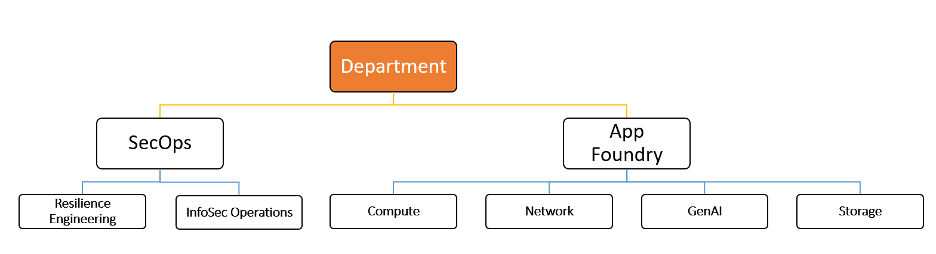
figure 1 Example – Customer Hierarchy
Configuring a Hierarchical Cost Category, as shown in Figure 1, allows them to consistently analyze their costs across each level using various AWS Cloud Financial Management tools like AWS Cost Explorer, AWS Budgets, AWS Cost and Usage Report (CUR), Data Exports, AWS Billing Conductor, AWS Invoice Configuration and AWS Cost Anomaly Detection.
When configuring a hierarchical structure using Cost Categories, you can establish a parent-child relationship between different Categories. In this example, ‘Department’ acts as the parent Cost Category, while ‘SecOps’ and ‘App Foundry’ are its child Cost Categories. Setting up this hierarchy requires a two-step process. First, create the child Cost Categories ‘SecOps’ and ‘App Foundry’. Then, proceed to define their parent Cost Category ‘Department’, which will establish the desired hierarchical structure between these components.
Setting up child Cost Category ‘SecOps’
- Create a Cost Category ‘SecOps’, click on ‘Add Rule’ and add the required rules. For example, the Figure 2 below illustrate a Cost Category ‘SecOps’ with two rules, one of them grouping all Resilience-related services under ‘Resilience Engineering’ and other one grouping all security-related services under ‘InfoSec Operations.’
- Click ‘Save Changes and Exit.’
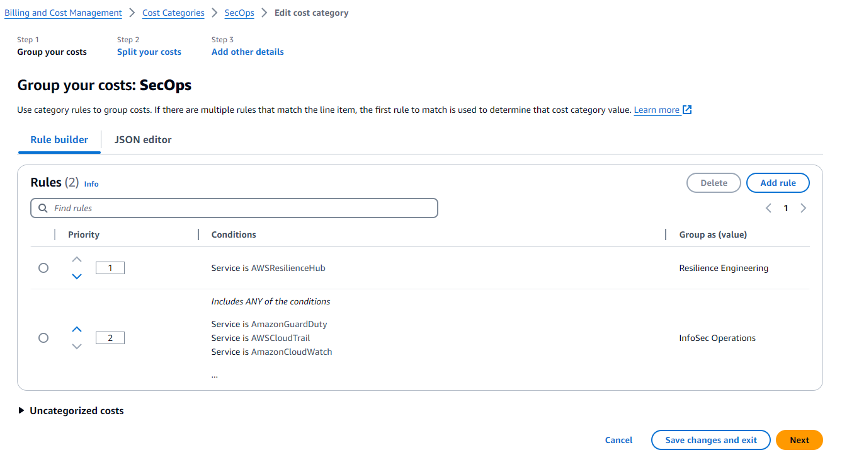
Figure 2. Setting up child Cost Category ‘SecOps’
Setting up child Cost Category App Foundry
- Similarly, create another Cost Category ‘App Foundry’, click on ‘Add Rule’ and add the required rules. For example, Figure 3 below illustrate a Cost Category ‘App Foundry’ with four rules, for grouping services for ‘Compute’, ‘Network’, ‘GenAI’ and ‘Storage.’
- Click ‘Save changes and Exit.’
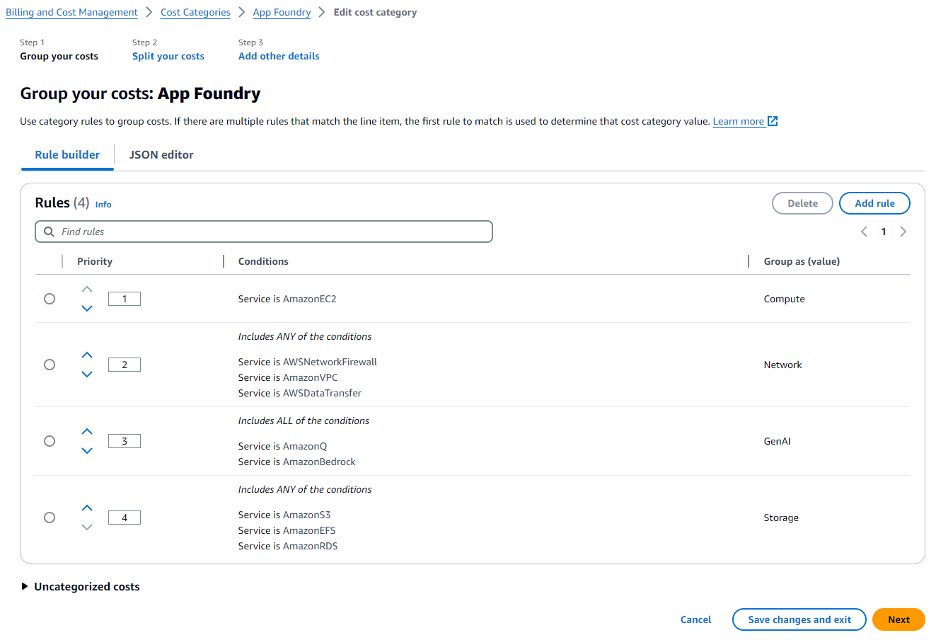
Figure 3. Setting up child Cost Category ‘App Foundry’
Setting up Parent Cost Category ‘Department’
- After completing the previous steps, create the parent Cost Category ‘Department’ and add rules. For example, Figure 4 below illustrates a Cost Category ‘Department’ with two rules mapping the child Cost Categories ‘SecOps’ and ‘App Foundry’ within the Parent Category Department by selecting ‘Cost Category’ under the Dimension.
- Click ‘Save changes and exit.’
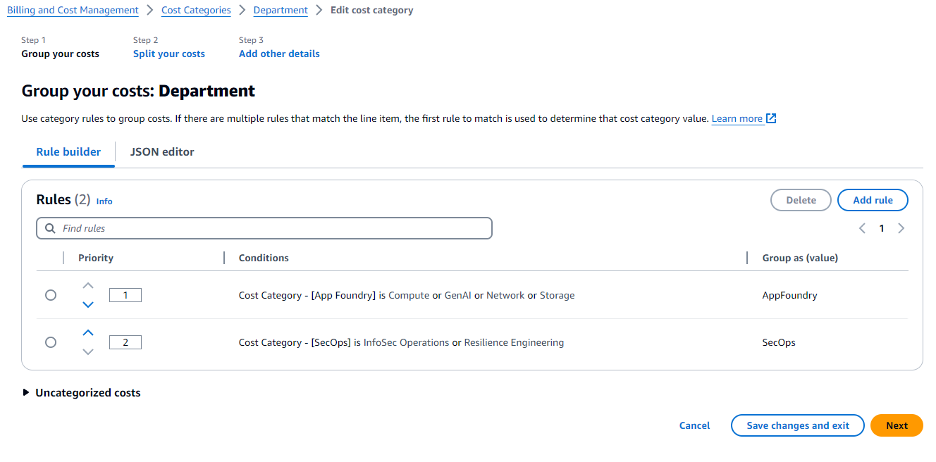
Figure 4. Setting up parent Cost Category ‘Department’
Note: that it can take up to 24 hours for the changes to take effect.
After the changes are applied, visualize your AWS spend in Cost Explorer by clicking ‘View in AWS Cost Explorer’ on the Cost Categories landing page (Figure 5). You will see the spend reflected by the Cost Categories you have defined (Figure 6).
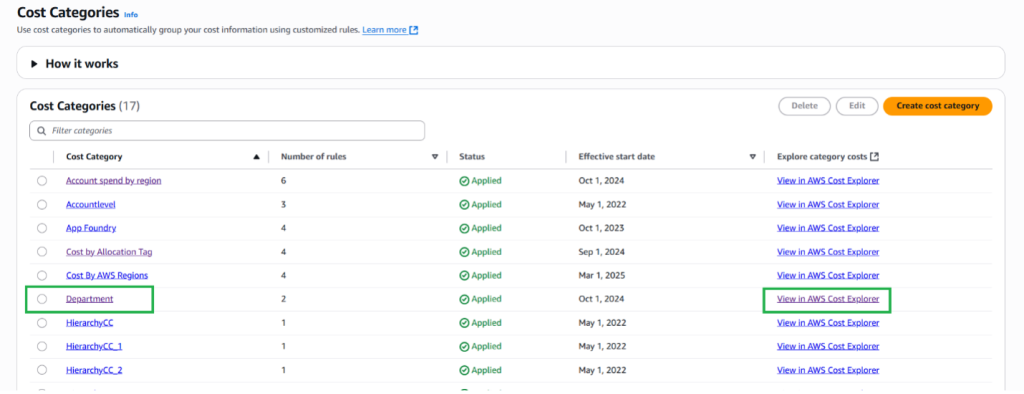
Figure 5. Hierarchical Cost Category
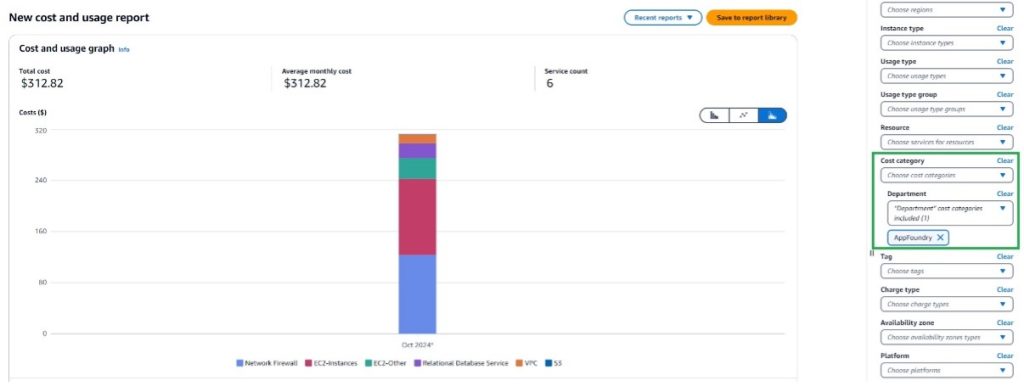
Figure 6. AWS Spend in Cost Explorer using Cost Categories
Programmatically create Cost Categories
You can also create AWS Cost Categories using the AWS API or using the JSON Editor.
To create an AWS Cost Category using the AWS API:
- Call API operation from the AWS Cost Explorer Service using CreateCostCategoryDefinition API.
- Provide the following information in your API request:
- Name: A unique name for your Cost Category..
- RuleVersion: The rule version ( ‘CostCategoryExpression.v1’)
- Rules: An array of rules that define how costs should be categorized.
- Define rules using various dimensions such as accounts, tags, services, charge types, and even other Cost Categories.
- Here is an example API call using the AWS CLI. Cost Categories created via API will behave the same as those created through the AWS console, including being effective from the start of the current month.:
aws ce create-cost-category-definition \ --name " Costcategoryname" \ --rule-version "CostCategoryExpression.v1" \ --rules '[{"Type": "REGULAR","Value": "Department","Rule": {"Dimensions": {"Key": "LINKED_ACCOUNT","Values": ["123456789012"]}}}]'
Note: When updating the existing Cost Categories please use the UpdateCostCategoryDefinition API operation.
To learn more about API structure, parameters, and recommended practices, refer to the AWS Cost Explorer Service API Reference documentation. This will provide you with the most up-to-date and comprehensive information on using the API to create and manage Cost Categories.
You can also use JSON editor as shown below in Figure 7 to programmatically create and edit Cost Categories using JSON.
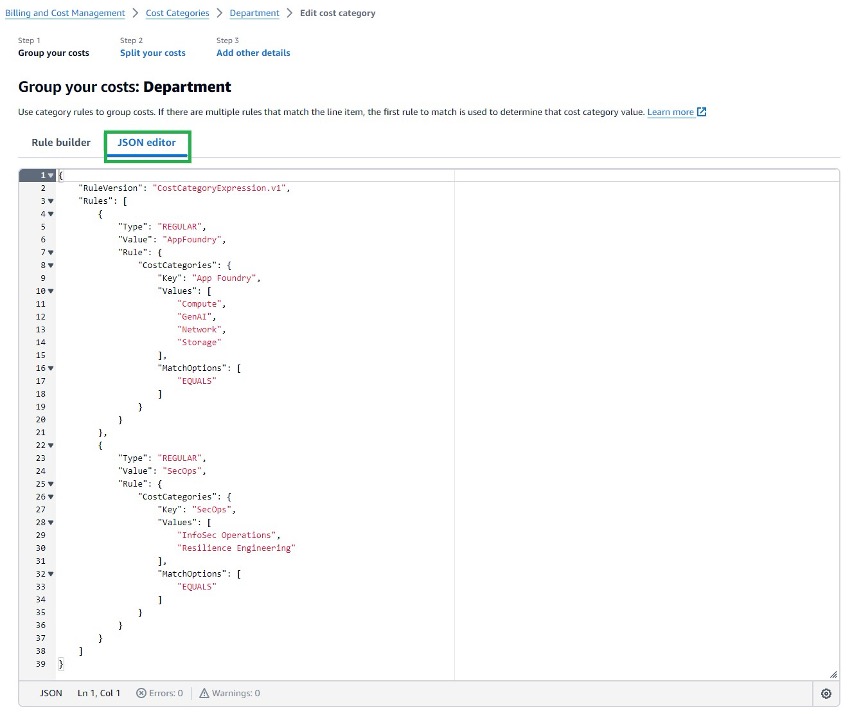
Figure 7. Cost Category JSON Editor
Clean Up
While AWS Cost Categories do not incur any charges, you may want to clean up test configurations to maintain organizational clarity in your cost reporting.
To Delete Test Cost Categories:
To maintain organized cost reporting, follow these steps to remove any categories created for testing or learning purposes:
- Navigate to the AWS Cost Categories console.
- Select the Category you want to remove.
- Choose ‘Delete’ from the Actions menu.
- Confirm deletion by clicking ‘Delete’ in the popup window.
Important Notes When Deleting Cost Categories:
- Cost Categories are a free feature and do not generate any AWS charges.
- Cost Category deletion cannot be undone.
- Historical cost data associated with deleted Cost Categories will no longer be available for reporting.
- It may take up to 24 hours for Cost Category deletions to fully process.
- Deleted Cost Categories will still appear in historical reports for the time period they were active.
Conclusion
In this second part of our AWS Cost Categories series, we’ve explored advanced techniques that enable organizations to implement sophisticated cost management structures that align with complex organizational hierarchies and can be managed programmatically at scale.
By leveraging hierarchical Cost Categories, organizations can create multi-level reporting structures that reflect their business organization, enabling consistent analysis across departments, teams, and projects. The programmatic creation capabilities we’ve demonstrated provide the tools needed to automate and standardize Cost Category implementation across large AWS environments.
The complete AWS Cost Categories toolkit we’ve presented across this two-part series enables organizations to:
- Create a comprehensive cost visibility framework that scales with your business.
- Implement consistent cost categorization that aligns with organizational structures.
- Automate cost management practices across complex multi-account environments.
- Make data-driven decisions based on accurate, well-organized cost information.
- Improve financial governance and accountability throughout the organization.
- Remember that effective cost management is an ongoing journey. As your AWS environment and organization evolve, regularly review and refine your Cost Categories to ensure they continue to provide meaningful insights. Consider implementing a governance process for Cost
- Category changes, especially in large organizations where consistency is crucial for accurate reporting.
AWS Cost Categories provide tremendous value by enabling the detailed visibility and organizational alignment needed to optimize your cloud spending. By implementing the techniques covered in this series, you’re establishing a strong foundation for cloud financial management that will support your organization’s growth and optimization efforts well into the future.
We encourage you to start implementing these AWS Cost Categories strategies today to transform your cost visibility and take control of your cloud financial management.