AWS Big Data Blog
Securely connect Kafka clients running outside AWS to Amazon MSK with IAM Roles Anywhere
Kafka clients that are running outside of AWS (on-premises environment or other clouds) would require an IAM user with a long-lived access key to be provided as part of their codebase or in their server configuration. From a security perspective, there is an additional risk if anyone gains access to those long-term credentials, as they would have access to that AWS account.
In this post, we demonstrate how to use AWS IAM Roles Anywhere to request temporary AWS security credentials, using x.509 certificates for client applications which enables secure interactions with an Amazon Managed Streaming for Apache Kafka (Amazon MSK) cluster. The solution described in this post is compatible with both Amazon MSK Provisioned and Serverless clusters.
Introduction to AWS IAM Roles Anywhere
AWS Identity and Access Management (IAM) Roles Anywhere allows you to obtain temporary security credentials in IAM for workloads running outside of AWS, such as servers, containers, and applications.
By using IAM Roles Anywhere, your workloads can utilize the same IAM policies and roles used by AWS applications to access AWS resources. This eliminates the need to manage long-term credentials for kafka clients running outside AWS. By associating one or more roles with a profile and enabling IAM Roles Anywhere to assume these roles, your applications can employ the client certificate issued by your Certificate Authorities (CAs) to securely initiate requests to AWS. Consequently, your applications obtain temporary credentials, granting them access to the AWS environment.
IAM access control for Amazon MSK allows you to manage both authentication and authorization for your Amazon MSK cluster at no extra cost. This eliminates the necessity of using separate mechanisms for authentication and authorization. We recommend Amazon MSK customers use IAM Access Control unless they have a specific need for using mutual TLS or SASL/SCRAM authN/Z.
In the following sections, we show you how to implement a secure Kafka client machine with a detailed step-by-step tutorial using an AWS IAM Roles Anywhere to connect with a MSK Cluster.
Solution overview
The following diagram illustrates the solution architecture.
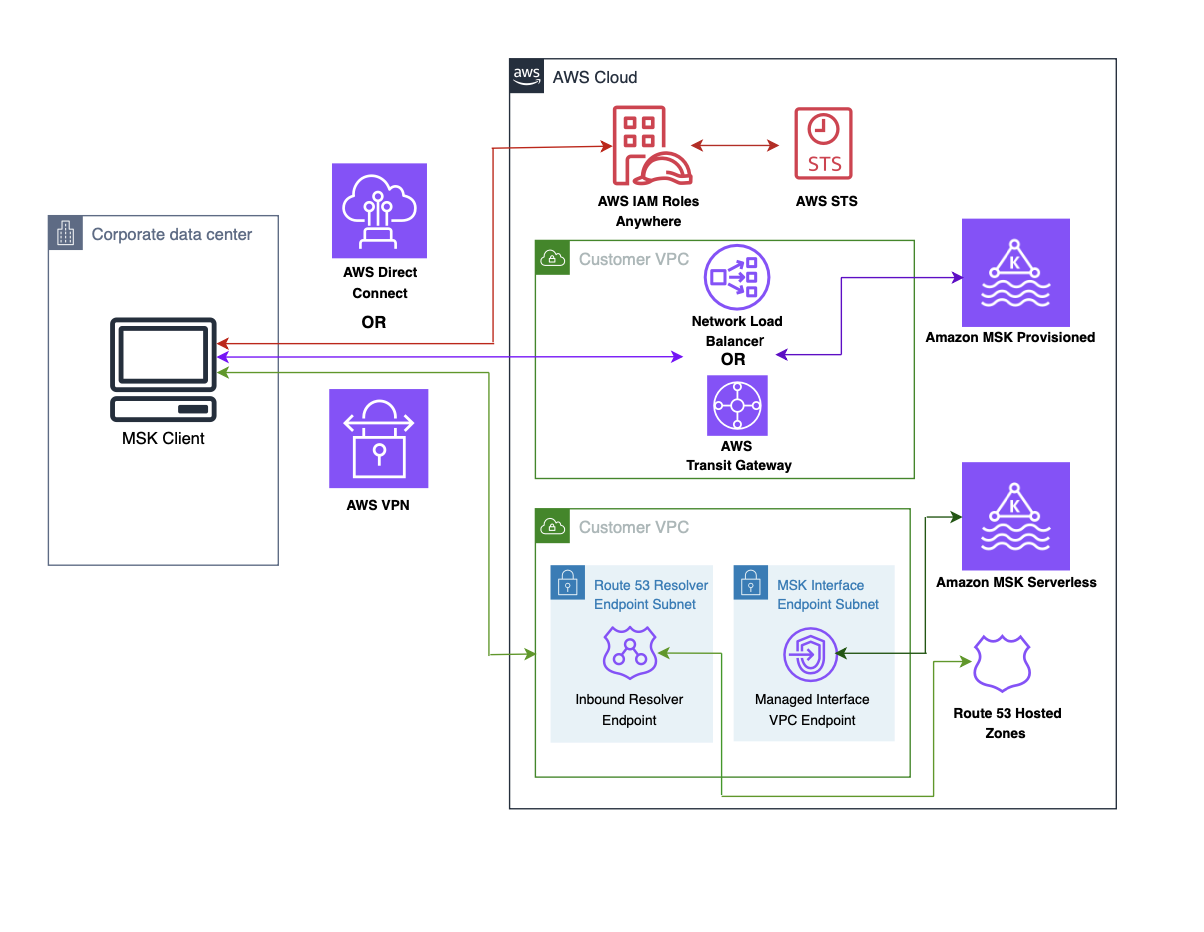
The flow of the architecture is as follows:
- The session token query from your client machine is directed to an AWS IAM Roles Anywhere endpoint, facilitated by the exchange of X.509 certificates.
- IAM Roles Anywhere validates the certificate and retrieves a temporary session token from STS, which is then returned to the client machine.
- In Amazon MSK Provisioned, the MSK client machine connects to the AWS Transit Gateway or AWS Network Load Balancer in your VPC over AWS VPN or AWS Direct Connect. For more information, refer to Secure connectivity patterns to access Amazon MSK.
- In Amazon MSK Serverless, the MSK client machine connects to the interface VPC endpoint in your VPC over AWS VPN or AWS Direct Connect. For more information, refer to Connect to Amazon MSK Serverless from your on-premises network.
- In Amazon MSK Serverless , the interface endpoint is a collection of one or more elastic network interfaces with a private IP address within your account. It serves as the entry point for traffic directed towards a MSK Serverless service.
Prerequisites
The instructions provided in this post assume that you are already acquainted with the process of creating an MSK serverless cluster and a client machine. Furthermore, it is presumed that you have successfully accomplished the following tasks:
- Create an Amazon MSK serverless cluster or Create an Amazon MSK Provisioned Cluster
- Create a MSK client machine in your on-prem data center or a VPC from another AWS account.
- Establish network connectivity between on premises and the Amazon MSK Serverless Cluster or Establish network connectivity between on premises and the Amazon MSK Provisioned Cluster
Configure AWS IAM Roles Anywhere
To enable IAM Roles Anywhere for your on-premises Kafka client machine, you must configure two essential components in AWS Roles Anywhere: the trust anchor and the profile. The trust anchor establishes the trust relationship between Roles Anywhere and your certificate authority. This trust is utilized for authenticating certificates to obtain credentials for an IAM role. Profiles are predefined sets of permissions that are applied once successful authentication with Roles Anywhere has been achieved.
Step 1: Generate a CA
An X.509 certificate plays an important role in facilitating communication between the client machine and Roles Anywhere. You can use Public Key Infrastructure (PKI) platform of your choice to establish a certificate authority (CA).
If you prefer to generate your own X.509 client certificate, you can refer to the instructions outlined in IAM Roles Anywhere with an external certificate authority to guide you through the process.
For simplicity of this example, we use an AWS Private CA:
Navigate to the AWS Private CA console.
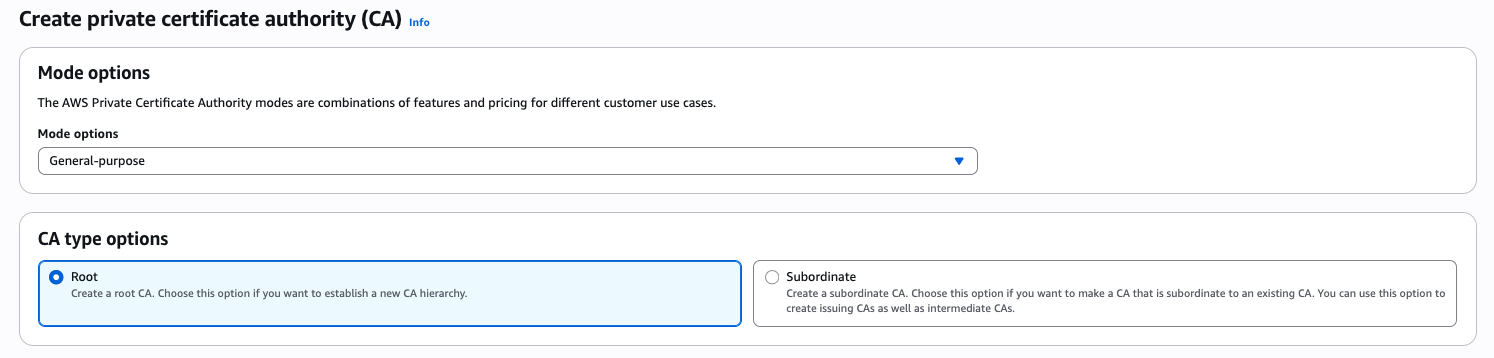
Create a Root CA
- Choose Root as CA type option and put your organization name and organization unit name.
- Choose default RSA 2048 key algorithm.
- Choose Create CA button to generate a private the CA and install the certificate.
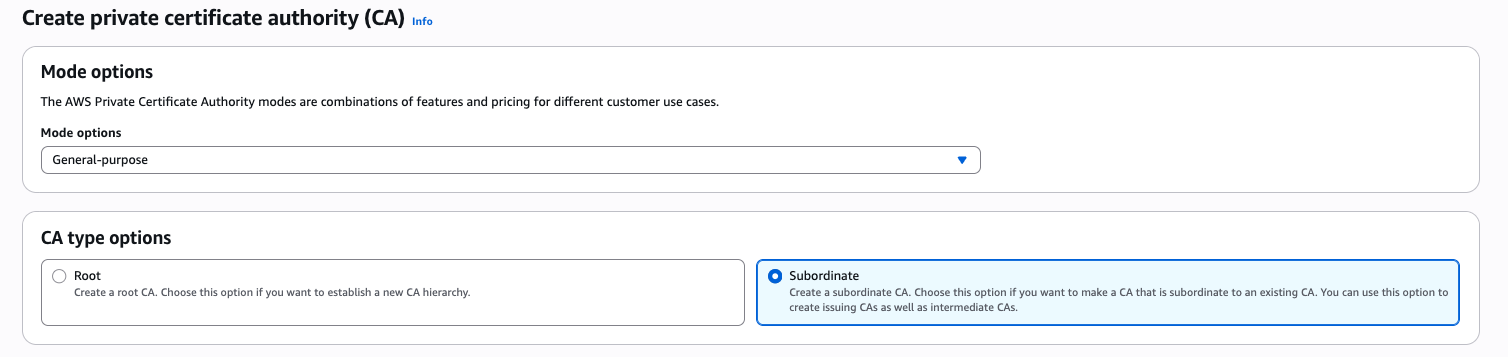
Create a Subordinate CA
- Choose Subordinate as CA type option.
- Choose default RSA 2048 key algorithm.
- Choose Create CA button.
- Obtain the CSR from the subordinate CA and have it signed by the root CA.
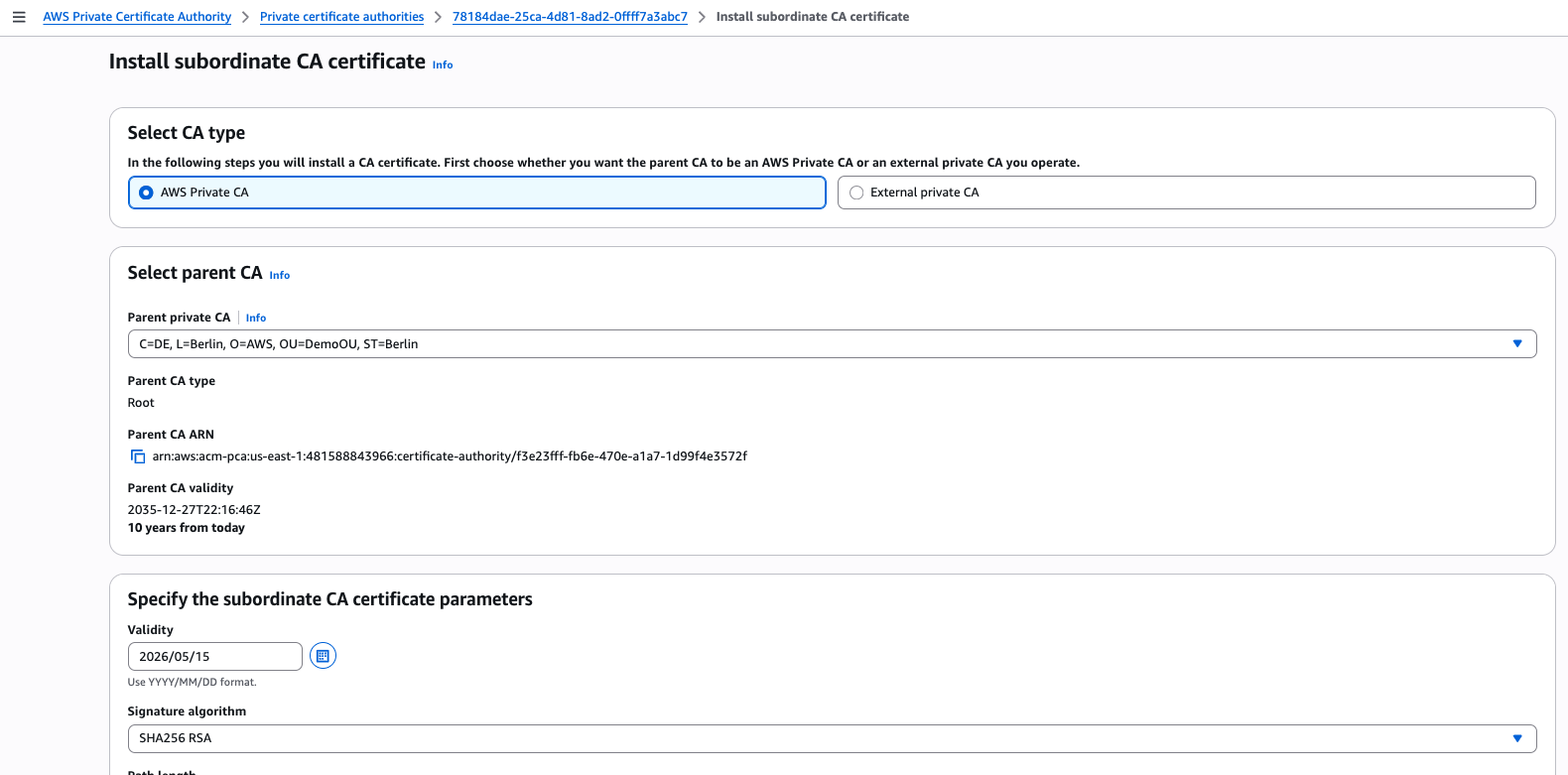
This CA will be used for issuing certificates to IAM Roles Anywhere.
For generating a more secured and auto-renewed AWS private CA, refer to Procedure for creating a CA and How to build a CA hierarchy.
Step 2: Configure anchor
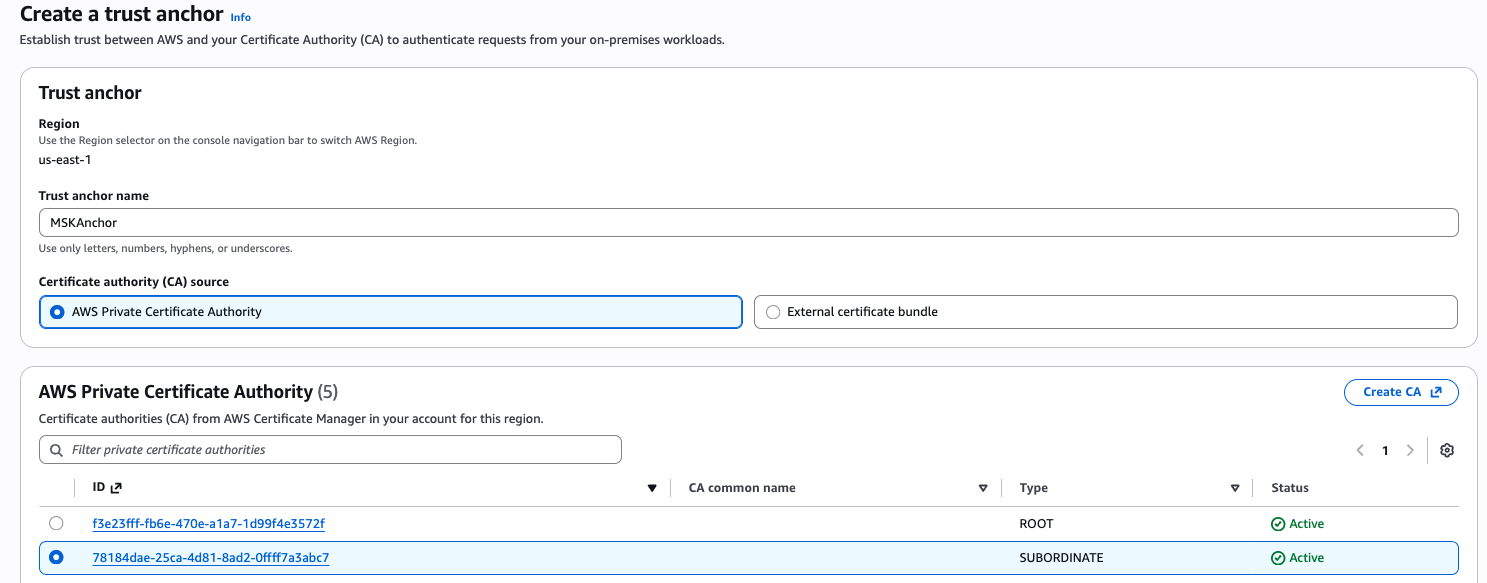
- Go to Roles Anywhere console and open the Create a trust anchor page.
- Provide a name for your trust anchor and select the private CA that we created in step 1. If you prefer to use your own external CA, choose the External certificate bundle option and provide the necessary certificate bundle.
- Choose create a trust anchor button to finish the process.
Step 3: Create and configure a role that trusts IAM Roles Anywhere
Now we create a role that you want your on-premises Kafka client machine to assume after authenticating to IAM Roles Anywhere.
- The trust policy of the role should contain the following:
- For this demo, create the following policy and attach it to the role:
Step 4: Setup profile
- Navigate back to the Roles Anywhere console.
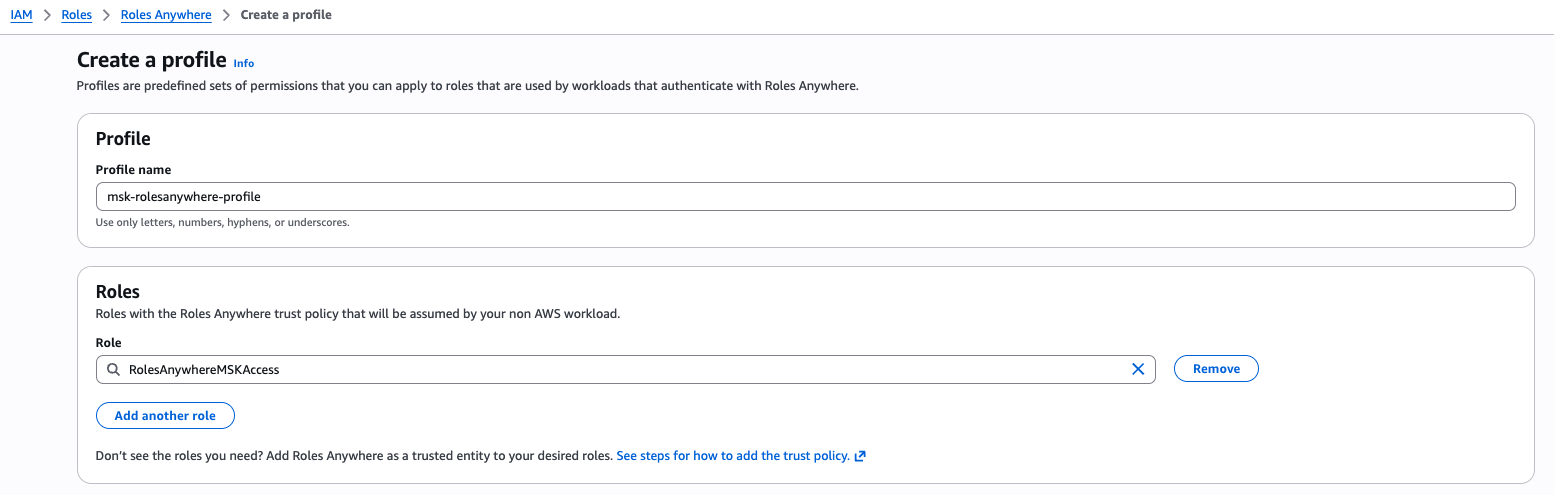
- Under Profiles, choose Create a profile.
- Enter a name for the profile.
- Select the role we created in Step 3 and create the Roles Anywhere profile.
Step 5: Test the client machine
Now that we have successfully set up Roles Anywhere by creating a trust anchor and a profile, the next step is to test the client machine’s communication with Roles Anywhere. This involves retrieving a session token and establishing communication with the MSK broker.
- Request a private certificate from the CA we created in Step 1 and export the client certificates to be used in the client machine.
- Create a .pem file and copy all the certificate contents into this .pem file(e.g. private_key. pem) and run below command to generate a decrypted version of certificate.

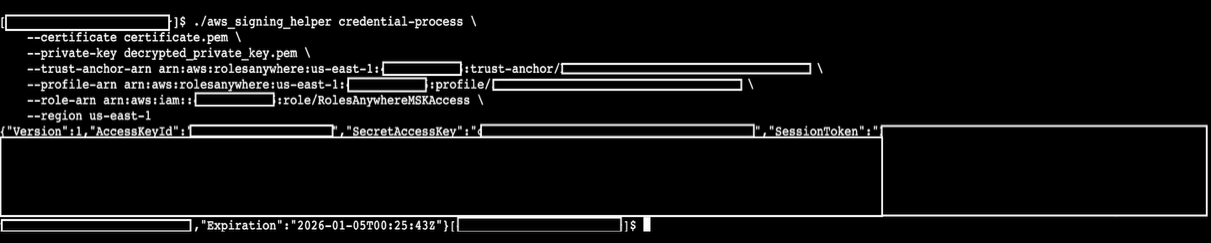
- Download the credential helper and use this signing helper tool to test and confirm the functionality from your client machine. We offer the ARNs of the trust anchor and profile of Roles Anywhere, and the role we created in IAM.
You should receive the session credentials successfully from IAM Roles Anywhere.
- After verifying the successful setup, proceed to update or create the
~/.aws/configfile. Add the signing helper as acredential_processin this file to enable unattended access for the on-premises server.
[default]
Once all steps are done, you should be able to see the Kafka client communicating to the MSK broker.

Clean up
To stop incurring costs, it is recommended to manually delete the IAM Role, Profile, Trust Anchor, Policies, requested certificate in ACM and created certificates in AWS Private CA.
Conclusion
In this post, we showed you how to utilize AWS IAM Roles Anywhere to generate temporary session tokens for accessing MSK brokers from client machines outside of AWS. By implementing this approach, the security posture of Kafka clients connecting to MSK from outside of AWS are enhanced, allowing customers with stringent security requirements to confidently adopt MSK.
If you have any questions, you can start a new thread on AWS re:Post or reach out to AWS Support.