AWS Contact Center
Configure Schedule Adherence Thresholds in Amazon Connect to Account for Operational Variances
1. Introduction
1.1. What are adherence thresholds and why do they matter
Schedule adherence is a Workforce Management (WFM) metric that measures how closely agents follow their assigned work schedules. Every contact center, however, operates with a degree of expected operational variance — agents finishing calls before transitioning to breaks, or handoffs running slightly long. When adherence measurement treats every deviation from the schedule as non-compliance, regardless of duration or context, it inflates non-adherence metrics and generates alert fatigue for supervisors — making it harder to identify the deviations that actually require attention.
Configurable adherence thresholds solve this problem. They define an accepted tolerance window — in minutes — for each shift activity. Agents operating within the configured window are counted as adherent. Only deviations that genuinely exceed the threshold are flagged as non-adherent, ensuring that adherence data reflects meaningful variances rather than routine timing differences.
Contact centers monitor adherence at multiple levels. Real-time analysts use dashboards to get an at-a-glance view of how sites and locations are performing. When adherence falls below acceptable levels, analysts alert supervisors who can intervene — coaching agents, adjusting assignments, or escalating as needed. Supervisors monitor adherence both in real time and historically to identify patterns, address root causes, and take corrective action.
Small improvements in adherence translate directly into staffing capacity. Consider this example: in an 8-hour shift, an agent adheres to their schedule 80% of the time — meaning, out of 480 minutes, they were adherent for 384 minutes, and out of adherence for 96 minutes. Improving this agent’s adherence by 5% would mean this agent is now adherent for 408 minutes, and hence available to take contacts for 24 additional minutes. When this is scaled across a hypothetical 1,000 agents contact center, that represents 24,000 more minutes in a single day — equivalent to roughly 2,000 additional contacts at an average handle time of 12 minutes — without requiring additional staffing.
1.2. Schedule Adherence in Amazon Connect
Amazon Connect provides a robust set of schedule adherence capabilities that supervisors and workforce management teams rely on daily:
- Real-time adherence monitoring: The Queue and agent performance dashboard includes an Agent Adherence widget that shows each agent’s current adherence status, scheduled activity versus actual activity, and how long they have been in their current state. Supervisors can see at a glance which agents are on-schedule and which are not.
- Scheduled versus actual activity view: When viewing real-time schedule adherence, supervisors can compare what an agent is scheduled to be doing against what they are actually doing, making it easy to identify the nature of each deviation.
- Historical adherence reporting: Historical metrics reports include adherence percentage, adherent time, non-adherent time, and scheduled time — allowing workforce management teams to analyze adherence trends over days, weeks, and months.
- Adherence toggle on the published schedule: The published calendar view includes an adherence toggle that overlays adherence data directly on top of agent schedules, providing a visual representation of adherence breaches by agent and day for up to 30 days in the past.
These capabilities give workforce management teams visibility into adherence across their organization. However, they provided no mechanism to account for predictable operational variance — the known timing tolerances built into every contact center’s daily operations. Without this, adherence metrics flagged routine variances as non-compliance, reducing the accuracy and usefulness of adherence data. Configurable adherence thresholds address this by allowing workforce management teams to define an accepted tolerance window for each shift activity.
1.3. The challenge — accounting for operational variances
Without a mechanism to account for expected variance, Amazon Connect treats every deviation from the schedule — regardless of duration or operational context — as non-adherent time. Consider a common scenario: an agent is handling a customer call when their scheduled break begins at 10:00 AM. The agent resolves the customer’s issue at 10:03 AM and then starts their break. Under strict adherence measurement, those three minutes are counted as non-adherent time, even though completing the customer interaction was the operationally correct decision.
This creates two problems for workforce management teams:
- Inaccurate data: Minor variances caused by routine operational realities — call wrap-up, system transitions, handoffs — inflate non-adherence metrics, making it harder to identify genuine adherence issues that require action.
- Alert fatigue: Supervisors receive notifications for predictable, acceptable timing differences. Over time, this reduces the signal value of adherence dashboards, and supervisors begin to discount real alerts alongside the noise.
1.4. The solution — configurable adherence thresholds
Amazon Connect addresses this with configurable adherence thresholds in Forecasting, Capacity Planning, and Scheduling (FCS). Thresholds define the allowed variance, in minutes, between an agent’s scheduled activity and their actual activity before they are flagged as non-adherent. With this feature, organizations can account for expected operational variances so that adherence metrics and alerts reflect meaningful deviations.
With configurable adherence thresholds, the scenario from the previous section plays out differently. Workforce management teams define an accepted tolerance window for each shift activity — for example, allowing agents to start their break, up to 5 minutes late. The agent who finishes their call at 10:03 AM and starts their break at 10:03 AM is now considered adherent. Only variances that exceed the configured threshold — the ones that genuinely warrant a supervisor’s attention — are flagged as non-adherent.
In this post, we walk through how adherence thresholds work, how to configure them at multiple levels with practical examples, and how supervisors can monitor adherence using threshold-aware dashboards and reports.
Watch the step-by-step video walkthrough:
1.5. Who benefits and how
For agents: Agents who complete a customer interaction a few minutes past a scheduled activity transition remain adherent when the variance falls within the configured threshold. This aligns adherence measurement with expected operational behavior.
For supervisors: Real-time and historical dashboards distinguish between agents operating within configured thresholds and those who have exceeded them. This helps supervisors at every level (regional, divisional, team) prioritize their attention on agents with meaningful adherence deviations.
For workforce management teams: When adherence metrics account for expected operational variances, the resulting historical data more accurately reflects agent behavior. This improves the reliability of inputs used for forecasting and capacity planning.
2. Adherence thresholds in action: a walkthrough example
To illustrate the impact of adherence thresholds, consider an agent with a shift from 9:00 AM to 2:00 PM, with work, break, and lunch activities scheduled throughout the day.
| Scenario | Description |
| Original schedule | The shift as assigned: work → break → work → lunch → work |
| Fully adherent | Agent follows every activity transition at the scheduled time |
| Without thresholds |
Without thresholds, every deviation is counted as non-adherent — regardless of cause or context. Assume the following three variances occur: (1) Work starts 15 minutes late because the agent was caught in traffic — flagged as 15 minutes non-adherent. (2) Break runs 10 minutes over because the agent was finishing a customer call before stepping away — flagged as 10 minutes non-adherent. (3) Lunch starts 20 minutes late because the agent was handling a complex customer issue — flagged as 20 minutes non-adherent. Total non-adherent time: 45 minutes — all counted as non-compliance, even though two of the three variances were the direct result of doing the right thing for the customer. |
| With thresholds applied | With configurable adherence thresholds, the same three variances are measured differently. (1) Work starts 15 minutes late — a 10-minute start-late threshold covers the first 10 minutes, leaving only 5 minutes marked non-adherent. (2) Break runs 10 minutes over — a 5-minute end-late threshold covers the first 5 minutes, leaving only 5 minutes marked non-adherent. (3) Lunch starts 20 minutes late — a 15-minute start-late threshold covers the first 15 minutes, leaving only 5 minutes marked non-adherent.Total non-adherent time: 15 minutes — only the variances that genuinely exceeded the configured thresholds are flagged, protecting adherence data from routine operational noise. |
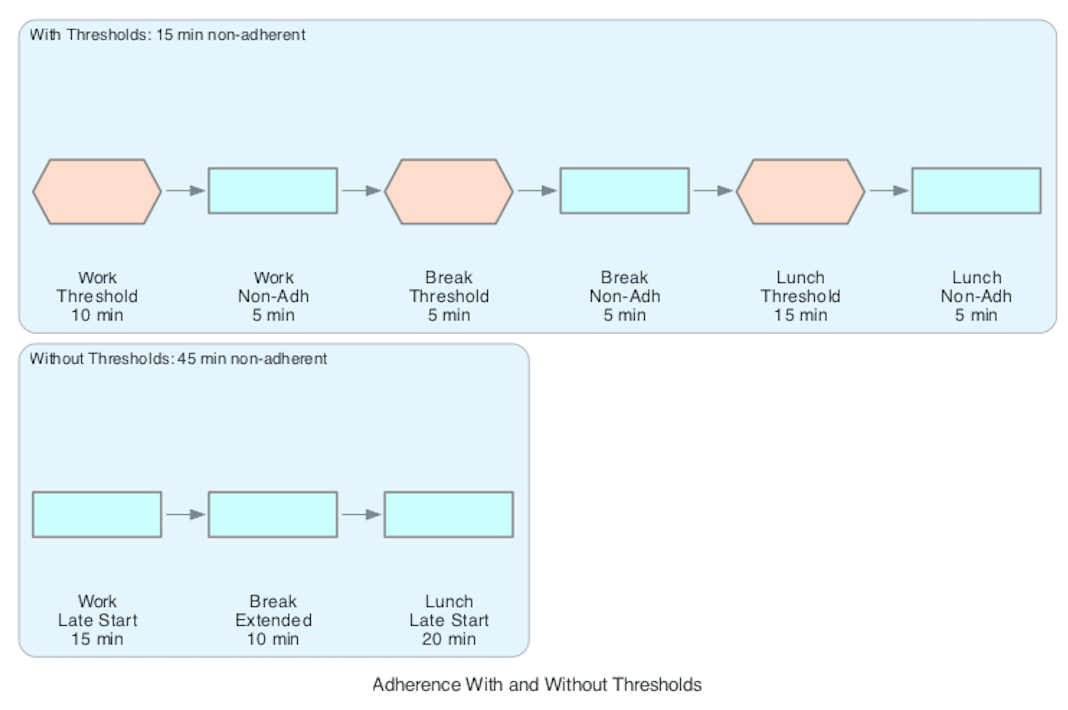
Figure 1: Comparison of adherence calculations with and without thresholds.
With thresholds applied, non-adherent time is reduced by 67%. The 15 minutes of remaining non-adherent time represent variances that exceeded the configured thresholds — these are the deviations that warrant supervisor review.
3. Understanding adherence thresholds
An adherence threshold defines the allowed variance, in minutes, between an agent’s scheduled activity and their actual activity, before they are flagged as non-adherent. Each threshold can be configured with values from 1 to 10 minutes.
Every threshold has four configurable options:
| Threshold | Abbreviation | What it controls | Example |
| Start Early | SE | How many minutes before the scheduled start an agent can begin and still be adherent | Agent can start their break up to 3 minutes early |
| Start Late | SL | How many minutes after the scheduled start an agent can begin and still be adherent | Agent can start lunch up to 10 minutes late if finishing a call |
| End Early | EE | How many minutes before the scheduled end an agent can finish and still be adherent | Agent can return from break up to 2 minutes early |
| End Late | EL | How many minutes after the scheduled end an agent can finish and still be adherent | Agent can end their break up to 5 minutes late |
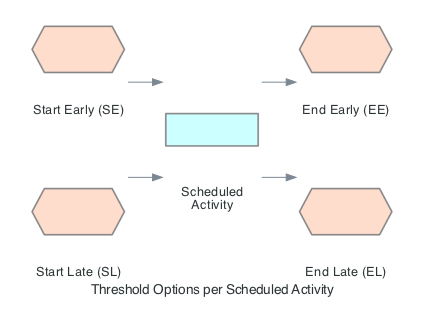
Figure 2: Threshold configuration options — SE, SL, EE, and EL — available at both shift and activity levels.
The 4 options can be applied in 2 levels
3.1. Shift-level thresholds
Shift-level thresholds apply to the overall shift start and end times. For example, if you configure a 5-minute Start Early and 5-minute Start Late threshold at the shift level, an agent whose shift starts at 9:00 AM can log in anytime between 8:55 AM and 9:05 AM and still be considered adherent.
This is useful because agents commonly log in a few minutes before or after their scheduled start. Without shift-level thresholds, an agent who logs in at 8:57 AM for a 9:00 AM shift would be marked as non-adherent.
3.2. Activity-level thresholds
Activity-level thresholds apply to each specific activity within the shift. Each activity — work, break, lunch, training — can have its own set of thresholds. This provides granular control over adherence measurement for different activity types.
Example: A contact center has a 15-minute break scheduled at 10:00 AM. Operationally, agents frequently complete customer calls 3-5 minutes past the break start time. You configure:
- Can start late: 5 minutes
- Can end late: 5 minutes
Now an agent who starts their break at 10:04 AM (because they were completing a call) and returns at 10:19 AM (4 minutes late) is still considered adherent. The threshold accounts for this expected operational variance.
4. Configuring adherence thresholds — step by step
Amazon Connect provides four levels of threshold configuration across two main areas: the Shift Activities page and the Staffing Groups page. These levels form a precedence hierarchy, giving you both broad defaults and team-specific overrides.
4.1. Level 4 — Shift activity defaults (broadest scope)
This is the starting point. Thresholds configured here apply across all staffing groups unless explicitly overridden at a higher level.
- In the Amazon Connect admin website, navigate to Scheduling > Shift Activities.
- Select an activity (for example, a 15-minute break).
- Scroll down to the Adherence Threshold section.
- Configure the threshold options:
- Can start early: 3 minutes
- Can start late: 5 minutes
- Can end early: 2 minutes
- Can end late: 5 minutes
- Click Save.
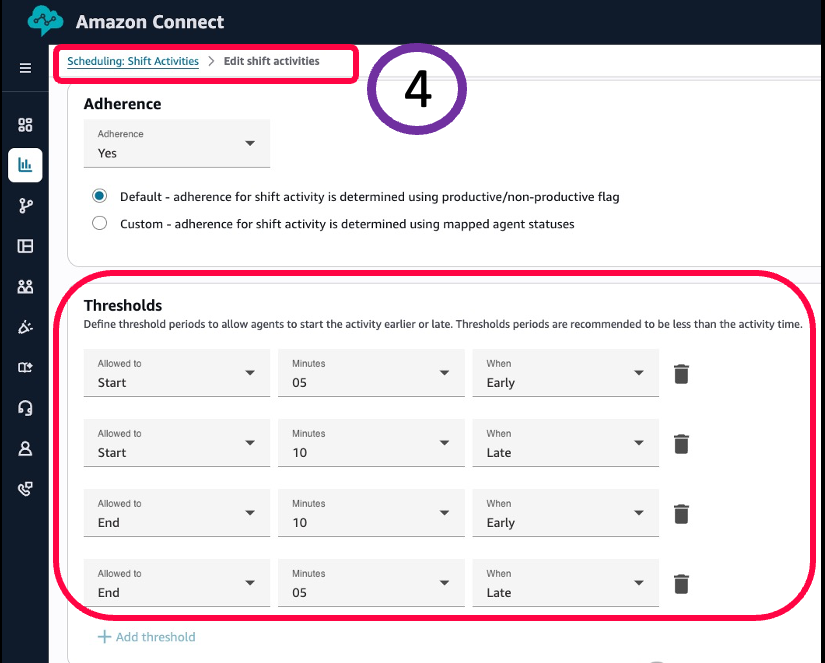
Figure 3: Level 4 — Shift activity defaults
What this means in practice: If an agent’s break is scheduled from 11:00 AM to 11:15 AM, they can start their break anytime between 10:57 AM and 11:05 AM, and end it between 11:13 AM and 11:20 AM, and still be considered adherent. This applies to every agent in every staffing group — unless a staffing group override exists.
4.2. Levels 1–3 — Staffing group overrides (team-specific)
Different teams have different operational realities. A team handling complex technical support calls may need more generous thresholds than a team handling quick billing inquiries. Staffing group configuration lets you tailor thresholds per team.
- Navigate to Scheduling > Staffing Groups.
- Select a staffing group.
- Scroll to the Adherence Threshold section. You will see two tabs: For Shifts and For Activities.
For Shifts tab (Level 1 — highest precedence):
Configure thresholds that apply to the overall shift start and end. For example:
-
- Shift can start 5 minutes early or 5 minutes late
- Shift can end 5 minutes early or 5 minutes late
This gives agents a 10-minute window to start and end their shifts. Level 1 has the highest precedence — it overrides all other threshold configurations for the first and last activities in the shift.
For Activities tab — Individual activities (Level 2):
Set thresholds for specific activities. For example, for your technical support team:
-
- Lunch can start 10 minutes late and end 5 minutes late — accommodating agents who need to finish complex customer interactions before taking lunch.
- Break can start 5 minutes late — because short calls often run a few minutes over.
For Activities tab — All activities (Level 3):
Apply the same threshold uniformly across all activities on the shift. For example, set all activities to allow starting 5 minutes early. This is a convenient way to set a baseline without configuring each activity individually.
4. Click Save to apply.
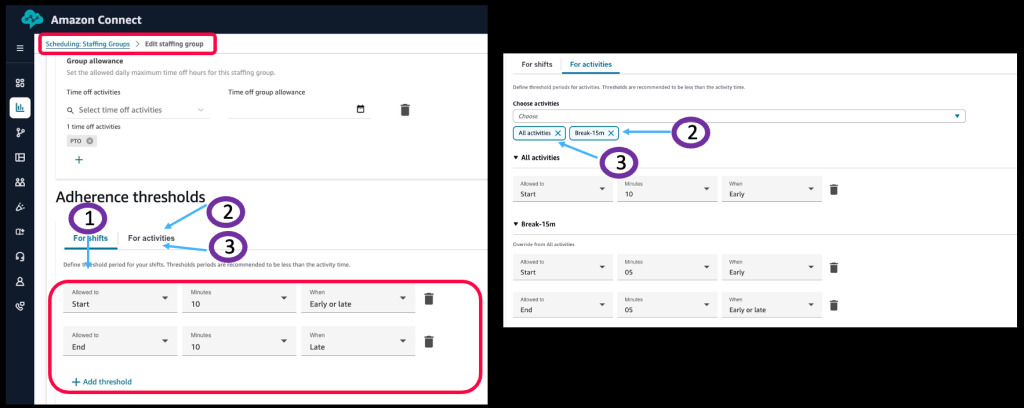
Figure 4: Levels 1–3 — Staffing group overrides
Important: Staffing group thresholds override the shift activity defaults (Level 4) for agents assigned to that specific group. Changes to thresholds apply to future adherence calculations only.
5. Threshold precedence — how the system decides which threshold to apply
When you have thresholds configured at multiple levels, the system follows a clear decision flow from highest to lowest priority. For each activity, it checks:
- Level 1 — Shift-level threshold (staffing group): Does a shift-level threshold exist for this staffing group, and is this activity at the start or end of the shift? If yes, apply it.
- Level 2 — Activity-specific threshold (staffing group): Does an activity-specific threshold exist for this activity type in this staffing group? If yes, apply it.
- Level 3 — All-activities threshold (staffing group): Does a general all-activities threshold exist for this staffing group? If yes, apply it.
- Level 4 — Shift activity default: Fall back to the default threshold configured on the Shift Activities page.
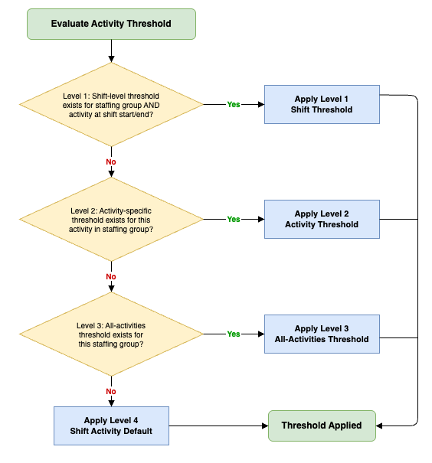
Figure 5: The four configuration levels for adherence thresholds — three at the staffing group level and one at the shift activity level.
5.1. Precedence example
Let’s see how this works with a Work activity scheduled from 10:00 AM to 11:00 AM, where thresholds are configured at all four levels:
| Level | Start Threshold | End Threshold |
| Level 1 (Shift) | 2 min early | — |
| Level 2 (Activity-specific) | 3 min early | — |
| Level 3 (All activities) | — | 1 min late |
| Level 4 (Shift activity default) | 4 min early | 6 min late |
The system resolves the effective threshold as follows:
- Start time: Level 1 has a threshold (2 minutes early), so it wins. The agent can start work at 9:58 AM and still be adherent.
- End time: Level 1 has no end threshold. Level 2 has no end threshold. Level 3 has an end threshold (1 minute late), so it wins. The agent can end work at 11:01 AM and still be adherent.
The Level 4 defaults (4 minutes early start, 6 minutes late end) are not used because higher-precedence thresholds exist. This hierarchy ensures the most specific threshold always wins, giving you flexible control while maintaining clear priority rules.
6. Boundary threshold intervals — handling activity transitions
One of the most practical aspects of this feature is how it handles the transition between consecutive activities. When your work period ends and your break begins at the same time, the system creates what are called boundary threshold intervals — shared time windows where you can be adherent to either activity.
6.1. Why does this matter
Without boundary handling, an agent could be marked non-adherent during the transition between activities. For example, if work ends at 10:30 AM and break starts at 10:30 AM, an agent who is completing a call at 10:32 AM could be marked non-adherent for both work (ending late) and break (starting late) — counted twice for a single variance.
6.2. How it works — a practical example
Consider the following schedule and thresholds:
- Work activity ends at 10:30 AM with a threshold of ±5 minutes (can end between 10:25 AM and 10:35 AM)
- Break activity starts at 10:30 AM with a threshold of ±3 minutes (can start between 10:27 AM and 10:33 AM)
These two windows overlap, creating a shared window from 10:25 AM to 10:35 AM. During this 10-minute shared window, whether the agent is finishing work or starting their break, they are considered adherent to the schedule. The system recognizes that either activity is acceptable during the transition period.

Figure 6: Boundary threshold intervals showing the shared window where either activity is considered adherent.
This merging of threshold windows provides consistent adherence tracking at activity boundaries, accounting for the natural flow of transitions between activities.
7. Monitoring adherence with thresholds
Adherence thresholds are surfaced across three monitoring views in Amazon Connect, giving supervisors real-time and historical visibility.
7.1. Real-time dashboard — Queue and agent performance
The Agent Adherence widget on the Queue and agent performance dashboard now shows three adherence states instead of two:
| Status | Indicator | Meaning |
| Adherent | Green | Agent is following their schedule |
| Using thresholds | Yellow warning | Agent is within the configured threshold window — technically deviating but within acceptable bounds |
| Non-adherent | Red | Agent has exceeded the threshold and is genuinely off-schedule |
Why this matters for supervisors: Previously, the dashboard showed only green (adherent) and red (non-adherent). With the yellow “Using thresholds” state, supervisors can distinguish between agents who have exceeded thresholds and those operating within configured variance windows. This helps supervisors prioritize which agents to follow up with.
Hovering over the yellow indicator shows details about which threshold is being used and how much threshold time remains.
7.2. Published calendar view
The published calendar view now displays adherence data with two types of visual indicators:
- Red bars — out of adherence (exceeds threshold)
- Yellow bars — within adherence threshold
To view this, turn on the Adherence toggle in the top-right corner of the published calendar.
7.3. Historical metrics
Historical metrics now account for thresholds in the adherence calculation. The formula has changed:
- Previously: Adherence % = Adherent Time ÷ Scheduled Time
- Now: Adherence % = min(Adherent Time, Scheduled Time) ÷ Scheduled Time
This ensures that adherence percentage stays meaningful and doesn’t exceed 100%, even when agents work beyond their scheduled hours while remaining adherent. Time spent within configured thresholds counts as adherent time.
Historical reports can display:
- Adherence percentage with and without thresholds
- Time spent within configured thresholds
- Threshold utilization patterns across teams
8. Prerequisites
Before configuring adherence thresholds, make sure you have:
- An Amazon Connect instance with Forecasting, Capacity Planning, and Scheduling enabled
- Published schedules with shift activities where Adherence = Yes
- Appropriate IAM permissions to access scheduling and metrics configuration
- Familiarity with your contact center’s operational patterns to set meaningful threshold values
9. Conclusion and next steps
Adherence thresholds in Amazon Connect FCS provide organizations with the ability to account for expected operational variances in schedule adherence measurement. By configuring thresholds at up to four levels of granularity, you can:
- Account for operational variances so that minor timing differences are not counted as non-adherent time
- Help supervisors prioritize by distinguishing between agents within thresholds and those who have exceeded them
- Improve adherence data accuracy for use in forecasting and capacity planning
- Handle activity transitions consistently with boundary threshold intervals
- Monitor with greater precision through real-time dashboards, calendar views, and historical reports
To get started, review the common timing variances in your contact center operations. Configure thresholds that align with your operational expectations, beginning with the shift activity defaults (Level 4) and then adding staffing group overrides where teams have different requirements.
For a detailed step-by-step walkthrough of every configuration screen, watch the video demonstration on YouTube.
10. Related resources
- Schedule Adherence for agent productivity in Amazon Connect
- Examples of adherence thresholds for agent shifts
- Examples of Agent Adherence calculations
- Schedule Adherence metrics
- Amazon Connect now provides configurable thresholds for schedule adherence
About the author

Vikas Prasad is a Senior Specialist Solutions Architect at AWS, focused on Amazon Connect Forecasting, Capacity Planning, and Scheduling. He enables customers to achieve business outcomes through Customer Experience solutions and digital transformation. In his leisure time, he enjoys outdoor activities such as traveling, cycling, and trekking.

Naveen Narayan is a Solutions Architect at AWS based in Tacoma, specializing in Amazon Connect and contact center solutions. He partners with customers to transform their contact center operations, leveraging Amazon Connect’s capabilities to drive exceptional customer experiences and operational efficiency.