Containers
Extending Amazon ECS Express Mode to Build an Optimal Container Environment
When you deploy containers with Amazon Elastic Container Service (Amazon ECS) Express Mode, Amazon ECS provides load balancing, scaling, logging, and networking without additional configuration. As your workload evolves, you may want to tailor this environment to your specific requirements. For example, you can access running containers with ECS Exec to troubleshoot issues, provision capacity ahead of predictable traffic spikes, or route application logs to the destination of your choice with FireLens. Because Express Mode creates standard AWS resources in your account, you can extend Express Mode using the same ECS APIs and other AWS service APIs you already use. This applies whether you are migrating from AWS App Runner or starting fresh.
Express Mode also supports custom task definitions, allowing you to apply advanced task-level configurations such as sidecar containers, custom health checks, and FireLens for custom log routing, while keeping the simplified deployment experience.
In this post, you walk through how to extend an Amazon ECS Express Mode service beyond its defaults, with three hands-on examples: turning on ECS Exec, adding a scheduled scaling policy, and adding a FireLens log router as a sidecar container using a custom task definition. You also learn which service-level settings Express Mode restricts and how to decide whether those restrictions affect your workload.
Solution overview
This section provides an overview of ECS Express Mode, the resources that Express Mode creates automatically, and the settings that you cannot change within it.
Overview of ECS Express Mode
Express Mode deploys a containerized application onto an ECS service with pre-configured defaults by specifying three required parameters which are container image URL, task execution role and infrastructure role.
When you use Express Mode, it creates these resources with default configurations to help you get started quickly. You can use these defaults to deploy a containerized application:
- An ECS default cluster with the AWS Fargate capacity provider (if one does not already exist)
- A task definition with container, logging, and network settings.
- A service with canary deployment and auto scaling.
- An Application Load Balancer (ALB) with an HTTPS listener, listener rule, and target group.
- Security groups with required ingress rules.
- Service-linked roles for auto scaling and load balancing.
- An AWS Application Auto Scaling scalable target and a target tracking scaling policy.
- An Amazon CloudWatch log group dedicated to the service.
- Metric alarms to detect failed deployments.
- An AWS Certificate Manager (ACM) certificate.
The following figure shows the relationships between resources created in ECS Express Mode.
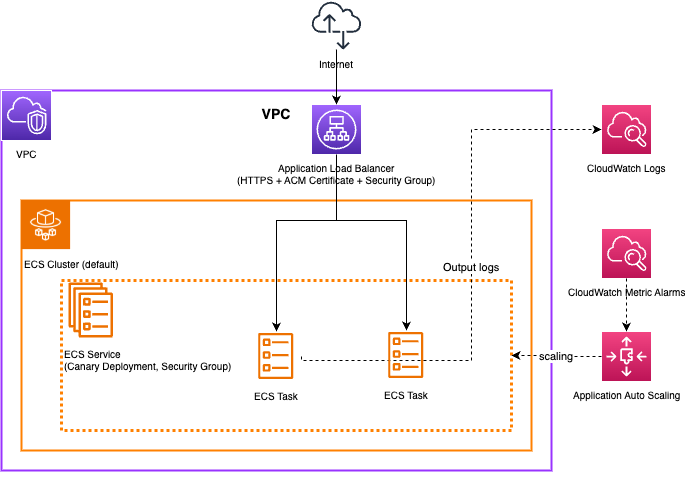
Architecture of resources created by an ECS Express Mode service
An Internet-facing ALB, ECS clusters, ECS services, and security groups for the ALB and ECS tasks are created within the virtual private cloud (VPC), and tasks are launched within the ECS service. The tasks’ standard output logs are stored in Amazon CloudWatch Logs. Additionally, based on CloudWatch metric alarms, Application Auto Scaling adjusts the number of tasks as the CPUUtilization value increases.
Extending ECS Express Mode
When you use Express Mode, it creates standard AWS resources in your account. You can modify these resources using the ECS API and other AWS service APIs. For example:
- Add a task role to turn on ECS Exec or grant application-level permissions.
- Configure additional scaling policies such as scheduled or predictive scaling.
- Customize ALB listener rules, attach AWS WAF, or add a custom domain.
- Adjust Amazon CloudWatch Logs retention or add subscription filters.
In addition to modifying these resources, Express Mode supports custom task definitions. You can provide your own task definition to apply advanced task-level configurations, such as sidecar containers, custom container health checks, and FireLens for custom log routing. The walkthrough section uses this capability to add a FireLens log router as a sidecar container.
For the full list of resources and their defaults, refer to the Resources created by Amazon ECS Express Mode services documentation.
Express Mode restricts two ECS service-level settings:
deploymentConfiguration— Express Mode uses canary deployment exclusively. You cannot switch to rolling update or blue/green deployment. If your release process requires rolling update or blue/green deployment, create a standard ECS service instead.loadBalancers— Express Mode provisions an ALB for each service. You cannot replace it with a Network Load Balancer (NLB) or remove it entirely. If your workload requires TCP/UDP passthrough, gRPC without HTTP/2 termination, or operates without a load balancer, create a standard ECS service instead.
You can customize all other service and task-level settings through the standard ECS API. The walkthrough section demonstrates three common extensions.
Prerequisites
Before you begin, verify that you have the following prerequisites:
- An AWS account with appropriate permissions.
- AWS Command Line Interface (AWS CLI) (version 2.0 or later) and jq installed and configured.
- Basic familiarity with Amazon ECS service concepts.
Walkthrough
In this section, you create an ECS Express Mode service and extend it with three configurations:
- Turning on ECS Exec.
- Adding a scheduled scaling policy.
- Adding a FireLens container.
Creating an ECS Express Mode service
- Set the environment variables used throughout these steps.
- Create a task execution role and attach the managed policy.
- Create an infrastructure role and attach the managed policy.
- Create an Express Mode service. This example uses the nginx image. Express Mode uses the default cluster and creates one if it does not exist.
Turning on ECS Exec
Express Mode does not assign a task role by default.
ECS Exec requires a task role with ssmmessages permissions because the AWS Systems Manager Agent (SSM Agent) inside the container connects to AWS Systems Manager Session Manager.
This example also configures the cluster to store Exec session output in CloudWatch Logs.
- Create a log group for ECS Exec session output.
- Add ECS Exec logging configuration to the cluster.
- Create a task role and attach the required permissions.
- Add the task role to the Express Mode service.
This updates the task definition associated with the Express Mode service to include the task role:
Wait for the deployment to complete. The service must reach a steady state before proceeding to the next step.
At this point, the task definition includes the required task role, but ECS Exec itself is still turned off at the service level. The next step turns on ECS Exec and forces a new deployment so that newly launched tasks start the SSM Agent with the permissions you configured.
- Turn on ECS Exec and trigger a new deployment.
Use update-service to turn on ECS Exec. Only tasks launched after you turn on ECS Exec receive the Exec capability. Pass the --force-new-deployment flag to replace existing tasks with new ones that include the SSM Agent.
Wait for the service to reach a steady state:
- Verify that ECS Exec is active.
Retrieve a task ID from the service and confirm that the ExecuteCommandAgent lastStatus is RUNNING.
- Connect to a container inside the task.
You have now turned on ECS Exec for the Express Mode service. ECS stores session logs in the /ecs/exec-output/<cluster-name> log group.
Adding a scheduled scaling policy
Express Mode creates a target tracking scaling policy by default. This policy scales reactively based on CPUUtilization metric changes. When your traffic pattern is predictable, scheduled scaling helps you provision capacity ahead of demand.
In this example, you configure two schedules. The first raises the minimum task count to 5 at 8:00 AM (Asia/Tokyo) on weekdays. The second resets the minimum to 1 at 10:00 PM.
- Create the scale-out schedule.
- Create the scale-in schedule.
- Confirm the schedules are registered.
Verify that the output contains scale-out-weekday-morning and scale-in-weekday-night.
Adding a FireLens container
By default, Express Mode sends application logs to Amazon CloudWatch Logs using the awslogs log driver. FireLens gives you more flexible log management, such as filtering logs and routing them to multiple destinations. In this section, you use a custom task definition to add a Fluent Bit FireLens container as a sidecar and route application logs to a dedicated log group.
With a custom task definition, Express Mode uses your task definition as-is and continues to manage the infrastructure, including load balancing, auto scaling, and canary deployments. When you use a custom task definition, you cannot pass the task role through the Express Mode API. Instead, Express Mode derives it from the taskRoleArn field in your task definition.
- Create the log groups for FireLens.
Create two log groups: one for the application logs that FireLens routes, and one for the logs of the Fluent Bit container itself.
- Add permissions for the FireLens log destination to the task role.
FireLens (Fluent Bit) needs permissions to send logs to CloudWatch Logs. Add an inline policy to the task role that you created in the previous section.
- Retrieve the current task definition.
Create a new revision based on the task definition that Express Mode currently manages. The task definition ARN is available in the PRIMARY deployment of the service.
- Add the FireLens container to the task definition.
The following command makes three changes to the task definition and saves the result as new-task-definition.json:
- Adds a
log_routercontainer with thefirelensConfigurationfield, which configures it as a FireLens container. Theawslogslog driver stores the logs of the Fluent Bit container itself in a separate log group. - Changes the
logConfigurationof the Main container toawsfirelensso that FireLens routes the application logs to the/ecs/firelens/applicationlog group and reduces itsmemoryReservationfrom 2048 to 1998. This keeps the total memory reservation of the two containers within the task memory (2048 MiB). - Removes the read-only fields that
register-task-definitiondoes not accept.
- Register the new task definition.
- Update the Express Mode service with the custom task definition.
Pass the registered task definition to the --task-definition-arn parameter of update-express-gateway-service.
Wait until the service reaches a steady state.
- Verify the log routing.
After the deployment completes, confirm that FireLens delivers the application logs to the log group.
You can also confirm the logs of the Fluent Bit container itself in the /ecs/firelens/log-router log group.
Your application logs now flow to the /ecs/firelens/application log group instead of the log group that Express Mode created by default. Express Mode does not overwrite this change unless you request a conflicting update through the Express Mode APIs, such as specifying a new log group name.
Clean up
To avoid ongoing charges, delete the resources you created in this walkthrough.
- Delete the scheduled scaling actions.
- Delete the Express Mode service.
Running delete-express-gateway-service removes all Express Mode-managed resources: the ECS service, ALB, target group, listener rules, security groups, ACM certificate, auto scaling configuration, and CloudWatch alarms.
- Deregister the task definitions for all revisions.
Deregister all revisions of the task definition family, including the revisions that Express Mode created. Run this after you delete the Express Mode service.
- Delete the log groups for ECS Exec session output and FireLens.
- Remove the Exec logging configuration from the cluster.
- Delete the IAM roles.
Delete the task role inline policy and the role itself:
Detach the managed policy from the task execution role and delete the role:
Detach the managed policy from the infrastructure role and delete the role:
- Delete the ECS cluster (optional).
If you no longer need the default cluster that Express Mode created, delete it:
Conclusion
In this post, you reviewed the resources that Express Mode creates automatically and identified the settings that you cannot change within Express Mode. You then extended an Express Mode service through three hands-on examples: turning on ECS Exec, adding a scheduled scaling policy, and adding a FireLens container as a sidecar. You can extend your ECS Express Mode service based on your requirements.
To explore the full capabilities of Amazon ECS Express Mode, refer to the Amazon ECS Express Mode documentation. For the full list of Express Mode default configurations, refer to the Resources created by Amazon ECS Express Mode services documentation. To learn more about using custom task definitions with Express Mode, refer to the Create an Express Mode service with your own task definition and Updating with a custom task definition documentation. For additional extension examples, refer to Updating resources outside of Express Mode documentation.