Desktop and Application Streaming
Troubleshoot Amazon WorkSpaces Personal issues faster with WorkSpaces Advisor
When end users reports that their Amazon WorkSpace is slow or unable to connect, what happens next? Administrators work through various diagnostic tools, analyzing Amazon CloudWatch metrics, reviewing logs, and correlating signals across multiple sources to identify the root cause. While manageable at small scale, this approach does not scale across hundreds or thousands of WorkSpaces leading to increased time to resolution and frequent escalation to AWS support. This cycle consumes resources and distracts administrators from more strategic tasks.
Amazon WorkSpaces Advisor is an agentic AI-powered approach to remediation by continuously analyzing telemetry, logs, and configuration data across your environment. Rather than manually investigating, administrators can initiate an automated investigation directly from the console. This enables rapid issue resolution—often within minutes—reducing operational overhead, minimizing downtime, and improving end-user experience at scale.
This blog demonstrates how to use WorkSpaces Advisor to investigate a WorkSpace experiencing performance issues and resolve the problem in a few clicks.
Overview of the Solution
When an investigation is initiated, WorkSpaces Advisor analyzes telemetry from the past few days for the selected WorkSpace. It correlates these signals to identify likely root causes and surfaces prioritized findings, each accompanied by recommended remediation actions aligned with AWS best practices. Administrators can review the results, evaluate impact, and take corrective action directly within the console, significantly reducing investigation time and operational complexity.
In scenarios where additional context is required or no definitive issue is identified, administrators can engage directly with WorkSpaces Advisor via AWS Console chat or generate a support case pre-populated with the full investigative context, ensuring faster escalation and resolution.
Prerequisites
For this walkthrough, you should have the following prerequisites:
- An AWS account
- At least one WorkSpaces Personal resource
- Your IAM role must have read permissions for WorkSpaces Advisor to initiate investigations and retrieve recommendations. These include
workspaces:InvokeTroubleshootingInvestigation,workspaces:GetTroubleshootingRecommendation, andworkspaces:ListTroubleshootingRecommendations. - Your IAM role must have read permissions for WorkSpaces and Amazon CloudWatch APIs, such as
workspaces:DescribeWorkSpacesandcloudwatch:GetMetricData. If your role is missing permissions for specific checks, WorkSpaces Advisor skips those checks and displays a message so you can update your permissions. - Your IAM role must have permission to perform the specific action (for example,
workspaces:RebootWorkspacesorworkspaces:ModifyWorkspaceProperties). If your role does not have the required permission, WorkSpaces Advisor returns an error.
Refer to the WorkSpaces documentation for more information on the required permissions.
Walkthrough
In this blog, we will simulate two types of issues that your WorkSpace might experience. We will show you how you can use WorkSpaces Advisor to investigate each issue:
- End user reported that their WorkSpace has suddenly become very slow.
- End user reported that they are unable to log in to their WorkSpace via their web browser.
The investigation process will be the same for other issues that you may experience that are not outlined here.
Issue 1: Slow WorkSpace
In this example, an end user reported that their WorkSpace has suddenly become very slow. The administrator then performs the following steps.
Step 1: Initiate an investigation
Open the Amazon WorkSpaces console.
- In the navigation pane, choose WorkSpaces, then Personal.
- Select the affected WorkSpace and choose Investigate.
WorkSpaces Advisor begins a comprehensive review of the WorkSpace, analyzing telemetry and logs from the past week.
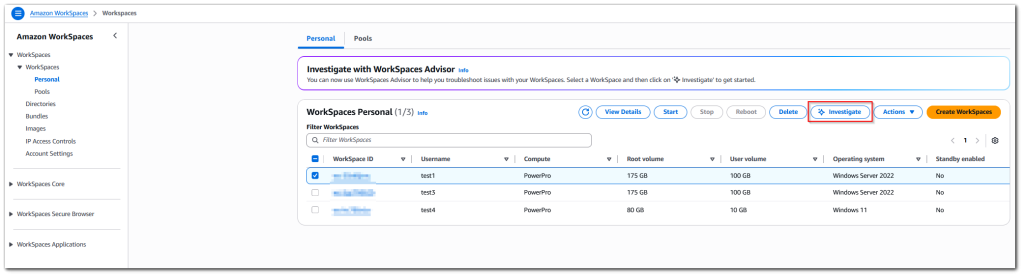
Figure 1: WorkSpaces Console main page
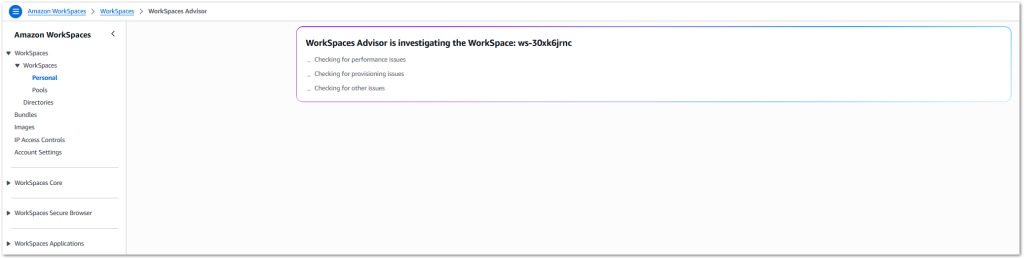
Figure 2: WorkSpaces Advisor investigating the selected resource
Step 2: Review identified issues
After the scan completes, WorkSpaces Advisor displays a list of issues it has identified. For each issue, you can choose View details to see supporting data, including CloudWatch metric graphs and a description of the findings. WorkSpaces Advisor provides at least one recommended action for each issue, along with alternative actions.
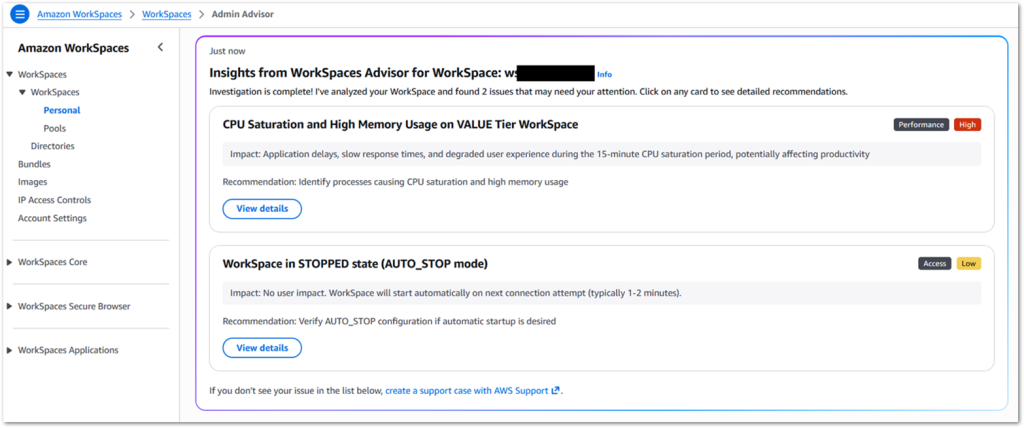
Figure 3: List of insights from WorkSpaces Advisor
In our case, WorkSpaces Advisor successfully detected that the selected WorkSpace experienced slow performance due to high CPU utilization. By selecting View details in the issue card for “high CPU utilization”, we can see that WorkSpaces Advisor was able to determine the cause of the high CPU utilization and provide a recommended action as well as 2 alternative actions.
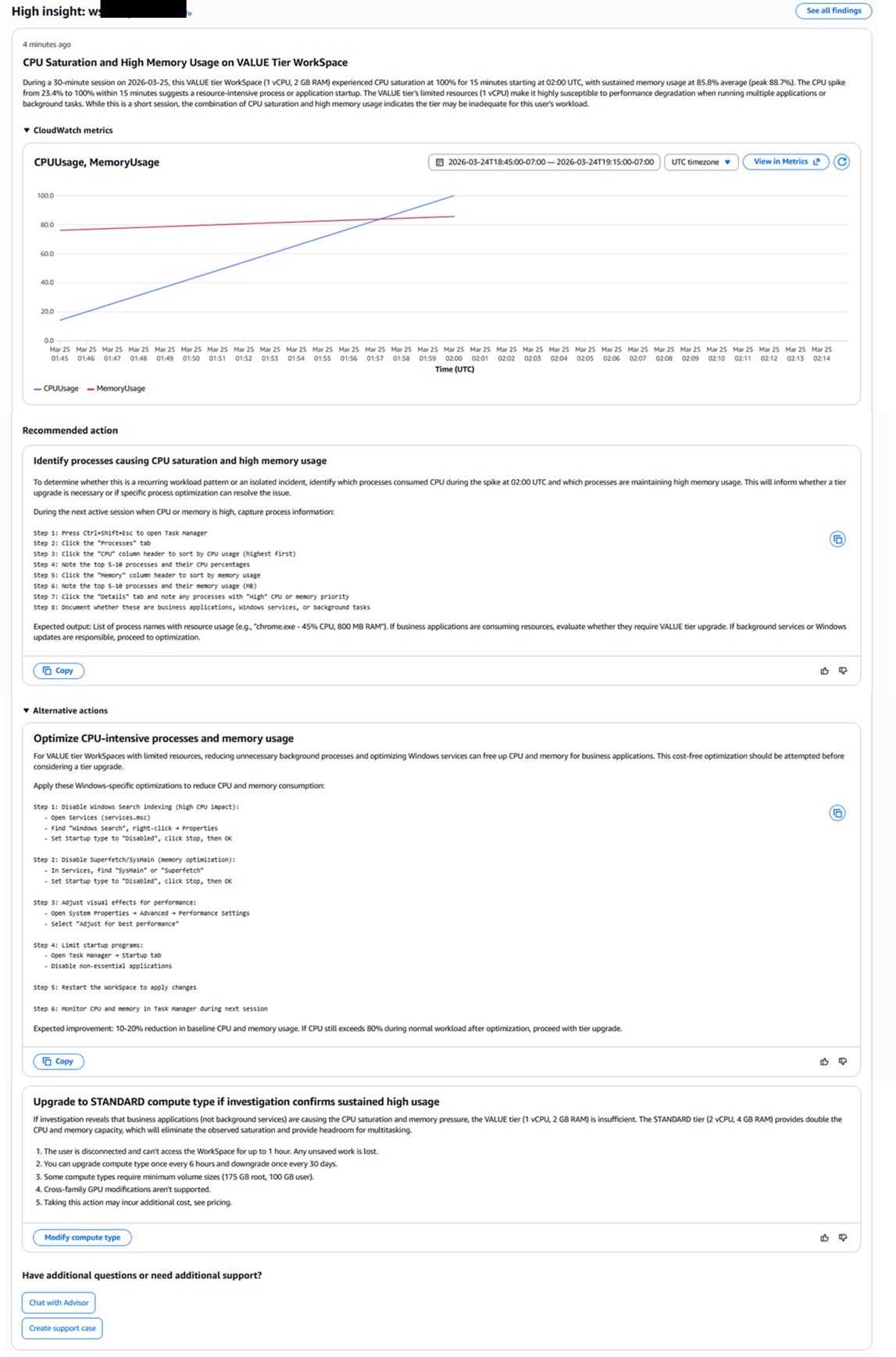
Figure 4: Review recommended actions
Step 3: Take the recommended action
The recommended action provides a series of steps to be taken in order to validate the root cause and resolve. You can copy the recommended actions by selecting Copy to clipboard and send to the user or perform the steps yourself.
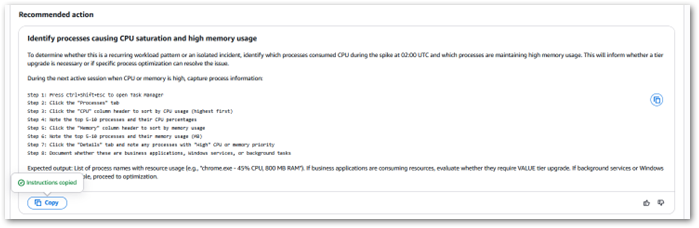
Figure 5: Recommended action in detail
If you have questions about the findings or recommendations, you can ask via the Chat with WorkSpaces Advisor – the chat session includes the full context of the issue. Alternatively, you can choose Create support case to contact AWS Support with the investigation context pre-populated.
You can verify the issue is resolved by performing the same actions on the WorkSpaces as described previously.
Step 4: Verify the issue is resolved
You can verify the issue has been resolved either directly in the WorkSpace or by using the WorkSpaces Advisor.
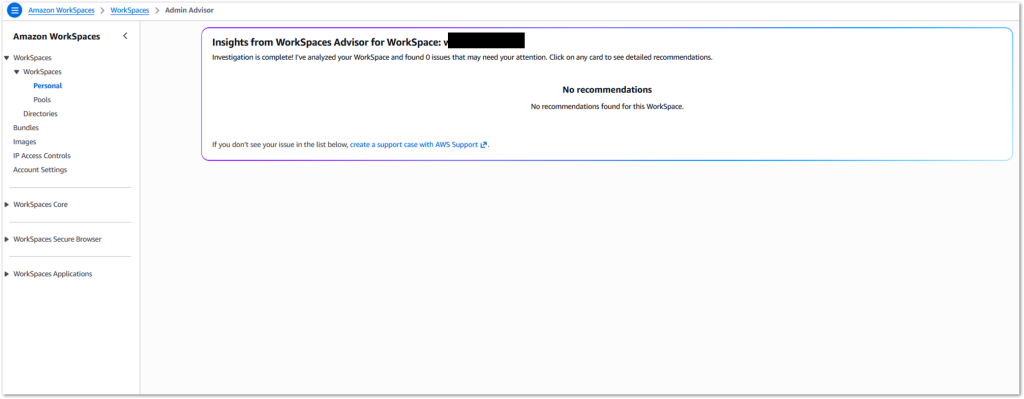
Figure 6: Verify issue is resolved
Issue 2: Unable to log in to a WorkSpace
In this example, an end user has reported that they are unable to login to their WorkSpace via the Windows client.
Step 1: Initiate an investigation
Open the Amazon WorkSpaces console.
- In the navigation pane, choose WorkSpaces, then Personal.
- Select the affected WorkSpace and choose Investigate.
Step 2: Review identified issues
WorkSpaces Advisor identifies that Windows client access is not enabled for the WorkSpace directory.
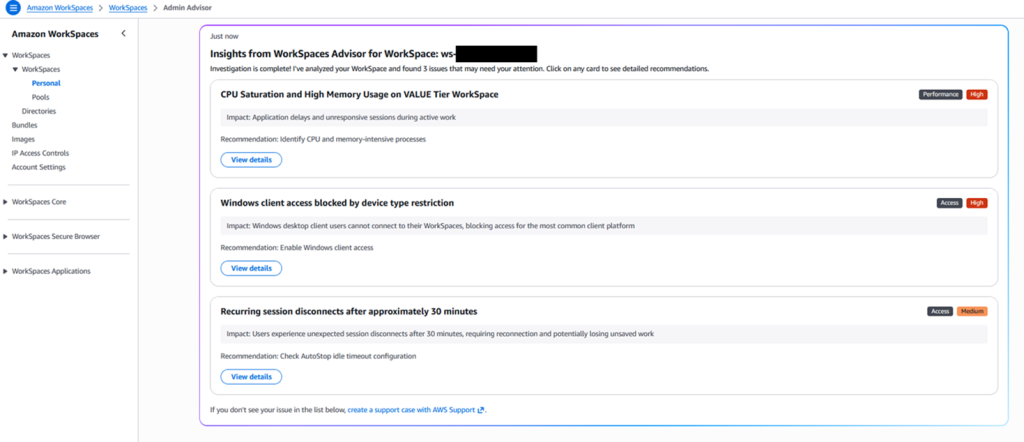
Figure 7: List of insights from WorkSpaces Advisor
Step 3: Take the recommended action
In this scenario, there is only one recommend action; to enable Windows client access for the directory. You can initiate the fix from the WorkSpaces Advisor.
Under Recommended action, select Modify access properties
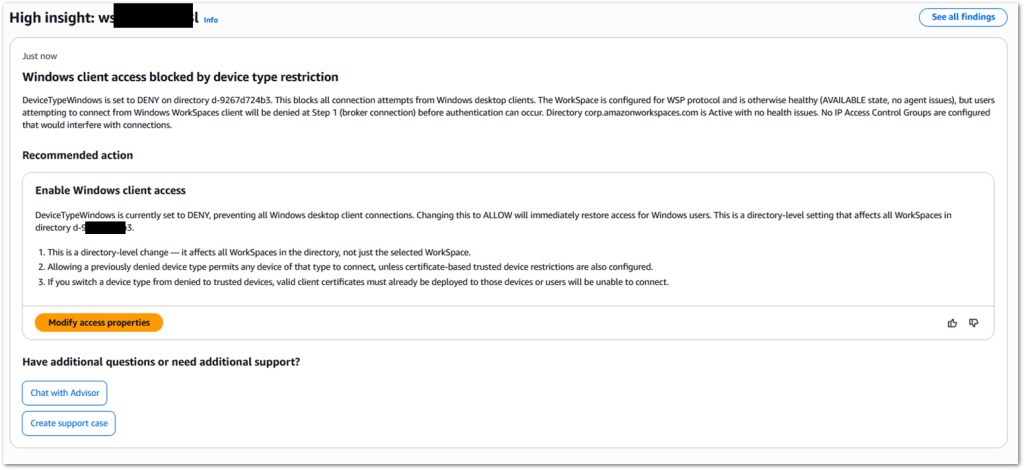
Figure 8: Modify access properties
Review the action and select Confirm
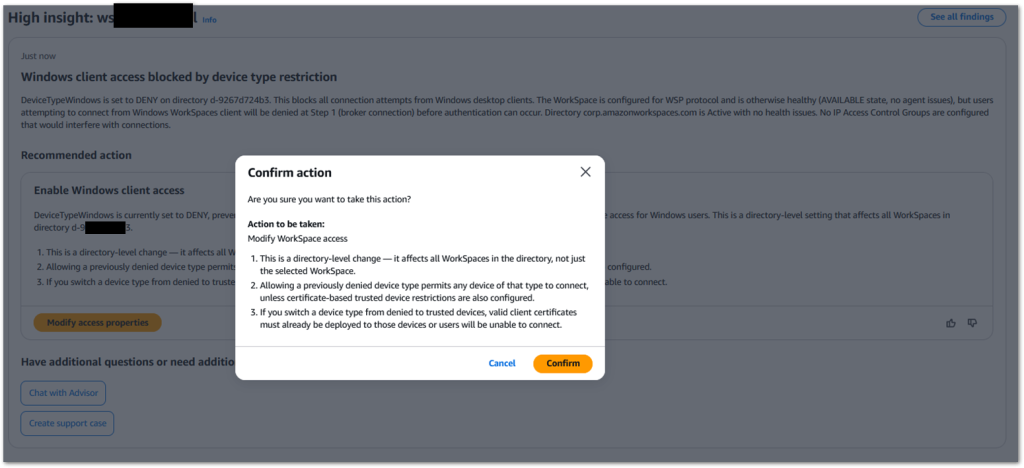
Figure 9: Confirm action
The console initiates the action using your IAM role permissions. If your role doesn’t have permission to perform the action, WorkSpaces Advisor returns an error message. Some actions, such as increasing compute type or rebooting, will disconnect the user from their WorkSpace. Make sure the user saves any open work before you proceed.
Step 4: Verify the issue is resolved
You can verify the fix was implemented by viewing the Access control options in the directory configuration.

Figure 10: Verify issue is resolved
Conclusion
In this blog, we demonstrated how to use Amazon WorkSpaces Advisor to investigate WorkSpace issues, review AI-powered findings with supporting telemetry, and resolve problems directly from the console.
WorkSpaces Advisor currently supports reactive troubleshooting for WorkSpaces Personal, covering issues across connectivity, performance, provisioning, and more. We’re working to expand WorkSpaces Advisor across additional capabilities.
To get started, open the Amazon WorkSpaces console and initiate an investigation on a WorkSpace. For more information, see the Amazon WorkSpaces Administration Guide.
About the Authors

Denton He – Senior Product Manager at Amazon WorkSpaces. He is passionate about developing features that drive customer success, utilizing virtual desktop infrastructure solutions to address complex use cases such as AI foundation model processing, data protection, and cybersecurity.

Peter Fergus – Senior Specialist Solutions Architect based in Dublin, Ireland. He has been with AWS for over 7 years specializing in End User Compute services. Pete is passionate about collaborating with customers to help build optimal EUC solutions on the AWS Cloud.

Robert Fountain – Sr. EUC Specialist Solutions Architect based out of Pennsylvania. Robert has been with AWS since 2020 and currently holds six AWS Certifications. Outside of the office, Robert is a member of the National Ski Patrol and enjoys spending time with his wife, 2 boys, and his dog, Daisy.