.NET on AWS Blog
Generate unit tests for your modernized code with AWS Transform for .NET
When you modernize a .NET Framework application to modern .NET, you end up with a transformed, buildable codebase — but the question that immediately follows is always the same: how do I safely keep changing it from here? Once the code is modernized, your team keeps evolving it — fixing bugs, adding features, upgrading dependencies — and each change needs a way to confirm the modernized code still behaves as expected. Building that safety net has always been the developer’s job, and while AI agents now help produce the tests, getting coverage with the ability to catch regressions remains hard. That is exactly the gap the newest AWS Transform for .NET capability closes.
As of September 2026, AWS Transform for .NET can automatically generate unit tests for the code it modernizes. When you enable it, AWS Transform generates unit tests that target the testable classes in your transformed application — business logic, controllers, and the like—giving you an automated test safety net as part of the same job that performs the modernization. In this post, I’ll walk you through how the unit test agent fits into the transformation flow and how to run it after a .NET transformation in Visual Studio.
Why this matters
A previous post walked through a sizeable .NET transformation using the conversational AI assistant in Visual Studio — assessment, plan review, project-by-project transformation, a local build, and a final set of artifacts. At the end of that walkthrough, the result was a transformed solution that built cleanly. But a clean build only tells you it compiles — the modernized code has little or no test coverage to validate future changes. That is where the unit test agent comes in: the tests it generates capture the behavior of the modernized code and become the safety net that guards every future change, so the next edit someone makes can’t quietly break it.
Tests generated against the modernized code establish a behavioral baseline you can build on: every time your team fixes a bug, adds a feature, or bumps a dependency, the test suite tells you whether the change is safe or something regressed. Developers today rarely write all of that coverage by hand — they lean on AI agents to help. The hard part isn’t producing some tests; it’s producing effective ones: high line and branch coverage, ability to catch regressions, tests that run fast, and — critically — coverage generated without altering the original code under test. The unit test agent addresses this directly: it produces test coverage for the modernized code so you finish the modernization with tests already in place, rather than treating test authoring as a separate project that starts after the modernization ends.
How the unit test agent works
The unit test agent runs alongside the standard transformation rather than bolting on afterward. When enabled, AWS Transform:
- Assesses your application for testability in parallel with the standard .NET assessment.
- Plans which classes and methods to cover — focusing on the testable units such as business logic and controllers.
- Generates the corresponding unit test code so the test project is populated as part of the same job that performs the modernization.
The important design choice here is that unit test generation is opt-in, and you have two moments to opt in:
- At the start of a job — so testability assessment and test generation happen together with the transformation, unattended.
- After transformation completes — so you can transform first, review the modernized code, and then ask for tests once you’re satisfied with the port.
If unit test generation is enabled as part of the transformation, the tests are generated automatically, without any additional steps from the developer — testability assessment, coverage planning, and test code generation all happen within the same job that performs the modernization.
That flexibility mirrors the rest of the AWS Transform experience: you stay in control of when the agent does work, and you can let it run unattended or drive it interactively.
Prerequisites
To generate unit tests with AWS Transform for .NET, you’ll need the following:
- A Windows development machine with Visual Studio installed.
- The AWS Toolkit for Visual Studio extension installed — unit test generation is supported in the Toolkit extension.
- AWS Transform setup complete and an AWS IAM Identity Center user credential (The Visual Studio IDE experience authenticates with IAM Identity Center only).
- A .NET Framework workload to transform.
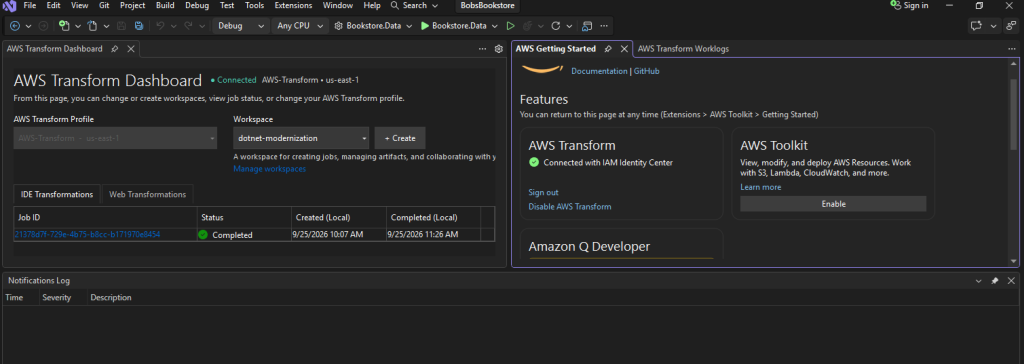
Figure 1: Sign in to AWS Transform in Visual Studio
Unit test generation is available in all AWS Regions where AWS Transform for .NET is supported.
Walkthrough: adding the unit test agent after a transformation
Let me walk through the flow the way you’d actually experience it in Visual Studio.
Step 1: Start a transformation (with tests in mind)
In this step, before starting the transformation setup sample application using following steps using Visual Studio:
- Clone git hub sample (https://github.com/aws-samples/bobs-used-bookstore-sample.git) by going to Git → Clone Repository, paste https://github.com/aws-samples/bobs-used-bookstore-sample.git, and choose a local path (Figure 2). Choose Clone which is .NET 10 sample.
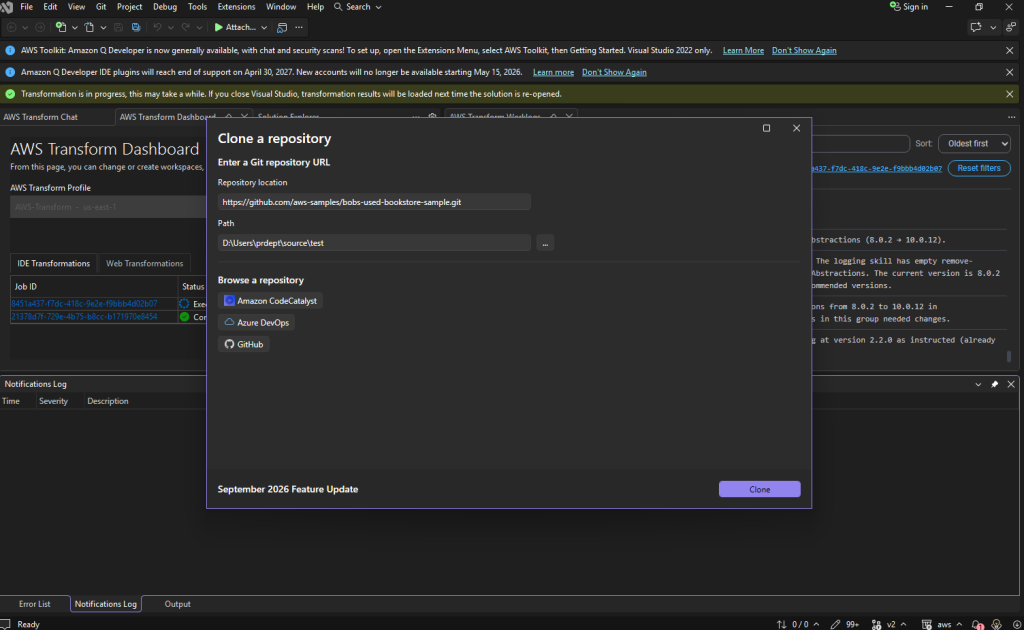
Figure 2: Clone repository
- Select .NET version 8 or version 6 by following one of the options:
- Switch to a branch (.NET 8, e.g. v2).
- Click the branch name in the status bar at the bottom right, or open Git → Manage Branches.
- Under remotes/origin, right-click v2 and choose Checkout. Visual Studio creates a local v2 branch that tracks it.
- Switch to a tag (.NET 6, v1.12.0). Tags are harder to reach in the Visual Studio UI, so the Developer PowerShell is the simplest way using the following steps:
- Open View → Terminal, which is a Developer PowerShell with Visual Studio’s bundled git.
- Run: git checkout -b net6 v1.12.0 This creates a local branch net6 from the .NET 6 tag. Visual Studio will reload the solution.
- Switch to a branch (.NET 8, e.g. v2).
Open your solution in Visual Studio, sign in to AWS Transform on the Getting Started panel (Extensions > AWS Toolkit > Getting Started), and confirm your region and workspace on the AWS Transform Dashboard. To initiate the transformation, select the solution in Solution Explorer and choose Port solution with AWS Transform from the context menu, then specify the target framework.
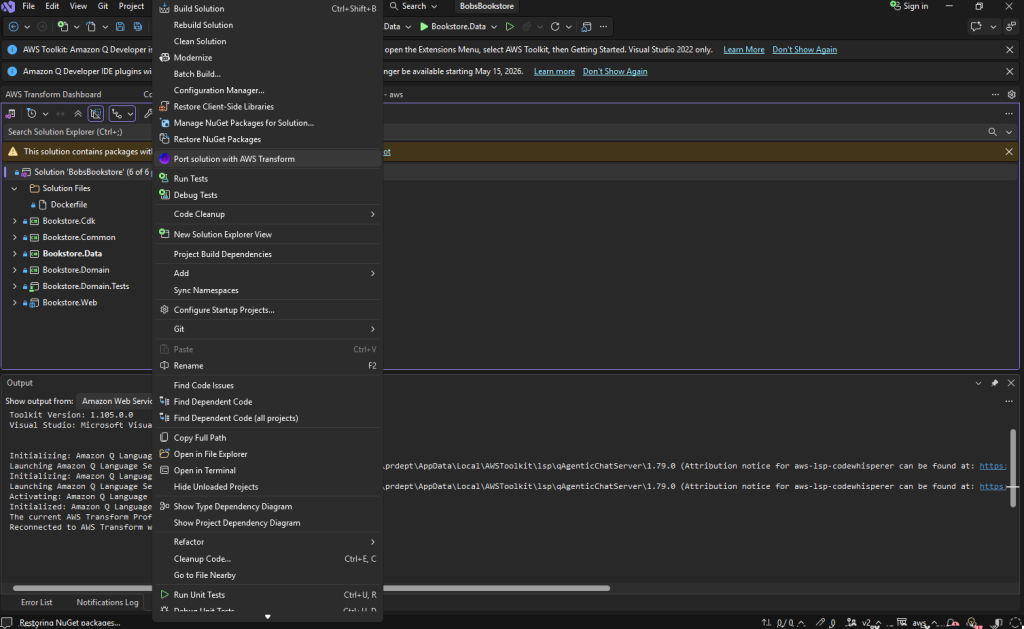
Figure 3: Initiating a transformation job
This is the first decision point for tests. If you want to add unit test along with transformation, choose to generate unit tests at the start of the job. AWS Transform then assesses testability in parallel with the standard assessment, so by the time the transformation plan appears, the plan to cover the testable classes is already part of it. If you’d rather see the modernized code first, skip it here and enable it later — Step 4 covers that path.
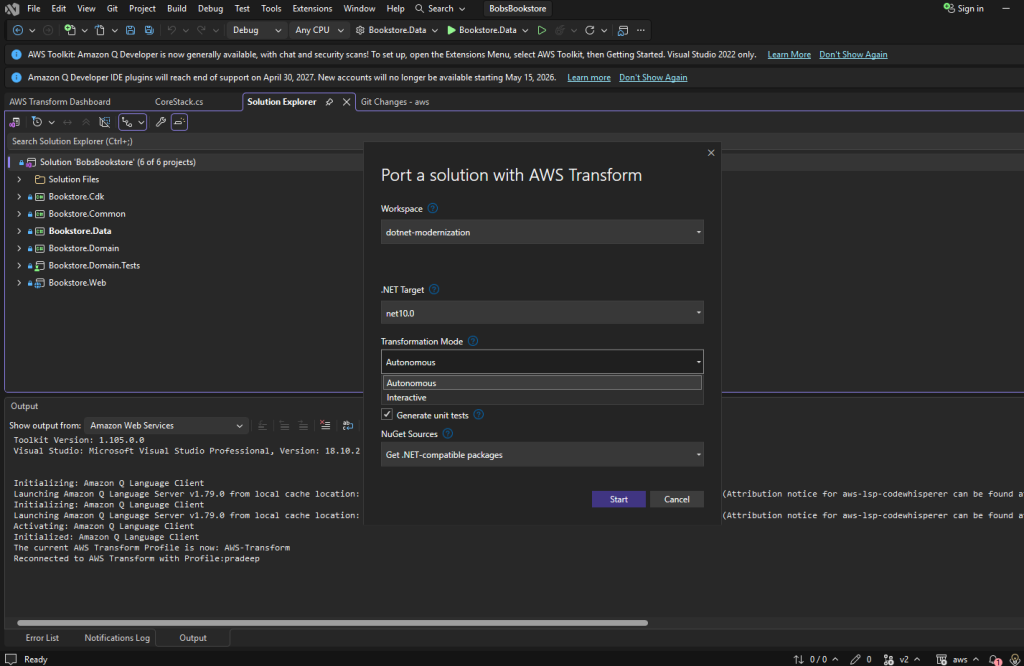
Figure 4: AWS Transform dialog with Generate unit tests option
As with any AWS Transform job, you can choose interactive mode (the agent pauses for review and lets you steer) or autonomous mode (unattended, suitable for overnight jobs). Working interactively lets you see what the test agent proposes.
Step 2: Review the assessment
Once the job starts, the familiar windows open — Chat, Worklog, and Job Plan. When unit test generation is enabled at the start, the assessment shows up alongside the standard assessment summary in chat.
The agent focuses on the testable units and identifies the potential code for which unit test can be generated by analyzing the pre transformed code.
Step 3: Transform your projects
Approve the plan and let the agent transform the solution. The transformation itself proceeds exactly as it does without tests: projects are ported in dependency order, code changes are applied in Visual Studio automatically, and you can review diffs and ask the agent to explain any change. Because test generation was enabled at the start, the test project is populated as the corresponding production code is transformed, so tests arrive as part of the same job rather than as a separate follow-on effort.
Step 4: (Alternative) Enable unit test generation after transformation
If you didn’t opt in at the start — maybe to see the ported code before committing to tests — there’s no need to start over. Unit test generation is opt-in after transformation completes as well in the interactive mode. Once the transformation finishes and you’ve reviewed the modernized solution, ask the agent to generate unit tests. It runs the same testability assessment, plans coverage over the testable classes in the already-transformed code, and generates and validate the test code. This is the path to prefer when you want to eyeball the port first: transform, confirm the modernized code looks right, and then add the safety net.
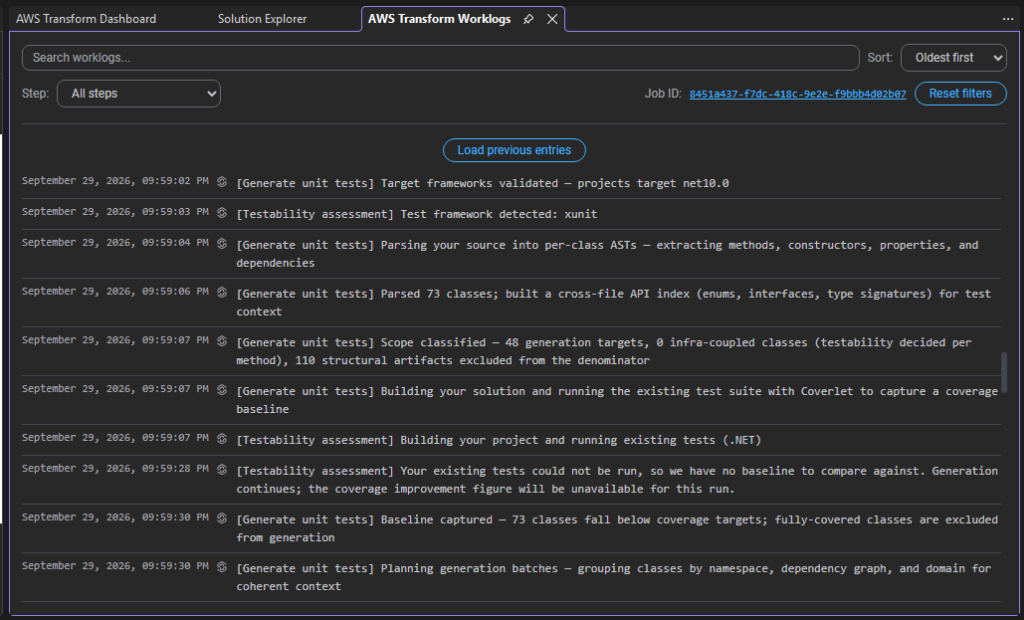
Figure 5: Worklog pane showing unit test generation
You can also view the status of unit test generation from the web console view of your job. Figure 6 shows 3 test projects were generated with 42 test files.
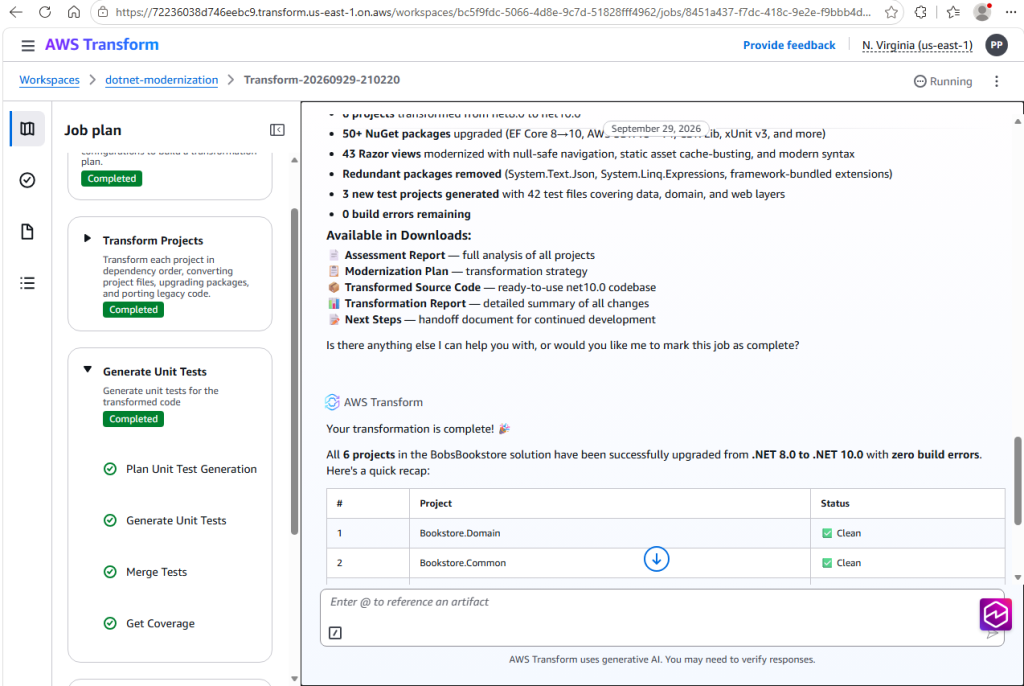
Figure 6: Web console view of job with unit test activity
Step 5: Review, Build and run the generated tests
The AWS Transform transformation report shows unit test results. Once Generate Unit test is complete, testable methods count, Line/Branch Coverage per project can be seen by selecting “Unit Test Generation” per project (Figure 7).
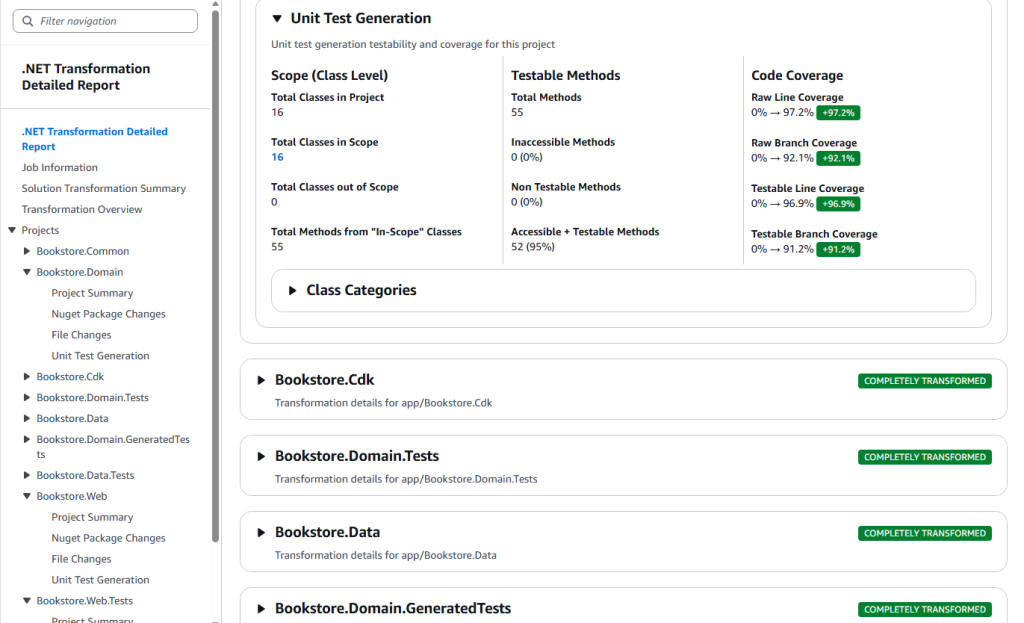
Figure 7: Unit test generation results in transformation report
A summary of all the test across all projects can be seen under section “Unit Test Results” (Figure 8).
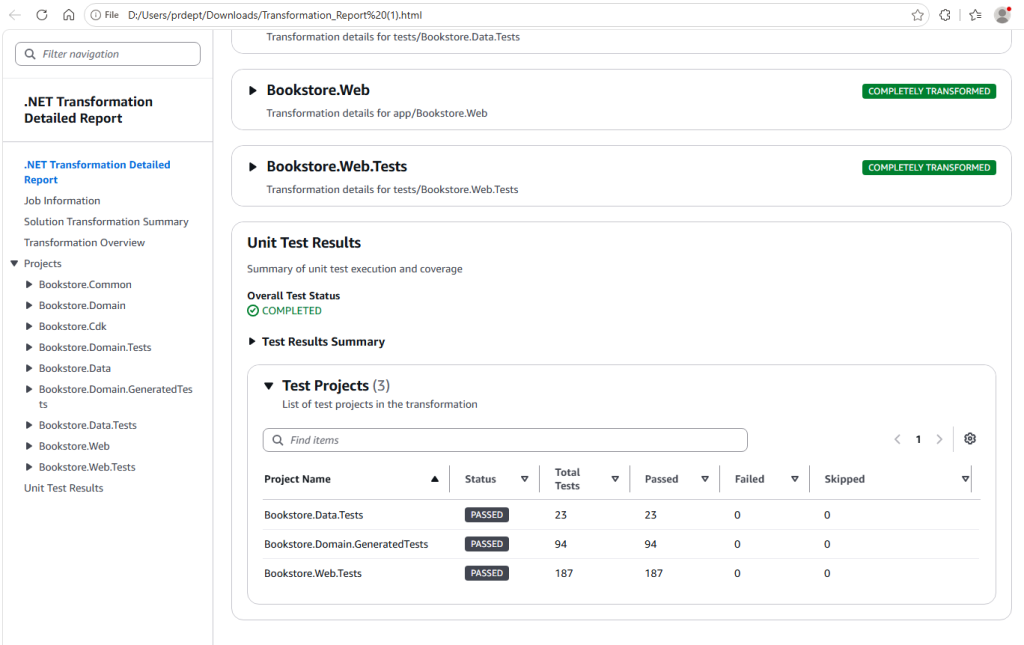
Figure 8: test results summary in transformation report
Conclusion
Modernizing a .NET Framework application has always produced a buildable codebase; what it hasn’t always produced is a way to maintain it with confidence. The generated Unit tests establish a coverage baseline on the modernized code so that every change made afterward can be checked by re-running the suite. With automatic unit test generation, AWS Transform for .NET provides that baseline as part of the modernization — assessing testability in parallel with the standard assessment, planning coverage over your testable classes, and generating the test code within the same job. Because it’s opt-in at either the start of a job or after transformation completes, you decide whether tests ride along with the modernization or get added once you’ve reviewed the port.
Try it on your next .NET modernization. Run a transformation with AWS Transform for .NET in Visual Studio, choose to generate unit tests, and finish the modernization with a maintenance safety net already in place for the changes that follow. To learn more, see Modernizing .NET in the IDE in the AWS Transform User Guide and the launch announcement.