.NET on AWS Blog
Modernize WPF Desktop applications to ASP.NET Core MVC with Amazon Q Developer
Introduction
A medical imaging customer recently approached our team with a need to modernize their legacy Windows Presentation Foundation (WPF) Framework desktop applications into ASP.NET Core MVC Web applications. They wanted to use an agentic approach to speed up their modernization to achieve the up to 4x speed that other customers have realized with Amazon Q Developer. They had organizational approval to use Amazon Q Developer Pro only but did not have organizational authorization to use Kiro (AWS’s AI-powered agentic integrated development environment) or any other tool for their modernization.
Moving WPF Framework desktop apps to ASP.NET MVC Core is complex, but Amazon Q Developer automates the process by identifying Windows-specific dependencies and required changes, suggesting updates, and modifying code enabling Linux deployment on AWS while reducing costs and accessing modern .NET benefits.
Walkthrough
In this walkthrough, I’ll show you how Amazon Q Developer simplifies modernizing legacy applications. I’ll use a set of WPF samples built on .NET Framework 4.7.2 to demonstrate how the AI agent converts a traditional desktop application into a cross-platform ASP.NET Core MVC web app.
Key Points:
- Real-World Scenario: We use existing WPF desktop samples to highlight the Amazon Q Developer’s ability to handle complex legacy code.
- Goal: Transform a Windows-only desktop app into a modern, cross-platform web application.
- Out of Scope: This post does not cover porting the database or the Data Access Layer
Prerequisites
Before you dive into modernizing WPF applications with Amazon Q Developer, ensure your development environment is properly configured. For this tutorial, you will need:
1. Development Platform: Since we’re working with WPF applications originally built for Windows, you’ll need a Windows environment to open and work with the existing codebase.
2. IDE and Extensions: Visual Studio 2026 – The latest version provides the best compatibility with both legacy .NET Framework and modern .NET 10 projects.
3. AWS Toolkit with Amazon Q: Install the latest version from the Visual Studio Marketplace to enable AI-powered modernization capabilities directly within your IDE.
4. AWS Configuration: Configure IAM Identity center authentication to enable secure access to Amazon Q Developer services.
5. Amazon Q Developer Pro subscription: Ensure users are enabled and subscribed to Amazon Q Developer Pro to access the advanced modernization features we’ll be using throughout this tutorial
6. .NET 10: Install the latest .NET runtime to support the target ASP.NET Core MVC framework.
With these prerequisites in place, you’ll be ready to follow along as Amazon Q Developer transforms your WPF desktop application into a modern, cross-platform web application.
Setup
In these steps, you’ll set up your environment to use Amazon Q Developer in Visual Studio IDE.
Step 1: Setup
In this step, you’ll download the sample applications and get familiar with them:
1. Download WPF-Samples from GitHub, which contains the set of WPF sample applications. Ensure that you are using the netframework branch.
2. Open the WPF Application Samples solution from the WPF-Samples-netframework\Sample Applications folder in Visual Studio.
3. Scroll to the Sample Applications folder, right-click on the VideoViewerDemo application, and set as startup project. Verify that it is a .NET Framework 4.7.2 project, and that it builds, as shown in Figure 1.
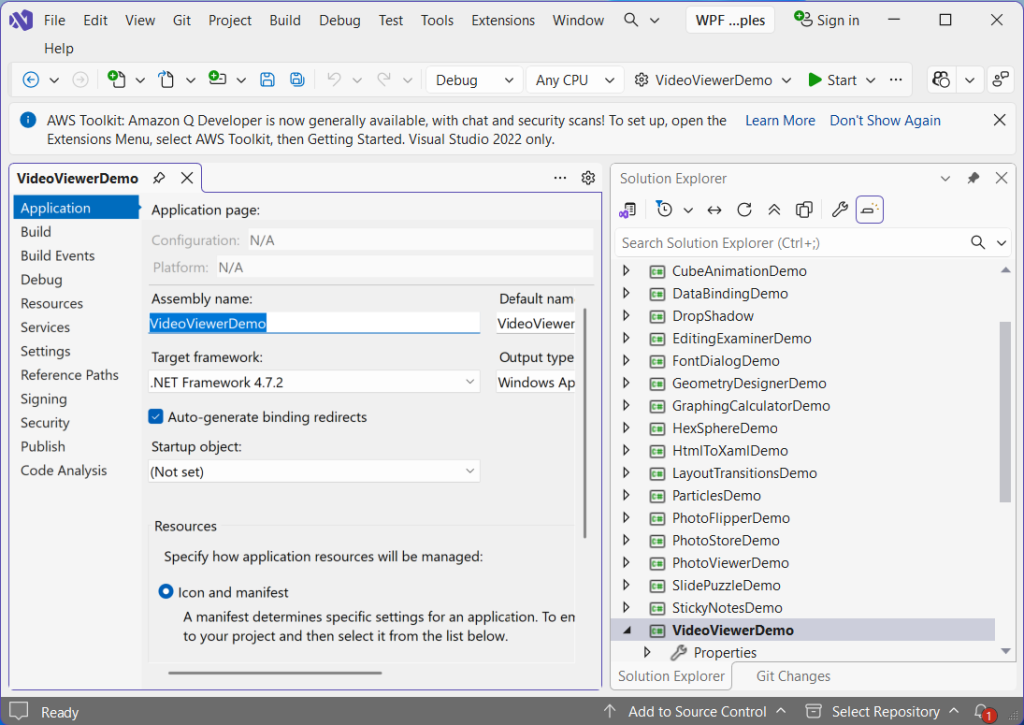
Figure 1: VideoViewerDemo WPF Project in .NET Framework 4.7.2
4. Run the app with F5 or Debug > Start Debugging to see its appearance and behavior, then stop debugging. It should look like Figure 2.
Step 2: Setup Amazon Q Developer & Sign-in from Visual Studio
Next, we’ll sign in to Amazon Q Developer in Visual Studio.
1. In the Visual Studio IDE, select Extensions->Getting Started.
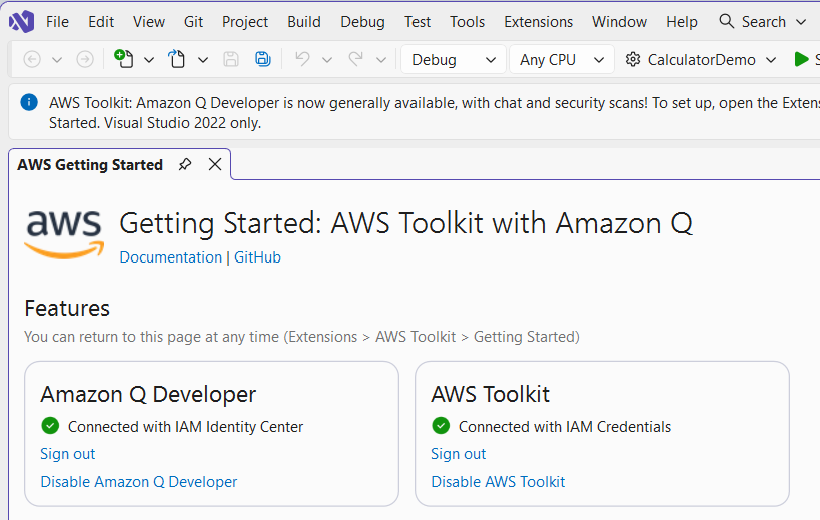
Figure 3: Install Amazon Q Developer Extension on Visual Studio
2. On the Amazon Q Developer panel, sign-in to Amazon Q Developer with your IAM Identity Center credentials. Once you complete sign-in, Connected with IAM Identity Center should appear in the panel, as shown in Figure 3 above.
3. In the Visual Studio IDE, select View > Amazon Q Developer Chat, review the ageement, and if you agree choose Acknowledge in the Q chat window. You are now ready to start using Amazon Q Developer in Visual Studio IDE.
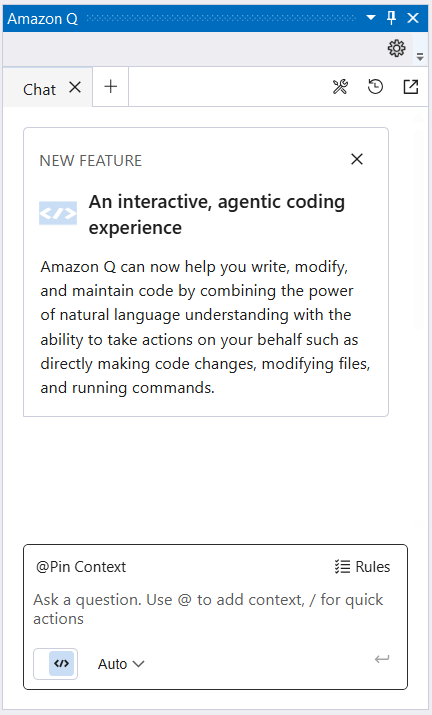
Figure 4: Amazon Q Developer Logged In
Modernizing the VideoViewerDemo Application
Now that your environment is configured, you can see Amazon Q Developer in action. You’ll prompt Amazon Q Developer to modernize a complex WPF Application into a modern ASP.NET Core MVC web application.
Step 3: Initiate Modernization
Open Amazon Q Developer in Visual Studio and paste the following prompt:
Convert the VideoViewerDemo application to ASP.NET Core MVC Web Application using .NET 10 and add to the current solution. Create an upload button to upload the video files to the wwwroot/media folder.
This single prompt instructs Amazon Q Developer to handle multiple complex tasks: converting the WPF UI to Razor views, migrating the code-behind logic to MVC controllers, updating the project structure for .NET 10, and adding new web-specific functionality. This conversion should not take more than 10-15 minutes.
Step 4: Review and Approve Amazon Q Developer’s Actions
As Amazon Q Developer works through the modernization, it will request your approval at key stages:
- Creating the application directory structure
- Generating the new ASP.NET Core MVC project
- Creating the Views directory hierarchy
- Building the application to verify compilation
Choose Run for each prompt to allow Amazon Q Developer to proceed. This interactive approach ensures you maintain control while the AI handles the heavy lifting.
Step 5: Review the Conversion Summary
Once complete, Amazon Q Developer provides a detailed summary of the conversion, including:
- Files created and modified
- Dependencies updated
- UI components transformed
- New features added (such as the video upload functionality)
Step 6: Reload the Solution
Amazon Q Developer automatically adds the new ASP.NET Core MVC project to your existing solution and prompts you to reload. Choose Reload to refresh Visual Studio with the modernized web application now integrated alongside your original WPF project.
The WPF Video Viewer Demo has been successfully converted to an ASP.NET Core MVC application running on .NET 10.
Conversion Summary
Core Components Created:
- VideoModel.cs →Contains video metadata models and service logic for file handling
- VideoController.cs →Handles HTTP requests, video streaming, and file uploads
- Index.cshtml →Web interface with HTML5 video player and custom controls
Features Successfully Converted:
✅ Video library with thumbnail previews
✅ HTML5 video player with custom controls
✅ Video selection from sidebar
✅ File upload functionality
✅ Multiple video format support
✅ Responsive web design using Bootstrap
✅ Custom video controls (play/pause, progress, volume, fullscreen)
Architectural Transformation Changes:
- Desktop → Web: Converted from WPF desktop application to web application
- MediaElement → HTML5 Video: Uses web-standard video element with custom controls
- File System → Web Streaming: Server streams video files with range request support
- Data Binding → JavaScript: Client-side interaction via JavaScript instead of WPF data binding
Key features:
- Video Library: Left sidebar displays all available videos with thumbnails
- HTML5 Player: Modern web video player with custom controls overlay
- File Upload: Web-based video upload functionality
- Streaming: Efficient video streaming with range request support
- Responsive Design: Works on desktop and mobile browsers
- Format Support: MP4, WebM, OGG, WMV, AVI, MOV formats
Note: You will need to upload videos before you can see the videos in the sidebar. Ensure the media files are in the wwwroot/media folder. If there are any .wmv files, please delete since .wmv are no longer supported for video streaming.
Running the Application
Now let’s launch the modernized application to verify the conversion.
## To Run:
bash
cd "<your-path>\WPF-Samples-netframework\Sample Applications\VideoViewerMvcDemo\VideoViewerMvcDemo"
dotnet run
The application builds successfully and provides a modern web-based video viewing experience with upload capabilities, maintaining the core functionality of the original WPF video viewer while adding web-specific enhancements.
Once the transformation wraps up, you can see your application in action by testing it. Simply paste the prompt Run the VideoViewerMvcDemo application into Amazon Q Developer to initiate the process. When the Amazon Q Developer Shell prompts you, choose Run to launch your ASP.NET MVC application.
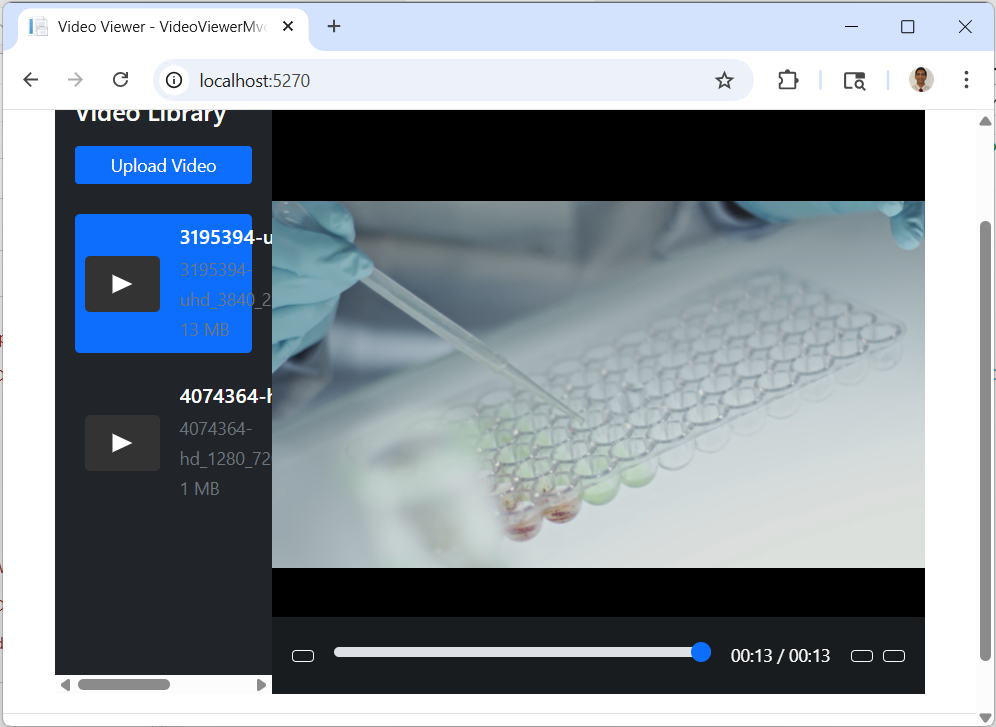
Figure 5: VideoViewerDemo MVC application
Review Conversions
These conversions represent the basic conversions to modernize your WPF applications achieved using Amazon Q Developer. To use these applications on the web implement the following:
- UI – Look & Feel and CSS
- Security – Authentication and Authorization, Input Validation, HTTPS
- Data Management – Database Integration, File Storage
- Performance and Scalability – Caching, Load Balancing, CDN
- Error Handling & Monitoring – Logging, Monitoring and Error Handling
- Configuration & Deployment – Configuration Management, Containerization, CI/CD Pipelines
Amazon Q Developer can help with adding these functionalities, however, this post focuses on converting the WPF application to a Web Application while preserving the functionality of the WPF application.
Conclusion
Amazon Q Developer accelerates the modernization of your Windows desktop WPF applications to ASP.NET Core MVC. In this post, we demonstrated how to use Amazon Q Developer intelligently ports WPF applications on .NET Framework to ASP.NET Core MVC, handling the complex translation of XAML to Razor views, code-behind logic to MVC controllers, and dependency updates all while preserving your application’s core functionality. Amazon Q Developer represents a fundamental shift in how organizations approach code modernization and technical debt.
By automating repetitive conversion tasks and applying best practices consistently, it accelerates modernization initiatives while freeing developers to spend more time on innovation and driving business value instead of focusing on manual refactoring and maintenance work. This transformation enables your team to tackle legacy application portfolios at scale, reduce technical risk, and deliver modern, cloud-ready applications faster, and ultimately position your organization to respond more quickly to changing business needs and competitive pressures.
Additional resources
- As a next step you can add functionality to containerize this application and deploy this into Amazon ECS or Amazon EKS containers using AWS Fargate.
- To learn more about Amazon Q Developer’s features and pricing details, visit the Amazon Q Developer product page.