AWS for Games Blog
Build interactive experiences with data channels in Amazon GameLift Streams
When streaming games on Amazon GameLift Streams, players expect a seamless experience. Even though the web client and streamed application are separate entities, the user experience should feel as if everything is native. While game inputs (such as keyboard and mouse controls) are automatically handled, the separation between the streamed application and the native browser client creates communication challenges.
Some operations can work in native web applications, such as copying text to the local clipboard, uploading files from the user’s machine, or opening all URLs in the browser. However, they can require additional communication between the web client and the embedded executable.
Fortunately, bidirectional custom messaging data channels are supported by Amazon GameLift Streams. Your client and application can exchange information, and coordinate actions, to deliver richer experiences for your players.
This walkthrough demonstrates how to build with data channels using an enhanced copy-paste feature as a practical example. We will implement message protocols that allow a streamed Unreal Engine game and web client to maintain a shared clipboard, with text seamlessly flowing between the remote application and local browser. The patterns learned can apply generally to building enhanced interactivity with data channels.
Let’s take a quick look at what we want to build, Figure 1 is a high-level view.
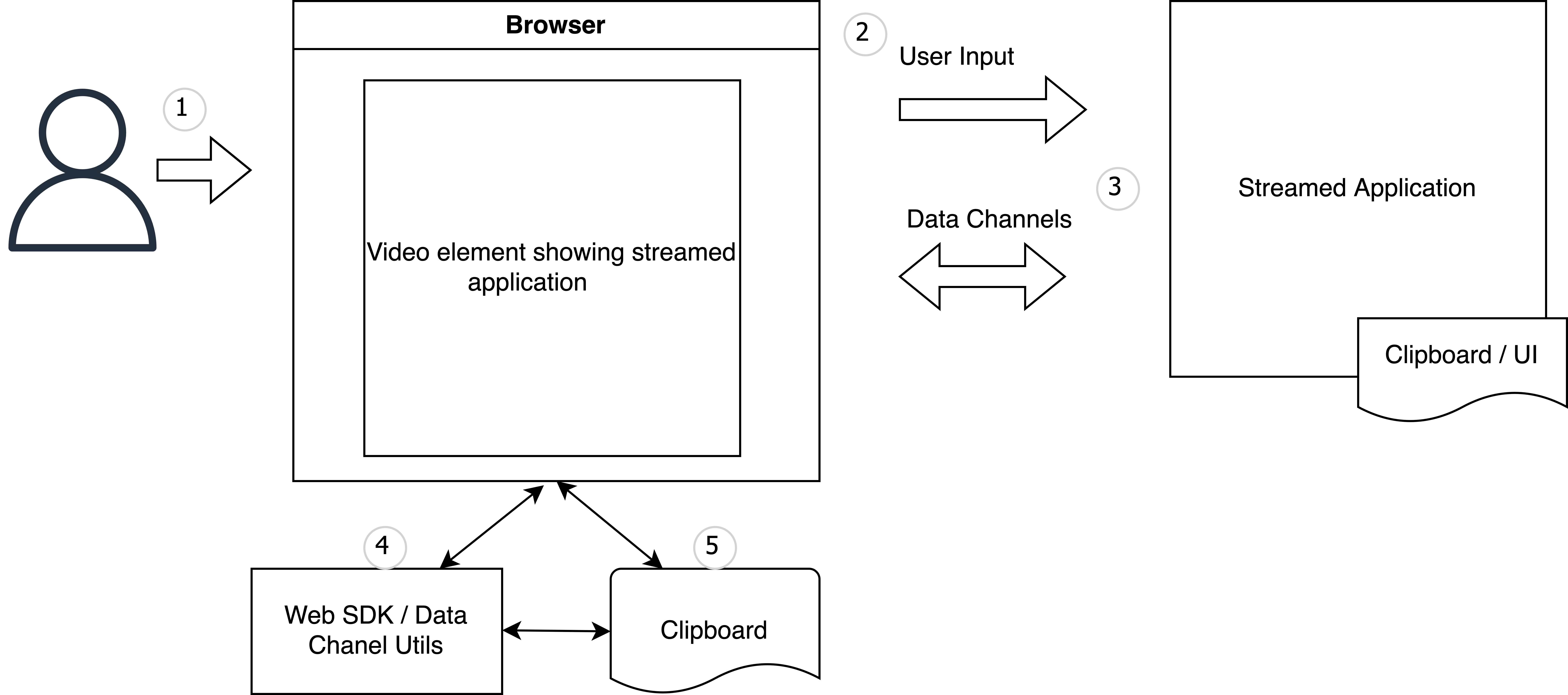
Figure 1: High-level workflow.
The basic workflow starts when users enter copy-paste commands (1), which are forwarded to the streamed application (2). The streamed application receives keyboard input, then uses data channels (3) and the Web SDK (4) to interact with the local browser’s clipboard (5).
Please note that guides and sample code for Godot and Unity are available in the associated GitHub repository.
Prerequisites
You will need to have the following set-up before you begin:
- A local machine setup for Unreal Engine development.
- A buildable Unreal Engine default project.
- An Amazon Web Services (AWS) account with credentials for programmatic access to Amazon GameLift Streams.
- The AWS Command Line Interface (AWS CLI).
- A browser and keyboard supported by Amazon GameLift Streams.
- The Amazon GameLift Streams Web SDK bundle.
- Node.js 22 or later.
Step 1: Define messages
Before defining the protocol required for our copy-paste use case, it’s important to understand the format of data channel messages. Each data channel message is expected to have a four-byte header, that defines metadata about the message, and up to 64 kb of arbitrary data.
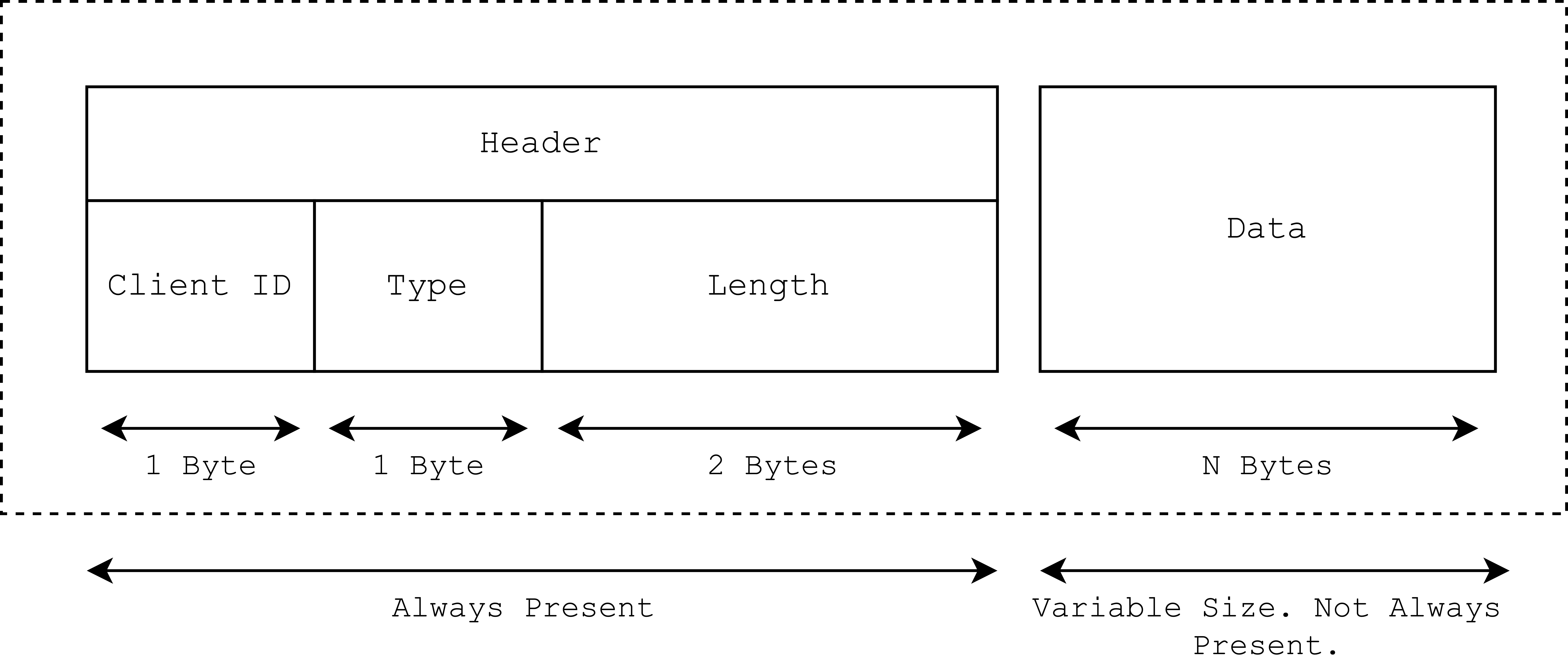
Figure 2: Data channel message format.
The header contains:
- Client Id (1 byte): Identifies a specific client connection for the message.
- Type (1 byte): Identifies the intent of the message: 0 = client connection, 1 = client disconnection, 2 = general message. Other event types should be ignored.
- Length (2 bytes): Specifies the length of the data in the message, using two bytes in big-endian order (the first byte is the most significant).
Now that we understand the message format, let’s define three basic JSON actions to support enhanced copy-paste:
#1 – Copy action: Application sends selected text when a copy request occurs. On receipt, the web client processes the text and adds it to the browser’s clipboard.
#2 – Paste action: Application requests contents from the browser’s clipboard content when a paste request occurs.
#3 – Paste response action: The client sends current clipboard text back in a pasteTextResponse. The application processes the text and forwards to the appropriate UI element or entity.
To send in a data channel message, these actions will be UTF-8 encoded and set in the data section.
Step 2: Integrate data channels in your Unreal Engine project
With the protocol defined, it’s time to connect to the data channel from your game project.
Use the built-in networking libraries (FSocket) of Unreal Engine to setup a TCP connection to the data channel port on the localhost. On connection, spawn a thread or use component ticking to loop for received messages. For this example, register a message read loop through an FTSTicker delegate. Complete all required connection or disconnection logic, including error handling.
To integrate data channels use the following steps:
- Create a module called
DataChannelsin the project’s Source folder. - Add DataChannels .h and .cpp files to setup the module.
- In the DataChannels.Build.cs file, add Socket and Networking as public module dependencies.
- Implement code in this class to handle the connection behavior and define an empty
MessageReadLoopto receive from the socket. Utilize FTSTicker, FSocket and ISocketSubSystem to enable communications. - Create h and .cpp files to expose methods to Blueprints and provide APIs to receive and send messages.
- Register the
DataChannelsmodule in your project’s .uproject file. - Add the
DataChannelsmodule in your project’s .build.cs file. - Regenerate the project files and rebuild.
Handling messages
Once connected, your application needs to read and send messages. It also needs to know what to do with the specific action requests it receives.
When receiving a message your code will:
- Read the header and identify the message type.
- For connection messages: Record the client id for communicating with the connected client.
- For disconnection messages: Invalidate the client ID.
- For other messages: Extract the client ID and message length.
- Read all message data, based on the length defined in the header.
- Discard unknown message types.
- Decode the data received and forward it to the handling code for validation and action.
Note: Always fully read the header and data bytes from the socket, even when discarding a message. Inadvertently leaving message bytes on the socket will cause subsequent messages to be incorrectly parsed.
To begin handling messages:
- In the DataChannels.cpp file complete
MessageReadLoopto handle incoming data. Code should continuously listen for messages, tracking bytes read to fully consume each message’s header and associated data from the socket.- Use
UTF8_TO_TCHARto decode UTF-8 data. When receiving a message, the code broadcasts the decoded message to all listeners.
- Use
- In the cpp file, implement
SendMessage, which acts similarly but in reverse.- Use
TCHAR_TO_UTF8to encode the message, attach the header and send to the data channel.
- Use
Handling actions
To complete the enhanced copy-and-paste behavior we need to add logic to read and write text from the application’s UI. For copy operations, we want to intercept the keyboard commands in the application, read the currently selected text and send it to the client. For paste, we need to request the web client sends its current clipboard text and implement code to set it appropriately in the application’s UI.
To begin handling actions:
- Create a C++ component,
CopyPasteEditableText, extending fromUUserWidgetthat contains slots for aUMultiLineEditableTextBoxand aUButton. - On creation, register the component to the
UDataChannelsConnectiondelegate to receive messages. - Use keyboard handling events,
NativeOnKeyDownandNativeOnCharDownto identify when copy and paste happens. - Handle processing of text by implementing action handlers to trigger the copy-paste functionality.
- Set up a Widget Blueprint, that spawns on level load, which consumes
CopyPasteEditableText. - Add UMG and ApplicationCore modules from Unreal Engine to your project’s .build.cs file.
- Regenerate the project files and rebuild.
Step 3: Test your application locally
Before uploading your application, test your data channels integration with a local socket server that simulates the data channel port (40712).
To begin testing:
- Select a test socket server:
- Winsock: Use and modify the Complete Winsock Server Code provided by the Windows Sockets 2 documentation. Set
DEFAULT_PORTto 40712. - Python: Use and modify the sample socket_server.py script.
- Winsock: Use and modify the Complete Winsock Server Code provided by the Windows Sockets 2 documentation. Set
- Run the application and test server.
- Verify the application connects on the data channel port.
- Test the message exchange.
- Validate messages are sent and received. The Winsock server will echo messages and display transmission details. The Python server also sends connection and test messages.
- Increase log verbosity in the application to output all relevant log statements.
- Add additional testing as required.
Step 4: Integrate data channels into the web client
Finally, we need to modify the web client to understand the copy-paste messages and implement the requested actions.
Like the application, the web client must:
- Register for messages from the data channel.
- Listen and act on messages.
- Send messages to the data channel.
Unlike the application use case, the Web SDK automatically handles the header when calling sendApplicationMessage.
To support copy-paste in the web client:
- Create a new script called datachannel.js and define
DataChannelProcessMessageandDataChannelSendMessagefunctions. - Add the new script to the public folder next to the index.html file.
- Modify the index.html to include the new script.
- Modify
streamApplicationMessageCallbackto decode and process received messages by using the following code:
When receiving a message, as the Web SDK handles header processing, your code only receives the data part of the message.
To begin handling of the data:
- Decode the data and use logic in
DataChannelProcessMessageto parse the JSON actions. Complete logic to read and write from the browser’s clipboard object. - In the
DataChannelSendMessage, code should perform the reverse, using the Web SDKsendApplicationMessageAPI—automatically generates the required header.
Step 5: Putting it together in Amazon GameLift Streams
After local testing, we are ready to stream using Amazon GameLift Streams.
You will need to:
- Build your standalone application.
- Upload your application to an Amazon Simple Storage Service (Amazon S3) bucket.
- Create an Amazon GameLift Streams application and stream group.
- Use the updated Web SDK Sample client to stream the application.
Note: Creating resources in Amazon GameLift Streams incurs charges.
Once you are streaming, copied text in the application is forwarded to the browser’s clipboard. When paste is requested, the browser’s clipboard contents are copied into the application’s UI.
If you are ready for more, you can check out the Amazon GameLift Streams documentation. Try implementing features such as:
- Remote debugging controls for your streamed application.
- Triggering custom overlay.
- Opening URLs from the application in the local browser.
Troubleshooting
If you run into issues working with data channels, review the application logs using log capture or export stream session files. Verify both the client and application connect, the code is correctly reading all the message data, and that headers set valid client IDs when sending messages. You can use the Amazon CloudWatch Metrics for data channels to validate the application is connecting and sending messages correctly.
Step 6: Delete your resources
Once you are done testing, remember to clean up your application and stream group to avoid incurring unexpected costs.
Summary
We demonstrated how to use data channels to enable copy-paste workflows between a streaming Unreal Engine game project and a web client. Using JSON actions, we showed how to share copied text between the web client and the application with straightforward messaging. By following this implementation, we’ve created a foundation for building more advanced interactive features using data channels.
Contact AWS Partners or an AWS Representative to find out how we can help accelerate your business.