Migration & Modernization
Accelerating VMware migrations with AWS Transform and MGN replication agent installation automation
Migrating hundreds of servers from an on-premises VMware environment to AWS involves coordinating across teams, accounts, and tools. You need to set up your target environments, plan waves, deploy replication agents, monitor their progress, run tests, and perform cutover, often across multiple AWS accounts. Each step can be challenging on its own, requiring careful planning and coordination throughout to make the migration successful.
AWS Transform brings these steps together into a single, AI-assisted rehost (lift-and-shift) workflow. It builds on the capabilities of AWS Transform for VMware for orchestrating the full migration lifecycle, with conversational AI guidance at each step of the process.
If you’ve already used AWS Transform for VMware, you might be familiar with the experience. Here’s a quick recap of the workflow:
- Discovery: AWS Transform analyzes your source environment
- Migration planning: You share your migration goals and business inputs, and AWS Transform processes the data collected during the discovery phase in line with your goals.
- Landing zone creation and networking configuration migration: AWS Transform helps you build a ready-to-deploy foundation target landing zone and automates networking configuration, translating your source environment’s network setup into cloud-native AWS networking constructs.
- Server migration: AWS Transform handles the heavy lifting of migrating your source servers to AWS using the existing replication agent.
This workflow is fully dynamic and customizable, allowing you to choose the tasks that best fit your migration job needs.
Replication agents can be deployed using your organization’s existing software distribution tooling, manually by connecting to the source servers, or using MGN connector — AWS Application Migration Service (MGN)’s own capability for streamlining replication agent deployment.
MGN connector deploys to a Linux machine in your source environment, and once you provide it with credentials and network connectivity to your source servers, it will manage and handle the entire installation process, including the “heavy lifting” of deploying the replication agents to your source servers — Windows or Linux, by connecting to each server, from prerequisites validation, through installation, and running post installation deployment validation checks.
In this blog post, you will learn how recent AWS Transform rehost job improvements automate and accelerate the process of setting up and configuring the MGN connector, saving you valuable time when carrying out large-scale, multi-account migrations. The setup process is now streamlined through a guided, conversational experience that automates the creation of AWS Identity and Access Management (AWS IAM) roles and AWS Systems Manager hybrid activation code generation. The result is a ready-to-use installation command for deploying MGN connector in your source environment. Once the connector is deployed, AWS Transform automatically manages replication agent installation across your source servers and provides centralized visibility into installation progress, status, and execution outcomes throughout the migration process.
Prerequisites
- You have an AWS Transform workspace with a VMware migration job at the server migration phase. You can leverage AWS Transform’s landing zone and network migration capabilities to automate the setup and configuration of this target environment before migration execution begins.
- A target AWS account where your migrated servers will launch, with network infrastructure (VPCs, subnets, security groups) already in place.
- A Linux machine running a supported operating system is available in your source environment to host the MGN connector, with network access to your source servers and connectivity to AWS, refer to the architecture diagram for network flows
- Source server credentials are stored in AWS Secrets Manager, refer to the documentation for an example entry format
- For multi-account migrations, you need multiple AWS accounts set up as AWS Organizations member accounts, with either one of the member accounts serving as the AWS Organizations delegated administrator for AWS MGN, or the AWS Organizations management account.
MGN connector is set up in the management or delegated admin account during the first wave, and can be reused for subsequent waves targeting other member accounts.
Setting up MGN Connector through AWS Transform and deploying replication agents walkthrough
The following image shows the setup process as you complete loading your server inventory into your AWS Transform job workspace. You will begin the “Deploy Replication Agents” phase and choose to use MGN connector with automated installation via AWS Transform.
AWS Transform prompts you to name your connector (or use the auto-generated default). This name helps you identify the connector when managing multiple installations across your environment.
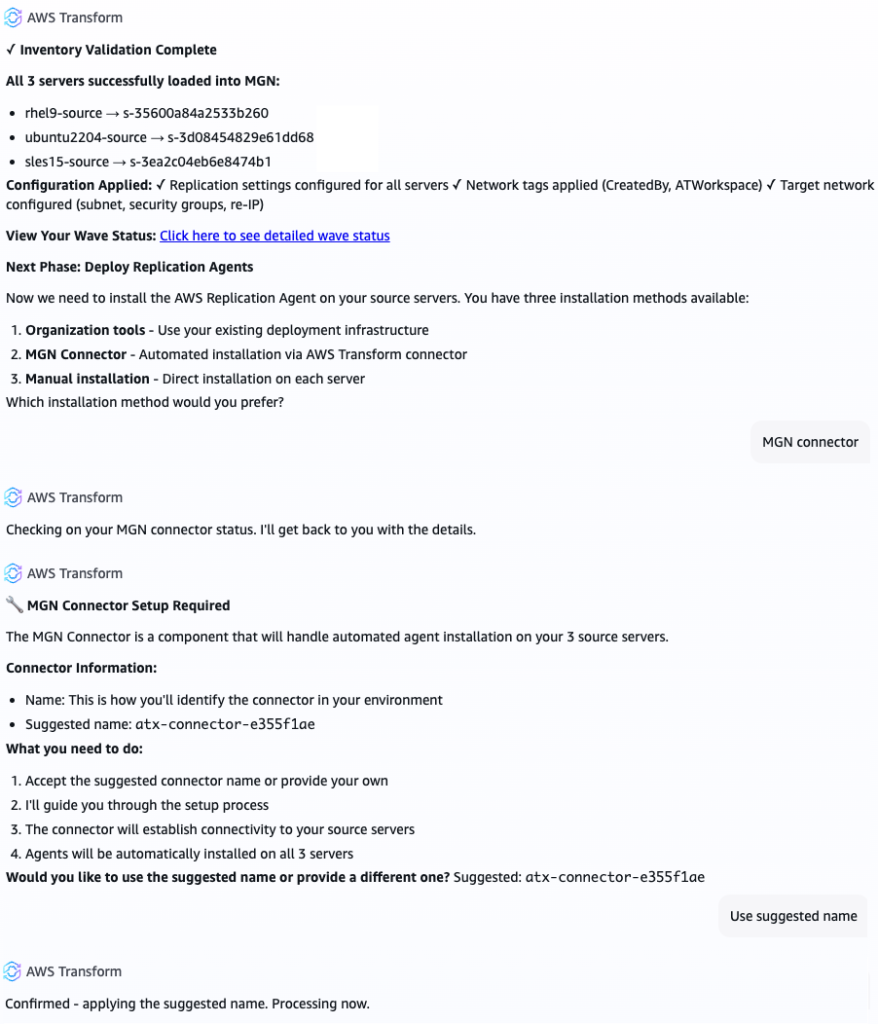
Figure 1 – Instructing AWS Transform to use MGN connector
The next phase involves preparing your AWS account for installing MGN connector in your source environment using MGN connector setup. AWS Transform provides you with a link for launching it in your AWS account console. The following image exhibits these steps as you work with the agent and proceed to complete the setup in the AWS console.
This process streamlines creation of the resources needed for MGN connector:
- IAM roles: MGN connector depends on a set of IAM roles that it assumes while carrying out agent deployment tasks. If you prefer to manage IAM resources yourself, you can download an AWS CloudFormation template from the setup page instead.
- SSM hybrid activation: An activation code that is valid up to 30 days and used to link the connector machine to AWS Systems Manager for secure command execution.
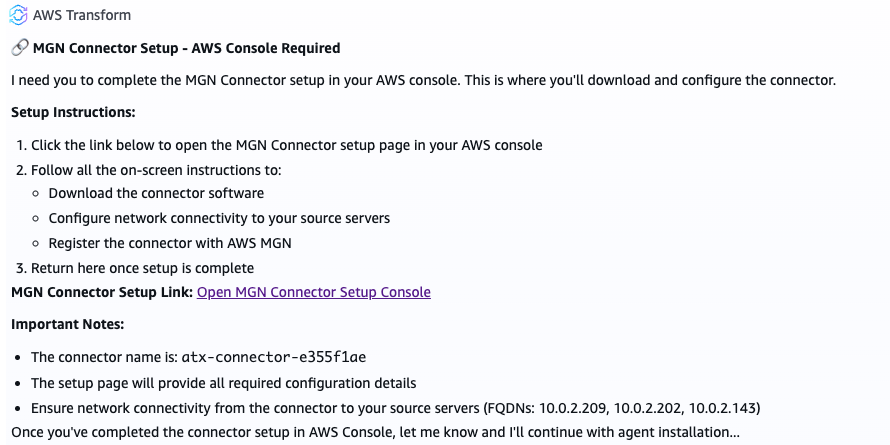
Figure 2 – AWS Transform instructs the user to complete MGN connector setup in the console
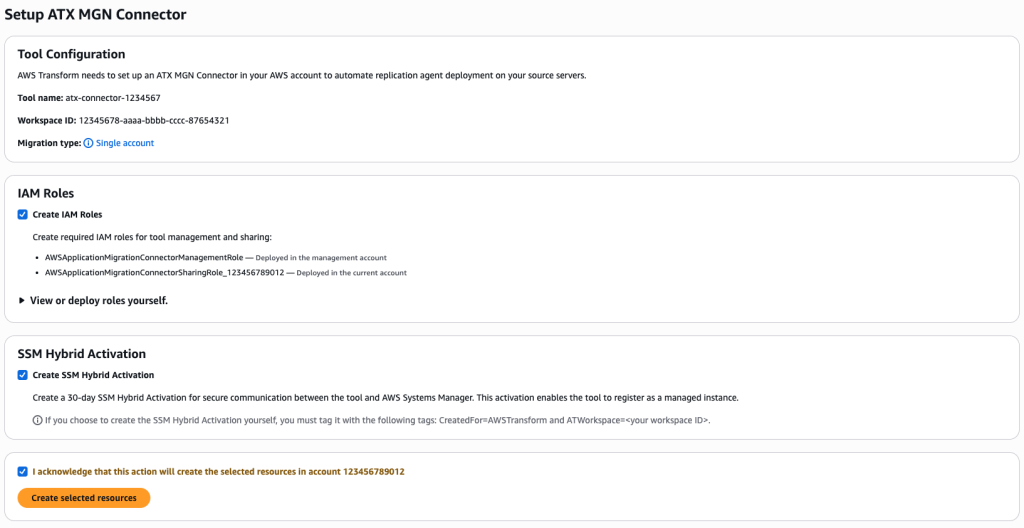
Figure 3 – ATX MGN Connector Setup in the AWS Console
The ATX MGN connector setup page then generates a complete installation command with all necessary credentials and configuration, ready to copy and run on the server you prepared for MGN connector.
Keep the setup page open until installation is complete. The installation command contains sensitive credentials that exist only in your browser, and are not stored by AWS Transform.
Copy the installation command from the setup page, and run it on your designated Linux machine for running MGN connector.
The connector installation takes about 2–3 minutes. The installation configures an SSM Agent on the Linux machine, and registers the connector with AWS services.
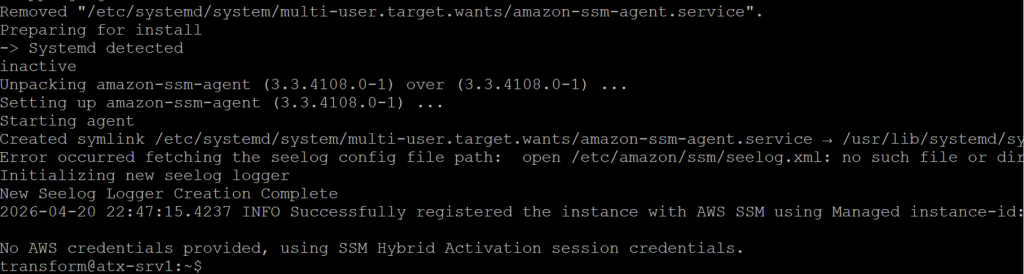
Figure 4 – Installing MGN Connector on a Linux server in your source environment
Return to the AWS Transform workspace and confirm with the agent that MGN connector has been installed successfully.

Figure 5 – Confirming a successful MGN connector deployment with AWS Transform
As seen in the following image, AWS Transform now requires the source server credentials, which you stored as secrets in AWS Secrets Manager. Transform will prompt you to provide the secrets ARN for Linux and Windows servers. Those secrets will later be retrieved on demand and used to deploy the replication agents on the source servers.
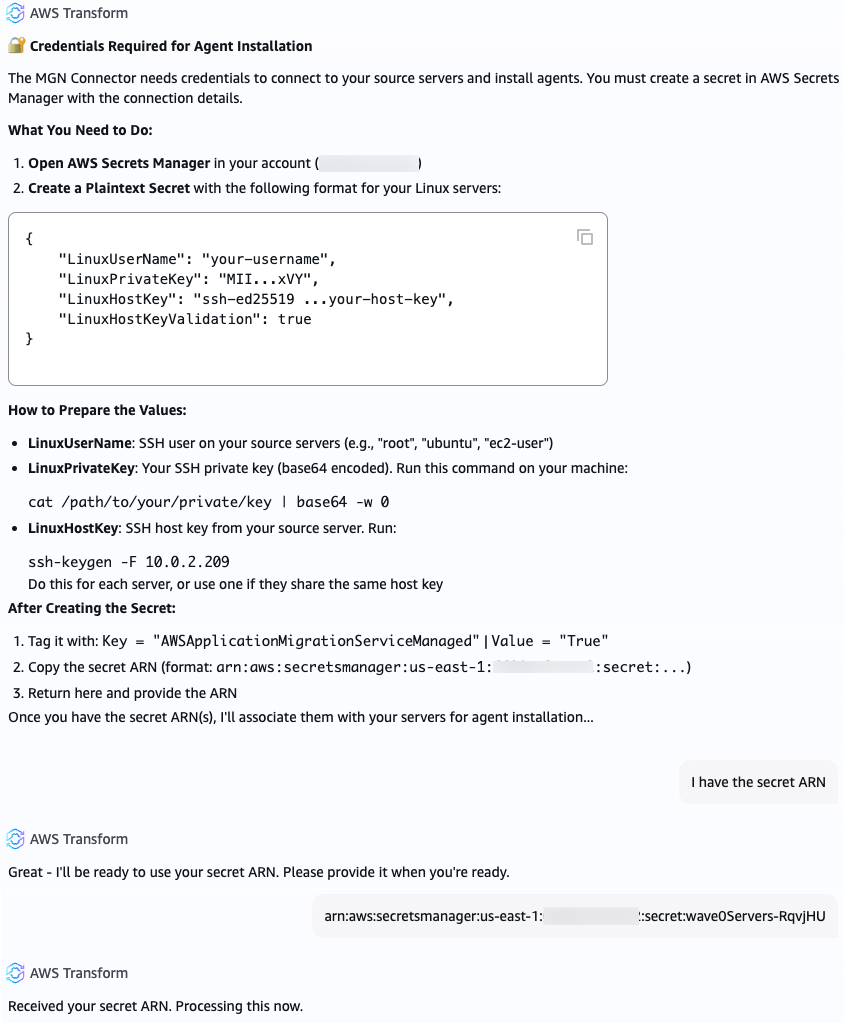
Figure 6 – Providing AWS Transform with the secrets ARN containing credentials to your source servers
You can configure a single shared secret per operating system type, for all Linux and Windows servers, or define multiple per-server secrets when credentials vary across applications or servers. For environments with diverse credentials, AWS Transform simplifies the process by generating a pre-populated CSV file with your server inventory, allowing you to map each server to its corresponding secret and upload it back into the workflow.
AWS Transform associates the secrets with your source servers in MGN, and the connector retrieves them on demand when deploying the replication agents using its IAM role. Your secrets are never stored anywhere outside Secrets Manager.
With the MGN connector configured, and secrets associated with your source servers, Transform is now ready to deploy the replication agents for you.
AWS Transform uses the SSM agent to send deployment commands to the connector for installing the replication agents on your source servers. As seen in the following image, for each source server, the connector:
- Retrieves credentials from Secrets Manager
- Connects to the server (SSH for Linux, WinRM for Windows)
- Validates that the server meets prerequisites (available CPU, RAM, and disk space)
- Installs the replication agent
- Configures the replication agent
- Verifies successful installation and connectivity to the AWS MGN service
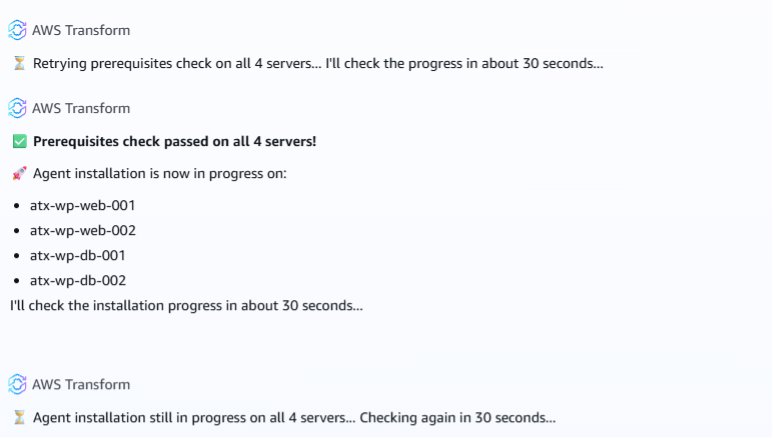
Figure 7 – AWS Transform validates the source servers for prerequisites, and deploys the replication agent
You can monitor the deployment progress in real time through the AWS Transform job workspace to track the status of each source server individually. If a server fails prerequisite validation, the connector reports the specific issue so you can address it before retrying.
What happens next
Once agents are deployed, data replication starts automatically and source servers go through the AWS MGN lifecycle states.
AWS MGN performs an initial sync of each server’s disks that have been selected for replication, then maintains continuous block-level replication. AWS Transform continues to guide you through the remaining stages: launching test instances to validate your migrated workloads and performing cutover when you’re ready to go live.
For multi-account migrations, the connector you set up during the first wave can be reused for subsequent waves targeting member accounts in your organization. AWS Transform handles the cross-account IAM role deployment through AWS CloudFormation StackSets, so you don’t need to repeat the connector setup for each account.
Cleanup
If you have used AWS Transform for VMware for your migration, make sure to clean up unneeded resources to avoid incurring costs associated with the AWS Transform workspace or resources created while working with it. Specifically:
- Make sure to clean up any resources created by AWS Application Migration Service, such as ongoing replication jobs, EC2 instances launched during migration for testing, and the Linux server running MGN connector in your source environment
- Secrets created in AWS Secrets Manager
- IAM roles created by the AWS Transform workspace or the MGN connector setup process in the console
- SSM Hybrid Activations that are still in effect
- Infrastructure components (VPC, Subnets, Security Groups)
Make sure that you only clean up after confirming your migration is complete and successful, and only unneeded resources, as deleting resources results in permanent data loss.
Conclusion
In this post, we walked through how AWS Transform streamlines the setup and configuration of the MGN connector for deploying replication agents at scale. By automating IAM role creation, SSM hybrid activation, and providing a guided setup experience, AWS Transform accelerates your migration by reducing the time and effort required to get replication agents deployed on your source servers. Get started today by creating an AWS Transform workspace and running a VMware migration job.