亚马逊AWS官方博客
Simplifying Multi-Account AWS Governance with the Cloud Foundations UI Console
1. Introduction
Managing a multi-account AWS environment at scale presents unique challenges. As organizations grow their cloud footprint, they often find themselves juggling multiple AWS consoles, navigating complex service catalog products, and coordinating infrastructure deployments across dozens—or even hundreds—of accounts.
The Cloud Foundations Quick Start Pack addresses these challenges by providing a comprehensive deployment framework built on the principles outlined in the AWS Cloud Foundations whitepaper. It automates the deployment of landing zones, security baselines, and DevOps functions using cloud-native technologies.
The Cloud Foundations User Interface Console provides a unified, intuitive interface for managing your entire Cloud Foundations environment. Instead of navigating between AWS Service Catalog, AWS CodeBuild, AWS CodePipeline, Amazon CloudWatch Logs, AWS Systems Manager Parameter Store, and AWS AppConfig, you now have a single pane of glass for all governance operations.
 |
The console is designed for cloud platform teams who need to provision and manage infrastructure, and security teams who require visibility into organizational health and compliance. Key features include:
- Unified Dashboard: Real-time visibility into organizational health, security posture, pipeline status, and network infrastructure
- Generative AI Assistant: An integrated chatbot powered by Amazon Bedrock that provides contextual guidance based on Cloud Foundations documentation and operational data
- Guided Workflows: Simplified interfaces for account creation, network deployment, and product management
- Role-Based Access Control: Two-tier permission model separating read-only access from operational capabilities
- Multi-Language Support: Full support for English and Chinese languages
With seamless integration into your existing Cloud Foundations deployment, the UI makes enterprise-grade cloud governance accessible to a broader range of users while reducing operational complexity.
2. Getting Started with the Console
2.1 Accessing Your Console
The Cloud Foundations UI is deployed as a serverless web application distributed through Amazon CloudFront. After your Cloud Foundations deployment completes with the ui service switch enabled, you’ll receive a CloudFront distribution URL hosted in your Logs Account. This serverless architecture ensures high availability and global performance without infrastructure management overhead.
Authentication is handled through Amazon Cognito user pools. Unlike self-service platforms, the Cloud Foundations console requires internal user registration by administrators. This design ensures that only authorized personnel can access your governance tools. Your administrator will create your user account in the Cognito user pool (located in the Infrastructure Account) and assign you to the appropriate user group based on your responsibilities. Multi-factor authentication (MFA) is required for all users to provide an additional layer of security and help protect your cloud governance environment from unauthorized access.
Regional Deployment Variations: In China regions, where Amazon Cognito user pools are not available, the console uses an alternative deployment approach with MFA-based temporary credentials through AWS Systems Manager Session Manager for authentication and secure access. This approach maintains the same AWS AppSync backend and ensures consistent functionality across all deployment environments.
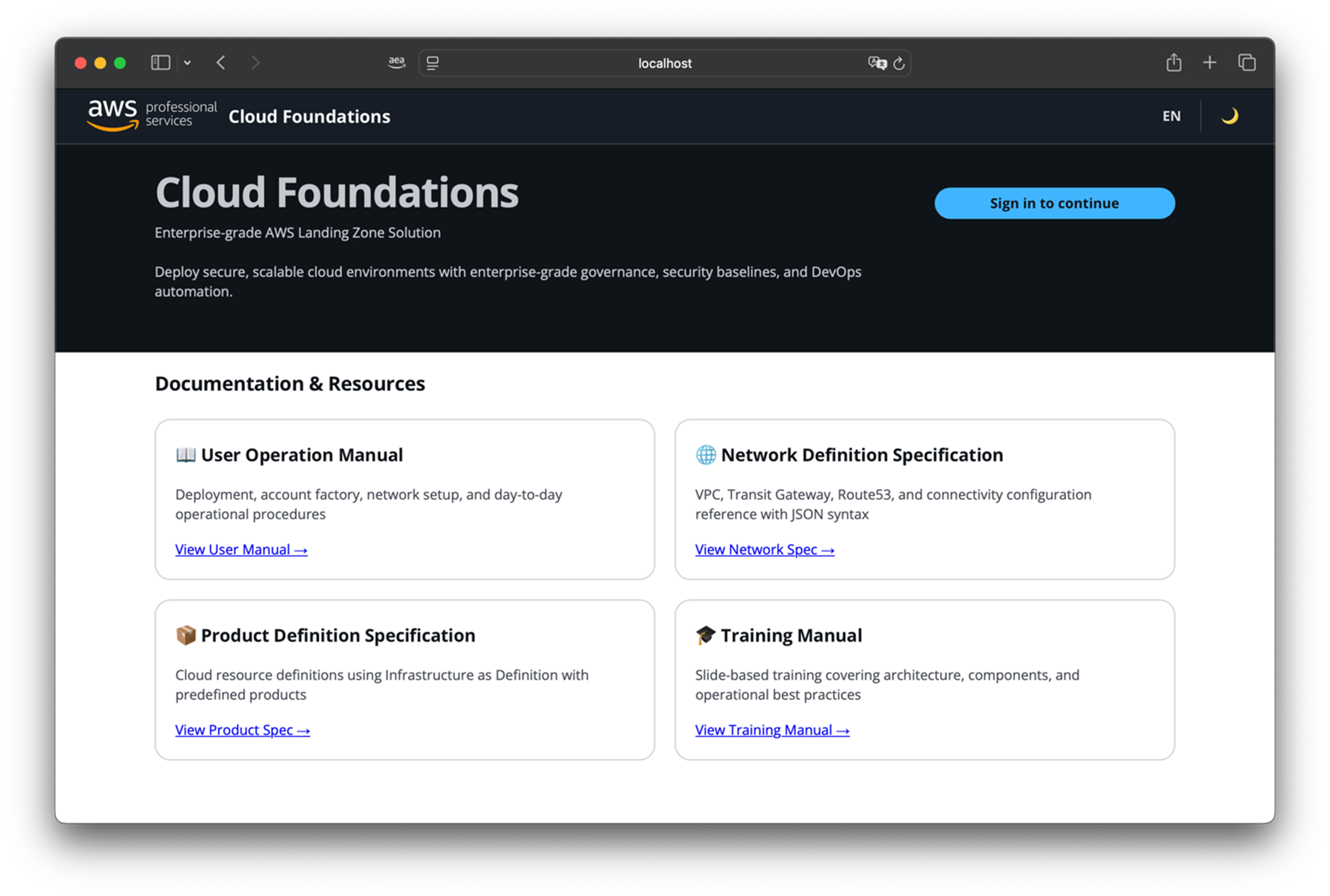
The signin page provides direct access to comprehensive documentation including the User Operation Manual, Network Definition Specification, Product Definition Specification, and Training Manual—ensuring users can access guidance and reference materials even before logging into the console.
2.2 Role-Based Access Control
The console implements a two-tier access control model:
- Readonly Group: Members can view all information across the console—dashboard metrics, pipeline statuses, organizational structure, network topologies, and configuration parameters. This role is suitable for auditors, compliance officers, and team members who need visibility without the ability to make changes. If a readonly user attempts a write operation, the request is rejected and a notification message explains that the action requires product-manager permissions.
- Product-Manager Group: This group has comprehensive management capabilities within the console’s scope. In addition to viewing all information, product-managers can execute pipelines, approve manual stages, create accounts, deploy networks, launch products, and modify system parameters. The console is designed to support operational workflows while maintaining security guardrails—destructive operations such as resource deletion are intentionally excluded from the UI interface to prevent accidental infrastructure changes. This role is designed for platform engineering teams who actively manage and operate the infrastructure.
When you log in, your group membership determines which actions are available throughout the console. This clear separation ensures that you can grant broad visibility across your organization while maintaining tight control over state-changing operations.
2.3 Navigating the Interface
The console follows familiar AWS design patterns with a straightforward layout. Once you log in, you’ll find:
Top Navigation Bar: Provides language switching (English/Chinese), theme selection (light/dark mode), and your user profile menu. Your preferences persist across sessions.
Side Navigation Panel: Organizes features into logical sections—Dashboard, Ask Questions (AI assistant), Governance, Accounts, Networks, Products, and Repositories (for managing AWS CodeCommit repositories). The panel can be collapsed to maximize screen space.
Main Content Area: Displays dashboards, tables, forms, or pipeline execution views based on your navigation selection. Breadcrumb navigation helps you track your location and navigate back to parent pages.
2.4 Dashboard: Your Command Center
When you first log in, you land on the dashboard—a comprehensive view of your cloud environment through an interactive, widget-based layout. The dashboard uses a responsive grid system where each widget occupies a specific number of rows and columns.
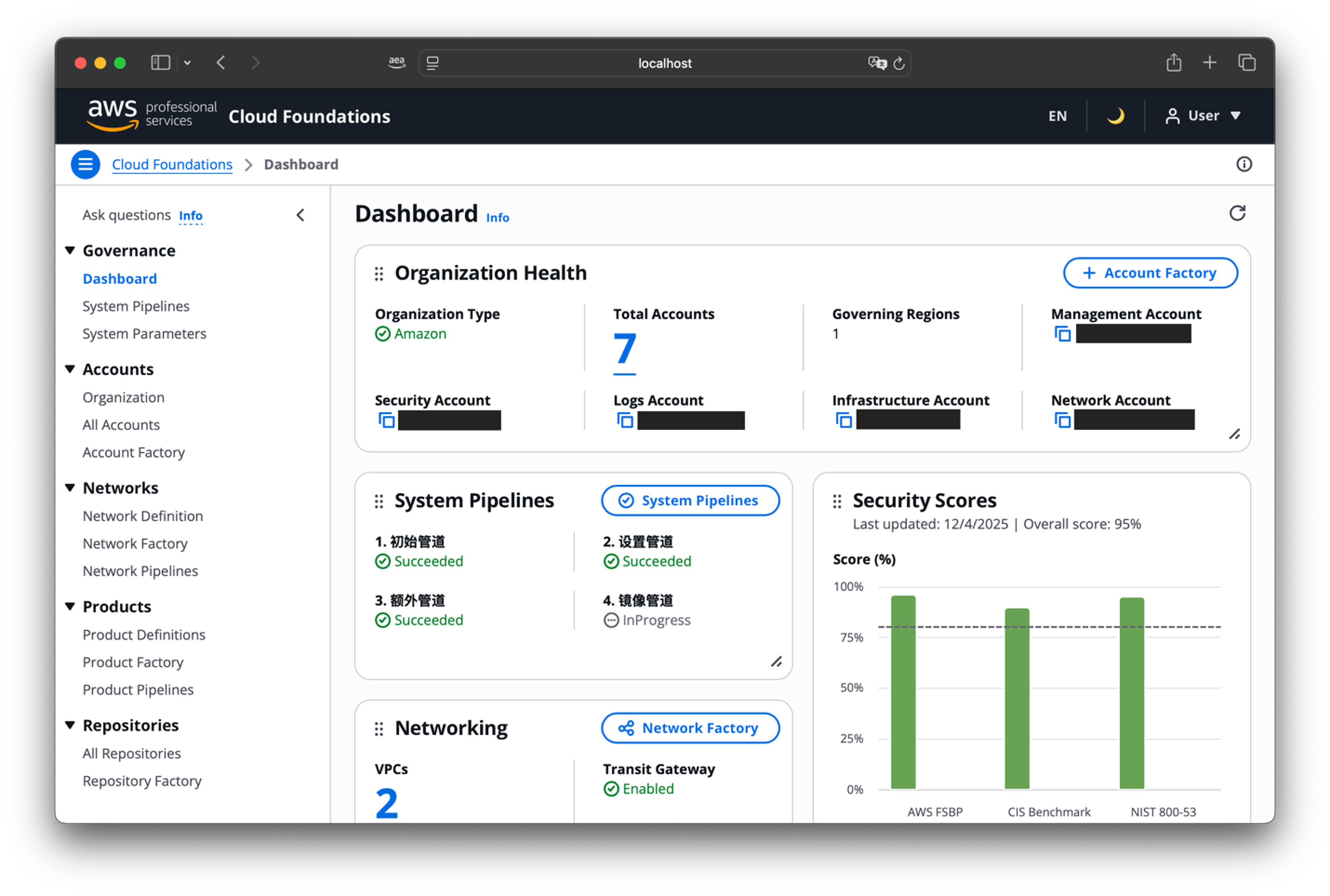 |
You can drag widgets to reorder them, resize them, and the layout automatically adapts to your screen size. Each user can customize the dashboard for their workflow, with preferences stored in browser local storage.
Key widgets include:
Organization Health: Displays your core Cloud Foundations accounts (Management, Logs, Infrastructure, Security, Shared Services) with status indicators and account counts. Select the “Account Factory” button to create new accounts.
Security Scores: Shows security posture metrics from AWS Security Hub, displaying compliance scores against enabled standards (AWS Foundational Security Best Practices, CIS AWS Foundations Benchmark). Includes trend indicators and context about data freshness.
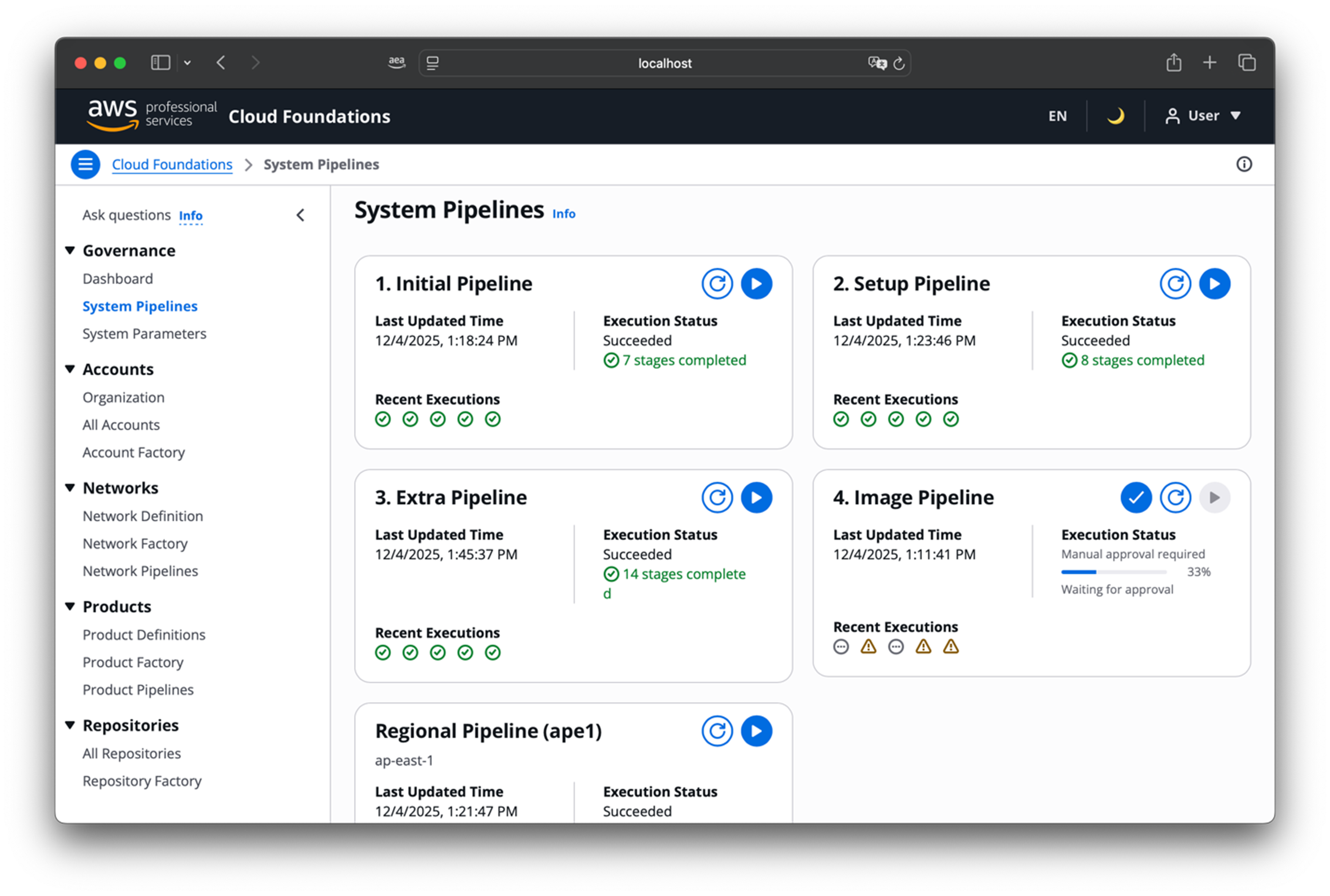
System Pipelines: Displays execution status for the five core pipelines (Initial, Setup, Extra, Image, Regional) with color-coded states: succeeded (green), in progress (blue), failed (red), requires approval (orange). Product-managers can select pipeline names to view details and approve stages.
Networking: Summarizes network infrastructure across regions with counts of VPCs, subnets, transit gateways, and VPC peering connections. Includes a “Network Factory” button for deploying new networks.
Security Compliance: Shows critical and high-severity findings from Security Hub with remediation and suppression percentages.
Chat Configuration: When the AI assistant is enabled (ui.chats service switch), displays knowledge base sync status and provides a “Sync Data Source” button for product-managers to trigger manual updates.
The dashboard header includes a refresh button that updates all widgets simultaneously through parallel GraphQL queries to AWS AppSync. Cached data displays immediately when returning to the dashboard while background refresh fetches updates.
3. Generative AI Assistant: Your Cloud Foundations Expert
At the top of the side navigation panel, you’ll find “Ask Questions”—a generative AI assistant powered by Amazon Bedrock and trained on your Cloud Foundations documentation through RAG (Retrieval-Augmented Generation) technology.
Note: This feature is available in AWS Regions where Amazon Bedrock and Amazon OpenSearch Serverless are supported. Due to service availability, the AI assistant is not currently available in China Regions (Beijing and Ningxia).
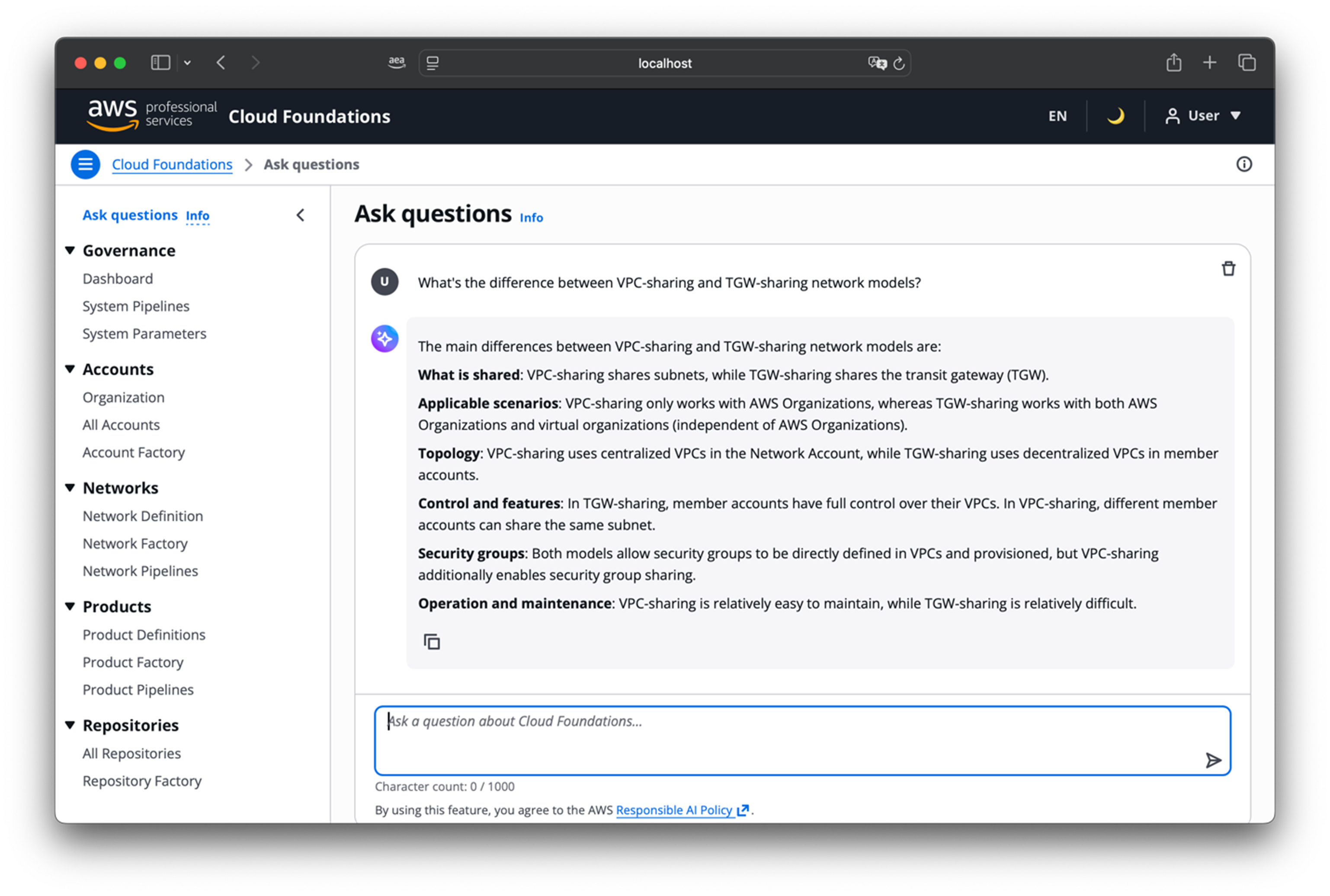 |
When you ask a question, the assistant queries an Amazon OpenSearch Serverless collection containing indexed Cloud Foundations documentation, retrieves relevant sections, and provides them as context to the language model. Amazon Bedrock then generates a response that’s grounded in your actual documentation, not generic cloud advice.
The assistant’s knowledge base includes comprehensive Cloud Foundations materials: the User Operation Manual (complete coverage of all features), Product Definition Specification (detailed guidance on defining infrastructure), Network Definition Specification (instructions for designing network topologies), and operational procedures.
You can ask questions like:
- “How do I create a new AWS account using the Account Factory?”
- “What’s the difference between VPC-sharing and TGW-sharing network models?”
- “How do I enable AWS Config rules auto-remediation for specific accounts?”
- “What parameters do I need to change to add a new region to governance?”
The assistant understands Cloud Foundations terminology, knows the relationships between different components, and can guide you through multi-step procedures.
Session-Based Conversations: The chat interface maintains conversation context within a session, allowing you to ask follow-up questions without repeating context. When you return to the chat page, your conversation history is preserved. Click the “Clear Chat” button to begin a new session.
The Chat Configuration widget on your dashboard shows when the knowledge base was last synchronized. Product-managers can select the “Sync Data Source” button to trigger manual updates, ensuring the assistant always provides guidance based on the most current information. The feature is available in global AWS regions (China and opt-in regions are not currently supported due to service availability).
4. System Governance: Pipelines and Parameters
Cloud Foundations operates through five core system pipelines that automate infrastructure deployment. The console brings these pipelines and their controlling parameters into a unified interface.
4.1 Pipeline Management
The Pipelines page provides real-time visibility into all system pipeline executions with color-coded status indicators, last execution times, and recent execution histories. Product-managers can release pipelines directly from this interface and approve manual stages through confirmation dialogs.
 |
Common scenarios for releasing pipelines:
- After parameter changes: Release Setup or Extra pipeline
- Adding new regions: Release Initial pipeline
- Security updates: Release Image pipeline
- Baseline updates: Release Setup, then Regional pipelines
4.2 Configuration Management
The Parameters page organizes Cloud Foundations configuration into multiple parameter categories:
| Parameter Category | Description | Key Features |
| Backup Plans | Configure AWS Backup plans and policies | Hourly, daily, weekly, monthly, yearly schedules with lifecycle policies |
| Backup Resources | Define which AWS resources to include in backups | Region-specific resource types (Aurora, DynamoDB, EBS, EC2, EFS, RDS, S3, etc.) |
| Baselines | Control baseline configurations per account/region | Interactive configuration modal for composing settings |
| CloudWatch Filters | Manage CloudWatch log filters and alarms | Monitor IAM, KMS, and console login events |
| Config Rules | Configure AWS Config rules with auto-remediation | Security, compliance, and best practice rules |
| Inspector Resources | Define AWS Inspector scan scope | ECR, EC2, Lambda, Lambda Code, Code Repository scanning |
| Services | View enabled Cloud Foundations features | Controls which services are active in your deployment |
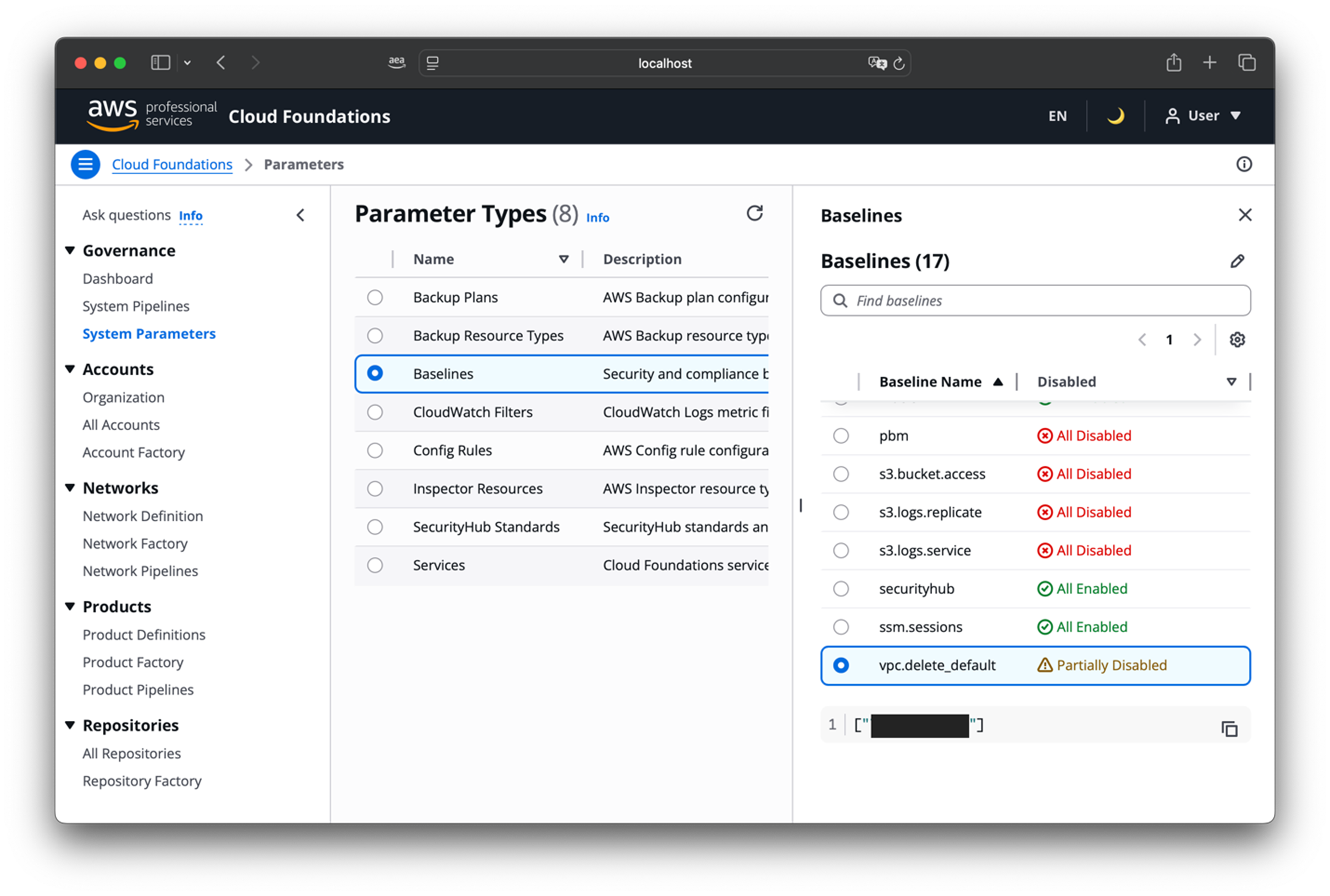 |
For Baselines, the console provides an interactive configuration modal that helps you compose baseline settings through a guided interface. You can enable baselines globally, disable them entirely, or configure regional exceptions by specifying account IDs for specific regions. The modal generates the correct JSON configuration and copies it to your clipboard for easy pasting into the parameter editor.
The console provides appropriate viewers for different parameter types and includes guidance on which pipeline to release when configuration changes are made.
5. Organization and Account Management
5.1 Visualizing Your Organization
The Organization page provides an interactive tree view of your AWS organizational structure, rendering it as an actual tree diagram rather than a hierarchical list.
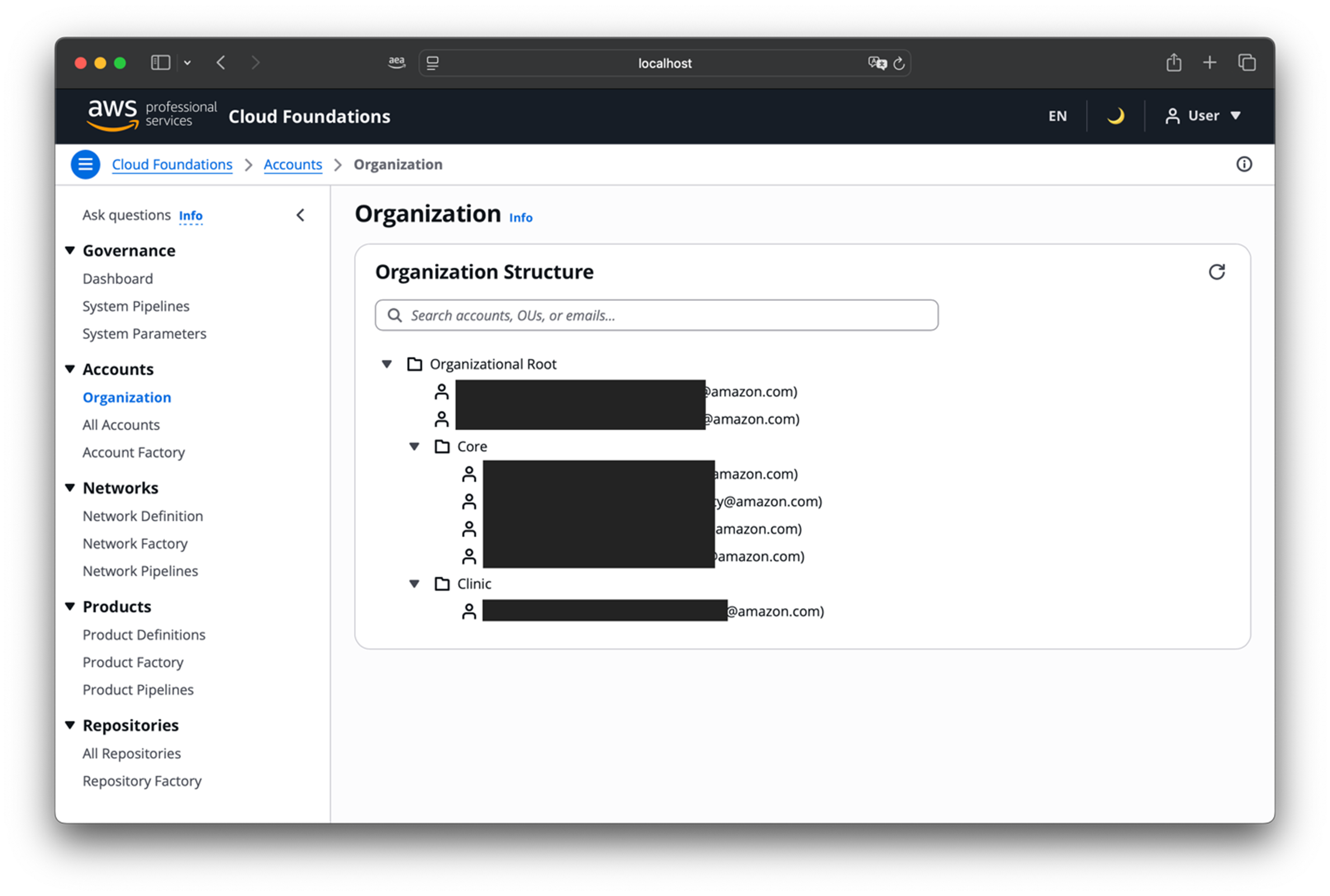 |
The tree displays OUs as expandable branches and accounts as leaf nodes showing name and email. For detailed account information including ID, status, and type, navigate to the All Accounts page which presents a comprehensive table view with color-coded status indicators—green for active accounts, gray for suspended ones.
5.2 Account Factory
The Account Factory provides a guided interface for account provisioning through two modes:
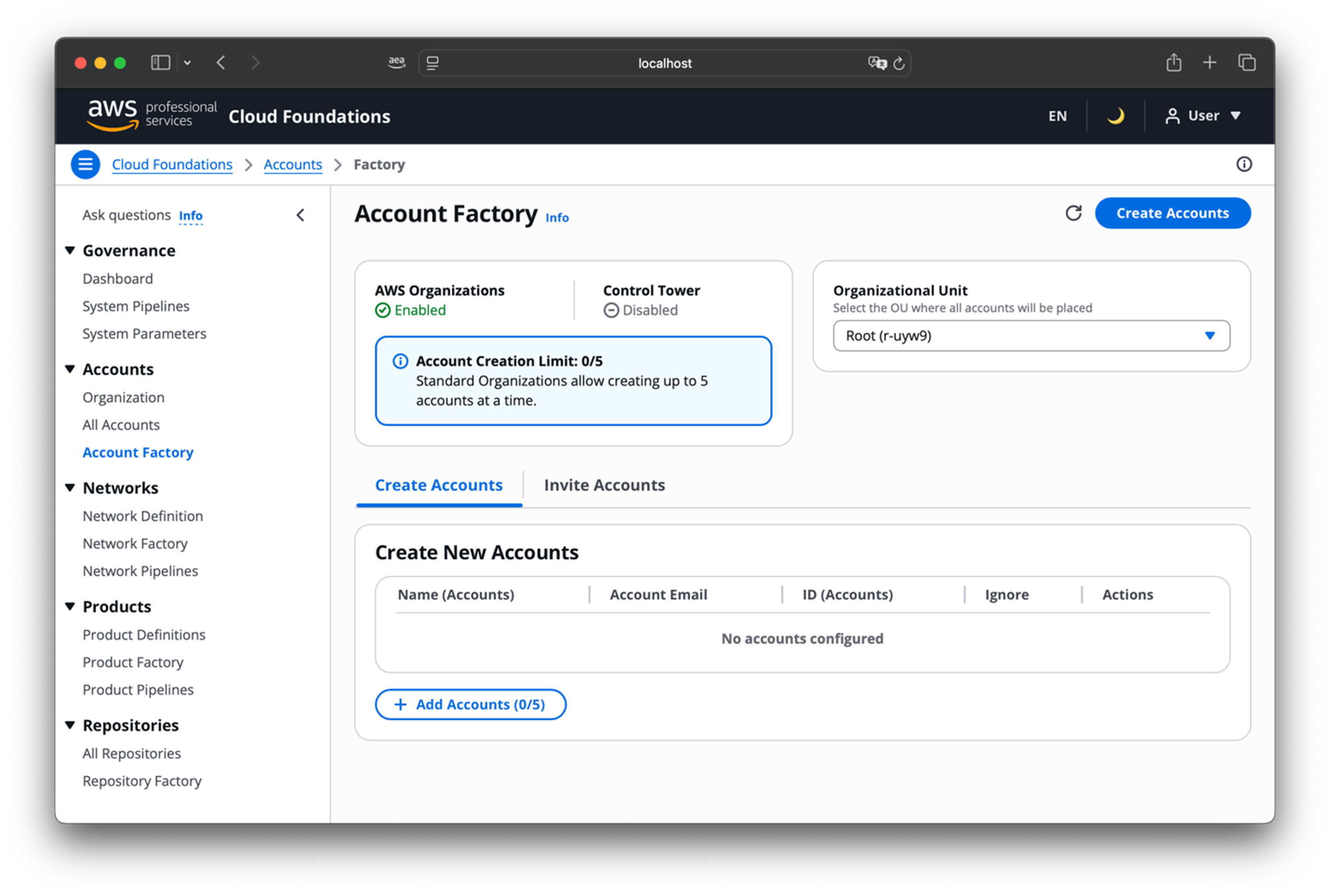 |
Create Mode (for new accounts):
- Account Name: Descriptive name for the account
- Account Email: Unique email address for the account root user
- Organizational Unit: Select target OU from dropdown
- Supports up to 5 accounts simultaneously in AWS Organizations mode, or 1 account in AWS Control Tower mode
Invite Mode (for existing accounts):
- Account ID: 12-digit AWS account identifier
- Organizational Unit: Select target OU from dropdown
- Supports up to 10 accounts simultaneously
The console automatically validates email formats and account IDs, provides real-time feedback, and handles both AWS Organizations and AWS Control Tower integrations. When you submit the form, the console launches the Service Catalog product and redirects you to a status page showing state machine execution progress.
6. Network Infrastructure Management
Network management follows a three-component workflow: Definition, Factory, and Pipelines.
6.1 Network Definition
The Network Definition page displays your network configuration through multiple tabs: Topology (visual diagram), VPCs, Subnets, Security Groups, TGW Routes, and Code View. Select a region from the dropdown to view its network resources.
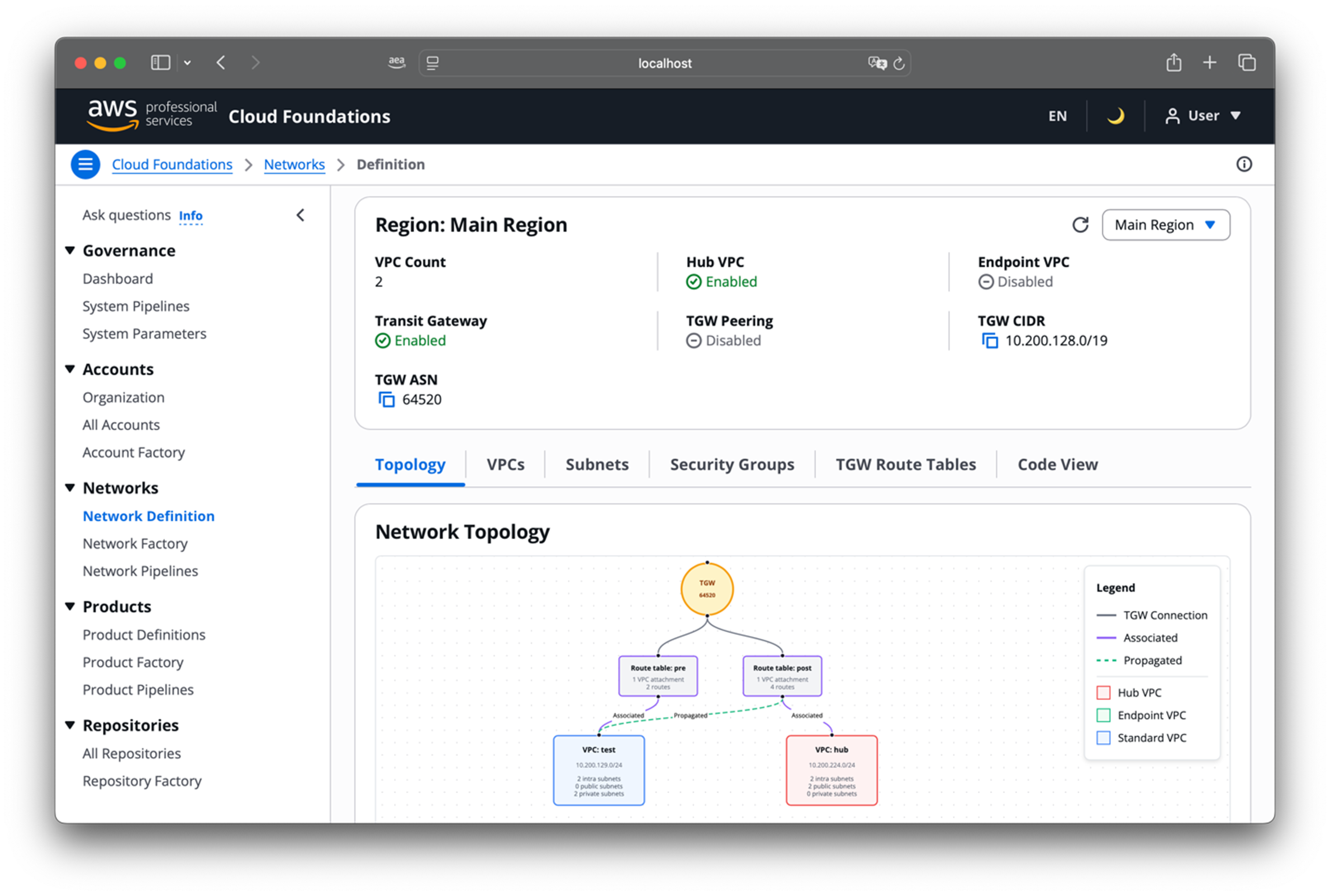 |
The Topology tab renders your network architecture showing VPCs, subnets, transit gateway connections, and route tables. The Code View tab displays the raw JSON definition with an upload button for updating configurations. Users edit network definitions outside the console using their preferred tools and upload the updated files. The console supports both VPC-sharing (centralized VPCs with shared subnets) and TGW-sharing (shared transit gateway with member-owned VPCs) models.
6.2 Network Factory
The Network Factory creates deployment pipelines through a mode-based form:
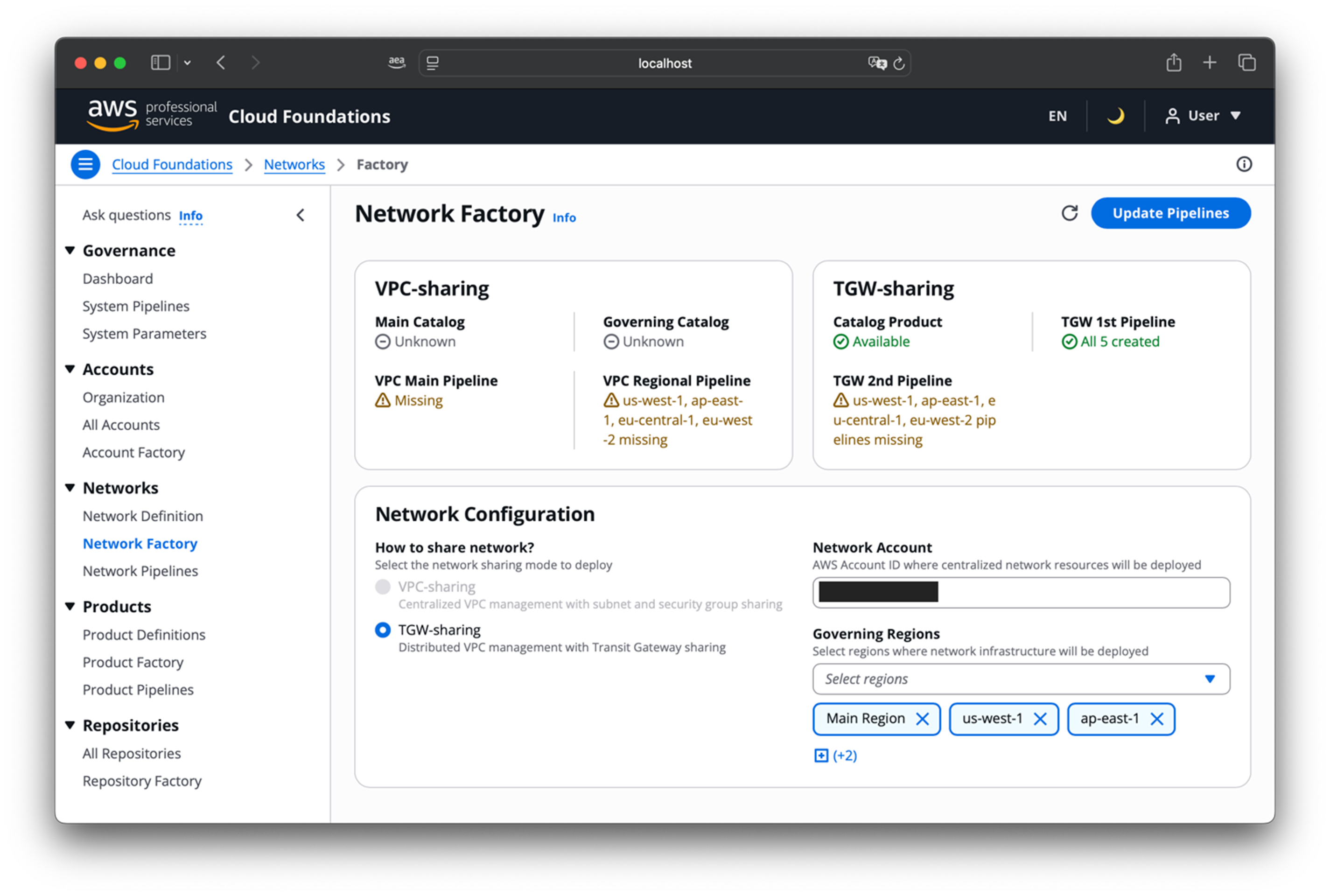 |
- Network Sharing Mode: Select between VPC-sharing or TGW-sharing models
- Network Account: 12-digit account ID where network resources will be deployed
- Regions: Multi-select from available regions defined in your network configuration
The console automatically detects existing network pipelines and switches between “Create” and “Update” modes accordingly. It validates account IDs in real-time and auto-populates regions from your network definition.
6.3 Network Pipelines
The Network Pipelines page displays all network-related pipelines, adapting based on your sharing model:
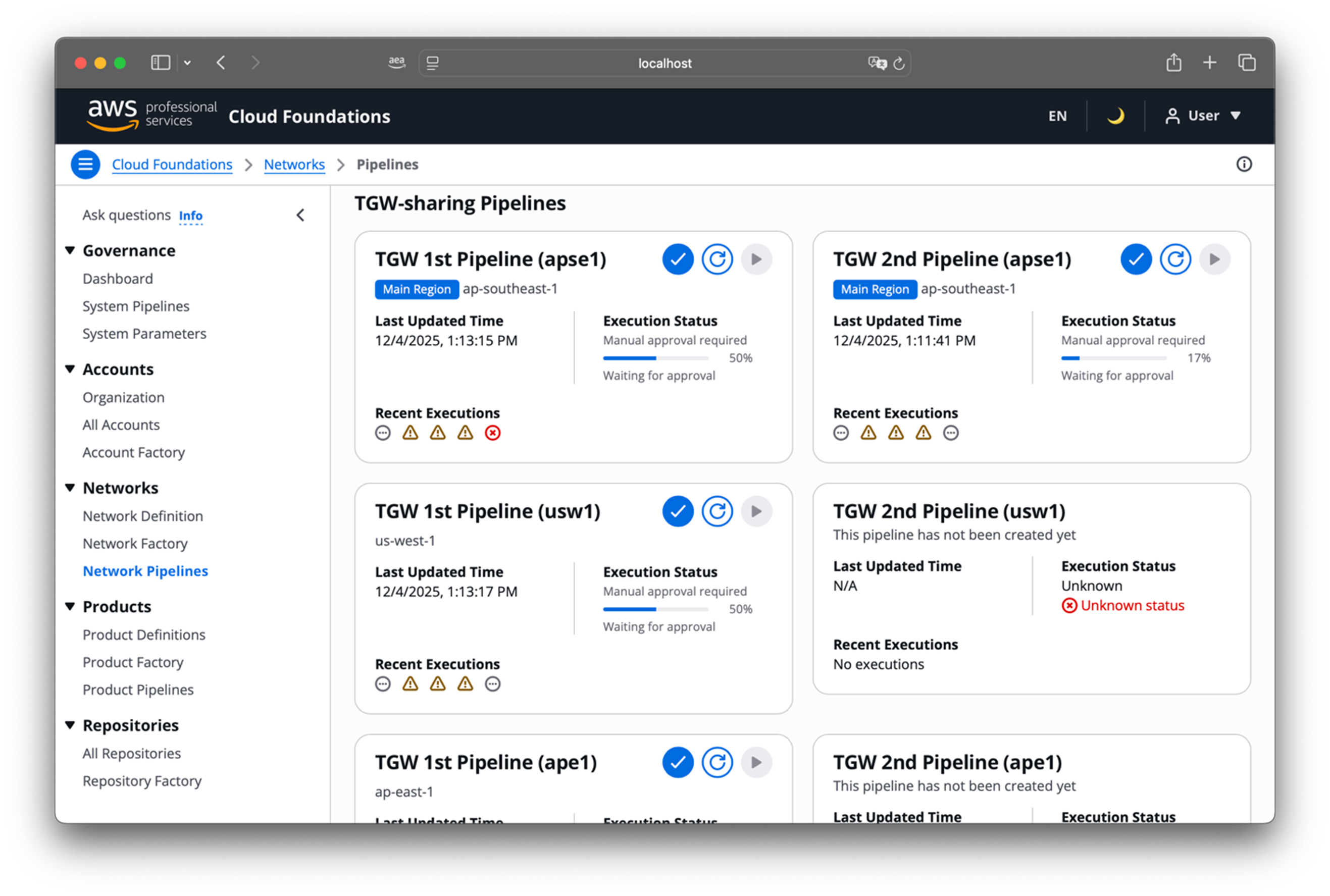 |
- VPC-Sharing: Main region pipeline plus regional pipelines
- TGW-Sharing: First-order pipeline (generates second-order) plus second-order pipelines (deploy resources)
For TGW-sharing, you must release the first-order pipeline first, wait for it to generate second-order pipelines, then release those. The console clearly indicates this sequence.
7. Product Management: Infrastructure as Definition
Product Management embodies the “Infrastructure as Definition” philosophy where you define AWS resources in JSON and Cloud Foundations handles deployment complexity.
7.1 Product Definitions
The Product Definitions page displays all product profiles stored in AWS AppConfig in a two-panel layout: a product list on the left and details on the right. Select a product to view its Information, Topology, and Code View tabs.
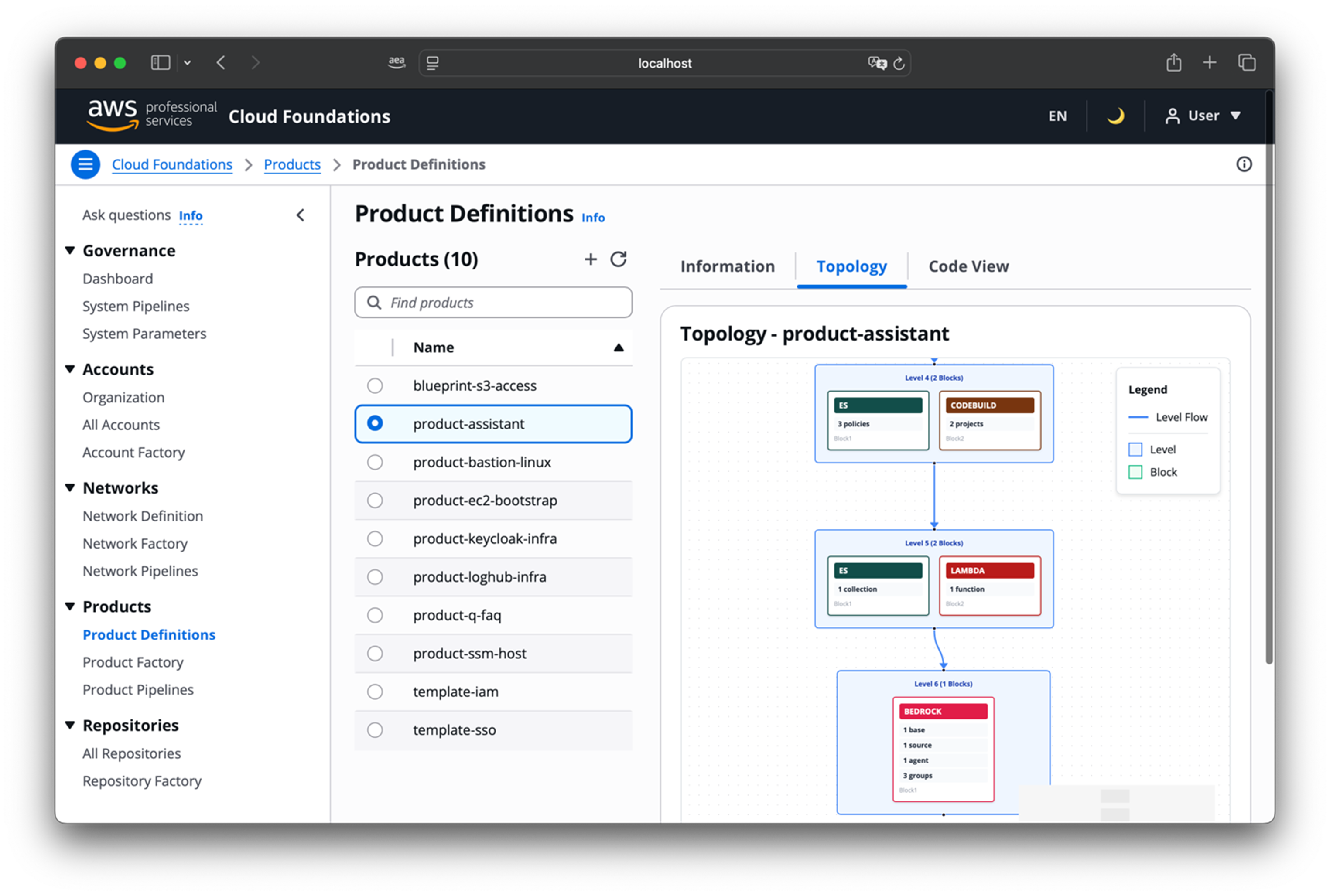 |
The Code View tab displays the JSON definition with an upload button for updates. Users create or edit product definitions externally and upload them through the console. Product definitions use a two-dimensional array structure where blocks (collections of resources from the same service) are organized into stages. Blocks in the same stage execute concurrently; stages execute sequentially. Definitions support environment variables (${KEY} syntax) and value range templates for reusability across environments.
7.2 Product Factory
The Product Factory creates deployment pipelines through a form:
- AppConfig Profile: Select from available product profiles
- Stage: Identifier for environment (dev, test, prod) or leave blank
- Variables: The console automatically detects variables in your product definition and displays input fields for each. Fill in values to replace environment variables in the definition
When you select a product profile and stage, the console checks if a provisioned product already exists. If it does, the form switches to update mode and pre-populates existing variable values. The button changes from “Create” to “Update” accordingly.
7.3 Product Pipelines
Each product generates apply and destroy pipelines. The Product Pipelines page displays all pipelines with filtering, sorting, and execution actions.
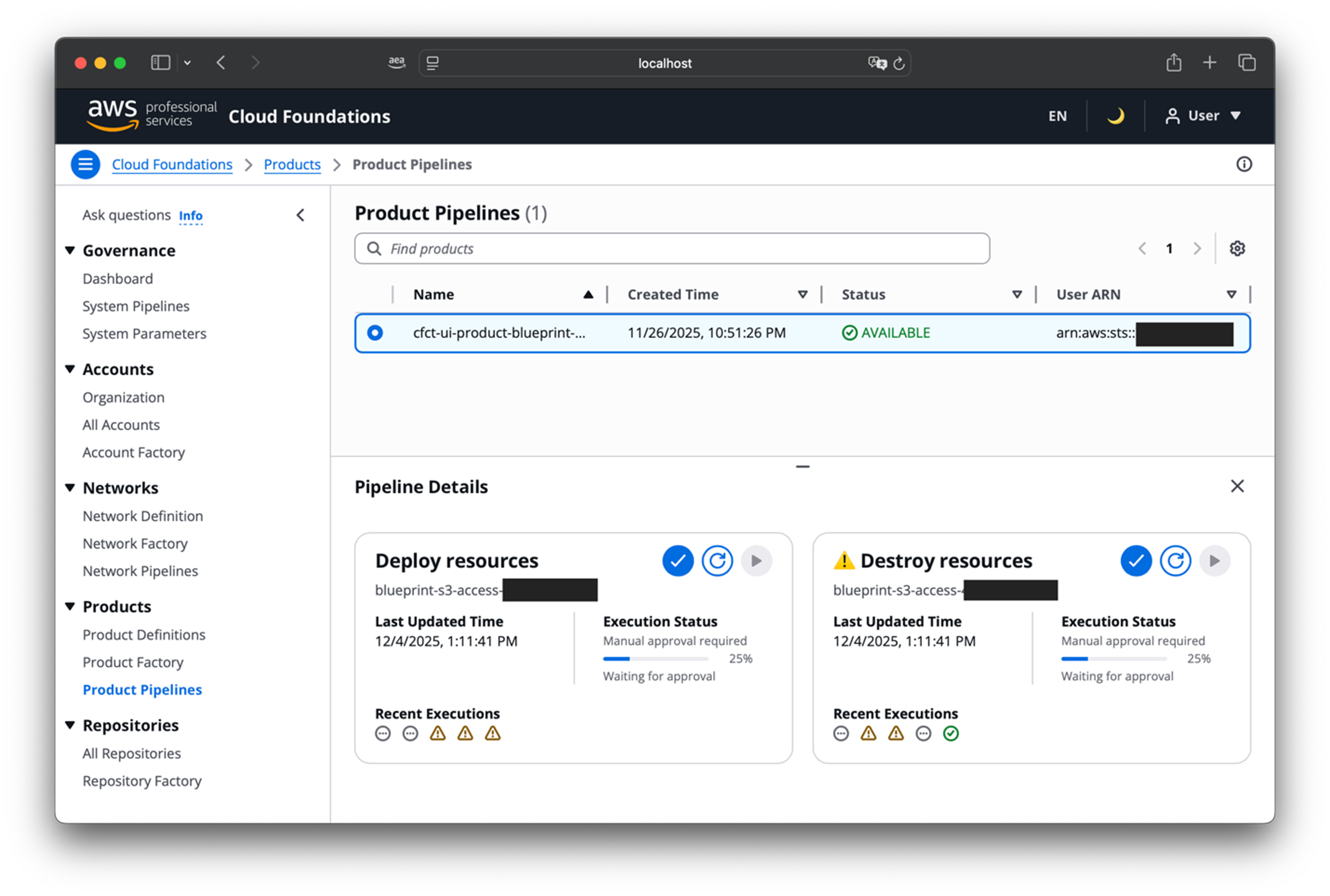 |
Workflow:
- Create product definition in AppConfig
- Launch through Product Factory (creates provisioned product and pipelines)
- Release apply pipeline
- Monitor execution (typically 5-15 minutes)
For updates, modify the product definition in AppConfig, then return to Product Factory with the same profile and stage. The console detects the existing provisioned product and switches to update mode. Submit the update, then release the apply pipeline again.
8. Conclusion
The Cloud Foundations User Interface Console transforms multi-account AWS governance by consolidating operations that previously required navigating multiple accounts and service consoles into a single, unified interface. By combining real-time visibility, AI-powered guidance, and streamlined workflows, the console significantly improves operational efficiency while making enterprise-grade cloud governance accessible to teams with varying levels of expertise.
Getting Started:
To enable the console, set both cloudfront and ui service switches to true in /cf/services. For the AI assistant, additionally enable bedrock and ui.chats. After updating the service switches, release the Setup pipeline and access the CloudFront URL. Your administrator will create user accounts and assign appropriate permissions based on team roles.