AWS Cloud Financial Management
Introducing AWS Billing Conductor and AWS Billing Transfer views as source views for custom billing views
We are excited to announce that AWS Billing Conductor billing group views and AWS Billing Transfer views are now supported as source views for custom billing views. If you resell AWS services to end customers, or you use billing groups to model business units, you can now combine the views AWS already maintains for you into a single custom billing view. Whether you are a distributor reporting total transferred cost across a customer base, a reseller tracking billings alongside cost, or a finance team running chargeback across business units, your consolidated reporting can now be built directly on the data AWS produces for you.
Why use managed views as source views
A custom billing view lets you combine, filter, and share cost and usage data as a single AWS resource. You create one from your management account and point it at one or more existing billing views, which become its source views, then apply the filter that matches the way you report. The view gets its own ARN and works in AWS Cost Explorer, AWS Budgets, and the AWS Billing and Cost Management console, and you can share it with other accounts.
AWS managed billing views are created for you when you map accounts to AWS Billing Conductor billing groups or use AWS Billing Transfer. You hold one for every billing group you configure and two for every billing transfer relationship, and each carries a different view of the same usage. A billing group view carries the cost of one billing group at the custom pricing you configured for it. For a transfer relationship, a ‘My view’ carries the billing data your bill transfer account is financially responsible for, and a ‘Showback/Chargeback view’ carries the data configured for showback or chargeback to your end customer. AWS creates and maintains all of them, so you cannot change them and they stay algined with the billing groups and relationships they describe.
Using managed views as source views for a custom billing view means your reporting reads the figures AWS already generates for each billing group and relationship, with nothing copied out and no separate pipeline to keep current.
A distributor holds a billing transfer view for every end customer relationship, and the figures the business runs on are the totals across them. One custom billing view can combine those showback/chargeback views into a single chargeback figure, which you can break down by service, by account, or by month in Cost Explorer like any other report. A second view over the corresponding My views gives what the business paid AWS across the same customers over the same period, grouped the same way, so the two figures cover matching scope and are directly comparable. You move between them from the billing view selector, and you can bookmark each view together with its report configuration to return to it. An AWS Billing Conductor payer can take the same approach across billing groups, aggregating them into one view for chargeback or showback and filtering it per business unit. And because a custom billing view is a shareable AWS resource, the finance and operations teams who use these figures can work with them in their own accounts through AWS Resource Access Manager.
What you get
Managed views as source views. You can select billing group and/or billing transfer views when you create a custom billing view, or add to a view you already have.
Cross account sharing through AWS Resource Access Manager. Once a custom view exists, you can share it with other AWS accounts using the same sharing model you already use, including accounts outside your organization. Recipients read the data in Cost Explorer, AWS Budgets, and the Billing and Cost Management console from their own account, without access to your management account.
Access that follows your existing permissions. A managed view is available as a source view to the account that already has it: billing group views from the management account, and billing transfer views from the bill transfer account. A custom billing view built from them keeps those same boundaries, and sharing it with another account is a deliberate step you take through AWS Resource Access Manager.
Prerequisites
Custom billing views are created from the management account of an organization, and there are three things to have in place:
- Your account must use fine grained AWS Cost Management actions. These are already in effect for standalone accounts and for organizations created on or after March 6, 2023. Organizations created before that date can use the bulk policy migrator scripts from the management account.
- To share a view, the IAM principal you use in the management account needs permissions to create and share resources in AWS Resource Access Manager (RAM). Member accounts receiving a shared view need no additional permissions. To share outside your organization, the recipient needs permission to accept RAM invitations.
- For member accounts in your organization to open a shared view in Cost Explorer, the management account must have granted them Cost Explorer access.
For more information on required permissions, see Using identity based policies for AWS Cost Management in the user guide.
How it works
There are no new APIs to learn. CreateBillingView, AssociateSourceViews, and DisassociateSourceViews now accept billing group and billing transfer views alongside primary and custom views. In the console, the managed views you have access to appear in the source view picker (see Figure 1) when you create or edit a custom billing view.
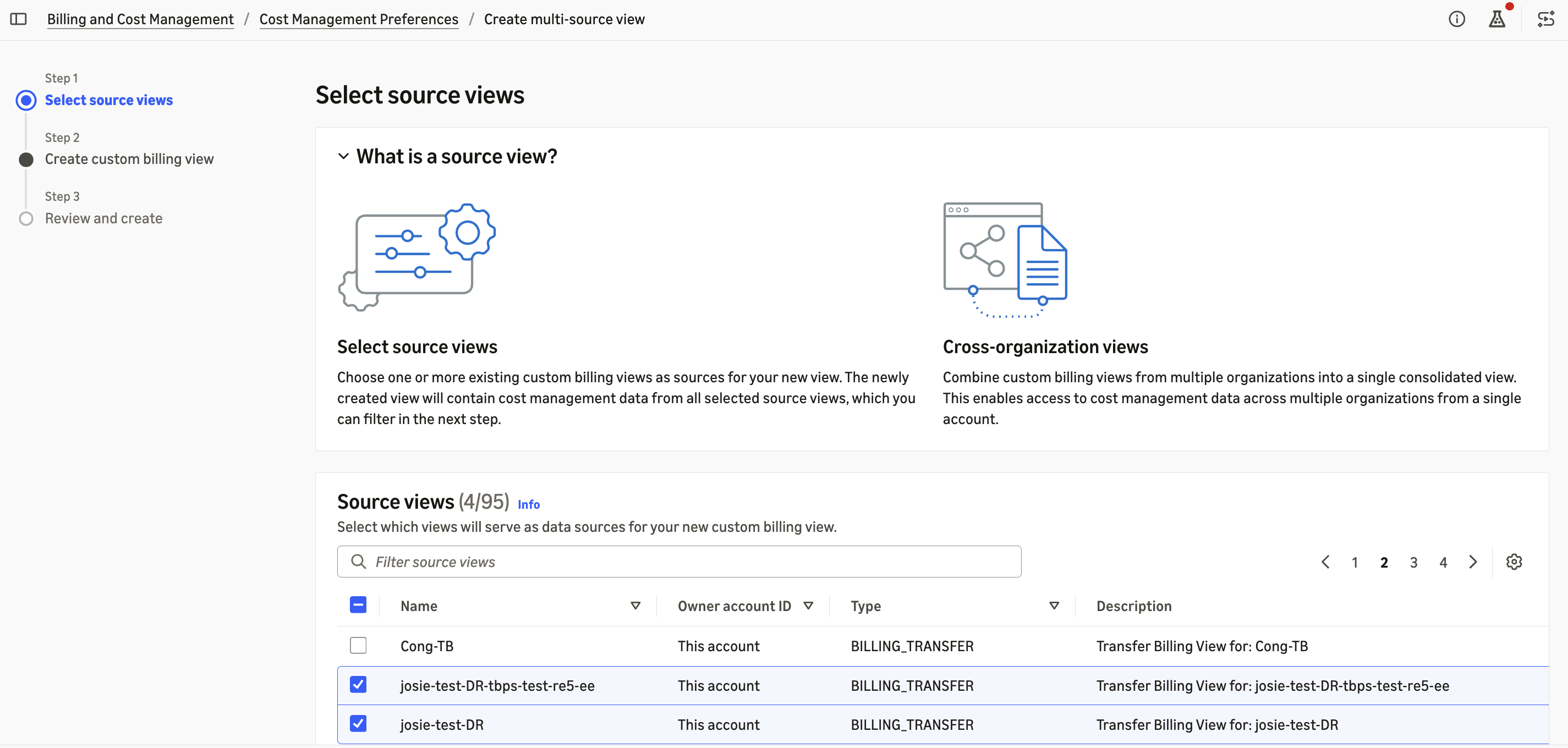
Figure 1 – Selecting billing transfer views that appear in the source view picker, along with billing group views, when you create a custom billing view
Once you have chosen your sources and applied a filter, AWS validates the view asynchronously. When validation finishes, the view is healthy and ready to use anywhere custom billing views are supported. AssociateSourceViews accepts up to 10 source view ARNs per call, so a view with a large source set is built over several calls, and the console handles that for you.
AWS also keeps the view aligned with the sources behind it. If a source view has reached its end date, or a billing group has not yet been accepted, the view stays healthy and that source contributes no data for the billing periods concerned. If a source view is deleted, the view reports it so you can update your source set. You can add a source at any time, which is what makes growth straightforward. When you onboard a new end customer, associating their new view with your existing aggregate view brings them into consolidated reporting from that point on.
In a distribution model the bill passes through more than one party before it reaches the end customer, and each level holds its own billing transfer view. Any of those views can be a valid source, so you decide which levels belong in a given view. Selecting one level per chain gives you a clean consolidated total. Including more than one is supported where that is your intent, and the same underlying spend is then counted in the view more than once.
Example Walkthrough
Consider AnyCompany Distribution, which resells AWS services to several hundred end customers through AWS Billing Transfer from bill transfer account 111122223333. Each month the billing operations team reports two numbers: what the business paid AWS across all end customers, and what it billed those customers. Here is how they make both available on demand.
Step 1: Create a custom billing view for total transferred cost
Sign in to 111122223333 and open the AWS Billing and Cost Management console. In the navigation pane, choose Cost Management Preferences, then the Billing View tab, then Create multi-source view. Select the billing transfer ‘My views’ that AWS maintains for each transfer relationship and choose Next. For the filter, choose No filter (all data) to bring the whole customer base into one number, or filter on Accounts (see Figure 2) or Cost allocation tags for a narrower view. Name the view total-customer-cost, then choose Next and Create.
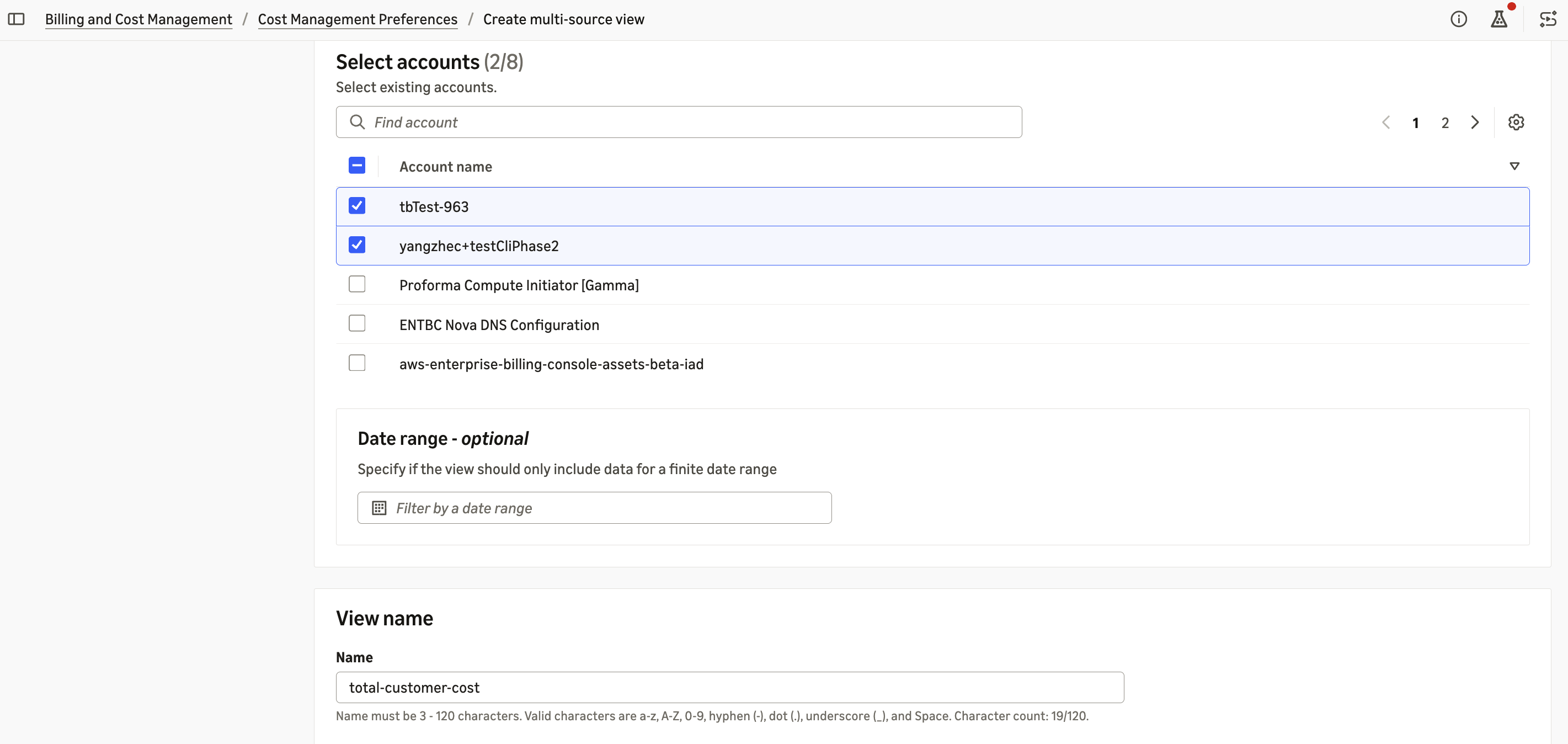
Figure 2 – Choosing Accounts and Creating a new multi-source custom billing view
AWS validates the view, and shortly afterwards it is healthy. Open Cost Explorer, choose total-customer-cost from the ‘Billing views’ menu, and you have one consolidated figure across the entire customer base. Group it by service, by account, or by month, exactly as you would any other Cost Explorer report (see Figure 3).
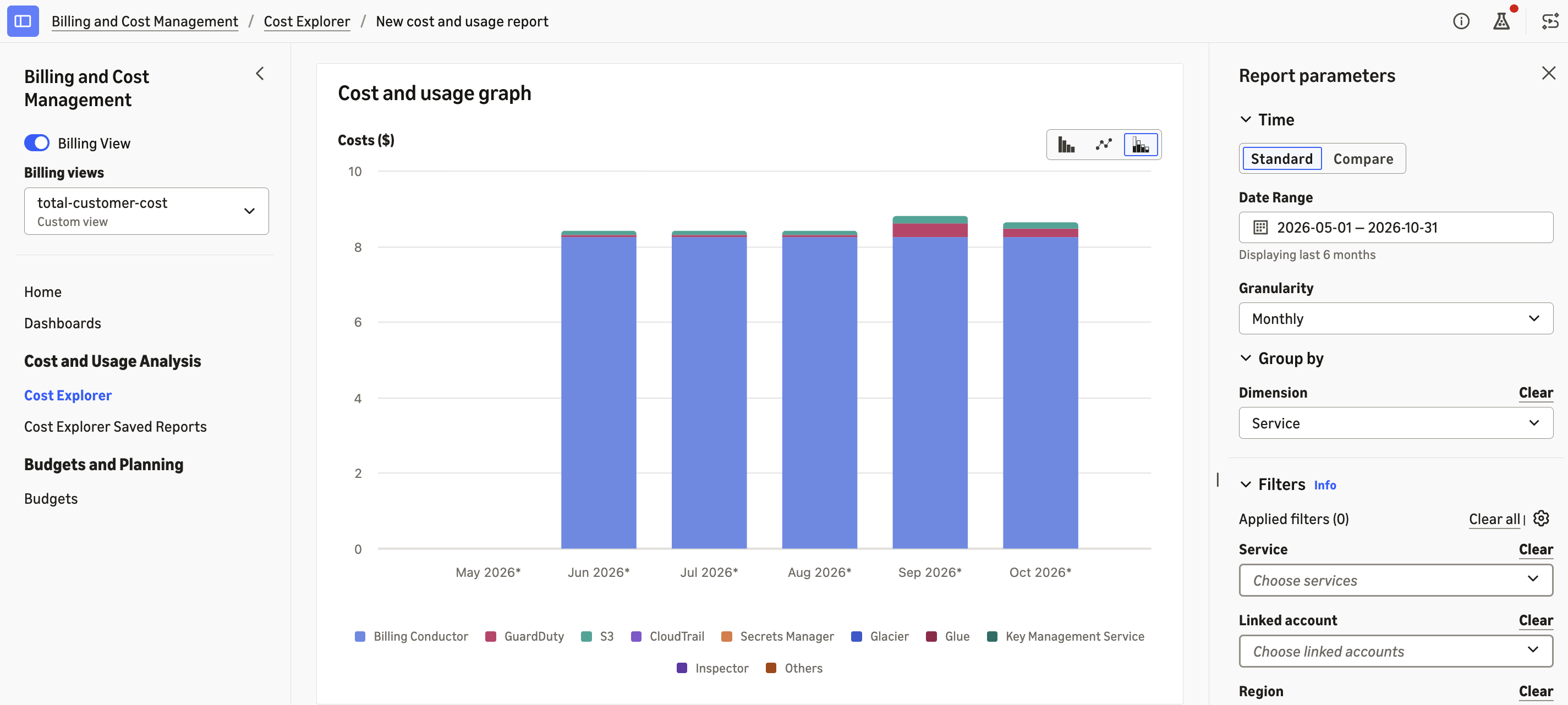
Figure 3 – Cost Explorer showing consolidated transferred cost across all end customers, grouped by service
Step 2: Create a second view for total billings
Repeat the process for a view named total-customer-billings, this time selecting the ‘Showback/Chargeback views’, which carry the data each end customer sees at the rates configured in AWS Billing Conductor. There are now two views in the ‘Billing views’ menu: one for what the business pays AWS, and one for what it bills its end customers. Switching between them gives you both halves of the monthly report, broken down the same way, over the same period.
Step 3: Share the view with the finance team
On the Billing View tab, select total-customer-billings and choose Share view, or open the view and choose the Sharing tab, then Share. Choose ‘Within AWS organization’ to pick member accounts, or ‘With any account’ to enter a 12 digit account ID directly. Select a managed permission, which sets what the recipient can do with the view, then choose the accounts and choose Share.
If you share within your organization and AWS Organizations sharing is enabled, access is immediate. If you share with an account outside your organization, the recipient accepts the invitation in AWS RAM before the view appears for them. Either way, finance can open Cost Explorer in their own account, chooses the shared view, and works with the figures directly, at the same grain, without access to your management account. To give a regional owner visibility into part of the customer base only, create a further custom billing view over the relevant source views and share that one instead.
Step 4: Keep the views current as the business grows
When AnyCompany Distribution onboards a new end customer, AWS creates the billing transfer views for the new relationship and the team adds them to the two aggregate views. Monthly reporting picks up the new customer with nothing to rebuild. You can check the sources behind any view from its Configuration details tab, or with the ListSourceViewsForBillingView API, passing the ARN assigned when the view was created:
aws billing list-source-views-for-billing-view \--arn "arn:aws:billing::111122223333:billingview/custom-total-customer-cost"
Your team can also set an AWS Budget on total-customer-cost and be alerted on total transferred spend across the customer base, rather than tracking relationships one by one.
Getting started
Billing group and billing transfer views as source views are available today in all commercial AWS Regions. To get started, open the AWS Billing and Cost Management console, choose Cost Management Preferences, then the Billing View tab, and create a multi source view with your billing group or billing transfer views as sources. You can also use the CreateBillingView and AssociateSourceViews APIs.
Custom billing views support monthly and daily granularity. Hourly granularity, AWS Cost Anomaly Detection, and rightsizing recommendations are available on your primary billing view. For the tools and experiences available when a custom billing view is selected, see Custom billing views in the user guide.
Conclusion
Custom billing views now build on the billing group and billing transfer views AWS already maintains for you, so resellers, distributors, and AWS Billing Conductor customers can see cost and billings across an entire customer base from one place. Because this works through Cost Explorer and AWS Budgets, that visibility arrives with no data pipelines and no separate reporting infrastructure to maintain.
To learn more, view the billing view user guide, or visit AWS Billing Conductor, and AWS Billing Transfer.