AWS Big Data Blog
Automating data classification in Amazon SageMaker Catalog using an AI agent
If you’re struggling with manual data classification in your organization, the new Amazon SageMaker Catalog AI agent can automate this process for you. Most large organizations face challenges with the manual tagging of data assets, which doesn’t scale and is unreliable. In some cases, business terms aren’t applied consistently across teams. Different groups name and tag data assets based on local conventions. This creates a fragmented catalog where discovery becomes unreliable and governance teams spend more time normalizing metadata than governing.
In this post, we show you how to implement this automated classification to help reduce the manual tagging effort and improve metadata consistency across your organization.
Amazon SageMaker Catalog provides automated data classification that suggests business glossary terms during data publishing. This helps to reduce the manual tagging effort and improve metadata consistency across organizations. This capability analyzes table metadata and schema information using Amazon Bedrock language models to recommend relevant terms from organizational business glossaries. Data producers receive AI-generated suggestions for business terms defined within their glossaries. These suggestions include both functional terms and sensitive data classifications such as PII and PHI, making it straightforward to tag their datasets with standardized vocabulary. Producers can accept or modify these suggestions before publishing, facilitating consistent terminology across data assets and improving data discoverability for business users.
The problem with manual classification
Manual tagging doesn’t scale effectively. Data producers interpret business terms differently, especially across domains. Critical labels like PII and PHI get missed because the publishing workflow is already complex. After assets enter the catalog with inconsistent terminology, search functionality and access controls quickly degrade.The solution isn’t only better training—it’s making the classification process predictable and consistent.
How automated classification works
The capability runs directly inside the publish workflow:
- The catalog looks at the table’s structure—column names, types, whatever metadata exists.
- That structure is sent to an Amazon Bedrock model that matches patterns against the organization’s glossary.
- Producers receive a set of suggestions from the defined business glossary terms for classification that might include both functional and sensitive-data glossary terms.
- They accept or adjust the suggestions before publishing.
- The final list is written into the asset’s metadata using the controlled vocabulary.
The model evaluates column names, data types, schema patterns, and existing metadata. It maps those signals to the terms defined in the organization’s glossary. The suggestions are generated inline during publishing, with no separate Extract, Transform and Load (ETL) or batch processes to maintain. The accepted terms become part of the asset’s metadata and flow into downstream catalog operations immediately.
Under the hood: intelligent agent-based classification
Automated business glossary assignment goes beyond simple metadata lookups using a reasoning-driven approach. The AI agent functions like a virtual data steward, following human-like reasoning patterns such as:
- Reviews asset details and context
- Searches the catalog for relevant terms
- Evaluates whether results make sense
- Refines strategy if initial searches don’t surface appropriate terms
- Learns from each step to improve recommendations
Key approaches:
Reasoning over static queries – The agent interprets asset attributes and context rather than treating metadata as a fixed index, generating dynamic search intents instead of relying on predefined queries.
Iterative adaptive search – When initial results are weak, the agent automatically adjusts queries—broadening, narrowing, or shifting terms through a feedback loop that helps improve discovery quality.
Structured semantic search – The agent performs semantic querying across entity types, applies filtering and relevance scoring, and conducts multi-directional exploration until strong matches are found.
This allows the agent to explore multiple directions until strong matches are found, improving recall and precision over static methods like direct vector search when asset metadata is incomplete or ambiguous.
Things to keep in mind
This feature is only as strong as the glossary it sits on top of. If the glossary is incomplete or inconsistent, the suggestions reflect that. Producers should still review each recommendation, especially for regulatory labels. Governance teams should monitor how often suggestions are accepted or overridden to understand model accuracy and glossary gaps.
Prerequisites
To follow along, you must have an Amazon SageMaker Unified Studio domain set up with a domain owner or domain unit owner permissions. You must have a project that you can use to publish assets. For instructions on setting up a new domain, refer to the SageMaker Unified Studio Getting started guide. We will also use Amazon Redshift to catalog data. If you are not familiar, read Learn Amazon Redshift concepts to learn more.
Step 1: Define business glossary and terms
AI recommendations suggest terms only from glossaries and definitions already present in the system. As a first step we create high-quality, well-described glossary entries so the AI can return accurate and meaningful suggestions.
We create the following business glossaries in our domain. For information about how to create a business glossary, see Create a business glossary in Amazon SageMaker Unified Studio.
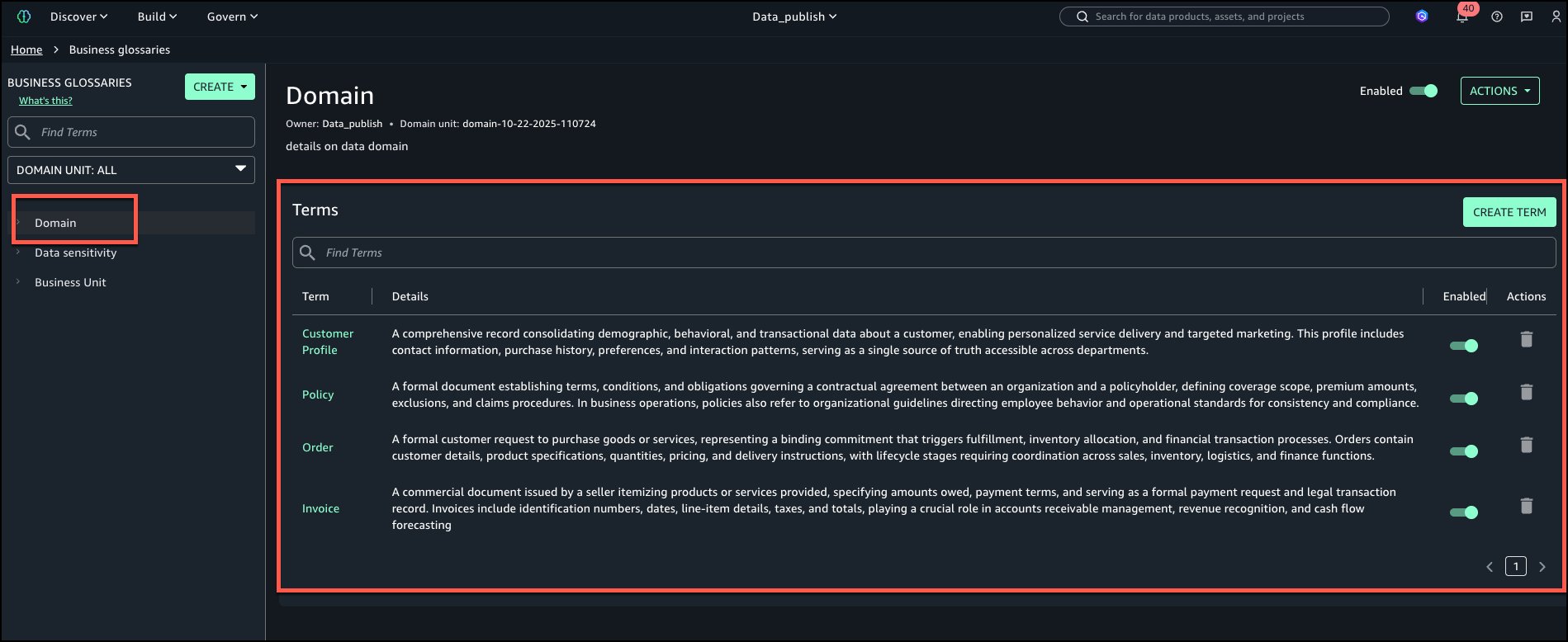
Domain: Terms – Customer Profile, Policy, Order, Invoice.
The following is the view of ‘Domain’ business glossary with all terms added.
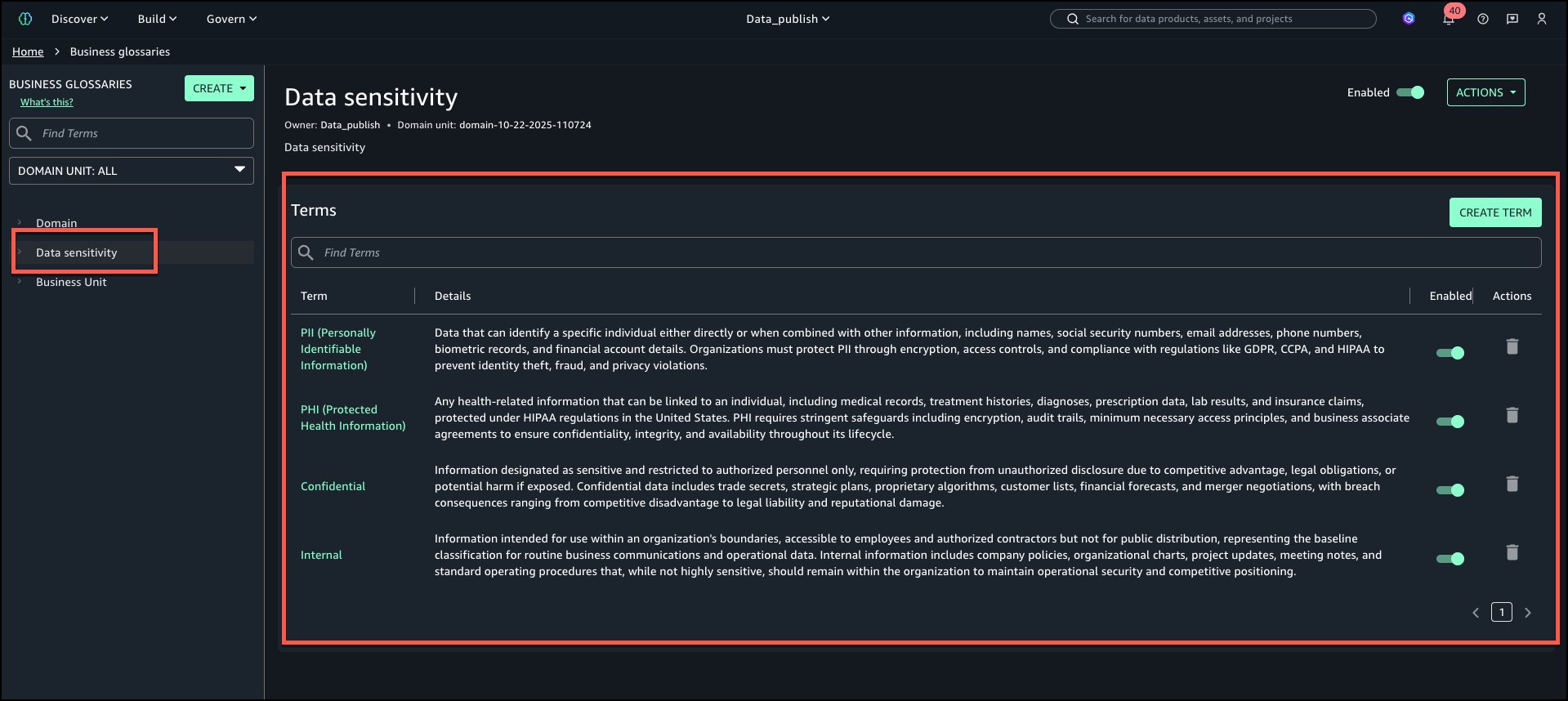
Data sensitivity: Terms – PII, PHI, Confidential, Internal.
The following is the view of ‘Data sensitivity’ business glossary with all terms added.
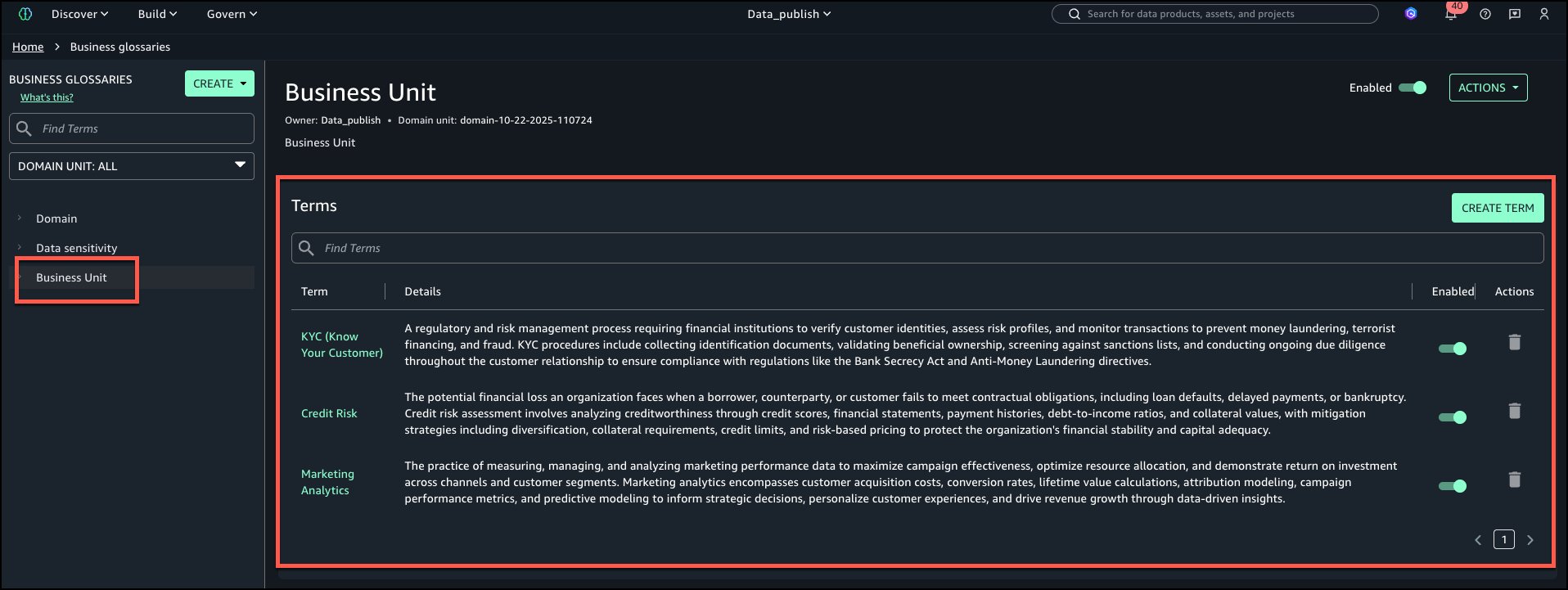
Business Unit: Terms – KYC, Credit Risk, Marketing Analytics
The following is the view of ‘Business Unit’ business glossary with all terms added.
We recommend that you use glossary descriptions to make terms unambiguous. Ambiguous or overlapping definitions confuse AI models and humans equally.
Step 2: Create data assets
Create the following table in Amazon Redshift. For information about how to bring Amazon Redshift data to Amazon SageMaker Catalog, see Amazon Redshift compute connections in Amazon SageMaker Unified Studio.
Once the Redshift is onboarded with above steps, navigate to Project catalog from left navigation menu and choose Data sources. Run the Data Source to add the table to Project inventory assets.
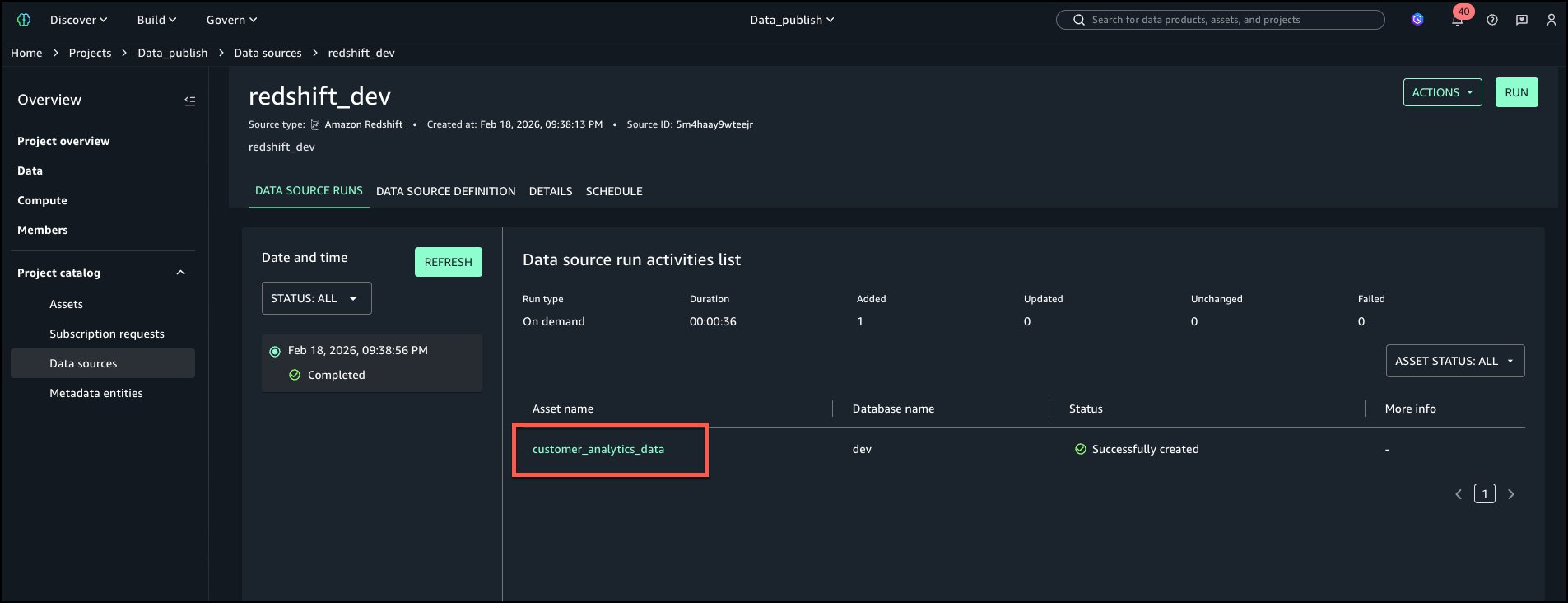
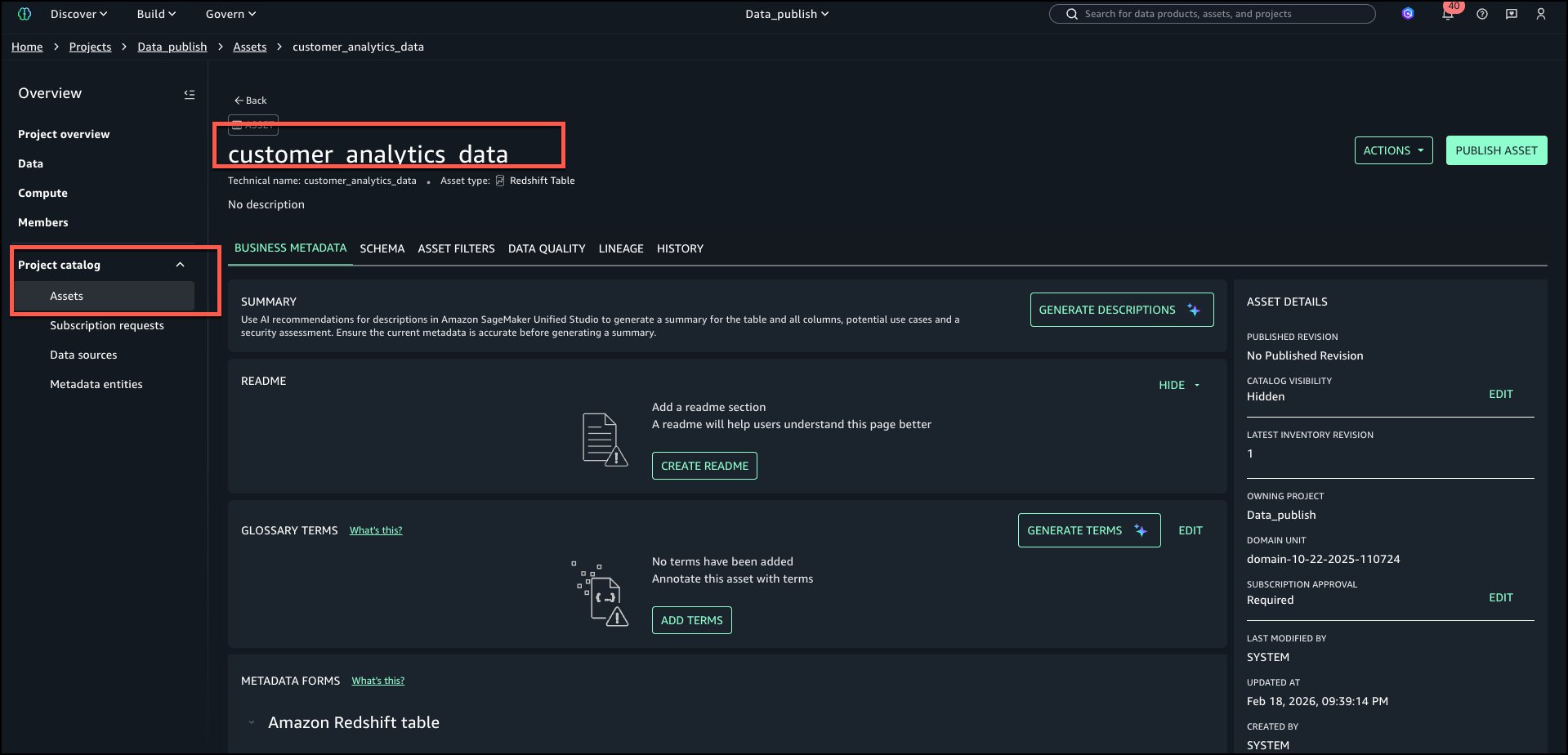
‘customer_analytics_data’ should be Project Assets inventory.
Verify navigating to ‘Project catalog’ menu on the left and choose ‘Assets’.
Step 3: Generate classification recommendations
To automatically generate terms, select GENERATE TERMS in ‘GLOSSARY TERMS’ section of the asset.
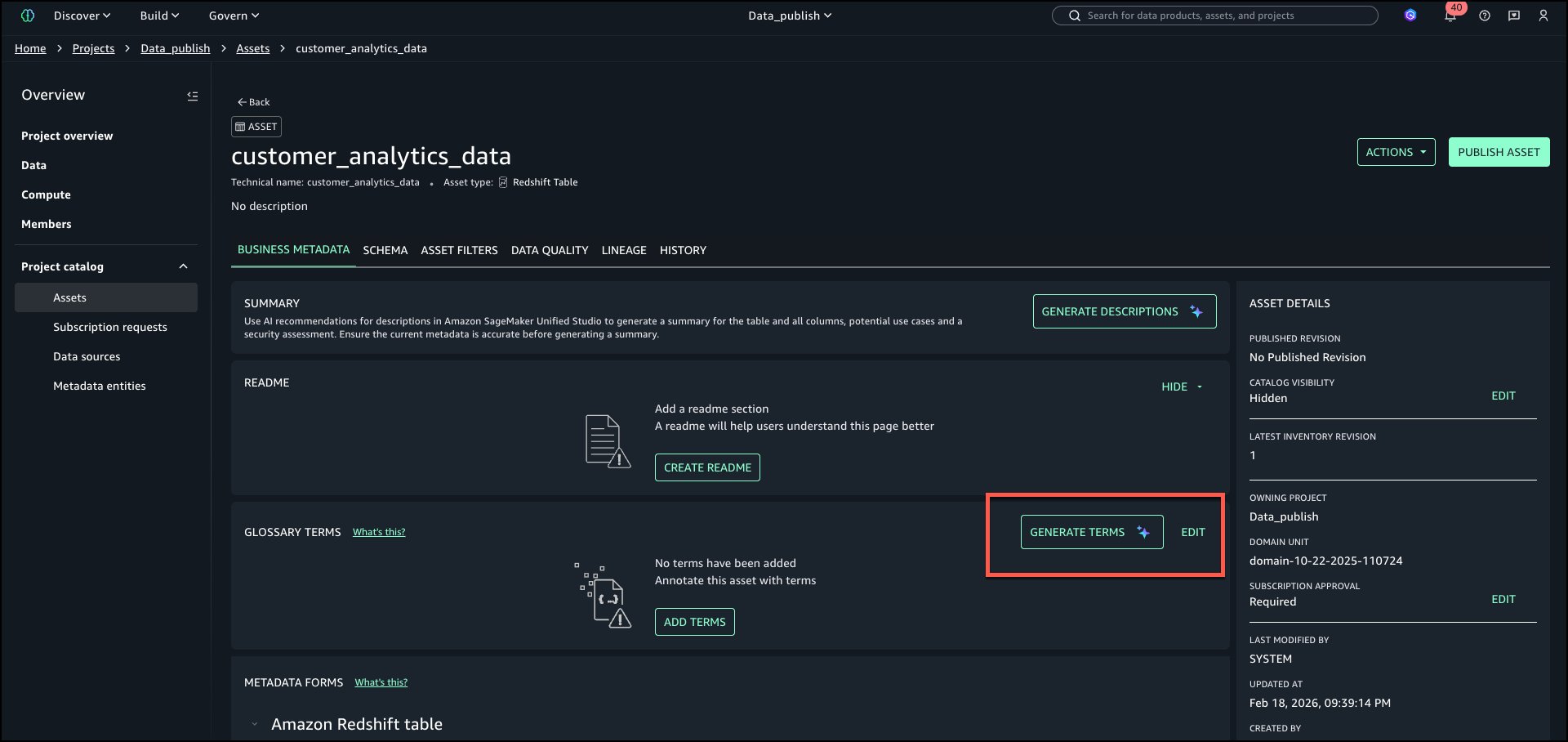
AI recommendations for glossary terms automatically analyze asset metadata and context to determine the most relevant business glossary terms for each asset and its columns. Instead of relying on manual tagging or static rules, it reasons about the data and performs iterative searches across what already exists in the environment to identify the most relevant glossary term concepts.
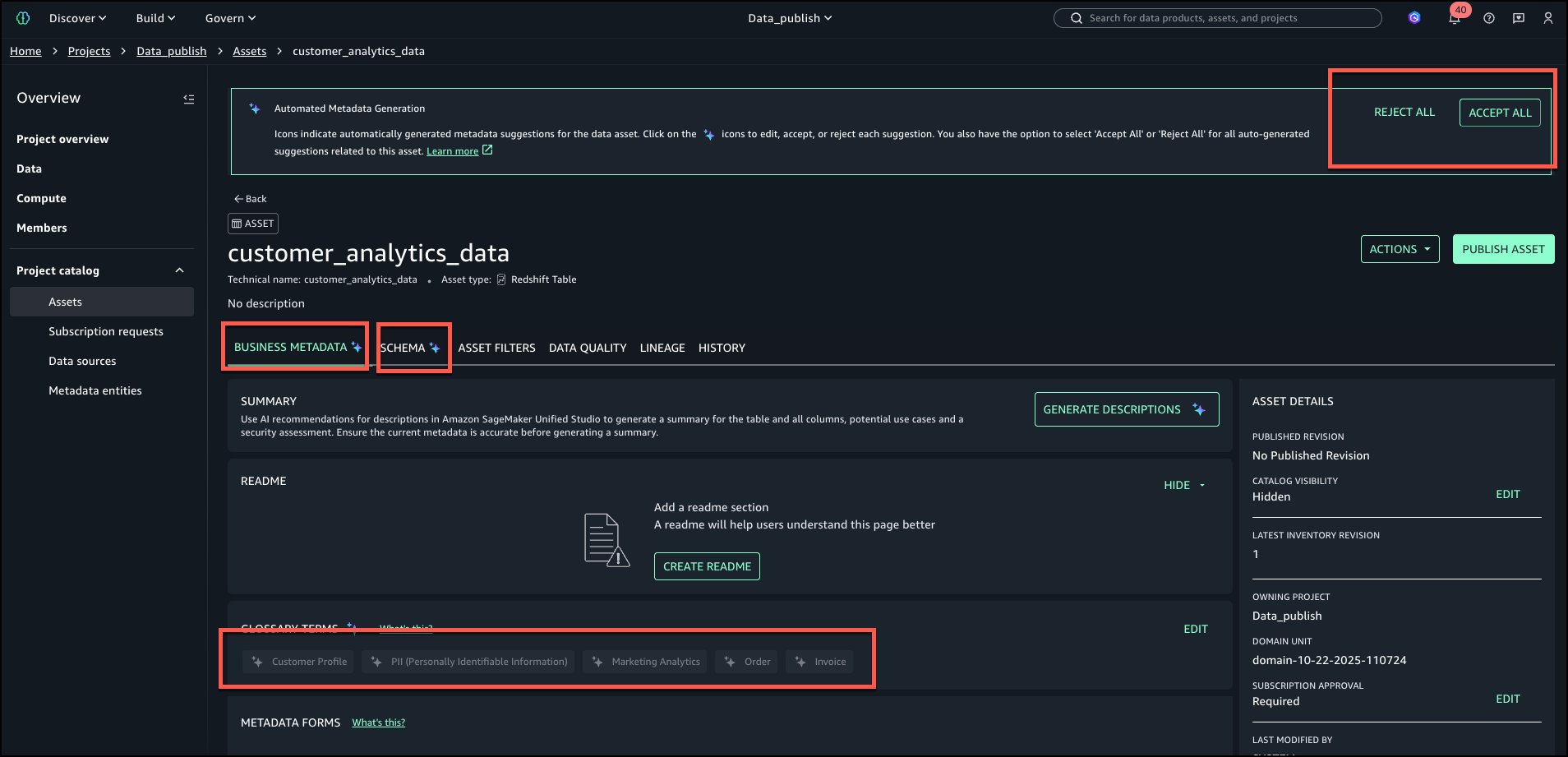
After recommendations are generated, review the terms both at table and column level. Table level suggested terms can be viewed as shown in the following image:
Select the SCHEMA tab to review column level tags as shown in the following image:
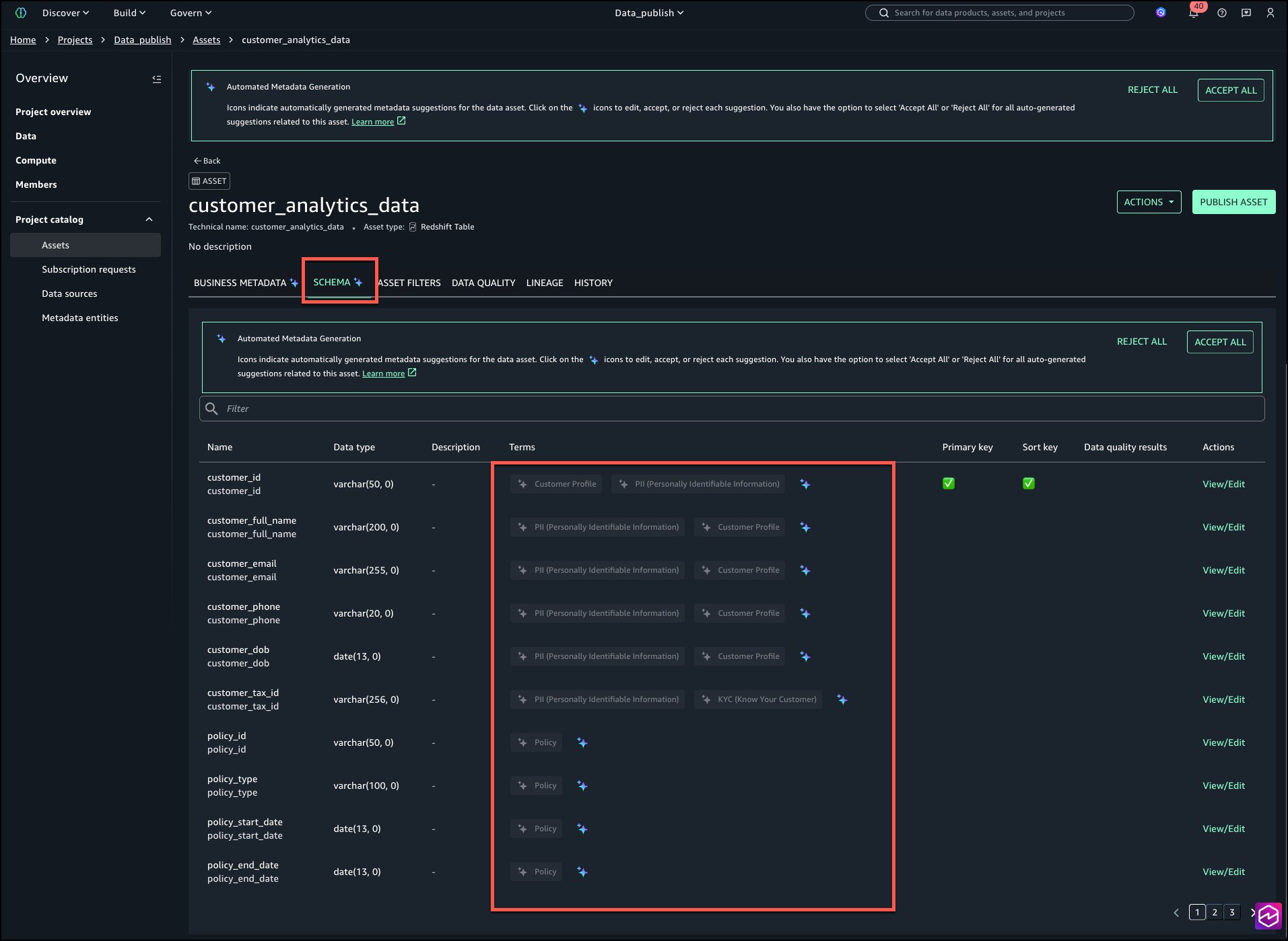
Review and accept individually by selecting the AI icon shown in below image.
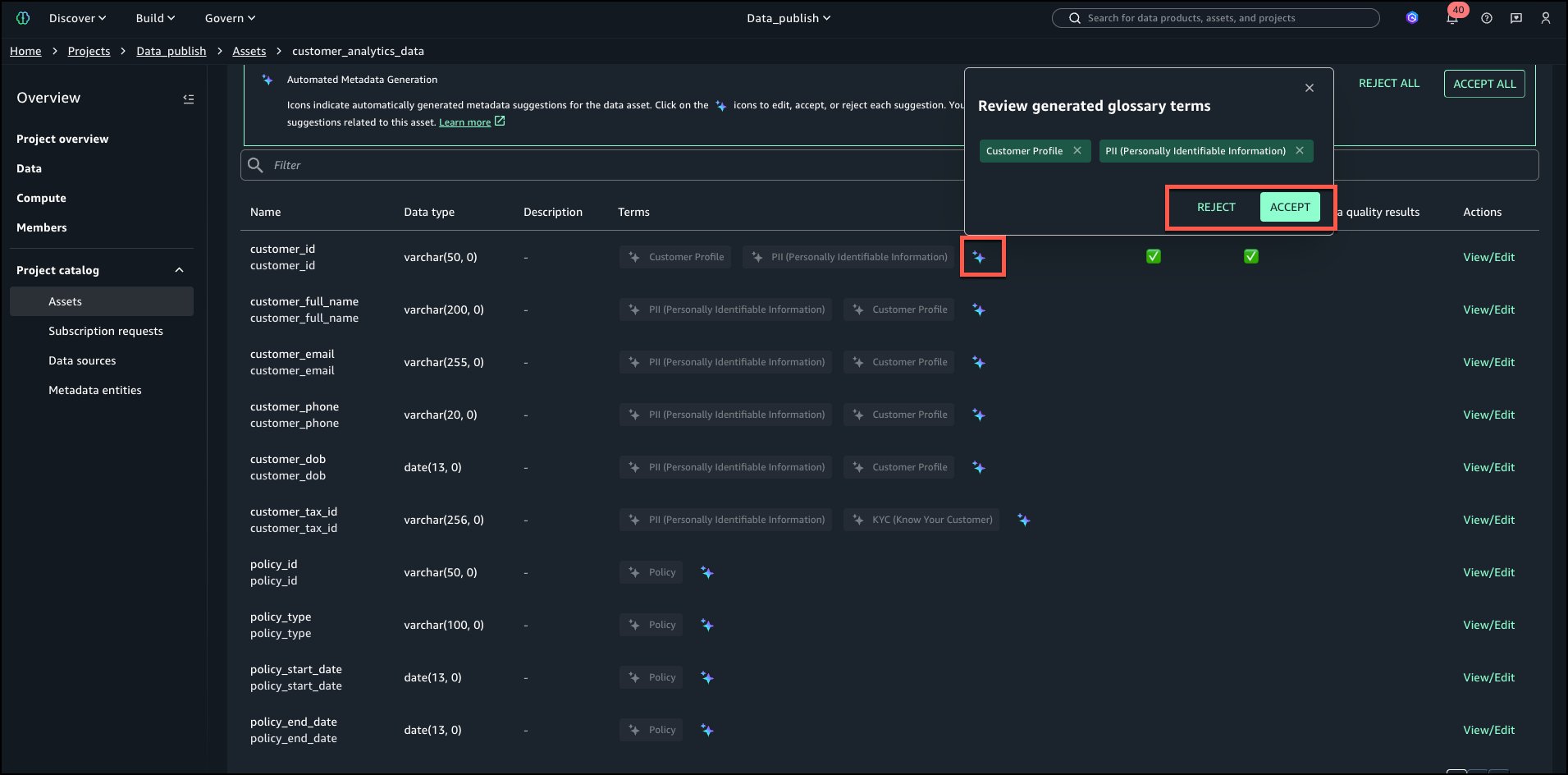
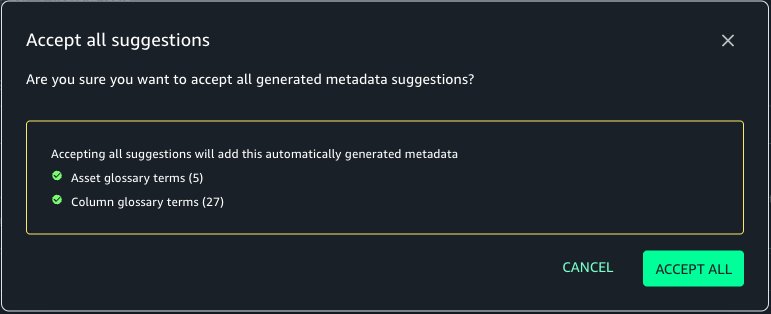
In this case, we select ACCEPT ALL and then select PUBLISH ASSET as shown below.
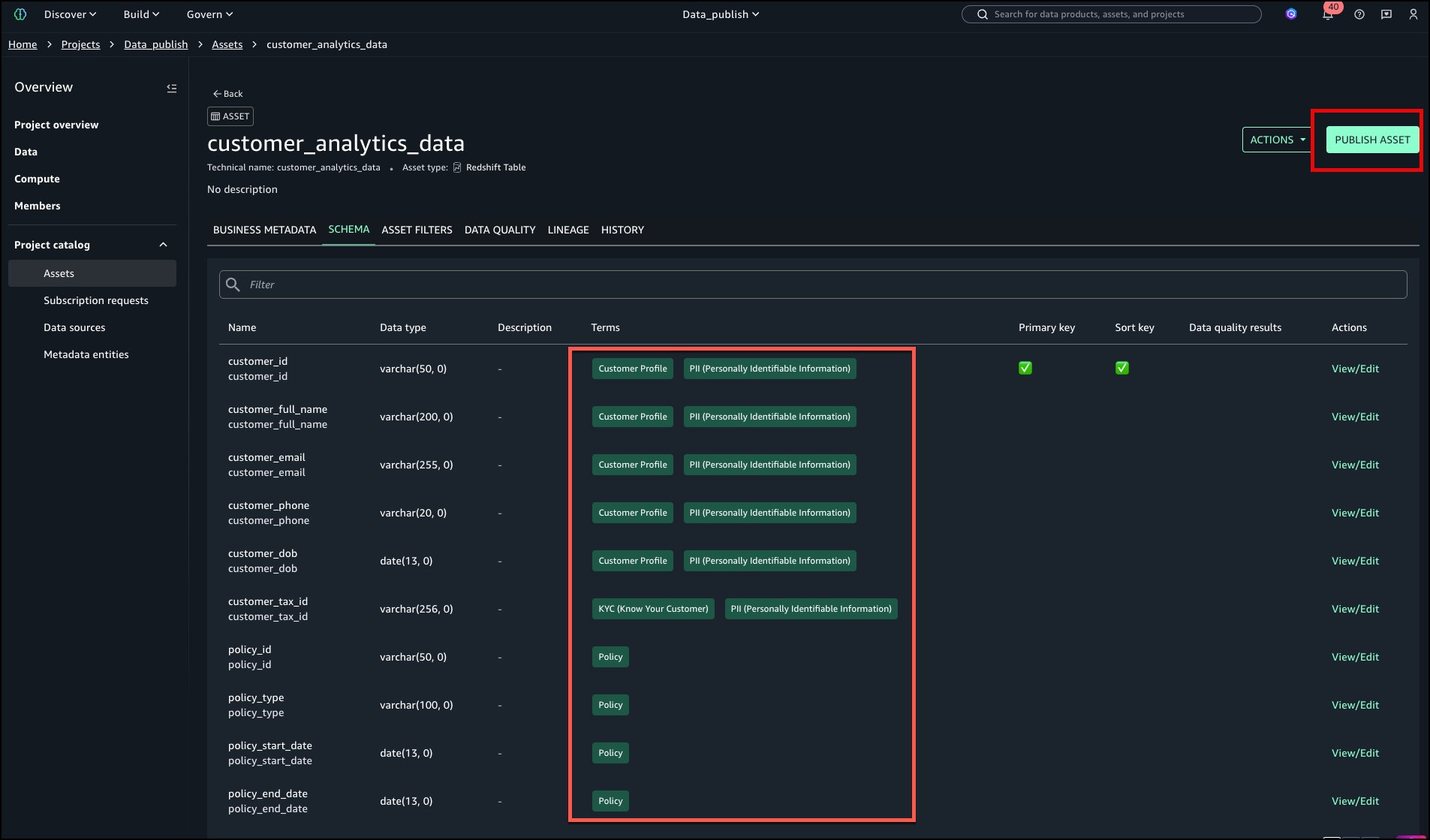
The tags are now added to the asset and columns without manual search and addition. Select PUBLISH ASSET.
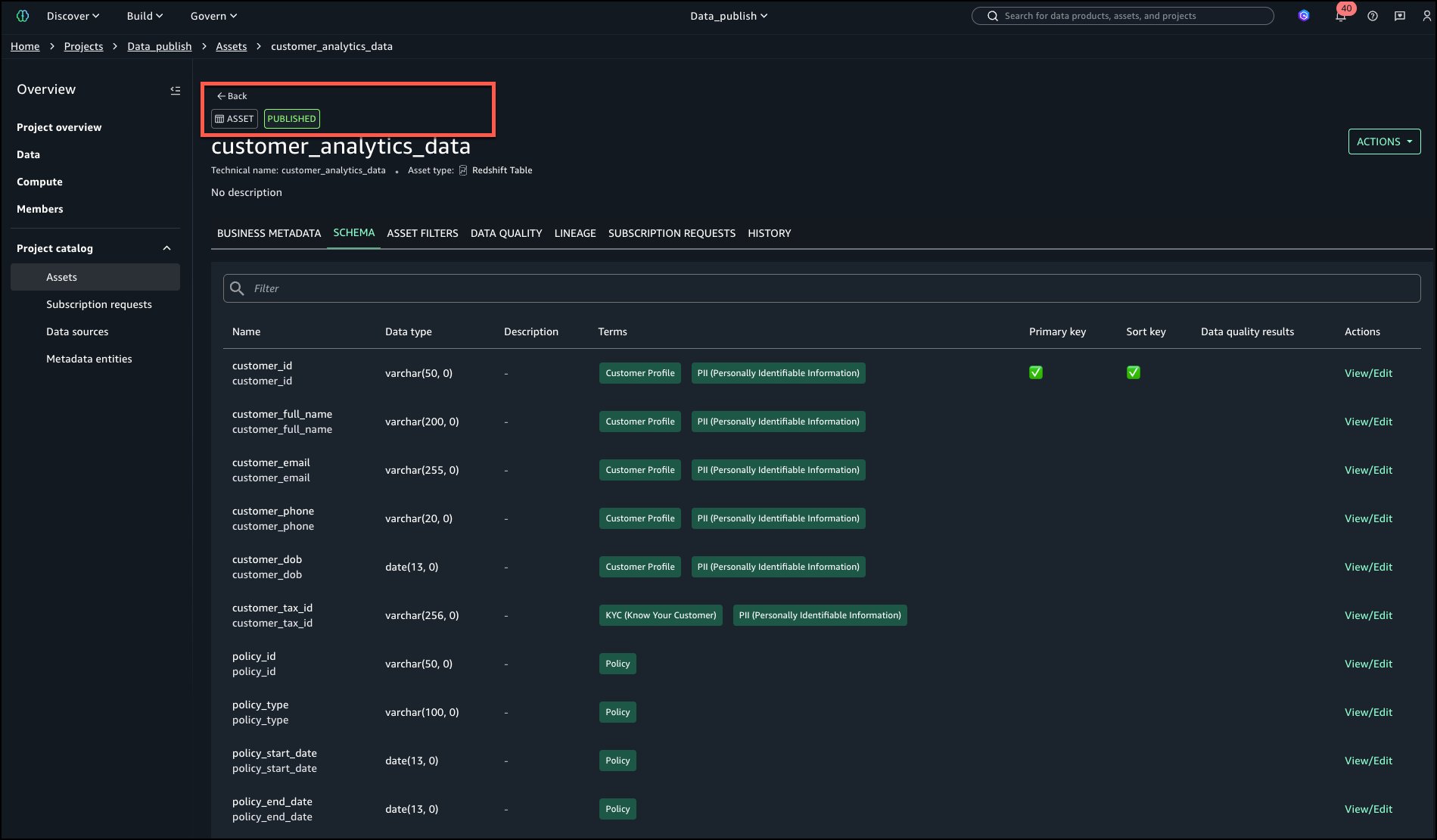
The asset is now published to the catalog as shown in the following image in the upper left corner.
Step 4: Improve data discovery
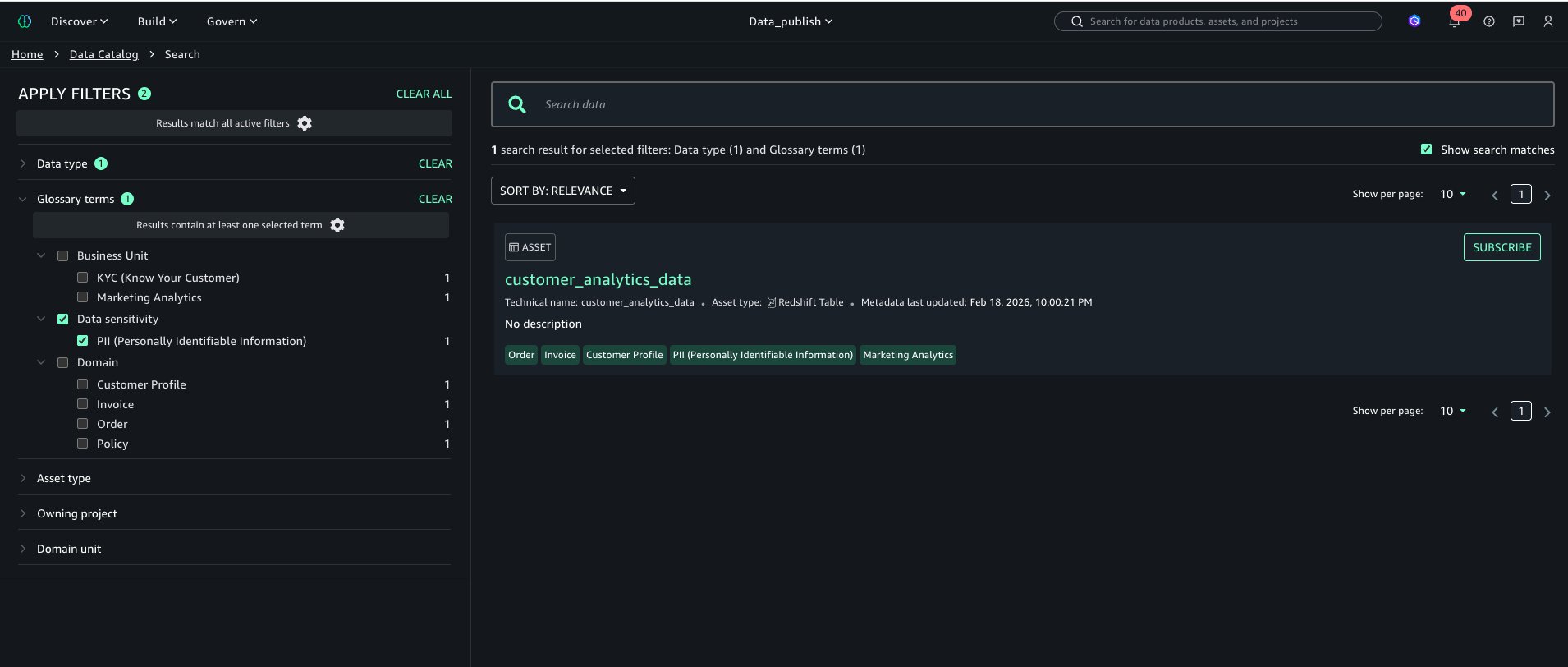
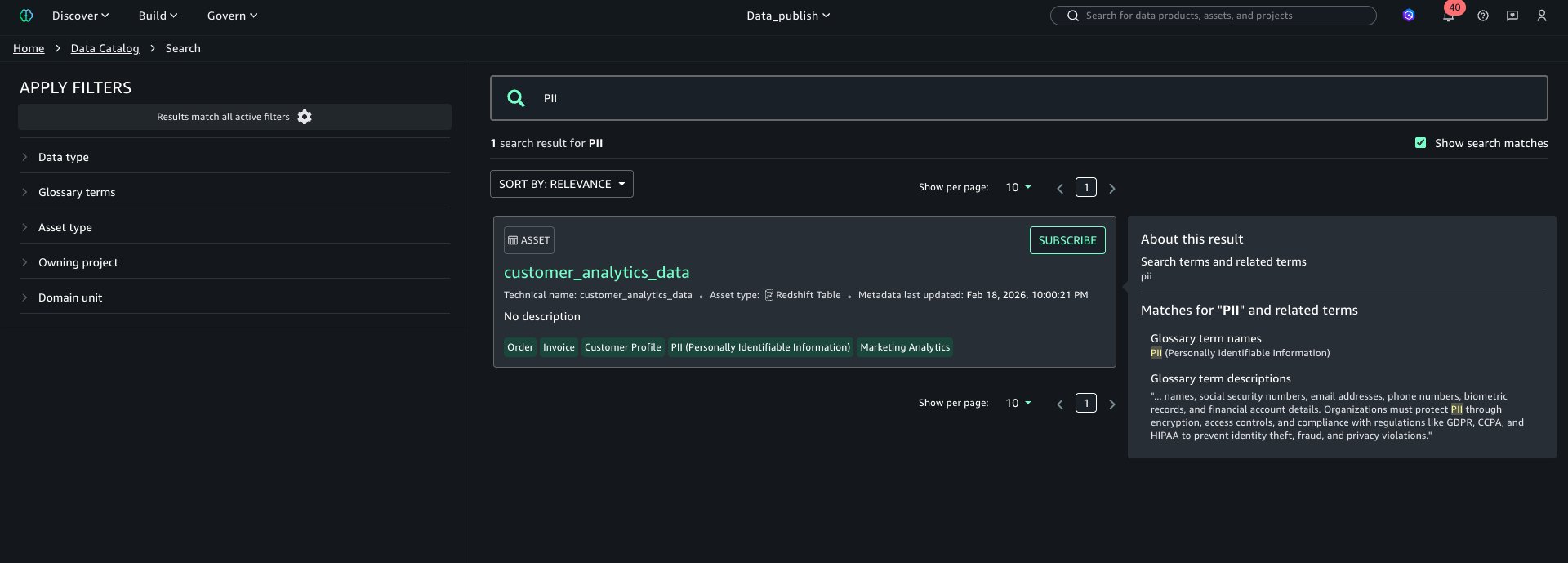
Users can now experience enhanced search results and find assets in the catalog based on the associated terms.
Browse by TermsUsers can now explore the catalog and filter by terms as shown in left navigation “APPLY FILTER” section
Search and FilterUsers can also search assets by glossary terms as shown below:
Cleanup
- To delete SageMaker domain, follow instructions at Delete domains
- To delete your Redshift cluster follow steps at Shutting down and deleting a cluster
Conclusion
By standardizing terminology at publication, organizations can reduce metadata drift and improve discovery reliability. The feature integrates with existing workflows, requiring minimal process changes while helping deliver immediate catalog consistency improvements.
By tagging data at publication rather than correcting it later, data teams can spend less time fixing metadata and more time using it. For more information on SageMaker capabilities, see the Amazon SageMaker Catalog User Guide.