AWS Big Data Blog
Proactive monitoring for Amazon Redshift Serverless using AWS Lambda and Slack alerts
Performance issues in analytics environments often remain invisible until they disrupt dashboards, delay ETL jobs, or impact business decisions. For teams running Amazon Redshift Serverless, unmonitored query queues, long-running queries, or unexpected spikes in compute capacity can degrade performance and increase costs if left undetected.
Amazon Redshift Serverless streamlines running analytics at scale by removing the need to provision or manage infrastructure. However, even in a serverless environment, maintaining visibility into performance and usage is essential for efficient operation and predictable costs. While Amazon Redshift Serverless provides advanced built-in dashboards for monitoring performance metrics, delivering notifications directly to platforms like Slack, brings another level of agility. Real-time alerts in the team’s workflow enable faster response times and more informed decision-making without requiring constant dashboard monitoring.
In this post, we show you how to build a serverless, low-cost monitoring solution for Amazon Redshift Serverless that proactively detects performance anomalies and sends actionable alerts directly to your selected Slack channels. This approach helps your analytics team identify and address issues early, often before your users notice a problem.
Solution overview
The solution presented in this post uses AWS services to collect key performance metrics from Amazon Redshift Serverless, evaluate them against thresholds that you can flexibly configure, and notify you when anomalies are detected.
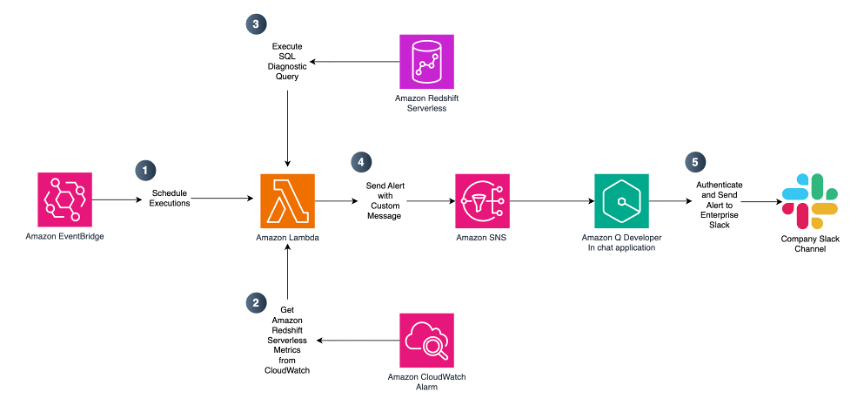
The workflow operates as follows:
- Scheduled execution – An Amazon EventBridge rule triggers an AWS Lambda function on a configurable schedule (by default, every 15 minutes during business hours).
- Metric collection – The AWS Lambda function gathers metrics including queued queries, running queries, compute capacity (RPUs), data storage usage, table count, database connections, and slow-running queries using Amazon CloudWatch and the Amazon Redshift Data API.
- Threshold evaluation – Collected metrics are compared against your predefined thresholds that reflect acceptable performance and usage limits.
- Alerting – When a threshold is exceeded, the Lambda function publishes a notification to an Amazon SNS topic.
- Slack notification – Amazon Q Developer in Chat applications (formerly AWS Chatbot) delivers the alert to your designated Slack channel.
- Observability – Lambda execution logs are stored in Amazon CloudWatch Logs for troubleshooting and auditing.
This architecture is fully serverless and requires no changes to your existing Amazon Redshift Serverless workloads. To simplify deployment, we provide an AWS CloudFormation template that provisions all required resources.
Prerequisites
Before deploying this solution, you must collect information about your existing Amazon Redshift Serverless workgroup and namespace that you want to monitor. To identify your Amazon Redshift Serverless resources:
- Open the Amazon Redshift console.
- In the navigation pane, choose Serverless dashboard.
- Note down your workgroup and namespace names. You will use these values when launching this blog’s AWS CloudFormation template.
Deploy the solution
You can launch the CloudFormation stack and deploy the solution via the provided link.
When launching the CloudFormation stack, complete the following steps in the AWS CloudFormation Console:
- For Stack name, enter a descriptive name such as redshift-serverless-monitoring.
- Review and modify the parameters as needed for your environment.
- Acknowledge that AWS CloudFormation may create IAM resources with custom names.
- Choose Submit.
CloudFormation parameters
Amazon Redshift Serverless Workgroup configuration
Provide details for your existing Amazon Redshift Serverless environment. These values connect the monitoring solution to your Redshift environment. Some parameters come with the default values that you can replace with your actual configuration.
| Parameter | Default value | Description |
| Amazon Redshift Workgroup Name | Your Amazon Redshift Serverless workgroup name. | |
| Amazon Redshift Namespace Name | Your Amazon Redshift Serverless namespace name. | |
| Amazon Redshift Workgroup ID | Workgroup ID (UUID) of the Amazon Redshift Serverless workgroup to monitor. Must follow the UUID format: xxxxxxxx-xxxx-xxxx-xxxx-xxxxxxxxxxxx (lowercase hexadecimal with hyphens). |
|
Namespace ID (UUID) of the Amazon Redshift Serverless namespace. Must follow the UUID format: xxxxxxxx-xxxx-xxxx-xxxx-xxxxxxxxxxxx (lowercase hexadecimal with hyphens). |
||
| Database Name | dev |
Target Amazon Redshift database for SQL-based diagnostic and monitoring queries. |
Monitoring schedule
The default schedule runs diagnostic SQL queries every 15 minutes during business hours, balancing responsiveness and cost efficiency. Running more frequently might increase costs, while less frequent monitoring could delay detection of performance issues. You can adjust this schedule to your actual need.
| Parameter | Default value | Description |
| Schedule Expression | cron(0/15 8-17 ? * MON-FRI *) | EventBridge schedule expression for Lambda function execution. Default runs every 15 minutes, Monday through Friday, 8 AM to 5 PM UTC. |
Threshold configuration
Thresholds should be tuned based on your workload characteristics.
| Parameter | Default value | Description |
| Queries Queued Threshold | 20 | Alerts threshold for queued queries. |
| Queries Running Threshold | 20 | Alerts threshold for running queries. |
| Compute Capacity Threshold (RPUs) | 64 | Alert threshold for compute capacity (RPUs). |
| Data Storage Threshold (MB) | 5242880 | Threshold for data storage in MB (default 5 TB). |
| Table Count Threshold (MB) | 1000 | Alerts threshold for total table count. |
| Database Connections Threshold | 50 | Alert threshold for database connections. |
| Slow Query Threshold (seconds) | 10 | Thresholds in seconds for slow query detection. |
| Query Timeout (Seconds) | 30 | Timeout for SQL diagnostics queries. |
Tip: Start with conservative thresholds and refine them after observing baseline behavior for one to two weeks.
Lambda configuration
Configure the AWS Lambda function settings. The selected default values are appropriate for most monitoring scenarios. You may want to change them only in case of troubleshooting.
| Parameter | Default value | Description |
| Lambda Memory Size (MB) | 256 | Lambda function memory size in MB. |
| Lambda Time Out (Seconds) | 240 | Lambda function timeout in seconds. |
Security Configuration – Amazon Virtual Private Cloud (VPC)
If your organization has network isolation requirements, you can optionally enable VPC deployment for the Lambda function. When enabled, the Lambda function runs within your specified VPC subnets, providing network isolation and allowing access to VPC-only resources.
| Parameter | Default value | Description |
| VPC ID | VPC ID for Lambda deployment (required if EnableVPC is true). The Lambda function will be deployed in this VPC. Ensure that the VPC has appropriate routing (NAT Gateway or VPC Endpoints) to allow Lambda to access AWS services like CloudWatch, Amazon Redshift, and Amazon SNS. |
|
| VPC Subnet IDs | Comma-separated list of subnet IDs for Lambda deployment (required if EnableVPC is true). |
|
| Security Group IDs | Comma-separated list of security group IDs for Lambda (optional). If not provided and EnableVPC is true, a default security group will be created with outbound HTTPS access. Custom security groups must allow outbound HTTPS (port 443) to AWS service endpoints. |
Note that VPC deployment might increase cold start times and requires an NAT Gateway or VPC endpoints for AWS service access. We recommend provisioning interface VPC endpoints (through AWS PrivateLink) for the five services the Lambda function calls which keeps all traffic private without the recurring cost of a NAT Gateway.
Security configuration – Encryption
If your organization requires encryption of data at rest, you can optionally enable AWS Key Management Service (AWS KMS) encryption for the Lambda function’s environment variables, CloudWatch Logs, and SNS topic. When enabled, the template encrypts each resource using the AWS KMS keys that you provide, either a single shared key for all three services, or individual keys for granular key management and audit separation.
| Parameter | Default value | Description |
| Shared KMS Key ARN | AWS KMS key ARN to use for all encryption (Lambda, Logs, and SNS) unless service-specific keys are provided. This streamlines key management by using a single key for all services. The key policy must grant encrypt/decrypt permissions to Lambda, CloudWatch Logs, and SNS. | |
| Lambda KMS Key ARN | AWS KMS key ARN for Lambda environment variable encryption (optional, overrides SharedKMSKeyArn). Use this for separate key management per service. The key policy must grant decrypt permissions to the Lambda execution role. If not provided, SharedKMSKeyArn will be used when EnableKMSEncryption is true. |
|
| CloudWatch Logs KMS Key ARN | AWS KMS key ARN for CloudWatch Logs encryption (optional, overrides SharedKMSKeyArn). Use this for separate key management per service. The key policy must grant encrypt/decrypt permissions to the CloudWatch Logs service. If not provided, SharedKMSKeyArn will be used when EnableKMSEncryption is true. |
|
| SNS Topic KMS Key ARN | AWS KMS key ARN for SNS topic encryption (optional, overrides SharedKMSKeyArn). Use this for separate key management per service. The key policy must grant encrypt/decrypt permissions to SNS service and the Lambda execution role. If not provided, SharedKMSKeyArn will be used when EnableKMSEncryption is true. |
|
| Enable Dead Letter Queue | False | Optionally enable Dead Letter Queue (DLQ) for failed Lambda invocations to improve reliability and security monitoring. When enabled, events that fail after all retry attempts will be sent to an SQS queue for investigation and potential replay. This helps prevent data loss, provides visibility into failures, and enables security audit trails for monitoring anomalies. The DLQ retains messages for 14 days. |
Note that AWS KMS encryption requires the key policy to grant appropriate permissions to each consuming service (Lambda, CloudWatch Logs, and SNS).
- On the review page, select I acknowledge that AWS CloudFormation might create IAM resources with custom names.
- Choose Submit.
Resources created
The CloudFormation stack creates the following resources:
- EventBridge rule for scheduled execution
- AWS Lambda function (Python 3.12 runtime)
- Amazon SNS topic for alerts
- IAM role with permissions for CloudWatch, Amazon Redshift Data API, and SNS
- CloudWatch Log Group for Lambda logs
Note: CloudFormation deployment typically takes 10–15 minutes to complete. You can monitor progress in real time under the Events tab of your CloudFormation stack.
Post-deployment configuration
After the CloudFormation stack has been successfully created, complete the following steps.
Step 1: Record CloudFormation outputs
- Navigate to the AWS CloudFormation console.
- Select your stack and choose the Outputs tab.
- Note the values for LambdaRoleArn and SNSTopicArn. You will need these in subsequent steps.
Step 2: Grant Amazon Redshift permissions
Grant permissions to the Lambda function to query Amazon Redshift system tables for monitoring data. Complete the following steps to grant the necessary access:
- Navigate to the Amazon Redshift console.
- In the left navigation pane, choose Query Editor V2.
- Connect to your Amazon Redshift Serverless workgroup.
- Execute the following SQL commands, replacing <IAM Role ARN> with the LambdaRoleArn value from your CloudFormation outputs:
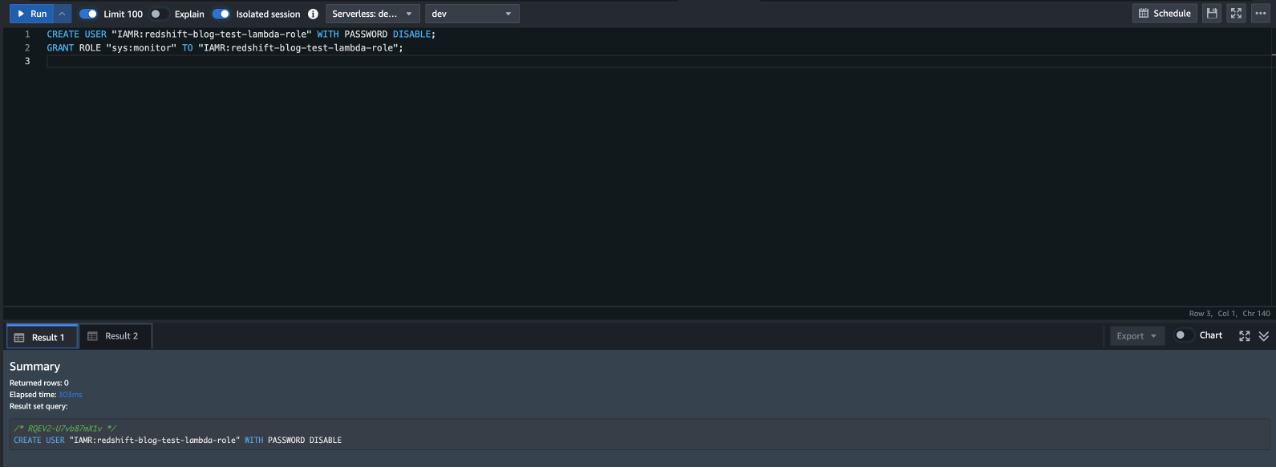
These commands create an AmazonRedshift user associated with the Lambda IAM role and grant it the sys:monitor Amazon Redshift role. This role provides read-only access to catalog and system tables without granting permissions to user data tables.
Step 3: Configure Slack notifications
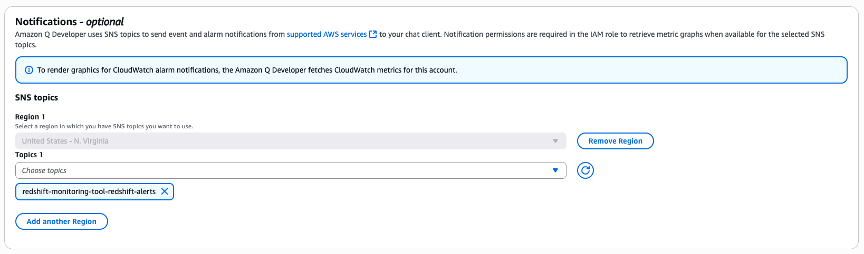
Amazon Q Developer in chat applications provides native AWS integration and managed authentication, removing custom webhook code and reducing setup complexity. To receive alerts in Slack, configure Amazon Q Developer in Chat Applications to connect your SNS topic to your preferred Slack channel:
- Navigate to Amazon Q Developer in chat applications (formerly AWS Chatbot) in the AWS console.
- Follow the instructions in the Slack integration documentation to authorize AWS access to your Slack workspace.
- When configuring the Slack channel, ensure that you select the correct AWS Region where you deployed the CloudFormation stack.
- In the Notifications section, select the SNS topic created by your CloudFormation stack (refer to the SNSTopicArn output value).
- Keep the default IAM read-only permissions for the channel configuration.
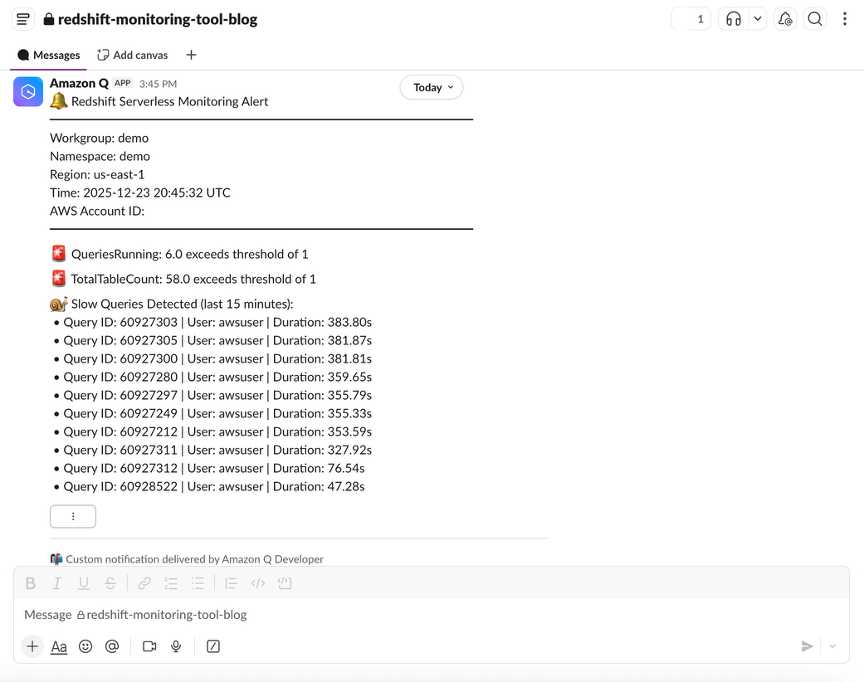
After configured, alerts automatically appear in Slack whenever thresholds are exceeded.
Cost considerations
With the default configuration, this solution incurs minimal ongoing costs. The Lambda function executes approximately 693 times per month (every 15 minutes during an 8-hour business day, Monday through Friday), resulting in a monthly cost of approximately $0.33 USD. This includes Lambda compute costs ($0.26) and CloudWatch GetMetricData API calls ($0.07). All other services (EventBridge, SNS, CloudWatch Logs, and Amazon Redshift Data API). The Amazon Redshift Data API has no additional charges beyond the minimal Amazon Redshift Serverless RPU consumption for the Amazon Redshift Serverless system table query execution. You can reduce costs by decreasing the monitoring frequency (such as, every 30 minutes) or increase responsiveness by running more frequently (such as, every 5 minutes) with a proportional cost increase.
All costs are estimates and may vary based on your environment. Variations often occur because queries scanning system tables may take longer or require additional resources depending on the system complexity
Security best practices
This solution implements the following security controls:
- IAM policies scoped to specific resource ARNs for the Amazon Redshift workgroup, namespace, SNS topic, and log group.
- Data API statement access restricted to the Lambda function’s own IAM user ID.
- Read-only
sys:monitordatabase role for operational metadata access. Limit to the role created by the CloudFormation template. - Reserved concurrent executions capped at five.
To further strengthen your security posture, consider the following enhancements:
- Enable
EnableKMSEncryptionto encrypt environment variables, logs, and SNS messages at rest. - Enable
EnableVPCto deploy the function within a VPC for network isolation. - Audit access through AWS CloudTrail.
Important: This is sample code for non-production usage. Work with your security and legal teams to meet your organizational security, regulatory, and compliance requirements before deployment. This solution demonstrates monitoring capabilities but requires additional security hardening for production environments, including encryption configuration, IAM policy scoping, VPC deployment, and comprehensive testing.
Clean up
To remove all resources and avoid ongoing charges if you don’t want to use the solution anymore:
- Delete the CloudFormation stack.
- Remove the Slack integration from Amazon Q Developer in chat applications.
Troubleshooting
- If no metrics or incomplete SQL diagnostics are returned, verify that the Amazon Redshift Serverless workgroup is active with recent query activity, and ensure the database user has the
sys:monitorrole (GRANT ROLE sys:monitor TO <user>) in the query editor. Without this role, queries execute successfully but only return data visible to that user’s permissions rather than the full cluster activity. - For VPC-deployed functions that fail to reach AWS services, confirm that VPC endpoints or a NAT Gateway are configured for CloudWatch, Amazon Redshift Data API, Amazon Redshift Serverless, SNS, and CloudWatch Logs.
- If the Lambda function times out, increase the
LambdaTimeoutandQueryTimeoutSecondsparameters. The default timeout of 240 seconds accommodates most workloads, but clusters with many active queries may require additional time for SQL diagnostics to complete.
Conclusion
In this post, we showed how you can build a proactive monitoring solution for Amazon Redshift Serverless using AWS Lambda, Amazon CloudWatch, and Amazon SNS with Slack integration. By automatically collecting metrics, evaluating thresholds, and delivering alerts in near real time to Slack or your preferred collaborative platform, this solution helps detect performance and cost issues early. Because the solution itself is serverless, it aligns with the operational simplicity goals of Amazon Redshift Serverless—scaling automatically, requiring minimal maintenance, and delivering high value at low cost. You can extend this foundation with additional metrics, diagnostic logic, or alternative notification channels to meet your organization’s needs.
To learn more, see the Amazon Redshift documentation on monitoring and performance optimization.