AWS Big Data Blog
Use Amazon SageMaker custom tags for project resource governance and cost tracking
Amazon SageMaker announced a new feature that you can use to add custom tags to resources created through an Amazon SageMaker Unified Studio project. This helps you enforce tagging standards that conform to your organization’s service control policies (SCPs) and helps enable cost tracking reporting practices on resources created across the organization.
As a SageMaker administrator, you can configure a project profile with tag configurations that will be pushed down to projects that currently use or will use that project profile. The project profile is set up to pass either required key and value tag pairings or pass the key of the tag with a default value that can be modified during project creation. All tags passed to the project will result in the resources created by that project being tagged. This provides you with a governance mechanism that enforces that project resources have the expected tags across all projects of the domain.
The first release of custom tags for project resources is supported through an application programming interface (API), through Amazon DataZone SDKs. In this post, we look at use cases for custom tags and how to use the AWS Command Line Interface (AWS CLI) to add tags to project resources.
What we hear from customers
As customers continue to build and collaborate using AWS tools for model development, generative AI, data processing, and SQL analytics, they see the need to bring control and visibility into the resources being created. To support connectivity to these AWS tools from SageMaker Unified Studio projects, many different types of resources across AWS services need to be created. These resources are created through AWS CloudFormation stacks (through project environment deployment) by the Amazon SageMaker service. From customers we hear the following use cases:
- Customers need to enforce that tagging practices conform to company policies through the use of AWS controls, such as SCPs, for resource creation. These controls block the creation of resources unless specific tags are placed on the resource.
- Customers can also start with policies to enforce that the correct tags are placed when resources are created with the additional goal of standardizing on resource reporting. By placing identifiable information on resources when created, they enforce consistency and completeness when performing cost attribution reporting and observability.
Customer Swiss Life uses SageMaker as a single solution for cataloging, discovery, sharing, and governance of their enterprise data across business domains. They require all resources have a set of mandatory tags for their finance group to bill organizations across their company for the AWS resources created.
“The launch of project resource tags for Amazon SageMaker allows us to bring visibility to the costs incurred across our accounts. With this capability we are able to meet the resource tagging guidelines of our company and have confidence in attributing costs across our multi-account setup for the resources created by Amazon SageMaker projects.”
– Tim Kopacz, Software Developer at Swiss Life
Prerequisites
To get started with custom tags, you must have the following resources:
- A SageMaker Unified Studio domain.
- An AWS Identity and Access Management (IAM) entity with privileges to make AWS CLI calls to the domain.
- An IAM entity authorized to make changes to the domain IAM provisioning role. If SageMaker created this for you, it will be called
AmazonSageMakerProvisioning-<accountId>. The provisioning role provisions and manages resources defined in the selected blueprints in your account.
How to set up project resource tags
The following steps outline how you can configure custom tags for your SageMaker Unified Studio project resources:
- (Optional) Update the SageMaker provisioning role to permit specific tag keys.
- Create a new project profile with project resource tags configured.
- Create a new project with project resource tags.
- Update an existing project with project resource tags.
- Validate that the resources are tagged.
(Optional) Update a SageMaker provisioning role to permit tag key values
The AmazonSageMakerProvisioning-<accountId> role has an AWS managed policy with condition aws:TagKeys allowing tags to be created by this role only if the tag key begins with AmazonDataZone. For this example, we will change the tag key to begin with different strings. Skip to Create a new project profile with project resource tags configured if you don’t need tag keys to have a different structure (such as begins with, contains, and so on)
- Open the AWS Management Console and go to IAM.
- In the navigation pane, choose Roles.
- In the list, choose AmazonSageMakerProvisioning-<accountId>.
- Choose the Permissions tab.
- Choose Add permissions, and then choose Create inline policy.
- Under Policy editor, select JSON.
- Enter the following policy. Add the strings under the condition
aws:TagKeys. In this example, tag keys beginning with ACME or tag keys with the exact match of CostCenter will be created by the role.
It’s possible to scope down the specific AWS service tag and un-tag permissions based on which blueprints or capabilities are being used.
Create a new project profile with project resource tags configured
Use the following steps to create a new SQL Analytics project profile with custom tags. The example uses AWS CLI commands.
- Open the AWS CloudShell console.
- Create a project profile using the following CLI command.
- The
project-resource-tagsparameter consists ofkey(tag key),value(tag value), andisValueEditable(boolean indicating if the tag value can be modified during project creation or update). - The
allow-custom-project-resource-tagsparameter set totruepermits the project creator to create additional key-value pairs. The key needs to conform to the inline policy of theAmazonSageMakerProvisioning-<accountId>role. - The
project-resource-tags-descriptionparameter is a description field for project resource tags. The max character limit is 2,048. The description needs to be passed in every timecreate-project-profileorupdate-project-profileis called.
- The
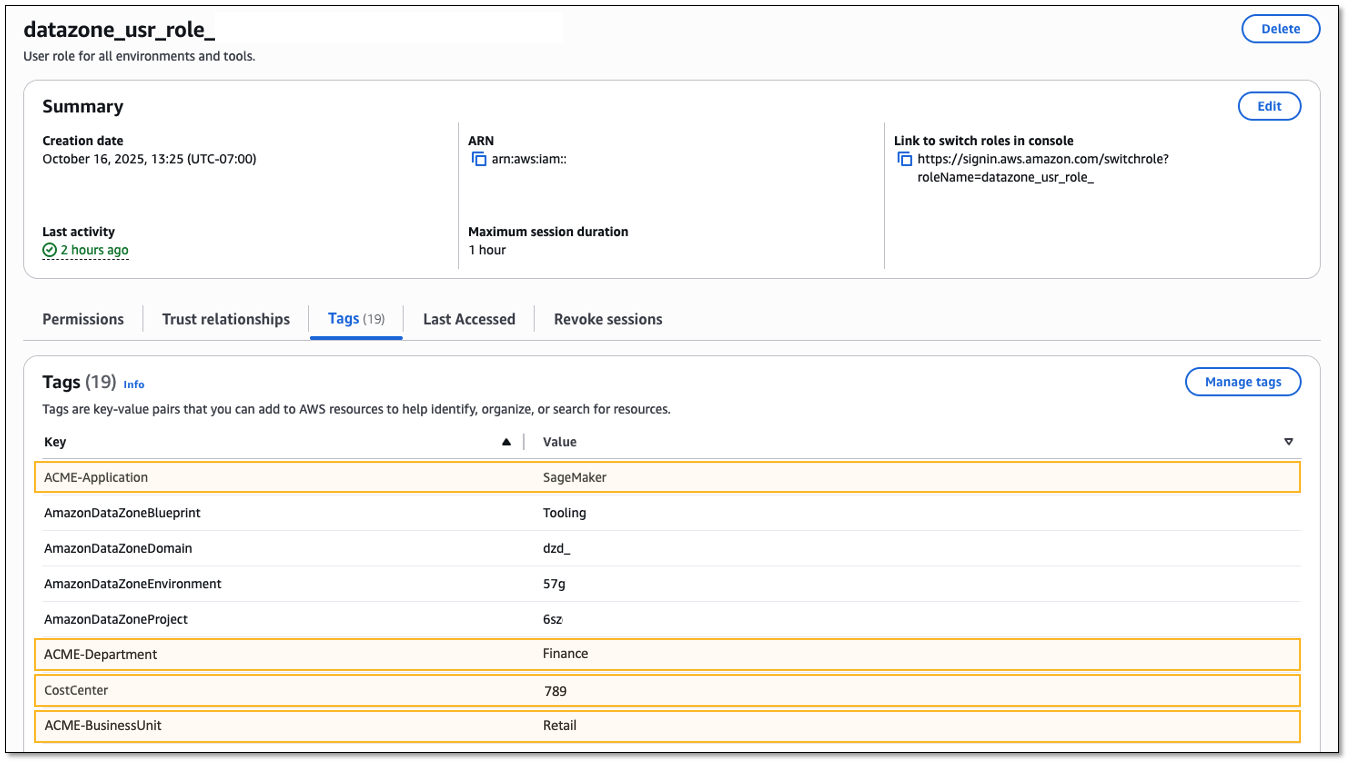
This project profile will have the tag ACME-Application = SageMaker placed on all projects associated to the project profile and cannot be modified by the project creator. The tag CostCenter = 123 can have the value modified by the project creator because the isValueEditable property is set to true.
Grant permissions for users to use the project profile during project creation. In the Authorization section of the project profile set either Selected users or groups or Allow all users and groups.
The use of the allow-custom-project-resource-tags parameter means the project creator can add their own tags (key-value pair). The key must conform to the condition check in the policy of the provisioning role (AmazonSageMakerProvisioning-<accountId>). If the allow-custom-project-resource-tagsparameter is changed to false after a project created tags, tags created by the project will be removed during the next project update.
Updates to the project profile
Updates to project resource tags are possible through the update-project-profile command. The command will replace all values in the project-resource-tags section so be sure to include the exhaustive set of tags. Updates to the project profile are reflected in projects after running the update-project command or when a new project is created using the project profile. The following example adds a new tag, ACME-BusinessUnit = Retail.
There are three ways to work with the project-resource-tags parameter when updating the project profile.
- Passing a non-empty list of project resource tags will replace the tags currently configured on the project profile.
- Passing an empty list of project resource tags will clear out all previously configured tags:
--project-resource-tags '[]'
- Not including the project resource tag parameter will keep previously configured tags as-is.
Create a new project with project resource tags
The following steps walk you through creating a new project that inherits tags from the project profile and lets the project creator modify one of the tag values.
- Create a project using the following example CLI command.
- Modify the
CostCentertag value using the--resource-tagsparameter. Tags configured on the project profile where theisValueEditableattribute isfalsewill be pushed to the project automatically.
Update existing project with project resource tags
For existing projects associated to the project profile, you must update the project for the new tags to be applied.
- Update the project using the following example CLI command.
- In this scenario, an editable value needs to be updated and a new tag added. Tag
CostCenterwill have its default value overwritten as“789”and the newACME-Department = Financetag will be added.
Project level tags (those not configured from the project profile) need to be passed during project update to be preserved. For tags with isValueEditable = true configured from the project profile, any override previously set needs to be applied or the value will revert to the default from the project profile.
Validating resources are tagged
Validate that tags are placed correctly. An example resource that is created by the project is the project IAM role. Viewing the tags for this role should show the tags configured from the project profile.
- Open SageMaker Unified Studio to get the project role from the Project details section of the project. The role name begins with
datazone_usr_role_. - Open the IAM console.
- In the navigation pane, choose Roles.
- Search for the project IAM role.
- Select the Tags tab.
Conclusion
In this post, we discussed tagging related use cases from customers and walked through getting started with custom tags in Amazon SageMaker to place tags on the resources created by the project. By giving administrators a way to configure project profiles with standardized tag configurations, you can now help ensure consistent tagging practices across all SageMaker Unified Studio projects while maintaining compliance with SCPs. This feature addresses two critical customer needs: enforcing organizational tagging standards through automated governance mechanisms and enabling accurate cost attribution reporting across multi-service deployments.
To learn more, visit Amazon SageMaker, then get started with Project resource tags.