AWS Business Intelligence Blog
Automate SPICE dataset refreshes using Amazon Quick Sight APIs
Amazon Quick Sight delivers AI-powered business intelligence capabilities within Amazon Quick Suite, a scalable, serverless, AI-powered workspace that enables business insights, research, and automation within one integrated experience. One of the key components in Quick Sight is SPICE (Super-fast, Parallel, In-memory Calculations Engine). This fully managed and highly available query acceleration engine is designed to provide fast responses to queries originating within analyses, dashboards, pixel-perfect reports, data exports, and for questions asked using natural language. See Best practices for Amazon Quick Sight SPICE and direct query mode for more details.
In this post, we explain how to use the refresh APIs from the AWS Command Line Interface (AWS CLI) and explore relevant use cases. You can use AWS SDKs as well to invoke the API calls.
Overview of refreshing SPICE datasets
In a refresh operation, a SPICE dataset ingests data from your data sources and stores a snapshot of your data. You can configure up to five schedules per dataset to run at specific time intervals. During refresh operations, SPICE maintains seamless data availability by keeping the existing dataset active until the new refresh operation completes successfully. If the dataset schema is modified during the process, authors can immediately use the new schema to build analyses with partial data, and dashboard users continue to see the full dataset with the previous schema until the refresh is complete.
If a refresh operation fails, users will continue seeing the old data, maintaining data consistency and uninterrupted dashboard access. When users interact with Quick Sight dashboards or reports and apply filters or modify time ranges, queries execute against the active dataset, providing consistent data visibility throughout the refresh process. When a refresh operation is complete, SPICE automatically switches to the updated dataset, so users see the latest data.
To fetch the latest data, SPICE offers two modes of data refresh: full refresh and incremental refresh, which can be configured through the UI or programmatically using the refresh APIs.
- Full refresh – A full refresh operation completely replaces the existing dataset with new data from your data source.
- Incremental refresh – An incremental refresh updates data within a specified lookback window, making it more efficient for large datasets where only recent data changes. The incremental refresh option is available for SQL-based data sources.
For more information, see Create larger SPICE datasets and refresh data faster in Amazon QuickSight with new SPICE features and Refreshing SPICE data.
Solution overview
Quick Sight provides several APIs to manage SPICE dataset refresh schedules. These APIs let you programmatically create, delete, and update the refresh schedules. The SPICE refresh APIs help solve several common challenges in managing Quick Sight datasets at scale. The following are key scenarios where these APIs provide the most value for your organization:
- Create and manage custom refresh schedules for a growing number of SPICE datasets
- Configure lookback windows for incremental refresh schedules for SQL-based data sources
- Apply bulk updates to existing refresh schedules efficiently
- Remove refresh schedules for datasets that no longer need updates
- Get a summary view of datasets and their schedules by extracting configuration details
- Deploy Quick Sight data sources, datasets, and their schedules in the same pipeline using infrastructure as code (IaC)
In the following sections, we walk through how to use the various Quick Sight APIs and configure an incremental refresh.
Understanding how incremental refresh works
Let’s explore the UI workflow to visualize how the incremental refresh feature works. This section walks through the incremental refresh configuration process and explains key concepts like internal checkpoints.
- Navigate to the Amazon Quick Suite, choose the Datasets page, choose the dataset to open it.
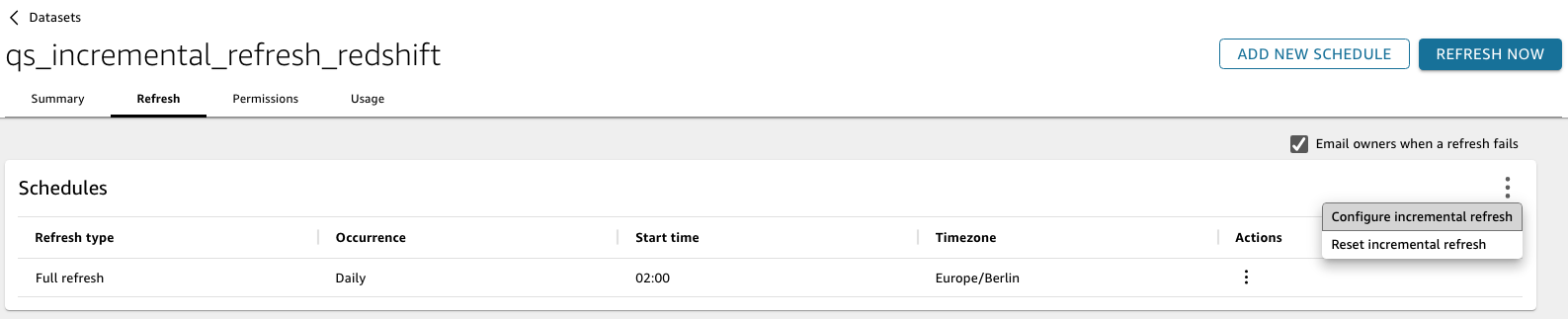
- On the dataset details page, choose the Refresh tab and choose Configure incremental refresh on the options menu (three dots) to configure a schedule.
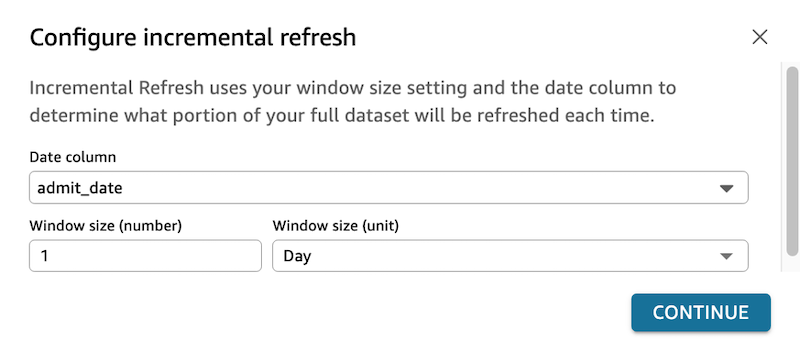
- In the following example, we set Date column to
admit_date, which is a field in the dataset, and configure the lookback window as 1 day. - Choose Continue.
- Choose Confirm to complete the configuration.
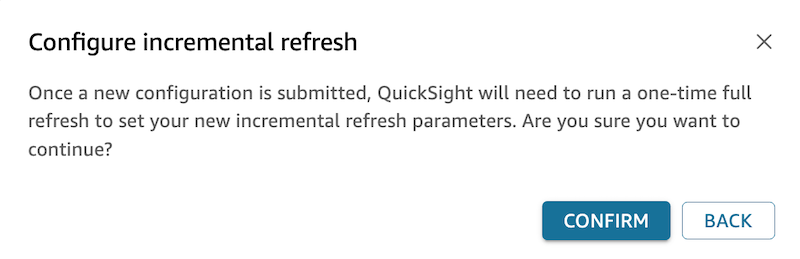
This step will initiate a one-time full refresh of data. At this point, Quick Sight also creates and stores an internal checkpoint at the time of configuration. The internal checkpoint is the recorded date and time of a full data refresh invoked after the creation of an incremental refresh configuration. You can create a schedule for an incremental refresh, which when invoked will use this internal checkpoint as a reference. Both the scheduled and manual incremental refresh operations will update the internal checkpoint, and subsequent refreshes will use this new checkpoint as reference.
Now that lookback window configuration has been completed, let’s look at an example where the incremental refresh schedule has been created and configured to execute daily.
For our example, let’s assume the initial configuration of the incremental refresh happened on March 4, 2025, 13:00 GMT (internal checkpoint) with a lookback window size of 1 day. The schedule was then created to be executed daily from March 5, 2025, at 13:00 GMT.
When the refresh schedule runs on March 5, 2025, Quick Sight performs the following steps:
- Calculates the refresh window: internal checkpoint March 4, 13:00; lookback window 1 day.
- Determines the start time: March 3, 13:00.
- Processes records that are new, modified, or deleted after March 3, 13:00.
- Updates the internal checkpoint with the time of execution to March 5, 2025 13:00.
When the refresh schedule runs on March 6, 2025, Quick Sight again performs the following steps:
- Calculates the refresh window: internal checkpoint March 5, 13:00; lookback window 1 day.
- Determines the start time: March 4, 13:00.
- Processes records that are new, modified, or deleted after March 4, 13:00.
- Updates the internal checkpoint with the time of execution to March 6, 2025 13:00.
Prerequisites
To follow along with this post and use the SPICE refresh APIs, you need certain AWS resources and permissions configured:
- Quick Suite subscription – If you don’t already have a Quick Suite subscription, you can sign up for one.
- AWS CLI Installation – In this post, we use the AWS CLI for demonstration. For installation instructions, refer to Installing or updating to the latest version of the AWS CLI. For instructions on configuring the AWS CLI, see Getting started with AWS CLI. Before getting started, verify that you have the updated AWS SDK configured.
- Required IAM permissions – These APIs are available for users with AWS Identity and Access Management (IAM) permissions to run these APIs. The following IAM policy allows an IAM user to get access to these APIs. Modify the IAM policy by replacing the following placeholders with your actual values:
- ${Region} – The AWS Region of your Quick Sight datasets
- ${Account} – Your AWS account ID
- ${DatasetId} –The dataset ID of your Quick Sight dataset
- ${ResourceId} – The schedule ID for the refresh schedule
Quick Sight API configurations
To get the list of supported API calls for Quick Sight, invoke it with the help command:
The following table lists the available APIs and their purposes.
| Command | Description |
create-refresh-schedule |
Creates a full refresh or an incremental refresh schedule |
delete-refresh-schedule |
Deletes an existing refresh schedule |
update-refresh-schedule |
Updates an existing refresh schedule |
describe-refresh-schedule |
Describes the details of a single schedule configured for a dataset |
list-refresh-schedules |
Lists the details of all schedules configured for a dataset |
If you want to get help on a specific API, run the following command:
You can use the CreateRefreshSchedule API to create a new schedule for a dataset. You can generate the JSON structure using the –generate-cli-skeleton argument:
The JSON output is as follows:
Using the preceding structure, the following command creates a full refresh schedule for a dataset that will run daily at 6:00 PM starting from October 1, 2025, in the Europe/Berlin time zone:
The following shows an example output after invoking the CreateRefreshSchedule API call:
You can further describe the individual schedule details with the DescribeRefreshSchedule API:
The following output provides the details of the schedule executing daily at 6:00 PM in the Europe/Berlin time zone:
You can make changes to an existing schedule using the UpdateRefreshSchedule API. The following command updates an existing schedule with the schedule ID sales-data-refresh-schedule from 6:00 PM to 7:00 PM:
You can delete the dataset schedules using their ScheduleId. Retrieve the ScheduleId by calling the ListRefreshSchedules API:
The following screenshot shows an example output, which displays the two schedules that have been configured for a dataset.
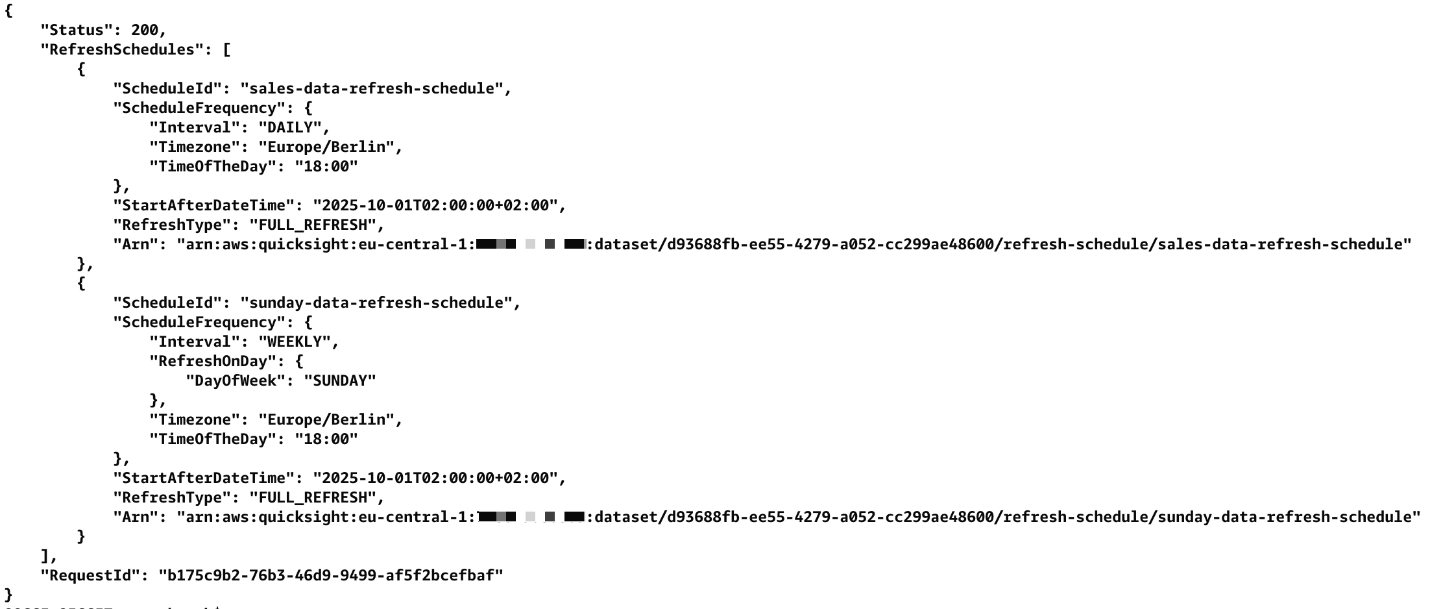
As an example, let’s delete sales-data-refresh-schedule. Use the following command to delete the daily schedule sales-data-refresh-schedule using the DeleteRefreshSchedule API call:
Incremental refresh configuration APIs
Incremental refresh requires additional configuration beyond basic schedule setup. Before you can create a schedule for incremental refresh, the first step is to configure the lookback window. The following table describes each available API, which lets you programmatically define, describe, and delete a lookback window configuration.
| Command | Description |
put-data-set-refresh-properties |
Use this API to first define a lookback window configuration for incremental refresh. A dataset can have only one lookback back window configuration. |
describe-data-set-refresh-properties |
Describe the details of the lookback window configuration for a dataset. |
delete-data-set-refresh-properties |
Delete the lookback window configuration for a dataset. |
The PutDataSetRefreshProperties API call is used to first define the required lookback window configuration based on a date column. In the following example, the command shows the initial configuration, which is using the column last_update_date of the dataset with a lookback window size of 5 hours:
To update the lookback window, invoke the PutDataSetRefreshProperties call again by changing the parameters within the LookbackWindow.
You can then create a schedule to refresh the data incrementally into the SPICE dataset. The following command creates an incremental refresh schedule that is invoked daily using the CreateRefreshSchedule API. The parameter used to switch between FULL_REFRESH and Incremental_REFRESH is RefreshType.
To view the details of the lookback window configuration, use the DescribeDataSetRefreshProperties API:
To delete the lookback window configuration, use the DeleteDataSetRefreshProperties API:
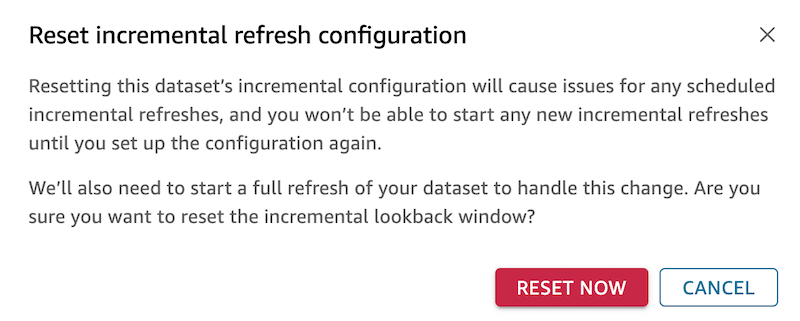
When deleting a lookback window configuration, Quick Sight will initiate a full refresh of the SPICE dataset. This can be done either using the Quick Sight API or through the Quick Sight UI.
Let’s explore this workflow through the UI by navigating to a dataset with a lookback window configuration and choosing Reset incremental refresh on the options menu (three dots).

Choosing Reset incremental refresh displays additional information on the changes. Choose Reset now to initiate a full refresh of the dataset. As a best practice, remember to delete any associated incremental refresh schedules to avoid confusion or conflicts with future configurations.
Clean up
To avoid incurring ongoing charges, delete the datasets you created as part of this post.
Conclusion
In this post, we introduced you to the Quick Sight data ingestion APIs for automating SPICE dataset refreshes. We covered using APIs using the AWS CLI, creating and managing a refresh schedule, configuring an incremental with lookback windows, and understanding the refresh process and internal checkpoints.
For more information about Quick Suite, refer to the Amazon Quick Suite User Guide. If you have any questions or feedback, please leave a comment. Join the Amazon Quick Suite Community to ask, answer, and learn with others and explore additional resources.
About the author
 Koushik Muthanna Koravanda Ganapathy is a Specialist Solutions Architect for Amazon Quick Suite at AWS. He works with customers to provide guidance on implementing Quick Sight at scale so they can get insights and take actions from analyzing business data. Koushik enjoys spending time outdoors, traveling, and swimming.