AWS Contact Center
Multi-KB Retrieval with Amazon Connect Customer AI Agents for Global Contact Centers
How AcmePets unified disparate knowledge sources to deliver accurate, region-specific pet information to contact center agents worldwide
Introduction
AcmePets is a worldwide pet information service with global contact centers that helps callers from around the world access accurate information about pet care. A significant portion of their inquiry volume centers on vaccination requirements for cats and dogs — requirements that differ substantially between regions such as Europe and the United States.
AcmePets maintains two separate knowledge bases (KBs), one for dogs and one for cats, each containing documents on breeds and vaccination requirements for both the United States and Europe. Documents are tagged by region so the AI agent can filter results based on the caller’s geographic context. Contact center agents distributed across multiple geographies need this information at their fingertips during live customer conversations to deliver fast, accurate guidance.
The challenge: A single Connect Customer AI Agent must query multiple KBs simultaneously and return only regionally relevant content to the user. Knowledge can be distributed across multiple S3 buckets with region-specific documents. You need a mechanism to filter across KBs at query time without complex flow branching.
In this post, we present solution architecture that allows you to configure a single AI agent to query multiple KBs simultaneously. We walk through the technical implementation step by step, using AcmePets as our reference use case.
The AcmePets Use Case
AcmePets operates a contact center powered by Connect Customer. Their knowledge is organized into two KBs, one for dogs and one for cats. Each knowledge base (KB) contains documents covering breed information and vaccination requirements for both the United States and Europe.
|
S3 Bucket |
KB Name |
Documents |
Tags (region) |
|
blog-kb1-<AWS Account ID> |
dogs |
Dog Breeds of the World.pdf |
region=america-europe |
|
blog-kb1-<AWS Account ID> |
dogs |
Dog Vaccinations – America.docx |
region=america |
|
blog-kb1-<AWS Account ID> |
dogs |
Dog Vaccinations – Europe.docx |
region=europe |
|
blog-kb2-<AWS Account ID> |
cats |
Cat Breeds of the World.pdf |
region=america-europe |
|
blog-kb2-<AWS Account ID> |
cats |
Cat Vaccinations – America.docx |
region=america |
|
blog-kb2-<AWS Account ID> |
cats |
Cat Vaccinations – Europe.docx |
region=europe |
Tagging Strategy
A key design decision is the use of content-level tagging via the Connect Customer AI Agents API (aws qconnect tag-resource). Each document is tagged with a region key whose value indicates its geographic scope:
• region=america: Applied to documents containing U.S.-specific vaccination requirements (both dog and cat).
• region=europe: Applied to documents containing European vaccination requirements (both dog and cat).
• region=america-europe: Applied to documents that are globally relevant (e.g., breed reference guides that apply regardless of region).
Because the same tag key (region) is used across both the dogs and cats KBs, the AI agent can filter documents by region across both KBs simultaneously. This is achieved by configuring the Retrieve tools with an override filter that passes the region value dynamically using {{$.Custom.region}}, a value set by a Lambda function based on the customer’s query context.
|
Why Tag-Based Retrieval Matters Tags create a cross-KB filtering mechanism. When a caller asks about European requirements, the AI agent’s Retrieve tools (RetrieveDogs and RetrieveCats) both filter on region=europe, returning only regionally relevant documents from each KB. The breed guides (tagged region=america-europe) are included in both American and European queries since they are universally applicable. This eliminates complex flow branching logic and ensures comprehensive, targeted results. |
When a caller asks, “What vaccinations does my dog need to travel from Spain to Germany?”, the Lambda function sets $.Custom.region to “europe”. Both Retrieve tools fire simultaneously, RetrieveDogs returns the European dog vaccination document plus the dog breeds guide, while RetrieveCats returns European cat content (which the AI agent intelligently deprioritizes given the query context). If the next caller asks about kitten vaccinations in Texas, the region is set to “america” and the relevant American cat documents are surfaced.
Solution Architecture
The architecture leverages the following Connect Customer and AWS services:
• Connect Customer: Provides the contact center service, contact flows, and the Agent Workspace where AI-generated responses are surfaced to agents.
• Connect Customer AI Agents: Integrates S3-based KBs with the contact center. Each S3 integration creates a searchable KB accessible via Retrieve tools.
• Amazon S3: Stores the source documents (PDF and Word documents) organized into two buckets, one for dogs (blog-kb1-<AWS Account ID>) and one for cats (blog-kb2-<AWS Account ID>).
• Connect Customer AI Agents Content Tagging: The aws qconnect tag-resource API applies metadata tags to individual content items within a KB, enabling region-based filtering at query time.
• AWS Lambda: A function (blog-function) that determines the region context from the customer’s query and sets the $.Custom.region attribute, which is passed to the AI agent’s Retrieve tools as a filter parameter.
• AI Agent Builder: Used to create the AI agent (blog-agent) with two Retrieve tools (RetrieveDogs and RetrieveCats), a custom prompt that mandates simultaneous multi-tool invocation, and override values for tag-based filtering.
• Connect Assistant Flow Block: The flow block that invokes the AI agent during a live contact, passing the Lambda-derived region context and presenting responses in the Agent Workspace.
At a high level, the data flow is:
1. A customer initiates a chat or call with the AcmePets contact center (Connect Customer).
2. The contact is routed through a flow that invokes the Lambda function (blog-function).
3. The Lambda function analyzes the context and sets $.Custom.region (e.g., “america” or “europe”).
4. The Connect Assistant flow block invokes the AI agent (blog-agent).
5. The AI agent’s custom prompt mandates that both Retrieve tools (RetrieveDogs and RetrieveCats) fire simultaneously.
6. Each Retrieve tool queries its respective KB, filtering by the region tag using the override value {{$.Custom.region}}.
7. Results from both KBs are consolidated, and the AI agent returns a comprehensive, region-appropriate response.
8. The contact center agent sees the response in the Agent Workspace and relays it to the caller.
|
Key Architectural Benefit To achieve cross-KB retrieval with zero flow branching, configure two Retrieve tools on a single AI agent. Point each tool to a different KB and use tag-based filtering with dynamic override values. The custom prompt ensures both tools always fire together, and the region tag ensures only geographically relevant documents are returned. Adding new KBs requires adding another Retrieve tool to the agent. |
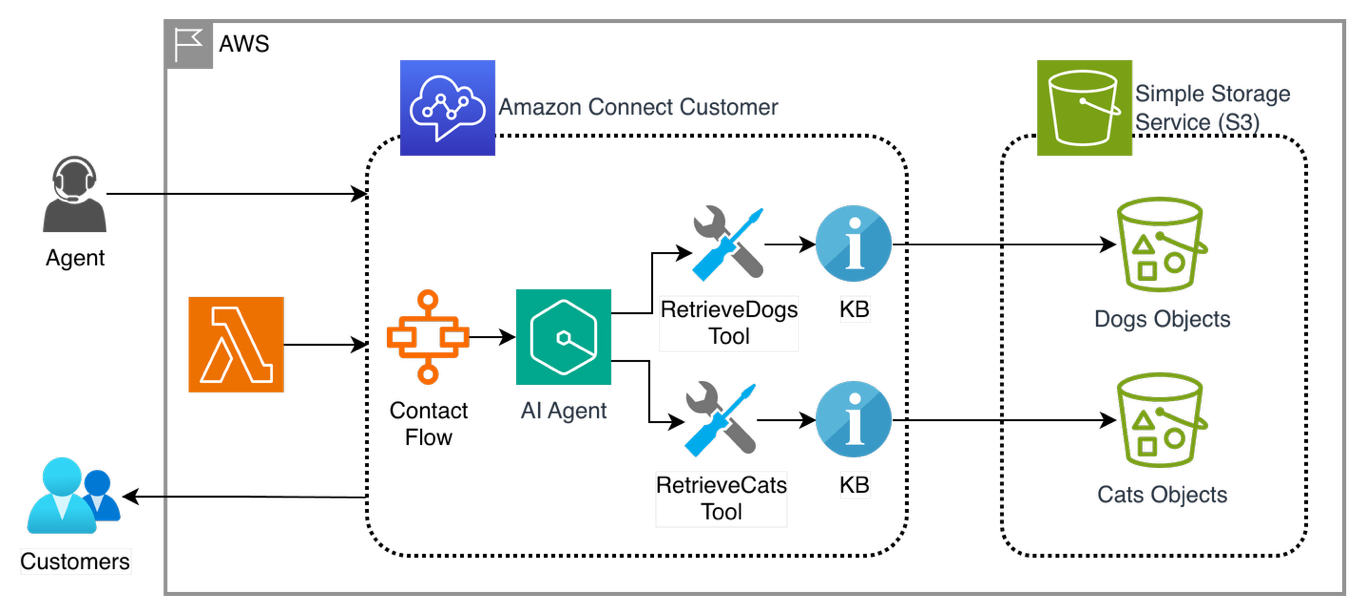
Figure 1: High-Level Architecture Diagram
Prerequisites
Before proceeding with the implementation, ensure you have:
• An active AWS account with AWS Identity and Access Management (IAM) permissions to manage Connect Customer, Amazon S3, and Connect Customer AI Agents.
• An existing Connect Customer instance with Connect Customer AI Agents enabled.
• Administrator access to the Connect Customer console.
• Source documents (PDFs or Word documents) for each KB, dog-related documents for blog-kb1-<AWS Account ID> and cat-related documents for blog-kb2-<AWS Account ID>.
• A claimed Direct Inward Dial (DID) phone number in Connect Customer for testing.
Implementation Walkthrough
The following steps walk through the complete setup for the AcmePets multi-knowledge-base environment. Follow each step in sequence.
Step 1: Create S3 Buckets
• Create an S3 bucket named blog-kb1-<AWS Account ID>.
• Create an S3 bucket named blog-kb2-<AWS Account ID>.
All referenced files (documents, Lambda code, IAM policy, and flow JSON) are available at https://github.com/aws-samples/sample-connect-multiple-kb-ai-agent.
Step 2: Upload Documents to KB1 (Dogs)
Add the following documents, found in the folder linked in Step 1, to the bucket blog-kb1-<AWS Account ID>:
• Dog Breeds of the World.pdf
• Dog Vaccinations – America.docx
• Dog Vaccinations – Europe.docx
Step 3: Upload Documents to KB2 (Cats)
Add the following documents, found in the folder linked in Step 1, to the bucket blog-kb2-<AWS Account ID>:
• Cat Breeds of the World.pdf
• Cat Vaccinations – America.docx
• Cat Vaccinations – Europe.docx
Step 4: Create S3 Integrations in Connect Customer
Create two S3 integrations under the existing AI agent domain created in Connect Customer, one for blog-kb1-<AWS Account ID> named dogs and one for blog-kb2-<AWS Account ID> named cats. If you have not created a domain yet, see Initial set-up for AI agents at https://docs.aws.amazon.com/connect/latest/adminguide/ai-agent-initial-setup.html.
Step 5: Obtain KB IDs
Launch AWS CloudShell and run the following command:
aws qconnect list-knowledge-bases
Make a note of the KB IDs of the two S3 KBs created in Step 4. There will be two KB IDs and they can be identified by the names given to them when creating the integration (dogs and cats).
Step 6: Obtain Content ARNs
Using the KB IDs obtained in Step 5, run the following command for each KB ID:
aws qconnect list-contents –knowledge-base-id <knowledgeBaseId>
Make a note of the content ARNs. There will be a total of six ARNs, three for each of the KB IDs. They can be identified by the file names of the documents uploaded in Steps 2 and 3.
Step 7: Tag the Content
Tag the content using the aws qconnect tag-resource command. The tagging creates a cross-KB retrieval mechanism based on region:
• For Dog Breeds of the World.pdf: aws qconnect tag-resource –resource-arn <contentArn from Step 6> –tags region=america-europe
• For Dog Vaccinations – America.docx: aws qconnect tag-resource –resource-arn <contentArn from Step 6> –tags region=america
• For Dog Vaccinations – Europe.docx: aws qconnect tag-resource –resource-arn <contentArn from Step 6> –tags region=europe
• For Cat Breeds of the World.pdf: aws qconnect tag-resource –resource-arn <contentArn from Step 6> –tags region=america-europe
• For Cat Vaccinations – America.docx: aws qconnect tag-resource –resource-arn <contentArn from Step 6> –tags region=america
• For Cat Vaccinations – Europe.docx: aws qconnect tag-resource –resource-arn <contentArn from Step 6> –tags region=europe
Step 8: Create Lambda Function
Create a Lambda function named blog-function using the code in the file named lambda_function.py found in the folder linked in Step 1.
Step 9: Create IAM Policy
Create an inline IAM permissions policy named blog-policy for the execution role of the Lambda function created in Step 8 using the JSON contained in the file named blog-policy.json found in the folder linked in Step 1.
Step 10: Register Lambda with Connect Customer
Make the Lambda function available to Connect Customer by navigating to the AWS Console, searching for Connect Customer, choosing the instance alias, then choosing Flows, followed by selecting the Lambda function from the Lambda Functions dropdown list under AWS Lambda, and finally choosing the Add Lambda Function button.
Step 11: Create the AI Agent
Launch the Connect Customer Console and log in as the Admin. Navigate to AI agent designer → AI agents and choose the Create AI Agent button.
• Enter blog-agent for the Name.
• Choose Orchestration from the AI Agent type dropdown list.
• Choose AgentAssistanceOrchestrator from the Copy from existing – required dropdown list.
• Choose the Create button.
• Under Security Profiles, choose Admin from the Select Security Profiles dropdown list.
Step 12: Configure the RetrieveDogs Tool
Under Tools, choose Retrieve, choose the Edit button, and configure as follows:
• Change the Name under Tool Properties to RetrieveDogs.
• From the Assistant Association dropdown list, choose the item with the Connect KB ID obtained in Step 5 corresponding to the KB named dogs created in Step 4.
Under Override Input Values (optional), choose the Add Override button twice:
• In the first property key, choose retrievalConfiguration.filter.stringContains.key and enter region as the override value.
• In the second property key, choose retrievalConfiguration.filter.stringContains.value and enter {{$.Custom.region}} as the override value.
Choose the Update button.
Step 13: Add the RetrieveCats Tool
Under Tools, choose the Add tool button, choose Add existing AI Tool, then configure as follows:
• Choose Connect Customer from the Namespace dropdown list.
• Choose Retrieve from the AI Tool dropdown list.
• Change the Name under Tool Properties to RetrieveCats.
• From the Assistant Association dropdown list, choose the item with the Connect KB ID obtained in Step 5 corresponding to the KB named cats created in Step 4.
• In the Instruction Text text box, copy the content from the same text box of the RetrieveDogs tool.
Repeat the same Override Input Values configuration as Step 12 (both property keys).
Choose the Add button, then choose the Save button.
Step 14: Create the AI Prompt
Navigate to AI agent designer → AI prompts and choose the Create AI Prompt button.
• Enter blog-prompt for the Name.
• Choose Orchestrator from the AI Prompt type dropdown list.
• Choose AgentAssistanceOrchestration from the Copy from existing – optional dropdown list.
• Choose the Create button.
In the Prompt text box, search for the text “follow these important rules” and add the following rule below the last rule (incrementing the rule number):
CRITICAL – Multiple Retrieve Tools: When multiple Retrieve-type tools are available ([RetrieveDogs], [RetrieveCats]), you MUST invoke ALL of them simultaneously for any search request. Never use only one Retrieve tool when multiple are available, always select and invoke them together to support comprehensive results from all knowledge sources.
Choose the Save button.
Step 15: Attach Prompt to AI Agent
Navigate to AI agent designer → AI agents, locate blog-agent, choose the Edit in Agent Builder button, choose the Add prompt button under Prompts, choose Add existing AI Prompt, choose blog-prompt from the My AI prompts dropdown list, and choose the Add button.
Choose the Save button, and once saved, choose the Publish button.
Step 16: Import the Contact Flow
Navigate to Routing → Flows, choose the Create flow button, choose the down arrow (▼) next to the Save button, choose Import (Beta), choose the file named blog-flow.json (found in the folder linked in Step 1), and choose the Import button.
Step 17: Configure the Flow
Choose the title bar of the Connect assistant flow block:
• In the AI Agent – Agent Assistance section, choose blog-agent from the AI Agent name dropdown list.
• Choose $LATEST from the AI Agent version and choose the Confirm button.
Choose the title bar of the AWS Lambda function flow block:
• Note the entry in the Function ARN dropdown list, choose it, select another item, then re-select the original item and choose the Confirm button. This re-selection is needed to ensure the flow correctly registers the Lambda ARN.
Choose the Save button, and once saved, choose the Publish button.
Step 18: Test the Solution
Navigate to Channels → Test chat, choose the Test Settings link, choose the flow created in Step 16 from the Contact Flow dropdown list and choose the Apply button.
• Choose Agent Workspace from the Connect Workspace dropdown list at the top of the page to launch it in a separate browser window.
• Go back to the Connect Customer Console, choose the chat icon at the bottom of the page to initiate a test chat, and answer the incoming chat on the Agent Workspace.
• Test the AI capabilities by typing messages in the Ask a question text box of the Connect assistant on the right within the Agent Workspace.
Validate that queries about European dog vaccinations, American cat breeds, and cross-domain questions all return accurate, tag-filtered results from the appropriate KBs.
Scaling to Additional KBs
One of the key advantages of this architecture is extensibility. As AcmePets expands their information offerings (e.g., adding a KB for bird care, reptile care, or regional pet import regulations), the process is straightforward:
• Create a new S3 bucket and upload the relevant documents.
• Create a new Connect Customer AI agents integration pointing to the bucket.
• Tag the content using aws qconnect tag-resource with the appropriate region values.
• Add a new Retrieve tool to the AI agent pointing to the new KB, with the same override filter configuration.
• Update the custom prompt to include the new Retrieve tool name in the “MUST invoke ALL” rule.
The Connect flow and Lambda function remain unchanged. The tagging taxonomy scales naturally, new documents simply receive the same region tags, and the existing filter mechanism includes them automatically.
Best Practices
• Keep KBs focused: Each S3 bucket should cover a distinct domain (e.g., dogs vs. cats). Use tags for sub-filtering within a domain rather than creating additional buckets.
• Craft precise prompts: The custom prompt must explicitly instruct the AI agent to invoke ALL Retrieve tools simultaneously. Without this directive, the agent may default to querying only one KB.
• Monitor and refine: Use Connect Customer analytics and agent feedback to identify gaps in KB coverage or prompt behavior.
• Document versioning and tagging: When adding or updating documents, remember to apply the region tag via aws qconnect tag-resource. Untagged documents will not be returned when the filter is active.
• Test across domains and regions: Validate with queries that span different animals and regions to confirm that both Retrieve tools fire, the tag filter works correctly, and the AI agent consolidates results intelligently.
Cleaning Up
To avoid ongoing charges from resources created during this walkthrough:
• Delete the Connect Customer AI agents integrations (dogs and cats).
• Delete blog-agent and blog-prompt from the AI Agent Builder.
• Remove or modify the Connect flow.
• Delete the Lambda function (blog-function) and its IAM policy (blog-policy).
• Delete the S3 buckets (blog-kb1-<AWS Account ID> and blog-kb2-<AWS Account ID>) and their contents.
Conclusion
In this post, we demonstrated how AcmePets solved the challenge of surfacing information from multiple, disparate KBs to contact center agents using Connect Customer. We configured two S3 integrations for dogs and cats, tagged regional content using aws qconnect tag-resource, set up dual Retrieve tools with dynamic filters, and wrote a prompt requiring simultaneous multi-KB retrieval. This setup enabled agents to deliver accurate, region-specific answers whether callers ask about European dog vaccinations or American cat breeds.
This pattern can be applied to many organizations with distributed knowledge sources. The combination of multiple Retrieve tools, content-level tagging, dynamic override filters, and prompt-driven orchestration scales naturally as your knowledge footprint grows. Adding a new domain requires creating another bucket, integration, and Retrieve tool.
About the Authors

Atul Trasi is an AWS Professional Services Consultant at Amazon Web Services with over 25 years of global expertise in designing and engineering advanced telephony and contact center solutions. He delivers tailored consulting and delivery services across North America, EMEA, and APJC to major industries like finance, insurance, automotive, and telecommunications.

Harshvardhan Bhatt is a Senior AWS Professional Services Consultant at Amazon Web Services with over 20 years experience in telecommunications and contact center technology. He specializes in designing and developing contact center solutions across industries including finance, insurance, travel, and hospitality.