AWS Contact Center
Using Amazon Connect Customer Views to provide one-click customer voice messages when outbound calling
If you are running outbound campaigns or making manual outbound calls, agent time can be occupied leaving standard or customised messages on calls answered by voicemail systems. This presents two challenges that impact contact center operations:
- Loss in Agent Productivity – when agents must wait for voicemail systems to complete their greetings and manually leave messages, valuable time is consumed on non-productive activities. This reduces the number of meaningful customer conversations agents can handle, directly impacting operational efficiency and increasing cost per contact. In high-volume outbound operations, these minutes can accumulate into significant productivity losses across the agent workforce.
- Inconsistent Customer Experience – Manual voicemail messages can vary in quality, tone, and completeness depending on individual agent delivery. This inconsistency prevents you from ensuring that every customer receives a personalized, professional message that accurately represents the brand and conveys the intended information. Without standardization, the customer experience becomes unpredictable.
While Amazon Connect Customer‘s Answering Machine Detection (AMD) feature can identify voicemail systems and trigger automated flow-based messages, some organizations may not be able to make use of this feature. This solution can support handling voicemail scenarios while maintaining the live answer experience.
This blog post demonstrates how to build a custom voicemail drop solution for Amazon Connect, allowing agents to trigger pre-recorded, personalized messages with a single action while maintaining full control over the customer experience.
You will combine three core Amazon Connect Customer features Amazon Connect Customer Views, Contact Attributes, and Disconnect Flows—to build the solution:
- Amazon Connect Customer Views provides the capability to create custom agent workspace interfaces with tailored buttons and controls. This feature allows organizations to design intuitive, role-specific user interfaces that improve agent workflows and reduce the need to navigate complex menu structures.
- Contact Attributes serve as dynamic data containers that store and pass contextual information throughout the contact lifecycle. These attributes personalise a customer’s interaction by capturing and utilizing data such as customer names, account details, callback numbers, and campaign-specific information, which can be dynamically inserted into automated messages.
- Disconnect Flows represent a specialized contact flow type that executes when an agent disconnects from a contact while the customer remains connected. This functionality enables post-agent workflows, including automated message delivery, survey administration, or callback scheduling, without requiring continued agent participation.
Creating the View
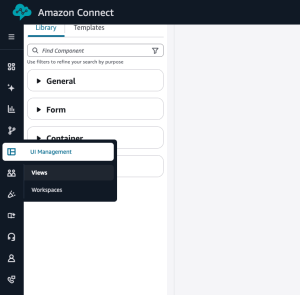
You’ll first need to create an Amazon Connect Customer View, this will be presented to the agent via the Agent Workspace and give them buttons to trigger leaving voicemail messages. Views can be found under the UI Management section of the Amazon Connect Customer interface.
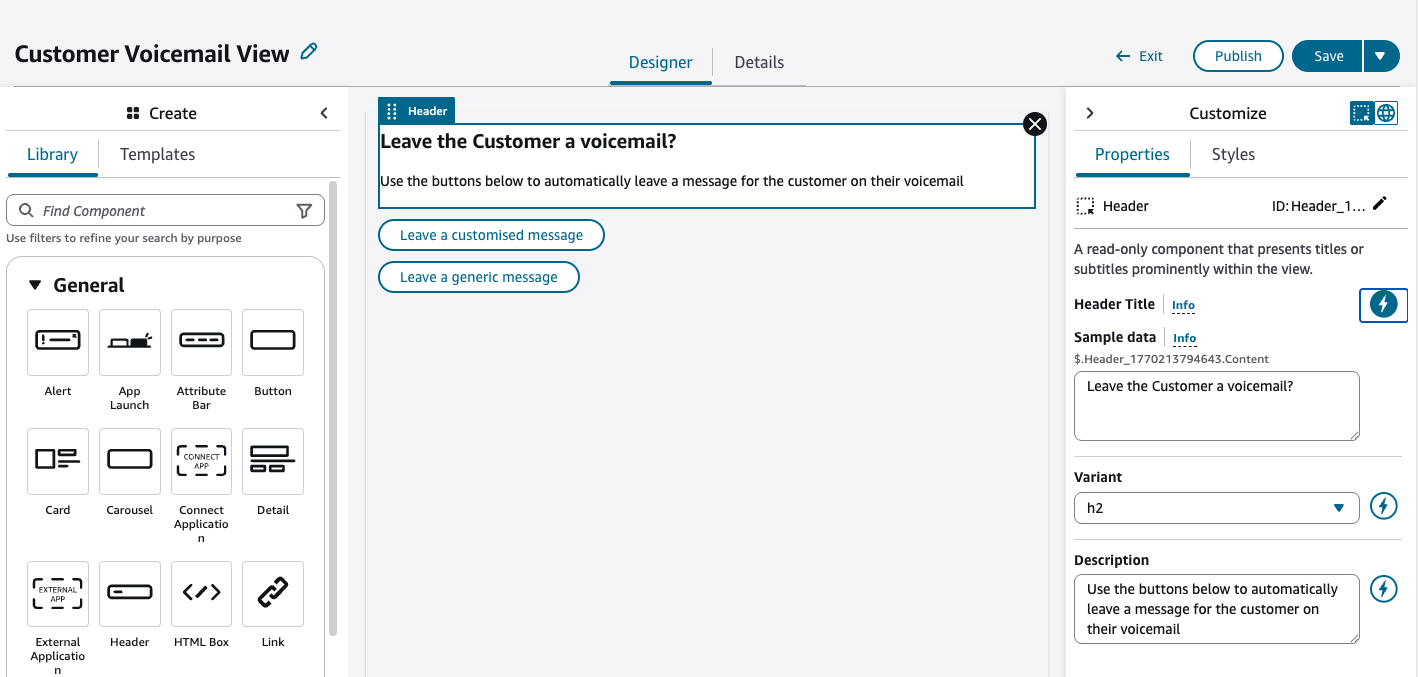
Once you have created a new view, you can drag and drop components from the library on the left to create a header and buttons to instruct your agents. The panel on the right allows you to customise the text of the header and the buttons.
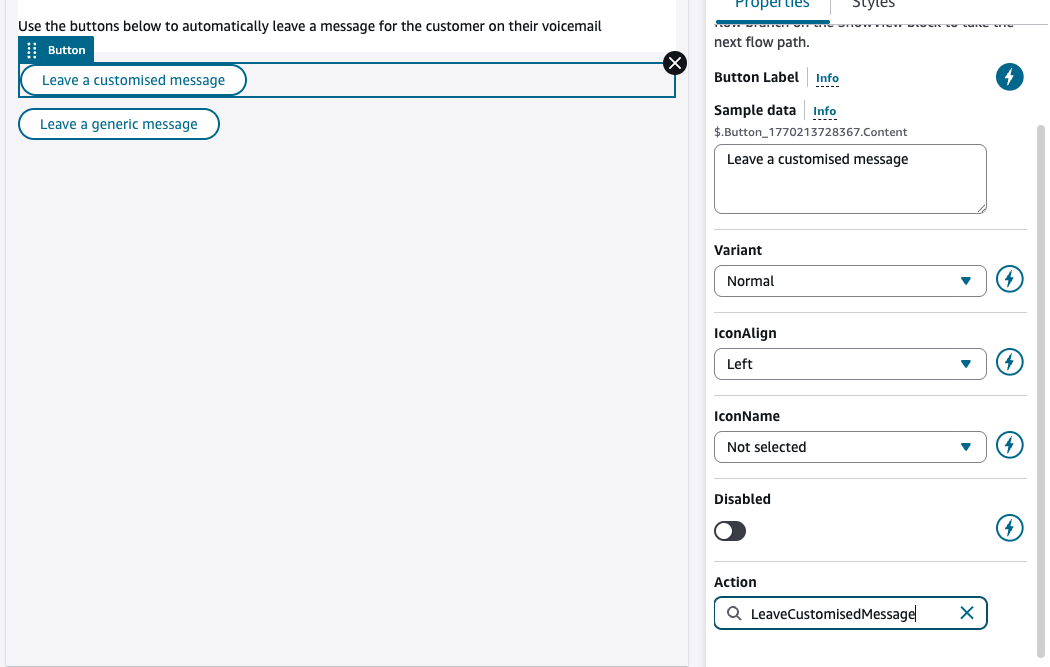
Finally, you need to configure actions for each of you buttons, the Action box can be found at the bottom of the Customize section for each button and is a free text field.
Finally you will need to Save and Publish the View.
Displaying the View
Now you have created a View, you’ll need to configure a contact flow to display this view to the agent when an outbound contact is assigned to them. For voice flows it is not possible to do this directly in the main contact flow, instead you must create a new contact flow that contains the Show View block, this new flow can then be triggered using the Set Event Flow block from your main contact flow.
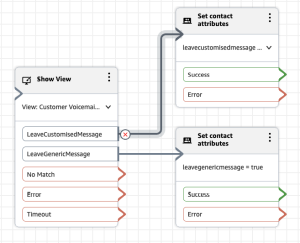
To create a new flow, select the Flows menu item from the Routing section in the Console, then hit Create Flow. The Show View block can then be added to the flow to trigger the view in the Agents workspace. When you select the view in the block, you will see branches added to the block for each button action.
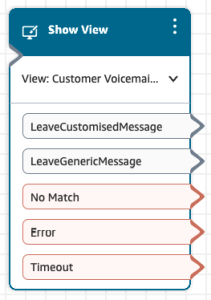
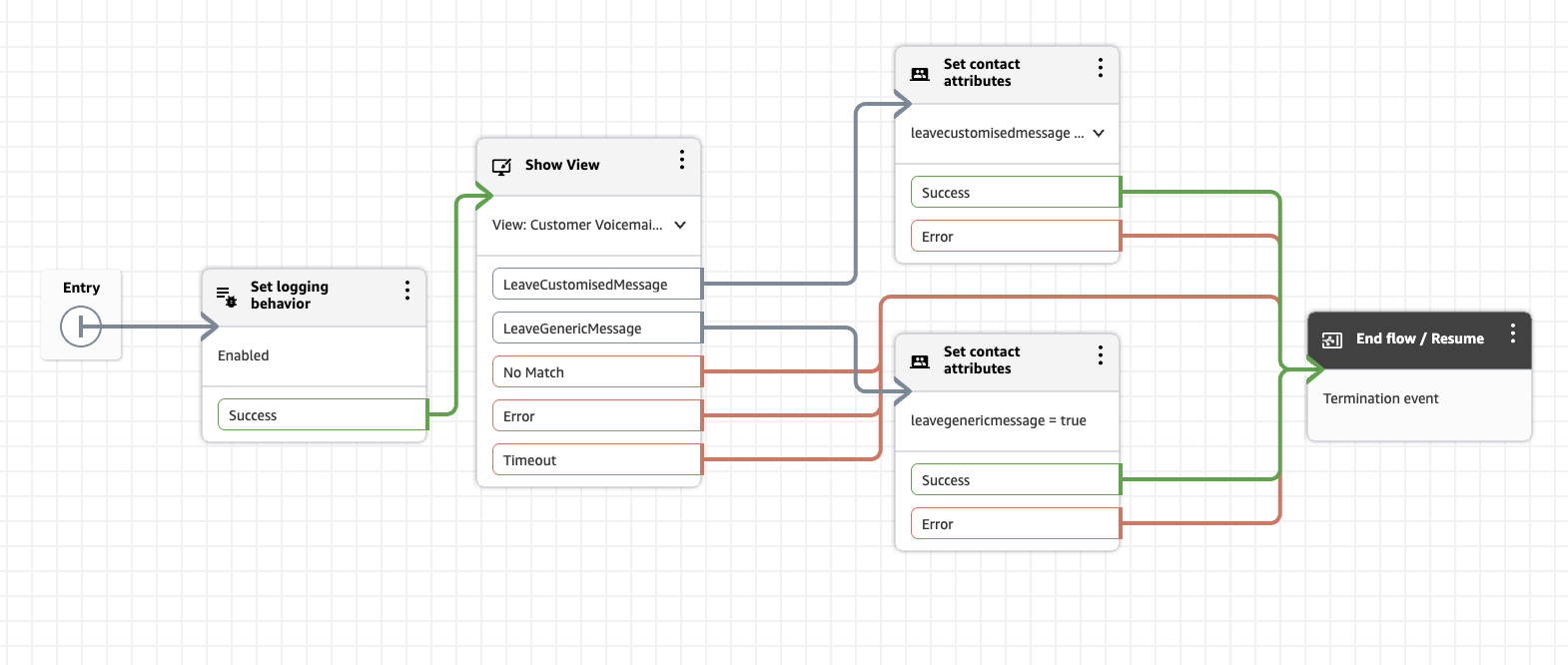
To store the selected buttons action, you can connect each branch to a Set contact attributes block.
Once completed, your flow should look like the below example, it can then be saved and published :
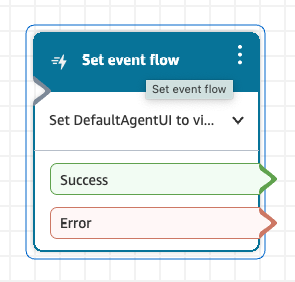
You can now add a Set event flow block to the start of your main outbound contact flow. In the config section of this block you should select Default flow for Agent UI as the Event Hook, then choose the view created above as the flow to run.
Configuring a Disconnect Flow
You have now configured Amazon Connect Customer to display buttons to allow your agents to choose which message to play, finally you need to implement the logic that plays the correct message. Again, this is managed in your Contact Flows, making use of a Disconnect Flow. A Disconnect Flow executes automatically when an agent ends their connection while the customer remains on the line
From the Amazon Connect Customer console, create a new flow containing the logic you need to play the correct message based on the contact attribute you set in the View flow
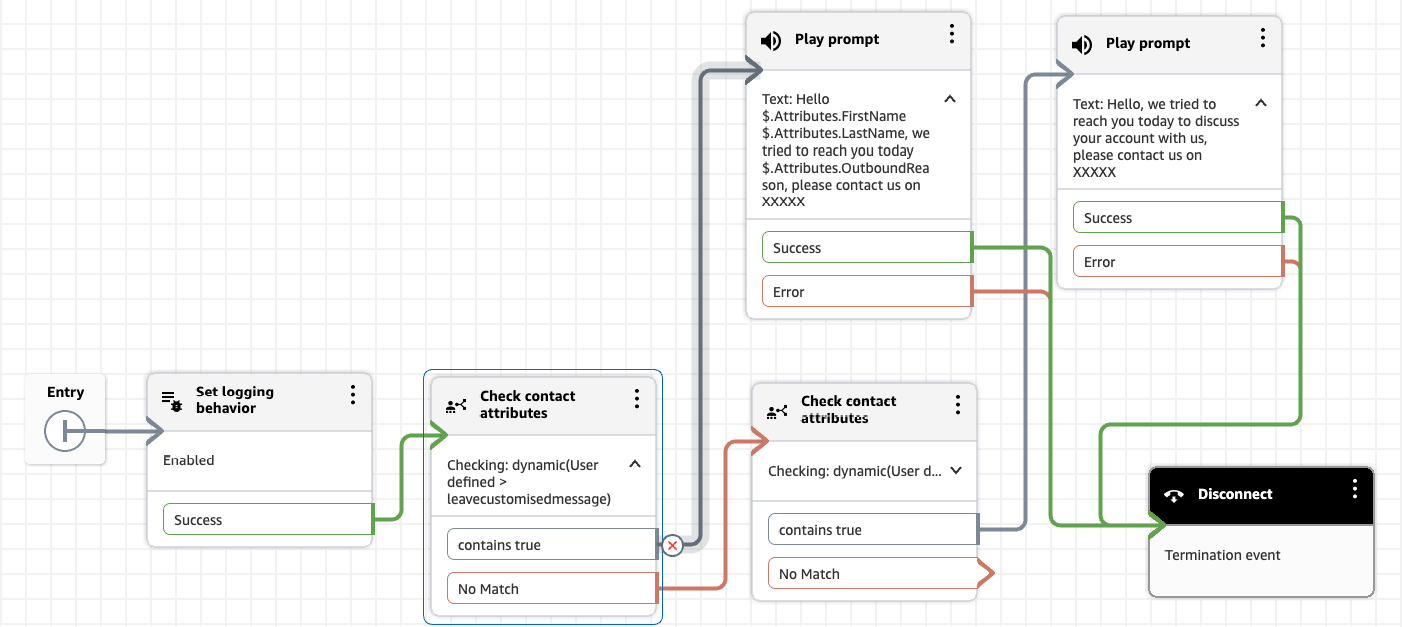
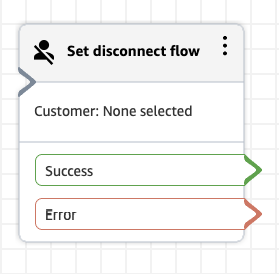
Finally, in your outbound contact flow, add a Set Disconnect Flow block to activate the above flow when the agent disconnects from the contact.
Conclusion
Implementing a one-click voicemail delivery solution in Amazon Connect Customer can improve your contact centre efficiency and standardise your outbound messaging. By combining Amazon Connect Customer Views, Contact Attributes and Disconnect Flows, you can transform a traditionally manual process into an automated workflow that benefits both agents and customers alike.
You are encouraged to explore this solution in your own Amazon Connect Customer environment and adapt it to your specific use cases. The principles demonstrated here can be extended to other scenarios where automated post-agent workflows can enhance efficiency and customer experience.
Ready to transform your customer service experience with Amazon Connect Customer? Contact us