Containers
Migrate Amazon EC2 to ECS Express Mode using Kiro CLI and MCP servers
Manual scaling, patching, and maintenance tasks for traditional Amazon EC2 deployments consume valuable engineering time that could be better spent on innovation and feature development. Containerization offers a compelling solution to these challenges, providing improved resource utilization, faster deployment cycles, and reduced operational costs through infrastructure abstraction.
Amazon Elastic Container Service (Amazon ECS) Express Mode streamlines the deployment of containerized workloads by simplifying workload definition and orchestrating supporting AWS services like Application Load Balancers (ALBs) and Application Auto Scaling. Rather than requiring developers to write complex, lengthy task definitions, Express Mode provides a simplified approach to defining and deploying workloads on ECS.
To understand the complete picture: Express Mode handles workload definition and service orchestration, Amazon ECS schedules the containers, and AWS Fargate runs them. This division of responsibilities means Express Mode acts as the simplified entry point that makes it easier to get applications onto ECS, while ECS itself performs the container orchestration and scheduling, and Fargate provides the serverless compute platform that eliminates the need to manage underlying infrastructure.
A migration journey from EC2 to a container-based solution requires knowledge in containerization, networking, and AWS services integration. However, the introduction of the AWS Model Context Protocol (MCP) Server, the specialized Amazon ECS Model Context Protocol (MCP) Server, and the Kiro CLI simplify this process. These tools provide automated workflows that handle the complexity of containerization and deployment orchestration. By using these MCP-powered tools, teams can accelerate their migration timeline while reducing the risk of configuration errors and helping to ensure best practices are followed throughout the process.
In this post, we’ll walk through a practical migration scenario where a Node.js web application running on EC2 instances is migrated into a highly scalable, containerized service on ECS Express Mode. You’ll learn how to configure and use the AWS and ECS MCP Servers with Kiro CLI to automate critical migration tasks, from Dockerfile creation and image optimization to ECS service configuration and production deployment.
Solution overview
This section outlines the initial and target architectures and their key components. You will learn to orchestrate the migration process from EC2 to ECS Express Mode with Kiro CLI and MCP servers.
This solution offers the following benefits:
- Automated Migration: The combination of Kiro-CLI and MCP servers eliminates manual migration steps and reduces migration time
- Near Zero Configuration: Dynamic infrastructure discovery, configuration, and deployment according to best practices
- Error Resilient: Comprehensive validation and rollback capabilities
- Audit Ready: Logging and monitoring of the migration process
Architecture overview
EC2 Initial Architecture
This architecture includes a traditional virtual machine deployment for a Node.js application involving infrastructure management. This includes EC2 instances behind an AWS Application Load Balancer, Amazon S3 integration for images, user authentication based on Amazon Cognito, Amazon DynamoDB as a database, and monitoring with Amazon CloudWatch. The solution is deployed with the AWS Cloud Development Kit (CDK).
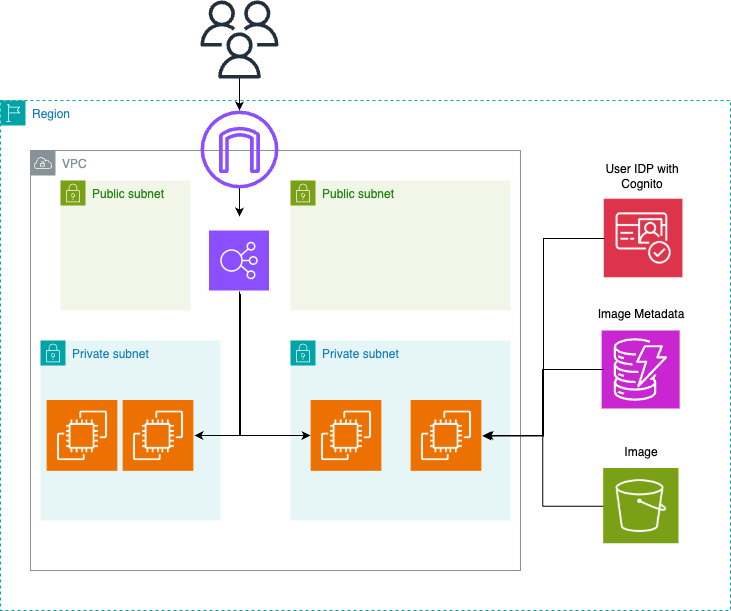
Figure 1: This is a sample existing application which is deployed with Load Balancer and using EC2 Machine deployed in the private subnet with Authentication done with Cognito and Blob data stored in S3 and metadata stored in DynamoDB
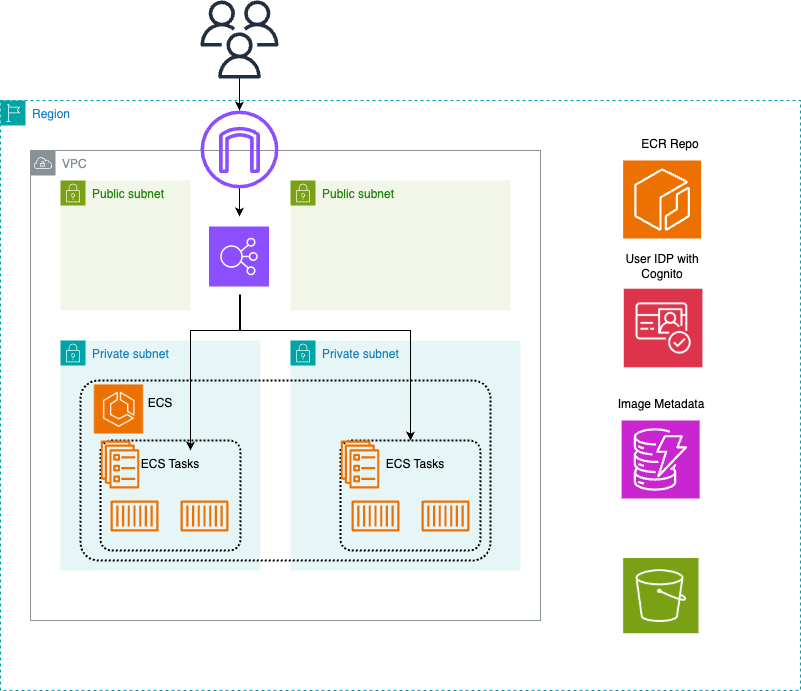
Figure 2: This is architecture of the migrated application with ECR for putting the container images with similar features and same services usage as the monolith application.
ECS Express Mode Target Architecture
This architecture substitutes the EC2 compute with ECS Express Mode with automatic scaling and minimal infrastructure management. With this serverless solution construct, automatic load balancer integration, and pay-per-use pricing model with intelligent resource allocation, while keeping intact all the other components of the solution such as authentication, database, object storage.
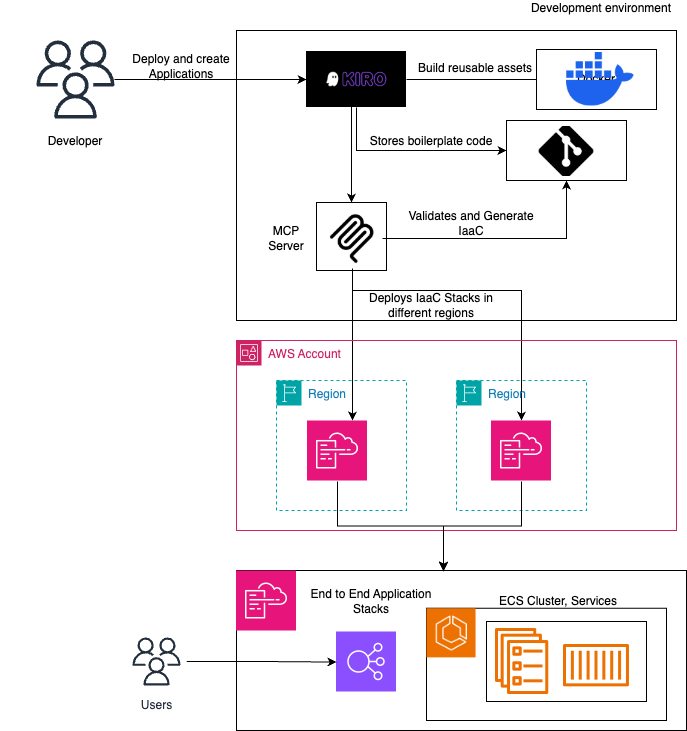
Figure 3: This is the target architecture involving the integration of the infrastructure stack and kiro
Kiro-CLI, AWS, and ECS MCP Servers
The AI-powered migration toolkit for our solution:
- Kiro CLI is a command-line tool that streamlines AWS workflows by enabling developers to provision infrastructure, deploy applications, and manage resources using commands.
- The AWS MCP Server is a fully managed remote MCP server that provides secure, authenticated access to AWS services, acting as a bridge to AWS-specific knowledge and best practices.
- The ECS MCP Server is a specialized MCP server that helps users with the full lifecycle of containerized applications on ECS. It can help with containerization, ECS Express deployments, Amazon Elastic Container Registry (Amazon ECR) integration for container image hosting, and resource management by automatically configuring load balancers, networking, auto-scaling, monitoring, task definitions, and services.
Migration guide
This section walks you through running the complete migration automation step by step, starting with setting up Kiro-CLI and MCP servers’ configuration and finally executing the end-to-end migration.
Prerequisites
To follow along and test this solution, verify you have the following:
AWS account setup
- An AWS Account
- The AWS Command Line Interface (AWS CLI) version 2.15.0 or later
- The Kiro-CLI version 1.25.0 or later
- An AWS Identity and Access Management (IAM) role following policy of least privilege permissions.
Development environment
- Docker 24.0+ and AWS CLI configured
- AWS Cloud Development Kit (AWS CDK) v2 version 2.238.0
- AWS SAM CLI version 1.154.0 for serverless deployment
Knowledge requirements
- Basic understanding of containerization concepts
- Familiarity with AWS networking (VPC, subnets, security groups)
- Basic understanding of the Model Context Protocol (MCP)
Once you have the above requirements, proceeding with the solution also requires have a VPC setup following the best practices for deploying the containers in ECS cluster.
Preparing for the migration
Step 1: Clone the repository
Run the following In your command line:
Step 2: Install the initial EC2-based setup with the AWS CDK
Inside the scripts/deployment folder, invoke the deploy.sh bash file.
The script deploys an EC2-based blog application to AWS using CDK infrastructure. It accepts a region parameter (defaults to eu-north-1), builds and deploys the CDK stack, extracts CloudFormation outputs including User Pool ID, Client ID, S3 bucket, DynamoDB table, and EC2 instance ID.
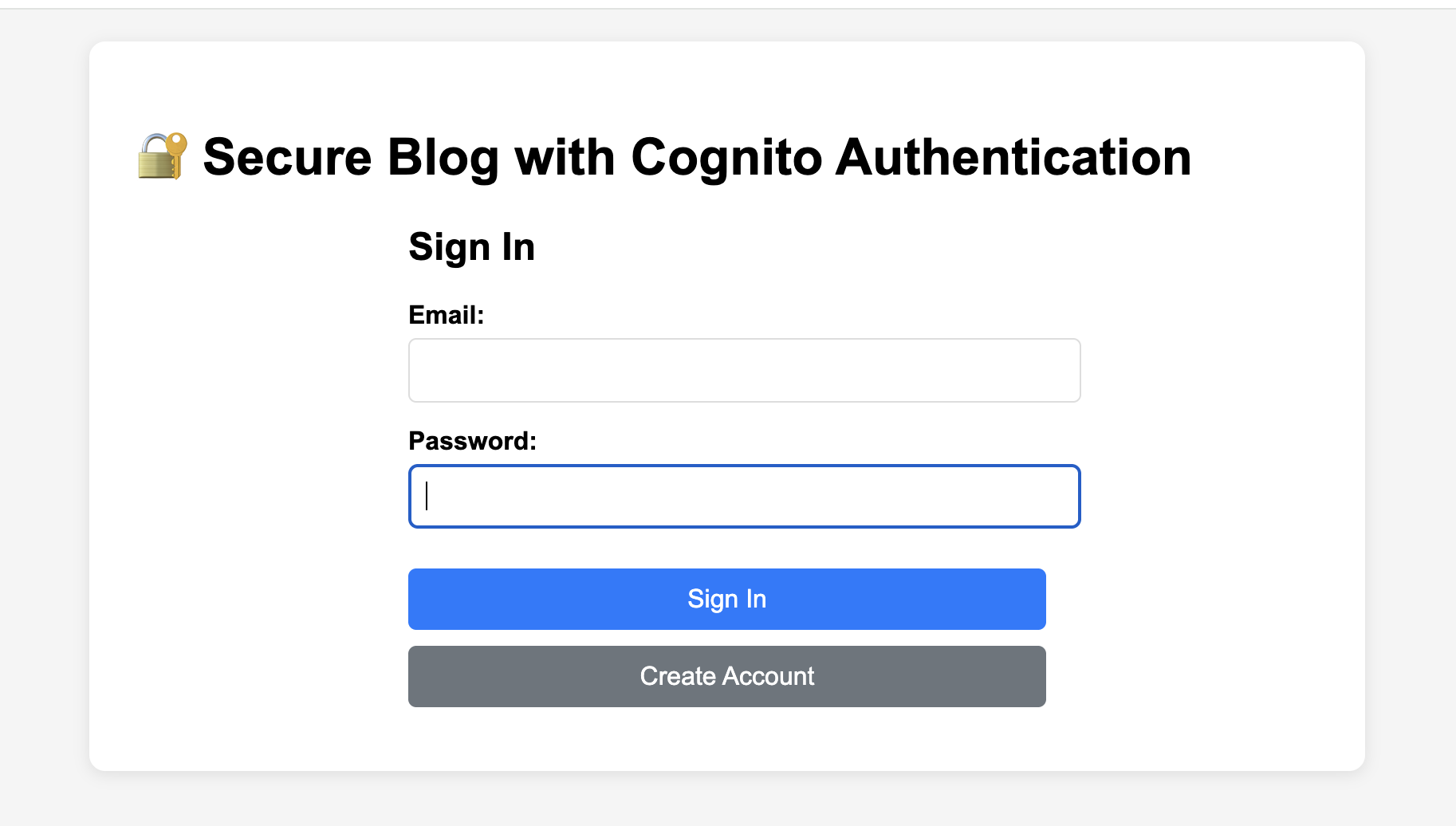
Figure 4: This is a sample existing which is deployed and the start up page.
It configures Cognito for self-registration and email verification, creates environment files with AWS resource identifiers, packages the application from the sample-application directory, uploads it to S3, then uses SSM to download and extract it on the EC2 instance.
Step 3: Setup Kiro-CLI
In your command line, install and authenticate Kiro-CLI with your AWS environment according to the Prerequisites section. Then, start an interactive chat mode by running:
Step 4: Setup the MCP servers
Add the generic AWS MCP Server and the specialized Amazon ECS MCP server to orchestrate the migration process. Here’s the Configuration documentation for Kiro-CLI that explains how to set up the mcp.json file either globally, or per project. Here’s the MCP Server configuration
Step 5: Inspect available tools
Once you have completed the setup and have initiated a Kiro CLI interactive chat, you can see the available tools by running the /tools command:
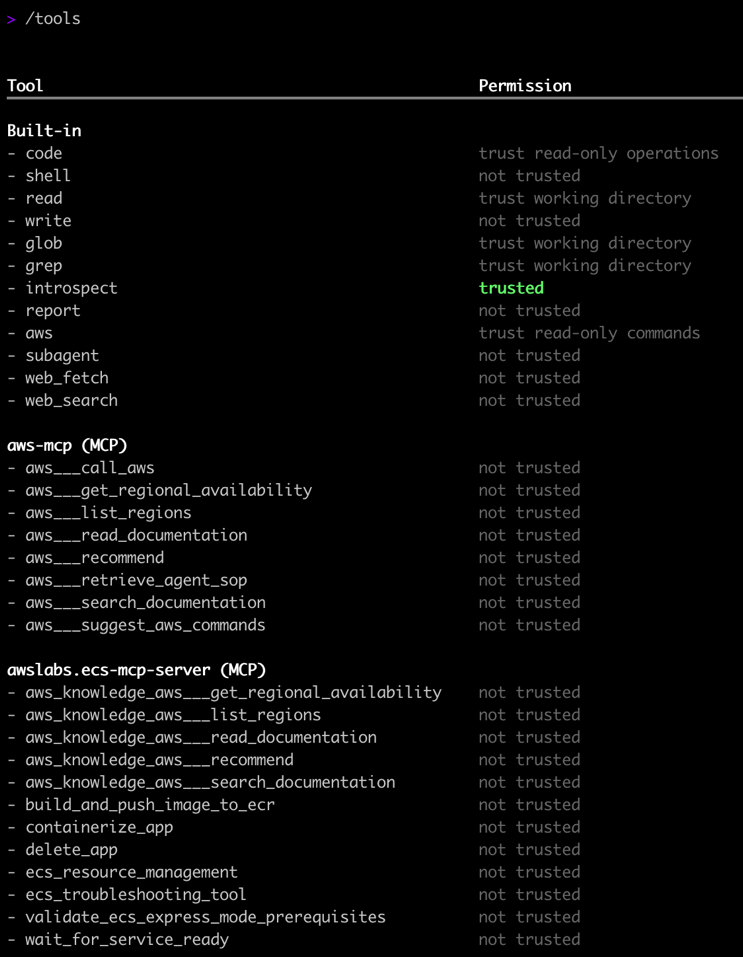
Figure 5: This is the CLI screenshot of the terminal and the tools associated with the ECS MCP server.
Performing the migration
The migration process implements an end-to-end automation with the steps below:
- Current setup discovery examining the sample application and its infrastructure components.
Validation: Verify all application components, dependencies, and infrastructure resources are identified and documented.
- Containerization phase with automatic Dockerfile generation.
Validation: Confirm Dockerfile syntax is correct, base image is appropriate, and all dependencies are included.
- Local container testing with Docker.
Validation: Test health endpoint responds correctly and verify application functionality locally.
- ECR repository creation and image lifecycle management.
Validation: Confirm image push completed successfully and run ECS Express Mode prerequisites check.
- AWS Identity and Access Management (IAM) role creation and prerequisites validation for ECS Express Mode
Validation: Verify IAM roles have correct permissions and trust relationships, then re-validate all prerequisites.
- ECS Express Mode deployment
Validation: Confirm service deployment initiated, task definition is correct, and networking configuration is properly set.
- Application deployment health checks
Validation: Verify service reaches steady state, test application endpoints, and confirm all integrated services are accessible.
Now that you have everything set up and have understood the migration steps, prompt Kiro CLI to complete the migration:
In the sample-application directory you will find a sample web application, go check the contents and the readme file and help me containerize it and deploy it to AWS using Express Mode
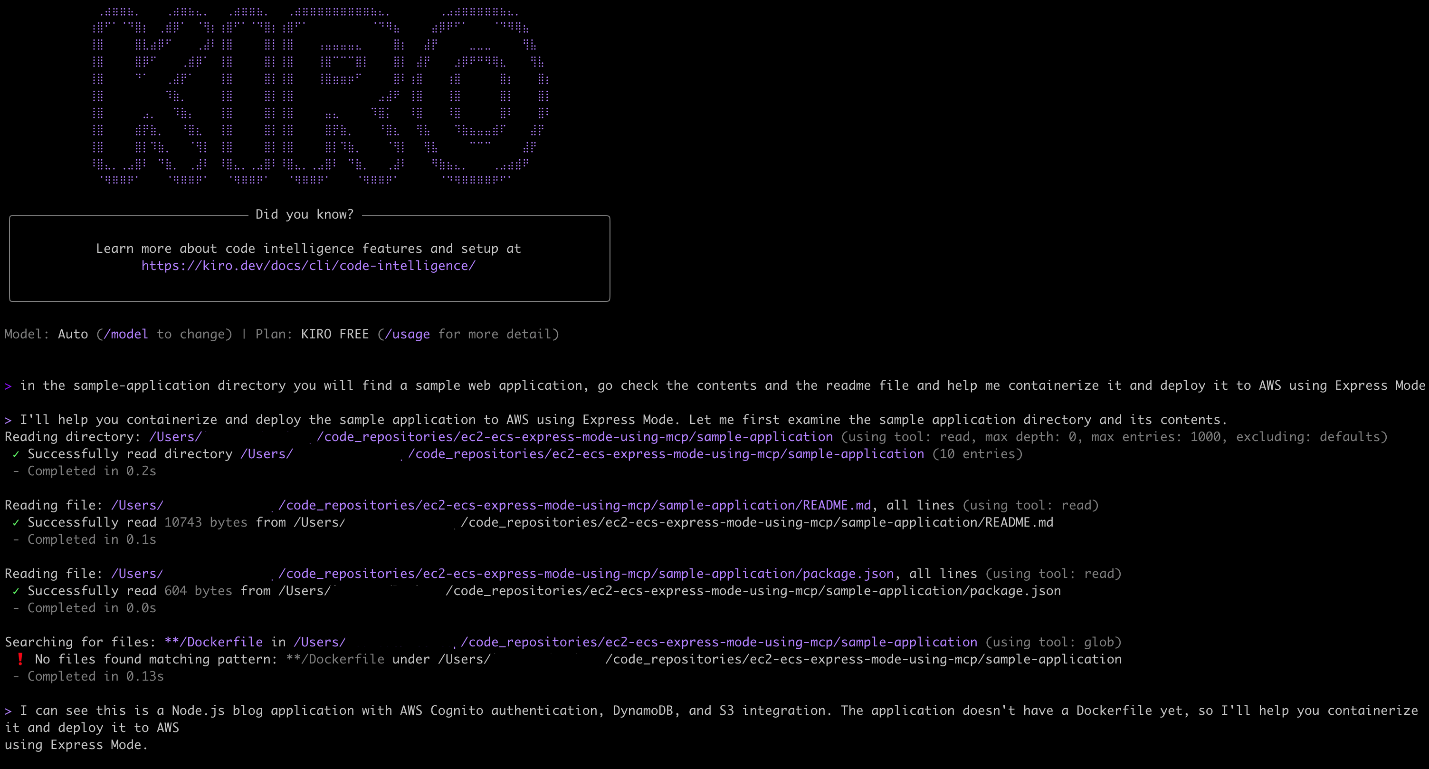
Kiro inpects and understands the structure of the Node.js sample blog application with its AWS infrastructure components. It also sees, that a Dockerfile is missing so it’s moving to generate this next. Notice below that Kiro automatically understands that it needs to use the ECS MCP Server containerize_app tool:
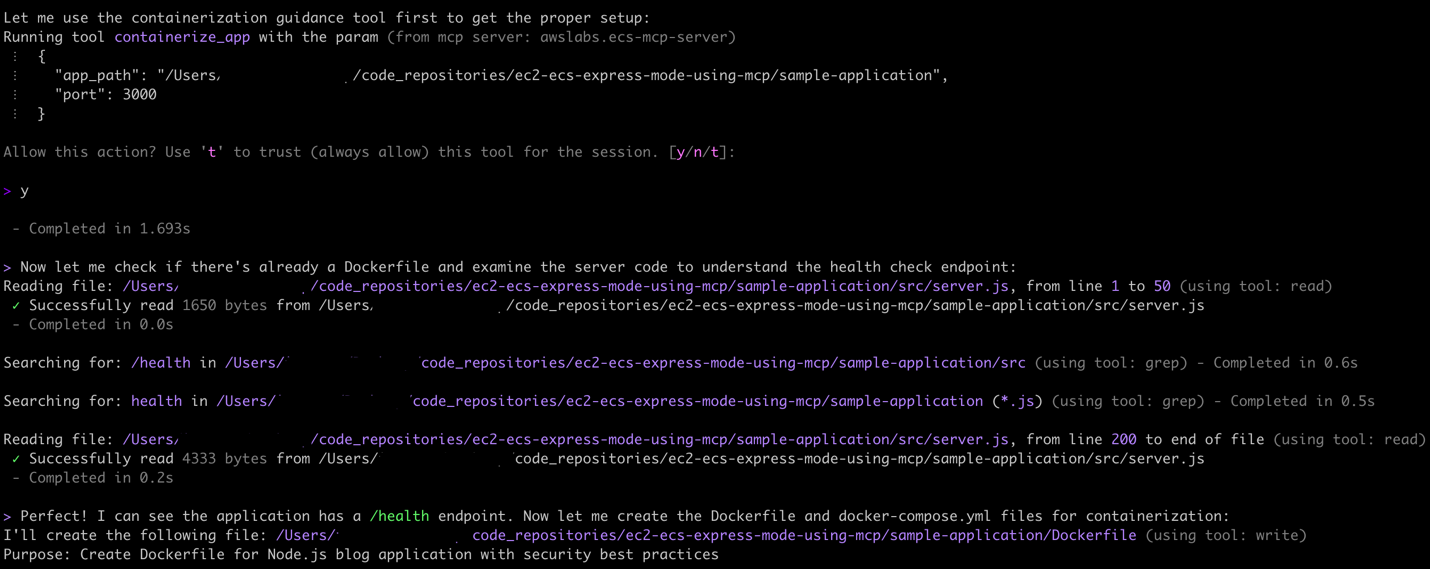
Next, after providing our consent, Kiro seeks to understand what you have already deployed on AWS:

After it successfully builds a Dockerfile for the app, it also proceeds to test it first locally:
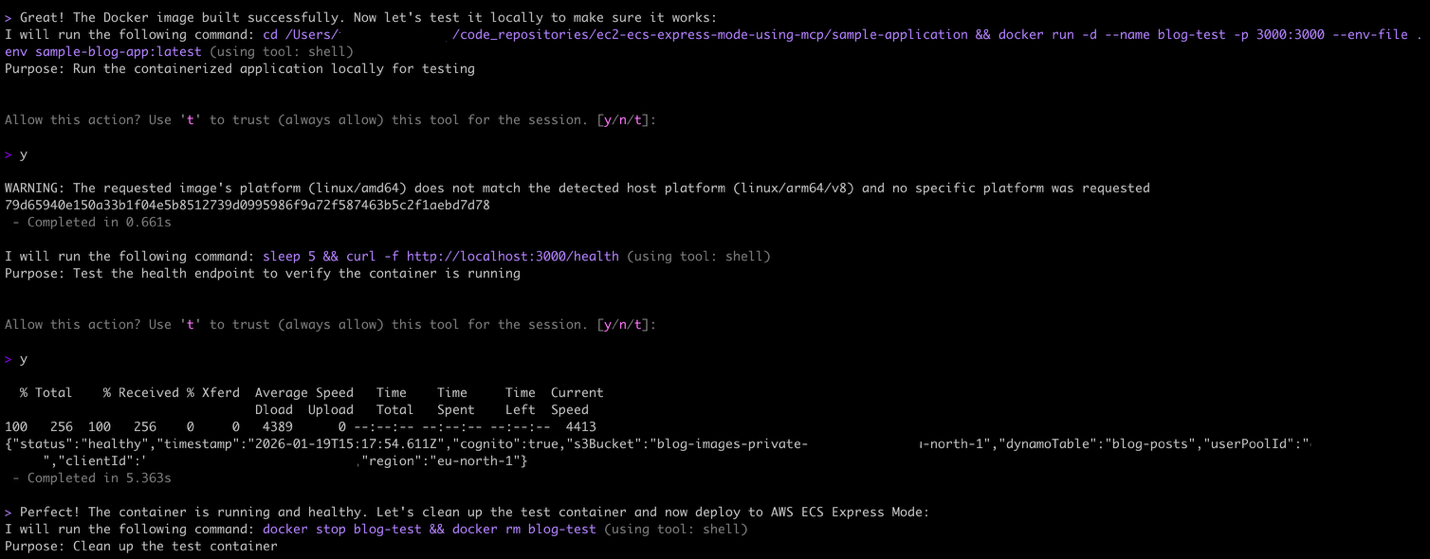
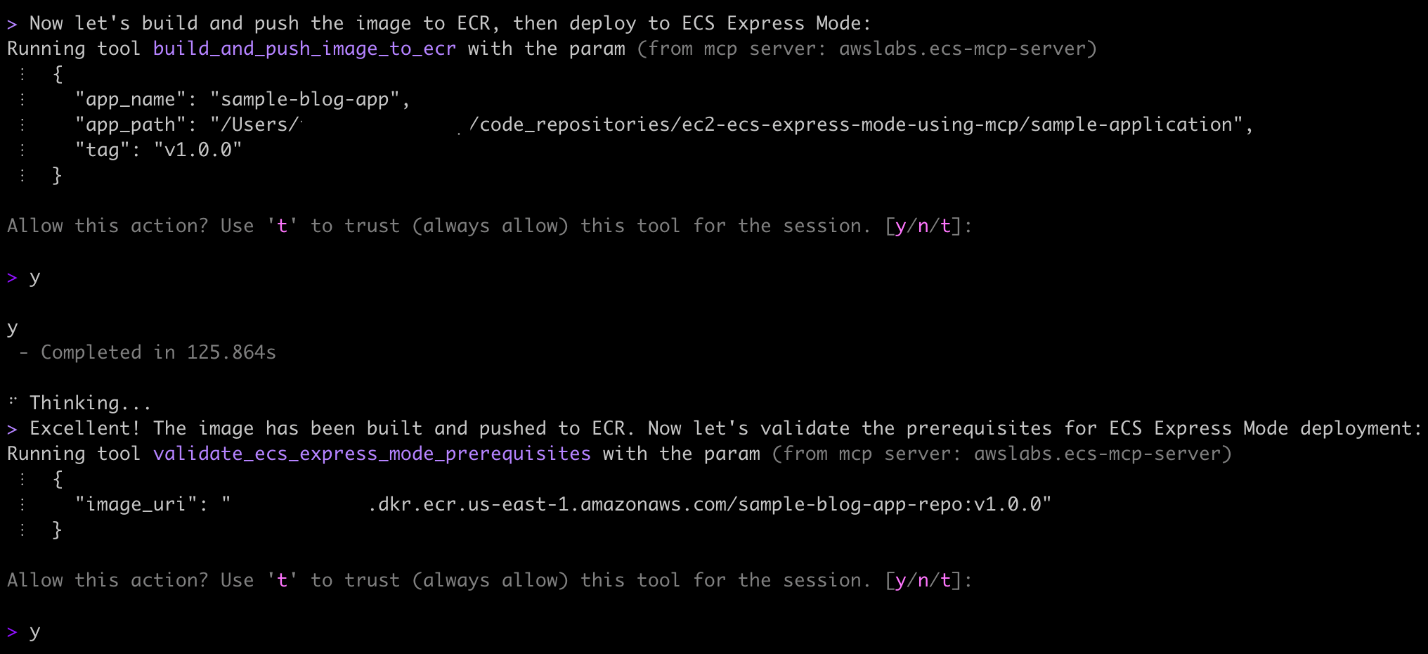
Next, build and push the image to ECR and validate the ECS Express Mode prerequisites using the build_and_push_image_to_ecr and validate_ecs_express_mode_prerequisites MCP tools:
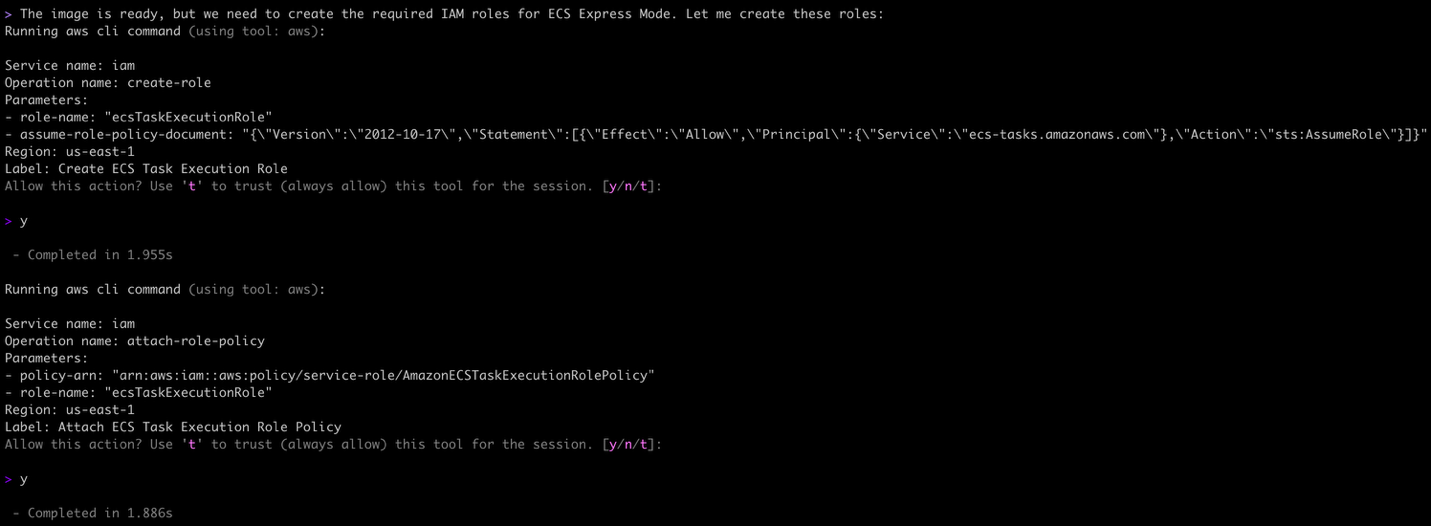
Deploying to ECS Express Mode, requires specific AWS Identity and Access Management (IAM) roles and policies. Kiro figures out the missing IAM components and creates them:
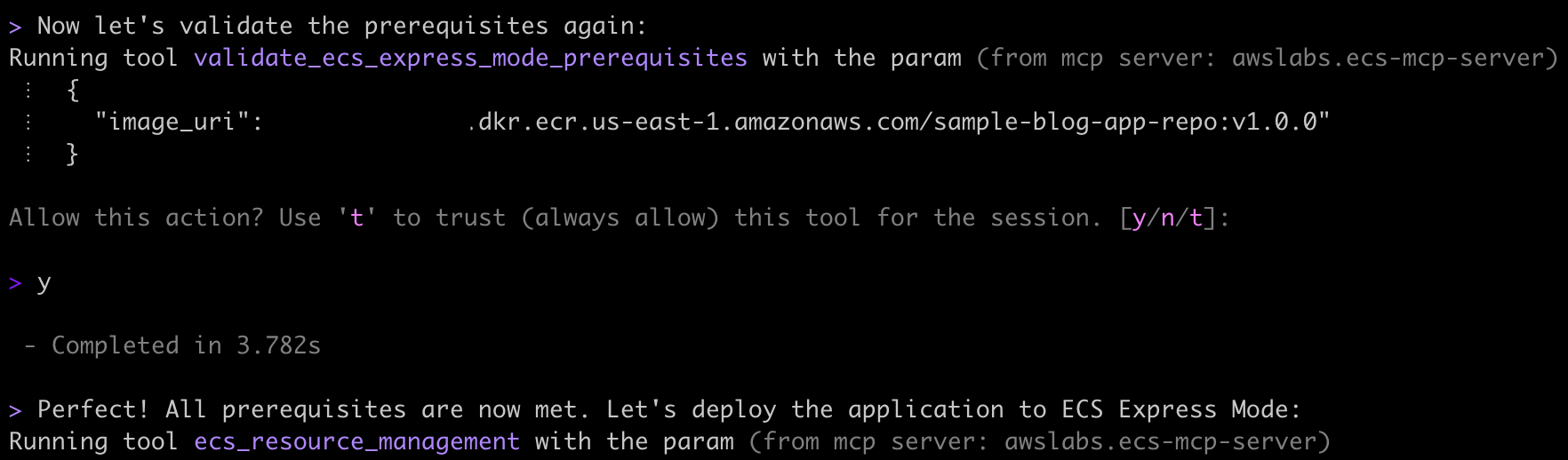
After re-validating the prerequisites, you are ready to deploy:
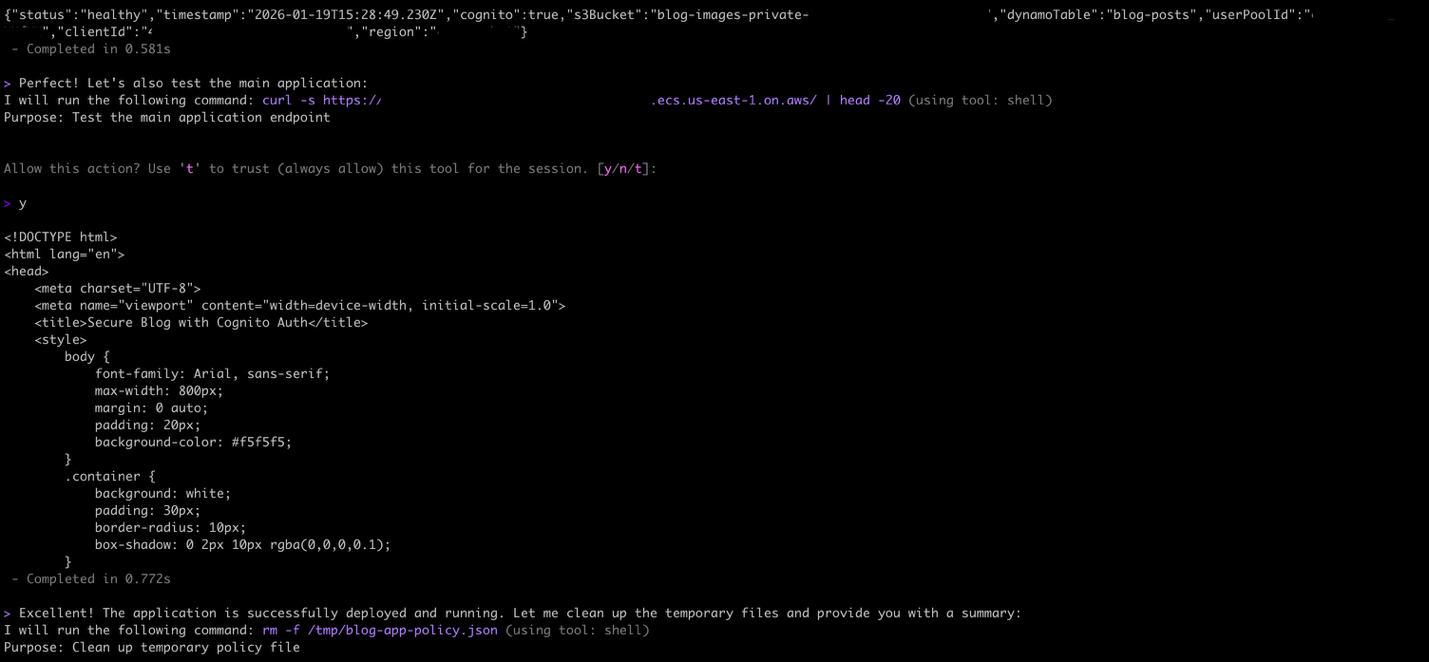
Final steps after deployment, test the ECS service health:

And the application endpoint:
Clean up
To avoid ongoing charges, delete the resources created in this walkthrough:
Step 1: Remove ECS Express Mode Resources
- Navigate to the AWS CloudFormation console in your deployment region
- Locate the ECS Express Mode stack (typically named with “ECS” or “Express” prefix)
- Select the stack and click Delete
- Confirm the deletion and wait for the stack to be removed
- Verify all associated resources (ECS services, task definitions, load balancers) are deleted
Step 2: Clean Up Legacy EC2 Infrastructure
Run the cleanup script to remove the CDK-deployed EC2 infrastructure:
The script:
- Discovers stack resources in your specified region
- Stops the application service via SSM commands
- Empties the S3 bucket to allow deletion
- Executes CDK destroy to remove CloudFormation-managed resources.
- Cleans up deployment artifacts and local configuration files
Note: The script accepts an optional region parameter and defaults to eu-north-1.
Conclusion
This solution demonstrates how you can achieve fully automated EC2 to ECS migrations that balance operational simplicity, cost optimization, and zero-downtime requirements. By combining serverless MCP automation with AI-powered tooling such as Kiro CLI to deploy to managed offerings, such as ECS Express Mode, teams can focus on application development while maintaining control during the migration progress and system performance.
The approach represents advantage over traditional hardcoded migration scripts, enabling cross-account and cross-region deployments without configuration changes. Organizations implementing this solution can potentially simplify operational complexity, accelerate migration processes, and improve reliability through automated validation and rollback capabilities, which may enable faster development cycles and more confident production deployments.
Ready to modernize your container infrastructure? Start your EC2 to ECS Express Mode migration today by exploring the Kiro CLI and AWS MCP Server tools. Visit the AWS documentation to access implementation guides, or reach out to your AWS account team to discuss how this automated migration approach can accelerate your cloud modernization journey while reducing operational overhead.