Containers
Monitor Amazon ECS Events with Amazon EventBridge Filtering
Amazon Elastic Container Service (Amazon ECS) now offers one-click event capture and history querying directly in the Amazon Web Services (AWS) Management Console, providing instant visibility into your container operations. With a single click, you can create an Amazon EventBridge rule and Amazon CloudWatch Logs group to capture all Amazon ECS events for your cluster. But what if you want more control? For production environments with high event volumes, you need to filter out noise and focus on what matters. EventBridge filtering helps you precisely target specific events, thus reducing storage costs and improving troubleshooting.
In this post, we demonstrate how to capture specific Amazon ECS events using EventBridge rules for enhanced monitoring and troubleshooting of your containerized applications. We show you how to customize EventBridge filtering patterns to capture the specific Amazon ECS events that matter for your troubleshooting and monitoring needs. This reduces noise, lowers costs, and provides targeted insights.
Solution overview
Our solution uses EventBridge rules with precise filtering patterns to capture the Amazon ECS events that matter to you and store them in CloudWatch Logs. This solution provides the following benefits:
- Real-time event monitoring as events happen in your container environment
- Configurable long-term retention in CloudWatch Logs to maintain historical data
- Advanced filtering capabilities to reduce noise and focus on critical events
- Cost-effective monitoring without deploying or managing more compute resources
- Low operational overhead because there are no agents or sidecars to install and maintain
Prerequisites
Before implementing this solution, make sure that you have the following prerequisites:
- An AWS account with appropriate permissions
- One or more ECS clusters with running services
- AWS Command Line Interface (AWS CLI) (version 2.0 or later) installed and configured
- Basic familiarity with Amazon ECS service concepts and EventBridge event patterns
Necessary AWS Identity and Access Management (IAM) permissions:
events:PutRuleevents:PutTargetslogs:CreateLogGrouplogs:CreateLogStreamlogs:PutLogEventsecs:DescribeServicesecs:UpdateServiceecs:DescribeClusters
As a best practice, we recommend following the principle of least privilege with any role/user. To control access to CloudWatch Log groups, follow these steps. For Amazon ECS resource based policies, go to the examples in this developer guide.
Understanding Amazon ECS events in EventBridge
Before implementing event filtering, you must understand the types of events that Amazon ECS generates and how they flow through EventBridge. Amazon ECS automatically emits detailed events that provide insights into the lifecycle and operational state of your containers, tasks, and services. When Amazon ECS emits the events to EventBridge, it is possible to set different targets to which EventBridge can forward the event, such as CloudWatch Logs.
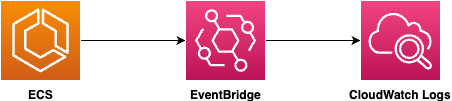
Figure 1: Amazon ECS event flow from Amazon ECS to CloudWatch Logs through EventBridge
The Amazon ECS events fall into several main categories that help you monitor different aspects of your container operations. In the following section we examine the key event types that you can monitor.
Amazon ECS service action and deployment state change events
These events give you visibility into critical service-level operations. For example, you can know immediately when:
- A service deployment fails
- A service can’t start tasks consistently
- Service scaling operations occur
- Auto scaling activities happen
These insights help you quickly detect and troubleshoot service-level issues before they impact your users. For a complete reference, go to the Amazon ECS service action events documentation.
Amazon ECS task state change events
These events provide detailed task lifecycle information. If you would like to capture specific task failure events or task failure events in general, then you can do so with the Amazon ECS task state change events.
EventBridge filtering patterns
EventBridge rules enable precise event filtering using JSON patterns. You can use precise event filtering to reduce your CloudWatch Logs storage costs by only capturing events in which you are interested.
To create an EventBridge rule and start capturing events in CloudWatch Logs, you can enable the one-click event capture and event history in the Console. This enables basic cluster-wide monitoring in the cluster with the event pattern:
However, if more scoped down filtering is needed (for example, to lower CloudWatch Log costs), then the pattern can be further scoped down.
Service-specific monitoring
Furthermore, beyond cluster level scoping, you can also scope down the event filter even further to just a set of Amazon ECS services within a cluster:
Replace your account ID, AWS Region, and cluster name accordingly.
Failure-focused monitoring
When you are monitoring and troubleshooting container environments and you must capture task placement failures, deployment failures, and specific resource availability issues. Then, the event rule can be configured to filter on the reason and event name to make sure that the necessary failures are captured.
For example, in the following event, events are generated for any task placement failures and deployment failures. These events are further scoped down to only capture specific reasons limited to unavailable container instances in the cluster (RESOURCE:INSTANCE), not enough CPU/Memory (RESOURCE:CPU , RESOURCE:MEMORY ) for the tasks that need to be scheduled, or no Fargate Spot capacity for your Fargate tasks (RESOURCE:FARGATE). More details on what events can be used can be found in the documentation.
Replace your account ID, AWS Region, and cluster name accordingly.
Task stop reason filtering
For Amazon ECS tasks and monitoring specific stopped reasons, for example when an application in a task fails, the event rule can be further scoped down to capture the STOPPED task status with the specific stoppedReason, for example Essential container in task exited.
Replace your account ID, AWS Region, and cluster name accordingly.
Walkthrough
In this section you create a custom EventBridge rule to capture specific Amazon ECS events. If you’ve already used the one-click event capture in the Console, then you can modify the existing rule instead.
- Open the EventBridge console and choose Rules.
- Choose Create rule.
- Enter a name for your rule (for example “ECS-MemoryFailures”), add an optional description, and choose the default event bus.
- Under Rule type, choose Rule with an event pattern.
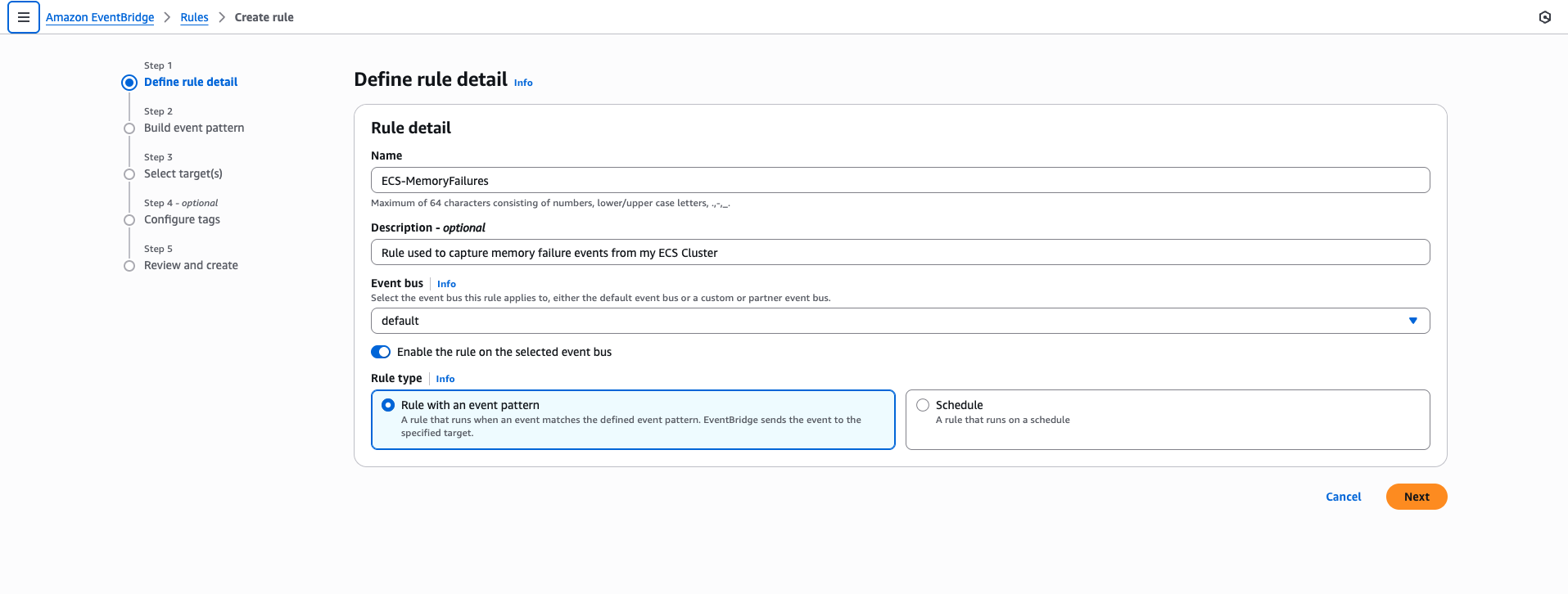
Figure 2: EventBridge rule detail fields
- Choose Next.
- On the Build event pattern page, scroll down and choose Custom pattern (JSON editor).
- Paste your filtered event pattern into the editor. For example, to capture only memory-related task placement failures:
Replace your account ID, AWS Region, and cluster name accordingly.

Figure 3: EventBridge event pattern for ECS cluster events
- Choose Next.
- Choose AWS Service as the target type and choose CloudWatch log group from the drop down list. You can either create a new log group or use an existing log group (for example “/aws/events/ecs-memory-failures”).
- Choose Next, add any desired tags, then choose Next again.
- Review your configuration and choose Create rule.
To test the rule, you can create a cluster that has one container instance with 1 GB memory and start a task that needs 3 GB memory. This causes a task placement failure because the container instance in the cluster does not have the resources to support the task.
Looking into CloudWatch, you can observe that the event has been captured in the log group, as shown in the following figure.
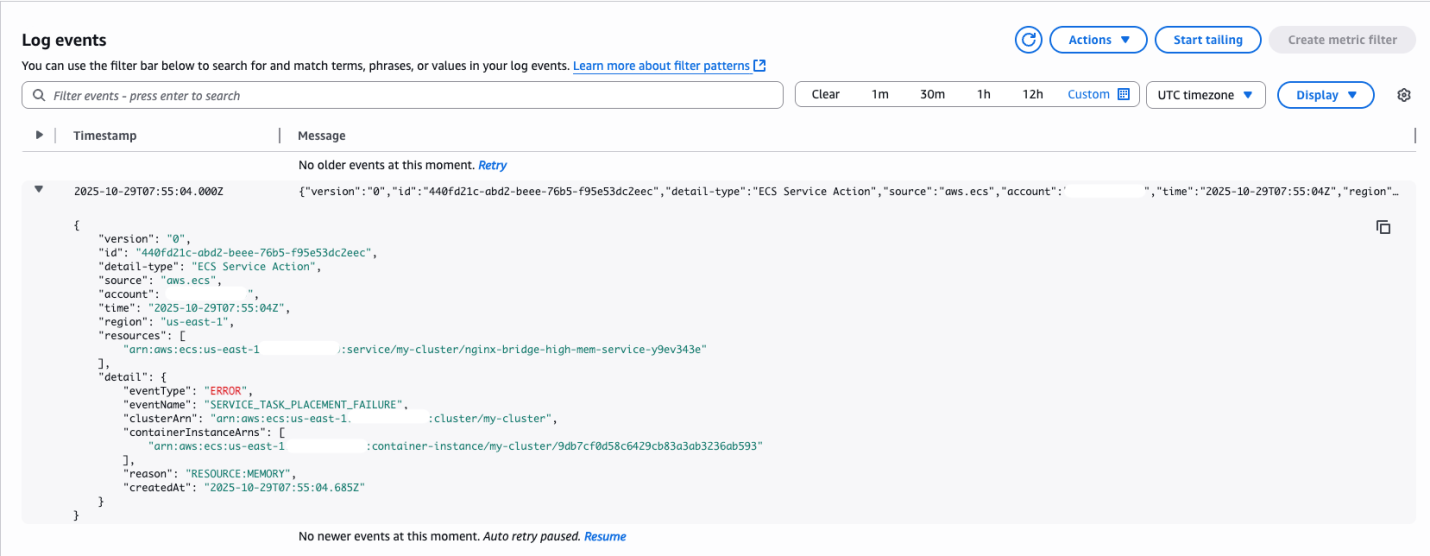
Figure 4: Amazon ECS memory task placement failure event in CloudWatch Logs
As shown in the event, you have details on why the task could not be placed RESOURCE:MEMORY and the specific cluster and service details for the given task placement failure.
Cost considerations
To understand the cost considerations of this solution, refer to the CloudWatch Logs pricing. EventBridge comes with no further charges for AWS service events.
Cleaning up
To disable the EventBridge rules and stop Amazon ECS events from being forwarded to your CloudWatch Log group, disable or delete the EventBridge rule. To disable the rule using the CLI:
$ aws events disable-rule --name "your-rule-name" --region <your-region>
To delete the rule, first remove the targets. You must first identify the target rule:
$ aws events list-targets-by-rule --rule "your-rule-name" --region <your-region>
Then, use the target ID in the RemoveTargets command:
$ aws events remove-targets --rule "your-rule-name" --ids "<target-id>" --region <your-region>
Delete the rule:
$ aws events delete-rule --name "your-rule-name" --region <your-region>
When the rule has been disabled/deleted, you can further delete the log group:
$ aws logs delete-log-group --log-group-name my-logs --region <your-region>
Conclusion
EventBridge filtering transforms how you monitor your Amazon ECS environments by focusing on the events that truly matter. This targeted approach helps you quickly identify and resolve issues with precise event filtering, reduce noise and storage costs through customized event capture, create comprehensive troubleshooting workflows and audit trails, and build a historical database of container operations for trend analysis. You can use this solution to analyze deployment patterns, troubleshoot issues from weeks ago, and maintain detailed records for your troubleshooting requirements—all while keeping costs under control.
Take your Amazon ECS monitoring to the next level with more enhancements to your implementation. Implement advanced analytics by using Amazon CloudWatch Logs Insights to analyze your Amazon ECS lifecycle events with powerful query capabilities that help you extract patterns and insights from your event data. Create proactive alerts by setting up CloudWatch alarms that trigger when specific patterns appear in your events, such as repeated task failures or resource constraints. Consider integrating with operational workflows by forwarding critical events to Amazon Simple Notification Service (Amazon SNS) topics, Lambda functions, or ticketing systems to automate your response to container issues and reduce mean time to resolution. Finally, build comprehensive visualization dashboards that display your Amazon ECS event metrics alongside performance data for complete operational visibility across your container infrastructure. Each of these steps helps you further use the event data that you’re now capturing effectively.
To make sure that there is visibility and alerting for the cost of more CloudWatch logs, CloudWatch billing alarms can be set up to detect any unexpected log ingestion spikes that could indicate misconfiguration or malicious activity.Before deploying this solution in a production environment, you must conduct a thorough security assessment and implement more security controls appropriate for your workload. We also recommend reviewing and complying with your organization’s security policies and consulting with your security team for production hardening.
About the authors
 Israel T. is an Amazon ECS Subject Matter Expert (SME) passionate about helping customers optimize their container environments. With deep expertise in AWS container services (specifically Amazon ECS, Amazon EKS, and AWS Batch), he specializes in deep-diving into service component issues to find solutions for customer pain points. You’ll also find him sharing practical tips on cloud optimization and mentoring the next generation of cloud engineers.
 Nataizya Sikasote has a strong interest in containers (specifically Amazon ECS and Kubernetes) and hands-on development experience in Python and infrastructure as code using AWS CloudFormation and AWS CDK. He brings a comprehensive understanding of both the technical and operational aspects of modern container platforms. Nataizya enjoys enabling customers to build, deploy, and scale containerized applications effectively on AWS.
 Henrique Santana
is a containers specialist that helps organizations modernize their technology stacks through container adoption and orchestration solutions. He’s guided numerous enterprises in overcoming containerization challenges, resulting in improvements in operational efficiency and accelerated time-to-market. When not optimizing container environments, Henrique shares insights from the frontlines of infrastructure to help businesses navigate their cloud-native journeys.
Henrique Santana
is a containers specialist that helps organizations modernize their technology stacks through container adoption and orchestration solutions. He’s guided numerous enterprises in overcoming containerization challenges, resulting in improvements in operational efficiency and accelerated time-to-market. When not optimizing container environments, Henrique shares insights from the frontlines of infrastructure to help businesses navigate their cloud-native journeys.