AWS Database Blog
Synchronizing a Backup on-premises Db2 Server with Amazon RDS for Db2
Amazon Relational Database Service (Amazon RDS) for Db2 provides a fully managed service simplifies relational database administration by automating time-consuming tasks like provisioning, patching, backups, and scaling. It increases operational efficiency, improves high availability via Multi-AZ deployments, and enhances security—all while allowing users to focus on application development rather than infrastructure maintenance.
In this post, we provide guidance on implementing a hybrid architecture where a self-managed Db2 instance remains synchronized with Amazon RDS for Db2 via continuous archive log application, ensuring organizations maintain strategic deployment options without compromising the advantages of cloud-native managed services.
Solution overview
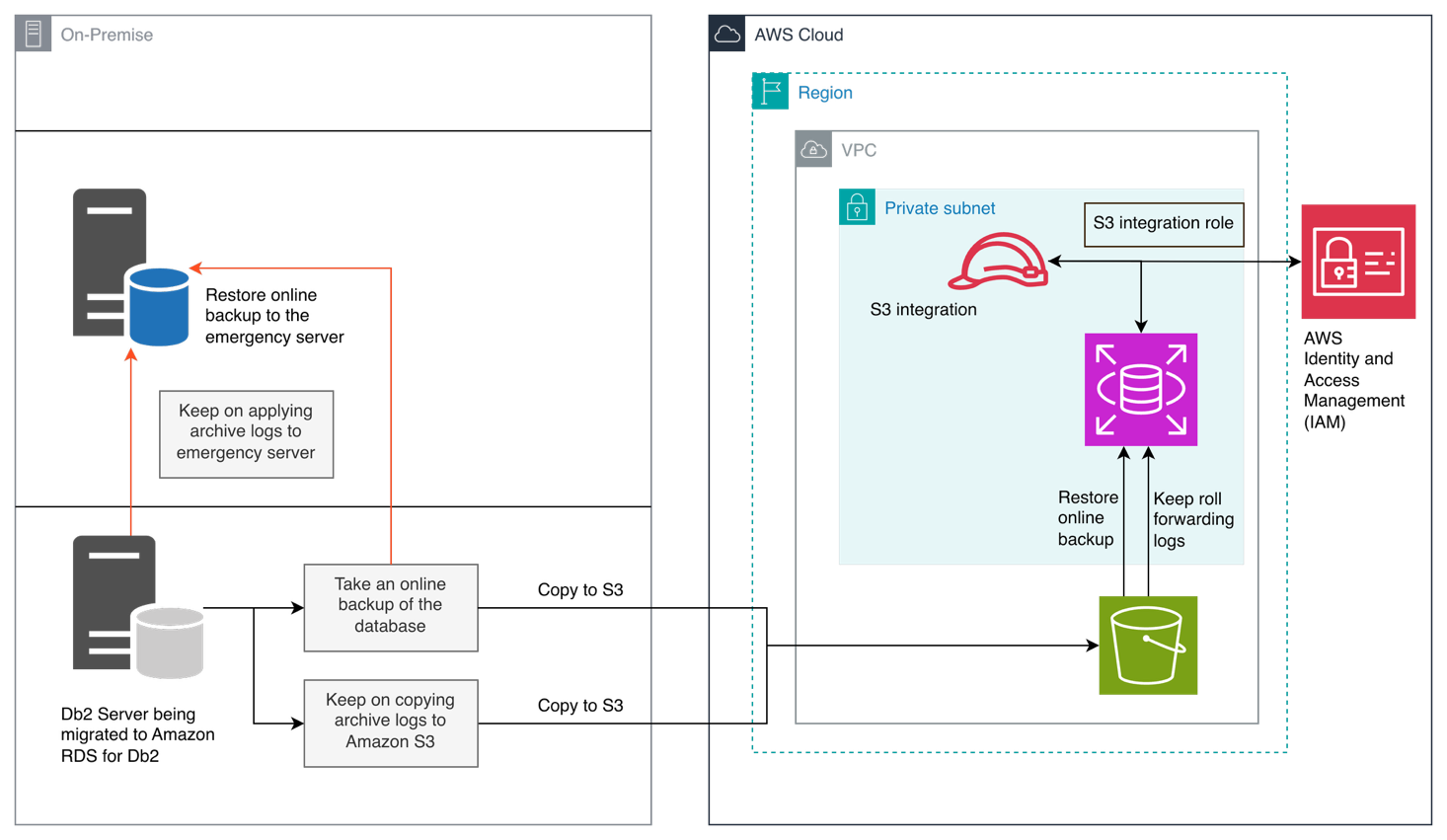
This solution is a hybrid configuration that facilitates the establishment of an optional self-managed Db2 emergency backup server, which maintains synchronization with Amazon RDS for Db2. Essentially, Amazon RDS for Db2 instances replicate archive logs to the your Amazon Simple Storage Service (Amazon S3) bucket, while the self-managed on-premises Db2 instance continues to apply these archive logs. This proactive approach ensures that the backup is in real-time alignment, poised to activate during unforeseen disruptions.
The solution involves 3 stages.
Stage-1: Establish Database on Amazon RDS for Db2
- Restore database to Amazon RDS for Db2
- Restore database to emergency self-managed backup server
- Keep on applying archive logs to the Amazon RDS for Db2
- Keep on applying archive logs to emergency self-managed backup server
Stage-2: Transition to Amazon RDS for Db2
- Apply last roll forward log and complete roll forward process
- RDS for Db2 becomes connectible
- Applications are switched to connect to Amazon RDS for Db2
- Old self-managed Db2 server is stopped or repurposed
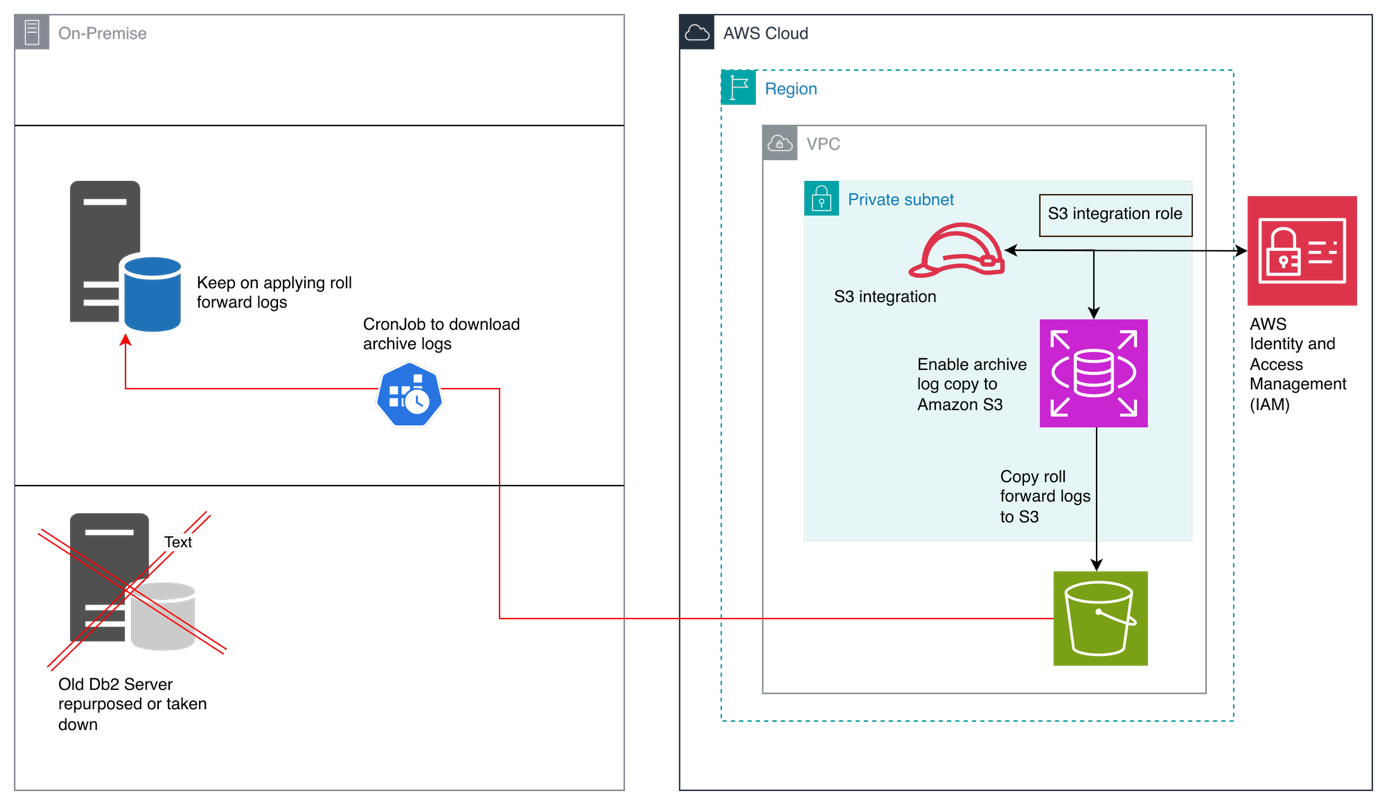
Stage-3: Establish Continuous Backup Alignment with Amazon RDS for Db2
- Keep emergency backup server in sync with archive logs
- Emergency backup server remains in perpetual roll forward pending mode
- Optionally – apply last log and complete the roll forward operation and make the database connectible if a situation arises to switch back to self-managed server
Prerequisites
You can only copy RDS for Db2 archive logs to Amazon S3 if the database backup duration was set when it was created. It’s necessary to enable backup duration period to allow generation of archive logs.
Note: Specify your your-db-instance-identifier and number of days (valid values from 1 to 35 days).
In the following sections, we walk through the steps to copy RDS for Db2 archive log files to an Amazon S3 bucket.
Before setting up archive log copy to Amazon S3, ensure you have:
- An active Amazon RDS for Db2 instance
- An Amazon S3 bucket for storing backups and archive logs
- Appropriate AWS Identity and Access Management (IAM) permissions for Amazon S3 integration (detailed in the next section)
- A self-managed Db2 instance (on Amazon EC2, other cloud providers, or on premises) running a compatible Db2 version
- Network connectivity to download files from Amazon S3 to your self-managed Db2 server
Configure Amazon S3 integration and permissions
To enable Amazon RDS for Db2 to copy archive logs to your S3 bucket, you must set up the appropriate IAM permissions. This process is similar to the standard Amazon S3 integration for Amazon RDS for Db2.
Complete the following steps:
- Create an IAM policy that grants Amazon RDS for Db2 access to your S3 bucket:
Note: Replace <amzn-s3-demo-bucket> with the name of your S3 bucket.
- Create an IAM role with the policy you just created.
- Add the following trust relationship to allow Amazon RDS to assume this role:
- Associate this IAM role with your RDS for Db2 instance through the AWS Management Console or AWS Command Line Interface (AWS CLI).
Enable archive log copying to Amazon S3 (Stage 1)
This initial stage establishes the foundation for continuous synchronization by configuring Amazon RDS for Db2 to automatically replicate archive logs to your S3 bucket. Once enabled, archive logs are continuously uploaded to S3, creating a real-time stream of transaction data that can be applied to maintain database consistency across your hybrid architecture.
After you configure the IAM permissions, you can enable archive log copying on your RDS for Db2 instance. Complete the following steps:
- Connect to your RDS for Db2
RDSADMINdatabase and set the target S3 location for archive logs:Replace
<my_rds_db2_backups>with your actual S3 bucket name and specify the desired <prefix path>. - Enable archive log copying for your specific database:
Replace
<database_name>with your actual database name (for example,RLSDB1). - To verify the configuration, check the status of archive log copying:
Look for
ARCHIVE_LOG_COPYstatus showingENABLEDfor your database.
For more details on copying archive logs to Amazon S3, see Copying archive logs to Amazon S3.
Restore database on self-managed Db2 instance (Stage-2)
In this stage, you establish the baseline for your self-managed Db2 instance by restoring from an online backup image—either from your original migration backup or a fresh backup taken from Amazon RDS for Db2. The restore operation leaves the database in roll-forward pending state, ready to receive and apply the continuous stream of archive logs from Amazon S3.
We need an online backup image that can be applied to the self-managed emergency backup Db2 server. There are two possibilities in this case.
Use same online backup to apply on emergency backup server
During the migration process, a customer takes online backup from their current Db2 on-premises server and applies the same online backup to Amazon RDS for Db2 and to another emergency backup self-managed Db2 server.
Take online backup from Amazon RDS for Db2
You can take an online backup from Amazon RDS for Db2 instance to apply to your on-premises Db2 instance.
This creates a backup image on Amazon S3 that can be restored and then continuously updated using archive logs to another customer managed Db2 server.
Establish Continuous Backup Alignment with Amazon RDS for Db2 (Stage-3)
This final stage implements continuous synchronization by periodically downloading archive logs from S3 and applying them to your self-managed Db2 instance through roll-forward operations. By maintaining the database in roll-forward pending mode and regularly applying new logs, you ensure real-time alignment between your Amazon RDS for Db2 instance and the self-managed backup server, providing operational flexibility for diverse business scenarios.
In your self-managed Db2, create a storage alias for your S3 bucket:
For more information on cataloging storage access, see the IBM Db2 catalog storage access documentation.
Restore the database if backup image is on Amazon S3.
For more information on the restore command, see the IBM Db2 restore documentation.
Restore the database if backup image is on local file system
Omitting WITHOUT ROLLING FORWARD leaves the database in roll-forward pending state.
Apply archive logs (roll-forward)
After you restore an online backup, your database is in roll-forward pending state. You can now continuously apply archive logs to keep it synchronized with your RDS instance.
For continuous log application, complete the following steps:
- On your self-managed system, create a directory for archive logs:
- Download archive logs from S3:
- Apply the logs:
To apply logs up to a specific point in time, use the following code:
Maintaining continuous synchronization
It is your responsibility to monitor the Amazon S3 archive logs. If you decide to delete them, you must start fresh with the database for self-managed Db2. Also, there’s no way to bring back deleted archive logs.
To keep your self-managed database synchronized with Amazon RDS, complete the following steps:
- Set up a scheduled job to periodically download new archive logs:
- Apply new logs as they arrive:
Do not use
and stopif you want to continue applying more logs later. - When you’re ready to make the database available for connections, use the following code:
The and stop clause completes the roll-forward process and makes the database available for connections.
Disabling archive log copying
If you need to disable archive log copying, use the following code:
Monitoring archive log copy status
Regularly check the status of archive log copying:
The following are key fields to monitor:
ARCHIVE_LOG_COPYshould showENABLEDARCHIVE_LOG_LAST_UPLOAD_FILEshows the most recent log file uploadedARCHIVE_LOG_LAST_UPLOAD_FILE_TIMEshows the timestamp of the last uploadARCHIVE_LOG_COPY_STATUSshould showUPLOADINGfor successful uploads
Troubleshooting common issues and solutions
In this section, we discuss common issues and possible solutions.
Configuration errors
You might see the following error messages, which are mainly due to Amazon S3 configuration issues:
S3_INVALID_ARN_FORMAT– The Amazon S3 Amazon Resource Name (ARN) format is invalid. Verify the Amazon S3 ARN is correctly formatted for your AWS partition.S3_NON_S3_SERVICE– The ARN is not for Amazon S3. Provide a valid S3 bucket ARN.S3_REGION_MISMATCH– Archive log copy configuration error: The S3 bucket region does not match your RDS instance region. Please ensure the S3 bucket is in the same region as your RDS instance.S3_ACCOUNT_MISMATCH– The S3 bucket account doesn’t match your AWS account. Make sure the S3 bucket belongs to the same AWS account as your RDS instance.S3_BUCKET_NOT_EXISTS– The S3 bucket doesn’t exist. Create the bucket and try again.S3_BUCKET_OWNERSHIP_MISMATCH– The S3 bucket isn’t owned by your AWS account. Make sure the bucket belongs to the same AWS account as your RDS instance.S3_BUCKET_PUBLIC_ACCESS– The S3 bucket is publicly accessible. For security reasons, disable public access on the bucket.S3_BUCKET_ACCESS_VALIDATION_FAILED– The solution is unable to validate S3 bucket permissions. Verify your IAM role has the necessary permissions to access this bucket.
For more information about Amazon S3 related configuration issues, refer to Viewing Amazon RDS events.
IAM permission errors
If the archive log copy status shows CONFIGURATION_ERROR or backup operations fail with permission errors, troubleshoot as follows:
- Verify the IAM policy includes
s3:PutObject,s3:GetObject,s3:ListBucket, ands3:DeleteObjectpermissions - Ensure the IAM role is properly associated with your RDS instance
- Check the trust relationship allows
rds.amazonaws.comto assume the role - Verify the S3 bucket policy doesn’t have conflicting deny statements
Archive logs not appearing in Amazon S3
If ARCHIVE_LOG_COPY is enabled but no logs appear in Amazon S3, troubleshoot as follows:
- Verify the Amazon S3 ARN is correctly specified in the configuration
- Check that the database has active transactions generating logs
- Review RDS for Db2 error logs for any copy failures
- Ensure the S3 bucket exists and is in the same Region (or cross-Region replication is configured)
Roll-forward fails with missing logs
If your roll-forward operation fails with “log file not found” error, troubleshoot as follows:
- Ensure all archive logs between the backup timestamp and target timestamp are downloaded
- Check the log sequence numbers for gaps
- Verify the overflow log path is correctly specified
- Ensure the Db2 instance user has read permissions on the log directory
Database remains in roll-forward pending state
If the database can’t be connected to after restore, troubleshoot as follows:
- Complete the roll-forward operation with the
and stopclause - If you want to apply more logs later, use
and stoponly when you’re ready to open the database - Check for incomplete roll-forward operations using
db2 list history rollforward for<dbname>
Amazon S3 storage alias connection issues
If you can’t restore directly from Amazon S3 using a storage alias, troubleshoot as follows:
- Verify AWS credentials are properly configured on the self-managed Db2 server
- Check network connectivity to S3 endpoints
- Ensure the storage alias is correctly cataloged using
db2 list storage access - Verify the S3 bucket name and object path are correct
Best practices
Consider implementing the following best practices:
- Regular testing – Periodically test the restore and roll-forward process to ensure your disaster recovery plan works as expected.
- Monitor Amazon S3 costs – Archive logs can accumulate quickly. Implement Amazon S3 lifecycle policies to archive or delete old logs after they’re no longer needed.
- Automate log application – Use cron jobs or scheduled tasks to automatically download and apply logs, reducing manual intervention.
- Maintain log continuity – Ensure you have all logs from the backup timestamp to the current time. Missing logs will break the roll-forward chain.
- Use online backups for synchronization – Use online backups when setting up archive log shipping to Amazon S3 to provide compatibility with roll-forward operations.
- Document timestamps – Keep track of backup timestamps and the last applied log to facilitate troubleshooting and recovery planning.
- Security – Use encryption for data at rest in S3 (SSE-S3 or SSE-KMS) and in transit (SSL/TLS for S3 access).
Clean up
Upon completing the roll-forward process, you can delete the archive logs from the Amazon S3 bucket to reclaim the allocated space. If you are using the solution to test, make sure to delete Amazon S3 bucket, RDS for Db2 instance, EC2 instance and other resources such as IAM.
Conclusion
Copying RDS for Db2 archive logs to a Amazon S3 bucket provides you with a mechanism for maintaining synchronized copies of your database on self-managed infrastructure. This feature gives you the flexibility to take advantage of both the managed benefits of Amazon RDS and the control of self-managed Db2 instances when planning a migration, setting up disaster recovery, or creating development environments.
By following the steps outlined in this post, you can establish a robust data replication pipeline that keeps your self-managed Db2 database synchronized with your RDS instance, with minimal latency and operational overhead.
For more information about Amazon RDS for Db2, refer to the Amazon RDS for Db2 Use Guide.
Acknowledgements
Thanks to Rajib Sarkar and Umair Hussain for carefully reviewing this blog post.