Desktop and Application Streaming
Enabling remote macOS development with Amazon EC2 Mac and Amazon DCV
Amazon DCV now supports Amazon EC2 Mac instances powered by Apple silicon, giving you high‑performance remote access to macOS workloads in the cloud. With this launch, you can connect to your EC2 Mac instances using the same streaming protocol that powers remote access across Amazon WorkSpaces. Stream a Mac desktop at up to 4K resolution and 60 FPS from Windows, Linux, macOS, or a web client, and accelerate iOS, macOS, or other Apple‑platform application development in the cloud.
Getting started with DCV on EC2 Mac
Getting started with DCV on your EC2 Mac instance requires installing and configuring the DCV server. If you already have graphical user interface (GUI) access to your instance, download and install the DCV server for macOS, then grant it the required permissions in the operating system. After installation, create a DCV session for a user on the system. Once a console session is created, you can then connect from any DCV client. For detailed installation steps, see Installing DCV server in the DCV Administration Guide.
If you use image pipelines to prepare EC2 Mac golden images for your environment, you can install DCV server programmatically. The DCV server installer configures the required permissions for you. However, to update macOS permissions programmatically, the installer must write to the underlying Transparency, Consent, and Control (TCC) database. This requires disabling System Integrity Protection (SIP) on macOS for unattended modifications to the TCC database.
EC2 Mac provides API access to modify your SIP configuration on an existing instance. For a complete example of automating the unattended installation and configuration of DCV server on EC2 Mac, see the dcv-samples repository in AWS Samples on GitHub. For detailed instructions, see Using an unattended installation in the DCV Administration Guide.
Connecting to EC2 Mac with DCV
Once you’ve installed DCV server, you need to decide how you would like to design the connection architecture. This depends on your environment’s network topology, session assignment strategy, and security requirements. This section walks through different connection approaches, from simple direct connections to enterprise-scale deployments with DCV Connection Gateway and a DCV Session Manager broker.
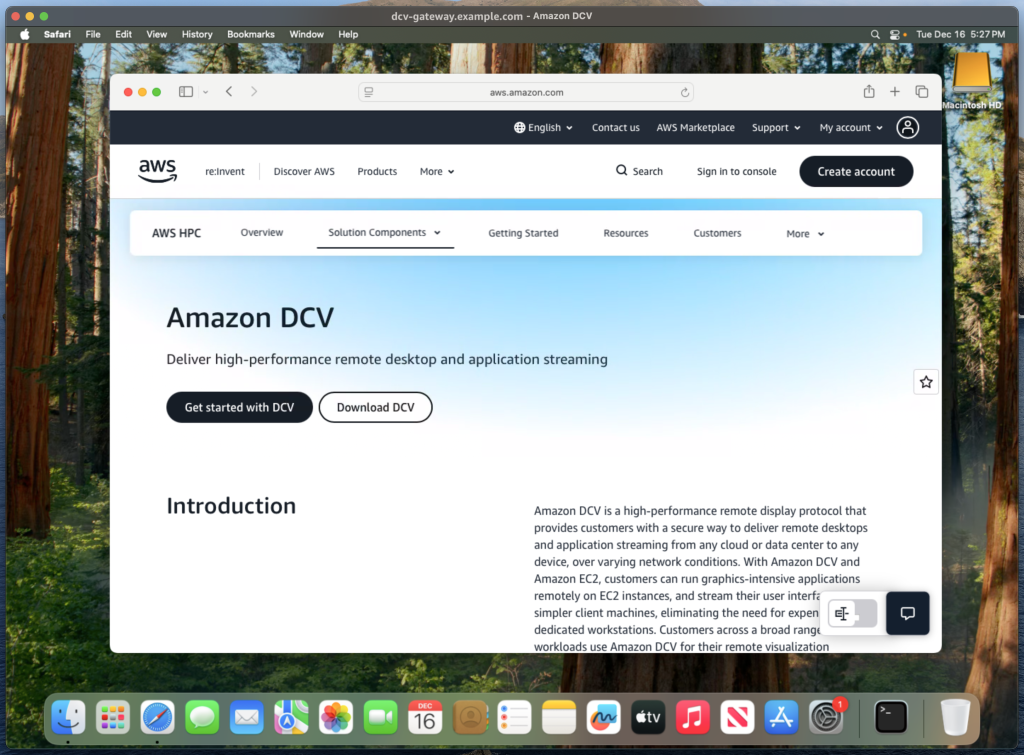
Fig A: DCV Viewer streaming an EC2 Mac desktop
Connecting directly with the DCV Viewer
To stream a remote desktop with DCV, start a session on the DCV server. For instructions on starting sessions, see Starting Amazon DCV sessions in the DCV Administration Guide.
The most straightforward connection method is direct access with DCV Viewer when users can reach the DCV server directly over your network. Consider a common scenario: your users connect to the corporate network via VPN, and your network configuration allows them to reach the DCV server’s private IP address. In this setup, users enter the instance’s IP address or DNS name into the DCV Viewer client application. DCV prompts them for their instance credentials (it uses system authentication by default), and once authenticated, the streaming session begins.
This direct connection approach works well when users consistently connect to the same instance and have private network access to it. However, if your users connect from the public internet, you need dynamic session placement, or you require additional security controls like multi-factor authentication (MFA), consider the more robust solution in the next section.
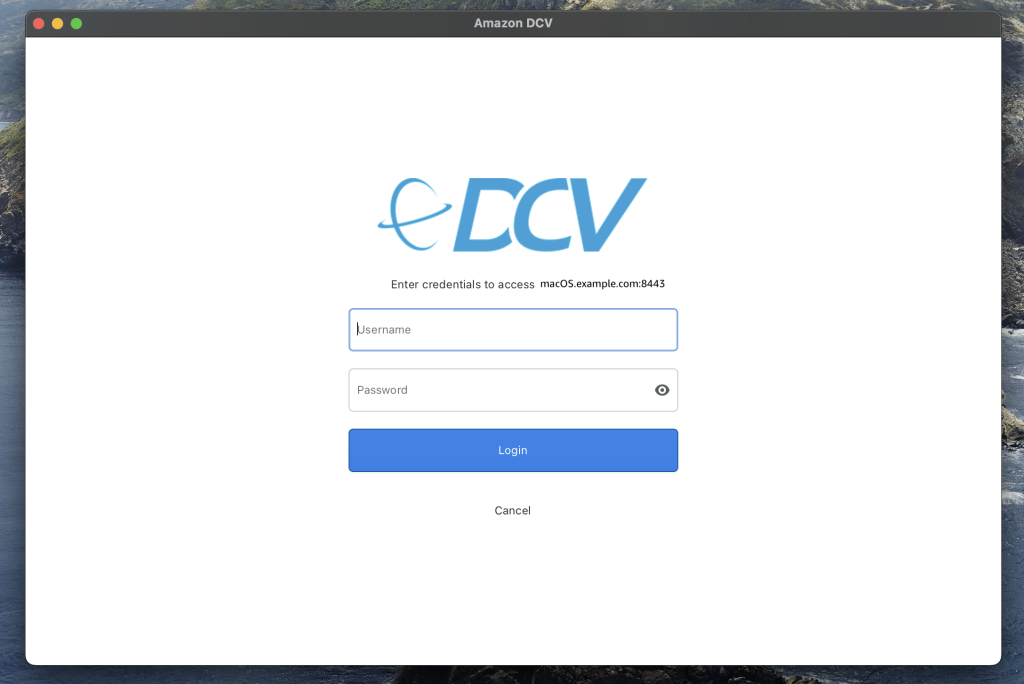
Fig B: DCV Viewer prompting for user credentials to connect to DCV session
Connecting with the Amazon DCV Access Console
The DCV Access Console is an open source web application that simplifies DCV session management for you and your users. It serves as a frontend portal for the DCV Session Manager broker, which provides a unified API to manage all your DCV sessions. The broker consists of a host agent and a broker server. When you call the broker API to create a session on a specific DCV server, it communicates with the DCV Session Manager agent running on that server to place the session.
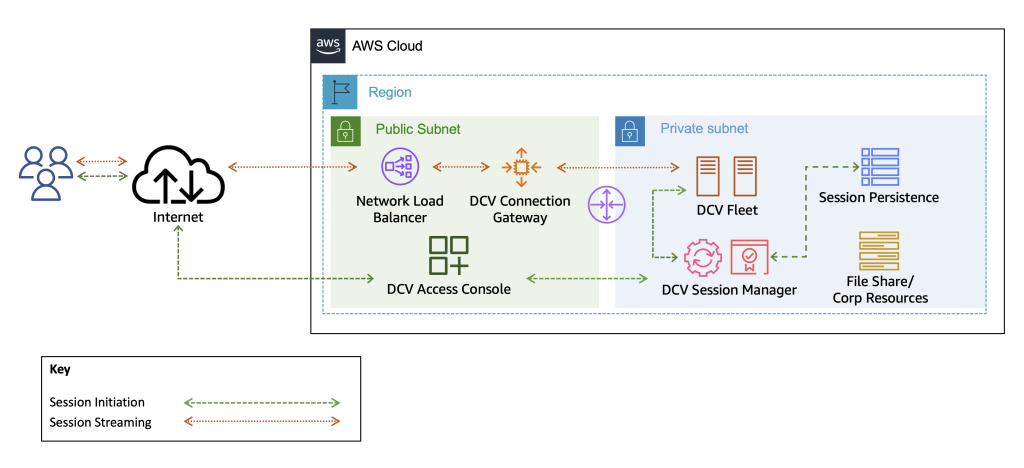
Fig C: DCV Access Console architecture diagram
You could build your own frontend application to work with the broker, but that takes significant development time. The DCV Access Console gives you this functionality ready to use. In addition, it’s open source, so you can customize it to fit your specific needs.
The DCV Access Console also supports the DCV Connection Gateway, a centralized access point that solves the common challenge of connecting users to DCV servers they can’t reach directly. Whether your users are coming from the public internet or segmented networks, the gateway securely routes them to DCV servers in isolated networks.
Since the DCV Access Console is a web application, you can integrate it with AWS security services like Amazon Cognito and AWS WAF. Integrating with Amazon Cognito is particularly powerful because it lets you connect your corporate identity provider through standard protocols like SAML. This means users authenticate through your existing IdP, and you maintain all the security controls you’ve already configured there.
Working with the DCV Access Console
The DCV Access Console streamlines session management through templates. You create session templates that define the configuration for different workloads, such as the target DCV server’s operating system, instance ID, vCPU count, and resource specifications. Then you assign these templates to users or groups based on their roles. When users log in, they see only their assigned templates and can launch sessions configured specifically for their work.
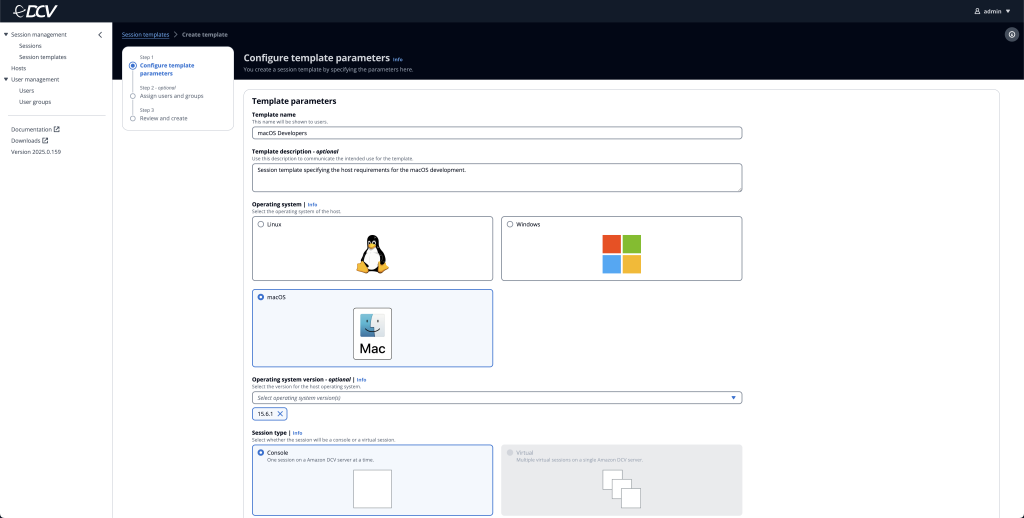
Fig D: DCV Access Console’s session template creation page
The DCV Access Console displays all available hosts in the Hosts tab. Each host runs a DCV Session Manager agent that reports system details and status to the broker. When users request a session, the broker matches them to an appropriate host based on their session template requirements.
You’re responsible for deploying and configuring these DCV servers. Neither the DCV Access Console nor the DCV Session Manager broker deploys servers automatically.
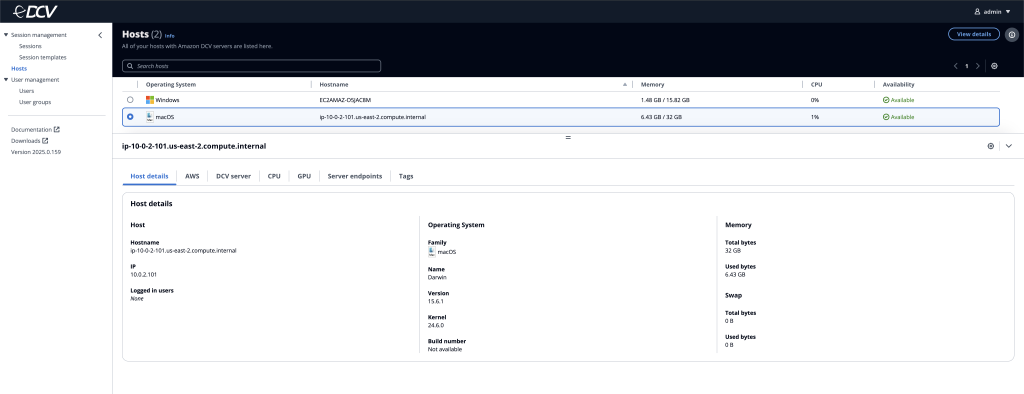
Fig E: DCV Access Console’s Hosts tab displays DCV server information for an EC2 Mac instance
Using the DCV Access Console to connect
After users authenticate through your configured identity provider (like their corporate credentials), they land on the DCV Access Console sessions page. Here, they can request a DCV session by choosing from the session templates you’ve assigned to them.
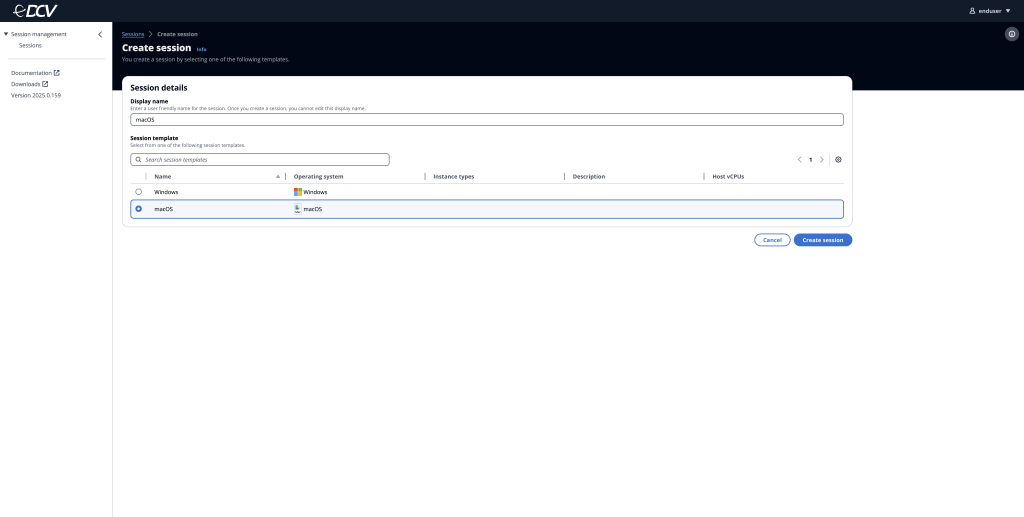
Fig F: DCV Access Console’s session creation page
When the session is ready, users click Connect. They can connect through the web-based client or, if they prefer, use the native DCV Viewer application instead. For detailed instructions, see Using the Amazon DCV Access Console in the DCV Access Console Administration Guide.
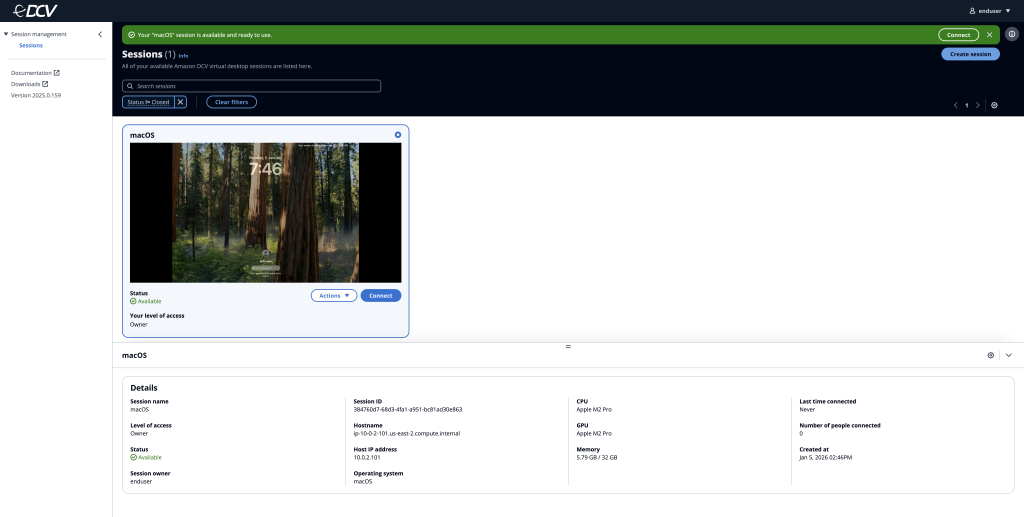
Fig G: DCV Access Console’s user view for connecting to a DCV session
Conclusion
With Amazon DCV now supporting EC2 Mac instances powered by Apple silicon, you can deliver high-performance remote macOS development experiences to your teams. Whether you need simple direct connections for small teams or enterprise-scale deployments with centralized gateways and identity integration, DCV provides the flexibility to match your requirements. You maintain the security and compliance standards you expect from AWS while giving your developers the responsive, high-quality streaming they need to be productive from anywhere.
Ready to get started? Launch an EC2 Mac instance and install DCV server following the steps in this post. For automation examples, including EC2 Mac image creation and DCV Access Console infrastructure deployments, check out the dcv-samples repository. To learn more, visit the Amazon DCV product page and the Amazon EC2 Mac Instances page.
 |
Andrew came to AWS in 2019 from a large datacenter environment where he specialized in VMware, Cisco UCS, and automation. Through his time at AWS, he developed a passion for visualization workloads. In 2022, he started his current role as a Developer Advocate for DCV. |