Migration & Modernization
Increase your cluster density with Memory Tiering in Amazon Elastic VMware Service
Increasing your cluster density by using Memory Tiering within the Amazon Elastic VMware Service (Amazon EVS) can help drive down the costs of your AWS infrastructure. Amazon EVS now supports VMware Cloud Foundation (VCF) 9.0 and 9.1 . In VMware Cloud Foundation (VCF) 9.0 Memory Tiering was introduced, which is a new feature within ESX that uses high-speed NVMe devices as a second memory tier alongside DRAM. You can turn on this capability on both currently available Amazon EVS instance types, i4i.metal and i7i.metal-24xl. We will dive deep into what Memory Tiering is, how it changes the way you size a cluster, and how to activate and deactivate the feature on a VCF 9.1 deployment running in Amazon EVS.
Introduction to Memory Tiering in VCF 9.1
Memory Tiering is host level feature integrated into the ESX kernel that allows you to present two tiers of memory to the hypervisor: Tier 0 consisting of the physical hosts DRAM, and Tier 1 consisting of the local hosts NVMe. The tiering algorithm in the memory management layer monitors page activity across both tiers, keeping frequently accessed (hot) pages in DRAM and moving infrequently accessed (cold) pages to the slower NVMe tier. Cold pages begin tiering to NVMe when host memory consumption reaches approximately 80% of DRAM capacity. Page classification is based on both recency and frequency of access, so the working set that your workloads actively use stays in DRAM while idle memory is held on the slower tier.
Memory tiering shouldn’t be confused memory swap. Swap uses random page selection and often shares a device with guest storage. Memory Tiering uses dedicated, direct-attached NVMe and page aging techniques, that deliver predictable performance rather than acting only as a safety valve under extreme pressure. Only VM memory pages are tiered; kernel memory is never tiered.
With VCF 9.1, the Memory Tiering configuration is configured using vSphere Configuration Profiles, also called Desired State Configuration, and applied consistently across every host in a cluster. There are no per-host ESX CLI commands or scripts to maintain. VCF 9.1 also adds software mirroring for the Tier 1 layer, providing redundancy for tiered memory without additional RAID hardware.
How Amazon EVS supports Memory Tiering
Amazon EVS runs VCF directly within your Amazon Virtual Private Cloud (Amazon VPC) on bare-metal instances. Memory Tiering is supported on both instance types that Amazon EVS currently offers: i4i.metal and i7i.metal-24xl. The instance NVMe on both types can handle the required write endurance for the sustained write activity that tiering generates, so no additional drive qualification is required on your part.
There are key architectural difference between Amazon EVS host hardware and a typical on-premises host. On premises, you can add dedicated NVMe devices to a host specifically for Memory Tiering. On Amazon EVS, the local NVMe on both instance types will be claimed by vSAN during deployment. To use a drive for Memory Tiering, you must first remove it from vSAN and then assign it to the memory tier. Given that Amazon EVS is using hyperconverged storage architecture, capacity dedicated to Memory Tiering is capacity taken away from vSAN. We will dive deeper into the trade off of using NVMe for memory tiering versus using it for vSAN in the next section.
The Effect of Memory Tiering on Cluster Sizing
When you are constrained by the physical memory in your cluster sizing, you use Memory Tiering to increase the effective memory capacity of a cluster without needing to add additional hosts. Understanding how that changes your sizing math, and how many hosts deploy in Amazon EVS, is the difference between a well-planned deployment and an over-committed one.
How the two tiers combine into effective memory
Combining our two tiers allows us to create our effective memory. The first number we need is our total DRAM, which is your fast Tier 0 memory. The second number we will use is the NVMe device you assign to tiering which will become Tier 1 memory. These two numbers will combine to create our final number,which is effective memory, the total the hypervisor can present to your VMs, DRAM plus the NVMe tier added together
How many NVMe devices that get added to the total is configured via one host setting, the DRAM-to-NVMe ratio, expressed as a tier size percentage. VCF 9.1 in Amazon EVS uses the default 1:1 ratio, which is a tier size percentage of 100%. Using a 1:1 ratio means the NVMe tier contributes an amount equal to your DRAM. A host with 1 TB of DRAM and a 1:1 ratio gains 1 TB of NVMe tier, for 2 TB of effective memory. This is how we double the effective memory using the default ratio.
The table below illustrates a 4 host cluster with 1 TB of DRAM per host. These are round numbers chosen to make the math obvious; substitute the actual DRAM of your instance type when you size your own environment.
| Metric | Without Memory Tiering | With Memory Tiering (1:1 ratio) |
|---|---|---|
| DRAM (Tier 0) | 4 TB | 4 TB |
| NVMe tier (Tier 1) | 0 TB | 4 TB |
| Effective memory (Tier 0 + Tier 1) | 4 TB | 8 TB (2x DRAM) |
Table 1: Effective cluster memory with the default 1:1 ratio (illustrative 4-host cluster)
Active memory is the constraint that matters
Doubling addressable memory does not mean you can double every workload without proper analysis. We will architect our sizing based on the active memory metric, the pages the VMs are using currently. Do not confuse this with consumed memory, which includes idle memory. Most workloads maintain an active memory range of 10% to 30% of consumed memory. For good performance, the active memory of your workloads should remain within the DRAM tier. Broadcom guidance is to identify hosts and clusters where pre-tiering active memory is between 0% and 50% of existing DRAM capacity, and to keep active memory below roughly 50% of DRAM after turning on the feature.
Applying that to the four-host example: suppose the cluster runs at 80% consumed and 20% active before tiering, then doubles VM density after tiering. Consumed memory rises from 3.2 TB to 6.4 TB, which the 8 TB effective capacity absorbs. Active memory rises from 0.8 TB to 1.6 TB, which is 40% of the 4 TB DRAM tier, still inside the 50% target. In this configuration example the cluster can house twice the VMs while active memory stays within DRAM.
| Metric | Before (baseline) | After (2x VM density) |
|---|---|---|
| Consumed memory | 3.2 TB | 6.4 TB |
| Active memory | 0.8 TB | 1.6 TB |
| Active as % of DRAM | 20% | 40% (target < 50%) |
Table 2: Consolidation headroom when active memory stays within DRAM
The vSAN tradeoff on Amazon EVS
On Amazon EVS, this additional memory is not free capacity. Because vSAN claims all the local NVMe at deployment, every drive you reassign to Memory Tiering is a drive removed from the vSAN datastore. In the four-host example, moving 1 TB of NVMe per host to the memory tier reduces cluster vSAN raw capacity by 4 TB. You are trading storage capacity for memory capacity.
You will need to ensure that vSAN is not constrained before activating the feature. Confirm that your vSAN datastore has enough free capacity and policy headroom to lose the drives you intend to reclaim, and that the resulting storage footprint still meets your workload and availability requirements after full data evacuation. If a cluster is already tight on vSAN capacity, Memory Tiering may not be the right choice until storage is addressed. You can add external storage such as Amazon FSx for NetApp ONTAP to reduce the impact of the local storage loss.
Guidance
- Use the default 1:1 DRAM-to-NVMe ratio unless you have historical active-memory data that justifies a different setting. NVMe tier size should be at least as large as DRAM.
- Do not use memory overcommit when Memory Tiering is active. The two mechanisms work against each other and can degrade performance under load.
- Expect vMotion and DRS operations to take longer because pages must be fetched from the NVMe tier, though there is almost no performance impact on the running VM during migration.
- Account for the vSAN capacity you give up, in every sizing exercise.
Activating Memory Tiering on a VCF 9.1 Deployment in Amazon EVS
On Amazon EVS, activating Memory Tiering is a two-part process. First, you reclaim the NVMe device from vSAN, then you configure the memory tier through a Desired State Configuration draft applied across the cluster. Because the hosts enter maintenance mode as the configuration is applied, these steps are typically non-disruptive, but may want to be done during a scheduled maintenance window.
Prerequisites
- A VCF 9.1 deployment operational on Amazon EVS (i4i.metal or i7i.metal-24xl).
- Administrative permissions to manage cluster configuration profiles.
- vMotion-compatible VMs so the automation can live-migrate workloads during each host maintenance window.
- Sufficient free vSAN capacity to absorb full data evacuation of the drives you intend to reclaim.
Step 1: Remove the NVMe drive from vSAN
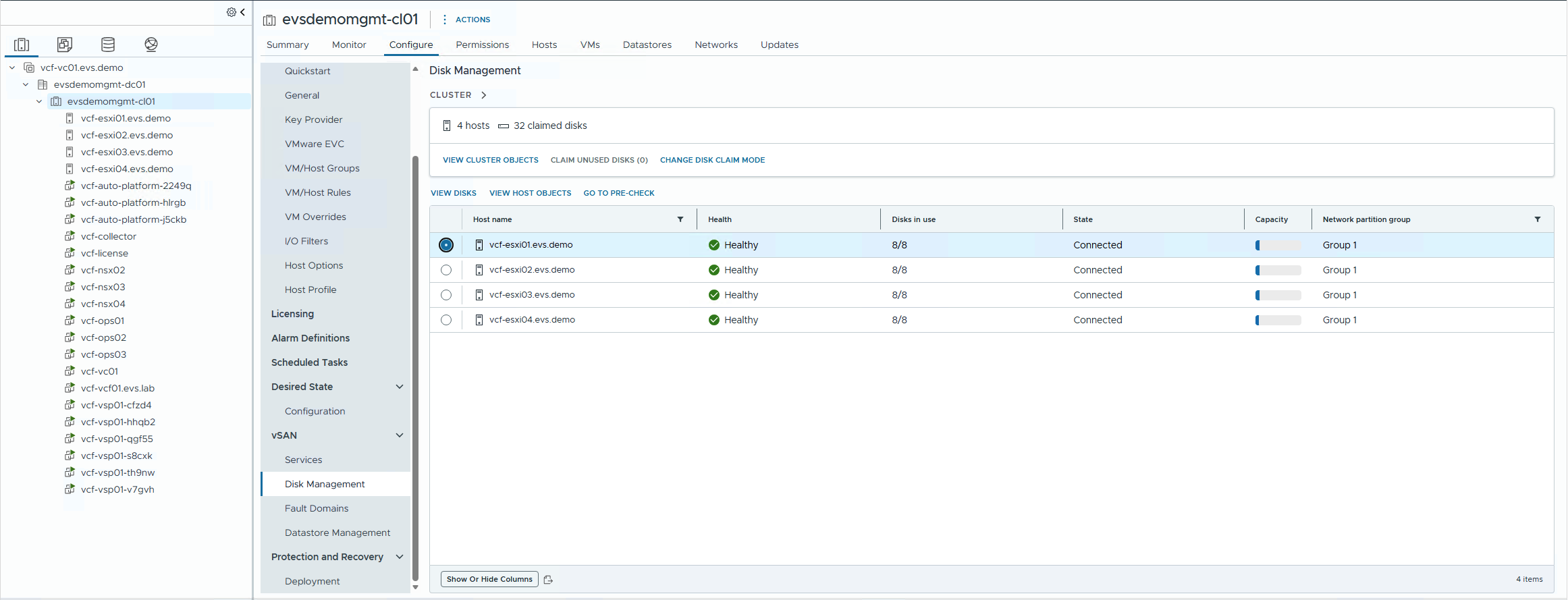
Figure 1: vSAN Disk Management, host disk view
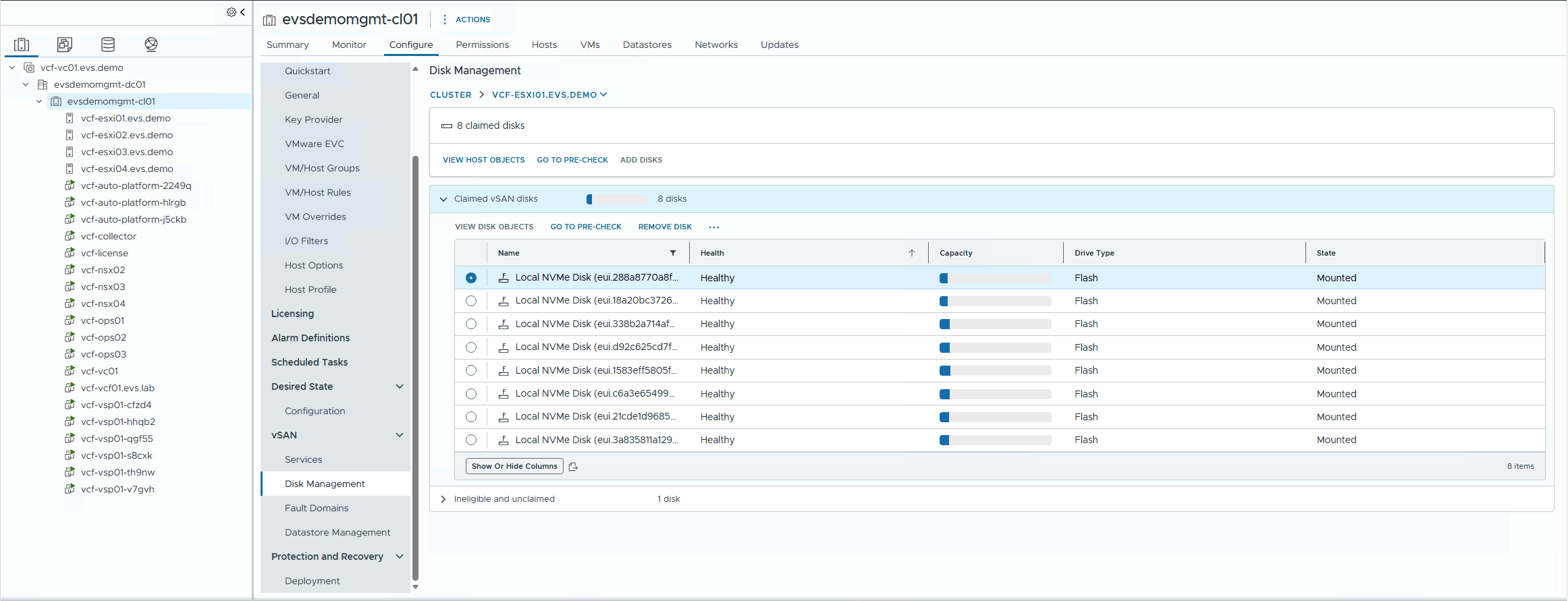
Figure 2: Selecting the NVMe disk for removal
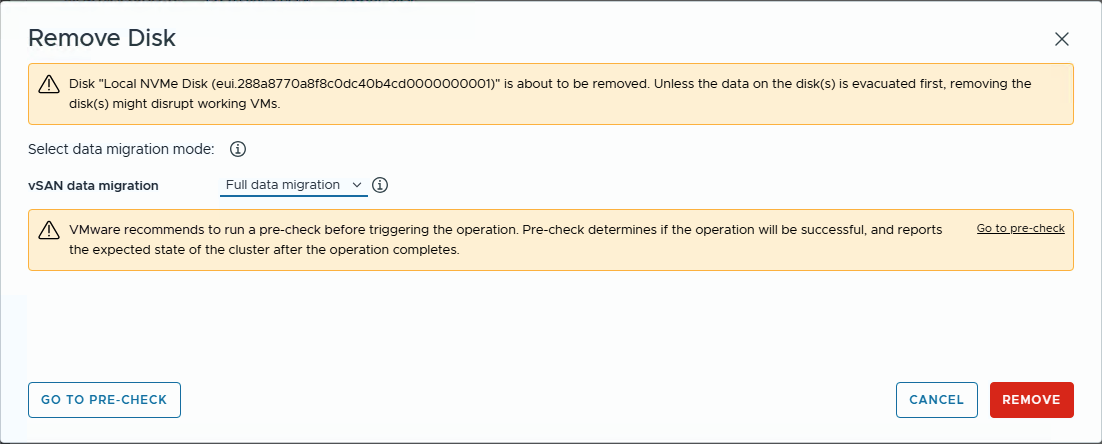
Figure 3: Full data evacuation selected
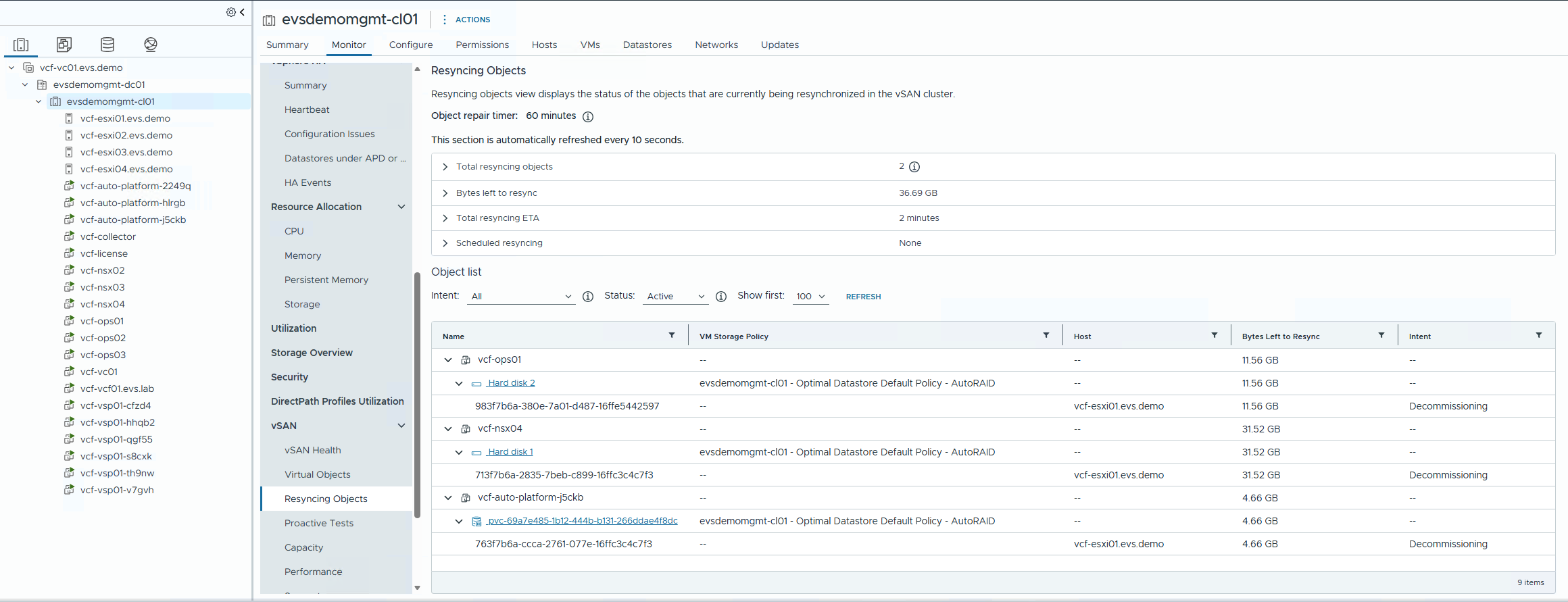
Figure 4: Disk removal in progress
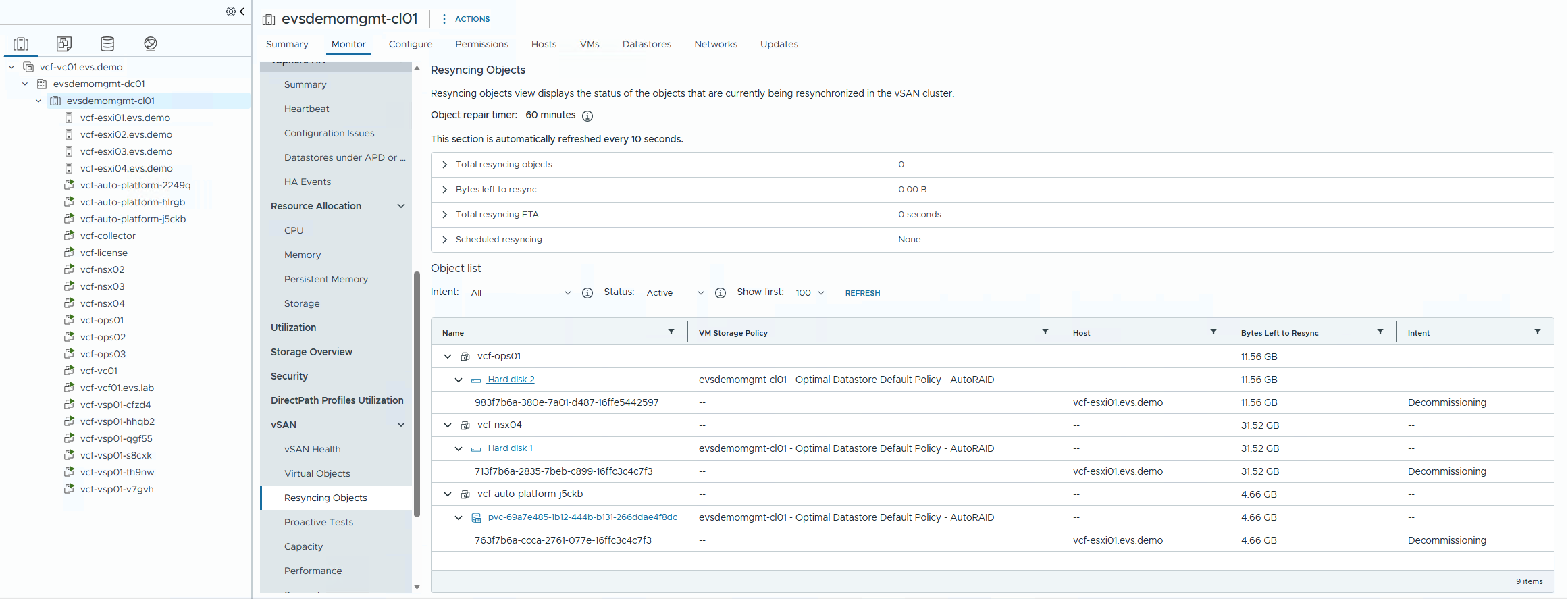
Figure 5: vSAN resync status
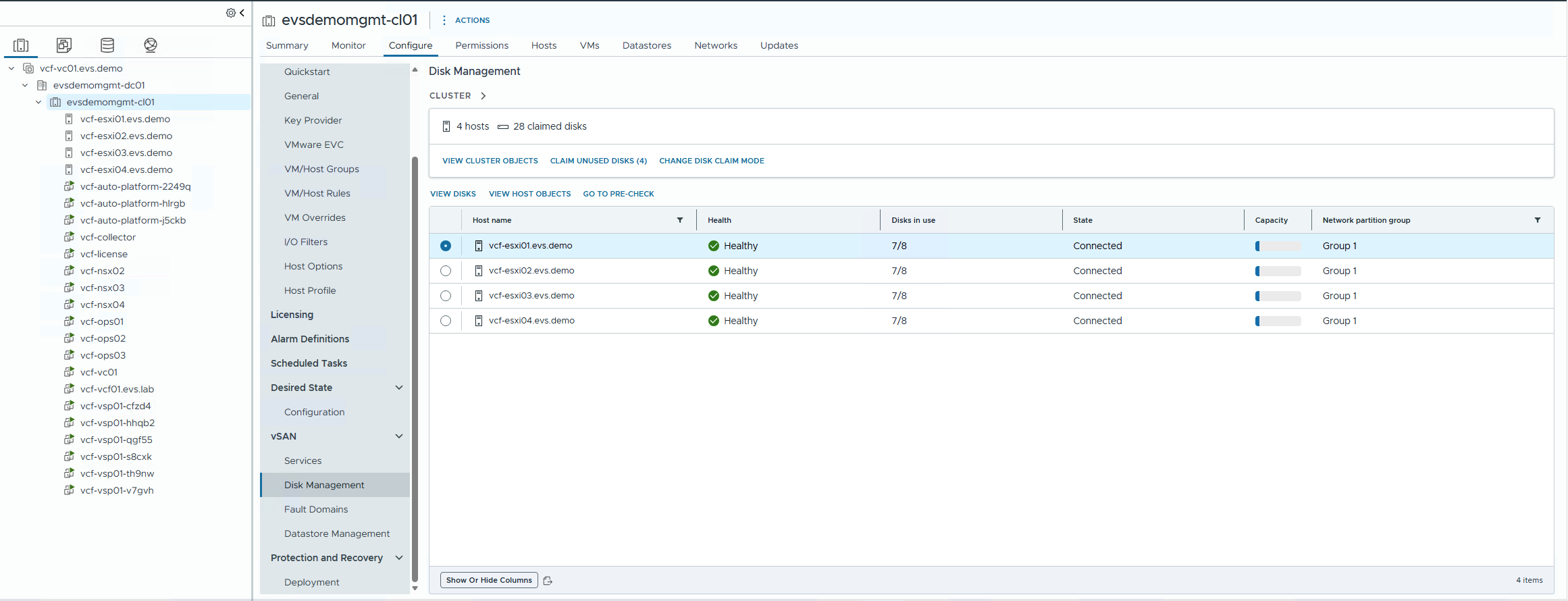
Figure 6: Disk group after NVMe removal
Step 2: Turn on vSphere Configuration Profiles and create the Desired State
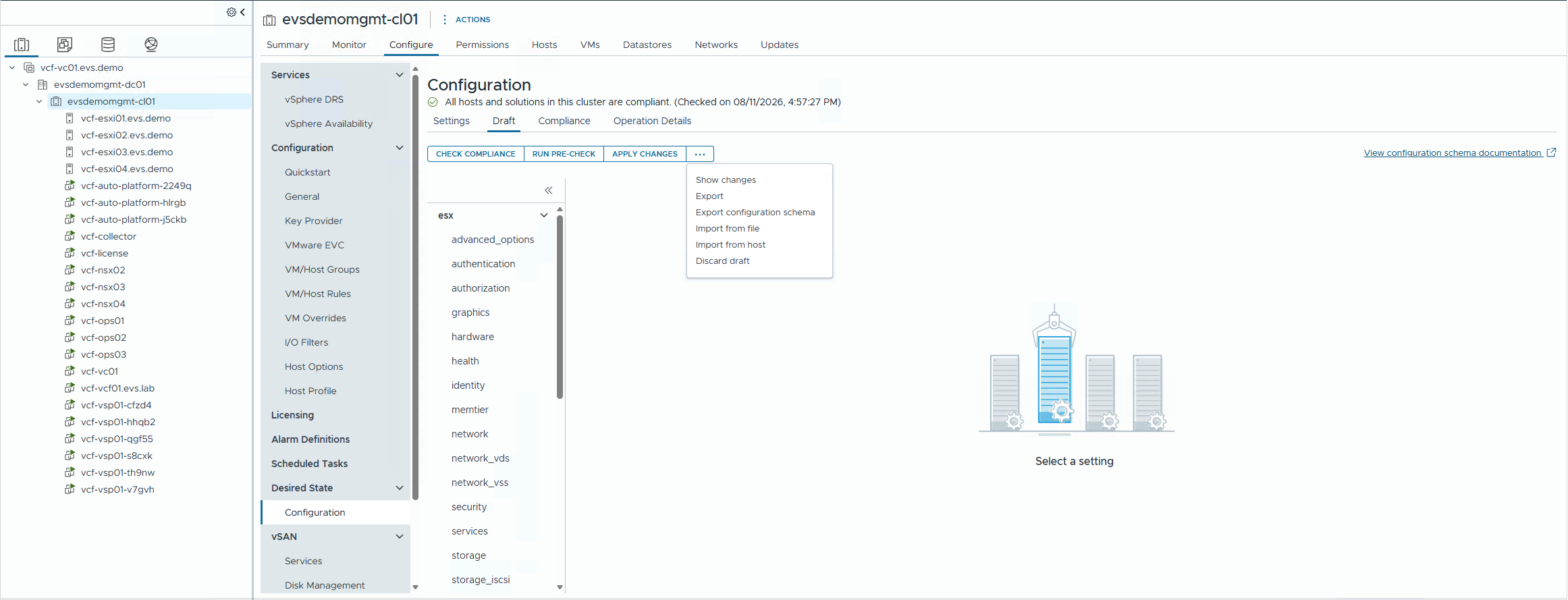
Figure 7: vSphere Configuration Profiles in the Configure tab
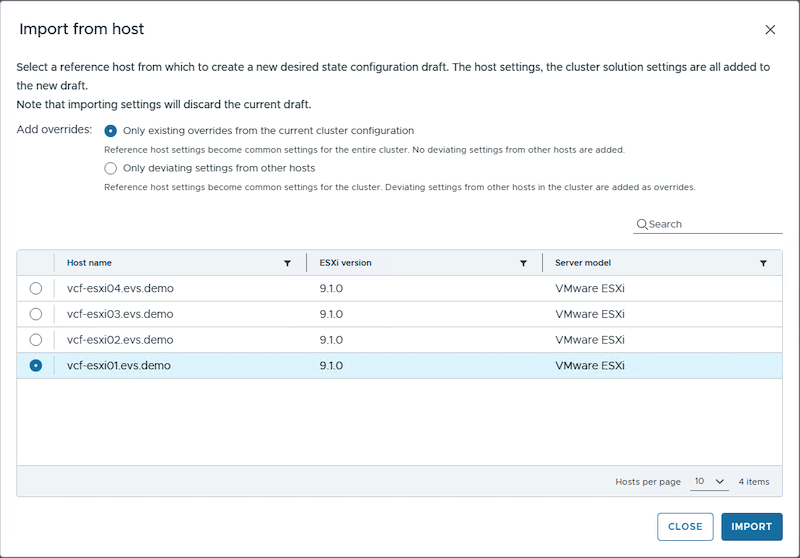
Figure 8: Creating configuration from a reference host
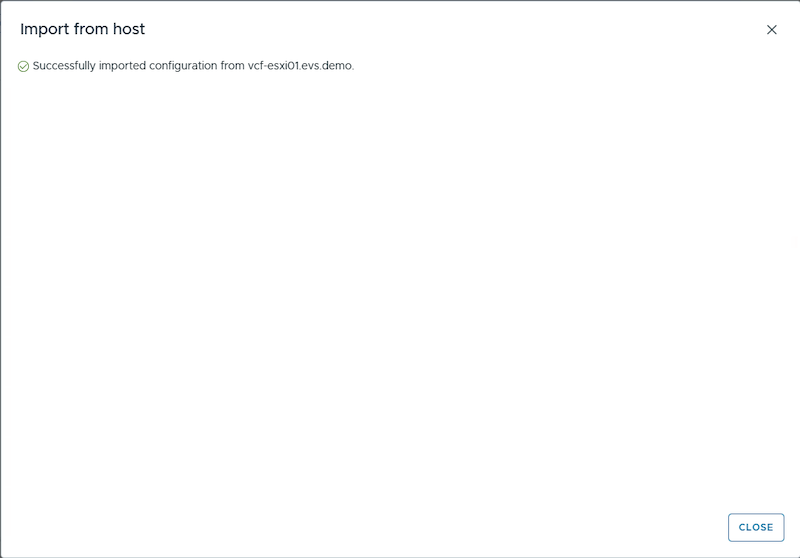
Figure 9: Pre-check results
Step 3: Create a draft and configure MEMTIER
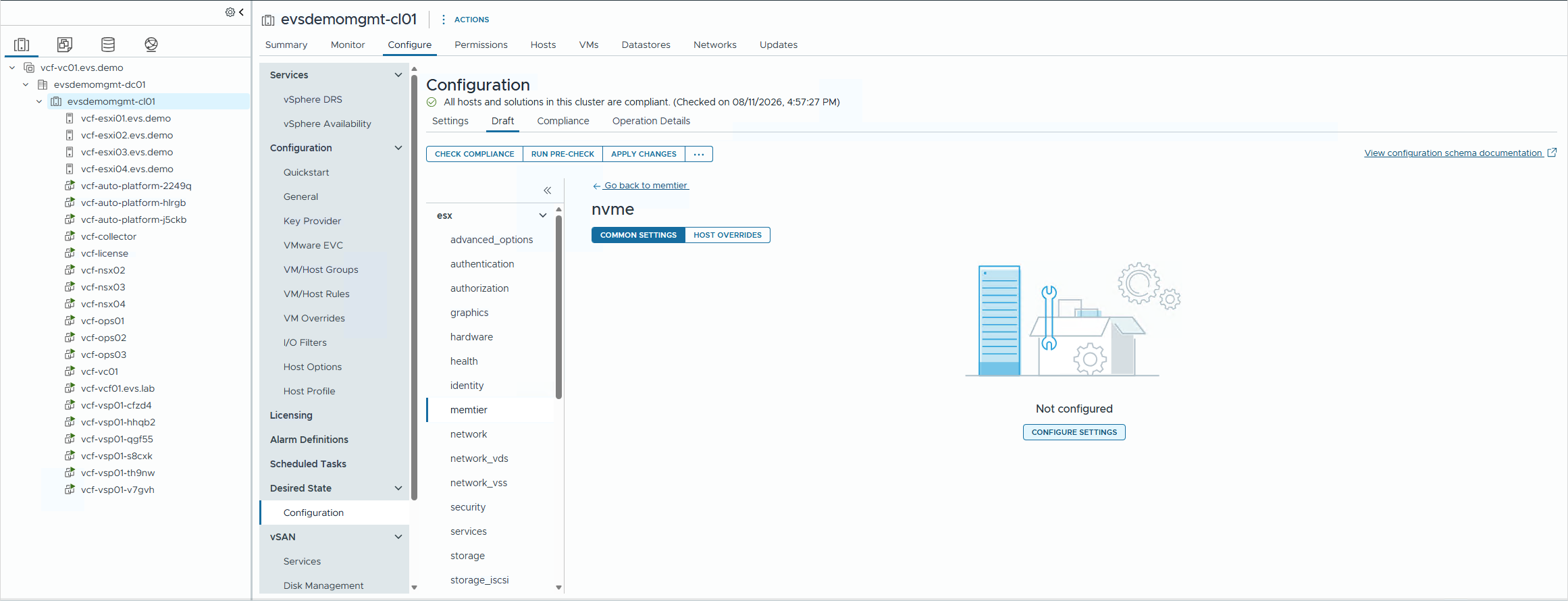
Figure 10: MEMTIER setting in the draft editor
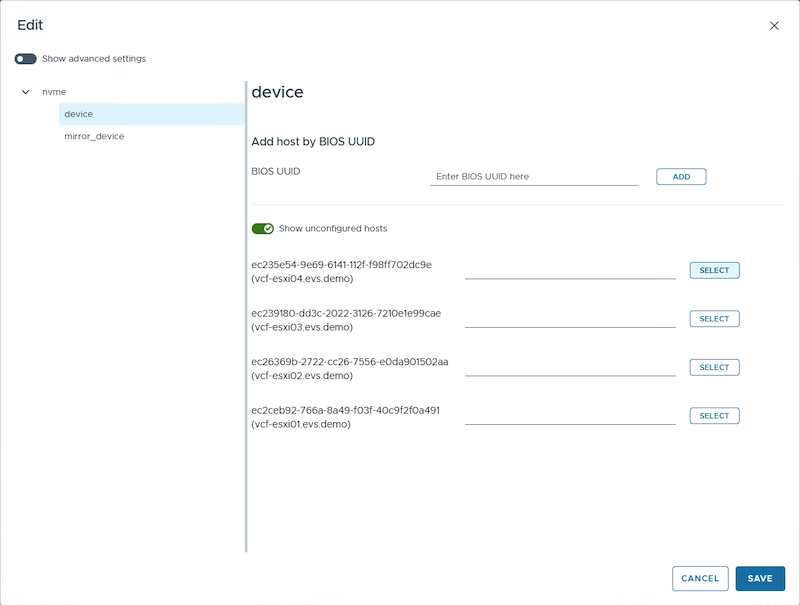
Figure 11: NVMe configuration settings
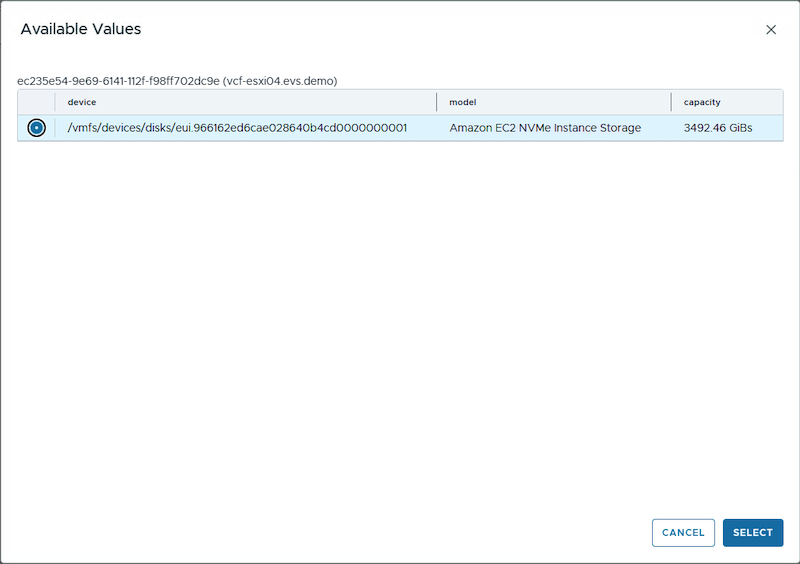
Figure 12: Host-specific device selection
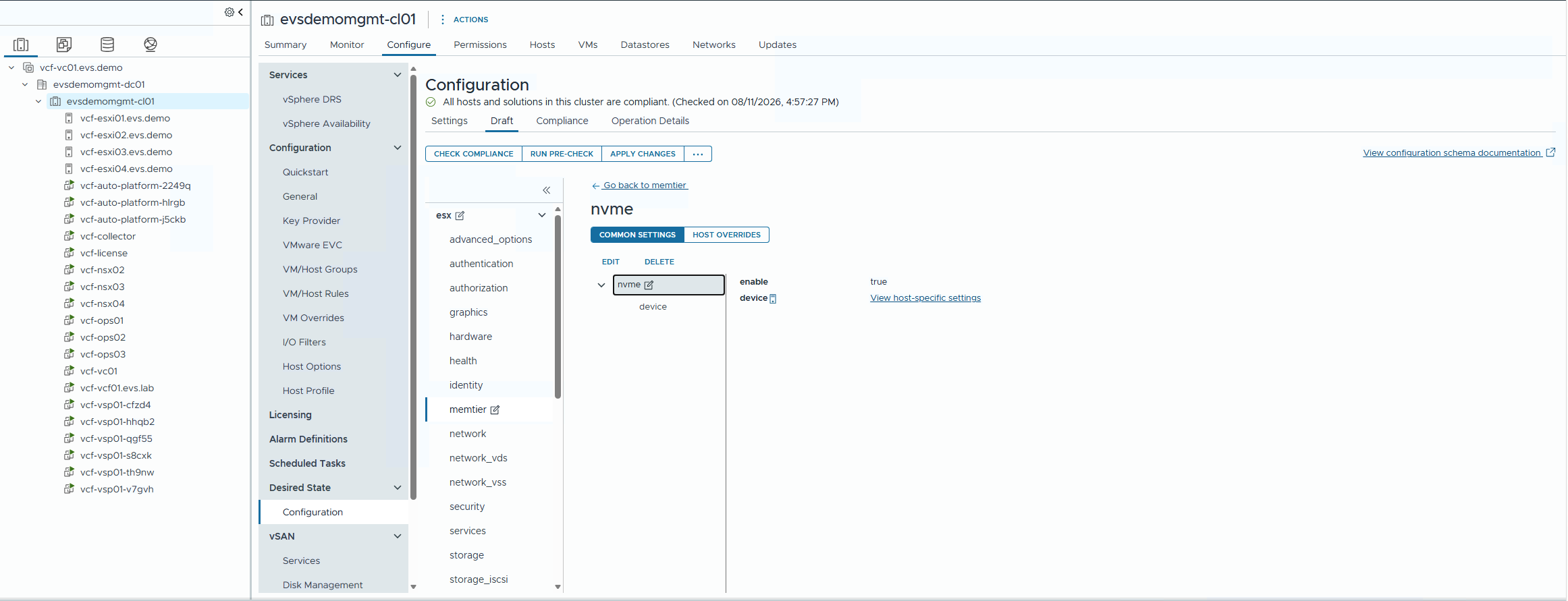
Figure 13: Configuration summary
Step 4 (optional): Turn on software mirroring
For redundancy, select a second NVMe device per host as the mirror of the primary. Requires two equivalent-capacity NVMe devices per host, both reclaimed from vSAN.
Step 5: Pre-check, apply, and verify
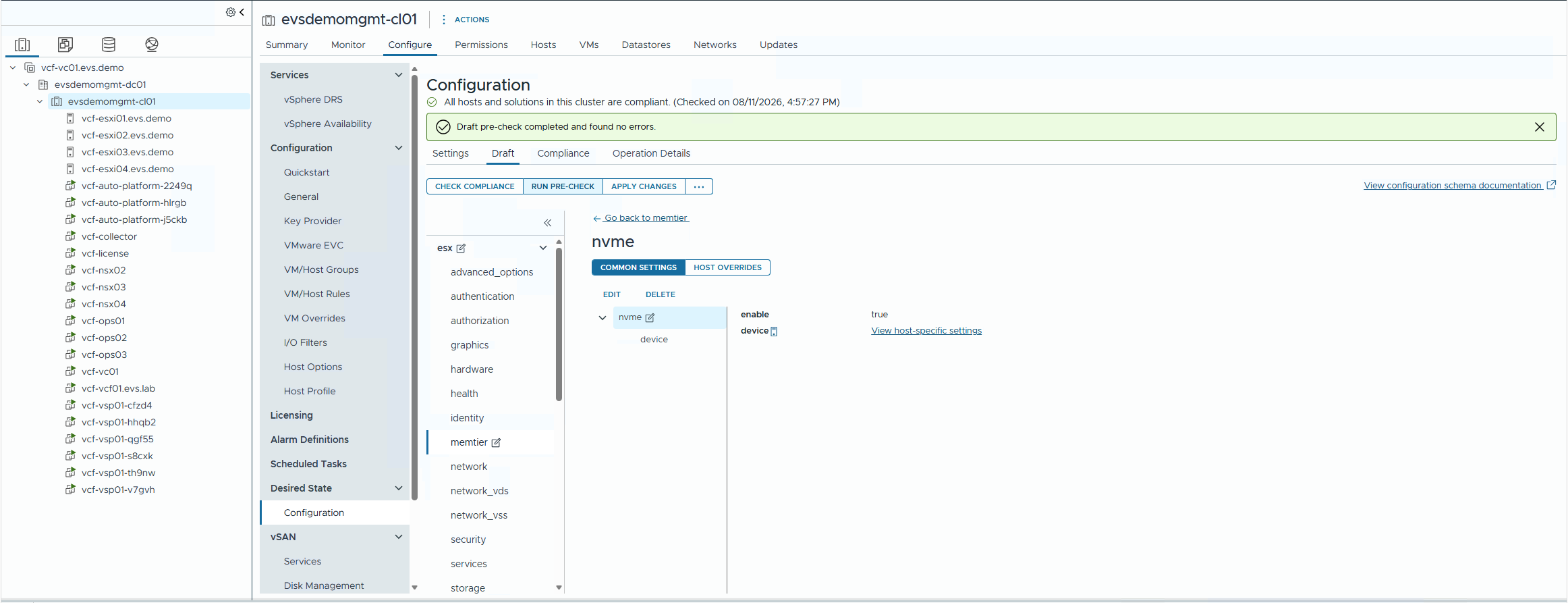
Figure 14: Apply Changes and Remediate
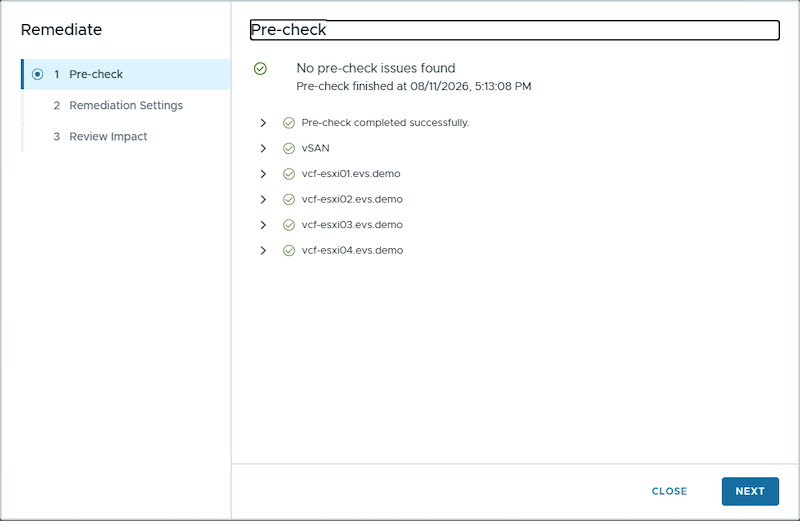
Figure 15: Host remediation progress
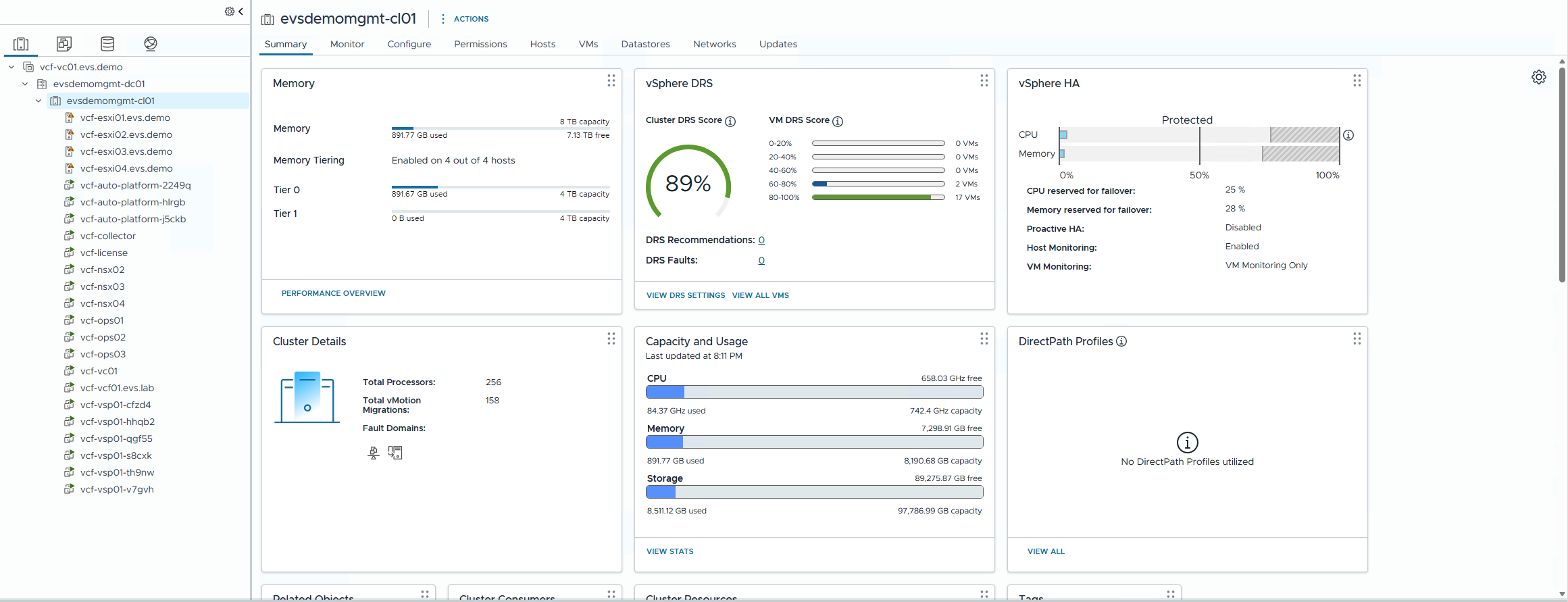
Figure 16: Cluster Summary showing Memory Tiering capacity
Deactivating Memory Tiering on a VCF 9.1 Deployment in Amazon EVS
Turning off Memory Tiering reverses the process. You turn off the memtier setting through a Desired State draft, then optionally return the reclaimed NVMe device to vSAN to restore storage capacity. As with activating, hosts will need to enter maintenance mode during remediation, these steps are typically non-disruptive, but may want to be done during a scheduled maintenance window.
Step 1: Disable MEMTIER in a Desired State draft
Desired State > Configuration > Draft > Create Draft. Select MEMTIER, set enable to FALSE. Save, pre-check, then Apply Changes and Remediate. Hosts remediate sequentially.
Step 2 (optional): Return the NVMe drive to vSAN
If you want to recover the storage capacity, add the freed NVMe device back into the vSAN disk group via cluster > Configure > vSAN > Disk Management, then allow vSAN to rebalance.
Step 3: Verify
Confirm the cluster Summary tab no longer reports Tier 1 capacity and that vSAN capacity has been restored if you returned the drive.
Conclusion
In this post you learned what Memory Tiering in VCF 9.1 is, how to present NVMe as a second memory tier managed automatically by the ESX kernel, and how Amazon EVS supports it on i4i.metal and i7i.metal-24xl. You worked through the sizing math, where the default 1:1 ratio doubles effective memory while active memory must stay within DRAM. You also saw the tradeoff specific to Amazon EVS: because vSAN owns the local NVMe, capacity given to Memory Tiering is capacity taken from vSAN. Finally you stepped through activating and deactivating the feature using vSphere Configuration Profiles and the vSAN disk-management workflow.
With Memory Tiering you can increase the effective memory of an Amazon EVS cluster and reduce your hardware and licensing costs, without changing instance types or increasing your node count, provided your active memory fits within DRAM and your vSAN datastore can absorb the reallocated capacity. Size for both tiers of memory, VM storage requirements and validate active memory utilization on the cluster Summary tab after activating to confirm the feature is delivering value in your environment.