Microsoft Workloads on AWS
Integrate Amazon Connect with AWS Managed AD via IAM Identity Center
Introduction
In this post, you learn how to integrate Amazon Connect with Amazon Web Services (AWS) Managed Microsoft Active Directory (AD) using IAM Identity Center (formerly AWS SSO) with SAML-based authentication. This solution addresses a common challenge you might face when attempting to use your existing Microsoft Active Directory infrastructure for contact center authentication across multiple AWS accounts.Amazon Connect offers several authentication options for contact center administrators and agents. While storing users directly in Amazon Connect is sufficient for small deployments, if you have existing Active Directory infrastructure, you need to integrate with your centralized identity management system. This integration gives you centralized user management, multi-factor authentication (MFA), and faster onboarding by provisioning users directly from the synchronized Active Directory group.However, implementing this integration across AWS accounts presents architectural challenges. One common scenario involves having an Amazon Connect instance in one AWS account while AWS Managed Microsoft AD resides in another member account. Additionally, Amazon Connect is an AWS managed application that works only with organization-level IAM Identity Center instances, not account-level instances.This post walks you through a real-world implementation that addresses these challenges, providing secure authentication while maintaining your existing Active Directory infrastructure across multi-account environments.
Solution overview
The solution architecture involves configuring organization-level IAM Identity Center with delegated administration to enable cross-account integration between Amazon Connect and AWS Managed Microsoft AD.
The following diagram illustrates the solution architecture:
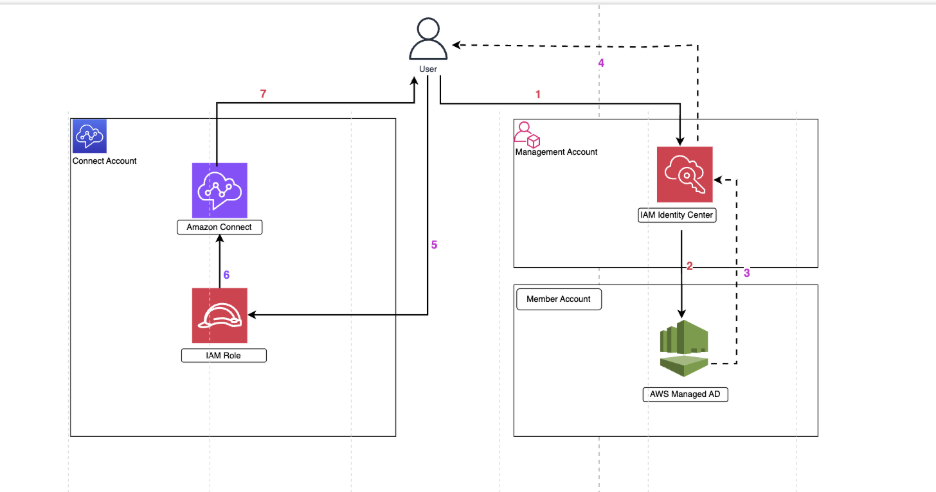
The authentication flow works as follows:
- You access the IAM Identity Center AWS access portal URL in the management account.
- IAM Identity Center presents the login page and validates your credentials directly against the connected AWS Managed Microsoft AD (in the member account) via LDAP — not a SAML redirect.
- AWS Managed Microsoft AD authenticates you, validates credentials, and returns the authentication response along with user attributes and group memberships to Identity Center.
- After successful authentication, Identity Center generates the SAML assertion and posts it to your browser.
- Your browser posts the SAML assertion to the AWS Sign-In SAML endpoint (https://signin.aws.amazon.com/saml). AWS Sign-In processes the request, assumes the configured IAM role in the Connect account, and grants temporary credentials.
- Using the authentication token from AWS, you are redirected and federated into Amazon Connect.
- Amazon Connect looks up the user by their Connect username (which must exactly match the RoleSessionName/AD username), and the security profile that you assigned to that user within Amazon Connect determines their permissions — including access to routing profiles, queues, dashboards, and reports.
Why you need organization-level IAM Identity Center: Amazon Connect is an AWS managed application that works only with organization-level IAM Identity Center instances. You cannot use account-level instances for this integration.
Delegated administration: When AWS Managed Microsoft AD resides in a member account rather than the management account, you must configure delegated administration so that the member account can manage the identity source configuration.
Prerequisites
Before implementing this solution, verify that you have the following:
- AWS Organizations enabled with management account access
- AWS Managed Microsoft AD deployed in a member account
- User email addresses configured in Active Directory (required for Amazon Connect)
- IAM permissions to create identity providers, roles, and policies
- Your Amazon Connect instance access URL noted before you begin
- No existing account-level IAM Identity Center instances in member accounts
Phased walkthrough
Phase 1: Configure organization-level IAM Identity Center with delegated administration
First, remove any existing account-level Identity Center instances in member accounts, as these prevent the use of organization-level features required for Amazon Connect integration.
Next, sign in to the AWS Organizations management account and enable IAM Identity Center at the organization level. Enable IAM Identity Center in the same AWS Region as your AWS Managed Microsoft AD directory. Note that only one directory can be connected at a time.
Because AWS Managed Microsoft AD resides in a member account, designate that member account as the delegated administrator. In IAM Identity Center, navigate to Settings > Management, choose a Register account for delegated administration, and choose the member account where AWS Managed Microsoft AD resides.
For instructions, see Getting started with AWS IAM Identity Center delegated administration.
Phase 2: Configure Active Directory as the identity source
From the delegated administrator account, navigate to AWS Directory Service. Select your AWS Managed Microsoft AD, choose Application Management, and then choose AWS Services and Apps. Enable IAM Identity Center for the directory.
Next, change the identity source to AWS Managed Microsoft AD. In IAM Identity Center, navigate to Settings > Identity Source, choose Actions, and then choose Change identity source. Select Active Directory and choose your AWS Managed Microsoft AD from the dropdown. The following screenshot shows the identity source configuration:

For more information, see Change your identity source.
After changing the identity source, configure synchronization using configurable Active Directory sync. In IAM Identity Center, navigate to Groups, choose Manage sync, and then choose Add users and groups. Select the Active Directory groups containing your Amazon Connect users.
Email address requirement: Make sure all users in AWS Managed Microsoft AD have email addresses configured before proceeding. Without email addresses, the Amazon Connect application will fail during authentication.
Troubleshooting group synchronization: If groups do not appear immediately, verify that AD sync is running by navigating to Settings > Identity source > Actions > Manage Sync. If paused, choose Resume sync. Initial sync can take up to 3 hours. You must explicitly add all groups to the sync scope for them to appear in Identity Center. For troubleshooting guidance, see Sync Active Directory users to IAM Identity Center.
Phase 3: Create Amazon Connect instance with SAML authentication
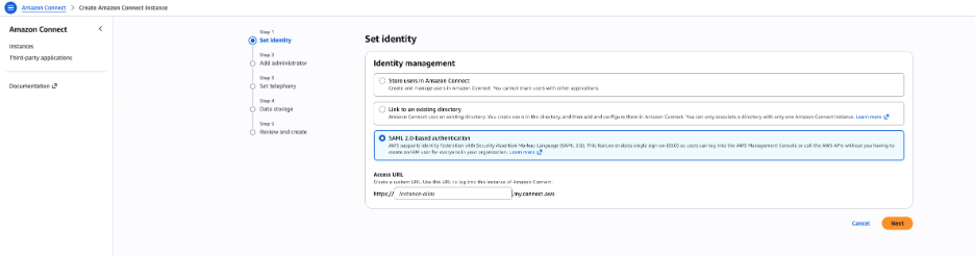
Open the Amazon Connect console and choose Add an instance. For Step 1: Identity management, select SAML 2.0-based authentication, enter an Access URL alias, and complete the configuration wizard. Note the instance ARN for use in IAM policy configuration. The following screenshot shows the SAML authentication selection:
For more information, see Configure SAML with IAM for Amazon Connect.
Create two IAM policies: one for Amazon Connect federation (allowing connect:GetFederationToken for your instance) and one for IAM Identity Center access (allowing iam:ListRoles and iam:ListAccountAliases).
Create an IAM role for SAML federation. In the IAM console, navigate to Roles > Create role, select SAML 2.0 federation as the trusted entity, choose the IdentityCenter-SSO provider, and select Allow programmatic and AWS Management Console access. Attach both policies that you created earlier and name the role IdentityCenter_SAML_Role. The following screenshot shows the role creation process:
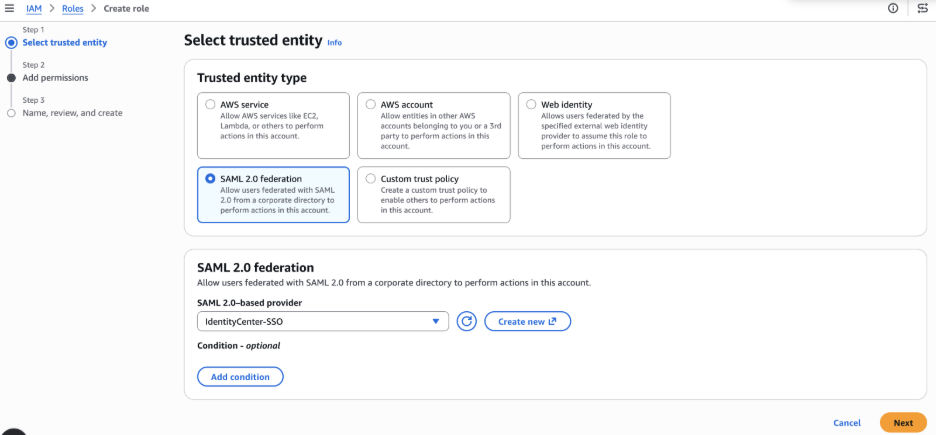
Figure 4: IAM role creation for SAML federation
Phase 4: Configure Amazon Connect application in IAM Identity Center
Sign in to the delegated administrator account and navigate to IAM Identity Center. Under Applications, choose Add Applications. In the setup preference, select “I want to select an application from the catalog,” then search for and select Amazon Connect from the application catalog. Amazon Connect is an AWS managed application that works with IAM Identity Center.
Enter a display name and download the IAM Identity Center SAML metadata file. The Relay State URL tells IAM Identity Center where to redirect users after successful authentication. Configure it using the following format:
https://region.console.aws.amazon.com/connect/federate/instance-id
Note: Replace region with your AWS Region and instance-id with your Amazon Connect instance ID. Set the session duration and then choose Submit.
Next, create an IAM identity provider. In the IAM console, navigate to Identity providers, and then choose Add provider. Select SAML as the provider type, and for Provider name, enter IdentityCenter-SSO. Upload the metadata file that you downloaded earlier.
Configure attribute mappings in IAM Identity Center. Open the Amazon Connect application, navigate to Actions > Edit attribute mappings, and configure the following:
- Subject: ${user:subject} (persistent format)
- RoleSessionName: ${user:email} (unspecified format)
- Role:arn:aws:iam::111122223333:role/IdentityCenter_SAML_Role,arn:aws:iam::444455556666:saml-provider/IdentityCenter-SSO (unspecified format)
| User attribute in the application | Maps to this string value or user attribute in IAM Identity Center | Format |
| Subject | ${user:subject} | Persistent |
| https://aws.amazon.com/SAML/Attributes/RoleSessionName | ${user:email} | Unspecified |
| https://aws.amazon.com/SAML/Attributes/Role | arn:aws:iam::123456789:role/IdentityCenterSAMLRole,arn:aws:iam::758388043038:saml-provider/IdentityCenter-SSO | Unspecified |
Important: The Role attribute must include both the role ARN and provider ARN separated by a comma with no spaces.
In the Amazon Connect console, create users with Login values that exactly match the email addresses from Active Directory. Configure security profiles and routing profiles as needed.
Finally, in IAM Identity Center, assign users or groups to the Amazon Connect application by navigating to Assigned users and groups and selecting the synchronized Active Directory groups containing Connect users.
Phase 5: Test authentication
Access the IAM Identity Center portal URL, authenticate with Active Directory credentials, complete the MFA challenge if configured, and choose the Amazon Connect application to launch. Verify successful federation and access to the contact center interface.
Troubleshooting common issues
Email address configuration issue: If users authenticate to Identity Center but fail when accessing Amazon Connect, verify that users in AWS Managed Microsoft AD have email addresses configured. Edit user properties in Active Directory Users and Computers, configure the E-mail field, and wait for Active Directory sync to complete (occurs hourly, taking 30 minutes to 2 hours).
Group synchronization failures: If Active Directory groups do not appear in IAM Identity Center, verify that you explicitly added groups to the sync scope through Manage Sync, check that Active Directory sync is running, and wait for the next sync cycle (initial sync can take up to 3 hours). For more information, see Sync Active Directory users to IAM Identity Center.
Authentication failures: Verify that the user email in Active Directory exactly matches the Amazon Connect login, confirm that you correctly configured the role ARN and provider ARN in attribute mappings, and validate that you use the latest metadata file.
Permission errors: Verify that you attached the IAM policies to the SAML federation role, confirm the Amazon Connect instance ARN in the policy matches the actual instance, and review AWS CloudTrail logs for permission denial errors.
For troubleshooting guidance, see Troubleshooting IAM Identity Center issues.
Clean up
To remove the integration, unassign users from the Amazon Connect application in IAM Identity Center, delete the application, remove IAM resources (role, identity provider, and policies), and optionally delete the Amazon Connect instance. If needed, change the identity source back to the default Identity Center directory and remove the delegated administrator designation.
Conclusion
Integrating Amazon Connect with AWS Managed Microsoft AD through organization-level IAM Identity Center gives your enterprise a scalable authentication solution that supports MFA. This approach delivers stronger security through MFA capabilities and operational efficiency by eliminating manual user creation. It also provides scalability through user provisioning via AD sync and compliance by using your existing Active Directory infrastructure.This integration requires attention to specific constraints, particularly organization-level IAM Identity Center and proper email address configuration. The result is a unified authentication experience that uses your existing enterprise identity infrastructure.
To get started, follow the step-by-step guide in the Phased walkthrough section. For advanced configurations, explore Trusted identity propagation and the Amazon Connect administrator guide for additional authentication patterns.
Key resources
- Enabling federation with AWS Single Sign-On and Amazon Connect
- IAM Identity Center configurable AD sync
- Change your identity source in IAM Identity Center
- Register a delegated administrator
- Applications that work with IAM Identity Center
- Trusted identity propagation overview
- Getting started with IAM Identity Center delegated administration
- Configure SAML with IAM for Amazon Connect
- Sync Active Directory users to IAM Identity Center