Networking & Content Delivery
Implementing fine-grained Amazon Route 53 access using IAM condition keys (Part 2)
In Part 1 of this series, we demonstrated a scalable solution of using Amazon Web Services Identity and Access Management (AWS IAM) conditional keys and AWS principal tags for fine-grained access control of shared Amazon Route 53 hosted zones, public or private, in the same AWS account. As user environments grow, AWS administrators and network engineers need to manage DNS permissions across AWS accounts for shared Route 53 hosted zones. This post guides you through a scalable solution to grant fined-grained access between AWS accounts with the Route 53 hosted zone and IAM users across different accounts.
Solution overview
We assume that you have familiarity with the solution from Part 1 that create fine-grained permissions based on user attributes to access Route 53 hosted zones in the same account using the four conditional operations (ForAllValues:StringEquals, ForAllValues:StringNotEquals, ForAllValues:StringLike, ForAllValues:StringNotLike). This solution combines the fine-grained permission with the functionality of assuming IAM roles between AWS accounts and setting session tags to allow fine-grained access between AWS accounts to shared hosted zones. The assume role between accounts creates a set of temporary credentials that you can use to access AWS resources between the accounts. The setting of session tags for the assume role session pass the IAM user tag key pairs for evaluation of fine-grained permissions. This solution streamlines access management between AWS accounts by allowing you to create fine-grained permissions based on user attributes and reducing the permissions to align with least-privilege principles.
The following diagram shows the fine-grained Route 53 access architecture across AWS accounts. The diagram shows how IAM users (left) are assigned a custom tag key dnsrecord with the value of their permitted DNS updates in AWS account A. The IAM user assumes the role in account B and sets the RequestTag of the session with the tag key-value pairs of the IAM user custom tag key pair to modify the Route 53 hosted zone in account B (right). The IAM policy attached to the assume role (center) evaluates the route53:ChangeResourceRecordSets action and compares the DNS record name update against the session tag value using the condition key route53:ChangeResourceRecordSetsNormalizedRecordNames to grant access.
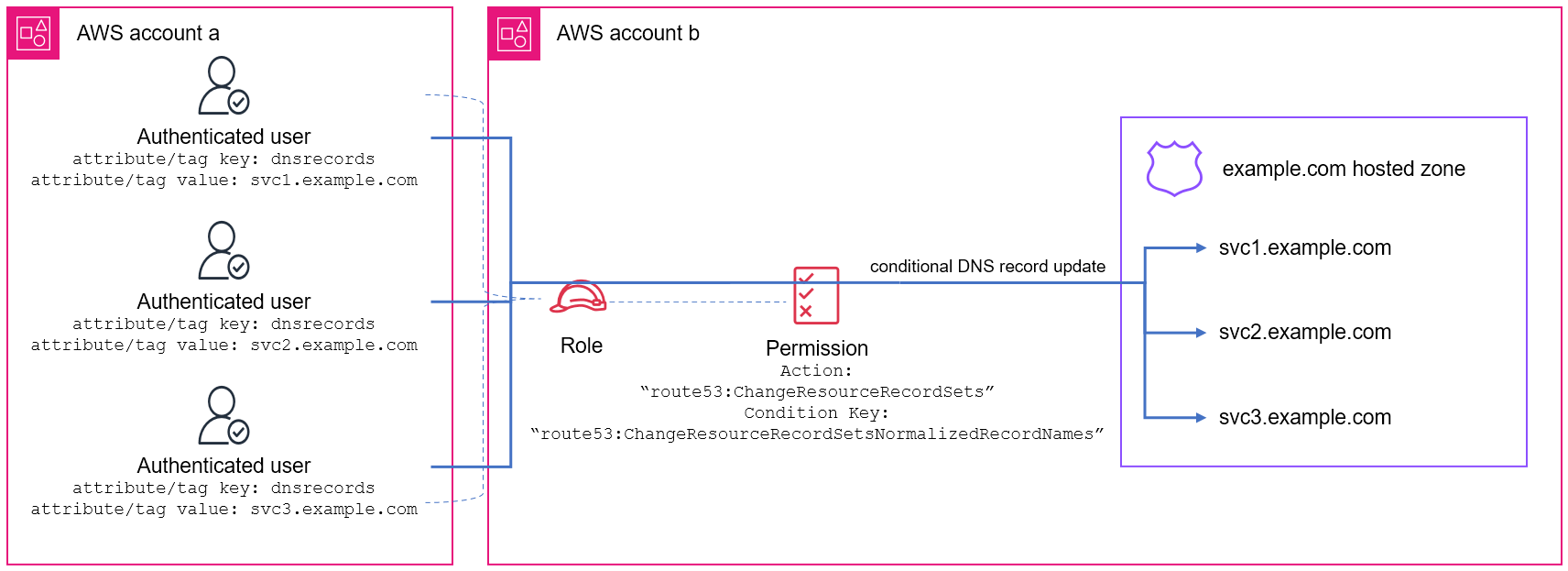
Figure 1: Fine-grained Route 53 access using IAM condition keys across AWS accounts (Click image to open larger version in new tab)
The permission policy attached to the assume role uses conditional operations with the Route 53 condition key route53:ChangeResourceRecordSetsNormalizedRecordNames to control the DNS record names in the route53:ChangeResourceRecordSets action. The action matches the ${aws:PrincipalTag/{custom-attribute}} key to grant permission to manage specific DNS records. The ${aws:PrincipalTag/{custom-attribute}} condition key specifies the tag value for the assume role session of IAM user.
A trust policy attached to a role defines the principals that you trust to assume the role. The following trust policy is attached to the assume role in account B to allow account A users to assume this role and must set the session tags to be the tag value of the IAM user requesting the assume role. In the policy document, replace <ACCOUNT> with the IAM user AWS account number and <custom-attribute> with the custom tag key for the DNS record.
{
    "Version": "2012-10-17",
    "Statement": [
        {
            "Effect": "Allow",
            "Principal": {
                "AWS": "arn:aws:iam::<ACCOUNT>:root"
            },
            "Action": [
                "sts:AssumeRole",
                "sts:TagSession"
            ],
            "Condition": {
                "StringEquals": {
                    "aws:RequestTag/<custom-attribute>": "${aws:PrincipalTag/<custom-attribute>}"
                }
            }
        }
    ]
}
The IAM users need permission to assume the role and set the session tags. The following permission policy is attached to the IAM users in account A to allow assume role in account B and tag the session with the custom tag key value. In the policy document, <ROLE_ARN> needs to be replaced with the role Amazon Resource Name (ARN) in account B.
{
    "Version": "2012-10-17",
    "Statement": {
        "Effect": "Allow",
        "Action": [
            "sts:AssumeRole",
            "sts:TagSession"
        ],
        "Resource": "<ROLE_ARN>"
    }
}
Solution implementation
In this post you create a solution that allows users in one AWS account to manage DNS records that match their assigned tag values in a shared hosted zone in another AWS account. Following these steps allows you to configure IAM user tags and assume role in a different account with policies that enable fine-grained access control to your Route 53 hosted zone. When completed, users can only manage DNS records that match the value in their custom tag of a shared hosted zone in another AWS account.
The example uses the value in the dnsrecord custom attribute of the IAM user to grant conditional access to update the DNS records ending with the .svc1.example.com domain suffix in the shared hosted zone example.com used in a different account.
Prerequisites
Before proceeding, you need the following:
- Log in to AWS account A and B with permissions to update IAM users, roles, and permissions using AWS Command Line Interface (AWS CLI)
- IAM user in AWS account A
- Hosted zone for domain
example.comin AWS account B
Step 1: Create the role with trust policy in AWS account B
Create the following role trust policy document to allow role to be assumed and tagged with the same IAM user custom attribute key value from AWS account A. Replace <ACCOUNTA> with the AWS account A number.
{
    "Version": "2012-10-17",
    "Statement": [
        {
            "Effect": "Allow",
            "Principal": {
                "AWS": "arn:aws:iam::<ACCOUNTA>:root"
            },
            "Action": [
                "sts:AssumeRole",
                "sts:TagSession"
            ],
            "Condition": {
                "StringEquals": {
                    "aws:RequestTag/dnsrecord": "${aws:PrincipalTag/dnsrecord}"
                }
            }
        }
    ]
}
Use the following command to create the role, replacing <ROLE_NAME> with your role and <TRUST_DOCUMENT_FILE> with the location of the preceding trust policy document:
Step 2: Create the permission policy and attach to role in AWS account B
Create the following permission policy document for fine-grained access of DNS records. There is a wildcard * and period . in front of the ${aws:PrincipalTag/dnsrecord} to enable the string match. The value of <ZONE_ID> is the private hosted zone ID, and you must replace it for your hosted zone.
{
    "Version": "2012-10-17",
    "Statement": [
        {
            "Effect": "Allow",
            "Action": "route53:ChangeResourceRecordSets",
            "Resource": "arn:aws:route53:::hostedzone/<ZONCE_ID>",
            "Condition": {
                "ForAllValues:StringLike": {
                    "route53:ChangeResourceRecordSetsNormalizedRecordNames": [
                        "*.${aws:PrincipalTag/dnsrecord}"
                    ]
                }
            }
        }
    ]
}
You can use the following command to create policy and capture the policy ARN, replacing <POLICY_NAME> with your policy name and <POLICY_DOCUMENT_FILE> with the location of the preceding permission document:
You can use the following command to attach the above policy to the role created in Step 1, replacing <ROLE_NAME> with the role name created in Step 1 and <POLICY_ARN> with the ARN of the preceding policy:
Step 3: Create principal tag in AWS account A
You can use the following command to create the dnsrecord key with the svc1.example.com value, replacing <USER_NAME> with Account A IAM user:
Step 4: Create the permission policy to assume role and associate to IAM user in AWS account A
Create the following permission policy document to allow assume role in account B and tag session, replacing <ROLE_ARN> with the ARN of the role created in Step 1.
{
    "Version": "2012-10-17",
    "Statement": {
        "Effect": "Allow",
        "Action": [
            "sts:AssumeRole",
            "sts:TagSession"
        ],
        "Resource": "<ROLE_ARN>"
    }
}
You can use the following command to create the permission policy and capture the policy ARN, replacing <POLICY_NAME> with name for policy and <POLICY_DOCUMENT_FILE> with the location of the preceding policy document:
You can use the following command to attach the preceding policy to the IAM user, replacing <POLICY_ARN> with the preceding policy ARN and <USER_NAME> of the user:
Step 5: Verified DNS update permissions from AWS account A to account B
Log in to the IAM user in account A and use the following command to assume role in account B to provide temporary security credentials and tag the session with the custom tag key pair value of IAM user. Replace <ROLE_ARN> with the ARN of the role created in Step 1 and <SESSION_NAME> with name for this assumed role session. The AWS_ACCESS_KEY_ID, AWS_SECRET_ACCESS_KEY and AWS_SESSION_TOKEN values from the assume role session are updated with temporary security credentials for your session:
The IAM user in account A through the assume role in account B now has permission to managed DNS records in the .svc1.example.com domain suffix in the shared hosted zone example.com. You can verify the permission is working as expected by using the following commands.
For example, using the following CLI command with the JSON configuration file to create the DNS record dev.svc1.example.com succeeds.
{
    "Comment": "configuration to create dev.svc1.example.com record",
    "Changes": [
        {
            "Action": "CREATE",
            "ResourceRecordSet": {
                "Name": "dev.svc1.example.com",
                "Type": "A",
                "TTL": 300,
                "ResourceRecords": [
                    {
                        "Value": "10.1.1.1"
                    }
                ]
            }
        }
    ]
}
Using the following CLI command with the JSON configuration file to create the DNS record dev.svc2.example.com failed.
{
    "Comment": "configuration to create dev.svc2.example.com record",
    "Changes": [
        {
            "Action": "CREATE",
            "ResourceRecordSet": {
                "Name": "dev.svc2.example.com",
                "Type": "A",
                "TTL": 300,
                "ResourceRecords": [
                    {
                        "Value": "10.1.1.1"
                    }
               ]
            }
        }
    ]
}
Cleaning up
Clean up the resources created in the solution by using the following commands:
Disassociate assume role permission policy from IAM user in Account A, replacing <USER_NAME> with the IAM user in Account A and <POLICY_ARN> with the ARN created in Step 4:
Delete the assume role permission policy in Account A, replacing <POLICY_ARN> with the policy ARN created in Step 4:
Delete the principal tag from the IAM user in Account A, replacing <USER_NAME> with the Account A IAM user:
Detach the permission policy from the role in Account B, replacing <ROLE_NAME> with the role name created in Step 1 and <POLICY_ARN> with the ARN created in Step 2:
Delete the permission policy in Account B, replacing <POLICY_ARN> with the ARN created in Step 2:
Delete the role in Account B, replacing <ROLE_NAME> with the role name created in Step 1:
Considerations
Furthermore, not only can you grant users in another AWS account the ability to assume role, but also there are condition contexts available to control how the principals are trusted to assume a role.
As you manage your IAM access, consider the IAM quotas and character limitations for users, groups, and policies.
If your permissions are not working as expected, then the troubleshoot IAM Policies documentation includes useful guides for common issues.
For environments not using shared hosted zones, where each team manages private hosted zones for their services, Route 53 Profiles is the recommended best practice for centralized management of DNS configurations for Amazon Virtual Private Clouds (Amazon VPCs) and accounts. The post Using Amazon Route 53 Profiles for scalable multi-account AWS environments reviews the architecture.
Conclusion
In this post we reviewed a scalable solution of using IAM conditional keys and AWS principal tags for fine-grained access control of shared Amazon Route 53 hosted zones to managed subsets of DNS records between AWS accounts. The review included an example of implementing conditional access of a hosted zone between accounts. In the next post, we review federated user fine-grain access with IAM conditional keys and AWS principal tags.
About the author

Daniel Yu
Daniel Yu is a Senior Technical Account Manager who partners with users to optimize their cloud transformation initiatives. With expertise in networking and security infrastructure, he specializes in delivering strategic guidance on AWS architectural design and operational excellence.