AWS for SAP
Maximize the value of your SAP data using with Amazon Q Business and Amazon Bedrock Generative AI – Part 2
In Part 1 of this series, we examined how Amazon Q Business combined with the power of Amazon Bedrock can be harnessed to gain actionable insights from SAP Early Watch Reports and Intelligent Document Processing using Business Data Automation can be used to process Invoice data for SAP systems. In this post, we will demonstrate how to use Amazon Bedrock Knowledge Bases for Structured Data to answer questions about your SAP data in a natural language format.
Financial data analysis using natural language
A chat-based interface can provide quick, actionable insights for sales teams and leadership. By making it easier to access and analyze sales and forecasting data, organizations can make more informed decisions, respond faster to market changes, and ultimately drive better sales performance without the need to learn complex data processing platforms.
Information such as sales performance, product insights, sales forecasting, regional comparisons are all examples of data that can be quickly made available using Amazon Bedrock Knowledge Bases for structure data. In this use-case, we will show how to use Amazon Bedrock Knowledge Bases for Structure Data to rapidly provide insights into data using a conversational interface.
A structured knowledge base for SQL data differs from traditional RAG (Retrieval Augmented Generation) in both purpose and implementation. While RAG primarily focuses on retrieving relevant chunks of unstructured text to augment LLM responses, a structured knowledge base for SQL data maintains explicit relationships, business rules, and metadata about database schemas, tables, and their interconnections. This structure allows for more precise and reliable querying of operational data, with guaranteed accuracy in areas like financial calculations, inventory counts, and sales metrics where RAG’s probabilistic nature wouldn’t be appropriate.
The key advantage of using a structured knowledge base for SQL data is the ability to maintain data integrity and business logic while providing natural language access. While RAG excels at providing context from documents and unstructured content, a structured knowledge base ensures that queries are correctly translated to SQL, respecting table relationships, data types, and business rules that are critical for operational data. Additionally, ERP data contains large data sets which may not be performant or cost effective using traditional RAG techniques. By storing data in Amazon Redshift, which supports petabyte scale analytics, the large data volumes can be accessed and analyzed by your choice of the LLM’s available in Bedrock.
There are several options for moving data from SAP or other ERP systems to Amazon Redshift for data analysis using technologies provided by SAP including SAP Datasphere, SAP SLT, AWS Glue and Partner solutions. For more details, please see the Guidance for SAP Data Integration and Management on AWS.
Note: For this blog, we will use bike sales sample data published by SAP on GitHub under the Apache 2.0 license, which contains examples of bike sales data that will be loaded into S3 for analysis. To enable real time data updates, the information in S3 can be ingested using auto copy as discussed in this AWS Blog.
For an enterprise deployment, considering using SAP Datasphere for integration to Amazon S3 prior to loading into Amazon Redshift to better preserve business context. SAP Datasphere is available as part of SAP Business Technology Platform and SAP Business Data Cloud, both of which run on AWS.
Architecture
Figure 1 illustrates the architecture diagram of the solution, and this section shows the steps to build it:
- Data is copied from SAP to S3 using your preferred integration solution. In this case we will use Bike Sales data published by SAP.
- Data is copied to an Amazon Redshift Data Warehouse.
- Configure an Amazon Bedrock Knowledge Base for structured data.
- Users leverage Bedrock using your preferred to generate SQL for accurate information retrieval.
- The generated SQL is executed in Amazon Redshift for real time information and scalability, orchestrated by the Bedrock knowledge base.
- The model uses the result of the query to summarize and provide insights to the user based on the request. The context is maintained so users can drill down on information in a conversational manner.
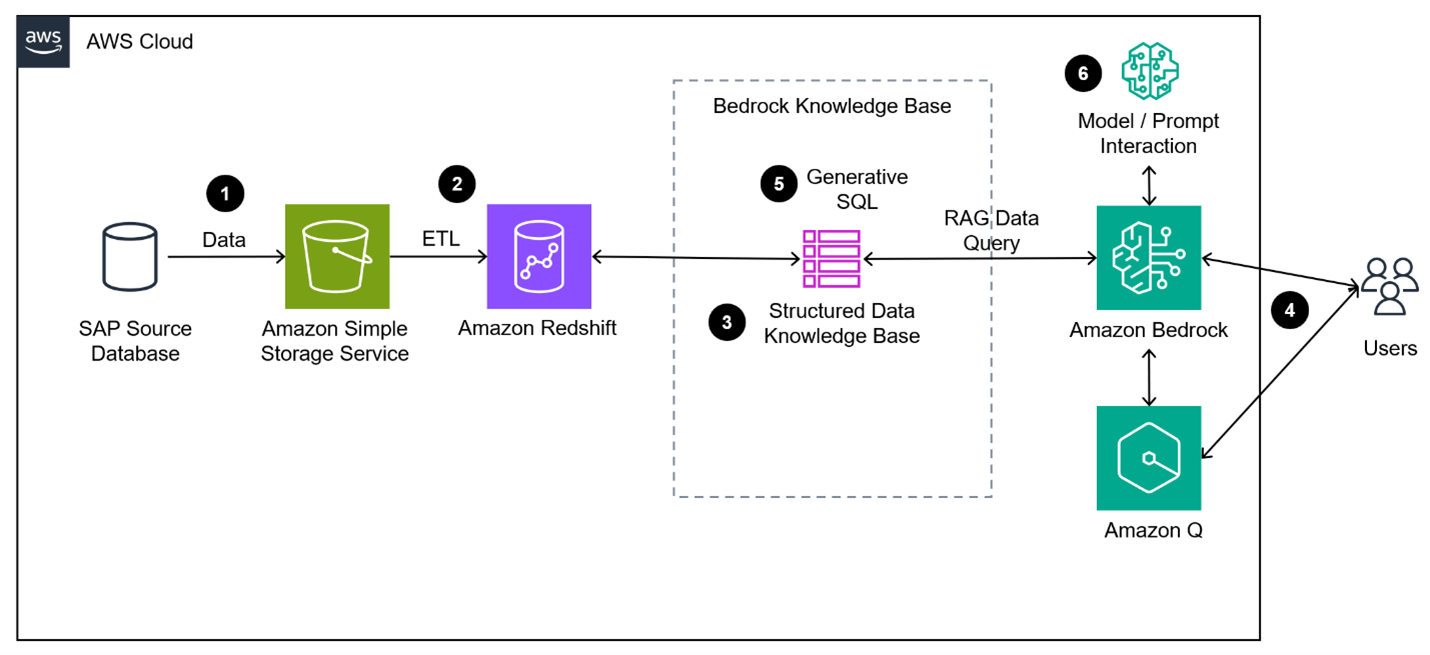
Figure 1: Architecture of structured data analysis using Gen AI
Process
By following the steps outlined here, you can create an Amazon Redshift Database and query the results using Bedrock chat interface.
Load Data to S3
Create an Amazon S3 Bucket (In this case we will call the bucket kb-structured-data-bike-sales, but your name will need to be unique) and upload the sample data files (there should be 9 files in total) to the S3 Bucket by selecting the Upload button and select “Add Files” as shown in Figure 2.
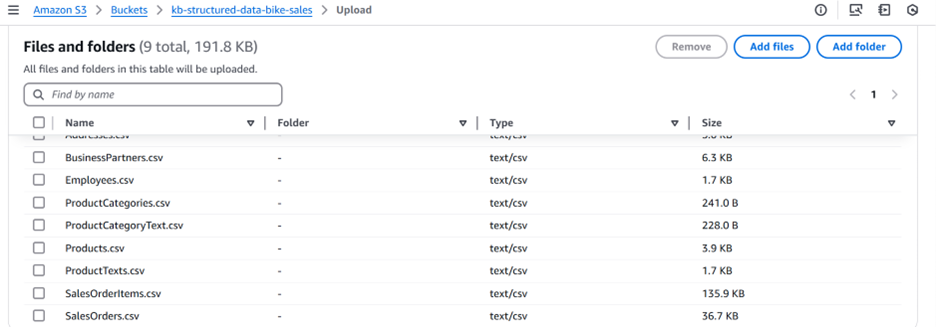
Figure 2: Storing SAP sample data in S3 bucket
Note: The sample file Employees.csv has several blank column names indicated as shown below. Use your favorite editor to remove these in the header and data lines to enable it to be imported easier. You may also want to update the sample data to present more recent information.
EMPLOYEEID,NAME_FIRST,NAME_MIDDLE,NAME_LAST,NAME_INITIALS,SEX,LANGUAGE,PHONENUMBER,EMAILADDRESS,LOGINNAME,ADDRESSID,VALIDITY_STARTDATE,VALIDITY_ENDDATE,,,,,,
0000000001,Derrick,L,Magill,,M,E,630-374-0306,derrick.magill@itelo.info,derrickm,1000000001,20000101,99991231,,,,,,
0000000002,Philipp,T,Egger,,M,E,09603 61 24 64,philipp.egger@itelo.info,philippm,1000000002,20000101,99991231,,,,,,
0000000003,"Ellis",K,Robertson,,M,E,070 8691 2288,ellis.robertson@itelo.info,ellism,1000000003,20000101,99991231,,,,,,
0000000004,William,M,Mussen,,M,E,026734 4556,william.mussen@itelo.info,williamm,1000000004,20000101,99991231,,,,,,
Combining SAP data with non-SAP
At this stage, you can also combine SAP data with non-SAP relevant data from other business sources and that’s where the value of integrated enterprise comes in with generative AI technology.
Load data into an Amazon Redshift Data Warehouse for ease of querying
Follow these steps to add data from S3 to redshift:
- Navigate to Amazon Redshift and create serverless namespace; In this example, we use the default-workgroup and namespace.
- To access the Redshift Query Editor, select Query Data from the console for Amazon Redshift, which takes us to Redshift query editor
- From the query editor, select Create > Database as shown in Figure 3
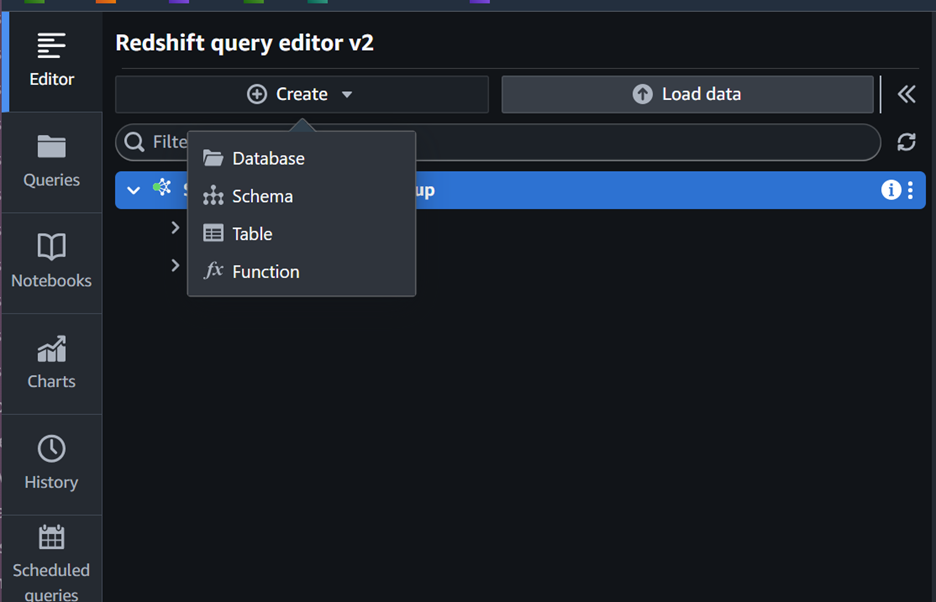
Figure 3: Create Redshift database from query editor screen
- Use the “create database” form to create a database (in this blog, we are using the name bike_sales and using Redshift serverless)
- For each of the .csv files, we will create a corresponding table in the bike_sales database. To create a table and load the data in one step, begin by selecting the “Load Data” button
- Select “Load from S3 Bucket” and “Browse S3” to select the appropriate files
- The data files contain DATE formats using a YYYYMMDD format which may be autodetected incorrectly as an integer value. To fix this, select the “Data Conversion Parameters” button as shown in Figure 4 and change the data format as shown in Figure 5 (You may also need to select “Accept any date” to accommodate blank values)
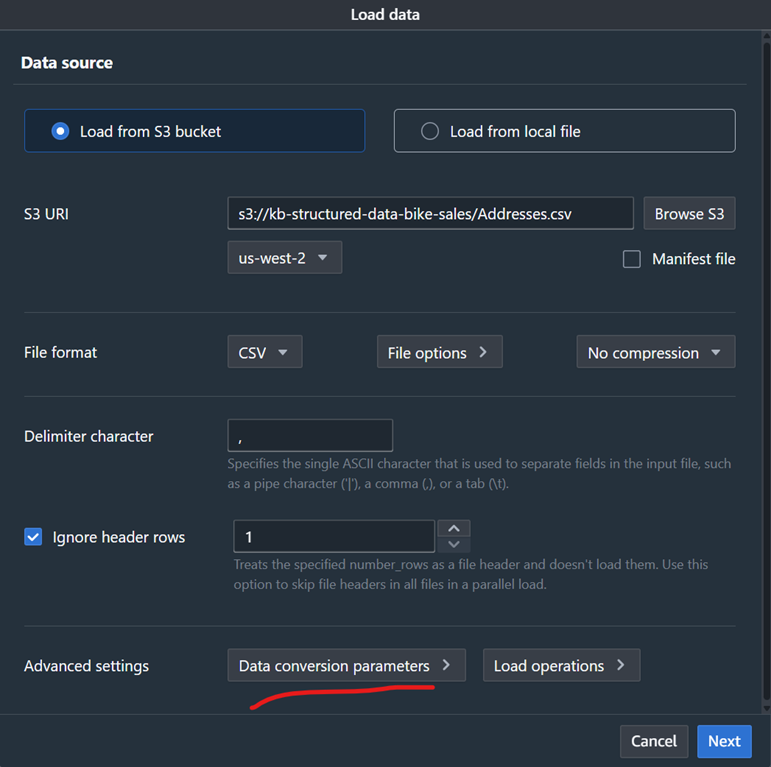
Figure 4: using data conversion parameters for date format
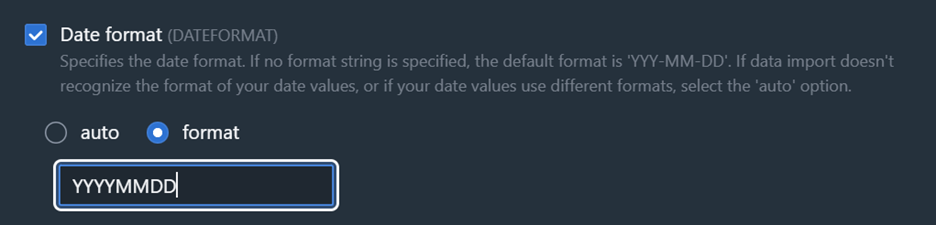
Figure 5: Date format change option
- Select Next to proceed to the Load data screen
- Select “Load new table” to create a new table based on the .csv header information. Select the appropriate workgroup, database, and schema from the dropdowns, and name the table after the .csv filename as shown in Figure 6
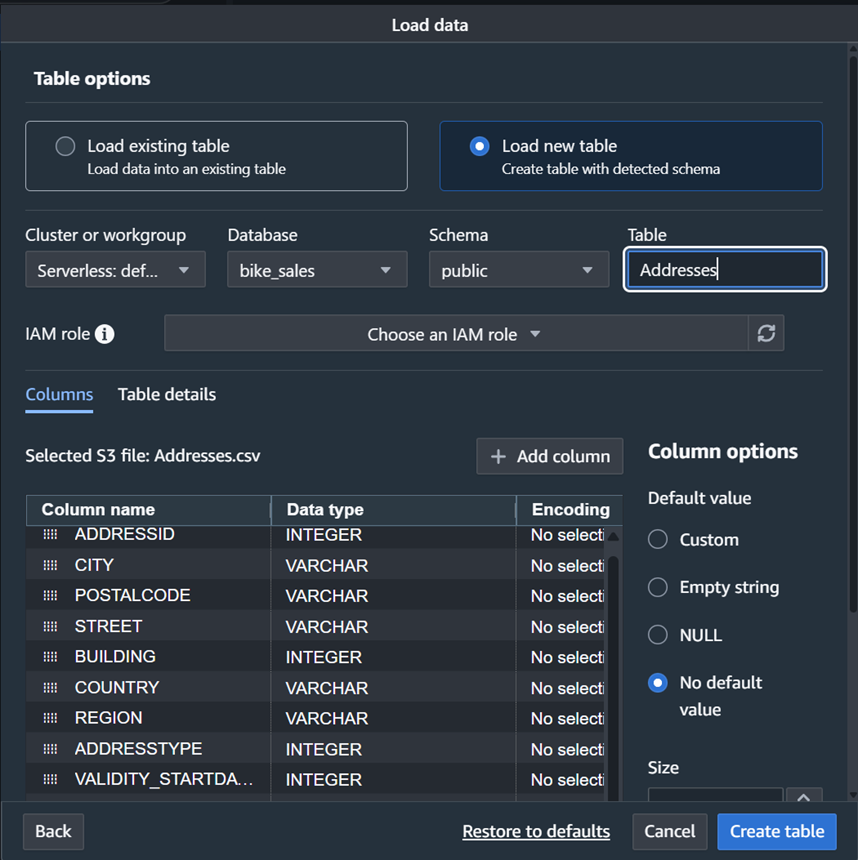
Figure 6: Loading table to Redshift
- Change any data types for data fields to a “DATE” datatype (If any columns do not have a data type, VARCHAR may be selected)
- Select “Create Table” and “Load Data” to create the table and load the data
- Validate that the table has been created correctly by right-clicking on the table name and choosing option “Select table” which will automatically create a query such as select * from “bike_sales”. “public”. “addresses”
- Repeat this process for the other tables. When complete, all nine files will be in Redshift to be used by Amazon Bedrock
Create Amazon Bedrock Knowledge Base for Structured Data
Follow these steps to create a knowledge base using Redshift
- Navigate to Amazon Bedrock and select Knowledge Bases from left panel
- Select Create and then Knowledge Base with structured data store as shown in Figure 7
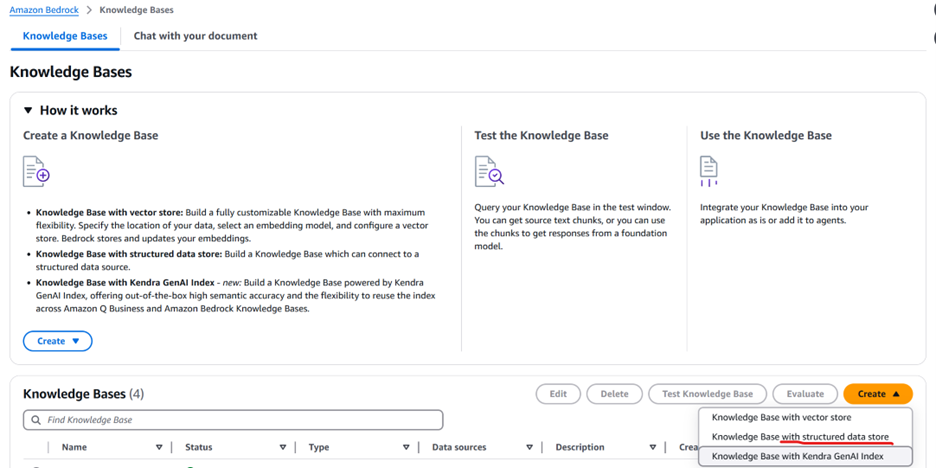
Figure 7: Amazon Bedrock Knowledge Bases with structured data store option
- Give the Knowledge Base a name and select Amazon Redshift as the data source
- For IAM permissions, select “Create and use a new service role”
- Click Next and select the Query Engine details that match your deployment (redshift serverless in this example)
- For the storage metadata, select the database you created (bike_sales in our example) and select Next
- Note the Service Role and Select “Create Knowledge Base”
Add user to Redshift corresponding to the service role
- Navigate to Redshift consoled and use following command to create the user with the service role from the previous step:
create user "IAMR:AmazonBedrockExecutionRoleForKnowledgeBase<XXXXX>" with password disable; - Grant permissions to the IAM Service Role using command “grant select on all tables in schema “public” to IAMR:AmazonBedrockExecutionRoleForKnowledgeBase<XXXXX>”
Tip: Additional details and best practices for the configuration of the IAM role are documented here.
Sync the Query Engine
Return to the Amazon Bedrock Knowledge Base and use sync button as shown in Figure 8; it takes a few minutes to sync and shows the status as “COMPLETE”
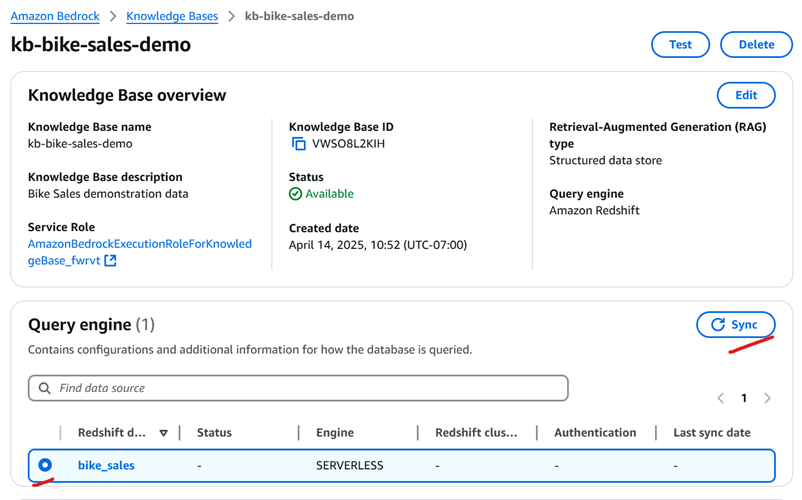
Figure 8: Knowledge based sync
Use natural language to analyze data using foundation models
We are now ready to use this knowledge base with your choice of foundation model. Begin by selecting the Knowledge Base you created and choosing a model as shown in Figure 9.
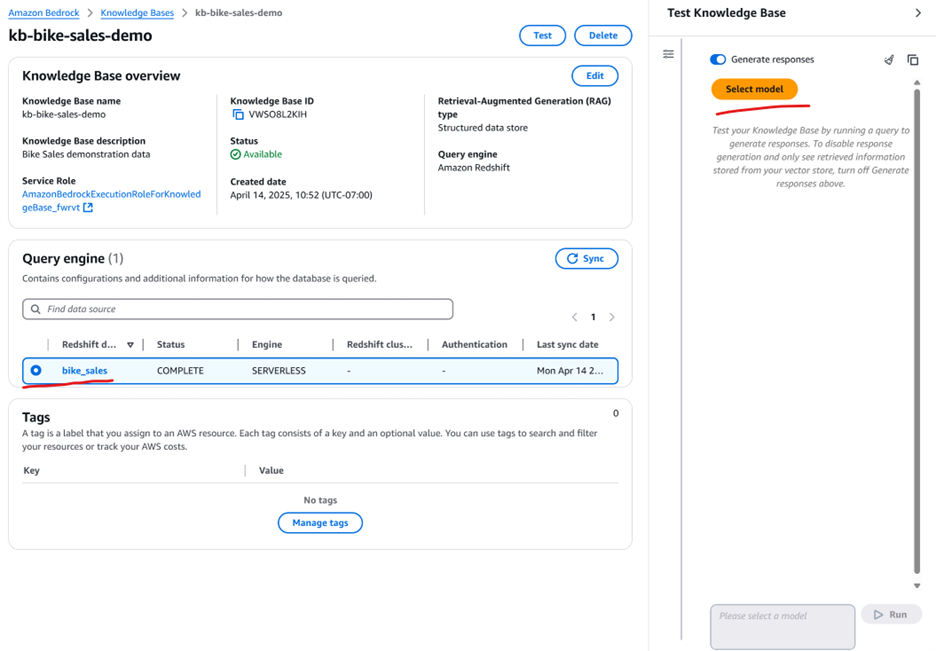
Figure 9: Using the Redshift knowledge base with a foundation model of your choice
Tip: In our tests, “Amazon Nova” and “Anthropic Claude” Sonnet models work well for this analysis.
The screen capture in Figure 10 shows examples of questions and results from the foundation model. Note the transparency aspect of Amazon Bedrock, which shows the specific query used on the dataset to generate the response.
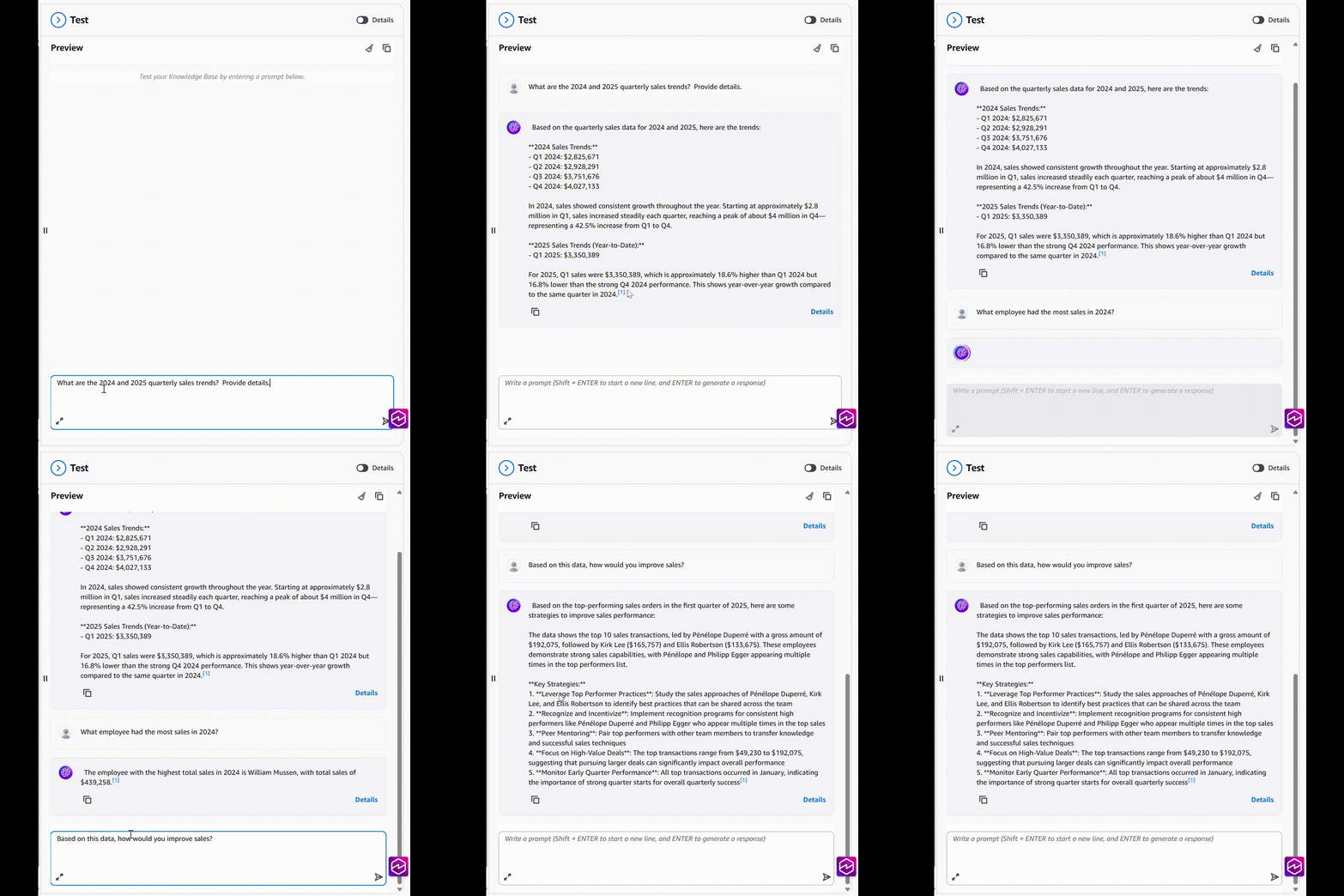
Figure 10 – Example of a chat with data
You can test multiples models for the best user experience and integrate the Redshift Knowledge base in your business applications.
Sample cost breakdown
The following table provides a sample cost breakdown for deploying this solution in your own AWS account with the default parameters in the US East 1 (N. Virginia) Region.
| AWS Service | Dimensions | Cost in USD | |||
|---|---|---|---|---|---|
| Amazon S3 | 10 GB storage for CSV files per month | $0.26 | |||
| Amazon Redshift Serverless | 4 RPU with 8 hr/day runtime per month | $366.24 | |||
| Amazon Bedrock Knowledge Base for Structured Data | 1 Request / minute running 8 hours per day with average input and output token size of 1000. | $259.20 |
We recommend creating a Budget through AWS Cost Explorer to help manage costs. For full details, refer to the pricing webpage for each AWS service used in this blog.
Clean up resources
The services mentioned in this blog will consume AWS resources in your account and should be cleaned up to prevent further costs once they are no longer needed. Be sure to delete the following:
- Files in the S3 Bucket used for staging data and the S3 Bucket itself
- Redshift Database that was used to host the structured data
- Amazon Bedrock Knowledge Base for structure data store
- IAM Service Roles (these are not chargeable, but should be cleaned up if no longer needed)
Conclusion and next steps
In this blog we discussed how to use Generative AI for SAP data, both structured and unstructured using specific use cases, but the concepts are transferable to other use cases that your organizations may have.
To quickly get started Amazon Bedrock and Amazon Q, start at AWS Generative AI page. You can also query the Knowledge Base directly in the command line using the Kiro CLI and Amazon Bedrock Knowledge Retrieval MCP Server. Try it today! Also, check out our recently published videos on using Amazon Q for SAP DevOps.