AWS Big Data Blog
From problem to fix in minutes: Automating search relevance tuning with the Amazon OpenSearch Search Relevance Agent
Automating search relevance tuning means going from “my NDCG score is low” to “here is a better search query” in minutes. The Amazon OpenSearch Service Search Relevance Agent accelerates search quality improvements: you describe the problem, the agent investigates your behavioral data, runs sequenced evaluations, and generates an improved query validated against your search quality targets. All of this happens without leaving the UI.
In the previous post, Measuring and improving search quality with Amazon OpenSearch Service, you learned how to capture behavioral signals with User Behavior Insights (UBI), run structured experiments with Search Relevance Workbench (SRW), and arrive at a real Normalized Discounted Cumulative Gain (NDCG) score. That gives you the diagnosis. Now comes the harder part: acting on it.
Improving search quality is a tedious, manual loop. A search engineer studies the dashboards, forms a hypothesis, rewrites the domain-specific language (DSL) query, creates a new configuration, runs an experiment, interprets the results, and deploys the change if the numbers hold. Then the catalog shifts, query patterns evolve, and the cycle starts over. Staying ahead of it is practically a full-time job.
The Search Relevance Agent, accessible through the Ask AI button in the OpenSearch UI application, automates this loop. You have a conversation. The agent does both: diagnose and fix. In this post, we explain what the Search Relevance Agent is and how it works, then walk through a complete example investigation that takes a low-performing query from problem to validated fix.
What is the Search Relevance Agent?
Before diving into the demo, it’s worth being precise about what the agent is and isn’t. Search Relevance Agent is one of the agents supported in OpenSearch Agent Server. The OpenSearch Agent Server is a multi-agent orchestration platform for building specialized AI agents that work together within OpenSearch. The agent server is an orchestration server for OpenSearch Dashboards with context-aware routing and Model Context Protocol (MCP) integration.
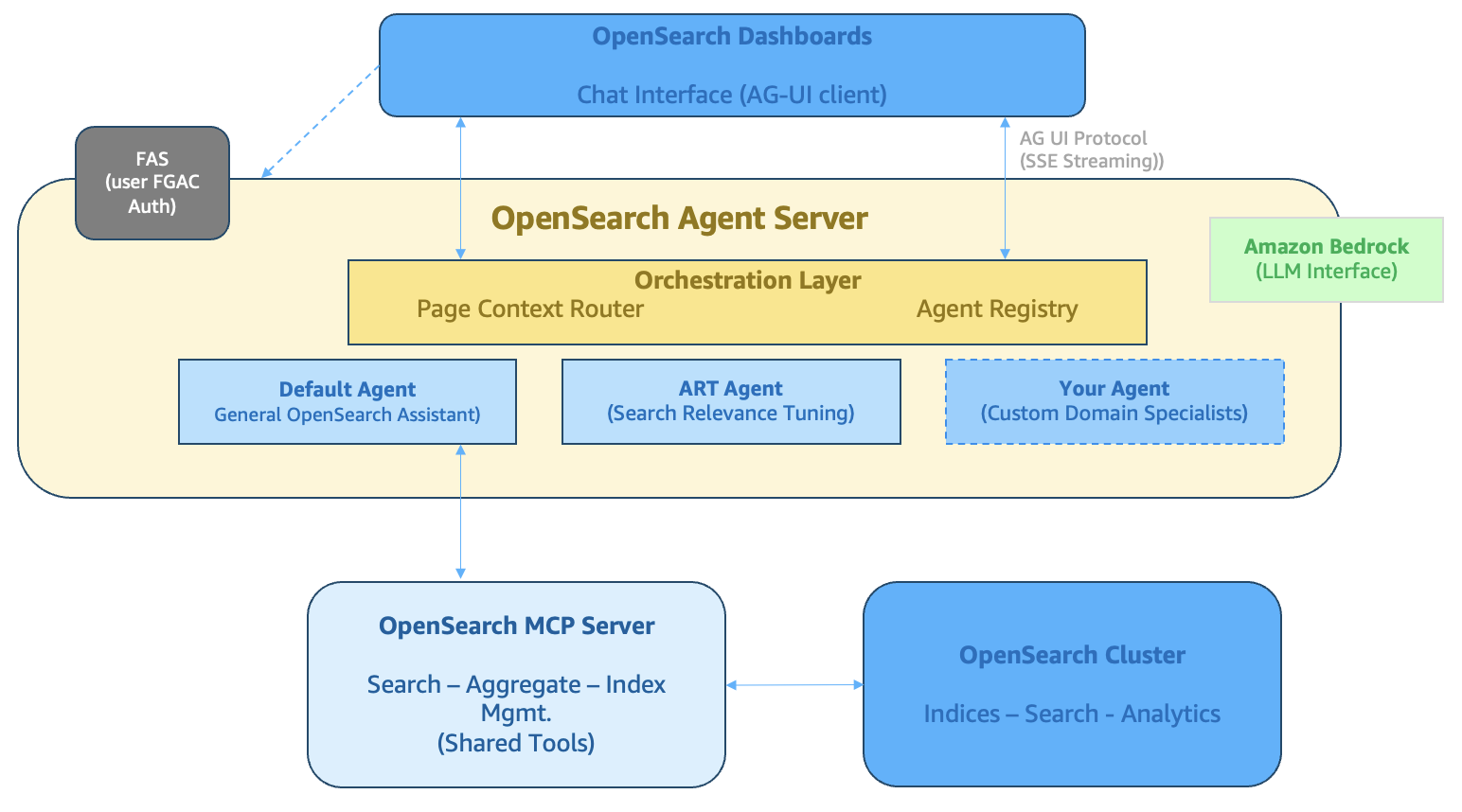
Figure 1: OpenSearch Agent Server
The Search Relevance Agent is a search relevance tuning tool. It analyzes your UBI search data, generates improved query configurations, and validates those improvements using offline SRW experiments. It operates at the level of query DSL, refining field weights, adjusting scoring strategies, and adding boost functions.
It isn’t an agentic search tool. It doesn’t rewrite user queries at runtime or intercept search requests. It configures the search system so that future searches perform better.
The distinction matters because it tells you what kind of problems it solves: systematic relevance issues that affect a category of queries, not one-off edge cases.
Solution overview
Under the hood, the Search Relevance Agent is powered by three skills of a single agent rather than separate sub-agents wired together as tools. The full loop, from spotting a problem to generating a hypothesis to evaluating it, runs in a single shared context with one tool stack. Nothing is lost handing off between agents, and the behavior stays simple and predictable.
When you send a message through Ask AI, you are talking to the OpenSearch Agent Server. Depending on what you are asking for, the agent applies one of three skills.
- User behavior analysis: Queries your UBI indexes to surface relevance problems such as low click-through-rate (CTR) queries, zero-result queries, and declining engagement patterns. Deterministic tools handle all metric calculations rather than the large language model (LLM), so the numbers are trustworthy.
- Hypothesis generation: Analyzes your current search configuration (search queries), runs a pairwise smoke test, and proposes a new DSL search query as a hypothesis. It explains its reasoning, which fields it changed and why, so you can evaluate the proposal before approving it.
- Evaluation: Creates the SRW artifacts (query set, search configuration, judgment list) and runs an offline Search Quality Evaluation experiment. It reports NDCG, Mean Average Precision (MAP), and Precision, interprets the tradeoffs, and gives you a plain-language recommendation.
Every agent communicates with your OpenSearch cluster exclusively through the MCP Server, a standardized interface that gives agents access to your UBI data, search configurations, query sets, and experiments. Nothing happens without going through this secure layer.
OpenSearch UI uses the Agent-User Interaction Protocol (AG-UI) to connect AI agents to frontend applications, delivering real-time capabilities through standardized streaming and tool execution. The AG-UI protocol streams agent responses to OpenSearch Dashboards in real time, delivering results continuously rather than all at once.
The Agent Server receives the user’s authenticated identity from OpenSearch Dashboards, so every OpenSearch operation enforces user-level permissions rather than a service account’s, preserving access controls end to end.
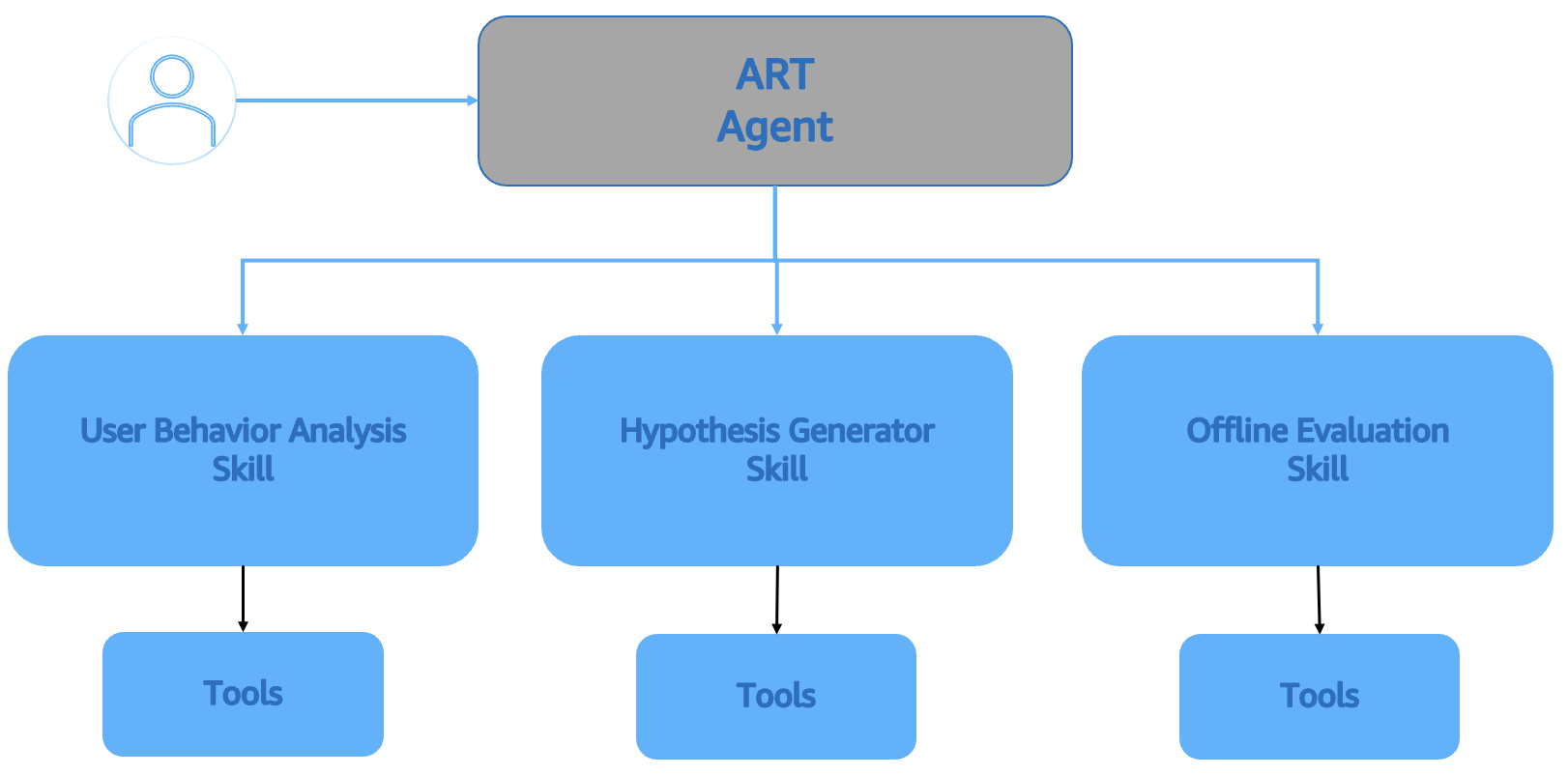
Figure 2: Auto relevance tuning agent architecture
Prerequisites
To follow along, you need an OpenSearch Service domain running OpenSearch 3.5 or later with the OpenSearch UI application, and a search application you can instrument to emit behavioral records.
Example UBI investigation
Here’s what the agent conversation looks like in practice, working through a real dataset. Figure 3 shows a complete walkthrough of using the agent.
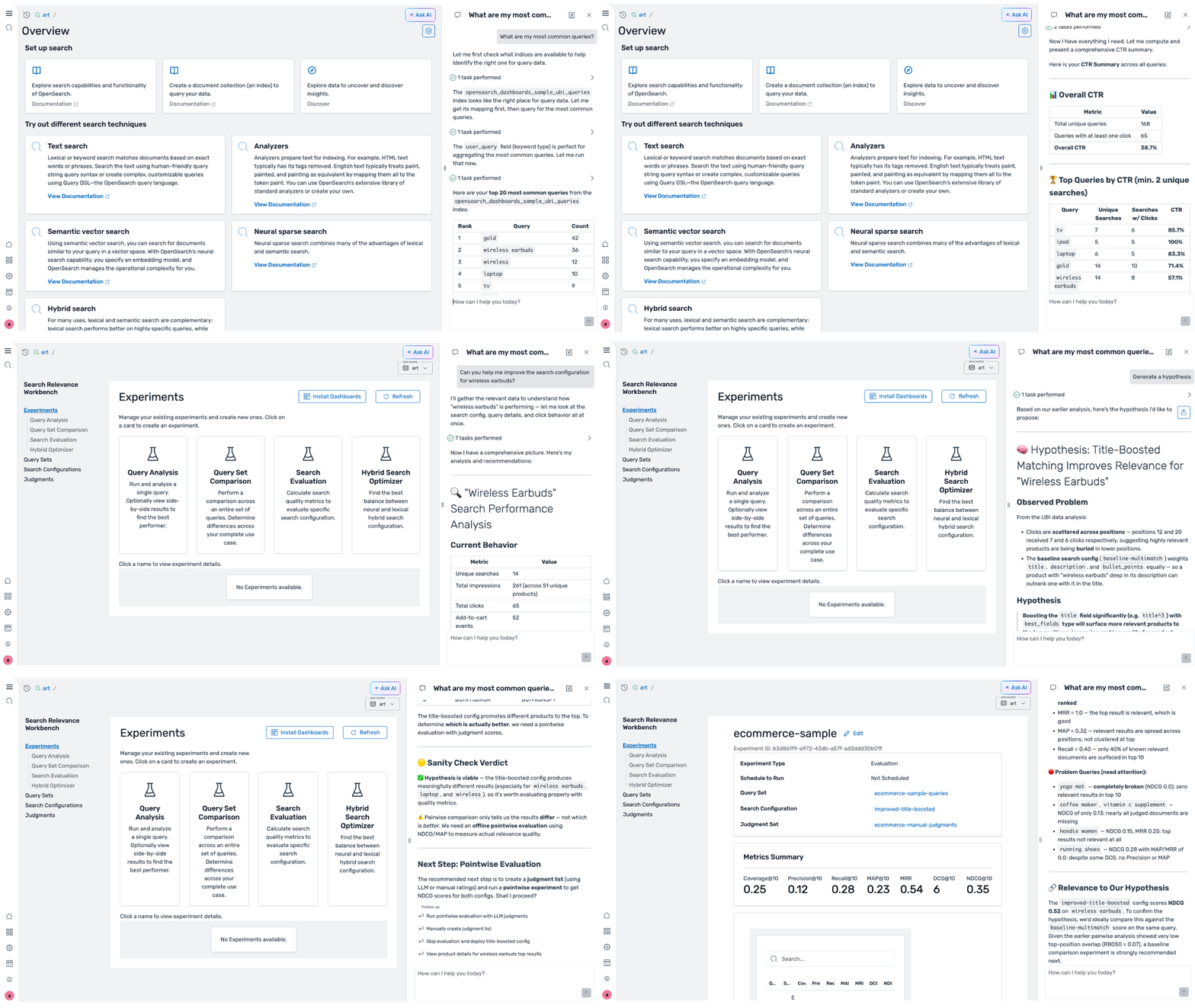
Figure 3: Search improvement example
Step 1: Open Ask AI
You will be working in the search workspace within the OpenSearch UI application. After entering the search workspace, choose Ask AI in the upper right corner.
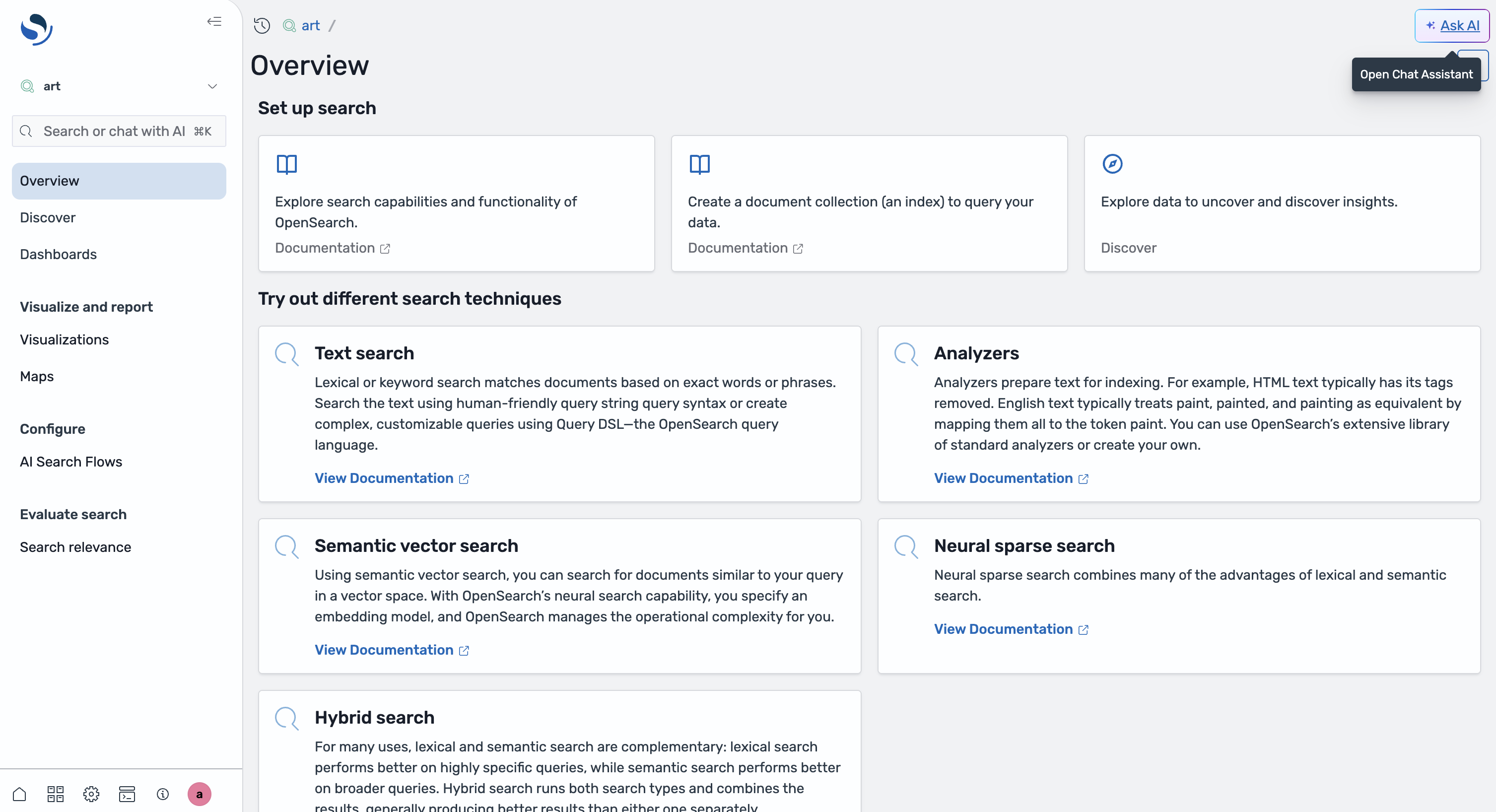
Figure 4: Search workspace overview page
The agent chat panel opens. You’ll see a welcome message and suggested prompts to get started.
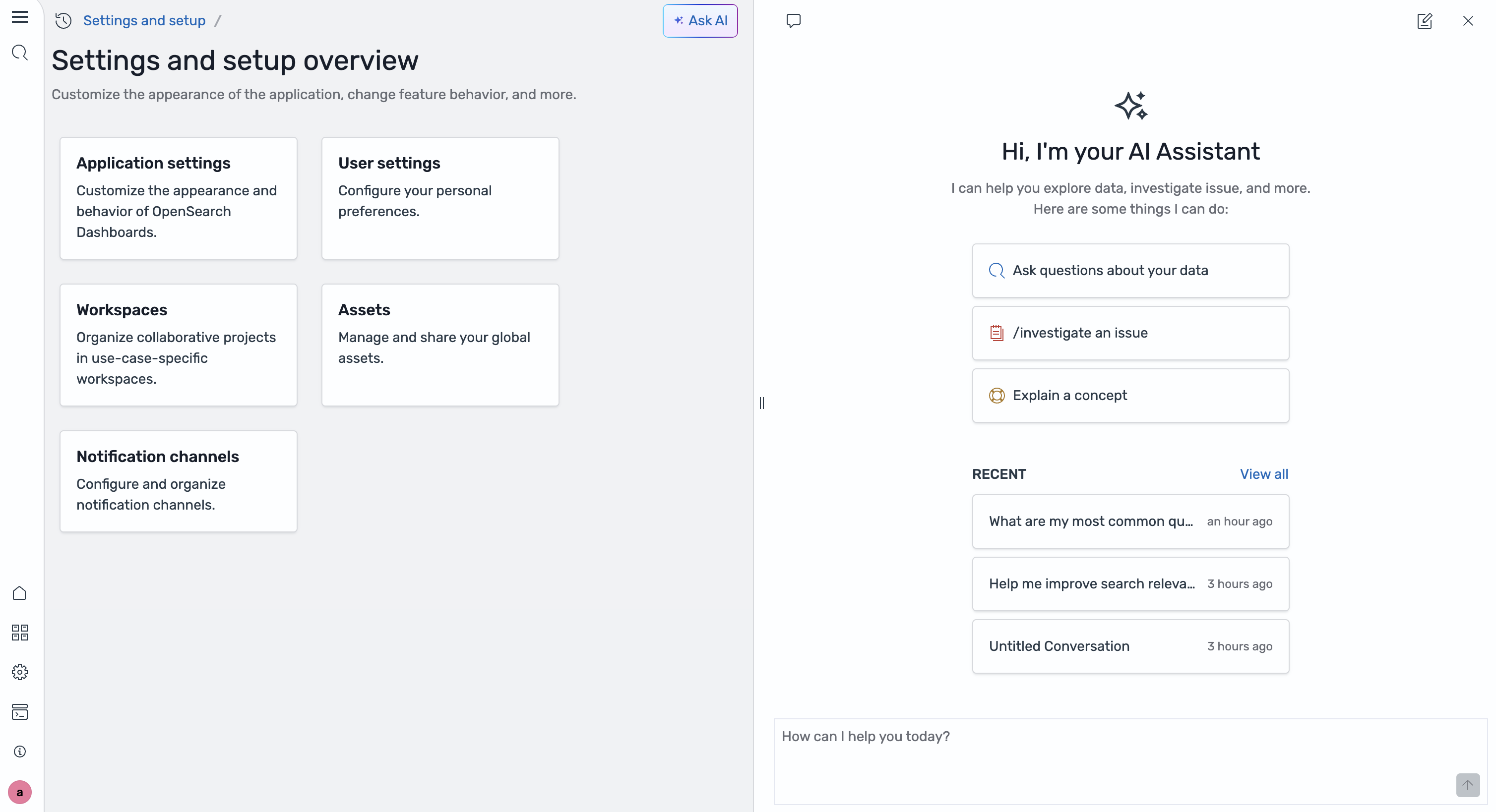
Figure 5: Ask AI chat panel
Step 2: Find the problem
Start with a diagnostic question: “What are my most common queries?”. The User Behavior Analysis skill activates. You can watch its tool calls in real time as it queries your UBI indexes. The skill finds that there were 473 total queries across the product catalog. Top queries include gold and wireless earbuds. But across all those queries, there are only 11 total click events. The agent flags this immediately: a CTR that low is a signal that search isn’t working for users.
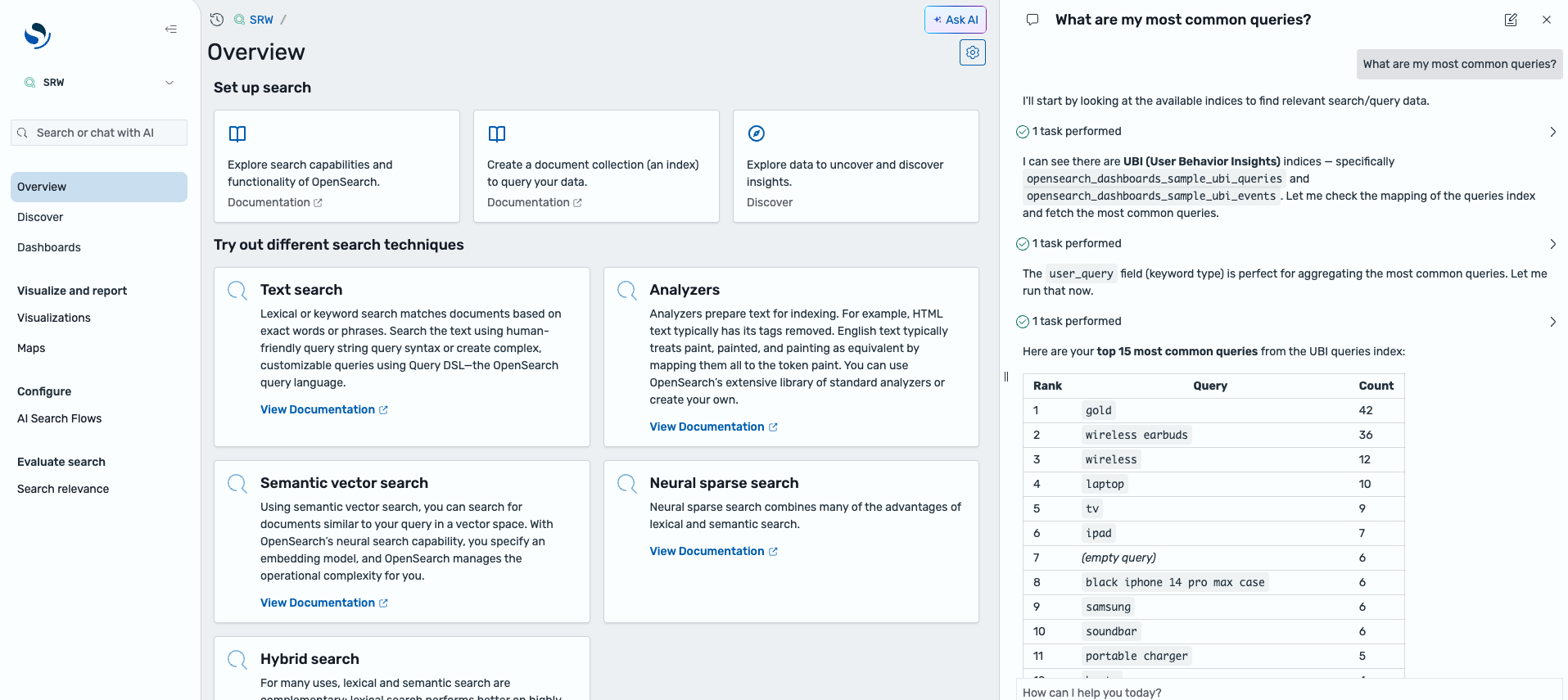
Figure 6: Viewing most used search queries
This is exactly what UBI is designed to surface. The skill didn’t need a threshold configured. It found the pattern itself.
Step 3: Investigate a specific search query
After you have received the summary information, you can investigate a specific search query’s performance more deeply. Ask the AI “What is the click-through-rate for wireless earbuds?”. It returns that users searched for “wireless earbuds” 261 times and clicked 65 times, producing a 24 percent CTR. This is a good opportunity to improve search performance.
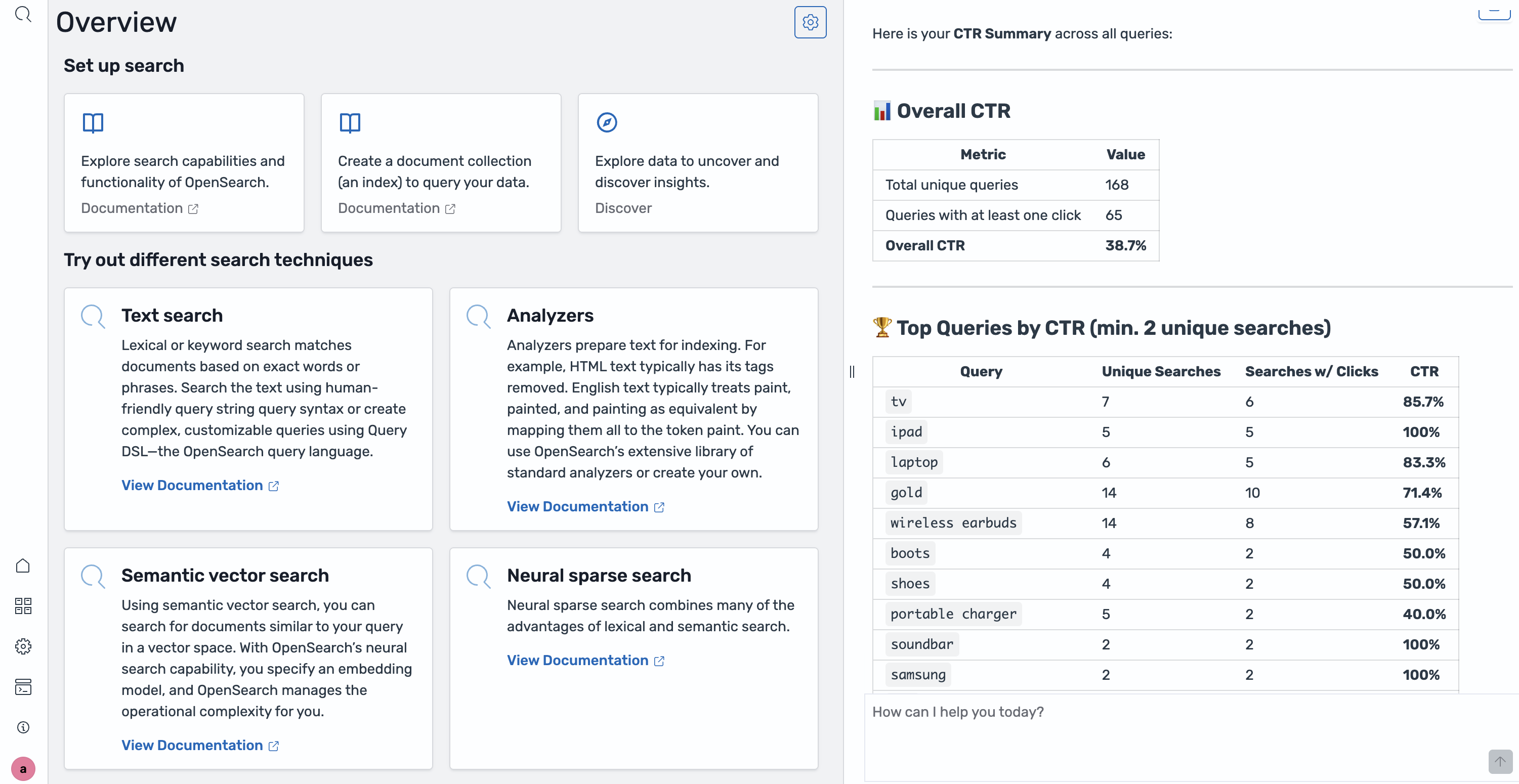
Figure 7: Agent response for the click-through rate of wireless earbuds
Step 4: Understand the baseline
The next step is to review the current search configuration. Ask the AI “What is my current search configuration?” The agent retrieves the current configuration and presents it for review.
Step 5: Generate a hypothesis
Next is to figure out how to improve the search configuration. Ask the agent: “Can you help me improve the search configuration for wireless earbuds?”. The agent initiates an investigation of the search configuration performance and how it can be improved.
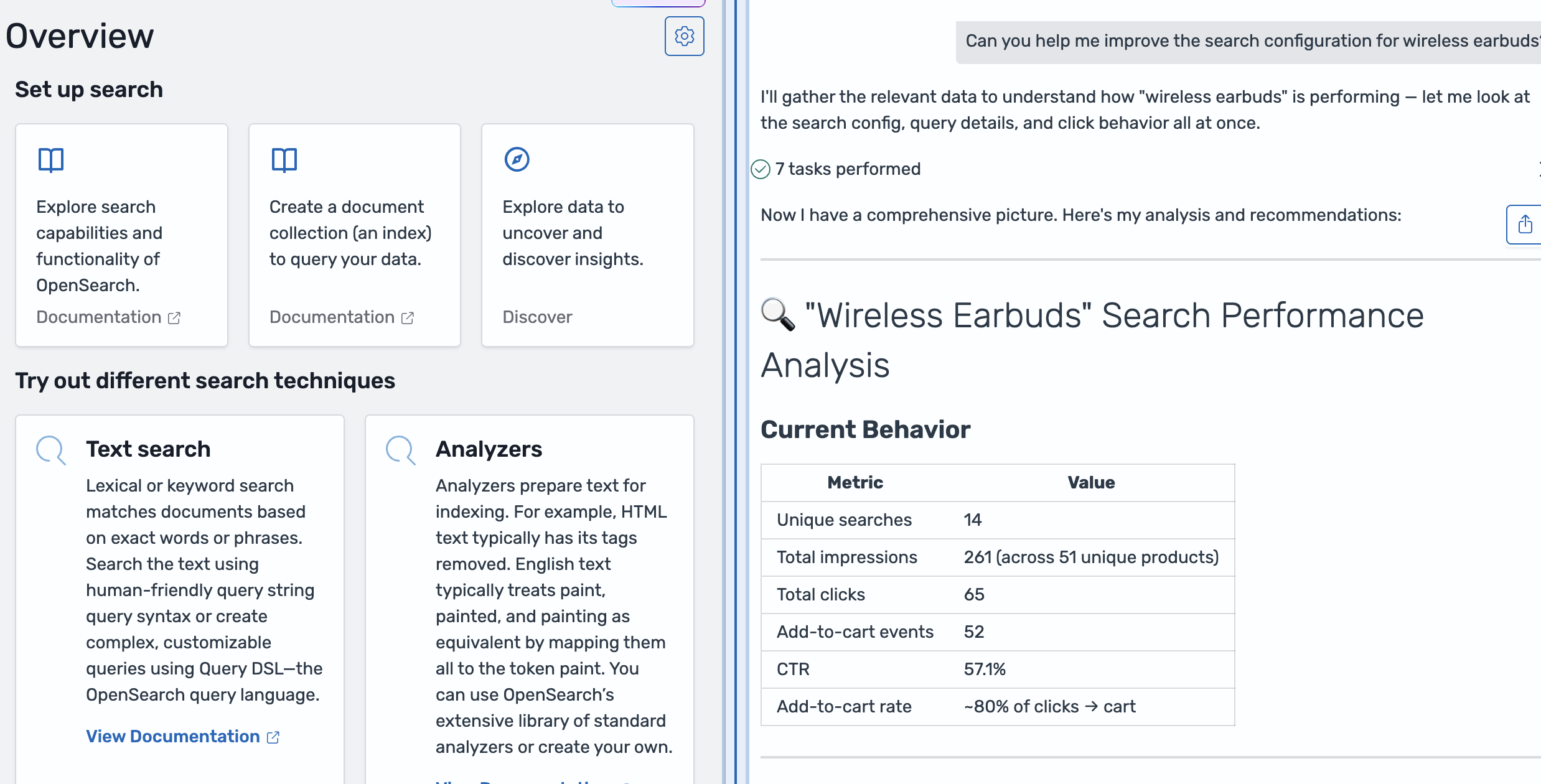
Figure 8: Investigation details
The agent then provides recommendations on improvements.
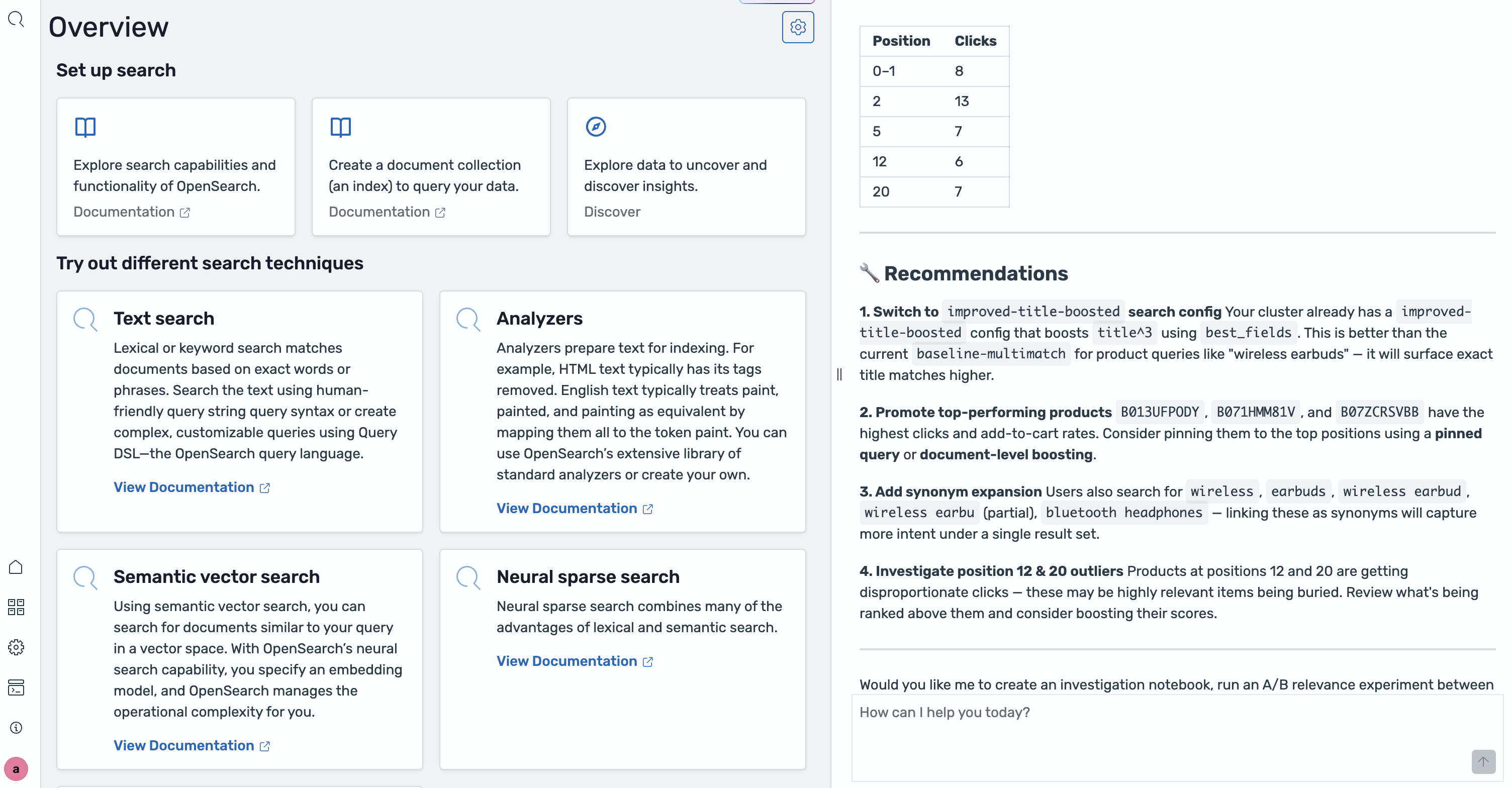
Figure 9: Search configuration investigation
You can then ask the AI to generate a hypothesis. The Hypothesis Generator skill will develop a hypothesis based on the investigation and provides supporting findings.
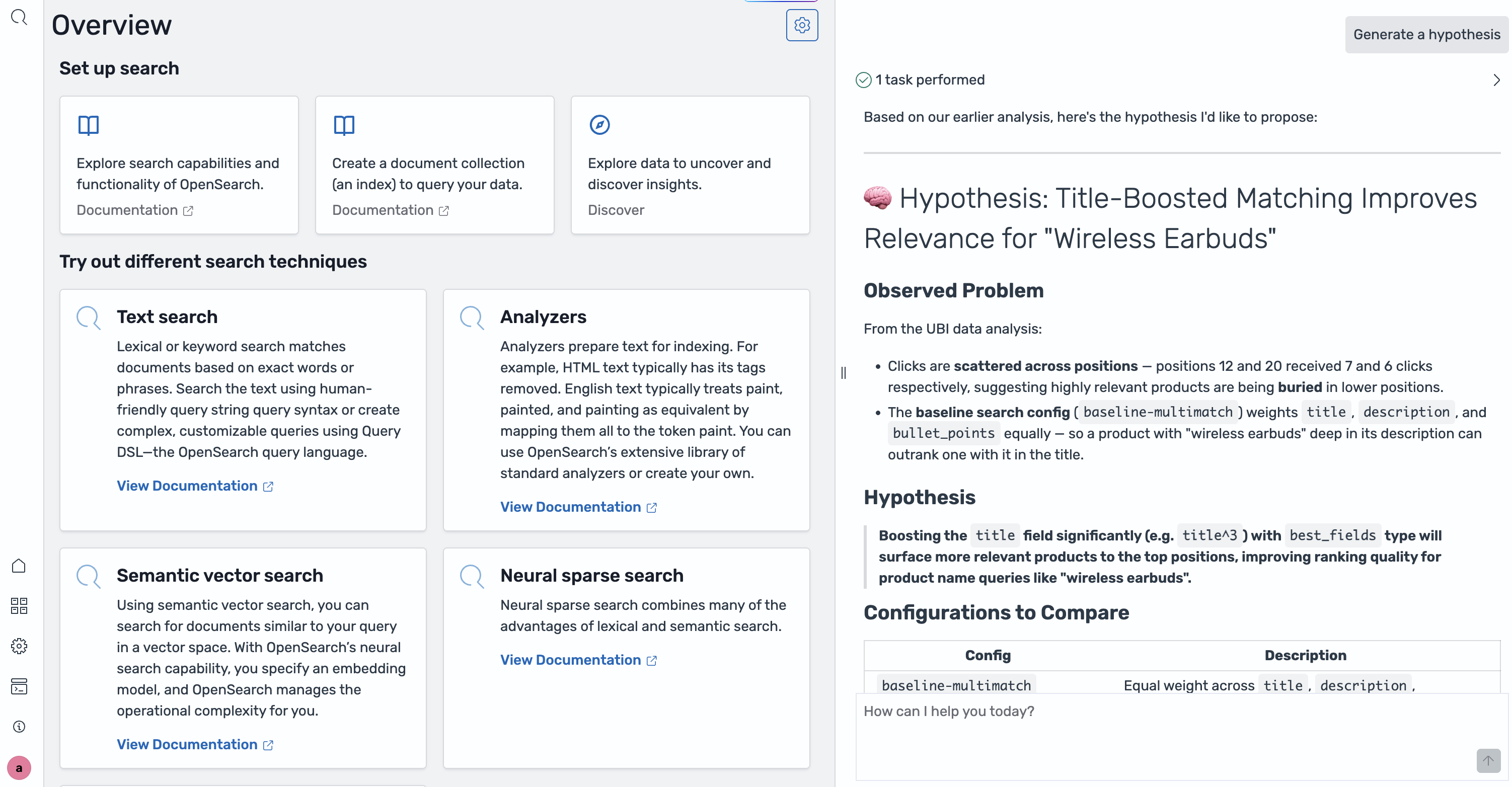
Figure 10: Hypothesis
Ask “What are the root causes?”. The skill presents root causes, justification, and a new hypothesis for your review. In this example the root causes returned were:
Root Cause 1: Keyword field dilution
Root Cause 2: No popularity signal
Root Cause 3:
best_fieldsvulnerability
Step 6: Validate with an offline evaluation
The Evaluator skill creates all the necessary SRW artifacts and runs a Search Quality Evaluation comparing the baseline and the hypothesis. Ask “Validate with an offline evaluation”, the evaluation report will appear in the chat:
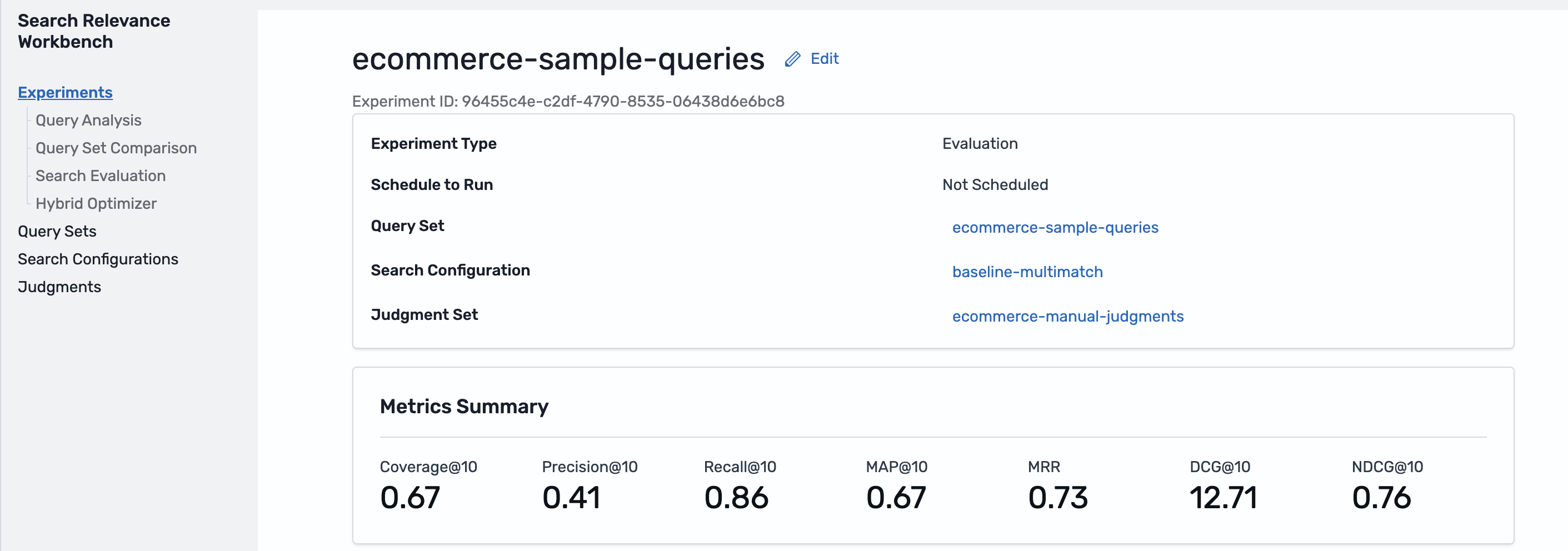
Figure 11: Evaluation metrics
NDCG improved substantially. MAP and Precision show a minor tradeoff. You can then ask the agent to explain the findings. Ask “What does a higher NDCG but slightly lower MAP tell me? Is this worth deploying?”
The agent explains: “NDCG improvement means the most relevant results are moving toward the top, users will see better products first. The MAP and Precision tradeoff is small and expected when adding a popularity boost. Recommendation: deploy.”
If your search configuration uses hybrid search, combining lexical and neural queries, the Search Relevance Workbench includes a Hybrid Search Optimizer that automates parameter tuning. Instead of manually experimenting with normalization techniques, combination methods, and lexical-to-neural weight ratios, you can run a single optimization experiment. The optimizer evaluates all combinations of normalization, combination, and weight distributions as well as Reciprocal Rank Fusion variants. It scores against your judgment list and surfaces the parameter set that maximizes your search quality metrics.
Step 7: Inspect what the agent created
Before deploying anything, check what the agent built by asking “Show me the new search configuration”.
Search configurations: a new entry, hypothesis-wireless-earbuds-v1, with the full DSL. You can inspect every line, tweak it, or fork it.
Experiments: the offline evaluation the agent ran. Select into it to see per-query scores, download results as CSV, or share the link with your team.
This is the transparency guarantee: the agent doesn’t ask you to trust a black box. The agent documents and makes every decision auditable.
Step 8: Continue the conversation
The loop doesn’t need to stop here:
“The NDCG looks good but I’m worried about over-promoting popular items. Can you reduce the rating boost factor and re-evaluate?”
“Now look at the ‘gold’ query — it had the highest search volume but very low CTR. What’s going on?”
“I’m happy with the wireless earbuds hypothesis. How do I apply this configuration in production?”
Each question kicks off a new iteration of the same loop: analyze, hypothesize, evaluate. But now it takes minutes, not hours.
Continuous improvement, not one-time tuning
A key reframe the Search Relevance Agent offers is thinking about search quality as a practice, not a project. Search degrades over time. The configuration you tuned last quarter might be quietly underperforming today, and without a continuous measurement loop, you won’t know until users stop converting. The agent fits into a continuous, human in the loop improvement cycle:
- Collect: UBI captures real user behavior automatically.
- Identify: The agent surfaces emerging relevance gaps before they become customer complaints.
- Hypothesize: The agent proposes targeted fixes grounded in your actual data.
- Evaluate: SRW validates improvements offline before anything touches production.
- Deploy: You apply the winning configuration with full visibility into the evidence.
- Monitor: UBI closes the loop, feeding new behavior back into step 1.
At each stage, you remain in control. The agent executes, you decide.
Who benefits
Search engineers get powerful tools that eliminate repetitive work. These tools provide root cause analysis, DSL iteration, and experiment setup, all automated. Engineers focus on the problems that require genuine expertise. Product managers and business owners can now participate meaningfully in search tuning without writing a single line of DSL. If a new product category is underperforming, you can ask the agent to investigate and get an actionable recommendation in plain language. Teams without dedicated search expertise get access to advanced relevance engineering techniques such as function_score, cross_fields, and popularity boosting without needing to know the terminology. The agent handles the implementation.
Try it yourself
The Search Relevance Agent is available today in Amazon OpenSearch Service through the Ask AI button in your OpenSearch UI search workspace. To get started open your OpenSearch UI application and navigate to Search Relevance then load the sample UBI data if you haven’t already. Entering the /search-relevance command in the chat from another page will also take you to Search Relevance. Next, choose Ask AI and start with: “What are my most common queries with low engagement?”
For a step-by-step hands-on lab, try the Search Relevance Workbench Workshop on AWS Workshop Studio module 3 which walks through the full Automated Relevance Tuning (ART) agent experience with the ESCI ecommerce sample dataset.
The OpenSearch Search Relevance Agent is part of the OpenSearch application experience in Amazon OpenSearch Service. It requires an OpenSearch application with an associated workspace and data source.
Clean up
To avoid future charges, delete the resources you created for this walkthrough:
- If you created the domain specifically for this post, delete it to remove everything, including the resources in the previous step. Deleting a domain is irreversible. Don’t delete a domain that serves other workloads.
- If you keep the domain, optionally delete the
ubi_queriesandubi_eventsindices and the query sets, judgment lists, and experiments you created. These live on the domain and incur no separate charges. - Delete the OpenSearch UI application if you created it specifically for this post.