AWS Database Blog
Rebuild large indexes on Aurora PostgreSQL with Blue/Green Deployments
Rebuilding large indexes on Amazon Aurora PostgreSQL-Compatible Edition can be a time-consuming and resource-intensive operation.
Over time, indexes on a frequently modified table become bloated. As you update and delete rows, the index accumulates dead entries and fragmented pages, so it occupies more space than the underlying data requires and index scans take longer. Teams rebuild indexes to recover from this. Common reasons include reclaiming storage and performance after heavy update or delete activity, recovering from index corruption, recreating indexes after a major version upgrade, or changing an index definition such as its collation.
You use the REINDEX command to rebuild the index from scratch. For most tables it is a routine operation. The difficulty is specific to large indexes, and it comes from how REINDEX works internally. To rebuild an index, PostgreSQL sorts every entry, and for a large index that sort spills to temporary storage on disk. The larger and more bloated the index, the more temporary space the rebuild needs. When that space runs short, the rebuild fails. This is the problem the rest of this post addresses.
In this post, we show how to rebuild large indexes on Amazon Aurora PostgreSQL-Compatible Edition by combining Amazon Aurora Blue/Green Deployments with Aurora Optimized Reads. By performing the reindex on the green (staging) environment with a Non-Volatile Memory express (NVMe)-backed instance class, the sort phase uses fast local storage instead of Amazon Elastic Block Store (Amazon EBS) over the network, and you avoid impacting production workloads. The local NVMe solid-state drive (SSD) is designed to provide up to 2x better latency and throughput for sort-heavy operations like REINDEX. After the rebuild completes, a switchover promotes the green environment to production, typically with minimal downtime.
Solution overview
The following diagram illustrates the Blue/Green Deployment setup used for the reindex procedure. The blue environment continues to serve application traffic while the green environment, with local NVMe temporary storage, runs the reindex operation in isolation. After validation, a switchover promotes the green environment to become the new current environment.
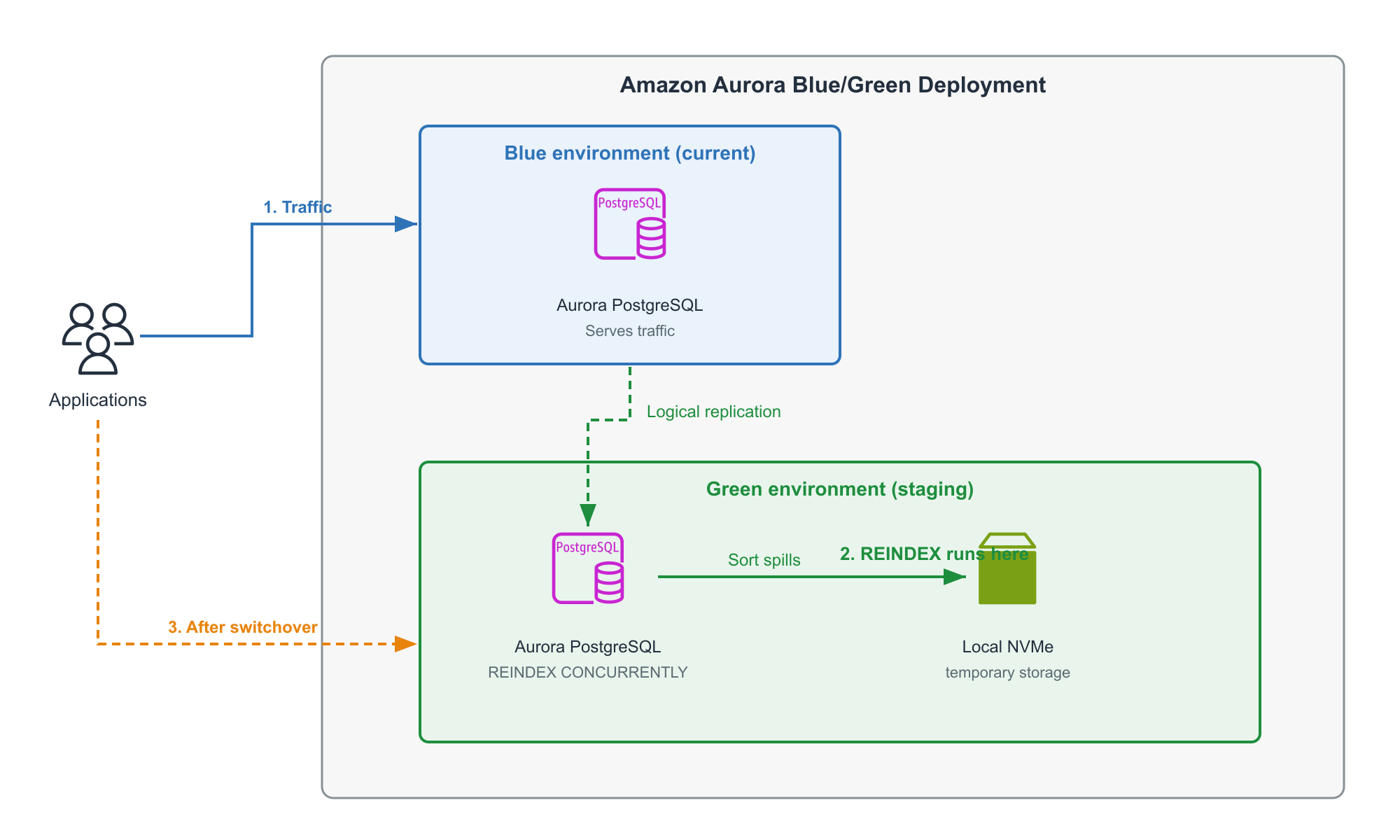
Large index rebuild on Aurora PostgreSQL using a Blue/Green Deployment. Applications send traffic to the blue cluster, which replicates to the green cluster through logical replication. The green cluster runs REINDEX CONCURRENTLY and spills sort data to local NVMe temporary storage. Amazon CloudWatch monitors temporary storage usage through the FreeEphemeralStorage metric. After the reindex, traffic switches over to green.
How index rebuilds use temporary storage
When PostgreSQL runs a REINDEX operation, it must sort the index entries for the target table. For large tables, this sort cannot fit entirely in memory (controlled by maintenance_work_mem), so PostgreSQL spills intermediate sort data to temporary files on disk.
On standard Aurora instances, these temporary files go to Amazon EBS storage over the network. On NVMe-backed instances (db.r6gd, db.r8gd, and db.r6id families), Aurora Optimized Reads redirects temporary objects to the local NVMe SSD, which provides higher throughput and lower latency for these write-heavy sort operations.
Aurora Optimized Reads is available by default when you create a DB cluster that uses Graviton-based R6gd, R8gd, and Intel-based R6id instances with NVMe storage. Aurora Optimized Reads supports two capabilities: tiered cache and temporary objects.
On an Aurora I/O-Optimized cluster, Optimized Reads uses both tiered cache and temporary objects on NVMe storage. With Optimized Reads-enabled tiered cache capability, Aurora allocates 2x the instance memory for temporary objects, approximately 10% of the storage for internal operations, and the remaining storage as tiered cache. On an Aurora Standard cluster, Optimized Reads uses only temporary objects.
The following table summarizes the Optimized Reads capabilities by storage configuration:
| Cluster storage configuration | Optimized Reads temporary objects | Optimized Reads tiered cache |
| Aurora Standard | Yes | No |
| Aurora I/O-Optimized | Yes | Yes |
The Aurora user guide lists CREATE INDEX or REINDEX operations for sorting as a use case for Optimized Reads-enabled temporary objects. For this post, we use Aurora Standard with an NVMe-backed instance class, which provides temporary objects on NVMe. On an Aurora Standard cluster, there is no tiered cache, so the entire NVMe storage (minus a small system overhead) is available for temporary objects.
To verify that Optimized Reads temporary objects are configured on your instance, run:
The key parameters that control this behavior are:
- maintenance_work_mem: Controls how much memory PostgreSQL uses for maintenance operations like index builds before spilling to disk. Set at the session level. See the PostgreSQL documentation for details.
- max_parallel_maintenance_workers: Controls how many parallel worker processes assist with the index build. Each worker performs its own portion of the sort independently, which can increase total temporary disk usage. See the PostgreSQL documentation for details.
Why use Blue/Green Deployments for index rebuilds
Rebuilding large indexes directly on a production cluster carries several risks:
- The operation consumes CPU, memory, and I/O resources that compete with production queries.
- If the operation fails partway through (for example, because of temporary space exhaustion), you might be left with invalid indexes.
- REINDEX CONCURRENTLY holds locks that, while less restrictive than a standard REINDEX, can still cause brief blocking during the swap phase.
Blue/Green Deployments solve these problems by giving you an isolated copy of your database where you can:
- Tune parameters aggressively for the reindex without affecting production.
- Run the rebuild without competing for resources with production traffic.
- Validate the results before promoting to production.
- Roll back by not performing the switchover if something goes wrong.
The frequency of this operation is not fixed. The right interval is different for every table, and it depends on how heavily the table is written to. In our testing, updating 25 million of 50 million rows in a single pass was enough to bloat the index by 50 percent. Tables under sustained update or delete traffic accumulate bloat continuously and benefit from periodic rebuilds of their largest indexes, while tables that change rarely can go a long time without needing one.
Prerequisites
Before you start, verify that you have the following in place:
- Aurora PostgreSQL version 16.1 or later for
db.r6gdanddb.r6idinstances, or 16.3 or later fordb.r8gdinstances (these are the minimum versions that support Optimized Reads temporary objects). - An NVMe-backed instance class (
db.r6gd,db.r8gd, ordb.r6idfamily) on the green environment. The source (blue) does not need to be NVMe-backed. If your source uses a non-NVMe class such asdb.r6g, the green inherits that class during creation, and you can modify the green instance to an NVMe-backed class after the Blue/Green Deployment is available. See Amazon Aurora DB instance classes for available options. - Aurora Standard cluster storage configuration with an NVMe-backed instance class.
rds.logical_replication = 1enabled on the source cluster (required for Blue/Green Deployments, needs a reboot).- Choose an instance class with sufficient NVMe storage to accommodate the sort data for your largest index. To determine this, run
SELECT pg_size_pretty(pg_relation_size('your_index_name'));on your database to find the size of the largest index you plan to rebuild. In our testing, the sort phase generated roughly 2x the index size in temporary data. Choose an instance class whose NVMe capacity (listed in the Amazon Aurora DB instance classes documentation) is at least 3x the size of your largest index to provide headroom. After the instance is running, you can monitor available space with theFreeEphemeralStorageCloudWatch metric. - A PostgreSQL client such as psql to connect to both blue and green environments.
Step-by-step deployment
This walkthrough shows how to set up a test environment, create the parameter groups for both blue and green, deploy the Blue/Green Deployment with the green parameter groups attached, run the reindex on green, and switch over production traffic to green. The procedure assumes you are starting from an existing production Aurora PostgreSQL cluster.
Step 1: Set up a test environment (recommended)
Before performing this procedure on production, validate it on a lower environment first. You can either create a new Aurora PostgreSQL cluster or restore from a production snapshot.
Option A: Restore from a production snapshot
Option B: Create a new test cluster
Restoring from a snapshot is preferred because it gives you realistic data volumes and index sizes that match production. This helps you verify that the NVMe-backed instance class you choose has sufficient local storage for your largest indexes.
After you have validated the procedure on the test environment, proceed with the following steps on your production cluster.
Step 2: Create custom parameter groups
Create separate custom cluster parameter group and instance parameter group. You will need one set for the blue (source) environment and a separate set for the green environment, because the green needs different parameter values for the reindex operation.
Create the cluster parameter group and enable logical replication:
Create the instance parameter group:
Apply the cluster parameter group to your cluster and reboot the writer instance for rds.logical_replication to take effect:
After the reboot, connect to the instance and verify that logical replication is active:
Step 3: Verify the cluster uses an NVMe instance class
Aurora Optimized Reads requires an NVMe-backed instance class (db.r6gd, db.r8gd, or db.r6id family). If your instance does not use one of these classes, modify it:
After the instance is available, connect and verify that Optimized Reads is active:
Step 4: Create and configure parameter groups for the green environment
Before creating the Blue/Green Deployment, prepare the parameter groups for the green environment. The green needs its own parameter groups so you can tune them independently without affecting the blue (production) cluster:
Enable logical replication on the green cluster parameter group:
Step 5: Create the Blue/Green Deployment
With logical replication enabled, the cluster configured, and the green parameter groups ready, create the Blue/Green Deployment. Pass the green parameter groups directly so they are attached to the green environment when it is created. This avoids a separate parameter group attachment step later:
Creation time depends on the size of your source cluster. For typical workloads it takes approximately 10 to 20 minutes, but it can run longer for very large databases. For more details on what happens during creation, see Creating a Blue/Green Deployment. The green environment is created as a replica of the blue, with the same storage configuration and instance class, but with the green parameter groups already attached. Monitor the status:
Wait until the status shows AVAILABLE.
For more best practices on Aurora PostgreSQL Blue/Green Deployments, see the Aurora PostgreSQL best practices for blue/green deployments documentation.
Step 6: Verify the green environment configuration
Connect to the green cluster’s writer endpoint and verify that Optimized Reads and logical replication are active:
You can confirm the instance parameter group is applied by checking that the status shows in-sync:
Step 7: Run the reindex on the green environment
A best practice for the green environment in a Blue/Green Deployment is to keep it read-only until you switch over, to avoid replication conflicts. You can prevent unintended writes by setting the default_transaction_read_only parameter to on in the green cluster parameter group. REINDEX CONCURRENTLY is permitted under this setting because it does not modify table data.
Connect to the green cluster’s writer endpoint and set session-level parameters for the reindex operation:
When choosing values for these parameters:
- For
maintenance_work_mem, verify the server has sufficient remaining memory for normal operations after accounting for the parallel workers. Each parallel worker uses a portion of this memory allocation. - For
max_parallel_maintenance_workers, more workers speed up the sort but increase total temporary disk usage because each worker sorts its portion independently.
Start with the largest index. If the largest index rebuilds successfully, other smaller indexes are likely to succeed:
We recommend using native REINDEX with tuned parameters and local NVMe temporary space for this use case rather than pg_repack. The native approach avoids the additional overhead of an external extension and keeps the workflow consistent with PostgreSQL’s built-in tooling.
Step 8: Monitor progress
Monitor temporary disk usage during the operation using the pg_proctab extension. For more information, see Monitoring DB instances that use Aurora Optimized Reads.
Example output:
This shows read and write activity on both rdstemp (temporary tablespace) and rdsephemeralstorage (NVMe storage). Increasing sectors_written on rdsephemeralstorage confirms that the sort data is being written to NVMe.
You can also monitor through Amazon CloudWatch using the following metrics:
- FreeEphemeralStorage: Track remaining NVMe space during the operation.
- ReadIOPSEphemeralStorage: Read input/output operations per second (IOPS) on ephemeral storage.
- ReadThroughputEphemeralStorage: Read throughput on ephemeral storage.
- WriteIOPSEphemeralStorage: Confirm active write activity during the sort phase.
- WriteLatencyEphemeralStorage: Write latency on ephemeral storage.
- WriteThroughputEphemeralStorage: Monitor write throughput to NVMe.
For more information about these metrics, see Instance-level metrics for Amazon Aurora.
Step 9: Validate and switchover
After the reindex completes, check for any invalid indexes:
When you are satisfied that the green environment is healthy, initiate the switchover:
The switchover promotes the green environment to production and demotes the old blue. This typically completes with under a minute of downtime.
Results
To measure what this approach delivers on a realistic workload, we rebuilt a large, bloated index. The test used a db.r6gd.xlarge instance (32 GB memory), Aurora PostgreSQL 16.8, with maintenance_work_mem = 2GB and max_parallel_maintenance_workers = 4. The table held 50 million rows. The target index started at 5,942 MB when freshly built and grew to 8,918 MB after updating 25 million of the 50 million rows (changing the indexed column values), an increase of roughly 50 percent driven entirely by row churn rather than new data. After running REINDEX CONCURRENTLY on the green environment, the index was reduced to 4,557 MB. That is approximately 4.3 GB of storage reclaimed on a single index, a reduction of 49 percent. The rebuild completed in approximately four minutes, every index was valid afterward, and the production database on the blue environment was not affected.
During the rebuild, approximately 19.5 GB of sort data was written to local NVMe storage rather than to Amazon EBS over the network, which we confirmed from the rdsephemeralstorage counters in pg_diskusage(). As the index grows, so does the temporary space the sort phase requires. A multi-terabyte index can require far more temporary space than the default allocation on a non-NVMe instance, which is why using an NVMe-backed instance class with sufficient local storage is important for large rebuilds.
The following table summarizes the test results.
| Measurement | Value |
| Table size | 18 GB (50 million rows) |
| Index when freshly built | 5,942 MB |
| Index after heavy updates (bloated) | 8,918 MB |
| Index after REINDEX | 4,557 MB |
| Storage reclaimed | approximately 4.3 GB (49% smaller) |
| Rebuild time | approximately 4 minutes (235 seconds) |
| Sort data written to NVMe | approximately 19.5 GB |
| Instance and engine | db.r6gd.xlarge, Aurora PostgreSQL 16.8 |
| Session settings | maintenance_work_mem = 2GB, max_parallel_maintenance_workers = 4 |
Comparing rebuild on blue vs rebuild on green
To measure the impact of running a rebuild on the same instance as a workload, we ran the same REINDEX operation under two scenarios. In both cases, an 8-client pgbench select-only workload ran against the blue instance for 360 seconds.
| Metric | Rebuild on blue (with workload) | Rebuild on green (workload on blue) |
| REINDEX time | 5 min 35 sec | 5 min 28 sec |
| Query latency on blue | 1.619 ms | 1.011 ms |
| Throughput on blue | 4,942 tps | 7,916 tps |
When the rebuild ran on the same instance as the workload, query latency on blue was 60 percent higher and throughput was 37 percent lower compared to running the rebuild on the green environment. The rebuild itself took roughly the same time in both cases, but the Blue/Green approach kept the production workload unaffected.
Important considerations
- Test on non-production first. Validate the entire procedure on a snapshot-restored or cloned cluster before attempting on your production Blue/Green Deployment.
- Aurora Standard works for this use case. You do not need I/O-Optimized storage. Aurora Standard with an NVMe-backed instance class provides temporary objects on the local NVMe SSD, and the entire NVMe storage is available for temporary objects since Standard does not use tiered cache.
- Source and green storage type must match. If your source cluster uses Aurora Standard, the green environment also uses Aurora Standard. If your source uses I/O-Optimized, the green uses I/O-Optimized. On I/O-Optimized clusters, expanding temporary space reduces the space available for tiered cache.
- Instance sizing. For very large indexes (multiple TB), consider using a larger instance class such as
db.r8gd.48xlargeto maximize available NVMe storage and memory. See Amazon Aurora DB instance classes for available options. - Parallel workers and temporary space. While
maintenance_work_memis shared across the entire command, more parallel workers (max_parallel_maintenance_workers) can increase total temporary disk usage because the sort work is distributed across workers, each performing their own portion independently.
Cleanup
After a successful switchover, the green environment becomes the new production. You can delete the old blue environment through the AWS Management Console or the AWS Command Line Interface (AWS CLI):
If you created dedicated parameter groups for testing, remove them:
Conclusion
Rebuilding large indexes on Aurora PostgreSQL no longer needs to be a high-risk production operation. By combining Blue/Green Deployments with Aurora Optimized Reads on NVMe-backed instances, you can perform the rebuild in an isolated environment with local NVMe temporary storage, validate the results, and promote to production, typically with minimal downtime.
The key takeaway: use Blue/Green Deployments to isolate expensive maintenance operations from production, and use an NVMe-backed instance class on the green environment to give PostgreSQL fast local storage for sorting large index datasets. Running on the green environment keeps your production workload unaffected throughout the process.
To get started, identify a non-production Aurora PostgreSQL cluster you can use for validation, then follow the step-by-step deployment to set up the parameter groups, create the Blue/Green Deployment, and run the reindex on the green environment.