AWS Database Blog
Use default encryption at rest for new Amazon Aurora clusters
Data security remains a top priority for organizations of all sizes, with encryption at rest being a critical component of any organization’s security strategy. Encryption at rest protects your data from unauthorized access at the storage level, so that even if someone gains physical access to storage media, they can’t read your sensitive information without the appropriate encryption keys. This protection mitigates risks from media theft and improper disposal of physical storage devices.
Regulatory frameworks including GDPR, HIPAA, PCI DSS, and SOC 2 require encryption for sensitive data. Default encryption simplifies compliance and reduces risk of non-compliance penalties. With Encryption at rest in Amazon Aurora, all new Aurora clusters meet these regulatory requirements without requiring any action from you.
In this post, you learn how Amazon Aurora now provides encryption at rest by default for all new database clusters using AWS owned keys. You’ll see how to verify encryption status using the new StorageEncryptionType field, understand the impact on new and existing clusters, and explore migration options for unencrypted databases.
Encryption at rest in Amazon Aurora
Previously, encryption at rest was an optional feature that you could explicitly select when creating an Aurora cluster. The create APIs had encryption disabled by default, meaning that if you created a cluster without specifying the --storage-encrypted parameter or by specifying --no-storage-encrypted parameter, your database was unencrypted.
Now, all new Aurora clusters will have encryption enabled by default using AWS owned keys, so that customer data in all new databases is always encrypted on physical media. The encryption is transparent to your applications with no performance impact. Encryption using AWS owned keys (or encryption at rest by default) does not incur any additional charges.
Different types of encryptions in Amazon Aurora
The following are the different types of keys:
- AWS owned key (SSE-RDS) – A fully AWS-controlled encryption key that you cannot view or manage, used automatically by Aurora for default encryption.
- AWS managed key (AMK) – This key is created and managed by AWS and is visible in your account but not customizable. There is no monthly fee, but AWS KMS API charges will apply.
- Customer managed key (CMK) – The key is stored in your account and is created, owned, and managed by you. You have full control over the AWS KMS key (AWS KMS charges apply).
StorageEncryptionType output field
To provide better visibility into whether your data is encrypted at rest, Amazon Aurora now exposes an additional output field called StorageEncryptionType in all describe APIs. This field can hold the following values:
sse-rds(Server-side encryption): Indicates the instance or cluster is encrypted using AWS owned keys.sse-kms(AWS managed key or customer managed key): Indicates the instance or cluster is encrypted using AWS managed key or customer managed key.none: Indicates the instance or cluster was created when encryption was disabled by default and remains unencrypted.
When a new cluster is created with AWS owned keys, the StorageEncrypted field will show false, while the StorageEncryptionType field will show sse-rds. This indicates that while you didn’t choose to encrypt the database, the data is still encrypted at rest using AWS owned keys.
How does this change impact your Aurora clusters?
With this change, the following applies:
- New clusters: Automatically encrypted with AWS owned keys (sse-rds) with zero configuration required.
- Existing clusters: Will remain in their current encryption state; no automatic changes to existing databases.
- Automated backups, snapshots and clones of existing unencrypted clusters will remain unencrypted.
- Restoring an unencrypted cluster from a snapshot will be encrypted using AWS owned keys. By using AWS owned keys, AWS services can transparently encrypt your data and allow for easy cross-account or cross-Region sharing of clusters without you needing to worry about sharing the keys.
- If you require KMS based encryption for compliance or key management purposes, you can still explicitly specify a customer managed key (CMK) or an AWS managed key when creating Aurora clusters. In general, unless you are required to audit or control the encryption key that protects your resources, an AWS owned key is a good choice.
Use cases and examples
The following are examples and use cases for encryption at rest in Aurora clusters.
Use case 1: Creating a new Aurora cluster
Scenario: You create a new Aurora PostgreSQL cluster without specifying the --storage-encrypted parameter, or you explicitly use --no-storage-encrypted.
Result: The cluster is created with server-side encryption (SSE) enabled by default using AWS owned keys.
CLI example without specifying the --storage-encrypted parameter:
Output:
CLI example with the explicit --no-storage-encrypted parameter:
Output:
Use case 2: Restoring from snapshots
Scenario: You create an Aurora cluster by restoring an unencrypted cluster snapshot without specifying a KMS key.
Result: The restored cluster is created with server-side encryption (SSE) enabled using AWS owned keys.
CLI example:
Output:
Use case 3: Describing clusters
Scenario: You want to check the encryption status and type of your Aurora cluster created in Use case 1 or Use case 2.
Result: Output will reflect the encrypted status. StorageEncrypted shows false because the --storage-encrypted option was not used while creating the cluster in Use case 1 and Use case 2. The StorageEncryptionType shows sse-rds, confirming that the data is encrypted using AWS owned keys.
CLI example:
Output:
Use case 4: Creating snapshots
Scenario A: You create a snapshot from an Aurora cluster encrypted with SSE.
Result: The snapshot is created with the same encryption state as the source cluster, SSE.
CLI example:
Output for SSE-encrypted snapshot:
Scenario B: You create a snapshot from an Aurora unencrypted cluster.
Output for unencrypted snapshot (pre-existing instances):
AWS Console changes
The AWS Management Console also reflects the new default encryption behavior and provides more descriptive encryption status for your Aurora clusters.
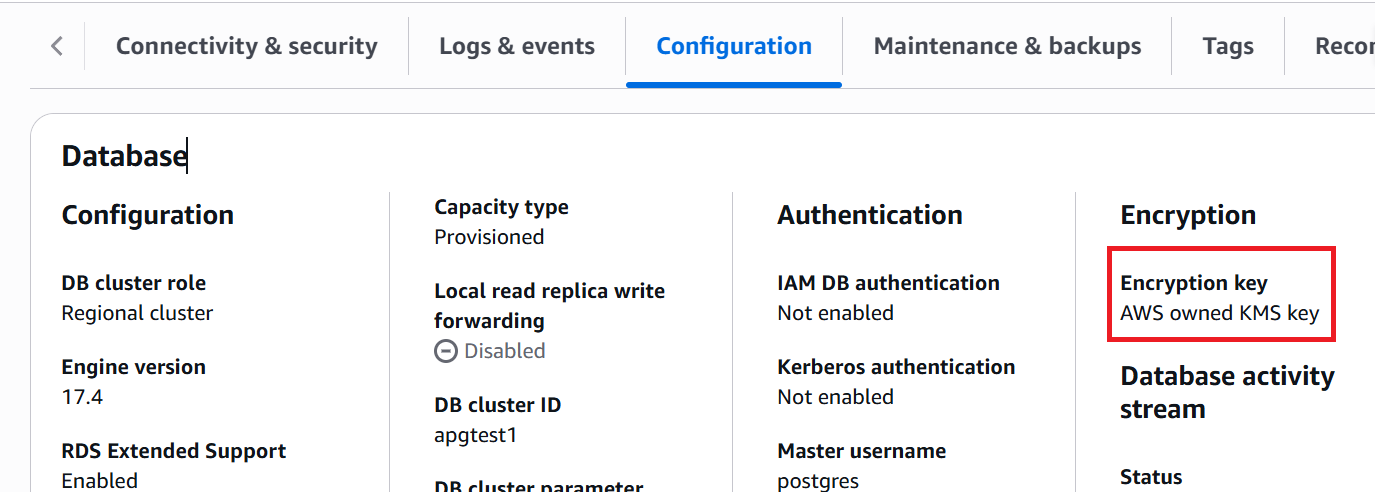
For instances using SSE encryption, the Encryption section in the console will display AWS owned key. This provides transparency about which type of encryption is being used. For instances using KMS based encryption, you will either see AWS managed key or customer managed KMS key. The following screenshot shows a cluster configuration encrypted with the default key (AWS owned key).
Creating instances with encryption options
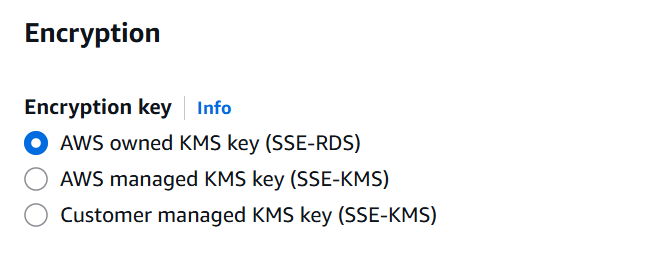
When creating a new instance or cluster, the Aurora console now provides a dropdown menu with three encryption key options:
- AWS owned key (SSE-RDS)
- AWS managed key (SSE-KMS)
- Customer managed key (SSE-KMS)
Similarly, when restoring snapshots in the console, you will see the same three options, allowing you to choose the appropriate encryption type for your use case.
How do you migrate existing unencrypted clusters to use SSE or KMS encryption?
If you have existing unencrypted databases (where StorageEncryptionType shows none), you can migrate them to use either SSE or KMS based encryption:
Option 1: Encrypt the cluster to use SSE (AWS owned keys)
- Create a snapshot of your unencrypted database
- Create a new cluster by restoring the unencrypted snapshot
- Update your applications to point to the new cluster endpoint
- Verify your cluster is encrypted with default (AWS owned) keys
- Delete the original unencrypted cluster
Option 2: Migrate to KMS-based encryption (CMK or AWS managed key)
Follow the same process from Option 1 but specify a --kms-key-id when restoring the snapshot:
Conclusion
In this post, you learned that encryption at rest is now enabled by default for all new Aurora clusters so you can benefit from enhanced security and simplified compliance at no cost and without any configuration effort. We encourage you to verify the encryption status of your existing databases and consider migrating unencrypted databases to take advantage of this enhanced security feature.