Desktop and Application Streaming
How to Set Up Workspot and Amazon WorkSpaces Core Managed Instances
Customers want to use desktop services to deliver business-critical applications and desktops to their end users at scale. Our mission in the Amazon End User Computing (EUC) organization is designed to enable customers to securely get work done from anywhere and from any device.
To help us deliver on this mission, we launched Amazon WorkSpaces Core Managed Instances. WorkSpaces Core Managed Instances offers managed virtual desktop infrastructure designed to work with third-party management solutions. WorkSpaces Core Managed Instances is part of the Amazon WorkSpaces Family services. AWS EUC service offerings within the WorkSpaces Family services share a common infrastructure stack, maximizing customers’ and partners’ flexibility and choice.
In June 2025 we announced Workspot powered by Amazon WorkSpaces Core Managed Instances. With this integration, you can provision, monitor, and manage your global Cloud PC implementation via the Workspot Control management console. This solution combines Workspot’s enterprise-proven Desktop-as-a-Service (DaaS) platform for delivering Cloud PCs with the security, global reliability, and cost efficiency of the AWS infrastructure.
Key Benefits of Workspot on Amazon WorkSpaces Core Managed Instances
Workspot on Amazon WorkSpaces Core—a modern, flexible, and enterprise-ready platform built on top of WorkSpaces Core Managed Instances, a new service where WorkSpaces manages EC2 infrastructure directly within the customer’s AWS account.
- Full VDI Use Case Coverage: Persistent and non-persistent desktops (Windows & Linux), Virtual apps, and CPU and GPU workloads.
- Bring Your Own M365 License: Fully compliant with Microsoft 365 licensing requirements.
- AI-Powered Cost Optimization: Workspot’s built-in AI ensures just-in-time and just-enough provisioning to keep infrastructure costs under control.
- AI-Powered User Experience Optimization: Integrated Digital Experience (DEX) tools deliver real-time and trend-based analysis to reduce time-to-resolution and enhance user satisfaction.
- Hybrid Deployment Ready
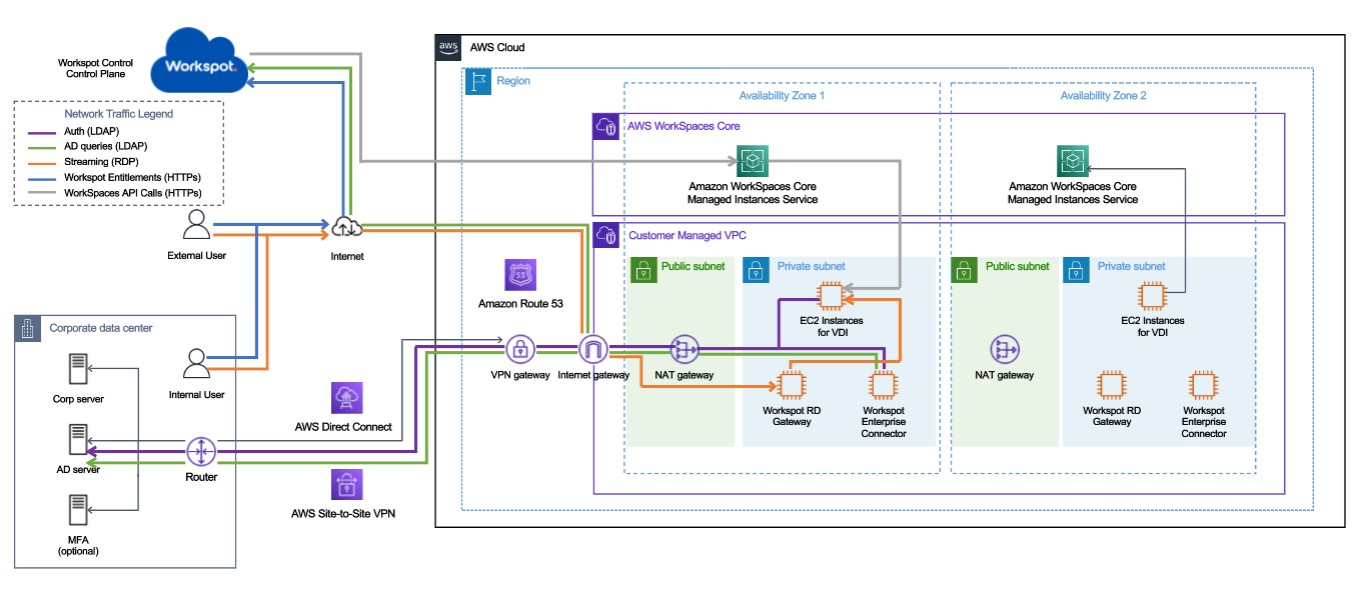
In this blog, you will learn how to setup Workspot powered by WorkSpaces Core Managed Instances. You will build the solution shown in the architecture diagram below. You will setup WorkSpaces Core Managed Instances, deploy the Workspot components, create a Workspot template, and create the WorkSpaces Core Managed Instance desktop pools.
Architecture
Prerequisites
- The latest version of the AWS CLI.
- An AWS account.
- Create Amazon Virtual Private Cloud (VPC) and subnets. Permissions to create AWS Identity and Access Management (IAM) roles.
- Access to Workspot Control. Request a Workspot Control account
- Review Workspot Network Port Requirements and Security.
- A supported Identity Provider (such as Microsoft Active Directory, Microsoft Azure Entra ID, OKTA, etc.)
- Connectivity to Microsoft Active Directory or Domain Controller from the virtual network
- A supported operating system for VDI desktops, application servers and Workspot infrastructure components: Workspot OS and Hardware Requirements.
- Optional network connectivity to on-premises such as Site-to-Site VPN.
The following steps below provide an overview of the required permissions and configuration on AWS to integrate with Workspot. The complete terraform scripts can be found at Getting Started with Workspot on Amazon WorkSpaces Core Managed Instances.
Integrating Workspot Control and WorkSpaces Core Managed Instances
Adding Workspaces Core Managed Instances AWS Account to Workspot Control uses IAM AssumeRole. https://docs.aws.amazon.com/STS/latest/APIReference/API_AssumeRole.html
Workspot Role Permissions
| Category | Permissions |
|---|---|
| EC2 – Instance Lifecycle | ec2:RunInstances, ec2:StartInstances, ec2:StopInstances, ec2:RebootInstances, ec2:TerminateInstances |
| EC2 – Instance Info | ec2:DescribeInstances, ec2:DescribeInstanceStatus, ec2:DescribeInstanceTypes, ec2:DescribeTags |
| EC2 – Images/Snapshots | ec2:CreateImage, ec2:DescribeImages, ec2:DeregisterImage, ec2:DescribeSnapshots, ec2:DeleteSnapshot |
| EC2 – Networking | ec2:DescribeVpcs, ec2:DescribeSubnets, ec2:DescribeSecurityGroups, ec2:DescribeNetworkInterfaces, ec2:GetSecurityGroupsForVpc |
| EC2 – Tags | ec2:CreateTags, ec2:DeleteTags |
| EC2 – Regions & Placement | ec2:DescribeRegions, ec2:DescribePlacementGroups, ec2:CreatePlacementGroup, ec2:DeletePlacementGroup |
| EC2 – Volumes | ec2:DescribeVolumes |
| EC2 – Elastic IP (EIP) | ec2:AllocateAddress, ec2:AssociateAddress, ec2:DisassociateAddress, ec2:ReleaseAddress, ec2:DescribeAddresses |
| Workspaces – Instances | workspaces-instances:* |
| KMS – Encryption | kms:Encrypt, kms:Decrypt, kms:GenerateDataKey* |
| SSM – Parameters | ssm:GetParameter, ssm:GetParameters |
To integrate Amazon Workspaces Core Managed Instances and Workspot Control, these are the major steps summarized:
- Create IAM Role with required permissions.
- Create Service-Linked Role for Workspaces Managed Instances.
- In Workspot Control, add Cloud Config for Workspaces Core and provide details such as AWS Account number, AssumeRole ARN, etc.
- Create trust policy for the IAM role connecting to Workspot Control.
- Save the Workspot Cloud Config.
Complete steps can be found at Adding Amazon AWS Workspaces Core Managed Instances to Workspot
Create a Windows Desktop Image
To create a Windows Desktop, these are the major steps summarized:
- Select (or create) a Windows 11 Generation Disk Image in virtualized environment such as Hyper-V using ISO image.
- Hyper-V example would require a Windows 11 Generation 2 Disk Image.
- Follow the procedure in this Workspot article.
- Follow the procedure through its initial steps: Enabling Hyper-V, Creating a VM on Hyper-V, Enabling Remote Connection and disabling NLA
- Convert the disk into a VHD
- Upload the VHD Image to an Amazon S3 bucket and create EC2 instance
- Sign in to the AWS Management Console and open the Amazon S3 console at https://console.aws.amazon.com/s3/.
- Details in Import a VM to Amazon EC2 as an image using VM Import/Export
- Customize and create an AMI to import into Workspot Control as a template.
- In the AWS Management Console, go to “EC2 > Settings > IMDS Defaults” for your region: Set “Instance metadata service” to “Enabled.” Set “Access to tags in metadata” to “Enabled.”
- If you use multiple regions, repeat for each region.
- Launch a Template EC2 Instance from the imported AMI
- Verify Metadata Version is set to “Optional” or “V1 and V2” (not “Required”). Do this before installing the Workspot Agent.
- Sign into the Template EC2 Instance and install the Workspot Desktop Agent:
- Download and install the agent per Workspot Desktop Agent Installation and Configuration
- Configure domain join values via WorkspotConfigEditor or WorkspotConfig.xml (domain name, OU, credentials)
- Verify the Workspot Agent service is running and registered with Workspot Control
- Install custom applications, patches, and optimization scripts
- Shut down the instance and create an AMI (Note: AMI name must match the EC2 instance name)
- Register the Template in Workspot Control: Setup > Cloud > cloudname > Register Template
The complete steps can be found at Creating Workspot templates for Amazon WorkSpaces Core Managed Instances.
Setup Workspot Enterprise Connector and Workspot RD Gateway
- Create an Amazon EC2 instance in the Workspot infrastructure VPC and install the Workspot Enterprise Connector. See Workspot Enterprise Connector for steps.
- Add the Remote Desktop cluster Gateway configuration in Workspot Control by navigating to Setup then Gateways then Create Cloud Gateway Cluster. See Workspot Managed Gateways clusters for detailed steps.
Create Desktops in Workspot Control
- In Workspot Control, navigate to Resources then Add Pool.
- Create the pool as described in Workspot documentation, Control: Desktop Pools.
- Once the pool is created, choose Resources then select your pool name to see the individual desktops. Assign desktops to end-users.
- Desktops are provisioned on assignment.
Connecting to Workspot Cloud PCs with the Workspot Client
- On a client machine, download and install the latest Workspot client for your operating system.
- Login to the desktop.
Conclusion
In this blog:
- You integrated Workspot Control and Amazon WorkSpaces Core Managed Instances.
- You created a Workspot template as an AMI that will be used as the golden image for your Desktop pool.
- You deployed a Workspot Enterprise Connector and Workspot RD Gateway for your infrastructure.
- And lastly, you deployed a Workspaces Core Managed Instance desktop for your user.
This solution combines Workspot’s enterprise-proven DaaS platform for delivering Cloud PCs with the security, global reliability, and cost efficiency of the AWS infrastructure.