Microsoft Workloads on AWS
Augment your Windows management tools with agentic AI using Kiro CLI
In this blog post, we show you how to add intelligence to your existing Microsoft infrastructure investments with Kiro CLI. The result is an AI-powered toolset to improve your Windows infrastructure’s health and security posture.
Introduction
Managing, monitoring, and governing a Windows-based environment is tedious and error-prone. At the same time, you have likely invested heavily in Microsoft management and governance infrastructure such as Active Directory (AD), Group Policy, and Windows Event Forwarding. What if, in today’s world of agentic AI, you could augment that investment to make those tasks easier?
That is exactly what we want to do. In this post, we show you how to combine Windows Event Forwarding (WEF) with Kiro CLI to centrally manage and monitor Windows servers. Kiro CLI analyzes the data and provides prioritized recommendations to improve security, efficiency, and performance, all from a single management station.
Kiro
Kiro is an agentic AI service developed by Amazon that turns prompts into detailed specs, then into working code, tests, and documentation. With the help of Kiro’s agents, you can solve challenging problems like generating scripts and documentation, automating tasks, and fine-tuning configurations. Kiro comes in three major flavors:
- Kiro Integrated Development Environment (Kiro IDE): an integrated environment in which you can code, vibe-code, and use Kiro’s agentic AI capabilities. If you have used Microsoft Visual Studio Code or similar IDEs, onboarding will be straightforward.
- Kiro in Command-Line Interface (Kiro CLI): use agentic AI capabilities in a terminal environment.
- Kiro Crew (Kiro Crew): a persistent workspace for development work that self-improves and continues beyond one session.
With code intelligence, agent skills, knowledge base, steering files, and MCP tools, you can develop code, documentation, and tests that match your requirements.
Sample architecture
This infrastructure consists of 10 AD-joined member servers and one management station; all joined to the same AD domain. In this scenario, these are Amazon EC2 Windows instances, but they could reside anywhere: on premises, in other clouds, or in AWS (Diagram 1).
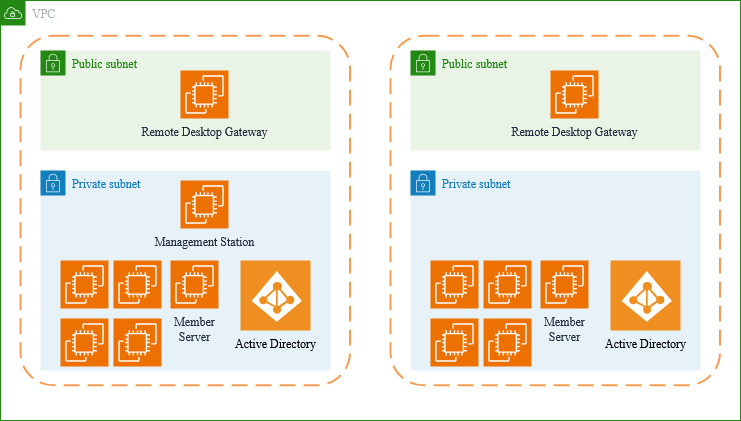
Diagram 1: Sample architecture
Solution overview
This approach has three high-level steps:
- Enable Windows Event Forwarding from member servers to a central management station.
- Install and configure Kiro CLI on the management station.
- Ask Kiro CLI to analyze the forwarded events and provide recommendations.
Prerequisites
You will need these to be able to follow this blog:
- Access to configure Windows Event Forwarding, either locally or through Active Directory. Active Directory Group Policy is recommended for mass deployment.
- Access to a Google, GitHub, or AWS Builder ID to activate Kiro.
- A management station to forward events to and analyze with Kiro.
Walkthrough
The following sections walk you through each phase of the setup.
Enabling Windows Event Forwarding
Enabling WEF involves preparing the environment, setting up the collector instance, and then configuring the source servers to report to the collector. The following sections walk through each of these steps.
Preparation
To simplify management, create an AD security group called ForwardingServers and add your member servers to it (Figure 1).
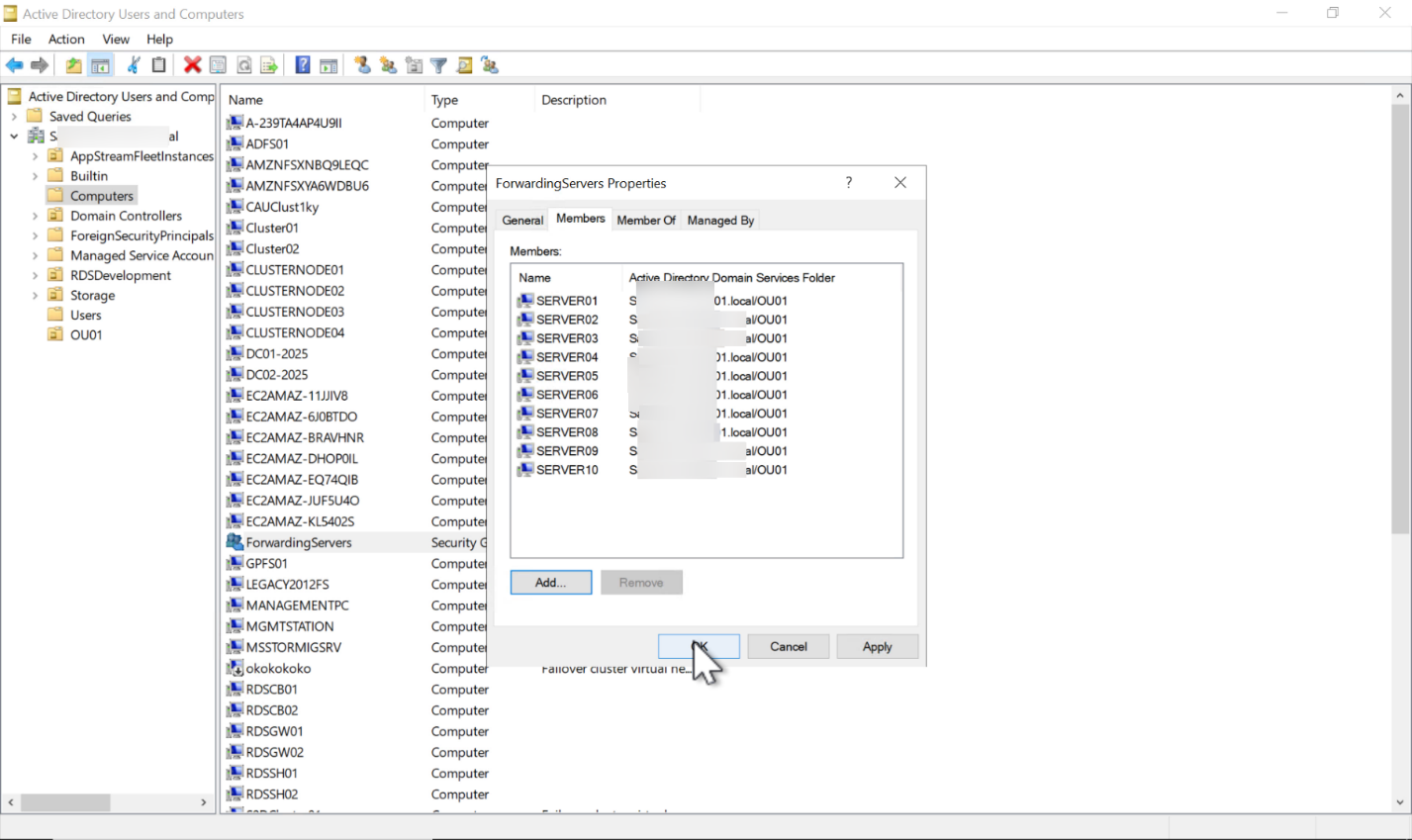
Figure 1: ForwardingServers AD group
Setting up the collector (event target)
Next, prepare your management station to receive and aggregate events from your member servers. The goal here is to designate one machine as the central log repository so that all forwarded events land in a single location for analysis.
- On the management station, open Event Viewer and select Subscriptions. The system prompts you to enable the Windows Event Collector service. Accept the prompt.
- Right-click on Subscriptions and select Create Subscription.
- Give the subscription a name and description. For the subscription type and source computers, choose Source computer initiated, then choose Select Computer Groups….
- Select Add Domain Computers and choose the ForwardingServers
- Back in the subscription configuration dialog box, choose Select Events….
- Select the events to forward. You can filter for whatever you need, and you can even paste an XML definition of a query filter if you have one ready. Later, you can ask Kiro CLI to help you optimize this XML. Once done, select OK.
- Under Advanced settings, review the protocol and delivery frequency. For this dev/test environment, use HTTP. For production environments, follow best practices for security and performance.
- After selecting OK, the subscription appears as active.
Figure 2 shows these steps in animation.
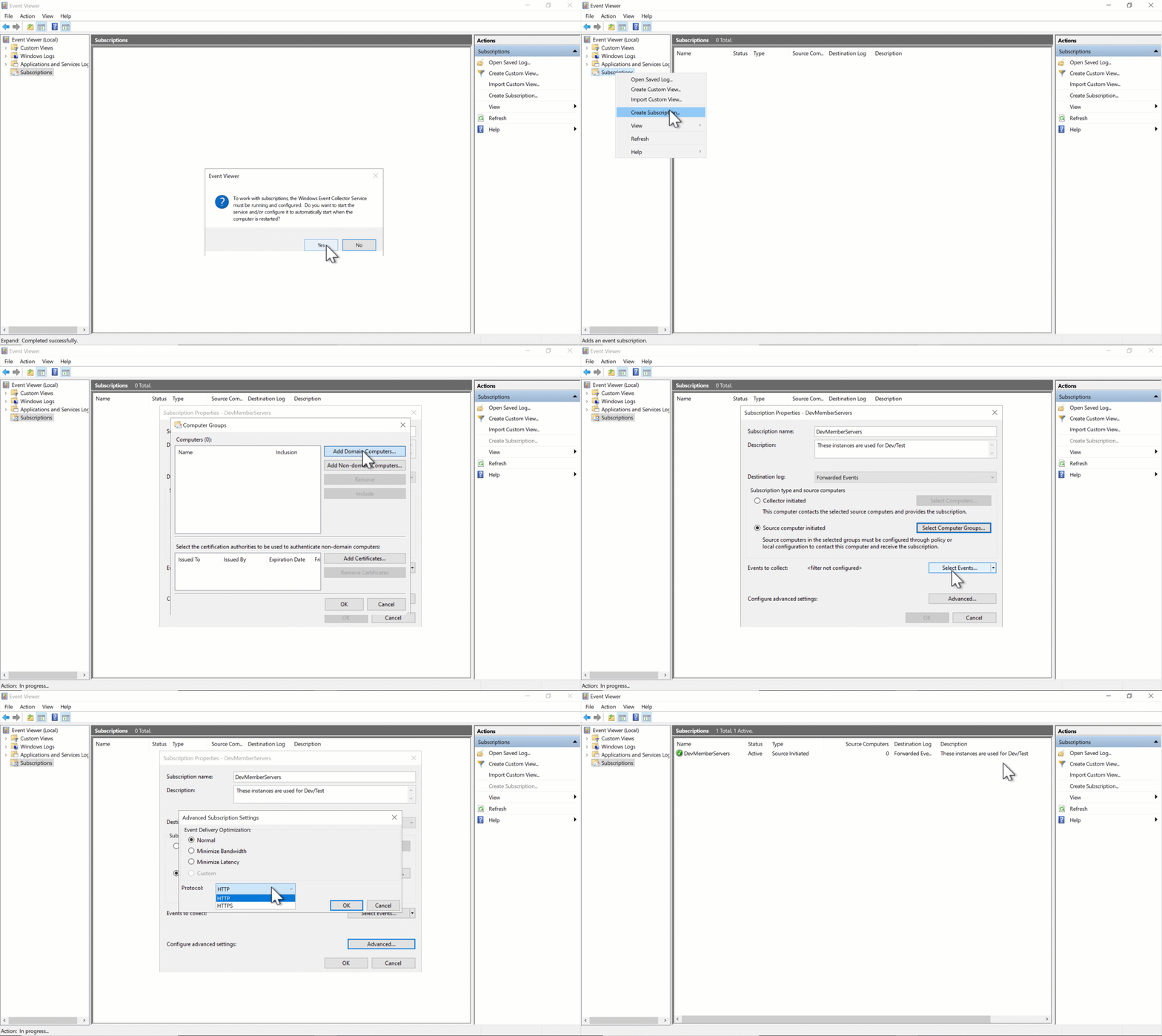
Figure 2: Setting up the collector
Next, configure Group Policy so that your servers push their events to the management station.
Setting up the event sources
Since this is an AD environment, use a Group Policy Object (GPO) to configure your member servers. First create the GPO, then scope it so that only your intended servers process it.
Creating the GPO
- Create a GPO called WEFSource.
- Right-click the GPO and choose Edit, then navigate to Computer Configuration > Administrative Templates > Windows Components > Event Forwarding.
- The minimum configuration required is the target URL through the Configure target Subscription Manager Once enabled, you have the option of choosing multiple targets for your events. The GPO description explains the syntax. Customize the provided example with your management station’s fully qualified domain name (FQDN). Since you’re testing in a dev/test environment, use HTTP over port 5985 and omit the Refresh Interval. For production, use HTTPS over port 5986 with a proper certificate and a configured refresh interval. Select OK on everything and close the GPO Editor.
Figure 3 shows the steps.
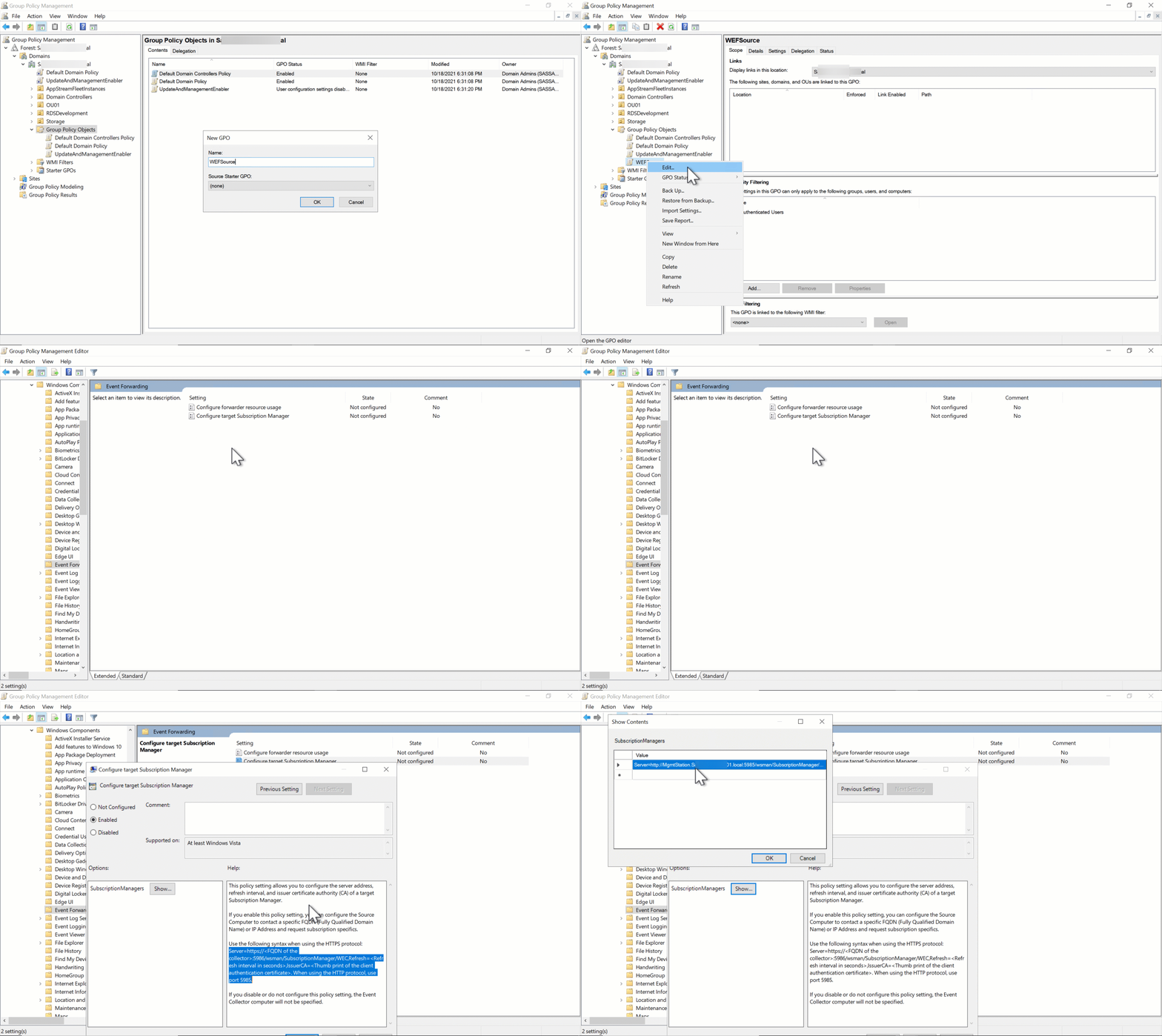
Figure 3: Creating and configuring the GPO
Scoping the GPO
Next, scope the GPO properly:
- Disable user configuration to enhance processing performance.
- Remove Authenticated Users from security filtering and add only the ForwardingServers group.
- Finally, link the GPO to your organizational unit (OU). In production, you might need to link to multiple sites or OUs.
Figure 4 shows these steps.
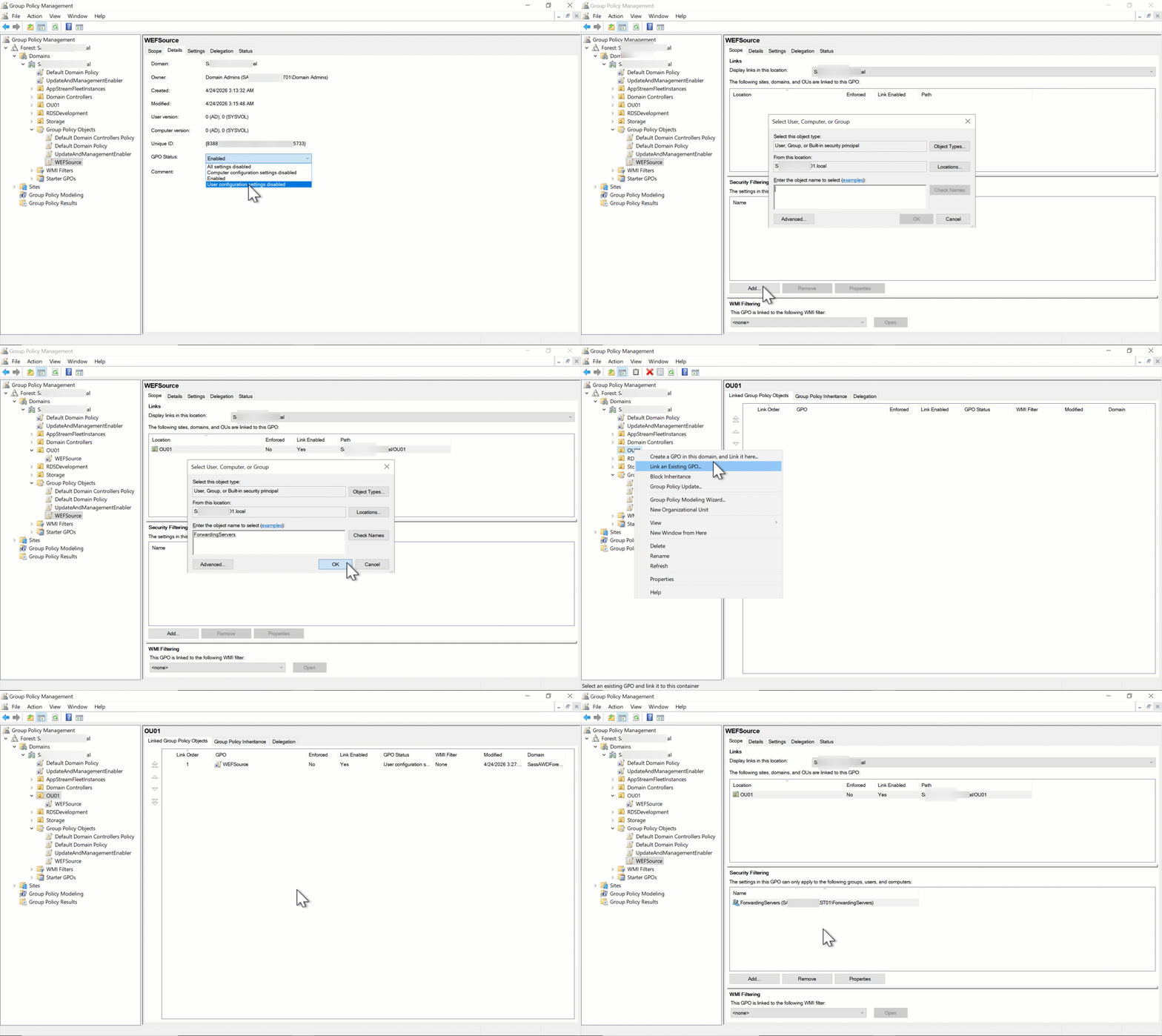
Figure 4: GPO scoping and linking
Verifying settings
Once members refresh their AD tokens and hit their next GPO refresh cycle, they pick up the new configuration and start forwarding their events to the management station. While rebooting the server is the most straightforward approach, you can force the update by running these commands as an elevated user:
# Purge machine account tickets (run as SYSTEM or elevated)
klist -li 0x3e7 purge

# Force GPO update
gpupdate /force
On the management station, select Forwarded Events. Events from the member servers are now available centrally. Adjust the maximum log size and overwrite policy of the Forwarded Events log per your requirements. Go to Properties from the Forwarded Events log and configure those parameters.
Figure 5 shows how your management station should look.
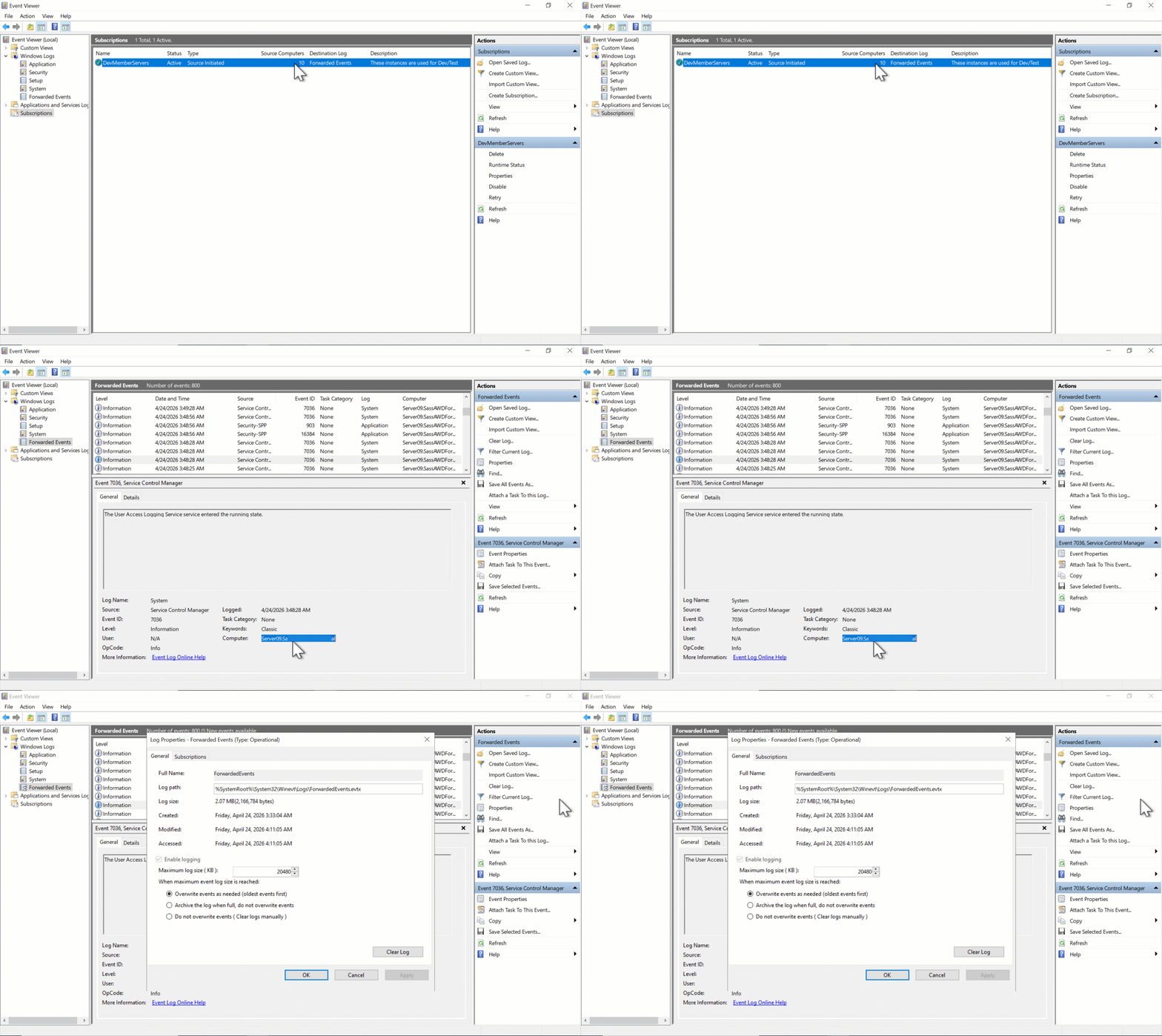
Figure 5: Forwarding verified
Installing and configuring Kiro CLI
With your infrastructure prepared, let’s install Kiro CLI on the management station.
- Navigate to https://kiro.dev/cli/, copy the proposed PowerShell code snippet, and run it in a PowerShell terminal. Alternatively, you can download and run the MSI, especially if you’re running Windows Server 2019, Windows 10, or older OSes. TLS 1.3 is not available on these older versions and can cause issues with the PowerShell method.
- Open a terminal prompt and run kiro-cli. When prompted to log in, use the arrow keys to highlight Yes and press Enter.
Note: On Windows 2019, Windows 10, and older OSes, either set up Windows Terminal or use kiro-cli –classic for proper rendering. - The login window opens. If your organization assigns Kiro, use that option. Otherwise, use a personal account like AWS Builder ID.
- Once logged in, allow Kiro CLI to access the required information. You can select Show details to review what is shared with Kiro. Select Allow.
- A green login confirmation with allowed permissions appears. Close the browser and return to the terminal. Kiro CLI is now logged in.
Figure 6 below shows the login flow.
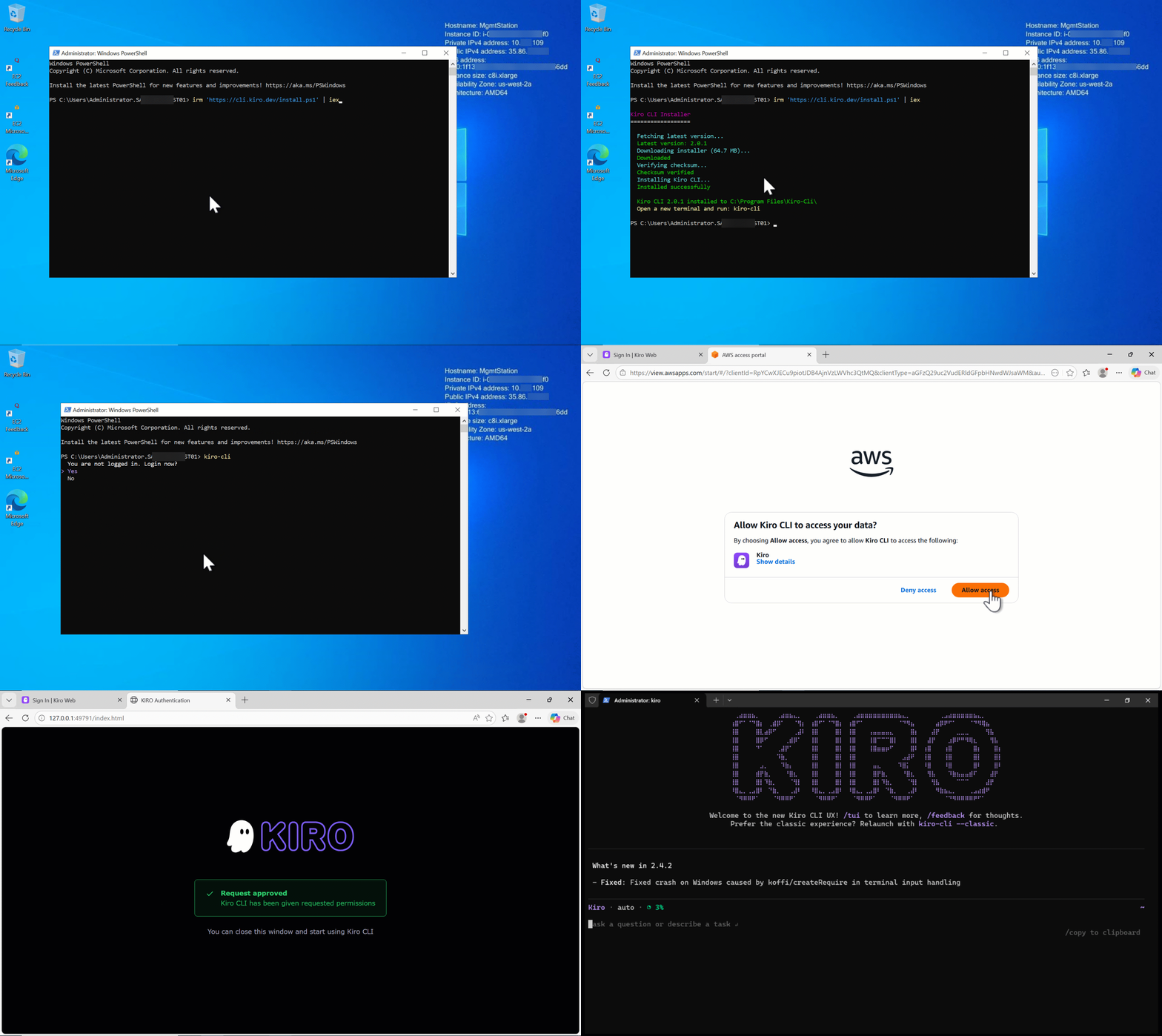
Figure 6: Kiro CLI install and login
Using Kiro CLI to analyze data
This is where the fun begins. Typing a forward slash (/) lists the available commands, as you can see in Figure 7. You can scroll with the keyboard arrows and select a command, or talk to Kiro CLI, and it walks you through whatever configuration you need. A few useful commands:
- /usage and /context show you token and context window usage, respectively.
- /model lets you choose Kiro’s model under the hood.
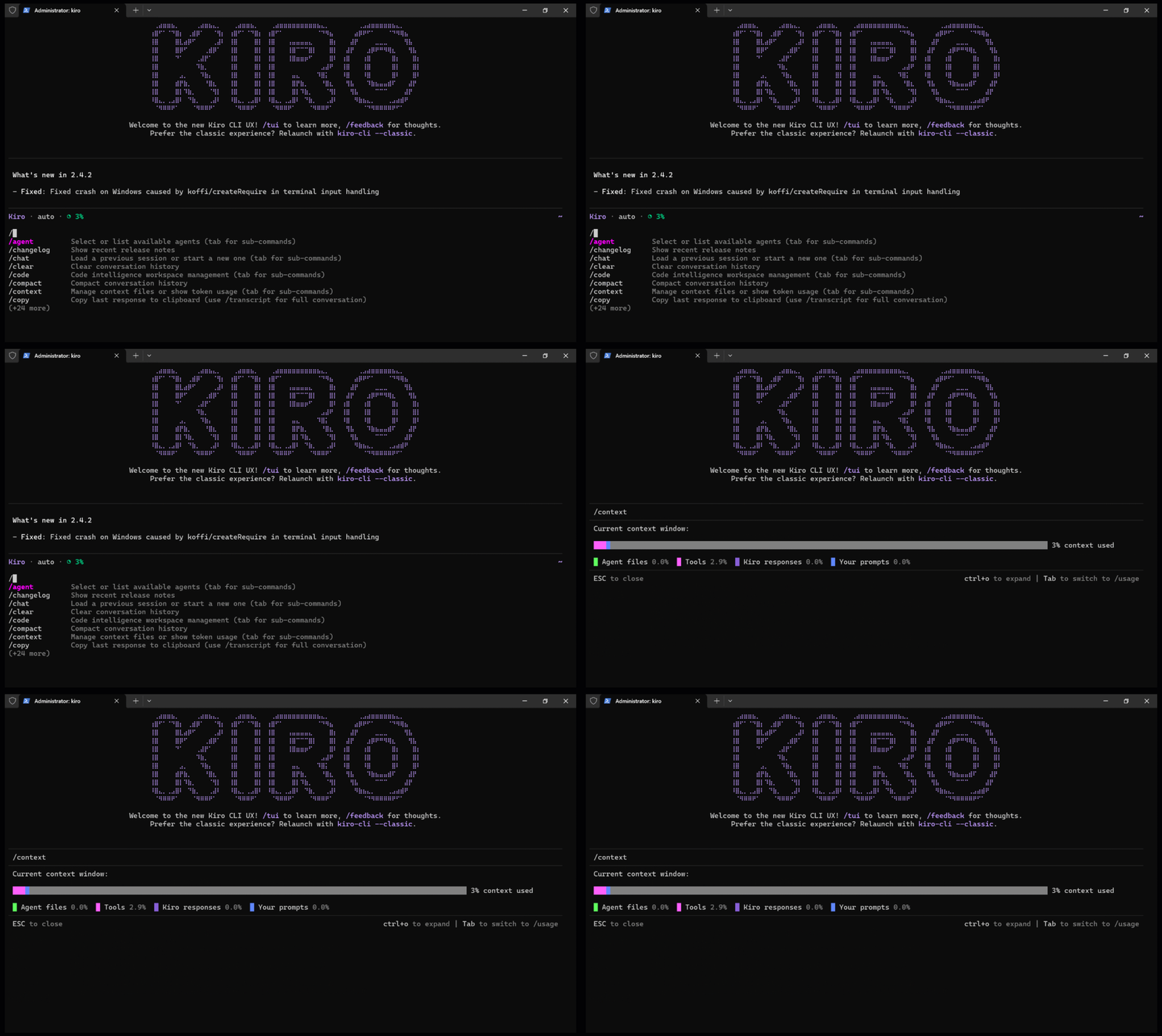
Figure 7: Context window status
Let’s put Kiro CLI to work by providing a sample prompt: “I am forwarding my Windows instances logs to this computer. Assess that and tell me what issues you find throughout my organization.” (Figure 8).
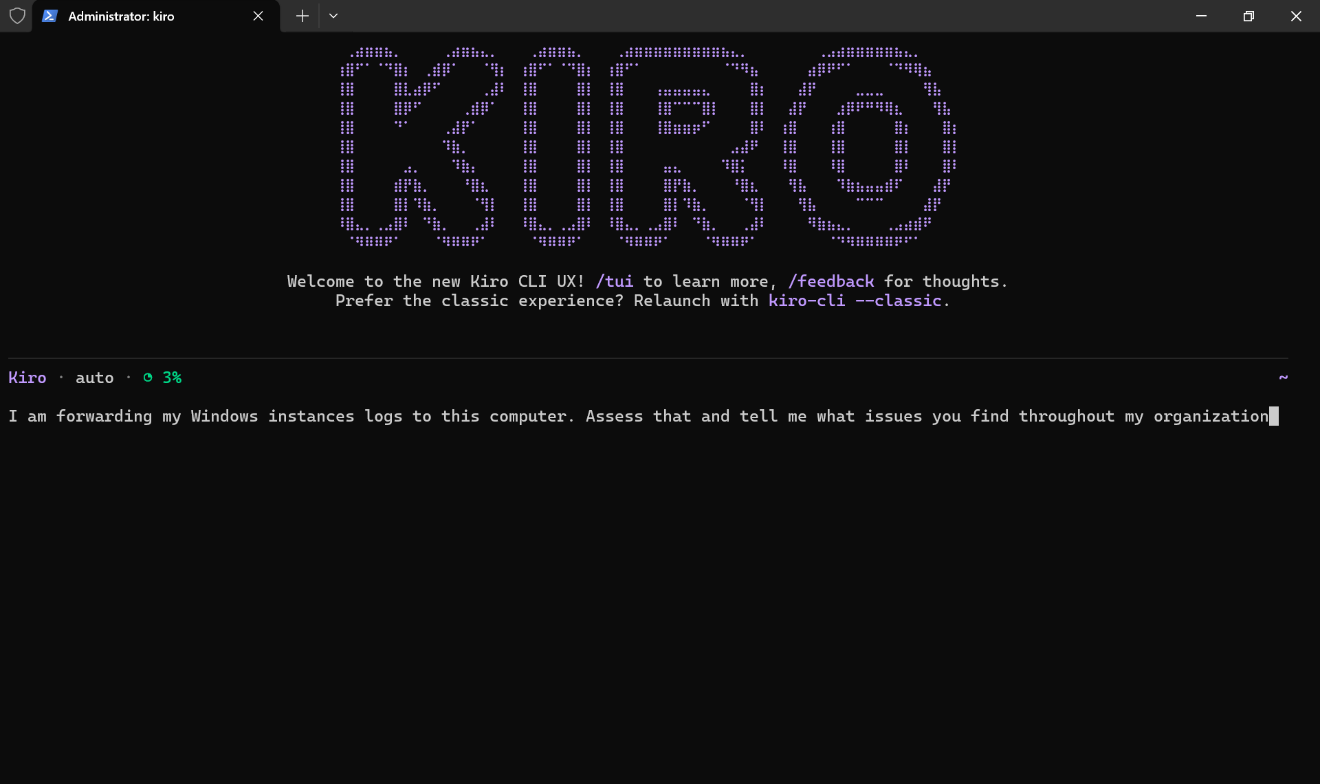
Figure 8: Sample prompt
To gather more context, Kiro CLI needed permission to run some commands and tools. You can allow them one by one or allow each command once for the entire session. You can allow them with set parameters only, or with any parameters (Figure 9).
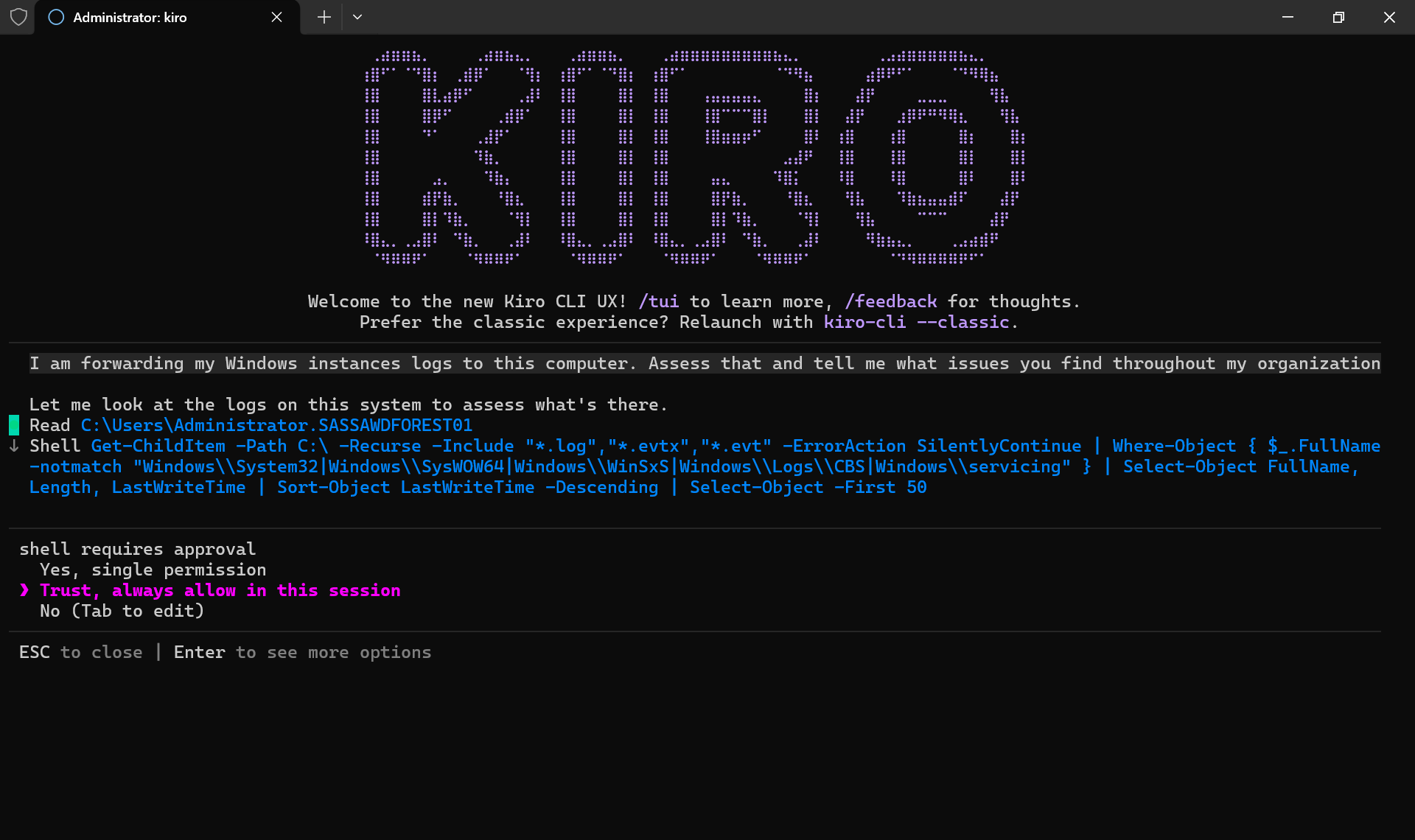
Figure 9: Tool consent
After a few more iterations, Kiro CLI produces an itemized list of improvements for your infrastructure. As you can see in Figure 10, it identified over a dozen specific issues, ranging from security tightening (such as disabling remote registry) to performance enhancements and configuration best practices.
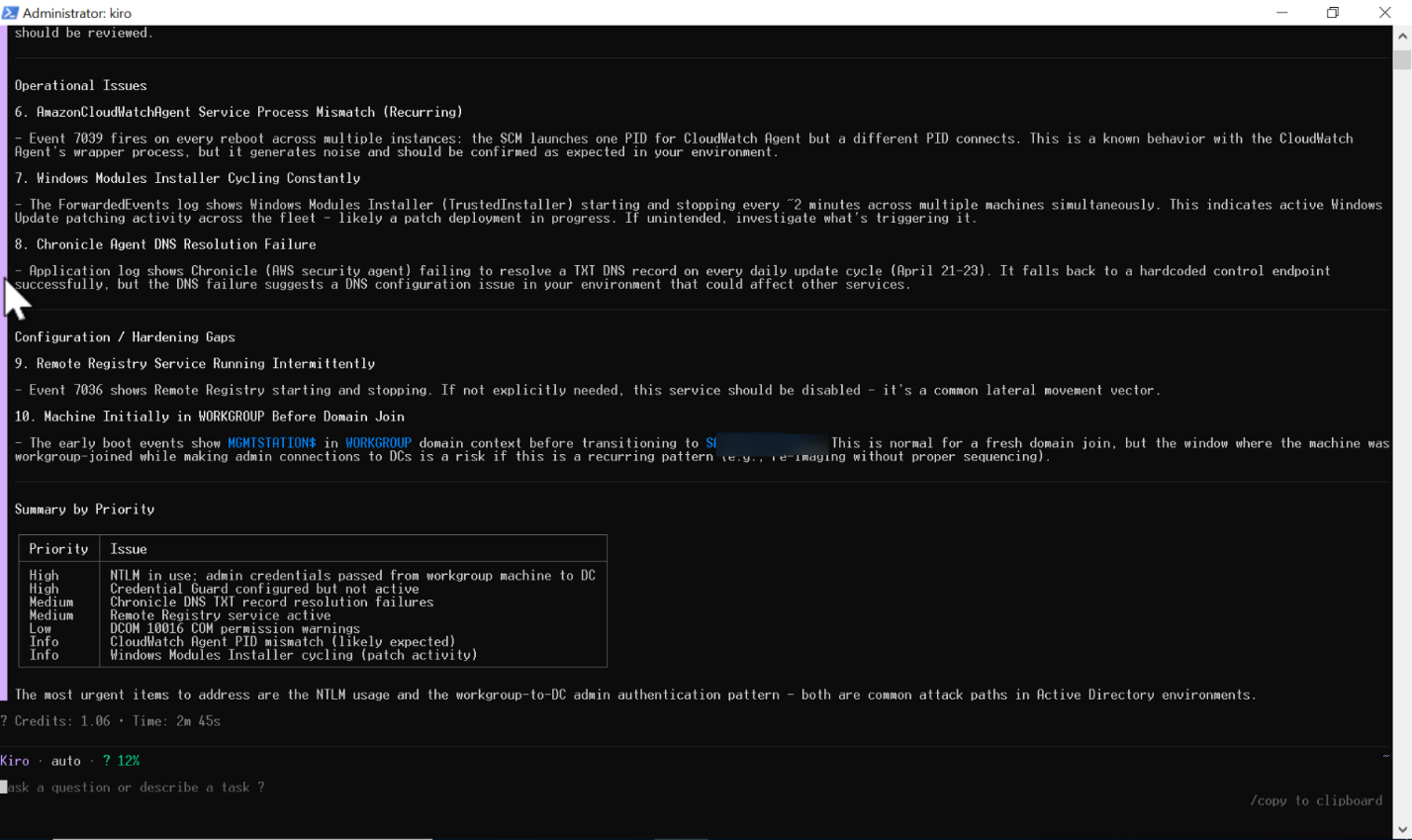
Figure 10: List of recommendations
Iterate with Kiro CLI, and it helps you resolve issues one by one. In Figure 11, for example, Kiro CLI produced a script to disable remote registry across all servers.
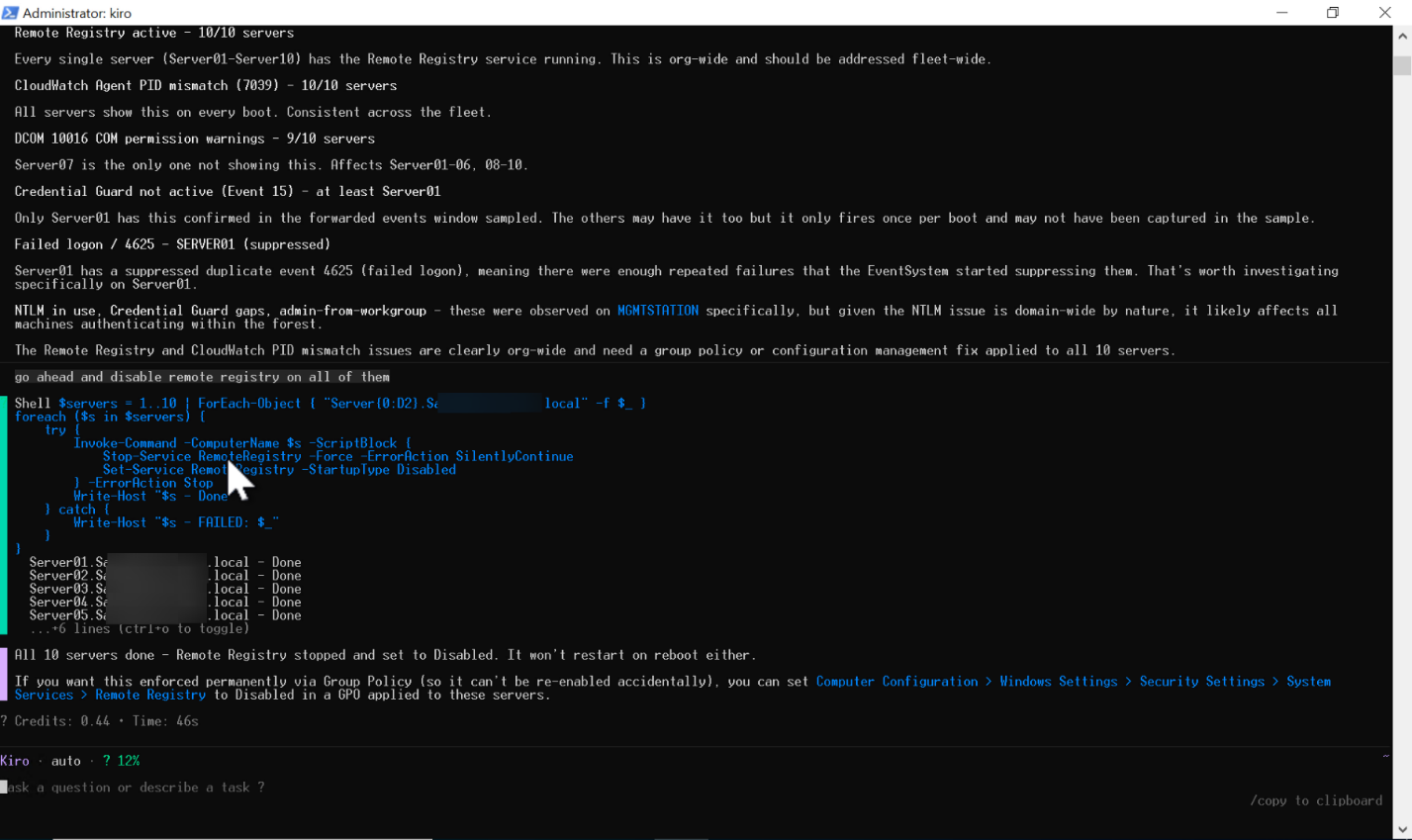
Figure 11: Remediation example
Kiro CLI then helps you create a GPO to block the remote registry service from starting in the future. As you can see in Figure 12, Kiro CLI used the RSAT tools for AD to create the GPO and link it to the proper OU.
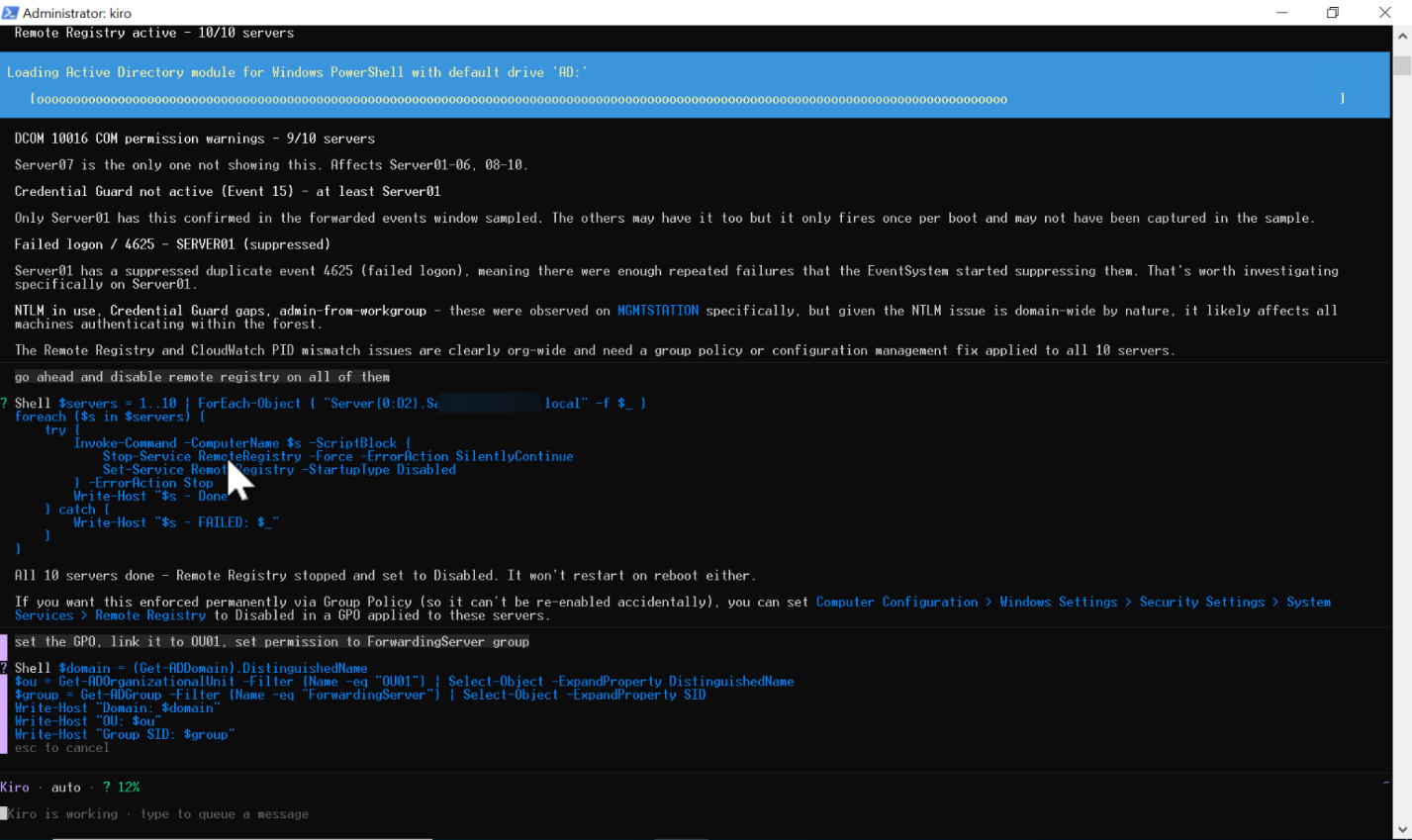
Figure 12: GPO creation via Kiro CLI
Go through all issues one by one, and at the end you’ll get a report (Figure 13).
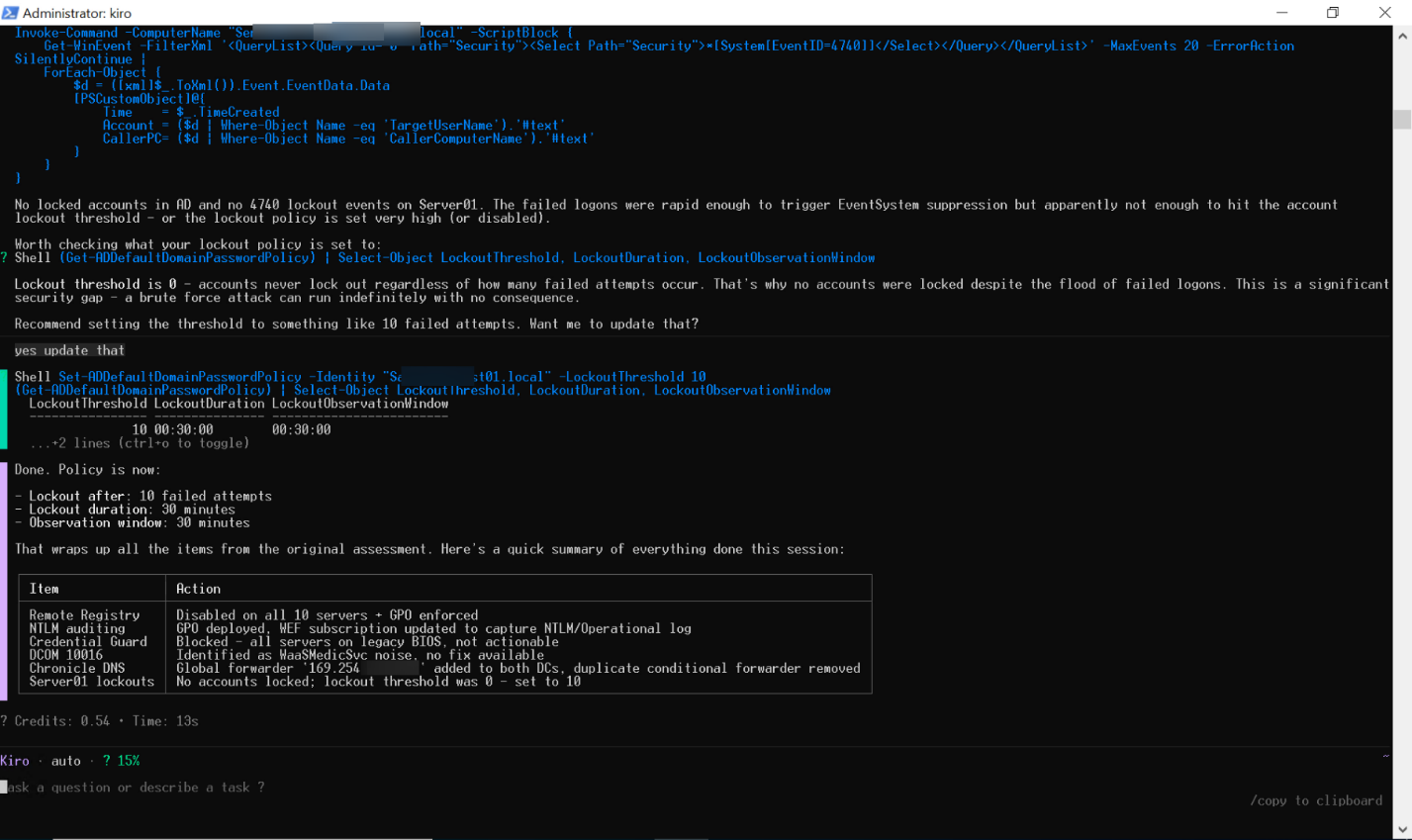
Figure 13: Remediation report
Cleanup
There is no specific cleanup step required for this walkthrough. However, if you provisioned Amazon EC2 instances solely for testing this solution, remember to terminate them to avoid ongoing charges.
Further resources
If you want to do something similar but for, and by, AWS services, we recommend this blog. It walks you through Amazon CloudWatch centralization.
We also recommend the article about Windows Event Collection and Forwarding. Although written as a prerequisite for another product, it gives you hints about what events to keep an eye on from a security perspective.
Conclusion
In this post, we demonstrated how to combine Windows Event Forwarding with Kiro CLI to build an AI-augmented infrastructure health monitoring workflow. By centralizing events from your Windows servers and letting Kiro CLI analyze them, you receive prioritized, practical recommendations, from security hardening to performance optimization, without manually sifting through event log entries.
You keep your AD, your GPOs, and your event logs. Then, you add a layer that reasons about your data, suggests improvements, and generates remediation scripts for you.
To get started with Kiro CLI, visit https://kiro.dev/cli/. To learn more about running Microsoft workloads on AWS, visit the Microsoft Workloads on AWS page.