AWS Contact Center
Deliver hyper-personalized recommendations with AI agents in Amazon Connect
Introduction
Every customer interaction leaves digital traces that reveal preferences and needs. While businesses collect vast amounts of customer data, most struggle to move beyond basic personalization to understand the ‘why’ behind customer behavior. The key challenge isn’t gathering data—it’s converting these signals into real-time, actionable insights. Whether in retail, airlines, telecom, or entertainment, companies seek to provide value beyond just responding to immediate customer requests. Now, Amazon Connect can turn that data into real-time product recommendations
Amazon Connect customers can use enriched customer profiles with AI powered recommendations for common use cases such as:
- Recommended for you – Suggests items based on user’s past behavior and interactions
- Similar items – Uses AI to find thematically related products commonly bought together for cross-selling
- Frequently paired items – Identifies products commonly bought together for cross-selling
- Popular items – Shows most-interacted products across all users
- Trending now – Highlights products gaining rapid popularity
Each use case uses a proven AI algorithm that learns from customer behavior and catalog data. Businesses can quickly implement this thought pre-configured AI sales agents that access real-time customer data and provide tailored recommendations. Businesses can then customize these AI agents’ responses through configurable guardrails and purpose-built prompts, ensuring consistent and brand-aligned messaging.
In this blog, we will demonstrate how a fictitious company, AnyCompany, can use AI-based recommendations to enhance proactive self-service and human agent-assisted customer interactions.
Solution overview
Here’s a quick overview of all the steps to be followed
- Enable Data Store in Customer Profiles
- Add interaction data into Customer Profiles
- Create Predictive Insights
- Using Customer Profiles Recommendation in Amazon Connect Flows
- Create AI Agent
- Exploring Recommendations via API
Prerequisites
For this walk through, it is assumed you have the following prerequisites:
Deployment steps
Step 1: Enable Data Store in Amazon Connect Customer Profiles
- Sign in to the AWS Management Console.
- Search for Amazon Connect on the services search bar and click on Amazon Connect.
- Click on Access URL and log in to your Amazon Connect instance.
- On the Amazon Connect Instances page, click on Customer Profiles in the left side navigation menu.
- Enable Introducing Data Store
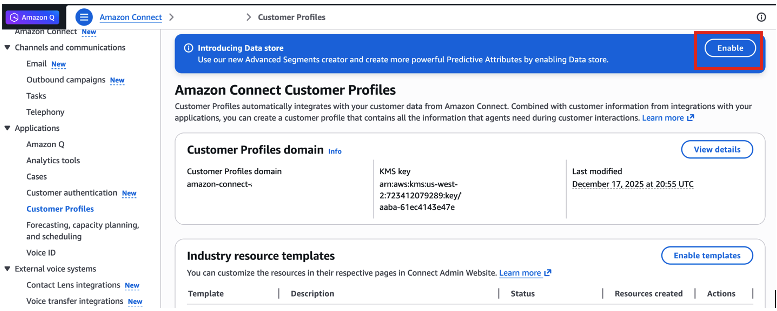
Figure 1: Enable Data Store
Step 2: Add Interaction data into Amazon Connect Customer Profiles
Web analytics ingestion
Amazon Connect Customer Profiles now supports real-time ingestion of click-stream events data based on users’ activity on a website/mobile application. Customers can store data across the existing and newly launched Web Analytics object. This data can then be used for personalizing the user experience in real-time through web notifications (Outbound campaigns) or during inbound customer queries to a contact center powered by Amazon Connect.
- Using the PutProfileObjectType API create a data mapping to map your clickstream data to the Web Analytics object. For more information, see Object type mapping for Web Analytics Object.
- Refer to sample API payload: PutProfileObjectTypeSamplePayload.json. Update DomainName in the script.
- aws cli command: aws customer-profiles put-profile-object-type –region us-east-1 –cli-input-json file://PutProfileObjectTypeSamplePayload.json
- After creating the profile object type, the data can be ingested using Amazon S3, Amazon Kinesis integration or PutProfileObject API.
- Refer to PersonalizationWebAnalytics.json for sample data and PutProfileObjectScript.py script to ingest this sample data into your CustomerProfiles domain using PutProfileObject API. Update DomainName and region_name in the script. Execute the script using the command: python PutProfileObjectScript.py
Step 3: Create predictive insights (Public Preview)
- Sign in to the AWS Management Console.
- Upload your Item Catalog data to Amazon S3 bucket and update S3 bucket permission as shown below. Refer to PersonalizationItemCatalog.csv for sample Item Catalog.
Note: Update the S3 bucket permission to grant Amazon Flow read access permission. Sample permission below for reference.
- Search for Amazon Connect on the services search bar and click on Amazon Connect.
- Click on Access URL and log in to your Amazon Connect instance.
- On the Amazon Connect Instances page, click on Customer Profiles in the left side navigation menu.
- Under Predictive Insights section, click on Add item catalog.
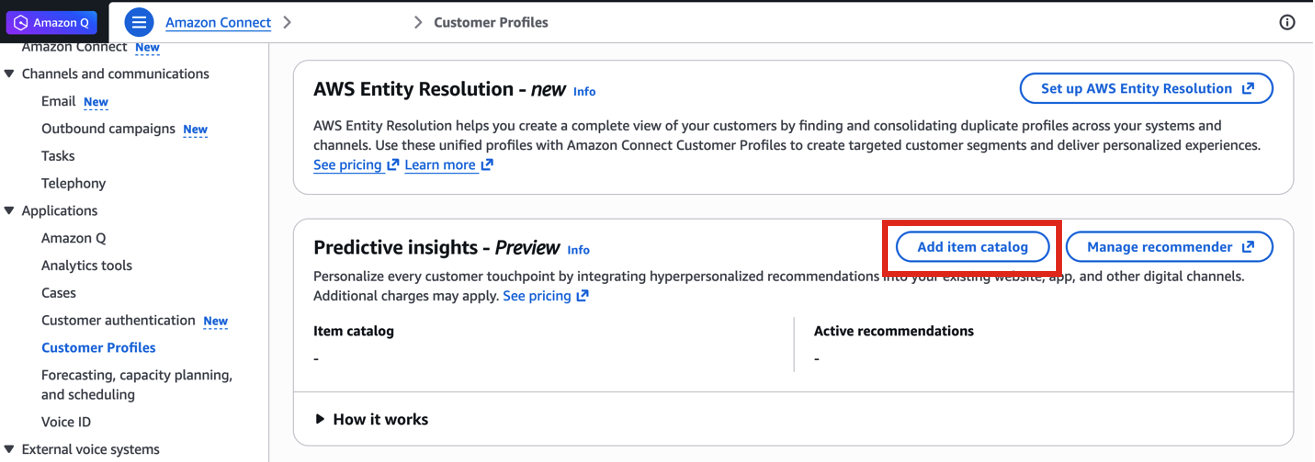
Figure 2: Add item catalog
- Select the AWS S3 Bucket and add the S3 prefix for the item catalog data. You can also download the template to format your data properly. Click Add item catalog.
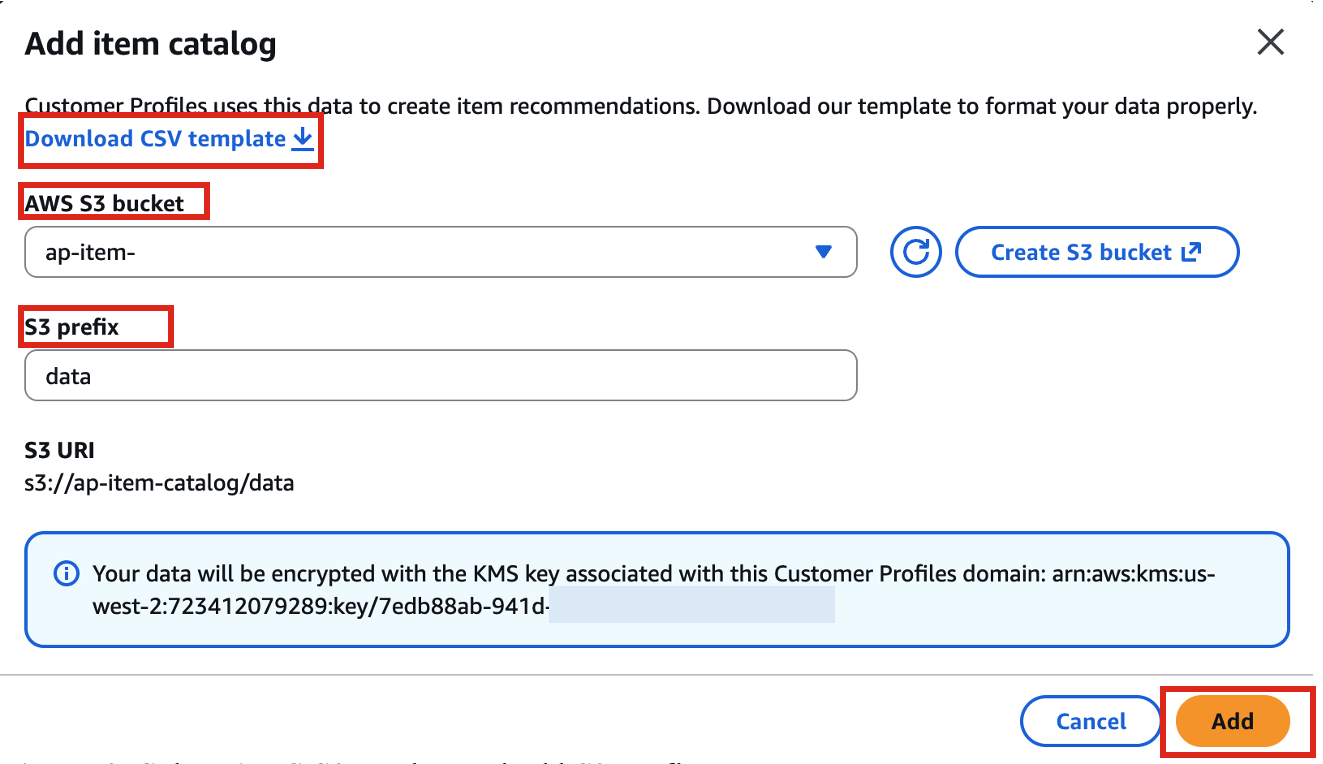
Figure 3: Select AWS S3 Bucket and add S3 Prefix
- A green banner will appear at the top confirming S3 integration to Customer Profiles domain

Figure 4: S3 integration confirmation
- Under Predictive Insights section, click on Manage recommendations, click on Create recommendations.
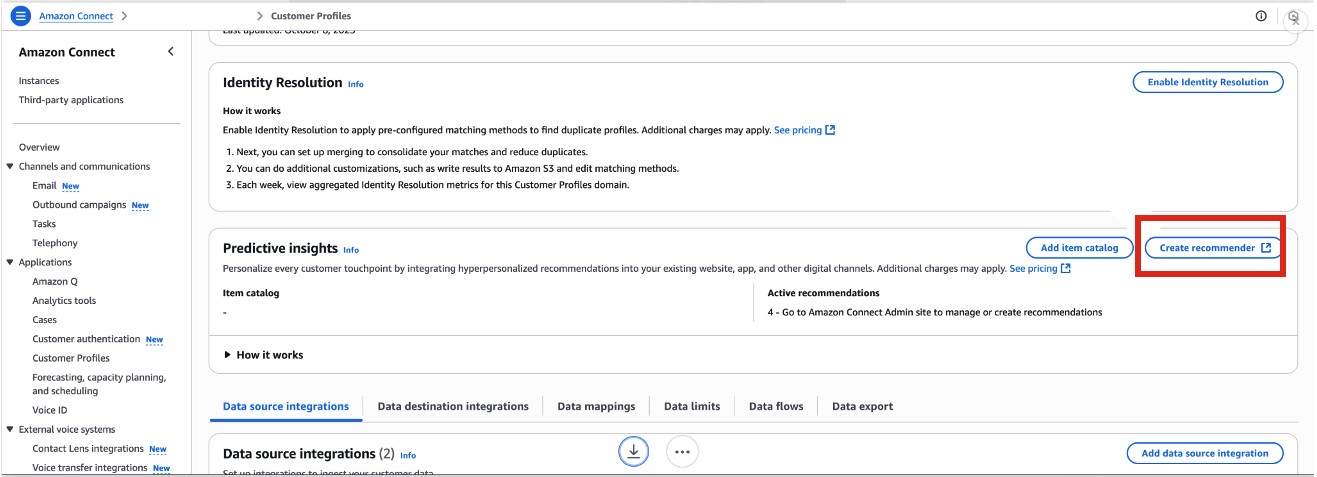
Figure 5: Create recommender under Predictive insights
- Navigate to Users -> Security Profiles and Configure Security Profiles to support View (list and view predictive insights), Create (create recommendations), Delete (delete recommendations), and Edit (update recommendations) permissions with Predictive insights enabled.
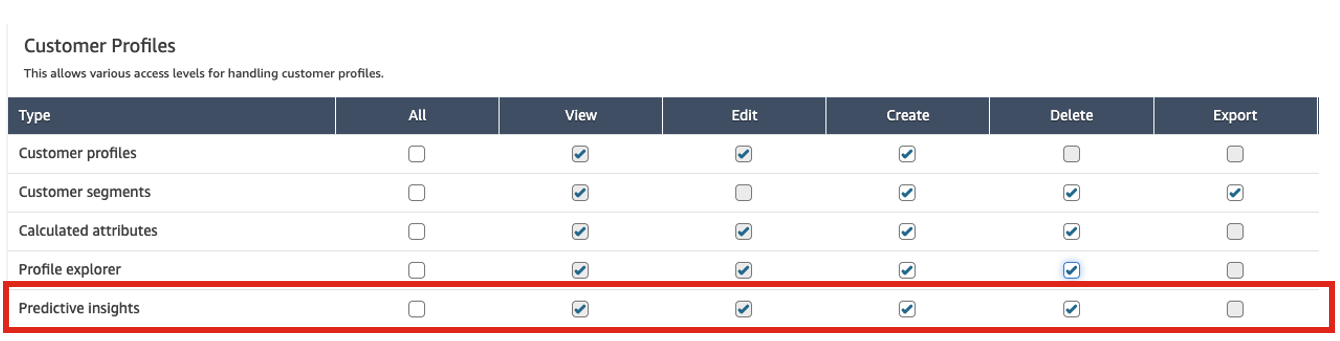
Figure 6: Update Security profiles for Predictive Insights
- Navigate to Customer Profiles -> Predictive Insights and then click on Create Recommendation.
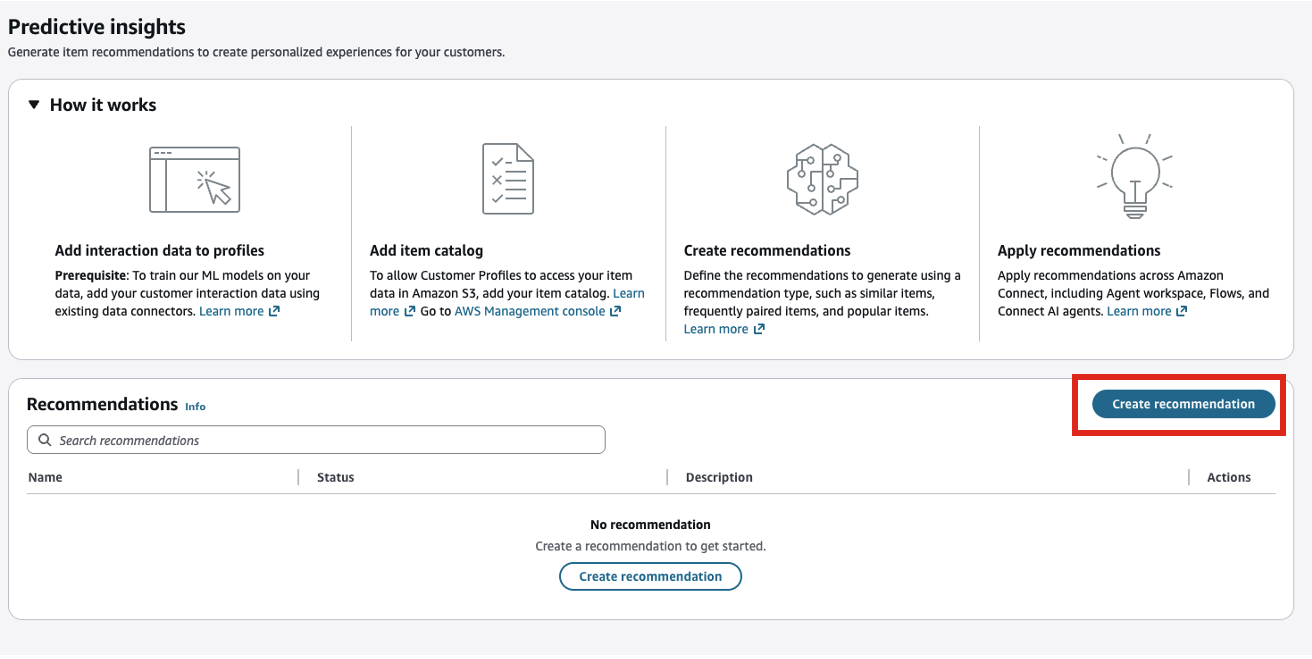
Figure 7: Create recommendation
- Enter the Name, Description, choose a Recommendation Type to generate the recommendations you want to deliver, including Recommended for you, Similar items, Frequently paired items, Popular items and Trending now. Add the optional Event Type, Event value threshold. Click on Add event. Click on Create for Create Recommendation
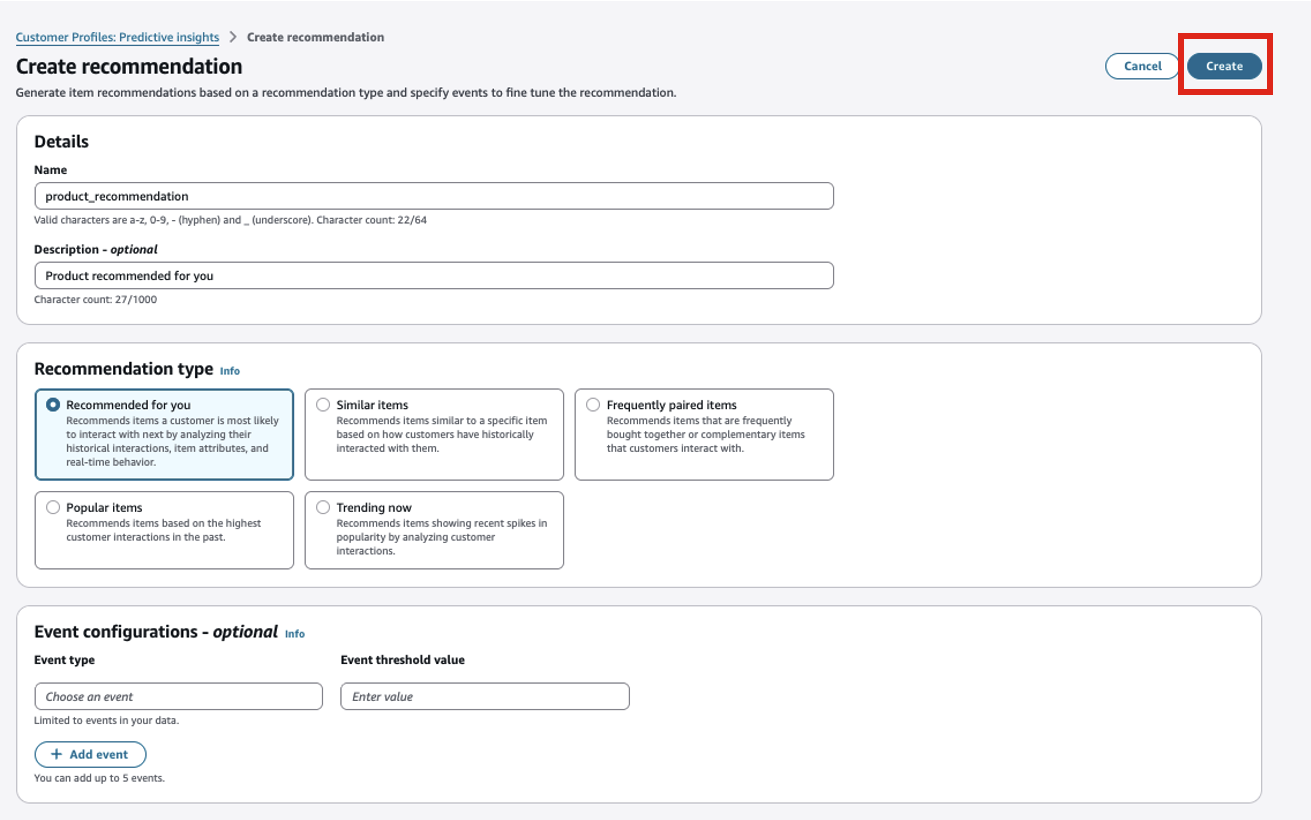
Figure 8: Create recommendation for product recommendation
- You will see a green banner on the top with successfully created recommendations.

Figure 9: Green banner showing successful creation of the recommendation
- The status of the recommendation will be shown as In Progress. Click on the product_recommendation, click View details under Actions.
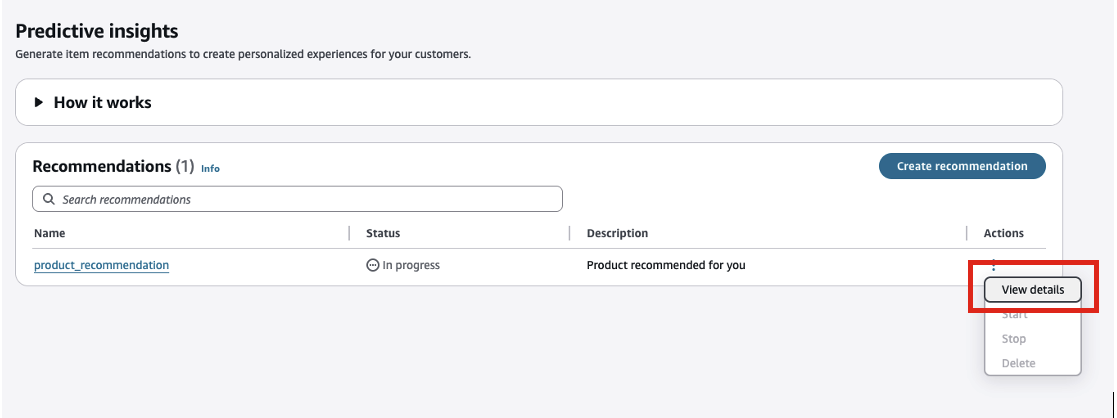
Figure 10: View details of recommendation
- Under Prediction Quality, filter by training date. Please wait for status to become Active.
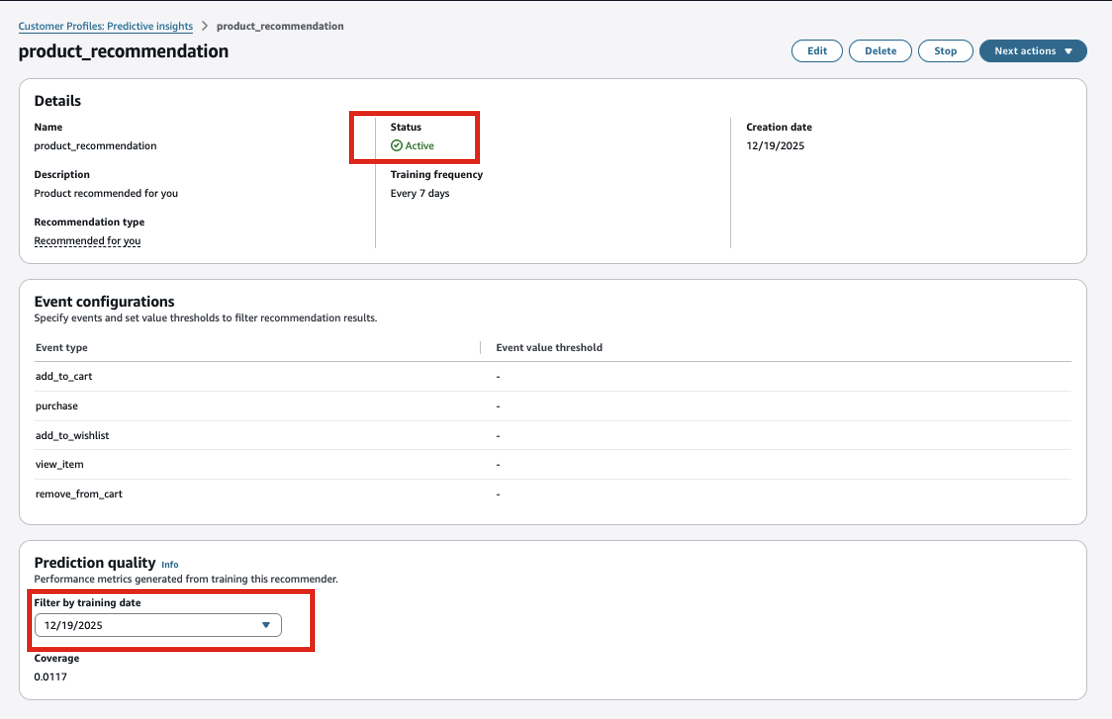
Figure 11: Filter recommendation by training date
- Select Next Actions, Add to flow or add to Add to Q in Connect.
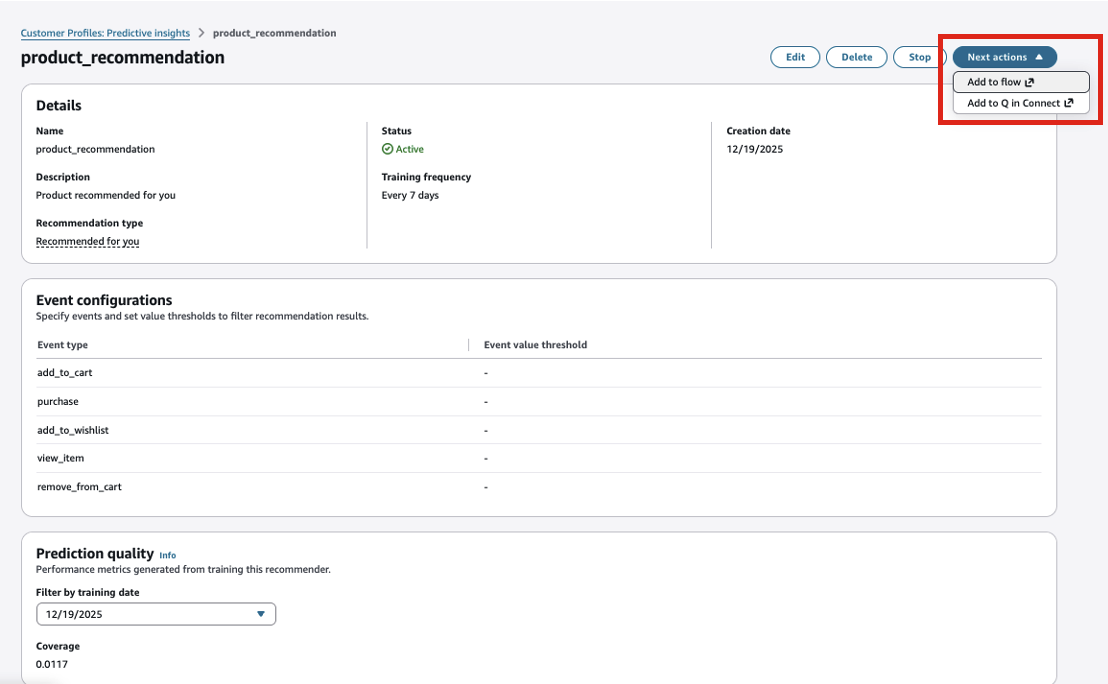
Figure 12: Select Next actions for the recommendation
Step 4: Using Customer Profile recommendations in Amazon Connect Flows
This section describes how we can use the Customer Profiles Get profile recommendations flow block to enrich user experience during a contact by generating AI-powered recommendations for a profile in real-time.
The following sections cover detailed explanations of the Get profile recommendations block’s properties, branches, and how to use its response within the rest of the flow definition.
Flow Block Properties
The Get profile recommendations flow block has the following properties to configure:
- Profile ID (required): A Profile ID is required for this block to function. The Get profile recommendations flow block generates recommendations for the Profile ID provided here. You have the option to manually input the Profile ID or use a pre-defined value stored in an attribute. If using a pre-defined value, ensure you provide the Profile ID by using a preceding Get profile block, as illustrated in the following image. Use the Get profile block to pinpoint the specific profile before moving forward to generate recommendations in the subsequent block.
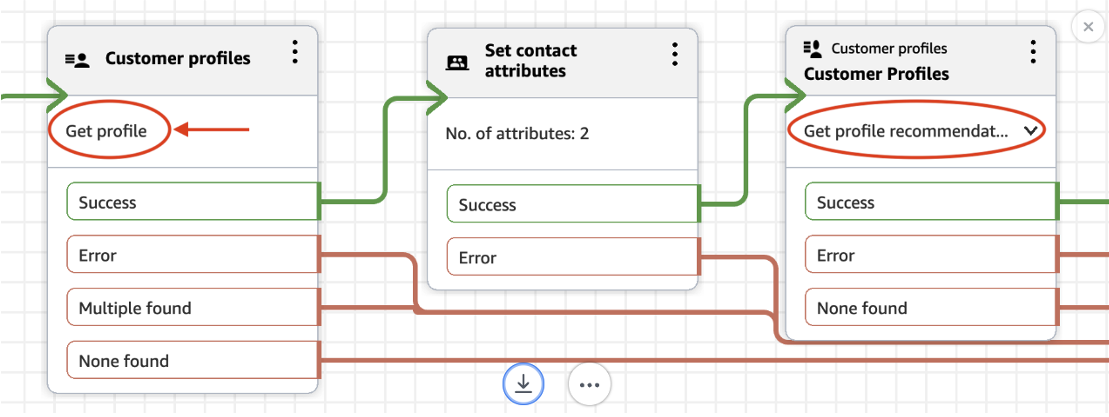
Figure 13: Get profile recommendation in the flow
- Recommender name (required): A recommender name is required for this block to function. This is the name of the recommender you want to use to generate recommendations for the given Profile ID. You can only use recommenders that are active to generate recommendations.
- Max results (required): The maximum number of recommendations to generate for the given Profile ID. This can range between 1 to 3 recommendations.
- Recommendation attributes (required): Define which attributes of the recommendations response to persist in contact attribute.
- Item ID: This is the Item ID provided as additional context to generate recommendations for the given Profile ID. Item ID is only required when using a “Similar items” or “Frequently paired items” recommender type. You have the option to manually input the Profile ID or use a pre-defined value stored in an attribute. If using a pre-defined value, ensure you provide the Item ID by using a preceding Get calculated attributes block, as illustrated in the following image. Use the Get calculated attributes block to pinpoint the specific Item ID before moving forward to generate recommendations in the subsequent block.
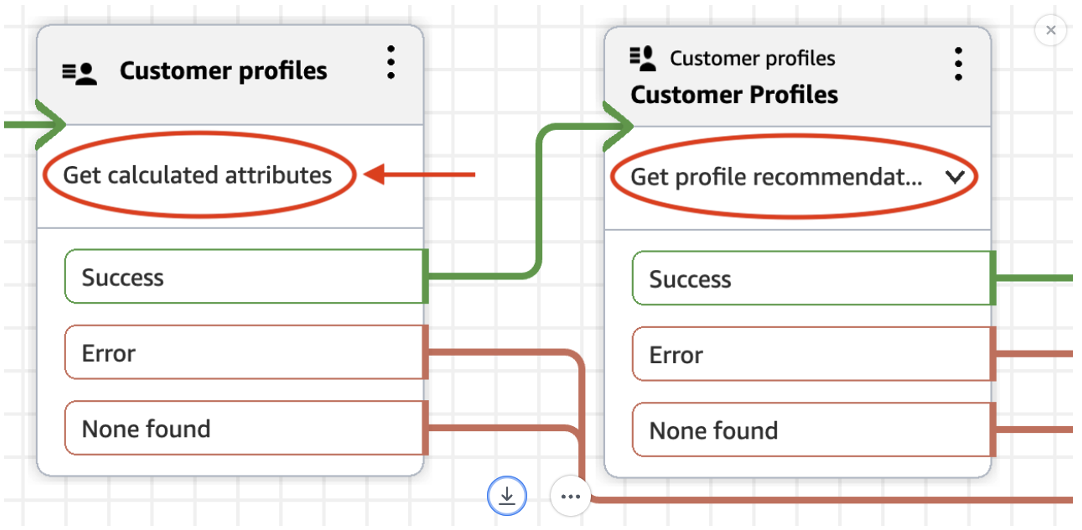
Figure 14: Get calculated attributes with get profile recommendations
The following image illustrates how the block properties may be configured:
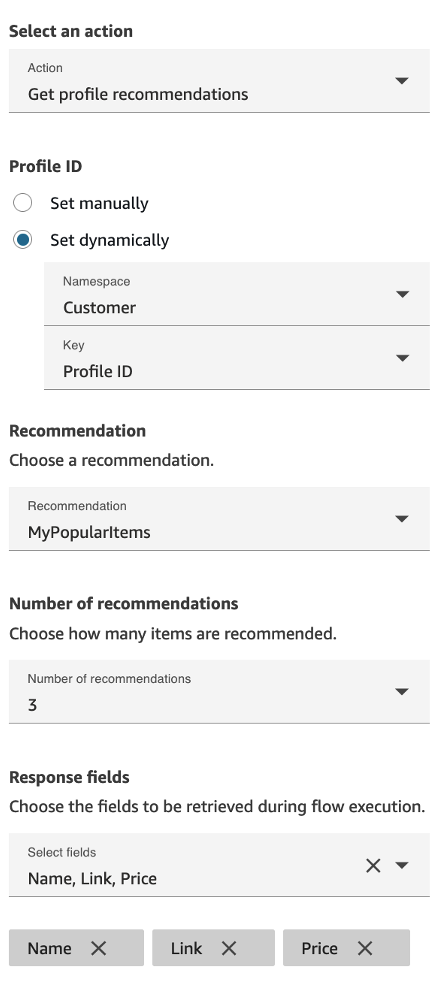
Figure 15: Get profile recommendations under customer profiles block
Flow Block Branches
The Get profile recommendations flow block can route contacts down the following branches:
- Success: Recommendations were successfully generated for the provided Profile ID. Selected recommendation attributes were persisted to contact attribute $.Customer.Recommendations.
- Error: An error was encountered while trying to generate recommendations. This may be due to a system error or how Get profile recommendations block is configured.
- None Found: No recommendations could be generated.
Using Recommendations from the block
Now let’s look at how to use the recommendations generated by the Get profile recommendations block within the rest of your flow definition.
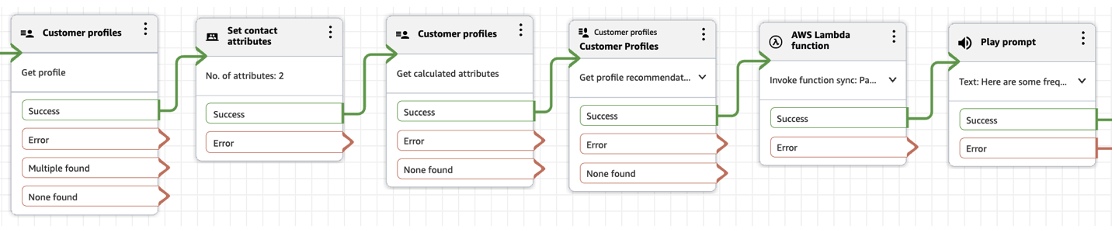
Figure 16: Sample flow
The recommendations response is persisted to the $.Customer.Recommendations contact attribute JSONPath as a JSON list of recommendation objects. Each recommendation object will contain the selected Recommendation attributes
[
{ // Recommendation object
"Score": number,
"CatalogItem": {
"Id": "string",
"Name": "string",
"Code": "string",
"Type": "string",
"Category": "string",
"Description": "string",
"AdditionalInformation": "string",
"ImageLink": "string",
"Link": "string",
"CreatedAt": "string",
"UpdatedAt": "string",
"Price": "string",
"Attributes": {
"string": "string"
}
}
},
... // upto 3 recommendations
]Amazon Connect Flows currently cannot directly access list elements using index notation (e.g. $.Customer.Recommendations[0]), so we use a AWS Lambda function to transform the recommendations list, as illustrated in the following image.
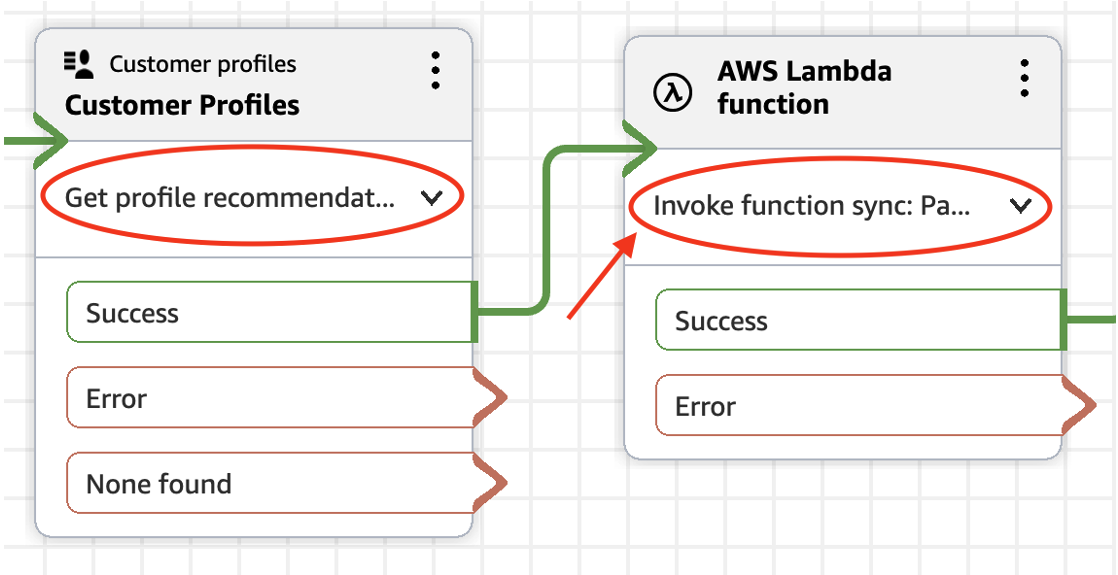
Figure 17: Invoke AWS Lambda function
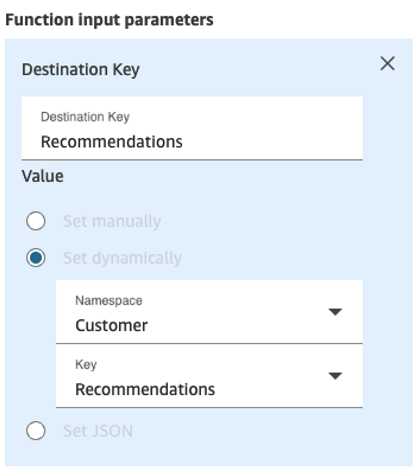
Figure 18: Add function input parameters
Here is the link to sample Python code snippet from a Lambda function shows how it can be used to transform recommendations from the Get profile recommendations block and persist into other contact attributes such that the recommendations can be used in subsequent blocks:
After persisting transformed recommendations into contact attributes, here’s an example showing its usage in a Play Prompt block.
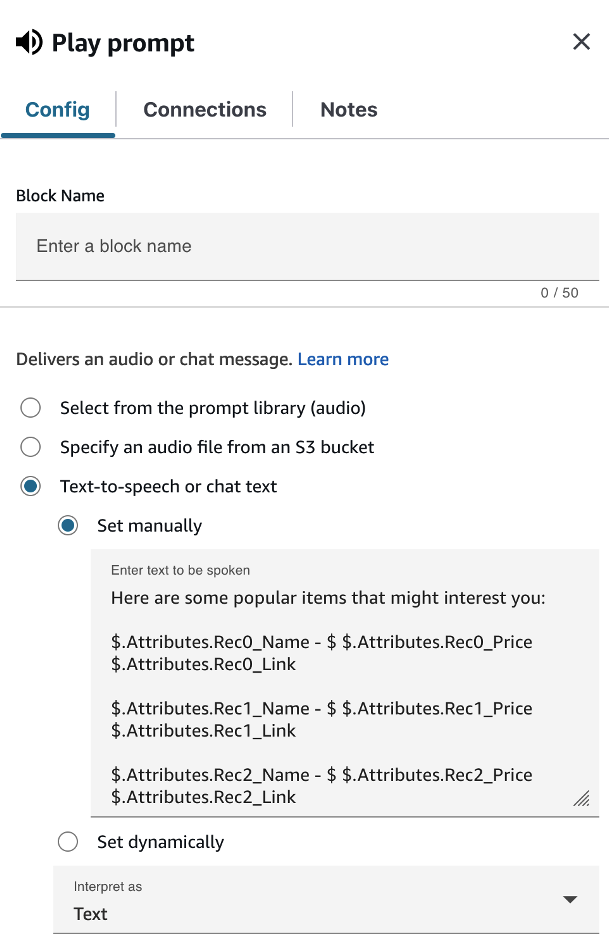
Figure 19: Sample play prompt
Once you have setup your flow with the Get profile recommendations block, you can start using it to generate recommendations for your customers during their contacts.
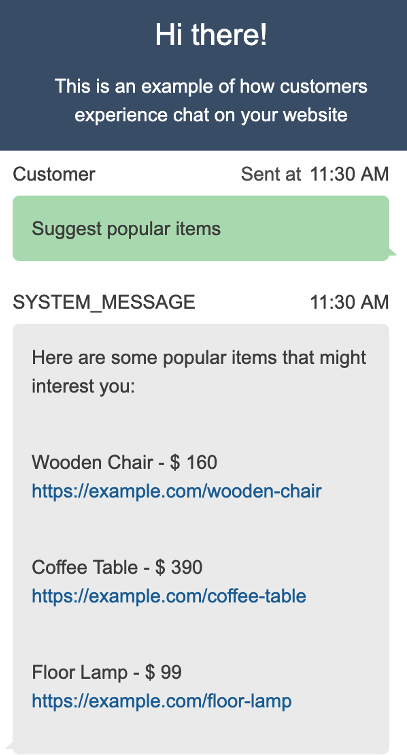
Figure 20: Sample chat
Step 5: Create AI agent
AI agents provide agentic capability by providing a new agent type Orchestration which will be able to orchestrate between different tools that the agent has.
We will leverage this new feature of AI Agent to provide a Recommender AI agent which can provide item recommendation in response to user’s/agent’s input. This can be used both in self-service and agent-assist use case. One of the use cases of this agent can be to act as an upsell agent.
- Sign in to the AWS Management Console.
- Search for Amazon Connect on the services search bar and click on Amazon Connect.
- Click on Access URL and log in to your Amazon Connect instance.
- On the Amazon Connect console, on the left side menu, please click on the option AI Agent Designer and select AI agents. Click on Create AI Agent
An AI Agent of type Orchestration – System in Saved as draft status will be provided under AI Agents. This will act as template providing customers all the configuration required to use all the 1P tools to get recommendations and example prompts.
- You will create a new AI agent of Orchestration Type and select Copy from existing Agent select SalesAgent from the drop down. Add Description and click Create.
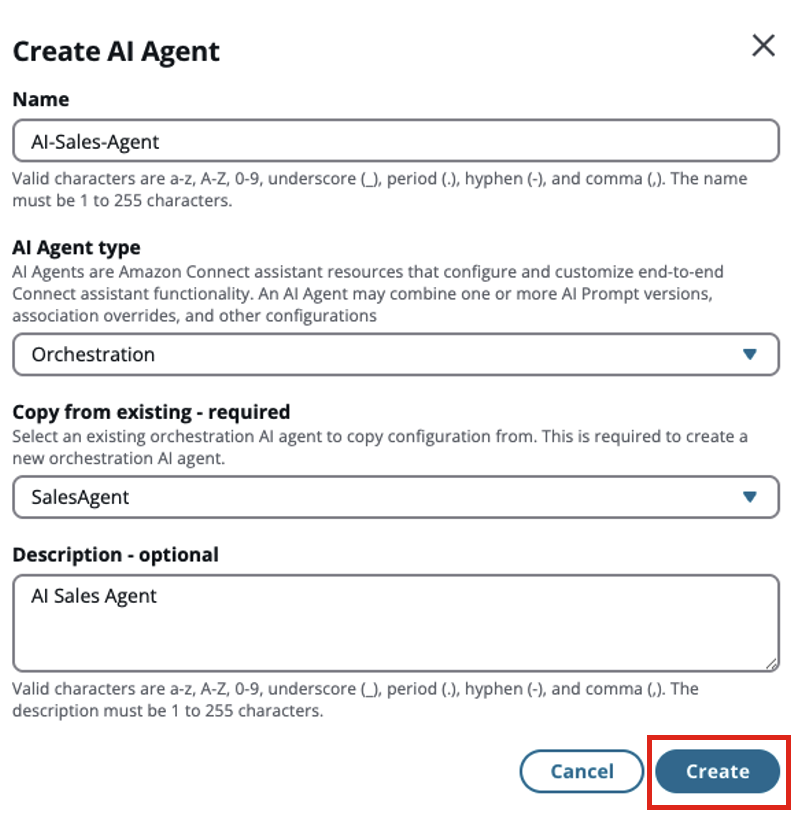
Figure 21: Create AI Agent
- This will create the AI-Sales-Agent with all the tools pre-configured. Update the Security Profile as Admin. For AI Agent, you can create your own security profiles based on the tools access. SalesAgent prompt has already been added. Click Save and Publish.
Note: For updating AI Prompts and AI Guardrails, refer here.
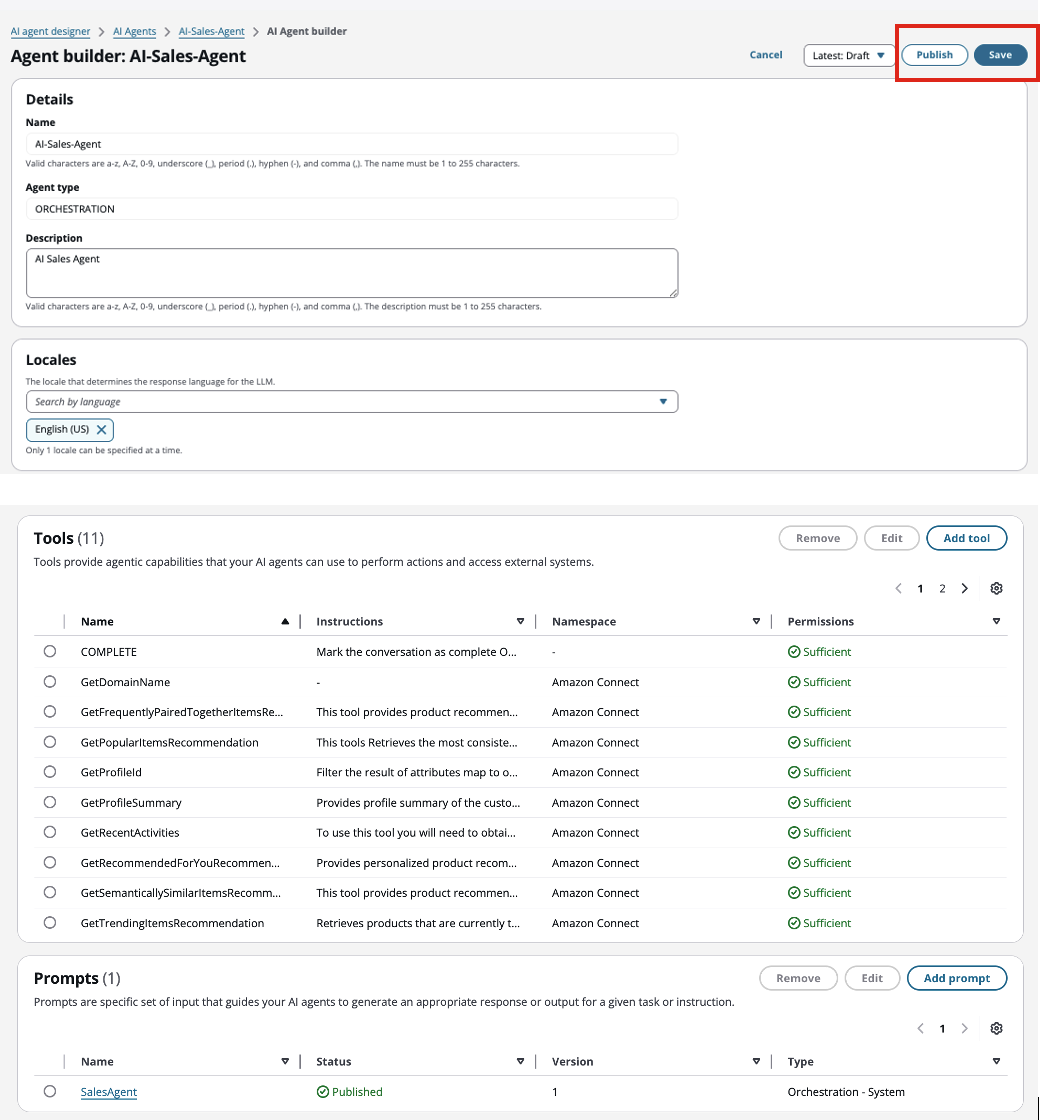
Figure 22: Save and Publish AI Agent
- Now, you can update the flow which has the Amazon lex bot by selecting this new agent.
- You need to add the Customer Profile flow block to get profile Id.
- This flow can be used with either the chat widget contacts or the voice call and customer input will be passed to the AI agent on Amazon lex bot.
Step 6: Exploring recommendations via the API
Once the recommender is active, it is ready to provide recommendations. In this section we will explore how to use Customer Profiles APIs to retrieve profile recommendations and predictive insights. These APIs can be used to surface recommendations directly with web and mobile pages as well as in any other custom integration.
Using the GetProfileRecommendations API, recommendations can be obtained for a specific profile from the recommender in a domain. The following example illustrates the API request to retrieve recommendations from the “SimilarItems” recommender for the profile “26b43ae9a2ad4f9c9c01-3455bf91eff1” within the “my-domain” domain. Since this recommender type recommends similar items to an existing item in the catalog, the existing item’s catalog ID is provided in the “Context” of the request. The request also indicates that a maximum of 20 similar items should be returned.
POST /domains/my-domain/profiles/26b43ae9a2ad4f9c9c01-3455bf91eff1/recommendations
{
"RecommenderName": "SimilarItems",
"Context": {
"_catalogItem.Id": "PROD-001-XYZ"
},
"MaxResults": 20
}The API response includes the catalog information for each recommended item along with a score that represents the relative certainty that the recommended item is relevant or similar to the input item. For brevity, only one catalog item is shown below.
{
   "Recommendations": [
      {
         "Score": 0.8,
         "CatalogItem": {
            "Id": "PROD-001-XYZ",
            "Name": "Ergonomic Office Chair",
            "Description": "A high-back ergonomic office chair with adjustable lumbar support, breathable mesh material, and a five-star wheeled base for enhanced mobility and comfort during long working hours.",
            "Category": "Office Furniture",
            "Price": "249.99"
         }
      }
   ]
}
The GetProfileRecommendations API provides programmatic access to the predictive insights and item recommendations in a Customer Profile domain. These APIs can be used to surface recommendations directly within applications or custom integrations.
Conclusion
These new AI-powered capabilities in Amazon Connect transform customer experiences from reactive to proactive. By combining AI powered recommendations with Amazon Connect Customer Profiles and AI agents, businesses can deliver personalized experiences that anticipate customer needs.
Providing personalized, omnichannel experiences at scale is a critical competitive differentiator for businesses. The walkthrough presented in this blog demonstrates how businesses can create meaningful interactions that drive both customer satisfaction and business growth using Amazon Connect. By implementing these capabilities, organizations can transform every customer touchpoint into an opportunity for deeper engagement, ultimately building stronger relationships and fostering long-term customer loyalty.
Author Bio
 |
Nimish Amlathe is a Product Lead at Amazon Web Services based in Seattle, WA. At AWS, he works with teams at the intersection of customer data, Agentic AI capabilities, and proactive customer engagement. Outside of work, you are likely to see him at a local comedy club. |
 |
Abhishek Pandey is a Principal Solutions Architect with Amazon Web Services based in Houston, TX. Abhishek is passionate about architecting creative solutions that support business innovation across different industries. Abhishek is specialized in helping customers design and implement AI contact center solutions using Amazon Connect and the broader AWS ecosystem. Outside of work, he loves to hang out with family and friends. |