AWS Big Data Blog

Create and update Apache Iceberg tables with partitions in the AWS Glue Data Catalog using the AWS SDK and AWS CloudFormation

In recent years, we’ve witnessed a significant shift in how enterprises manage and analyze their ever-growing data lakes. At the forefront of this transformation is Apache Iceberg, an open table format that’s rapidly gaining traction among large-scale data consumers.

However, as enterprises scale their data lake implementations, managing these Iceberg tables at scale becomes challenging. Data teams often need to manage table schema evolution, its partitioning, and snapshots versions. Automation streamlines these operations, provides consistency, reduces human error, and helps data teams focus on higher-value tasks.

The AWS Glue Data Catalog now supports Iceberg table management using the AWS Glue API, AWS SDKs, and AWS CloudFormation. Previously, users had to create Iceberg tables in the Data Catalog without partitions using CloudFormation or SDKs and later add partitions from Amazon Athena or other analytics engines. This prevents the table lineage from being tracked in one place and adds steps outside automation in the continuous integration and delivery (CI/CD) pipeline for table maintenance operations. With the launch, AWS Glue customers can now use their preferred automation or infrastructure as code (IaC) tools to automate Iceberg table creation with partitions and use the same tools to manage schema updates and sort order.

In this post, we show how to create and update Iceberg tables with partitions in the Data Catalog using the AWS SDK and CloudFormation.

Solution overview

In the following sections, we illustrate the AWS SDK for Python (Boto3) and AWS Command Line Interface (AWS CLI) usage of Data Catalog APIs—CreateTable() and UpdateTable()—for Amazon Simple Storage Service (Amazon S3) based Iceberg tables with partitions. We also provide the CloudFormation templates to create and update an Iceberg table with partitions.

Prerequisites

The Data Catalog API changes are made available in the following versions of the AWS CLI and SDK for Python:

  • AWS CLI version of 2.27.58 or above
  • SDK for Python version of 1.39.12 or above

AWS CLI usage

Let’s create an Iceberg table with one partition, using CreateTable() in the AWS CLI:

aws glue create-table --cli-input-json file://createicebergtable.json

The createicebergtable.json is as follows:

{
    "CatalogId": "123456789012",
    "DatabaseName": "bankdata_icebergdb",
    "Name": "transactiontable1",
    "OpenTableFormatInput": { 
      "IcebergInput": { 
         "MetadataOperation": "CREATE",
         "Version": "2",
         "CreateIcebergTableInput": { 
            "Location": "s3://sampledatabucket/bankdataiceberg/transactiontable1/",
            "Schema": {
                "SchemaId": 0,
                "Type": "struct",
                "Fields": [ 
                    { 
                        "Id": 1,
                        "Name": "transaction_id",
                        "Required": true,
                        "Type": "string"
                    },
                    { 
                        "Id": 2,
                        "Name": "transaction_date",
                        "Required": true,
                        "Type": "date"
                    },
                    { 
                        "Id": 3,
                        "Name": "monthly_balance",
                        "Required": true,
                        "Type": "float"
                    }
                ]
            },
            "PartitionSpec": { 
                "Fields": [ 
                    { 
                        "Name": "by_year",
                        "SourceId": 2,
                        "Transform": "year"
                    }
                ],
                "SpecId": 0
            },
            "WriteOrder": { 
                "Fields": [ 
                    { 
                        "Direction": "asc",
                        "NullOrder": "nulls-last",
                        "SourceId": 1,
                        "Transform": "none"
                    }
                ],
                "OrderId": 1
            }  
        }
      }
   }
}

The preceding AWS CLI command creates the metadata folder for the Iceberg table in Amazon S3, as shown in the following screenshot.

Amazon S3 bucket interface showing metadata folder containing single JSON file dated November 6, 2025

You can populate the table with values as follows and verify the table schema using the Athena console:

SELECT * FROM "bankdata_icebergdb"."transactiontable1" limit 10;
insert into bankdata_icebergdb.transactiontable1 values
    ('AFTERCREATE1234', DATE '2024-08-23', 6789.99),
    ('AFTERCREATE5678', DATE '2023-10-23', 1234.99);
SELECT * FROM "bankdata_icebergdb"."transactiontable1";

The following screenshot shows the results.
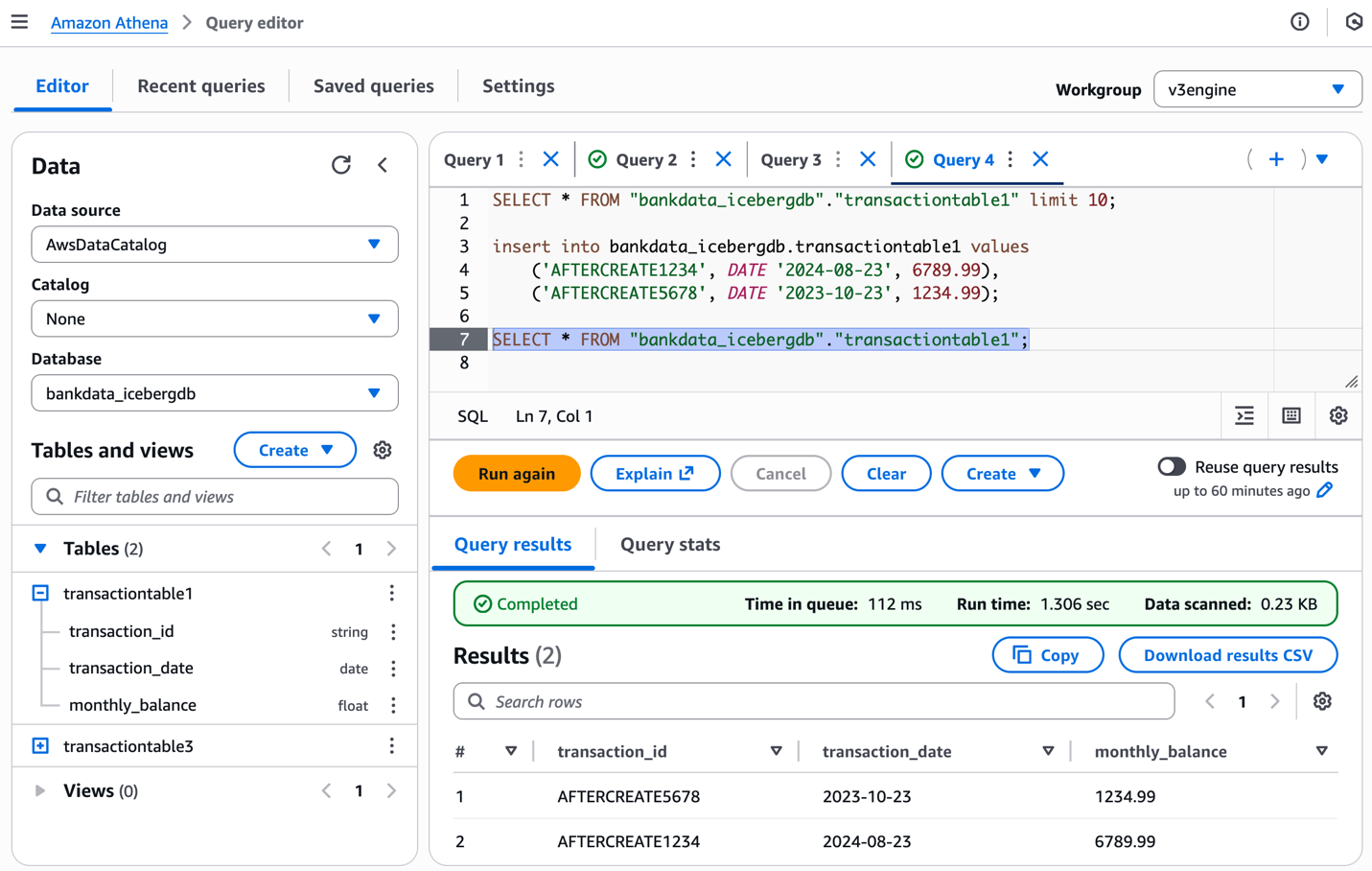
Amazon Athena query editor showing SQL queries and results for bankdata_icebergdb database with transaction data

After populating the table with data, you can inspect the S3 prefix of the table, which will now have the data folder.
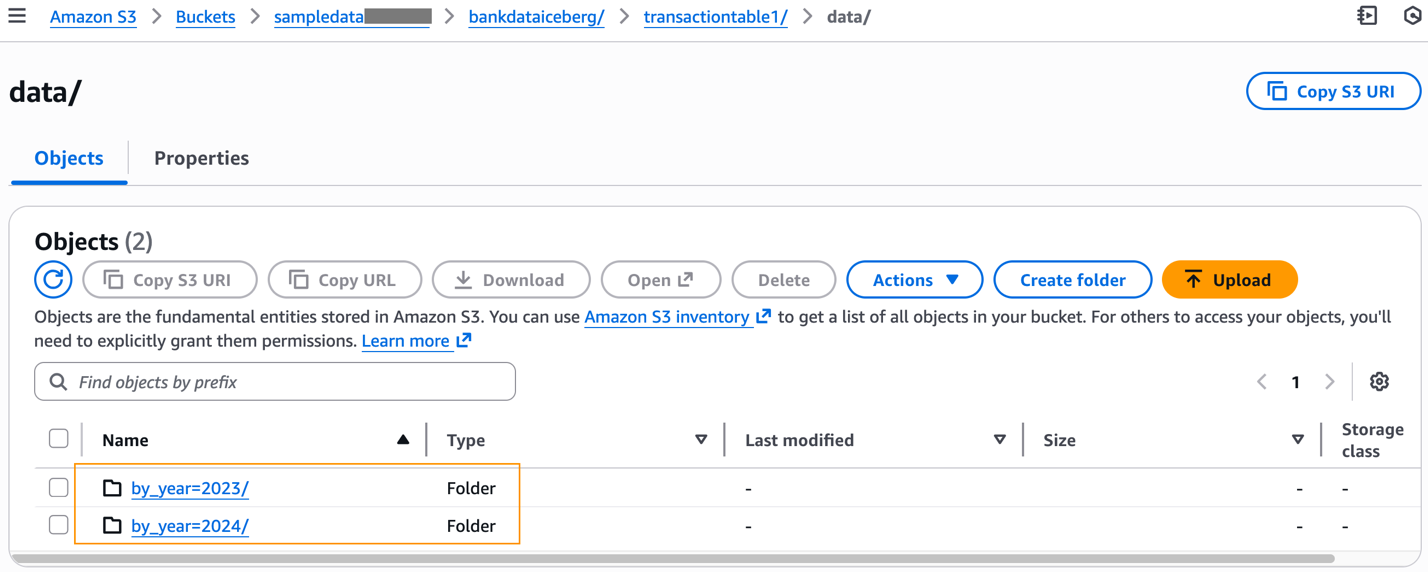
Amazon S3 bucket interface displaying data folder with two subfolders organized by year: 2023 and 2024

The data folders partitioned according to our table definition and Parquet data files created from our INSERT command are available under each partitioned prefix.

Amazon S3 bucket interface showing by_year=2023 folder containing single Parquet file of 575 bytes

Next, we update the Iceberg table by adding a new partition, using UpdateTable():

aws glue update-table --cli-input-json file://updateicebergtable.json

The updateicebergtable.json is as follows.

{
  "CatalogId": "123456789012",
  "DatabaseName": "bankdata_icebergdb",
  "Name": "transactiontable1",
  "UpdateOpenTableFormatInput": {
    "UpdateIcebergInput": {
      "UpdateIcebergTableInput": {
        "Updates": [
          {
            "Location": "s3://sampledatabucket/bankdataiceberg/transactiontable1/",
            "Schema": {
              "SchemaId": 1,
              "Type": "struct",
              "Fields": [
                {
                  "Id": 1,
                  "Name": "transaction_id",
                  "Required": true,
                  "Type": "string"
                },
                {
                  "Id": 2,
                  "Name": "transaction_date",
                  "Required": true,
                  "Type": "date"
                },
                {
                  "Id": 3,
                  "Name": "monthly_balance",
                  "Required": true,
                  "Type": "float"
                }
              ]
            },
            "PartitionSpec": {
              "Fields": [
                {
                  "Name": "by_year",
                  "SourceId": 2,
                  "Transform": "year"
                },
                {
                  "Name": "by_transactionid",
                  "SourceId": 1,
                  "Transform": "identity"
                }
              ],
              "SpecId": 1
            },
            "SortOrder": {
              "Fields": [
                {
                  "Direction": "asc",
                  "NullOrder": "nulls-last",
                  "SourceId": 1,
                  "Transform": "none"
                }
              ],
              "OrderId": 2
            }
          }
        ]
      }
    }
  }
}

UpdateTable() modifies the table schema by adding a metadata JSON file to the underlying metadata folder of the table in Amazon S3.

Amazon S3 bucket interface showing 5 metadata objects including JSON and Avro files with timestamps

We insert values into the table using Athena as follows:

insert into bankdata_icebergdb.transactiontable1 values
    ('AFTERUPDATE1234', DATE '2025-08-23', 4536.00),
    ('AFTERUPDATE5678', DATE '2022-10-23', 23489.00);
SELECT * FROM "bankdata_icebergdb"."transactiontable1";

The following screenshot shows the results.
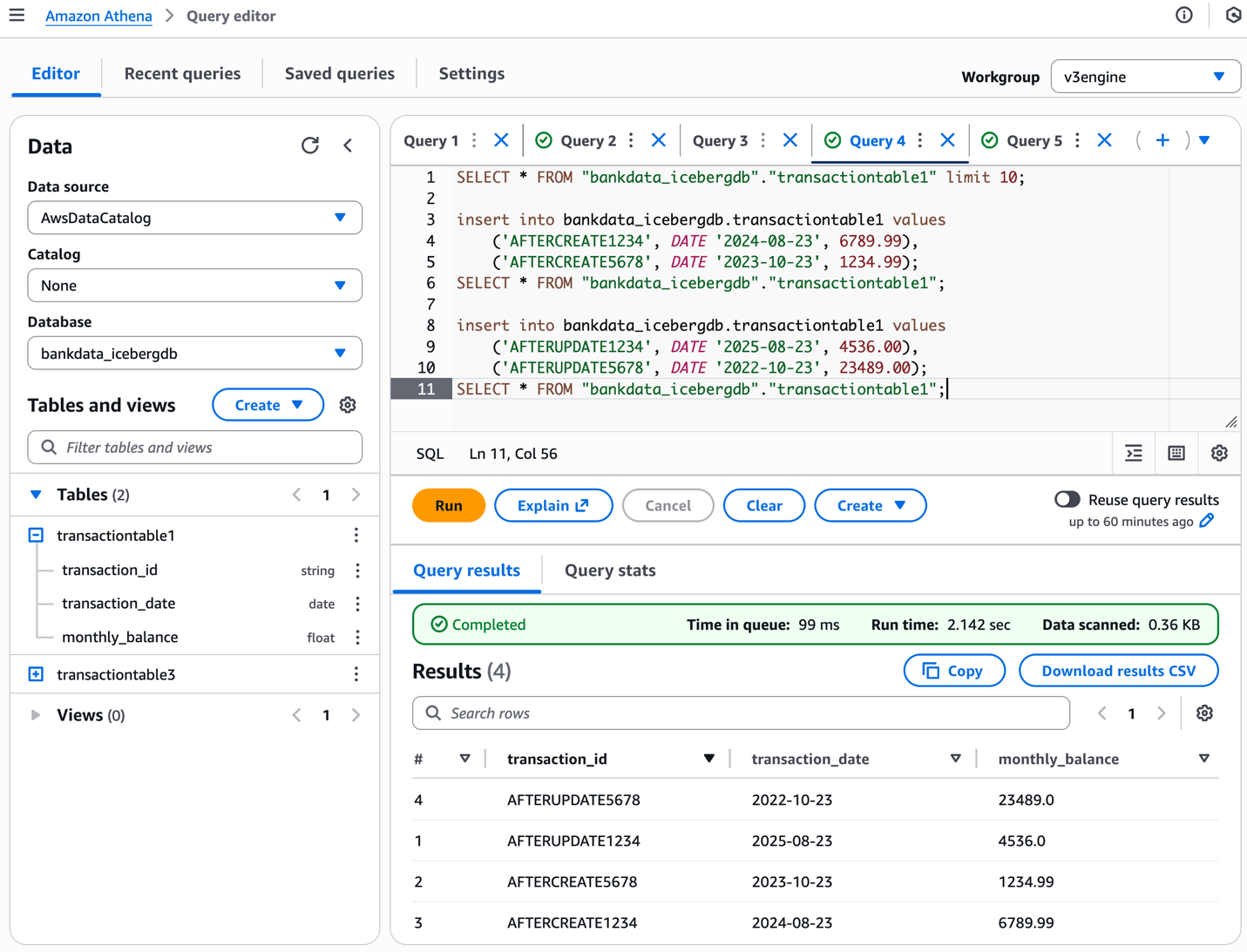
Amazon Athena query editor with SQL statements and results after iceberg partition update and insert data

Inspect the corresponding changes to the data folder in the Amazon S3 location of the table.
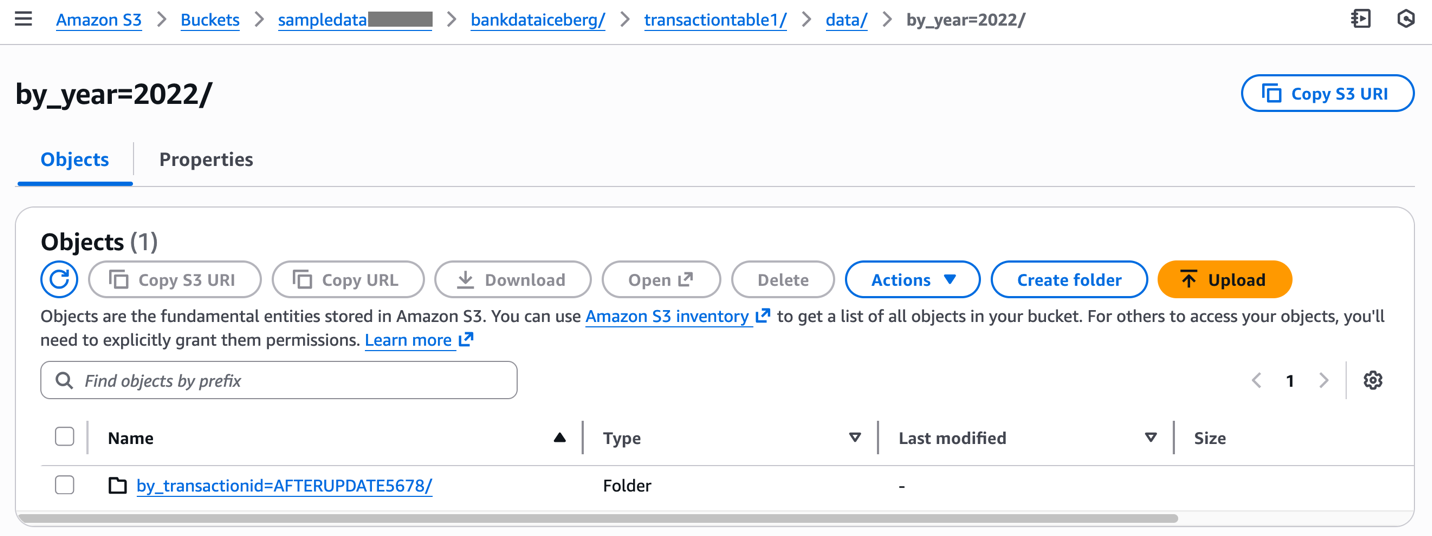
Amazon S3 prefix showing new partitions for the Iceberg table

This example has illustrated how to create and update Iceberg tables with partitions using AWS CLI commands.

SDK for Python usage

The following Python scripts illustrate using CreateTable() and UpdateTable() for an Iceberg table with partitions:

CloudFormation usage

Use the following CloudFormation templates for CreateTable() and UpdateTable(). After the CreateTable template is complete, update the same stack with the UpdateTable template by creating a new changeset for your stack and executing it.

Clean up

To avoid incurring costs on the Iceberg tables created using the AWS CLI, delete the tables from the Data Catalog.

Conclusion

In this post, we illustrated how to use the AWS CLI to create and update Iceberg tables with partitions in the Data Catalog. We also provided the SDK for Python and CloudFormation sample code and templates. We hope this helps you automate the creation and management of your Iceberg tables with partitions in your CI/CD pipelines and production environments. Try it out for your own use case and share your feedback in the comments section.


About the authors

Acknowledgements: A special thanks to everyone who contributed to the development and launch of this feature – Purvaja Narayanaswamy, Sachet Saurabh, Akhil Yendluri and Mohit Chandak.

Aarthi Srinivasan

Aarthi Srinivasan

Aarthi is a Senior Big Data Architect with AWS. She works with AWS customers and partners to architect data lake house solutions, enhance product features, and establish best practices for data governance.

Pratik Das

Pratik Das

Pratik is a Senior Product Manager with AWS. He is passionate about all things data and works with customers to understand their requirements and build delightful experiences. He has a background in building data-driven solutions and machine learning systems in production.