AWS Compute Blog
OS patching and upgrades with Amazon EC2 root volume replacement
Customers running stateful workloads on Amazon Elastic Compute Cloud (Amazon EC2) need to patch operating systems, upgrade OS versions, remediate vulnerabilities quickly, and patch applications in user space. These workloads are connected to resources such as Elastic IP addresses, secondary network interfaces, attached data volumes, AWS Identity and Access Management (IAM) instance profiles, and DNS records. For OS upgrades or patches that require downtime, a common approach is to replace the instance with a new one launched from a newer Amazon Machine Image (AMI). That approach means moving each of these resources to the new instance. With Amazon EC2 Replace Root Volume (RRV) using Amazon Elastic Block Store (Amazon EBS), you can prepare and validate a replacement root volume in advance. You then swap it onto a running production instance with a single API call. The interruption is limited to the reboot that RRV performs and the time your application takes to restart.
In this post, we show how to use the existing EBS volume option of root volume replacement on a Linux instance to upgrade the operating system generation and apply patches, while the instance keeps its production identity. We also cover instances in Amazon EC2 Auto Scaling groups.
Constraints and considerations
RRV has the following requirements and considerations:
- The replacement volume must be in the same Availability Zone as the instance.
- The replacement volume must be in the
availablestate and must not be attached to any instance at the time of the request. - If the original root volume is encrypted, the replacement volume must also be encrypted. You can move from an unencrypted volume to an encrypted one, but not from encrypted to unencrypted.
- For AWS Marketplace instances, the product codes and billing codes on the replacement volume must match those on the instance.
- The target instance must be in the
runningstate. - The instance is automatically rebooted during the process. Memory contents and running processes do not survive the reboot.
- The delete-on-termination attribute of the original root volume doesn’t transfer to the replacement volume.
- At this time, root volume replacement supports virtualized instance types and EC2 Mac bare metal instances. Other bare metal instance types aren’t currently supported. Check the Amazon EC2 documentation for the latest list of supported instance types.
- To avoid a failed boot, make sure the replacement volume has the Elastic Network Adapter (ENA) and NVMe drivers that Nitro-based instances require. Use the same CPU architecture and boot mode (UEFI or legacy BIOS) as the target instance.
- To avoid an SSH host-key change, copy the existing host keys to the new volume before the swap.
- Review your cloud-init configuration, since a volume from a fresh AMI snapshot can re-run user data on its first boot.
- As a best practice, keep application-specific data and configuration on a separate (non-root) volume, so it is not impacted when the root volume is replaced.
Benefits of root volume replacement compared to instance replacement
Benefits of root volume replacement include:
- Preparation of the replacement volume: You build and validate the replacement volume on a separate instance, so the production instance is untouched until the swap.
- Reduce the downtime: Reduce the downtime to an in-place reboot instead of replacing the instance and reassociating its attached resources.
- Test before commitment: You validate the replacement volume in non-production first. If validation fails, you discard it without ever touching production.
- Resource preservation: The swap retains network interfaces (ENIs), Elastic IP addresses, EBS data volumes, instance store data, IAM instance profiles, security groups, placement groups, and DNS names. As a result, you avoid the re-association, re-attachment, and reconfiguration steps that instance replacement requires.
- Rollback path: If you keep the original root volume, you can swap back to it.
How it works
It’s a two-phase process: in the preparation phase you build the new root volume, and in the replacement phase you call the root volume replacement API, which swaps the volume and reboots the instance.
Step 1 – Preparation phase: On a separate preparation instance, you create a new volume from a newer OS AMI, patch and configure it in a chroot, and test a copy on a non-production instance.
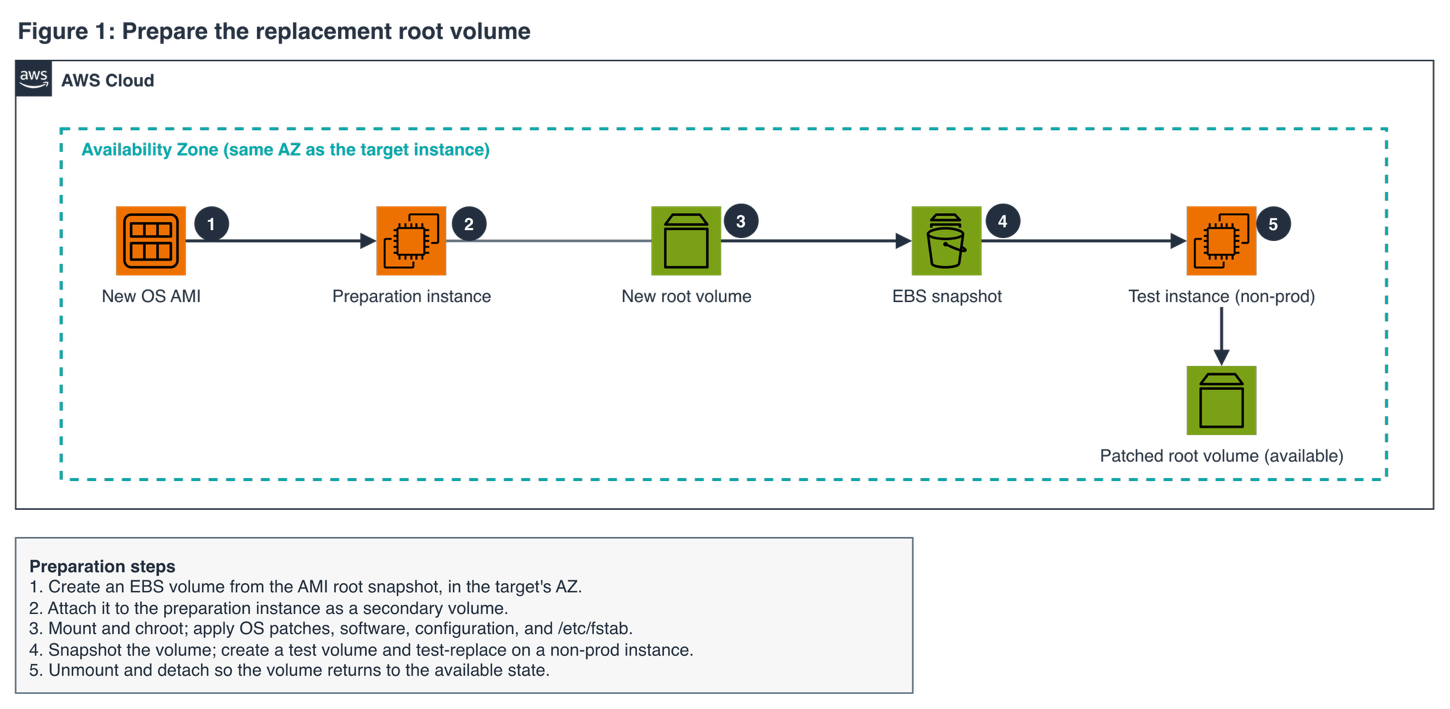
Figure 1: Preparation phase. You build and validate the replacement root volume on a separate instance before touching production.
Step 2 – Replacement phase: The create-replace-root-volume-task call starts a task that, during one reboot, detaches the original root volume and attaches the prepared one. Network interfaces, data volumes, and Elastic IP addresses stay in place, and the instance returns at the same IP address after the application restarts.
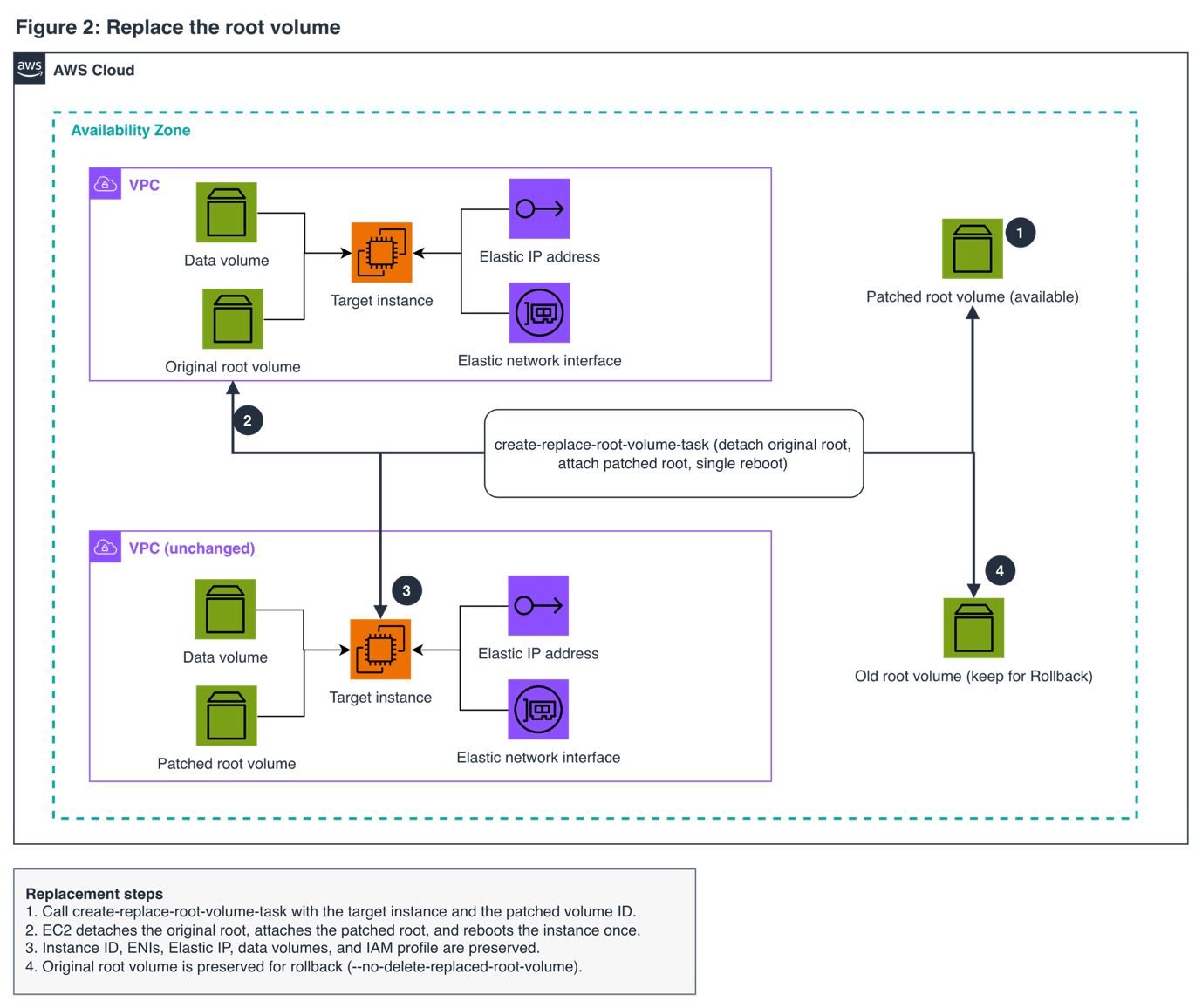
Figure 2: Replacement phase. A single API call swaps the prepared volume onto the running instance, which returns at the same IP address.
What is preserved during the reboot
The reboot clears memory and running processes but preserves the instance’s identity and attached resources:
| Resource | Preserved | Notes |
| Instance ID | Yes | Same instance. No termination occurs |
| Private IP address | Yes | Retained. The instance keeps its private IP address across the replacement |
| Public IP / Elastic IP address | Yes | Remains associated with the instance |
| Network interfaces (ENIs) | Yes | All ENIs retain their IP addresses, identifiers, and attachment IDs |
| EBS data volumes | Yes | Non-root volumes remain attached |
| Instance store volumes | Usually | Volumes stay attached and their data normally survives the reboot, but this isn’t guaranteed. A failed reboot or a problem with the underlying host can cause instance store data to be lost. Keep data you need on EBS volumes. |
| IAM instance profile | Yes | Role and policies (including tag-based policies) remain enforced |
| Security groups | Yes | All security group associations are retained |
| DNS names | Yes | Public and private DNS names are unchanged |
| Placement group | Yes | Instance remains in the same placement |
| Tags | Yes | Instance tags are unchanged |
| Memory (RAM) contents | No | Volatile memory is wiped during the reboot |
| Running processes | No | Applications must restart as part of the boot sequence |
Solution walkthrough
The walkthrough has four steps:
- Create the replacement volume.
- Prepare and install patches on the volume.
- Test the prepared volume.
- Swap it onto the running instance.
Replace placeholder values (such as the instance ID, volume ID, and Availability Zone).
Prerequisites
Before you begin, make sure that you have:
- AWS Command Line Interface (AWS CLI) v2.36.0 or later that supports the
--volume-idparameter oncreate-replace-root-volume-task, configured with credentials that have permissions for Amazon EC2 and Amazon EBS operations (for encrypted volumes, including the AWS Key Management Service (AWS KMS) permissions to detach the original volume and to attach and decrypt the replacement). - A running Linux target instance with an Amazon EBS root volume that you want to replace.
- A preparation instance in the target’s Availability Zone, launched from a different AMI than the replacement volume’s base so their root filesystems are less likely to share a UUID. If they do share one on XFS, mount the volume with
-o nouuid. - A non-production test instance of the same instance type, launched from the target instance’s AMI so that it has the same boot mode.
Step 1: Create the replacement root volume
Create the replacement volume in the target instance’s Availability Zone, typically from the root snapshot of a newer OS AMI. If the original root volume is encrypted, encrypt the new one, and make it at least as large as the current root volume. A volume restored from a snapshot loads its blocks from Amazon Simple Storage Service (Amazon S3) on first read, so its first boot can be slower than a normal reboot. Setting the --volume-initialization-rate parameter, or enabling fast snapshot restore on the snapshot, reduces this. Both are billed separately.
First, confirm that the base AMI supports the instance’s boot mode and find the AMI’s root snapshot. The instance reports uefi or legacy-bios. The AMI reports uefi, legacy-bios, or uefi-preferred (which supports both). An AMI with no boot mode uses the instance type’s default.
Use the snapshot ID this returns as <base-snapshot-id> in the next command.
Expected outcome: An available EBS volume with a bootable OS, ready to attach to the preparation instance.
Step 2: Prepare and install patches on the volume
Attach the volume to the preparation instance as a secondary disk:
Mount the root partition and bind-mount /proc, /sys, /dev, and /dev/pts so that package managers inside the chroot install into the new volume. Use lsblk to find the device. On Nitro-based instances it appears as an NVMe device (for example, /dev/nvme1n1), not /dev/sdf. Copy /etc/resolv.conf so DNS works inside the chroot.
Inside the chroot, apply OS security patches, install or upgrade application software, and apply configuration. Because the volume is detached from production, you can take as long as you need.
Before detaching, create mount points for the target’s data volumes and add /etc/fstab entries on the new volume. Use UUID= or LABEL= entries rather than device names, which can change between boots on Nitro-based instances.
Then unmount and detach the volume:
Expected outcome: An available, patched EBS volume that has not been attached to the production instance.
Step 3: Test the prepared volume
Snapshot the prepared volume, create a test volume from the snapshot in the test instance’s Availability Zone, and replace the test instance’s root volume with it. Confirm that the instance boots, the application starts, and the data volumes mount.
Expected outcome: The test instance boots and the application passes your checks. If it doesn’t, fix the prepared volume and repeat this step.
Step 4: Run the root volume replacement
Before you run the replacement, record the current root volume ID and snapshot it as a fallback. Amazon EC2 keeps the original root volume by default. This example also sets --no-delete-replaced-root-volume explicitly. Use --delete-replaced-root-volume only if you don’t need a rollback path.
Monitor the task. It moves through pending, in-progress (when the instance reboots), and succeeded.
Expected outcome: The task reports succeeded, and the instance comes back on the patched root volume with its instance ID, IP addresses, network interfaces, data volumes, and IAM instance profile retained. Disruption is roughly one reboot plus your application’s start time.
If the task doesn’t succeed:
failed: The instance was rebooted with its original root volume attached. Fix the volume (repeat Step 3), then retry.failed-detached: The instance doesn’t have a root volume attached. Contact AWS Support before you take further action on the instance.
A task can report succeeded even if the instance fails to boot on the new volume, for example because of a boot mode or driver mismatch. Confirm that the instance passes its status checks after every replacement. If it doesn’t, check the console output or the EC2 serial console, then roll back.
Finally, set delete-on-termination on the new root volume to match the original:
Rolling back
To roll back, run another replacement with the original root volume. If you deleted it, pass the snapshot from Step 4 with --snapshot-id instead of --volume-id (the two are mutually exclusive). Root volume replacement accepts snapshots of the instance’s previous root volumes.
Then validate the instance as you did after the swap and set delete-on-termination again. Changes written to the new root volume after the swap aren’t carried back, so keep data that must survive a rollback on a data volume.
If the instance is in an Auto Scaling group, roll back before you exit Standby.
Using root volume replacement with Auto Scaling groups
Instances in an Amazon EC2 Auto Scaling group need different handling, because the group’s health checks and scaling can terminate or replace an instance mid-swap. Choose the approach that matches what you’re updating.
One instance at a time: Put the instance in Standby first, reducing the desired capacity so the group doesn’t launch a replacement. Standby temporarily takes the instance out of service. Then create, validate, and run the root volume replacement, update the launch template so future instances use the new OS, and return the instance to service. For the Standby steps, see Temporarily remove instances from your Auto Scaling group in the Amazon EC2 Auto Scaling User Guide.
A whole fleet: To update every instance in a group from a new AMI, use the ReplaceRootVolume strategy within instance refresh, where the Auto Scaling group replaces each instance’s root volume in stages while preserving network interfaces, data volumes, and instance store data. It applies the same AMI to every instance, so it suits fleet-wide OS updates rather than a volume prepared for one stateful instance. For details, see Replace root volumes during instance refresh in the Amazon EC2 Auto Scaling User Guide.
Clean up
To avoid ongoing charges, delete the resources that you no longer need.
The original root volume and its fallback snapshot, when you no longer need them for rollback:
The preparation instance:
The test instance, the test volume, and the Step 3 snapshot:
If an Auto Scaling group uses an AMI registered from the snapshot, deregister the AMI before you delete the snapshot. If you launched a target instance only to try out this workflow, terminate it as well.
Conclusion
Amazon EC2 Replace Root Volume with the direct EBS volume option separates volume preparation from the production interruption. When you need to upgrade an operating system or apply a critical patch, you prepare and validate the change on a separate instance, then swap it in with a single API call. The instance keeps its IP addresses, ENIs, data volume attachments, and DNS names across the swap, so you avoid re-association and re-mounting, and the interruption is limited to the single reboot that RRV performs. Before adopting this approach in production, validate it against your own workload, including boot time and any personalized data on the root volume. To get started, see Replace the root volume for an Amazon EC2 instance without stopping it in the Amazon EC2 User Guide.