AWS Database Blog
Best practices for creating and reorganizing data with additional storage volumes in Amazon RDS for Oracle
Amazon Relational Database Service (Amazon RDS) for Oracle is a fully managed commercial database that makes it straightforward to set up, operate, and scale Oracle deployments in the cloud. Amazon RDS frees you up to focus on innovation and application development by managing time-consuming database administration tasks, including provisioning, backups, software patching, monitoring, and hardware scaling.
With Amazon RDS additional storage volumes, you can expand the total storage capacity while precisely matching storage performance to your data needs. You can now provision up to 256 TiB of total storage by adding up to three additional storage volumes to your RDS instance, effectively quadrupling the available capacity. You can configure each volume independently with different storage types and performance characteristics, so you can place frequently accessed data on high-performance storage while moving less frequently accessed data to more cost-effective volumes. You can also scale additional storage volumes independently and in parallel. Amazon Elastic Block Store (Amazon EBS) storage modification operations are now specific to each storage volume and not at the instance level.
In this post, we show you how to use additional storage volumes to expand your RDS for Oracle storage capacity beyond 64 TiB. In addition, we walk through use cases for additional storage volume and best practices while working with additional volumes.
Add additional storage volumes
You can add additional storage volumes to new or existing RDS instances through the AWS Management Console, AWS CLI, or AWS SDK. Then you can create new database files on these volumes and move existing data based on their performance requirements. The feature supports common database operations including backup and restore, with Amazon RDS management capabilities automatically extending to the additional volumes. You can monitor performance metrics for each volume through Amazon CloudWatch and adjust volume configurations as your needs change.
Modify RDS for Oracle instance to add additional storage volume
To add additional storage volumes to an existing RDS for Oracle instance, use the modify-db-instance command with the additional-storage-volumes parameter. The following code snippet adds two new volumes, one 5,000 GiB gp3 volume type with 4,000 IOPS named rdsdbdata2 and another 6,000 GiB io2 volume type with 25,000 IOPS named rdsdbdata3:
Create new RDS for Oracle instance with additional storage volume
The following code snippet creates a new RDS for Oracle instance with two additional storage volumes attached. The first additional volume is rdsdbdata2 of io2 storage type and 8,000 GiB in size and the second additional volume is rdsdbdata3 of gp3 storage type and 5,000 GiB in size.
After you create the instance, you can view the additional storage volumes on the Configuration tab on the Amazon RDS console or use describe-db-instance to check the status of the volumes. Volume status “Not in use” means that the volume is successfully attached but is not used by the database yet.
Create database files
After you add the volumes successfully, you can start creating new database files in this location. Amazon RDS for Oracle uses Oracle Managed Files (OMF) for database files placement on the storage. You can’t specify the location when creating new database files, instead this will be derived based on the current setting of db_file_create_dest parameter. You can modify this parameter at session or instance level:
- Instance level – Update the parameter
db_create_file_destin the parameter group assigned to your DB instance and apply it. For more information, refer to RDS for Oracle initialization parameters and Modifying parameters in a DB parameter group in Amazon RDS. - Session level – You can run the
ALTER SESSIONstatement and set the parameter to the desired additional storage volume. When using additional storage volumes with replicas, we recommend using a parameter group to manage the datafile location instead of updating at the session level to maintain consistent behavior between primary and replica instances.
After you set the db_create_file_dest parameter, you can use SQL commands to create a tablespace in an additional storage volume:
Considerations for using additional storage volumes
Keep in mind the following considerations:
- The following database structures are stored in the primary storage volume and can’t be moved to an additional storage volume:
- SYSTEM tablespace
- RDSADMIN tablespace
- Redo log files
- Archive log files and
- Control file
- Additional storage volume will be compatible with both new and existing RDS for Oracle instances that have primary volumes equal to or larger than 200 GiB. The size of additional storage volumes should be equal to or greater than 200 GiB.
- Additional storage volumes can be either gp3 or io2 storage type. The primary volume can be of any storage type.
- Additional storage volumes must use the following volume names:
- When you create an additional storage volume by modifying the DB instance, Amazon RDS immediately creates the storage volume regardless of the schedule modifications setting. Adding a storage volume is an online operation and doesn’t impact your database performance.
- In Oracle Enterprise Edition (EE), you can use the
move_datafileprocedure to move a datafile of an existing tablespace from one volume to another volume. This operation can be done online. Similarly, you can move a table, index, or partition online using theONLINEclause ofALTER TABLEorALTER INDEXcommands in Oracle EE. - In Oracle Standard Edition 2 (SE2), you can move table and index data from one volume to another but this will be an offline operation, meaning the table or index will be locked during the move operation.
- When creating an RDS for Oracle replica for a DB instance that has additional storage volumes, Amazon RDS automatically configures additional storage volumes on the replica. However, subsequent modifications made in storage volumes of your primary DB instance are not automatically applied to the replica.
Use cases of additional storage volumes
In this section, we discuss various use cases of additional storage volumes.
Scale up the storage for active data exceeding 64 TiB
As your databases grow with additional storage volume, you can scale up the storage beyond 64 TiB by adding additional storage volumes. Each additional storage volume can scale up to 64 TiB, and you can add up to three additional volumes with the new maximum storage size of 256 TiB for RDS for Oracle instances. The primary volume in an RDS for Oracle instance is called rdsdbdata, and additional volumes are rdsdbdata2, rdsdbdata3, and rdsdbdata4. When you add a new volume, you can choose the storage type and volume characteristics to meet the performance requirements. Additional storage volumes support both io2 and gp3 volume types with a minimum size of 200 GiB per additional storage volume.
Place active and infrequently accessed data on separate volumes
Adding an additional storage volume to an RDS instance provides unique advantages other than scaling up the storage of the instance. For example, with an additional storage volume, you can improve database performance by splitting your active data from historical data. You can move infrequently accessed data into additional volumes with General Purpose SSD storage (gp3) while keeping highly accessed data on Provisioned IOPS SSD storage (io2) type. You can even use Oracle’s online relocation capabilities (in Oracle EE) to move data between volumes while your applications continue running.
Consider another scenario, in which you have a database workload of 20 TB with approximately 5 TB of historical data not frequently accessed in a separate schema. Let’s say you have a total requirement of 80,000 IOPS for this workload, which includes both read and write IOPS. Traditionally to support this, you would provision an RDS for Oracle instance with io2 storage type of 20 TB with 80,000 provisioned IOPS, which costs about $21,120 per month for storage in the us-east-1 AWS Region.
With the additional storage volume feature, you can split this across two volumes by provisioning a 15 TB io2 volume with 60,000 IOPS for active data and move the infrequently accessed schema into a GP3 volume of 5 TB, which will cost about $17,017 ($15,840 + $1,177) per month for RDS storage costs.
Temporary storage for data loading
You might need temporary storage on RDS for Oracle instances for data loads or export/import dump files or a staging area to keep your transportable tablespace (XTTS) datafiles. With additional storage volumes, you can create a new additional storage volume for staging your temporary data and delete the volume when the migration/export/import activity is complete. This helps with cost control by not allocating extra storage on the primary volume, which can’t be scaled down.
Database management operations with additional storage volumes
In this section, we discuss common database management operations with additional storage volumes.
Use Oracle Data Pump with additional storage volume
To create a directory on an additional storage volume using Oracle Data Pump, use the following code:
Follow the steps described in Importing using Oracle Data Pump to export and import your data to the new directory.
After the operation is complete, you can remove files and optionally delete the volume.
Use transportable tablespaces with an additional storage volume
The following steps show how to use additional storage volume as a staging area to keep dump files while using transportable tablespaces (XTTS) for migration or export/import:
- Set the
db_create_file_destparameter at session level before importing XTTS tablespaces into the target database with an additional storage volume: - Check the XTTS import status:
- When the XTTS tablespace import is complete, import XTTS metadata:
Use Amazon S3 with additional storage volume
The following steps show how to create a database directory on an additional storage volume and integrate that with Amazon Simple Storage Service (Amazon S3) for staging files. With this type of integration, you can download and upload files between Amazon S3 and the additional storage volume.
- Create an Oracle directory on the additional storage volume:
- Download files from Amazon S3 to the additional storage volume:
- Upload files from the additional storage volume to Amazon S3:
Move data and datafiles between volumes
You can move datafiles and database objects between your primary and additional storage volumes. Before you move data, consider these requirements:
- The source and target volumes must have sufficient free space. Check the size of the file you are moving and ensure that the target volume has sufficient space.
- Data movement operations consume I/O on both volumes. Monitor IOPS Amazon CloudWatch metrics on both source and target volume and increase IOPS if you see a contention. CloudWatch metrics include
ReadIOPS,WriteIOPS,ReadIOPS_rdsdbdata2, andWriteIOPS_rdsdbdata2. - Large data movements can impact database performance.
- If you restored the database from a snapshot, you might experience longer time to move data between volumes due to lazy loading. Refer to Prewarm an Amazon RDS for Oracle database to reduce the impact of lazy loading for more information.
You can move datafiles online using the RDSADMIN.RDSADMIN_UTIL.MOVE_DATAFILE procedure. This feature of online datafile movement is available only in Oracle EE.
This procedure uses the following parameters:
P_DATA_FILE_IDis the file_id of the datafile to be movedP_LOCATIONis the target storage volume to move the datafile (for example,rdsdbdata2).
Move a tablespace from primary volume to additional volume
In the following code, we move a tablespace from the primary volume rdsdbdata to the new additional storage volume rdsdbdata2:
Move table data and indexes between primary and additional volumes
You can optimize database storage by creating tablespaces on additional storage volumes and then moving specific database objects (tables, indexes, and partitions) to these tablespaces. You can use standard Oracle commands as shown in the following example. This approach is particularly valuable for performance tuning when your database contains data with different access patterns. You can use these commands to move database objects in both Oracle EE and Oracle SE2. However, you can move database objects using an online operation only in Oracle EE. For example, you can store frequently accessed operational data on high-performance storage volumes while moving rarely accessed historical data to lower-cost storage volumes.
- Create new tablespaces on the additional volume:
- To move a table to your additional storage volume using an online operation (Oracle EE only), use the following code:
- To move a table partition to your additional storage volume using an online operation (Oracle EE only, and partitioning is also an EE feature), use the following code. This moves infrequently accessed data into the
historical_datatablespace, which is on the additional volume. - To move an index to your additional storage volume using an online operation (Oracle EE only), use the following code:
- To monitor the progress of data movement, use the following queries:
- Check active sessions with long operations:
- Check space usage in your tablespaces:
Best practices for using additional storage volumes
The following are some best practices when working with additional storage volumes in Amazon RDS for Oracle:
- If your database contains tables with BLOB and CLOB objects that consume substantial storage space but are infrequently accessed, you can optimize it by creating a tablespace for LOB data on an additional storage volume and moving the large objects.
- To reduce Amazon RDS storage size, you can move and delete the objects and tablespaces on the additional storage volume and then delete the additional storage volume. The primary volume (
rdsdbdata) can’t be deleted; only additional volumes can be deleted when the volumes are empty. - Test your data move operation from the primary to additional storage volume in your dev environment to get a baseline for time and performance before performing in production. It depends on size of the object, IOPS, and how busy the database is.
- Monitor your data movement progress by querying v$session_longops and monitoring tablespace usage.
- Amazon RDS storage operations work differently with additional storage volumes because each volume operates independently. For example, consider an RDS for Oracle instance with a primary volume (
rdsdbdata) of io2 storage type with 45 TiB capacity, and one additional storage volume (rdsdbdata2) of gp3 storage type with 10 TiB capacity. You can now simultaneously trigger a storage modification operation on each volume. You can increase the IOPS on the primary volume, which will initiate a storage modify operation onrdsdbdata. While this is in progress, you can trigger another modify operation onrdsdbdata2, for example, scale up the volume by 2 TiB. Because each operation is on a separate volume, you can trigger multiple storage modification operations. - A snapshot of an RDS instance with an additional storage volume includes all volumes. You can’t take a snapshot of specific volumes.
- When restoring from a snapshot, you can add new additional storage volumes or modify existing additional storage volumes. The same is applicable for point in time recovery (PITR).
- After a datafile move operation is complete, always take a snapshot so that the correct file locations are reflected in the latest snapshot.
- If using additional storage volumes in an RDS for Oracle instance with a read replica, we recommend using parameter group settings to manage the datafile location instead of session-level changes to maintain consistent behavior between primary and replica instances.
- Oracle has multiple solutions to archive Oracle data. These include, but are not restricted to, Oracle In-Database Archiving (IDA), Oracle Data Pump Access Driver, and Oracle Partitioning. Oracle archiving can also be implemented using Oracle Information Lifecycle Management (Oracle ILM). With Oracle ILM, you can define data classes and place them on different storage tiers. Oracle ILM can also use additional Oracle features, such as data partitioning, advanced row compression, hybrid columnar compression, Automatic Data Optimization (ADO), Heat Map, direct NFS client, Clonedb, SecureFiles, In-Database Archiving, and Database File System (DBFS). You can implement Oracle ILM with RDS for Oracle instances with additional storage volumes. To implement an ILM strategy for data movement in your database, you can use Heat Map and ADO features. Refer to Using Heat Map for details.
- If you have an RDS for Oracle instance with Multi-AZ enabled and are using an additional storage volume, each volume is replicated in parallel to the standby instance. This comes with the benefit of increased replication bandwidth for writes.
- For additional storage volumes, new per-volume metrics are added for the I/O related CloudWatch metrics, such as:
For example, volume-level WriteIOPS are shown as “WriteIOPS (per volume)” on the CloudWatch console.
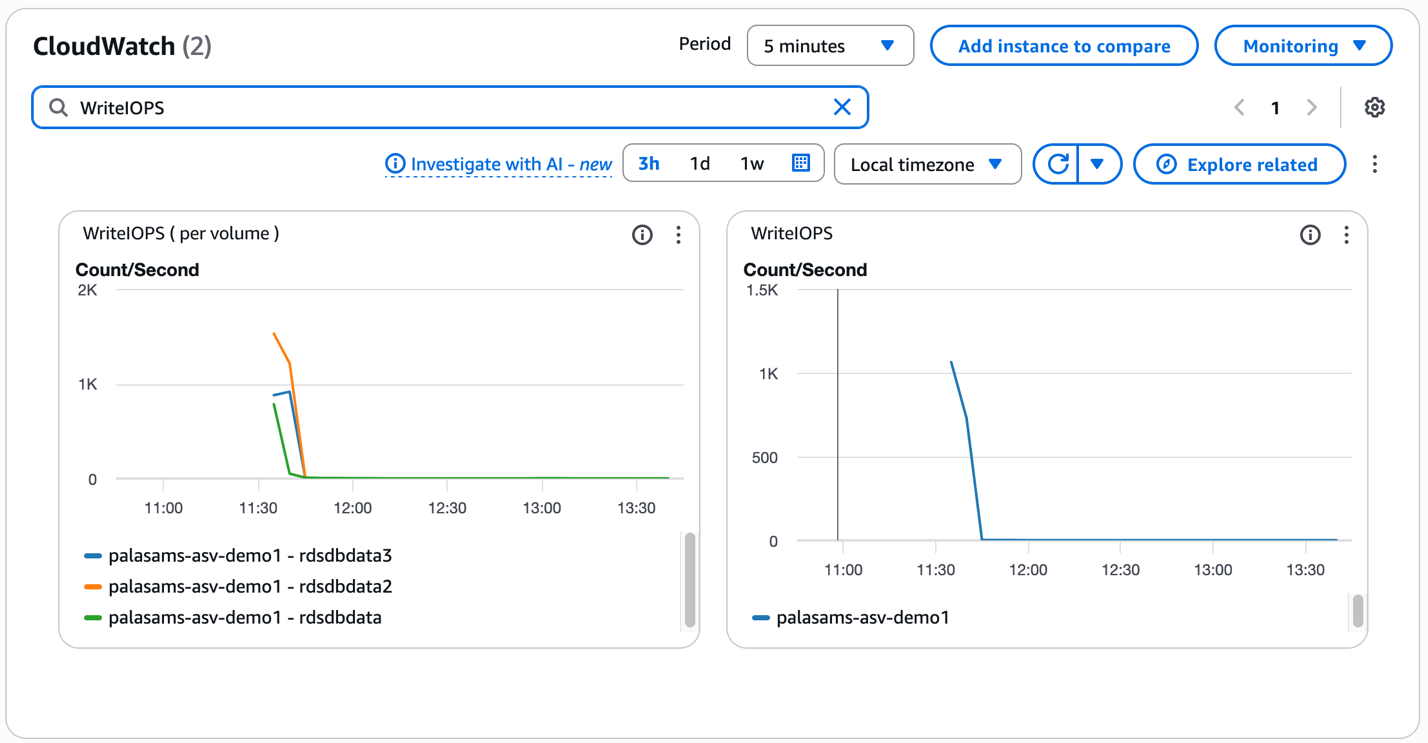
More precisely, volume-level metrics can be captured with the CloudWatch dimension (DbInstanceIdentifier, VolumeName).
Metrics collected by Enhanced Monitoring for the primary storage volume (rdsdbdata) are now collected for additional storage volumes. You can view these OS metrics on the Amazon RDS console by choosing Enhanced Monitoring on the Monitoring tab. Refer to OS metrics in Enhanced Monitoring for a list and description of Enhanced Monitoring metrics.

Conclusion
In this post, we walked through the new additional storage volume feature introduced in Amazon RDS for Oracle, its use cases, and key benefits. We also highlighted the best practices and considerations to follow while working with additional storage volumes in Amazon RDS for Oracle. If you have any questions or feedback, please leave a comment.