AWS Database Blog
Control database name visibility in Amazon RDS for SQL Server instances
Multi-tenant SQL Server environments face an architectural challenge where exposed database names can reveal sensitive tenant information. On-premises or self-managed SQL Server running on Amazon Elastic Compute Cloud (Amazon EC2) can address this challenge by manually denying server-level permissions to specific logins. In Amazon Relational Database Service (Amazon RDS) for SQL Server, database visibility is configured using a dedicated stored procedure.
By default, SQL Server’s PUBLIC role allows authenticated users to view all database names, a feature intended for transparency that can become a significant concern in multi-tenant architecture. For independent software vendors (ISVs) and software as a service (SaaS) providers hosting multiple customer databases on the same instance, this default behavior requires careful consideration and mitigation strategies to protect tenant identities.
In this post, we demonstrate tenant isolation at the visibility level, preventing tenants from seeing database names belonging to other customers while maintaining their access to their own resources.
Solution overview
This solution addresses an important architectural consideration in multi-tenant SQL Server environments where database names might reveal tenant information. By using the Amazon RDS for SQL Server custom stored procedure msdb.dbo.rds_manage_view_db_permission, users can effectively control database visibility on a per-login basis while maintaining full application functionality.
Importantly, this solution only manages database visibility; logins with appropriate database permissions can still fully access and use the databases according to their granted permissions, even when they can’t see the database names in SQL Server Management Studio (SSMS) or other SQL Server clients. This is particularly valuable for SaaS providers and ISVs hosting multi-tenant databases on shared instances.
The implementation follows these high-level steps:
- Prepare the RDS for SQL Server instance with multi-tenant databases and logins.
- Apply the custom stored procedure to deny database visibility for specific logins.
- Validate the configuration by confirming restricted visibility.
- Maintain the ability to revert changes when needed.
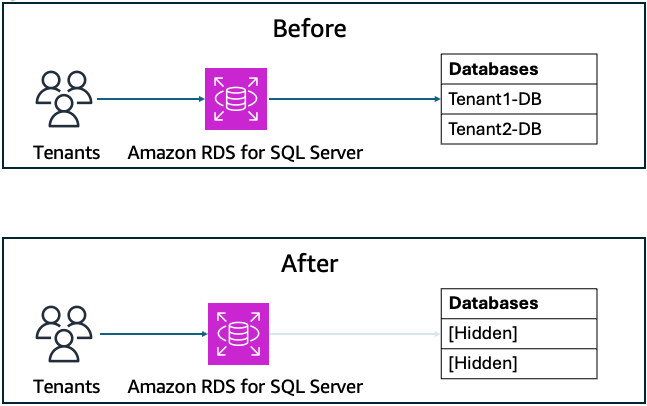
This solution enhances security posture by reducing the risk of information disclosure and provides a clean tenant experience without exposing the database names to tenants. The following diagrams illustrate the security posture before and after implementation.
Prerequisites
You must have the following prerequisites:
- Access to an AWS account
- Basic understanding of SQL Server and security concepts
- An RDS for SQL Server DB instance and login information to connect to it
Deploying Amazon RDS for SQL Server will incur charges. Review AWS Pricing before proceeding.
Prepare RDS for SQL Server instance
Create two new databases and two logins and grant appropriate permissions:
- Create an RDS for SQL Server instance using the AWS CLI or AWS Management Console.
- Connect to the RDS for SQL Server instance using the
Primarylogin. - Create two databases,
Tenant1DBandTenant2DB: - Create two logins,
Tenant1andTenant2: - Grant
Tenant1permissions toTenant1DB: - Grant
Tenant2permissions to theTenant2DB:
Review database permissions
Log in using each tenant’s login and validate the default behavior that all database names are visible:
- Open SSMS.
- Log in using
Tenant1. - Expand the
Databasesfolder. - Confirm that
Tenant1can see all the database names.
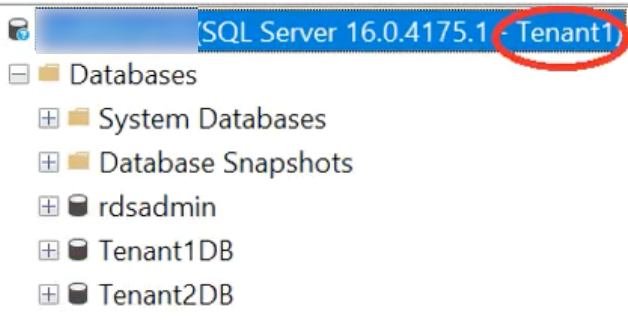
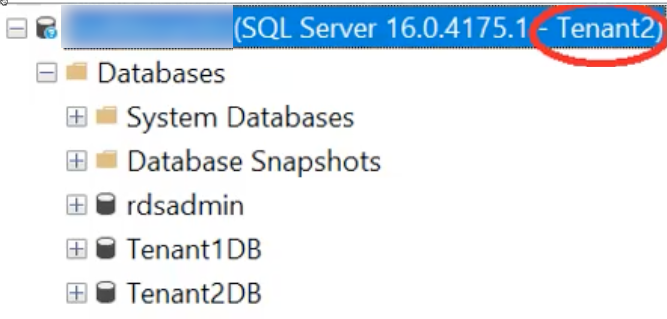
- Similarly, log in to the instance using
Tenant2. - Confirm
Tenant2can see all database names.
Modify view database name permissions
In this section, you apply the Amazon RDS for SQL Server custom stored procedure to change database visibility for logins:
- Connect to the instance using the
Primarylogin. - Execute the following script:
As stated earlier, the stored procedure doesn’t control database permissions; instead, it only hides database names.
Validate view database name permissions
You can now validate that Tenant1 can no longer see database names:
- Open SSMS.
- Log in using
Tenant1. - Expand the
Databasesfolder. - Confirm that
Tenant1can’t see any of the database names.
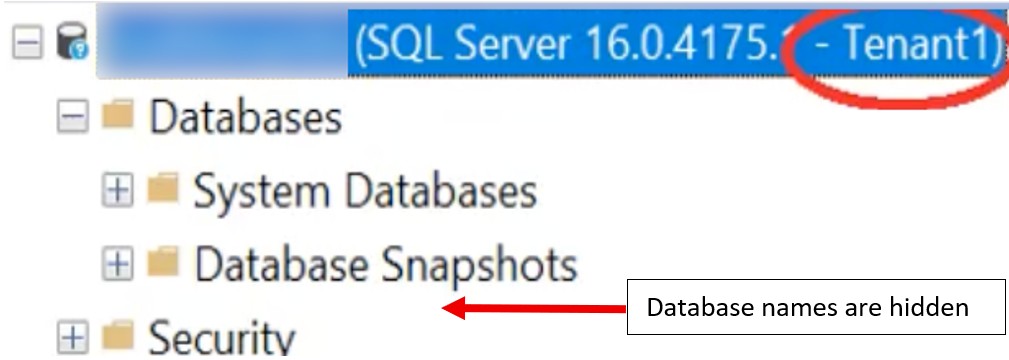
Database names are hidden. However, if you connect to the instance with the Tenant2 login, you should see the database names. The reason is that the custom stored procedure was not applied to the Tenant2 login.
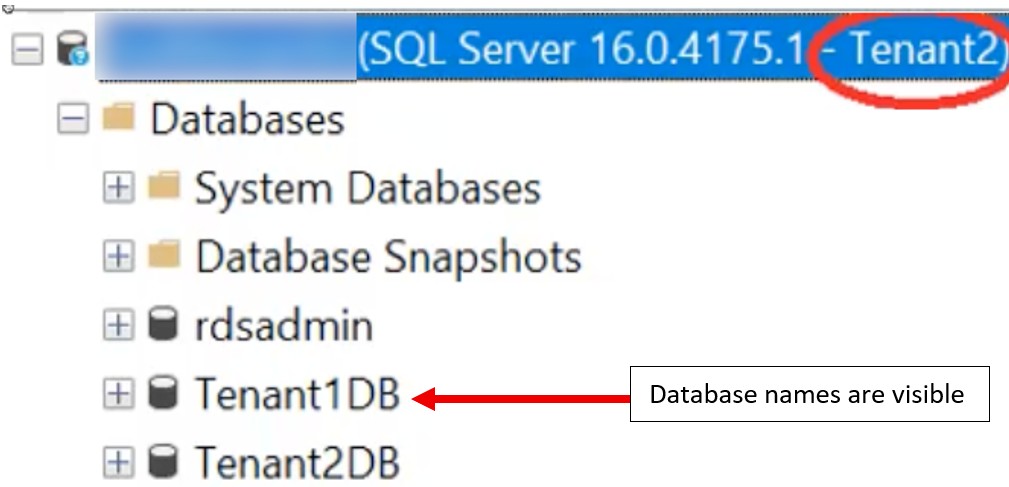
Database names are visible.
Revert changes
To revert the changes, complete the following steps:
- Revert the changes by running the following command:
- Log out and open a new query session to the RDS instance using the
Tenant1login. - Confirm you can see the database names again.
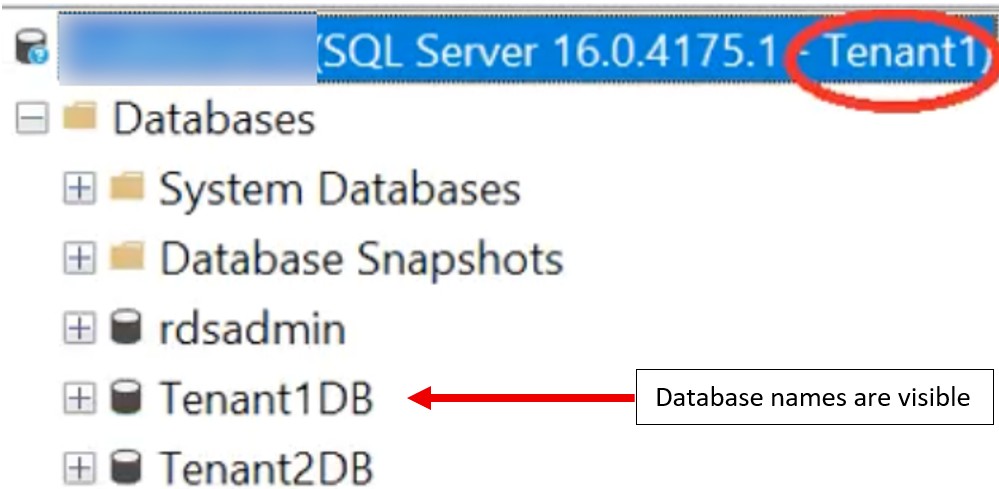
Database names are visible.
Limitations
The solution has the following key limitations and operational considerations:
- When a login is dropped and recreated, the stored procedure must be re-executed to reapply the permission.
- This stored procedure doesn’t manage database access permission; database access permissions must still be managed separately through appropriate security measures.
- Database names might remain visible in SQL Server traces, error logs, and specific dynamic management views (DMVs), even when this permission is applied.
- When the permission is revoked, the database names will be visible to that login.
- Permissions are set at the server level. When a database is restored to a new instance using the restore method, the permissions must be reapplied.
- The database name visibility control can’t be applied to the
Primarylogin; all database names always will be visible for thePrimarylogin.
Clean up
If you created a test database to follow along with this demonstration, make sure to clean up resources to avoid unnecessary charges. Remove the test users, logins, and databases from your RDS for SQL Server instance. If you specifically created an RDS instance or EC2 host for this demo, delete these resources through the Amazon RDS and Amazon EC2 consoles, respectively, if they’re no longer being used. This will help avoid incurring unwanted charges.
Conclusion
In this post, we demonstrated how to manage database name visibility in a multi-tenant environment using Amazon RDS for SQL Server. We walked through the process of hiding database names using the Amazon RDS for SQL Server custom stored procedure, which helps prevent other tenants on the same host from seeing potentially sensitive customer information that might be revealed through database names. You can apply this solution to control database name visibility in your Amazon RDS for SQL Server environments while maintaining the required access permissions for your applications.
To learn more about Amazon RDS specific common DBA tasks, refer to Common DBA tasks for Amazon RDS for Microsoft SQL Server.