AWS Database Blog
MCP tools for Amazon Aurora DSQL: Query execution and schema management
Managing database operational tasks in Amazon Aurora DSQL such as writing queries, evolving schemas, and verifying compatibility with the distributed architecture of Aurora DSQL involves switching across different tools. Customers typically use a SQL client for queries, the AWS Management Console for cluster configurations, and the service documentation for compatibility guidance.
The Aurora DSQL MCP server brings these workflows into your AI coding assistant, so you can write queries, evolve schemas, and check compatibility without leaving your development environment.
In this post, you will learn how to set up the Amazon Aurora DSQL MCP server, configure it with your AI coding assistant, and explore the available MCP tools. You will also walk through practical integration patterns including schema-driven development, iterative query refinement, and multi-statement transaction handling through natural language.
The examples in this post use Kiro, but the setup and integration patterns are similar for other MCP-compatible AI coding assistants such as Claude Code, Codex, Cursor, and Cline.
Amazon Aurora DSQL is a serverless, distributed SQL database that offers active-active multi-Region availability and strong consistency through a standard PostgreSQL interface. It handles capacity planning, sharding, and cross-Region replication, so you can focus on application logic rather than infrastructure management.
Working across tools
Whether you connect through psql, manage schemas through a tool of your choice, or use the AWS Management Console for cluster operations, each tool switch pulls you out of your development context.
The Amazon Aurora DSQL MCP server keeps these interactions within your development context, so your AI coding assistant handles the database interaction directly with awareness of the distributed transaction model of Aurora DSQL, AWS Identity and Access Management (IAM) authentication, and PostgreSQL compatibility surface.
The Amazon Aurora DSQL MCP server
With the Amazon Aurora DSQL MCP server, you can run queries, manage schemas, and look up documentation without leaving your IDE. The server wraps database operations as discrete, schema-defined tools. MCP-compatible AI coding assistants such as Kiro, Claude Code, Codex, Cursor, Cline, and VS Code with Copilot agent mode can invoke these tools on your behalf.
How it works
The Model Context Protocol (MCP) is an open standard that defines how AI coding assistants communicate with external tools and data sources. An MCP server exposes a set of tools.
When you ask your AI coding assistant to “show me all tables in my Amazon Aurora DSQL cluster,” it calls a tool on the MCP server rather than generating a response from training data. The server connects to your cluster, runs the actual query, and returns the real result. This gives you deterministic, accurate responses grounded in your live database state.
Why use the Amazon Aurora DSQL MCP server
You might wonder why you shouldn’t use a generic PostgreSQL MCP server. With a generic server, you could run SQL, but it wouldn’t understand what makes Amazon Aurora DSQL different.
The Amazon Aurora DSQL MCP server is purpose-built to handle:
- IAM-based authentication – automatically generates and refreshes short-lived auth tokens and does not store database passwords on disk.
- Single-cluster operations – executes queries and transactions against your configured cluster with built-in connection management and token refresh.
- Aurora DSQL context – understands the distributed transaction model, PostgreSQL compatibility surface, schema conventions, and surfaces best-practice guidance through built-in documentation and recommendation tools.
A generic PostgreSQL MCP server treats Amazon Aurora DSQL as just another database. The Amazon Aurora DSQL MCP server treats it as a distributed service that uses IAM authentication and runs natively on AWS.
Supported IDEs and AI coding assistants
The Amazon Aurora DSQL MCP server works with MCP-compatible clients. Today, that includes:
| IDE / Tool | Notes |
| Kiro | Native MCP support |
| Claude Code | Native MCP support |
| Cursor | Native MCP support |
| VS Code | MCP support through Copilot agent mode |
| Codex | Native MCP support |
| Cline (VS Code extension) | Native MCP support |
Setup is the same across each of them: point your AI coding assistant of choice to the Amazon Aurora DSQL MCP server configuration, and the tools become available in your assistant’s context. This post walks through the setup using Kiro. The same principles apply if you’re using another MCP-compatible IDE.
Available tools
The Amazon Aurora DSQL MCP server exposes seven tools, split into two categories: tools that interact with the database, and tools that surface Amazon Aurora DSQL documentation and best practices.
Database operations
| Tool | Description |
readonly_query |
Executes read-only SQL against the cluster. The go-to tool for data exploration and analysis |
transact |
Runs operations within a transaction boundary. Supports full data definition language (DDL) and data manipulation language (DML) when the server is started with --allow-writes |
get_schema |
Retrieves table schema definitions, so the assistant can generate accurate SQL based on actual column names and types |
Documentation and recommendations
| Tool | Description |
dsql_search_documentation |
Searches official Amazon Aurora DSQL documentation by keyword or topic |
dsql_read_documentation |
Reads a specific documentation page in full, with pagination support |
dsql_recommend |
Returns best practice recommendations tailored to the distributed architecture of Amazon Aurora DSQL |
dsql_lint |
Validates SQL statements against Amazon Aurora DSQL compatibility rules and highlights unsupported features or syntax |
For detailed input parameters, return types, and usage examples for each tool, see the Amazon Aurora DSQL MCP Server documentation.
Setup and installation
This section walks you through installing the Amazon Aurora DSQL MCP server and connecting it to your cluster.
Prerequisites
- An AWS account with credentials configured using
aws configureor environment variables. - An Amazon Aurora DSQL cluster: an active Amazon Aurora DSQL cluster with its endpoint and AWS Region.
- IAM permissions:
dsql:DbConnectAdmin(admin) ordsql:DbConnect(custom roles). - Python 3.10+: required by the MCP server runtime.
- uv: a fast Python package manager from Astral.
Note: The prerequisites above (AWS account, Aurora DSQL cluster, IAM permissions) are required only for database operation tools (readonly_query, transact, get_schema). If you only need documentation and linting support (dsql_search_documentation, dsql_read_documentation, dsql_recommend, dsql_lint), no cluster or database-specific IAM permissions are required.
Verifying prerequisites
AWS IAM permissions
The Amazon Aurora DSQL MCP server authenticates using the AWS credentials configured on the local machine. Follow least-privilege principles by granting only the permissions needed for the intended use case.
For admin access (schema management, user/role administration), grant dsql:DbConnectAdmin scoped to the specific cluster ARN. For application or read-only access, grant dsql:DbConnect with a custom database role mapped to the IAM identity.
Scope the resource ARN to the specific cluster. Avoid using * in the Resource field. The IAM policy and the server’s --allow-writes flag are two independent layers of control.
Configuring the MCP server in Kiro
Add the following to the Kiro MCP configuration file at .kiro/settings/mcp.json (user-level) or /.kiro/settings/mcp.json (workspace-level):
Replace the placeholder values with your actual cluster endpoint, AWS Region (for example, us-east-1), IAM-mapped database user (for example, admin), and AWS Command Line Interface (AWS CLI) profile name (the named profile from ~/.aws/credentials or ~/.aws/config).
Documentation-only configuration: To use only the documentation and lint tools without connecting to a cluster, omit the cluster-specific arguments:
In Kiro IDE, you can navigate to MCP server settings by selecting the Kiro icon on the left panel and navigate to MCP SERVERS section:
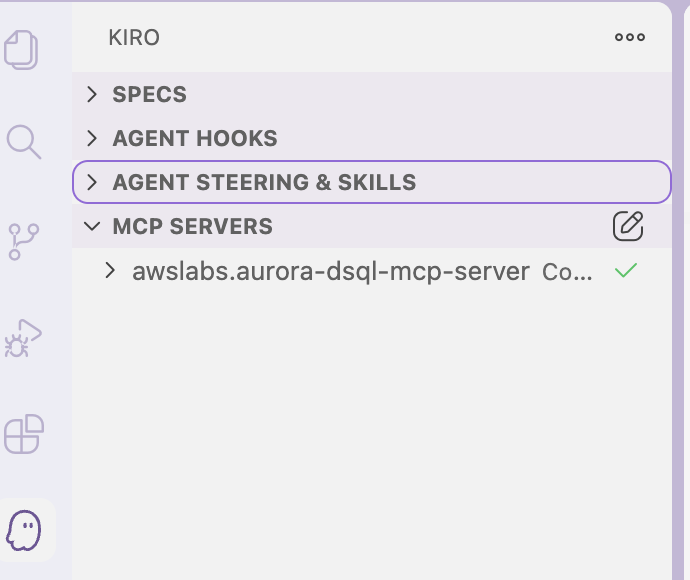
Figure 1: Opening MCP server settings from the Kiro panel
Other IDEs
The JSON configuration is identical across clients. Only the file location and setup method differs:
- Claude Code: .mcp.json in your project root (per-project) or ~/.claude.json (global). You can also run claude mcp add to interactively add the server. Claude Code MCP docs
- Cursor: Settings, then MCP, then Add Server. Cursor MCP docs
- VS Code: .vscode/settings.json under github.copilot.chat.mcpServers. VS Code MCP docs
- Codex: ~/.codex/config.toml (global) or .codex/config.toml (per-project). Codex MCP docs
Verifying the installation
In Kiro, run the /mcp command on the chat window to check the server status. The Amazon Aurora DSQL MCP server should appear as connected with seven tools listed.
The Kiro Panels → MCP SERVERS tab also shows connection status indicators for configured servers.
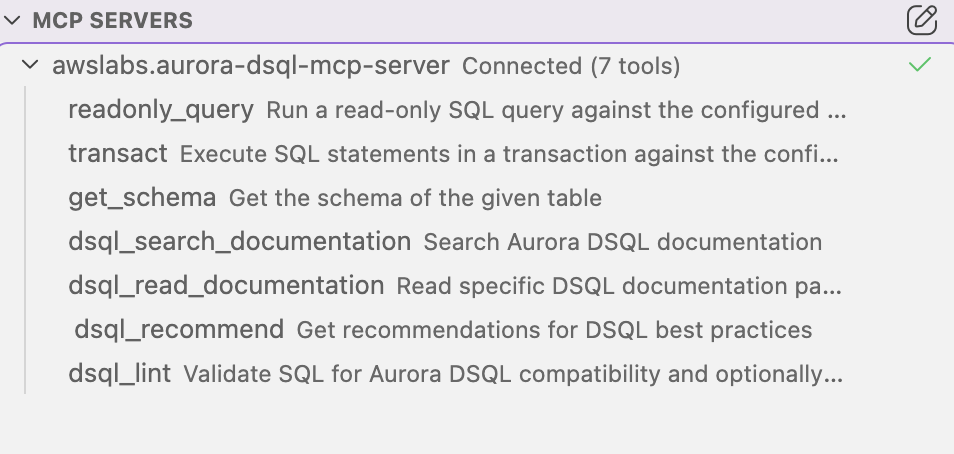
Figure 2: The Aurora DSQL MCP server connected in Kiro with seven tools
Note
The MCP server runs as a subprocess separate from your IDE terminal. It reads AWS credentials from the profile specified in the configuration (for example, ~/.aws/credentials under [default]), not from environment variables exported in your terminal session.
If the MCP server connects but queries fail with authentication errors, verify that your credentials are written to the profile file.
If using AWS IAM Identity Center, run aws sso login --profile default before starting the MCP server to verify your profile credentials are current.
To confirm the MCP server can authenticate, use the chat window (not the terminal) to ask: “Run a simple query like SELECT 1.” If this succeeds, credentials are configured correctly.
Read-only by default
The Amazon Aurora DSQL MCP server ships with a deliberate safety constraint where the server disables write operations by default.
Out of the box, only the readonly_query and get_schema tools are fully functional. The transact tool operates in read-only mode, running queries within a transaction boundary but rejecting any data definition language (DDL) or data manipulation language (DML) statements.
To enable write operations, you must explicitly start the server with the --allow-writes flag in the args section of the MCP server configuration file. This is a startup-time configuration decision, not a runtime toggle. This design prevents accidental write operations during a session.
Updated MCP configuration file looks like:
Restart the MCP server after making this change. In Kiro, you can restart the MCP server from the MCP Servers panel by selecting the Refresh/Reconnect option next to the server name. No IDE restart required.
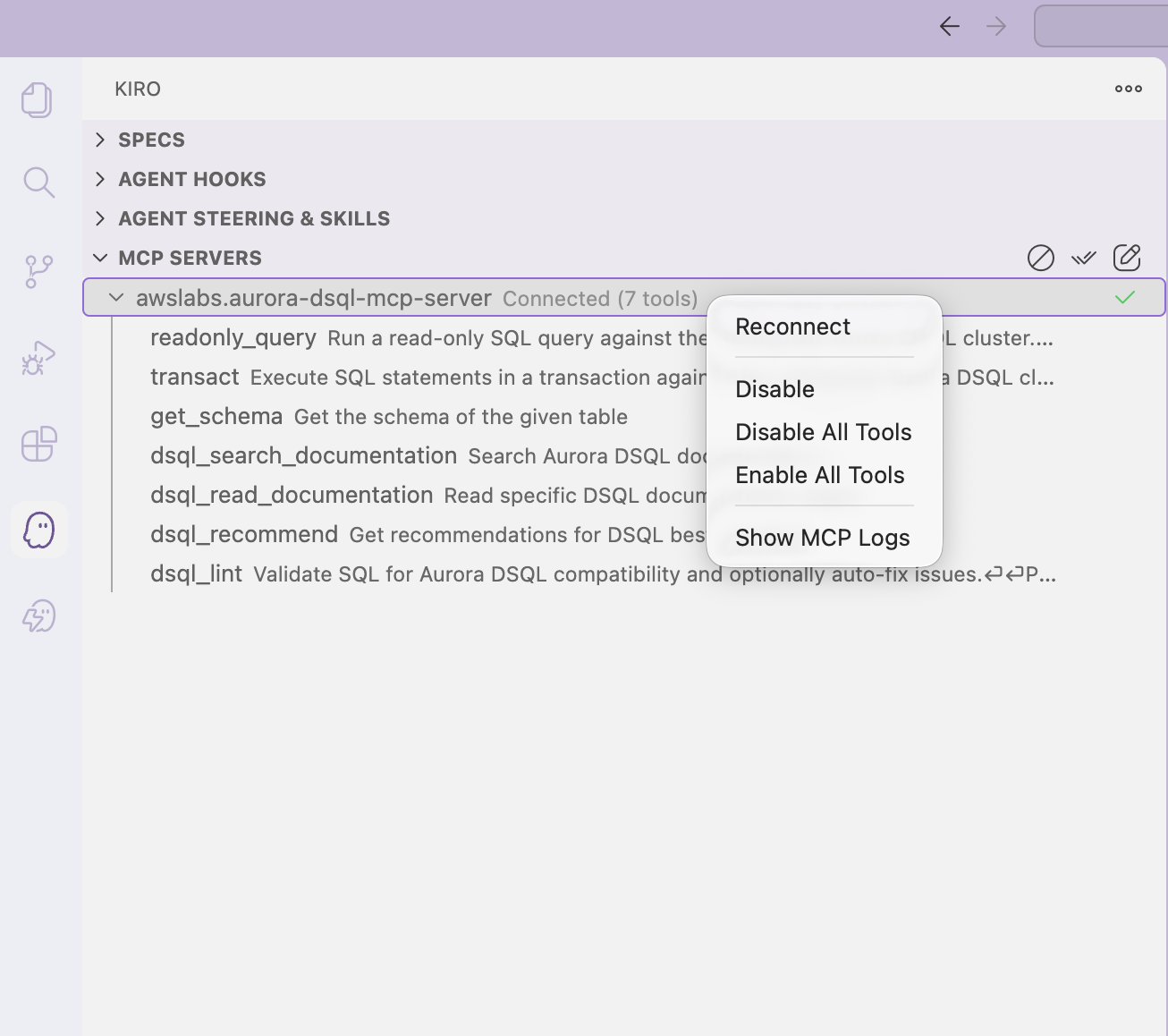
Figure 3: Restarting the MCP server from the Kiro MCP Servers panel
We recommend that you use a single MCP server instance scoped to your project. Enable --allow-writes only when your workflow requires schema changes or data modifications, and pair it with an appropriately scoped IAM policy for defense in depth. Running multiple overlapping MCP server instances against the same cluster can confuse the AI agent’s tool selection.
Practical patterns
With the Amazon Aurora DSQL MCP server connected, here are four common tasks that demonstrate how it streamlines real development workflows.
To follow along with these examples, create a sample table by asking Kiro:
‘Create a table called orders with columns id (UUID primary key), customer_name (TEXT), total_amount (DECIMAL), and created_at (TIMESTAMP). Insert a few sample rows.’
Pattern 1: Schema-aware query generation
Writing accurate SQL is straightforward when the agent already knows the table structure. The server does this by chaining get_schema with readonly_query.
For example, ask your AI coding assistant: “Show me the top 10 orders by total amount from the last 7 days”
Behind the scenes, the agent:
- Calls
get_schemaon the orders table to retrieve column names, types, and constraints. - Uses the actual schema to generate accurate SQL that correctly references the actual column name
total_amountfrom your schema rather than guessing between variations likeamount_totalororder_total. - Executes the query through
readonly_queryand returns formatted results.
The schema lookup happens automatically. The agent learns the table structure before writing SQL, leading to accurate queries on the first attempt with minimal back-and-forth.
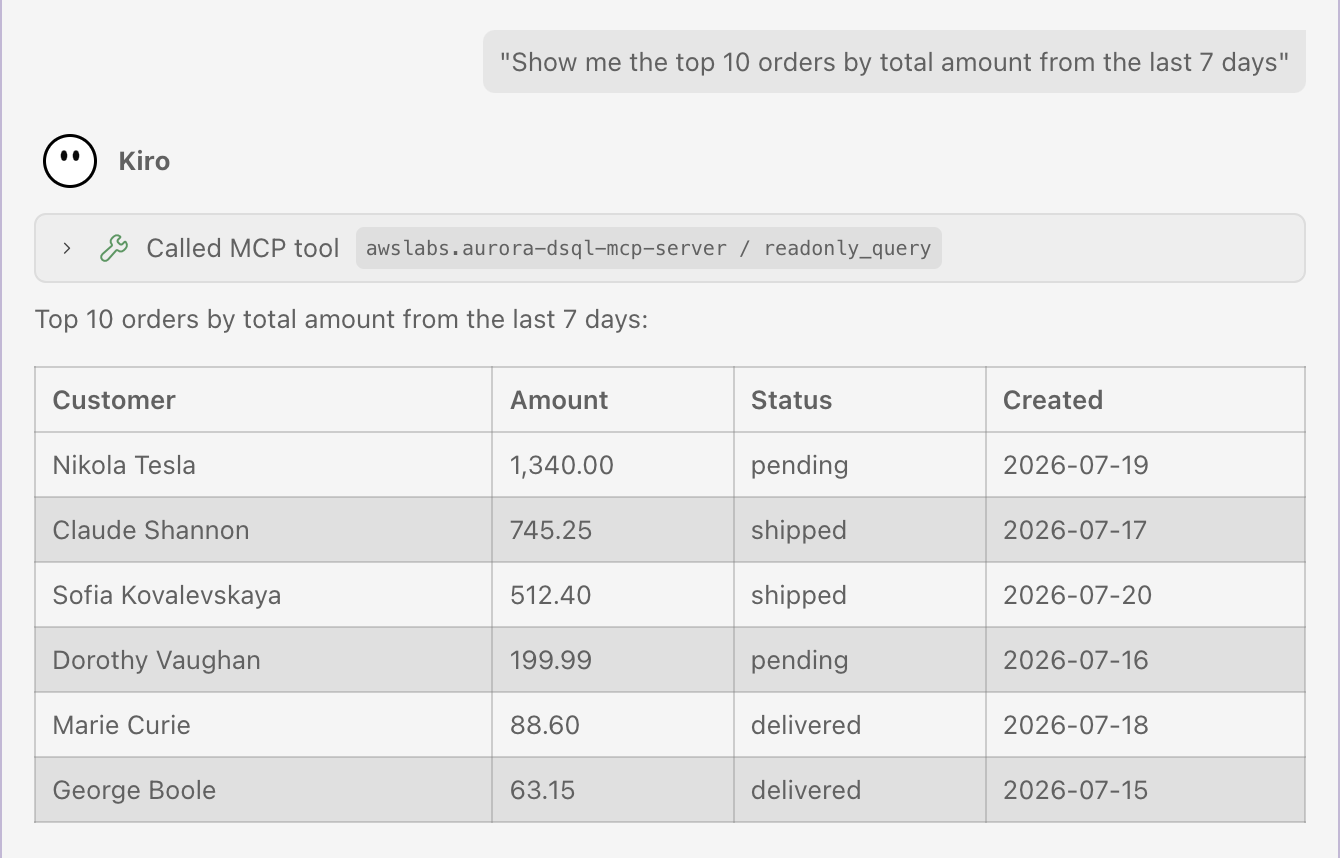
Figure 4: Schema-aware query generation returning the top orders
Pattern 2: Schema evolution with guardrails
The MCP server surfaces best practices alongside schema changes in a distributed database. This pattern combines transact (with --allow-writes enabled) and dsql_recommend to guide schema modifications.
For example, say you need to add a status column to the orders table. Using natural language: “Add a status column to the orders table. What’s the recommended approach for Amazon Aurora DSQL?”
The agent:
- Calls
dsql_recommendto retrieve guidance specific to Amazon Aurora DSQL for schema modifications. - Generates a DDL statement that follows those recommendations.
- Presents the SQL for review before executing it using
transact.
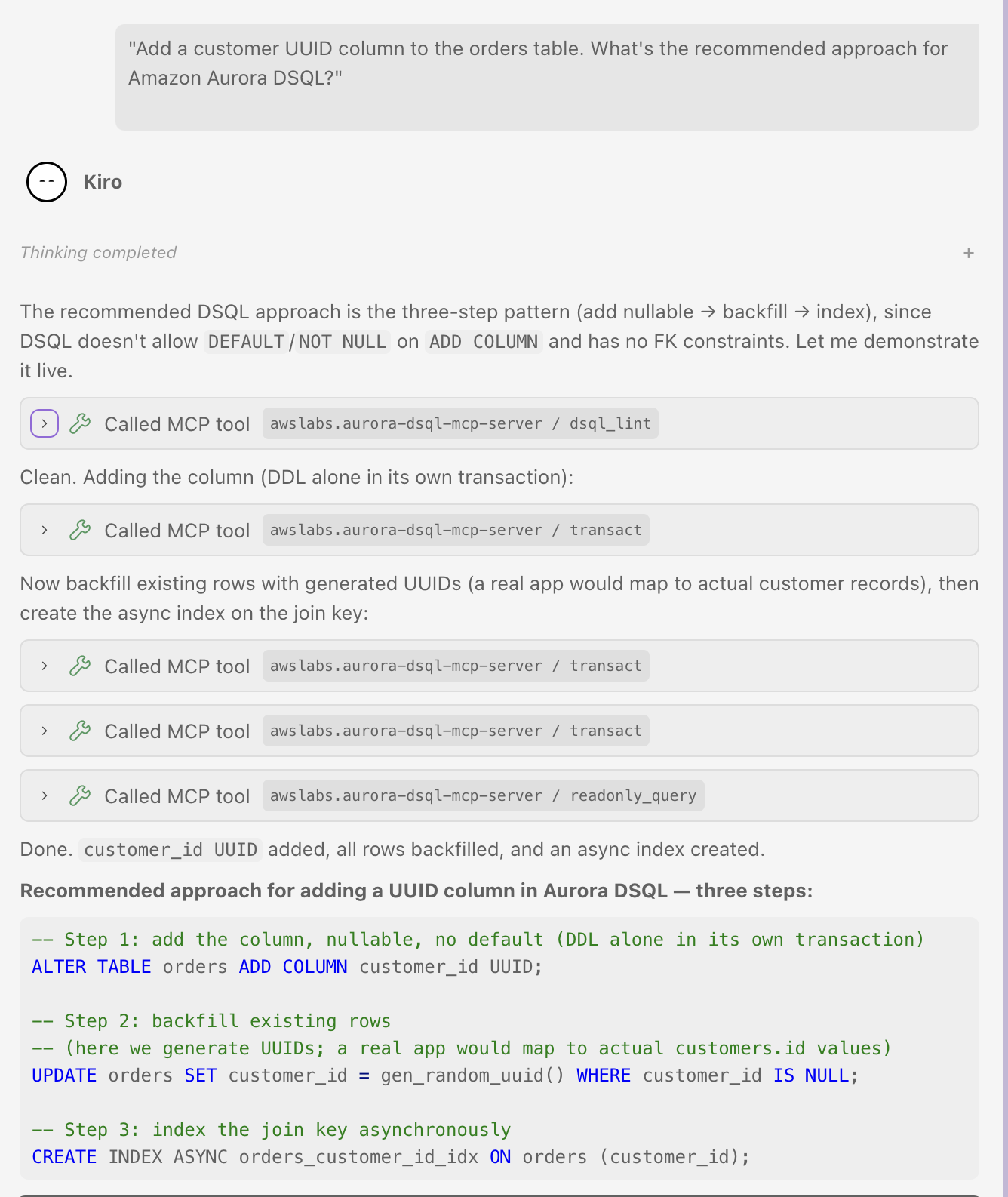
Figure 5: Adding a status column with schema-evolution guardrails
Pattern 3: Documentation-grounded development
You can get accurate, up-to-date responses about Amazon Aurora DSQL capabilities with the documentation tools. Instead of leaving the IDE to search documentation, you can ask directly: “Does Amazon Aurora DSQL support foreign keys?”
The agent:
- Calls
dsql_search_documentationwith the relevant keywords. - Calls
dsql_read_documentationto read the matching page in full. - Returns a response grounded in the current official documentation.
This pattern applies to questions specific to Amazon Aurora DSQL, such as transaction isolation behavior, supported PostgreSQL extensions, connection limits, and data type support. The agent cites the actual docs, which is especially valuable for a service that’s actively evolving.
Pattern 4: Query performance analysis
Understanding query performance in a distributed database requires awareness of how execution plans differ from single-node PostgreSQL. This pattern combines readonly_query with dsql_recommend to diagnose and optimize queries.
For example, ask your AI coding assistant: “Run EXPLAIN ANALYZE on this query and suggest optimizations: SELECT * FROM orders WHERE customer_name = ‘Acme Corp’ ORDER BY created_at DESC”
Behind the scenes, the agent:
- Executes EXPLAIN ANALYZE using
readonly_queryto get the actual execution plan. - Calls
dsql_recommendfor optimization guidance specific to Amazon Aurora DSQL. - Returns the plan with plain language interpretation and actionable suggestions.
This is especially valuable for Amazon Aurora DSQL because distributed query plans behave differently than single-node PostgreSQL. The AI coding assistant contextualizes the plan with knowledge specific to Amazon Aurora DSQL rather than generic PostgreSQL tuning advice.
Working across Regions
For active-active multi-Region clusters, configure multiple MCP server instances in the same configuration file, one per Region. With this setup, you can verify replication, compare data across Regions, or test Region-specific behavior from a single IDE session without managing separate connection strings.
Each MCP server instance requires a unique name in your configuration file (for example, “awslabs.aurora-dsql-mcp-server-us-east-1” and “awslabs.aurora-dsql-mcp-server-us-west-2”).
For details about setting up linked clusters, see Multi-Region clusters section.
Steering AI with Amazon Aurora DSQL knowledge
The MCP server runs operations, but skill files take it a step further. They are accompanying markdown documents that encode Amazon Aurora DSQL best practices, conventions, and constraints in a format AI agents can consume.
When loaded, they steer the AI agent toward patterns appropriate for Amazon Aurora DSQL, like primary key strategies, transaction handling, and schema design guidelines.
To install skills, in your Kiro IDE terminal, run:
Skill files are designed to work with MCP compatible AI coding assistants including Kiro, Claude Code, Cursor, GitHub Copilot, and Codex. With a skill file loaded, the AI agent generates queries and schema designs that follow Amazon Aurora DSQL conventions rather than generic PostgreSQL patterns.
Security considerations
The Amazon Aurora DSQL MCP server runs entirely on your local machine and there is no remote server component or cloud-hosted proxy between your IDE and your cluster.
Authentication: The server uses IAM credentials to generate short-lived authentication tokens for each database connection. Tokens are not cached between requests. A fresh token is generated per connection. No database passwords are stored on disk or passed in configuration files.
Encryption in transit: All connections between the MCP server and your Amazon Aurora DSQL cluster use TLS encryption.
Write protection: Out of the box, the server permits only read operations. Write access requires explicitly starting the server with the --allow-writes flag.
Tool approval: The autoApprove array in the configuration controls which tools the agent can invoke without user confirmation. Leave it empty ([]) to require manual approval for every tool invocation, which is the recommended default for security.
Recommended deployment: Use workspace-level configuration (.kiro/settings/mcp.json in the project root) rather than user-level settings, so each project can define its own access mode. Enable --allow-writes only in projects that require schema changes or data modifications.
Pair the --allow-writes flag with appropriately scoped IAM policies for defense in depth.
Version control: Add your MCP configuration file (for example, .kiro/settings/mcp.json) to .gitignore to avoid committing cluster endpoints and profile names to your repository.
Clean up
To avoid ongoing charges, delete the Amazon Aurora DSQL cluster when you’re finished:
- Open the Amazon Aurora DSQL console and select your cluster.
- Choose Delete and confirm.
If you created a dedicated IAM policy for this walkthrough, remove it from the IAM console as well.
Conclusion
In this post, you learned how to connect an AI coding assistant to an Amazon Aurora DSQL cluster using the Model Context Protocol. We walked through setting up the Amazon Aurora DSQL MCP server, configuring IAM authentication, and using natural language to create schemas, run queries, and manage data on a single-Region cluster.
MCP provides a standardized way to give AI coding assistants secure, direct access to your database infrastructure. Combined with the serverless scaling and active-active multi-Region capabilities of Amazon Aurora DSQL, you can build AI-powered database workflows such as multi-Region configurations with linked clusters.
As both Amazon Aurora DSQL and the MCP community continue to evolve, expect additional tools and integration patterns.
Get started by visiting the Amazon Aurora DSQL MCP server on GitHub
Share feedback and contribute in the GitHub repository, or connect with us on AWS re:Post.