AWS Database Blog
Recover from accidental DynamoDB changes using Bulk Executor
When accidental changes affect your Amazon DynamoDB tables, you can use the Bulk Executor revert-export command to recover from unwanted writes without restoring the entire table. In this post, you learn how to combine an incremental export to Amazon Simple Storage Service (Amazon S3) with the revert-export command. Together, they revert mistaken changes and restore your table to a previous state. This post shows how to undo changes captured in an incremental export, target only a subset, or fix specific items along the way.
Background
The Amazon DynamoDB point-in-time recovery (PITR) feature tracks recent changes to your table. You can restore to a previous timestamp (up to 35 days in the past, specified to the second).
When you restore a table using PITR, Amazon DynamoDB writes the data to a new table. This full table restore can take hours depending on table size, and it incurs a cost based on the size of the table restored. After the restore completes, you put the restored table into service.
In many cases, you only need to undo a targeted set of changes, like recovering mistakenly deleted items, rolling back a bad data load, or correcting items touched by an application bug. When that’s the goal, reverting in place on your existing table is simpler than creating and migrating to a new one.
The efficient option is to use an incremental export to Amazon S3 with the NEW_AND_OLD_IMAGES export view type option. This gives you a snapshot of every modified key’s original and final state within your table during the export window. Using the Bulk Executor, you can revert these writes at scale with a single command that writes back the old version for each affected item.
Usage
You revert changes present in an incremental export by using the revert-export command. The revert-export command builds on top of the load-export command, so you benefit from its validation, rate-limiting, and transform capabilities.
See the installation instructions to set up the Bulk Executor tool. After setup, you run the command as follows:
Replace <target> with the name of the table. Set the s3-path parameter to the full path to the S3 location containing your exported data, for example s3://<bucket-name>/prod/AWSDynamoDB/01716790307109-5f9d6aaa. It must be an incremental export in DDB-JSON format with an export view type of NEW_AND_OLD_IMAGES.
Without the transform parameter, revert-export reverts every change captured in the export. In most cases, valid table modifications occur alongside the changes you want to undo. Without a transform, you risk losing legitimate changes. Use the transform parameter unless you are certain every write in the export window should be reverted.
With the transform parameter, you can selectively undo changes. For example, you can use it when a bad data load happened concurrently with valid writes you want to keep. You point it at the name of a Python file that contains your logic to control which writes to undo. Your function receives each item as the tool processes it, so your code can determine the right course of action. You can find the transform function and other internals explained in the load-export blog post.
Use cases
You can use revert-export in situations where you need to undo a time-bounded set of writes in-place on the same table. You can continue using your existing table. Your use cases typically fall into two main categories: full revert and selective revert. Explore both categories with these real-world examples:
- New application deployment: You might have deployed a new version of your product and are rolling back the application and rolling back the data.
- Migration: You are executing a stepped migration and a step ran erroneously.
- Batch job with wrong parameters: Your ETL job ran with an incorrect filter, wrong transformation, or stale config and touched millions of items.
- Cross-table consistency: In a coordinated workflow across multiple tables, one of your steps succeeded but a later step failed. Revert the successful table’s incremental window to restore cross-table invariants.
- Regulatory/compliance reversal: You might need to void a bulk operation for audit (for example, you applied a discount to ineligible accounts, or a compliance audit job was scoped too broadly).
With these scenarios, you can choose to revert changes or a selective subset by passing in a transform filter.
How revert-export works
The revert-export command is logically similar to load-export, with the key difference that an extra post-transform step replaces the new image with the old one:
This lets the rest of the export logic work as designed, writing back the pre-change state.
This explains why your transform controls what the old_image contains. The next section walks through transform examples where you filter, fix, and selectively control which records the revert logic processes.
Walkthrough
In this section, you walk through a series of examples of the revert-export command.
Prerequisites
- An AWS account with an Amazon DynamoDB table that has point-in-time recovery (PITR) turned on.
- An incremental export to Amazon S3 with the
NEW_AND_OLD_IMAGESexport view type option. - AWS credentials configured with permissions for Amazon DynamoDB, Amazon S3, and AWS Glue.
- Python 3.11 or later.
- The Bulk Executor for Amazon DynamoDB tool installed (see installation instructions).
Revert changes
You have run a migration on a table. After the migration completes, you realize that the changes need to be reverted in their entirety. Assuming the migration took 2 hours to complete, you create an incremental export for that 2-hour window, as the following figure shows.
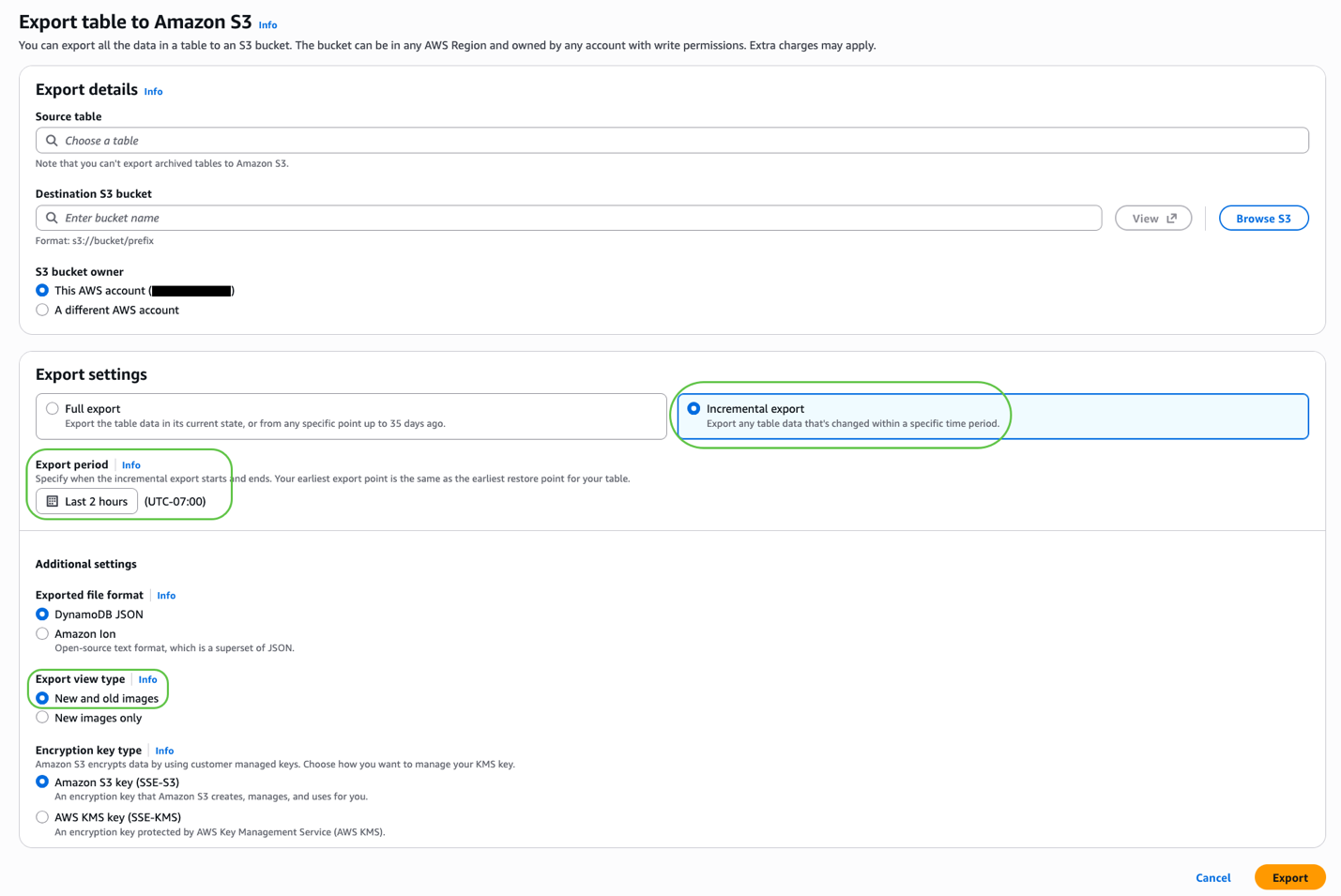
Incremental export for a 2-hour window
After the incremental export completes, you run the revert-export command with no extra parameters:
This reverts changes captured in that incremental export. New items are deleted, deleted items are restored, and modified attributes are changed to their original values.
Revert selected changes only
This example continues the earlier migration theme. At the end of the migration, you realize that customers who lived in the state of California (CA) were erroneously deleted. For this, create a transform with the following code:
With this transform, you capture only deletes where the state attribute is CA. Note that the transform runs before the revert logic, so at this point a deleted item still has its original data in old_image and new_image is None. Returning an empty array for all other records implies that those changes were correct and should not be reverted. Save this transform in the command’s transform folder in a file called ca_transform.py, and bootstrap it into place so it’s available to AWS Glue. Your command then looks like this:
Revert and fix changes
Building on the earlier walkthroughs, you have now noticed that some items have migrated correctly (keep), some need to be reverted entirely (undo), and some need to be fixed (fix). You want a way to distinguish which items fall into each of those categories. Your transform starts with a classifier as follows:
The ORDERS_TO_UNDO and ORDERS_TO_FIX are sets which contain the values of items which need to be addressed during the revert. Note that _fix_item is a helper function you implement based on your use case. It receives the item’s attribute map and modifies it in place to correct whatever data needs fixing. You call this classifier from your transform logic as follows:
If you have written this transform in a file called fix_transform.py, your command looks as follows:
For workloads where you cannot stop applications from writing to your tables, selective revert is essential. You can use this approach to select which changes you want to revert, keep, and modify during the revert-export command.
Cost considerations
You pay for the incremental export and for writes to the affected items, so your cost and duration scale with the size of the change set rather than the full table. This makes the approach dramatically more cost effective for large tables and becomes ever more cost advantageous as your table grows. You can find more details in the Cost Considerations section of the load-export command.
Cleanup
The Bulk Executor tool comes with a teardown command that removes the AWS Glue job and associated resources created during setup. The cleanup command does not delete any incremental exports you created.
Conclusion
In this post, you learn how to revert accidental changes in-place to an existing table, saving you time and cost. The revert-export command gives you a direct interface to a common recovery problem. With the ability to add a transform function before the revert logic, you have full control of which items to revert, which to leave as is, and which to modify. Get started by cloning the Bulk Executor repository and using the revert-export command in your workflows.