Desktop and Application Streaming
Amazon WorkSpaces Now Lets AI Agents Operate Desktop Applications
Today, we are announcing the general availability of providing AI agents access to Amazon WorkSpaces Applications. Agents can now securely access and operate desktop applications through managed WorkSpaces environments. Many enterprises run core business processes on desktop applications that lack modern APIs, which creates a last-mile challenge: the workflows most worth automating are the ones agents cannot reach. WorkSpaces closes that gap, so organizations can automate these everyday workflows at scale while keeping the same governance and compliance controls they already enforce.
Agents connect to streaming sessions and interact with desktop applications through a managed Model Context Protocol (MCP) service endpoint. They authenticate through AWS Identity and Access Management (IAM), and their activity is logged through AWS CloudTrail and Amazon CloudWatch for a complete audit trail. Since agents connect to your existing WorkSpaces environment, you do not need to build new APIs, migrate applications, or add infrastructure to put agents to work against the desktop applications you already run.
During public preview, customers used WorkSpaces to test agentic workflows against legacy desktop software, internal tools, and Windows applications that lack modern APIs. Their feedback shaped the three capabilities we are adding with general availability: MCP tool forwarding, real-time user control of agent sessions, and support for domain-joined fleets.
Architecture
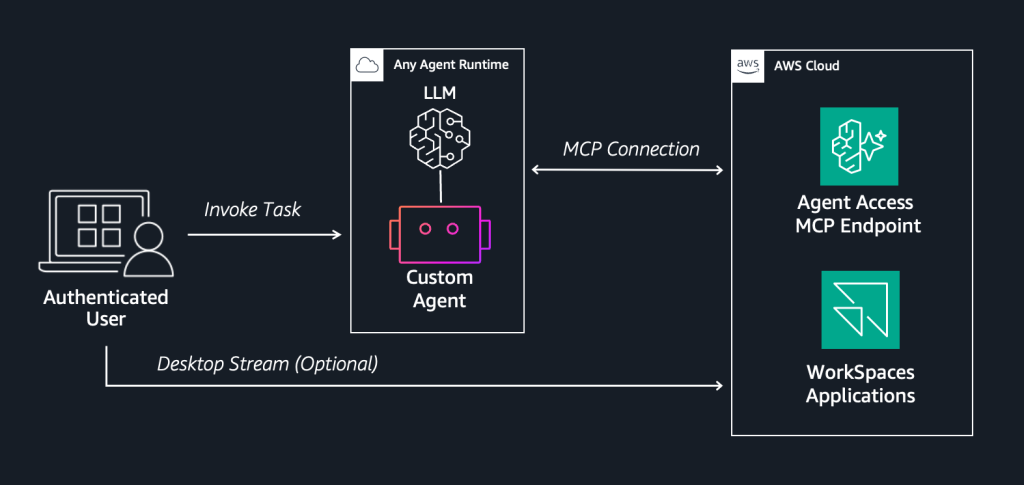
What’s new in general availability
MCP tool forwarding
Not every step of a workflow needs pixel-level interaction. A computer use agent operates the desktop with a screenshot, reason, act loop. That loop works against any application that renders pixels, but it is expensive on cost, latency, and reliability. When a subtask has a direct programmatic interface, such as reading a file, querying a database, or calling an API, routing it through the visual layer adds all three costs for no benefit.
MCP tool forwarding lets you install MCP servers inside a WorkSpaces session and expose their tools directly to the connected agent. The result is a hybrid execution model: the agent calls MCP tools for subtasks that have a programmatic interface and falls back to visual interaction only where no API exists or where the GUI itself is the deliverable, such as visual QA or UI testing. This pattern is faster, cheaper, and more reliable than pure screen-based automation. It also shrinks the work the agent does through pixels. Instead of “complete this entire multi-step process through the GUI,” a visual subtask becomes “click the Refresh button in this legacy CRM that does not expose a refresh endpoint.” Smaller visual scopes have fewer steps, and shorter sequences fail less often.
When you enable tool forwarding on a stack, your configured MCP servers running inside the WorkSpaces session expose their tools to the connected agent. The forwarded tools appear automatically when the agent lists its available tools and allow the agent to call them directly without going through the screenshot loop.
To get started, install an MCP server onto your image builder and enable tool forwarding on your stack. Filesystem MCP is a good first server because it provides file operations, such as reading and writing files, through tool calls instead of visual navigation. The AWS Samples sample-code-for-workspaces-agent-access repository provides a quick-start walkthrough.
Human oversight with real-time session control
Trust in agent automation grows when humans can observe and intervene. User control mode lets a person watch an agent work in real time and, when needed, revoke the agent’s access mid-session. You configure this per stack with three levels:
- VIEW_ONLY allows users to observe agent actions as they happen.
- VIEW_STOP allows users to observe and click a stop button to immediately remove the agent’s session access.
- DISABLED runs agents without user visibility (for fully automated production workflows).
VIEW_STOP is the natural starting point. It gives you direct intervention during development and testing. As confidence builds, you choose the level of oversight that fits each workflow.
Enterprise identity with domain-joined fleets
In most enterprises, access control and audit depend on Active Directory identities. Domain-joined fleets allow agents to take on a known identity within Active Directory. This means you apply the same fine-grained access control policies to agents that you already use for traditional users, and audit logs attribute actions to a directory identity rather than a generic agent account.
Domain-joined fleets operate the same way for agents and traditional users, with one difference around authentication. Traditional users navigate to their corporate IdP, authenticate to WorkSpaces Applications through SAML, and then either enter Active Directory credentials on the lock screen or use certificate-based authentication if the administrator has configured it. For agents, certificate-based authentication is mandatory to avoid the agent directly reading or using production Active Directory credentials.
The connection flow also differs from non-domain joined fleets. For non-domain joined fleets, you obtain a streaming URL and use it within your MCP client connection. For domain joined fleets, streaming URLs cannot be used. Instead, you provide your MCP client a signed SAML assertion from your SAML-integrated IdP. For more information, refer to the Connecting to the MCP Server in the WorkSpaces Applications Administrator Guide. As a quick start, the example agents within the AWS Samples sample-code-for-workspaces-agent-access repository are configured to properly handle SAML attributes.
Get started
You can enable agent access on a new or existing stack through the Amazon WorkSpaces Applications console, AWS CLI, or API. Once enabled, generate a streaming URL with the CreateStreamingURL API or, for domain joined fleets, generate a signed SAML assertion through your IdP. Pass the URL or assertion to your MCP client and the agent connects to the session.
As you test, use the built-in monitoring to understand what your agents are doing. Screenshot storage in Amazon S3 captures what the agent saw during each session, which helps when debugging unexpected behavior. CloudWatch metrics report Invocations, Latency, ClientErrors, ServerErrors, SessionStart, and SessionEnd for every session. CloudTrail logs each agent connection, the tools the agent used, and when sessions ended. Tool calls are recorded as data events, so configure your trail to log data events if you want this level of detail. Together, these three sources give you the visibility to iterate during development and the audit trail to operate agents in production.
To start building, see the Provide agents access to WorkSpaces section in the WorkSpaces Applications Administrator Guide. For working examples, see the AWS Samples sample-code-for-workspaces-agent-access repository. AI agent access to Amazon WorkSpaces is available in regions with a MCP endpoint. For more information, see WorkSpaces Applications MCP endpoints in the WorkSpaces Applications Administrator Guide.
 |
Andrew came to AWS in 2019 from a large datacenter environment where he specialized in VMware, Cisco UCS, and automation. Through his time at AWS, he developed a passion for visualization workloads. Since 2022, he started his current role as a Developer Advocate for Agentic WorkSpaces. |