Desktop and Application Streaming
Deploy Amazon WorkSpaces across Regions with Entra ID and IAM Identity Center
Organizations with a globally distributed workforce often need to deploy Amazon WorkSpaces Personal across multiple AWS Regions while maintaining centralized identity management with Microsoft Entra ID (formerly Azure Active Directory). Until recently, this required a tradeoff: either a single AWS IAM Identity Center instance with cross-Region calls at runtime, or separate Identity Center instances per Region with duplicated configuration and no unified identity source.
With IAM Identity Center multi-Region replication generally available since February 2026, you can now deploy a single Identity Center instance as the synchronization point for your Entra ID tenant, then replicate identity data to every Region where you run WorkSpaces. Each Region authenticates locally against its own replica with no cross-Region dependencies at runtime.
In this post, you learn how to deploy Amazon WorkSpaces Personal with Microsoft Entra ID integration across Regions using this new capability, resulting in Entra ID joined, Intune enrolled Windows desktops managed through independent Identity Center replicas fed by a single identity source.
Architecture overview
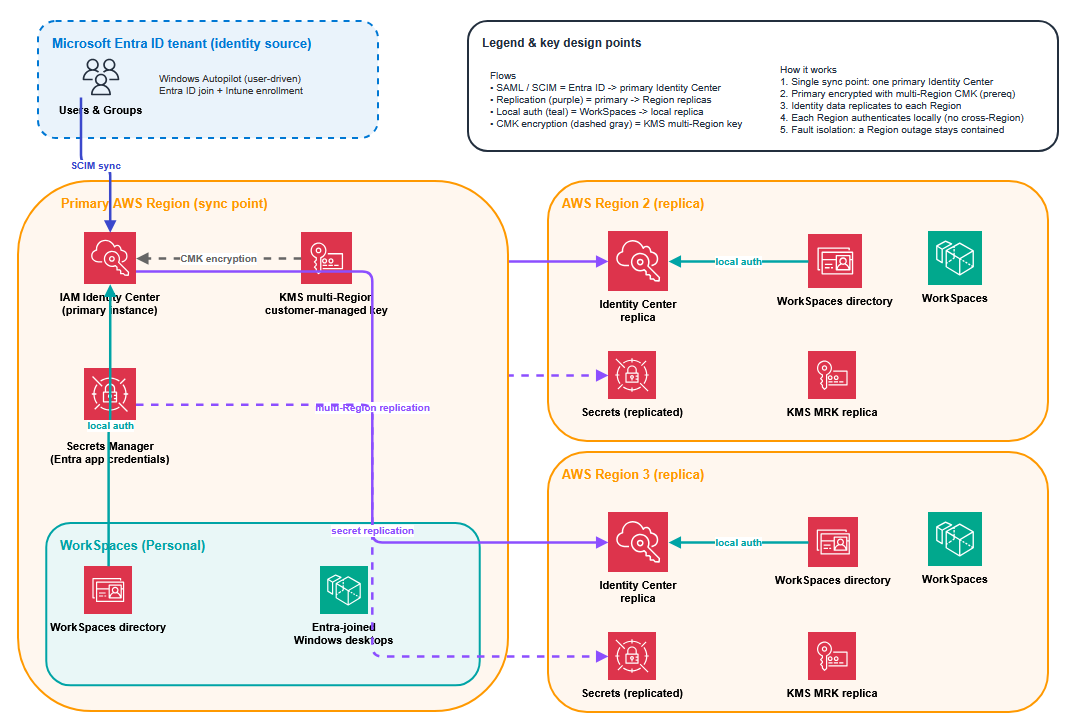
The design principle is regional independence through replication. Microsoft Entra ID synchronizes users and groups to one primary IAM Identity Center instance, encrypted with a customer managed multi-Region AWS KMS key and replicated to additional Regions. Windows Autopilot user-driven mode handles Entra ID join and Intune enrollment, and AWS Secrets Manager stores the application credentials in each Region. The following diagram illustrates the architecture:
Prerequisites
Before you begin, you need the following:
- An AWS account with AWS Organizations enabled and permissions to manage IAM Identity Center.
- A Microsoft Entra ID tenant with Global Administrator access and Microsoft Intune licensing.
- Review of the requirements and limitations in the Amazon WorkSpaces Administration Guide.
Step 1: Enable IAM Identity Center (primary instance)
- In your management account, open the IAM Identity Center console in your chosen primary Region (for example, us-east-1).
- Choose Enable and select Multi-Region instance to create an organization instance.
- Note the Instance ARN and Identity Store ID.
Tip: Choose the primary Region closest to your Microsoft Entra ID tenant, where SCIM synchronization traffic lands.
To configure SAML and SCIM with Microsoft Entra ID
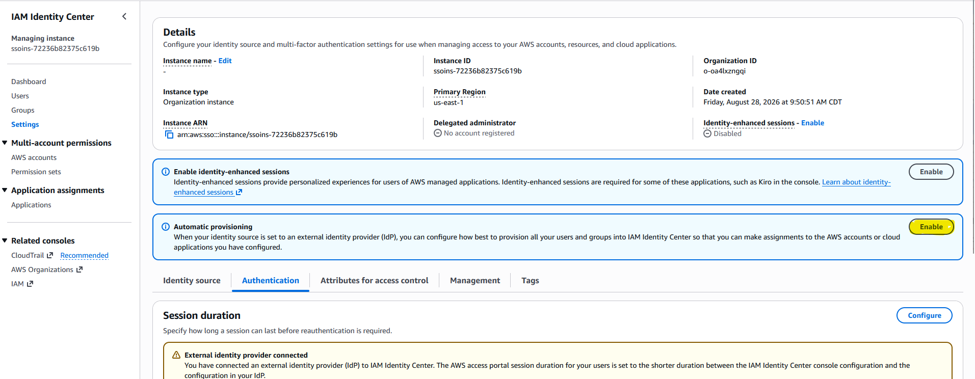
- In the IAM Identity Center console navigation pane, choose Settings, Identity source, Actions, Change identity source and then select External identity provider.
- Download the IAM Identity Center SAML metadata file.
- In the Microsoft Entra admin center, choose Enterprise applications, New application, search for AWS IAM Identity Center, and configure SAML-based sign-on using that metadata file.
- Under Provisioning, do the following:
- Turn on automatic provisioning.
- For Tenant URL, enter the SCIM endpoint from IAM Identity Center.
- For Secret Token, enter the access token from IAM Identity Center.
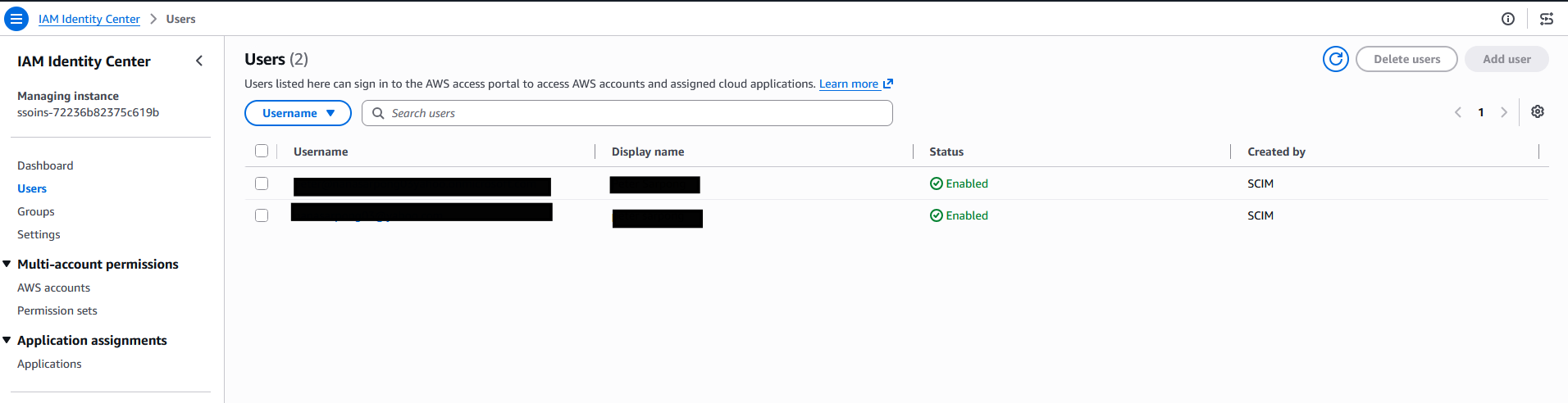
- Select the users and groups to synchronize, start the provisioning cycle, and confirm that users appear under Users in Identity Center with correct attributes.
Important: Identity Center supports up to 200,000 users by default; request a quota increase if you need more.
Note each user’s UserPrincipalName (UPN). WorkSpaces uses the UPN to identify users, it cannot exceed 63 characters, and changing it after a WorkSpace is assigned blocks that user from connecting until you revert the change.
If you create directories in member accounts, grant the WorkSpaces Administrator principal in each account the sso:DescribeInstance, sso:CreateApplication, sso:PutApplicationGrant, sso:PutApplicationAuthenticationMethod, sso:DeleteApplication, sso:DescribeApplication, and sso:GetApplicationGrant permissions, and confirm that no SCPs block them.
Step 2: Configure a customer-managed KMS key for Identity Center
Identity Center uses AWS owned keys by default. Multi-Region replication requires a customer-managed multi-Region key instead, so each replica decrypts identity data with its local copy of the key material. Configure this key before you enable replication.
To create a multi-Region customer-managed KMS key
- Open the AWS Key Management Service (AWS KMS) console in the same Region as your Identity Center instance and choose Create a key.
- In Configure key:
- For Key type, choose Symmetric.
- For Key usage, choose Encrypt and decrypt.
- For Regionality, choose Multi-Region key.
- Enter an Alias (for example, identity-center-cmk).
Important: You must select Multi-Region key. A single-Region key cannot be converted later; you would have to create a new key and reconfigure Identity Center.
In the Edit key policy step, add the statements — Allow Identity Center administrators, Allow the Identity Center and Identity Store services, and Allow AWS managed applications and their administrators — described in the baseline KMS key policy at a minimum.
Note: Replace placeholder values with your AWS Organization ID and IAM role ARNs.
To associate the CMK with Identity Center
- Open the IAM Identity Center console, choose Settings, and then select the Management tab.
- In Key for encrypting IAM Identity Center data at rest, choose Manage encryption.
- Select your multi-Region CMK and choose Save.
To replicate the KMS key to target Regions
- In the AWS KMS console, select your multi-Region key.
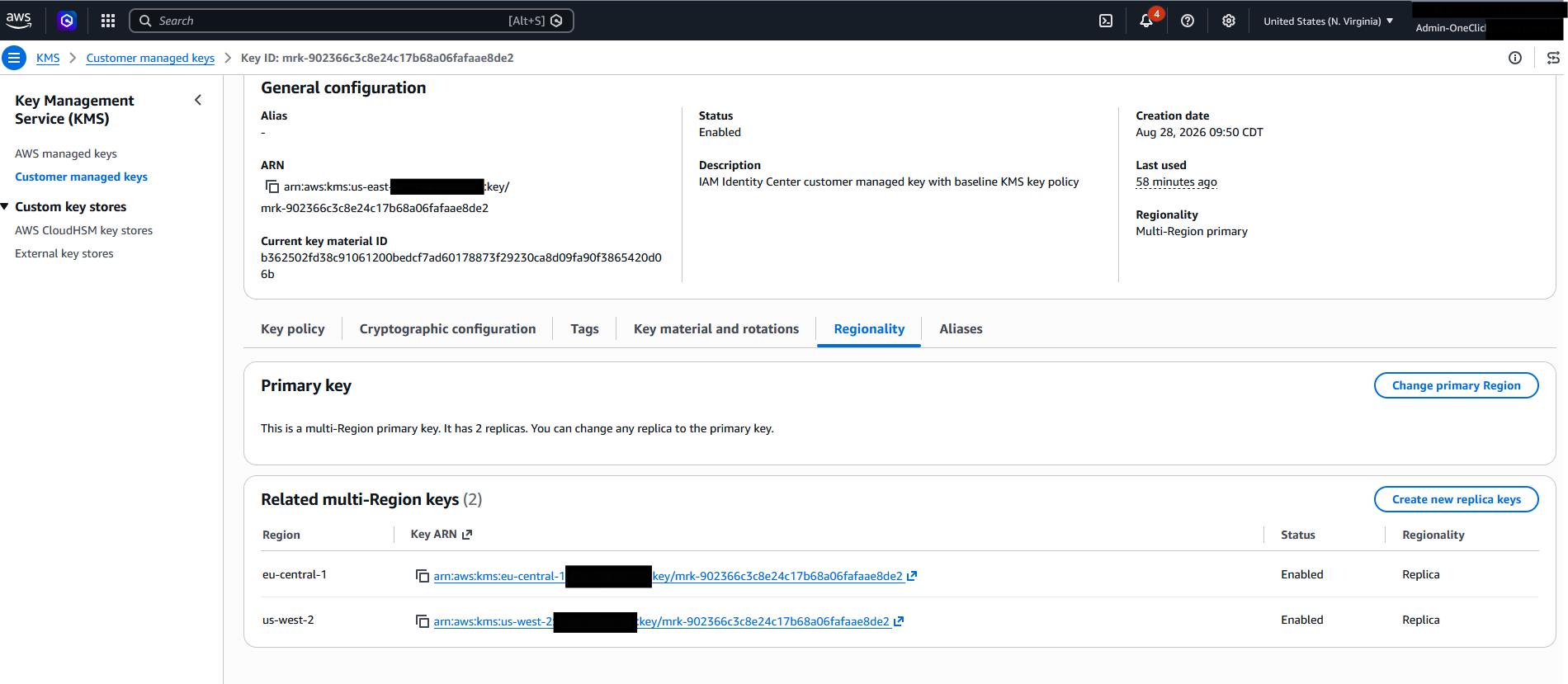
- Choose the Regionality tab, and then choose Create new replica keys.
- Select each target Region (for example, eu-central-1, ap-south-1), configure the same key policy for each replica, and choose Create.
Important: KMS key policy changes do not replicate automatically. If you update the policy, copy it to the other Regions manually.
Step 3: Replicate IAM Identity Center to additional Regions
With your primary instance encrypted using a multi-Region CMK, replicate it to every Region where you deploy WorkSpaces. First confirm that the KMS key is replicated to the target Regions and that each key policy grants the Identity Center service the required permissions.
To enable Identity Center replication
- In the IAM Identity Center console (primary Region), choose Settings.
- Under Region replication, choose Add Region.
- Select the Regions where you will deploy WorkSpaces (for example, eu-central-1, ap-south-1).
- Confirm the replication configuration.
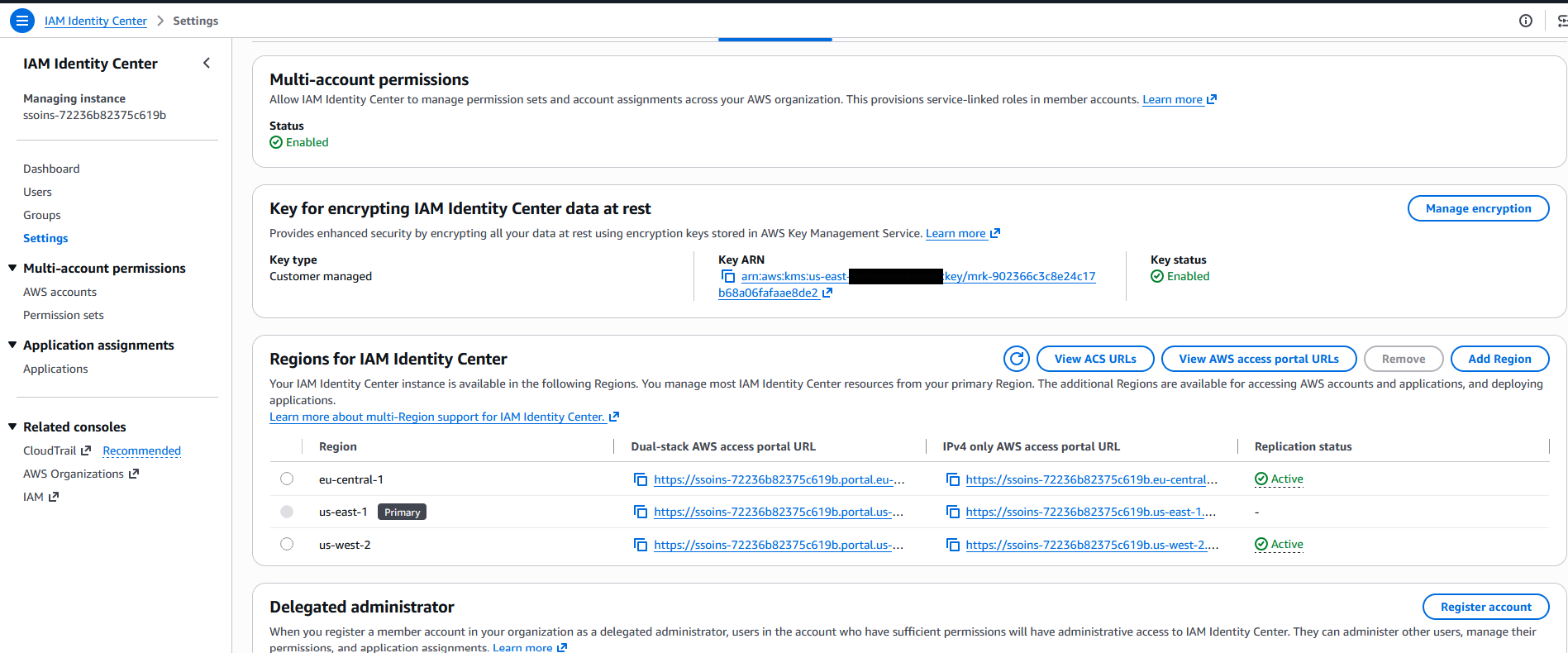
To verify replication status
- Switch to the target Region in the AWS console and open the IAM Identity Center console.
- Confirm that the replicated instance is active and shows the same users and groups as the primary.
- Note the regional Instance ARN. You will reference this when creating WorkSpaces directories in that Region.
Step 4: Configure Microsoft Entra ID and Windows Autopilot
Register a single tenant-level Entra ID application with Graph API permissions, shared across all Regions, then configure Microsoft Intune to enroll and Entra ID-join WorkSpaces automatically. Create a separate device group per Region so membership stays isolated.
To create the application registration
- In the Microsoft Entra admin center, choose App registrations, New registration.
- Enter a name (for example, AWS-WorkSpaces-Autopilot).
- For Supported account types, select Accounts in this organizational directory only.
- Choose Register.
To configure API permissions
- In the app registration, choose API permissions, Add a permission, Microsoft Graph, Application permissions.
- Add the following permissions:
| Permission | Purpose |
|---|---|
DeviceManagementServiceConfig.ReadWrite.All |
Register and remove devices in Autopilot |
Device.ReadWrite.All |
Manage device objects in Entra ID |
DeviceManagementManagedDevices.ReadWrite.All |
Manage Intune-enrolled devices |
Then choose Grant admin consent for your tenant (requires Global Administrator).
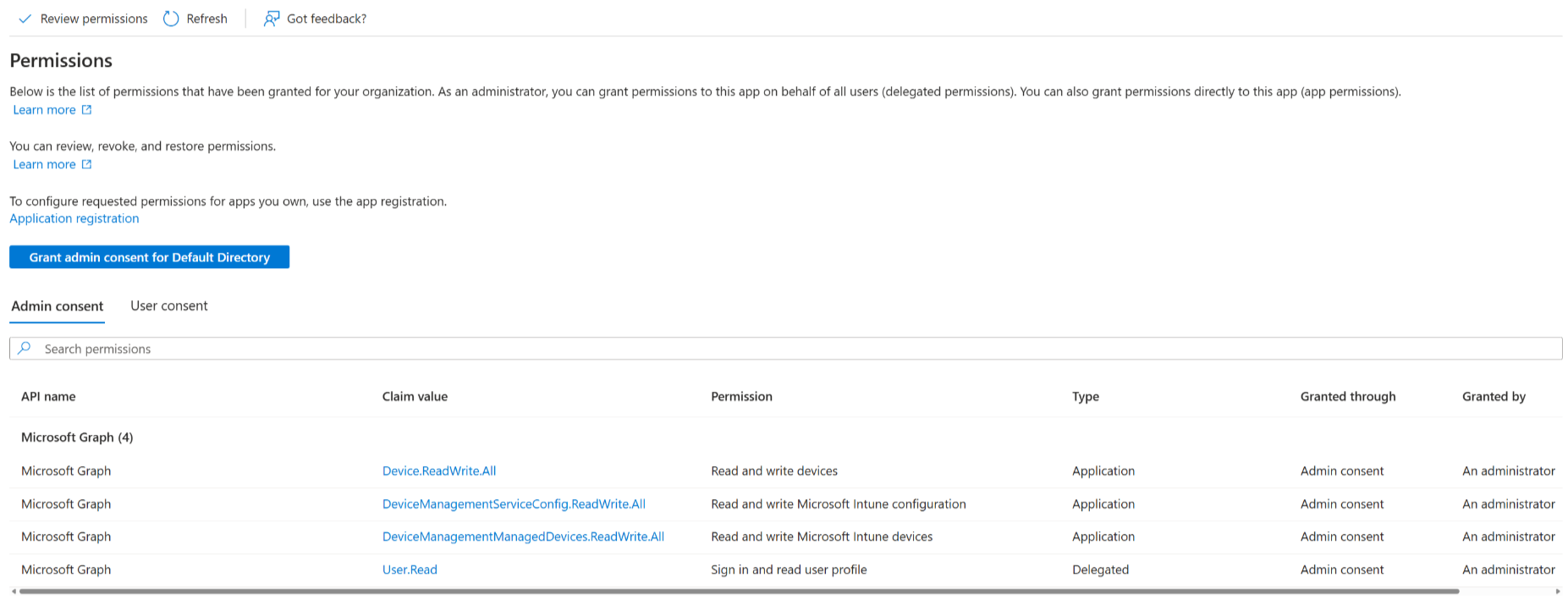
To create a client secret
- In the app registration, choose Certificates & secrets, New client secret.
- For Description, enter a description.
- For Expires, choose an expiration period, and then choose Add.
- Copy the secret value. You need it in Step 5.
- On the Overview page, note the Application (client) ID.
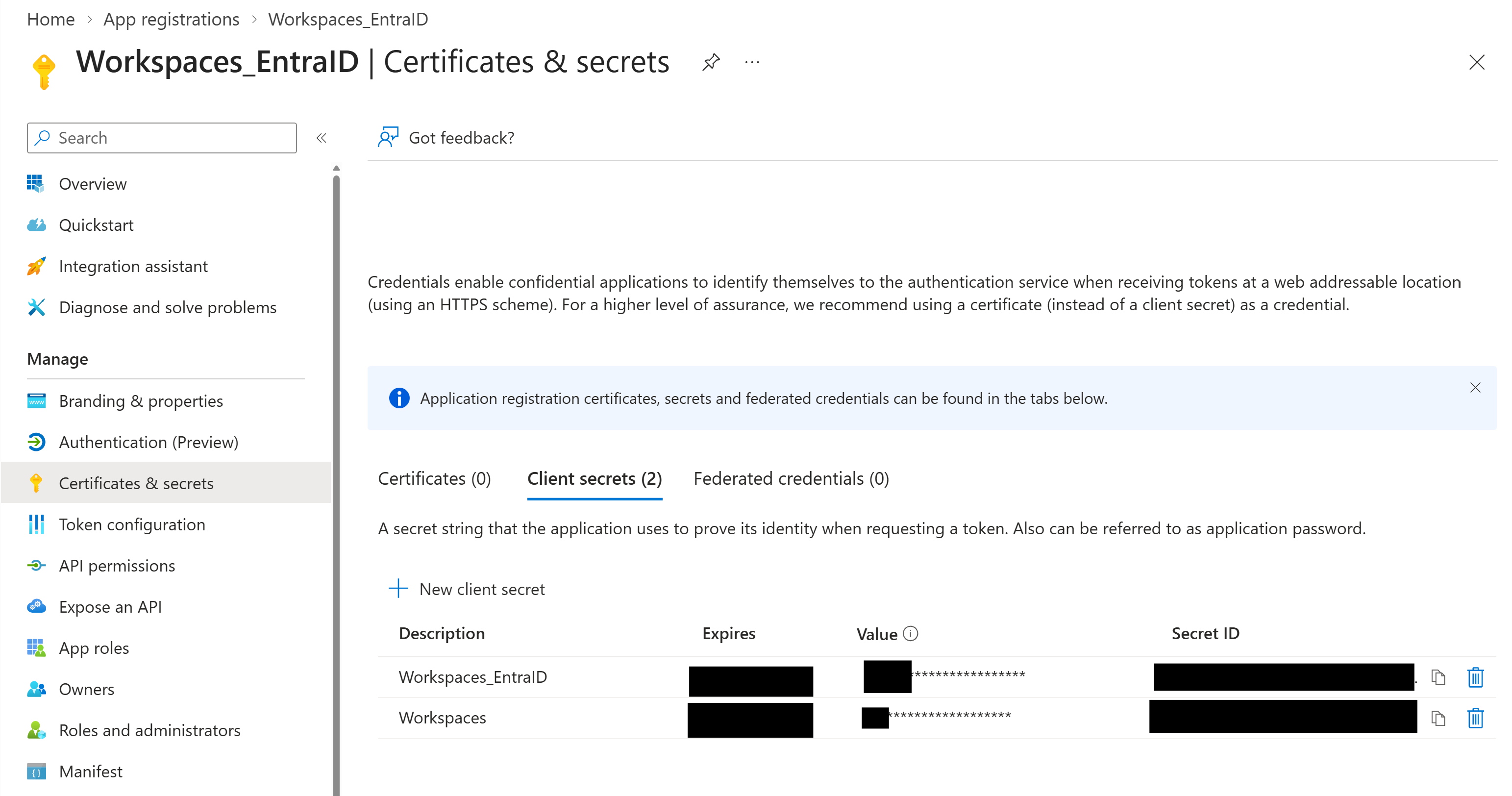
To create an Autopilot device group
- Sign in to the Microsoft Intune admin center.
- Choose Groups, New group.
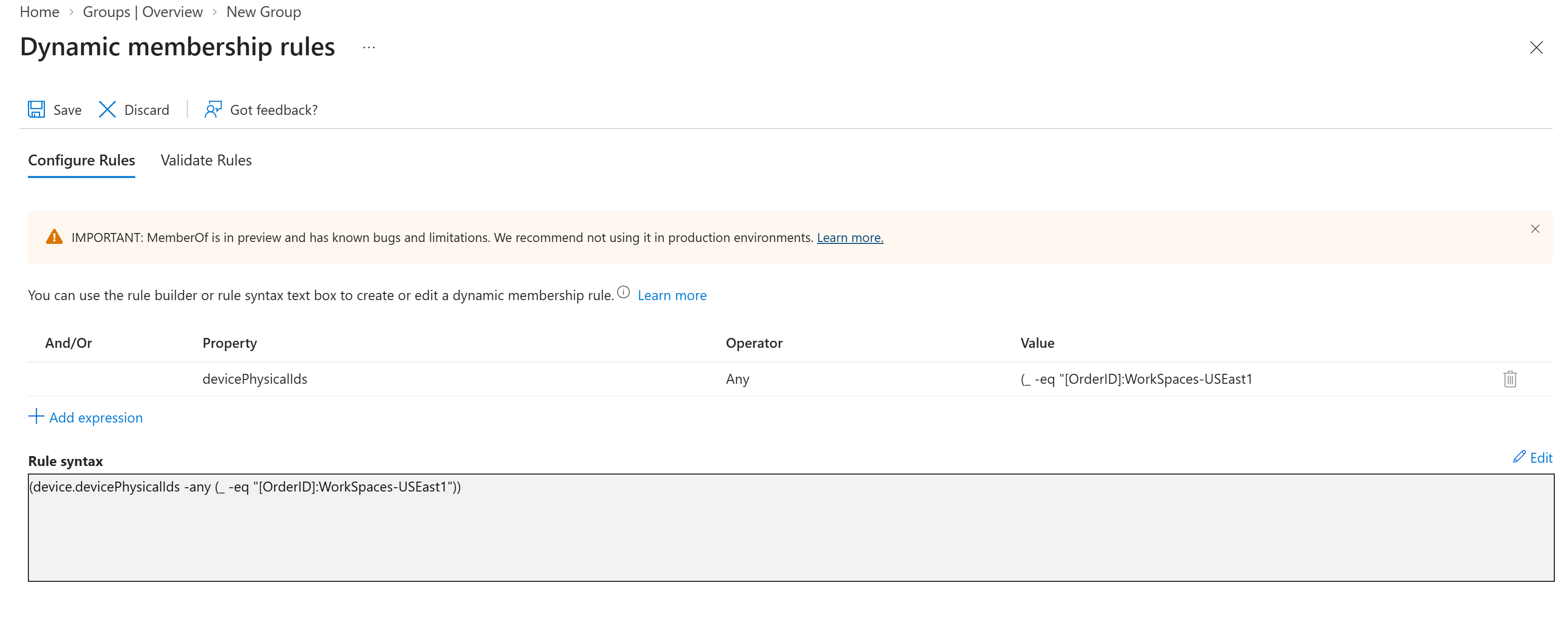
- Configure the group: Group name (for example, AWS-WorkSpaces-Autopilot-us-east-1), Group type Security, Membership type Dynamic Device.
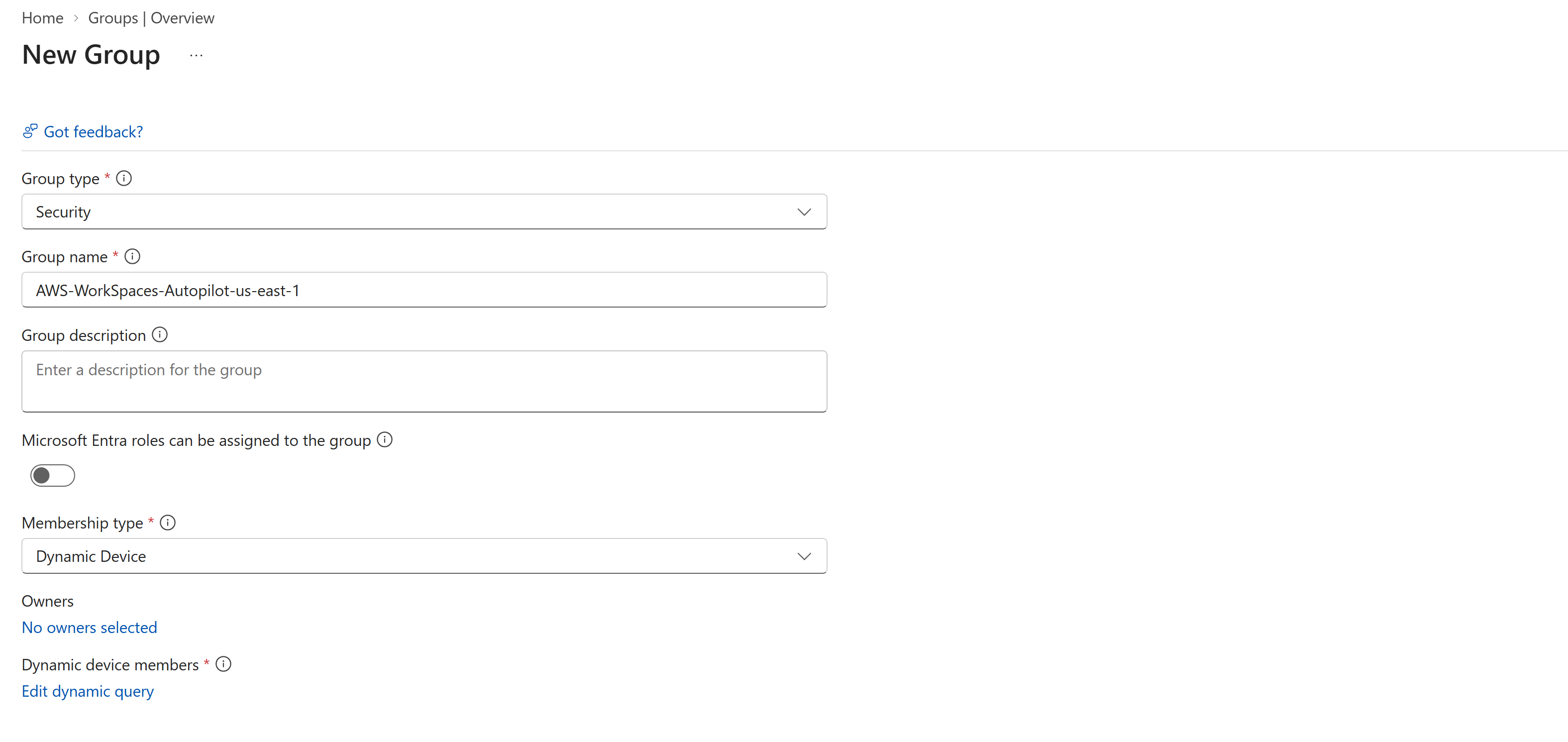
Choose Edit dynamic query and then add the following rule:
(device.devicePhysicalIds -any (_ -eq "[[OrderID]]:WorkSpaces-USEast1"))Note: Replace WorkSpaces-USEast1 with the exact directory name you will create in Step 6 for that Region.
To enable automatic MDM enrollment
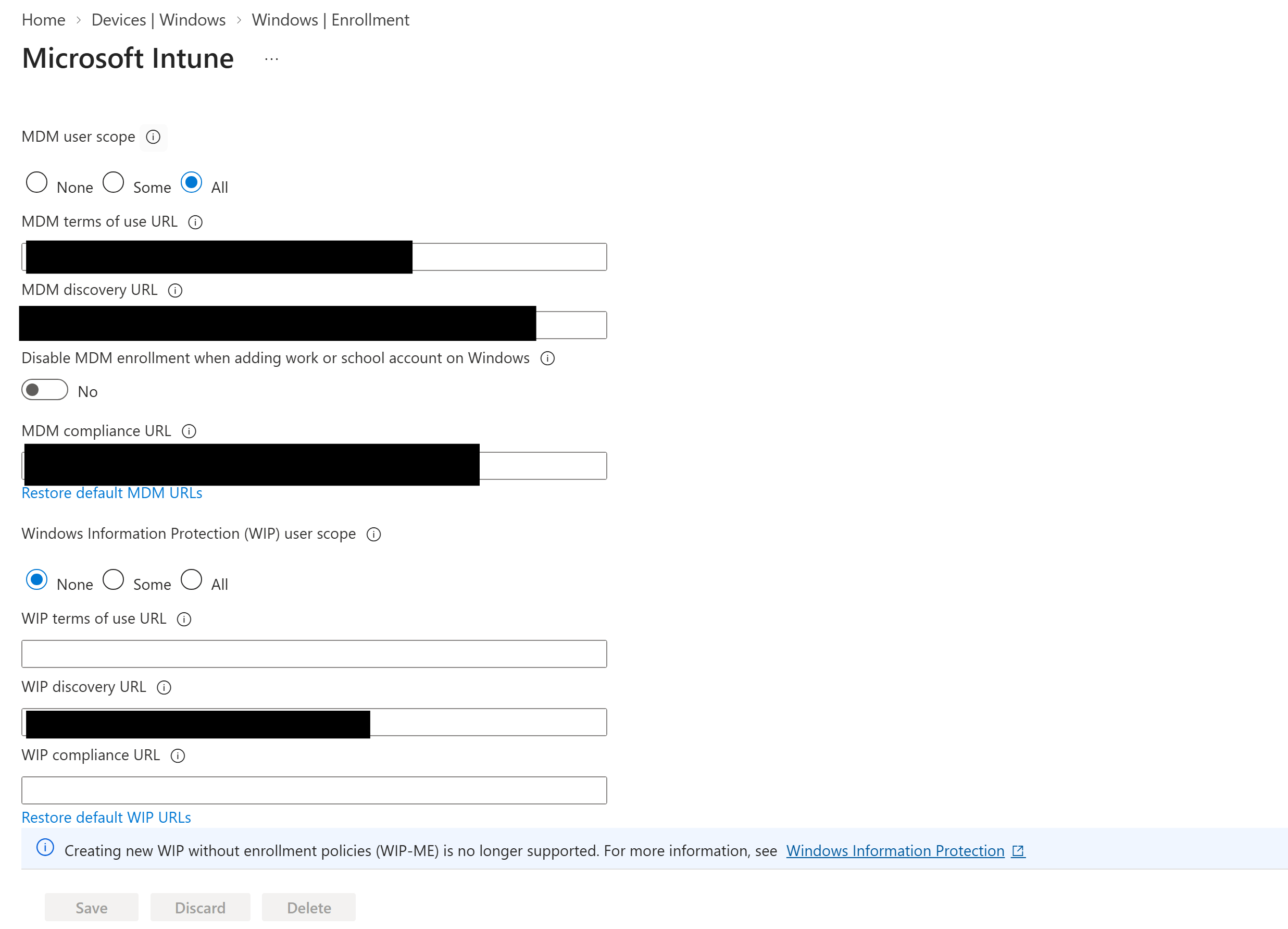
- In the Intune admin center, choose Devices, Windows, Enrollment.
- Under Enrollment Options, choose Automatic Enrollment.
- Set MDM user scope to All, or to a group containing your WorkSpaces users.
To create an Autopilot deployment profile
- Choose Devices, Windows, Windows Autopilot, Deployment profiles.
- Choose Create profile, Windows PC.
- Configure the profile: Name (for example, WorkSpaces-Autopilot-us-east-1), Deployment mode User-driven, Join to Microsoft Entra ID Microsoft Entra joined.
- On the Assignments page, choose Selected groups and select the corresponding regional Autopilot device group.
Step 5: Create AWS Secrets Manager secrets in each Region
Store your Entra ID application credentials in AWS Secrets Manager in each Region so every Region retrieves them locally. This uses a separate KMS key from the Identity Center CMK in Step 2: that one encrypts identity data, this one encrypts your stored credentials.
To create a KMS key for Secrets Manager
Create a symmetric, multi-Region key as in Step 2, with an alias such as workspaces-secrets-key. In the key policy, grant key administration and usage to your WorkSpaces Administrator role, and grant kms:Decrypt and kms:DescribeKey to the workspaces.amazonaws.com service principal.
Important: Before replicating the key, create a test directory and WorkSpaces to confirm the key works.
Replicate this key to each target Region using the same procedure as in Step 2, adding the WorkSpaces service access to each replica’s policy.
To create the secret in AWS Secrets Manager
- In the AWS Secrets Manager console, choose Store a new secret, and for Secret type choose Other type of secret.
- Add key/value pairs: application_id (your Entra ID Application Client ID from Step 4) and application_password (your client secret from Step 4).
- For Encryption key, select the KMS key created in this step for this Region and enter a Secret name (for example, workspaces/entra-id/autopilot-credentials).
- Under Resource permissions, add a policy granting
secretsmanager:GetSecretValueto theworkspaces.amazonaws.comservice principal. - Choose Replicate secret to other Regions and select the replicated KMS key in each Region.
Step 6: Create directories and launch WorkSpaces in each Region
Create a WorkSpace directory connected to the local replicated Identity Center instance, then launch and validate WorkSpaces. The directory name must match exactly the OrderID in the corresponding Autopilot query, and you cannot change it after creation.
To create the directory
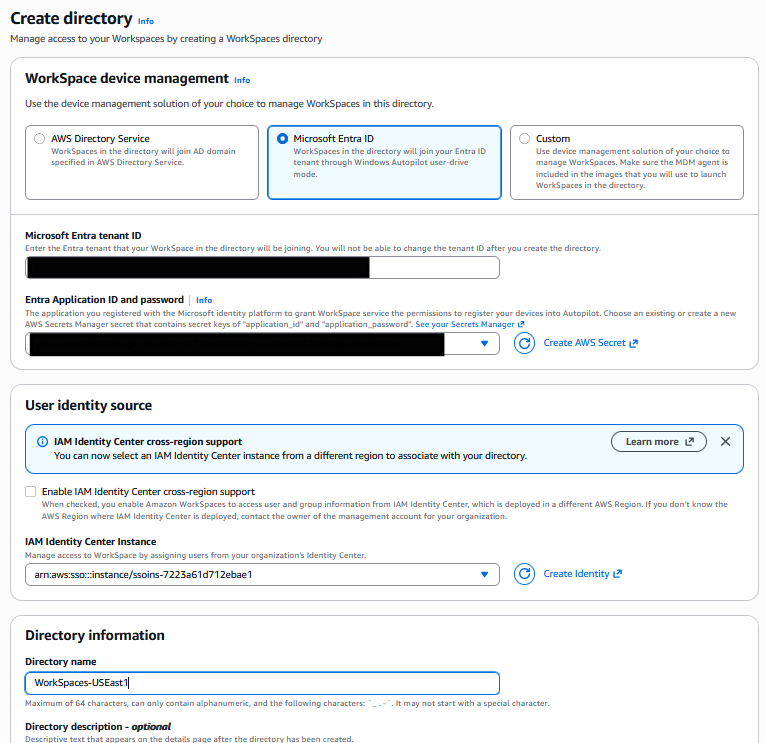
- In the Amazon WorkSpaces console, choose Directories, Create directory.
- For directory details:
- For WorkSpaces type, choose Personal.
- For WorkSpace device management, choose Microsoft Entra ID.
- For Microsoft Entra tenant ID, enter your tenant ID.
- For Entra ID application credentials, select the Secrets Manager secret you created in Step 5.
- For User identity source, select the local replicated IAM Identity Center instance.
- For Directory name, enter a name that exactly matches the OrderID in the Autopilot query, for example WorkSpaces-USEast1.
- For networking, select your VPC and two Subnets in different Availability Zones, both with outbound reachability for Autopilot enrollment.
- Choose Create directory.
When the status changes to Active, confirm that the directory references its local Identity Center replica, not the primary, and that WorkSpaces has created the IAM Identity Center application ARN.
To launch WorkSpaces
- In the WorkSpaces console, choose Create WorkSpaces and select the Entra ID directory for the Region.
- Choose users from the synchronized Identity Center user list.
- Select a BYOL Windows 10/11 bundle.
- Configure WorkSpace properties (compute type, running mode, encryption).
- Choose Launch WorkSpaces.
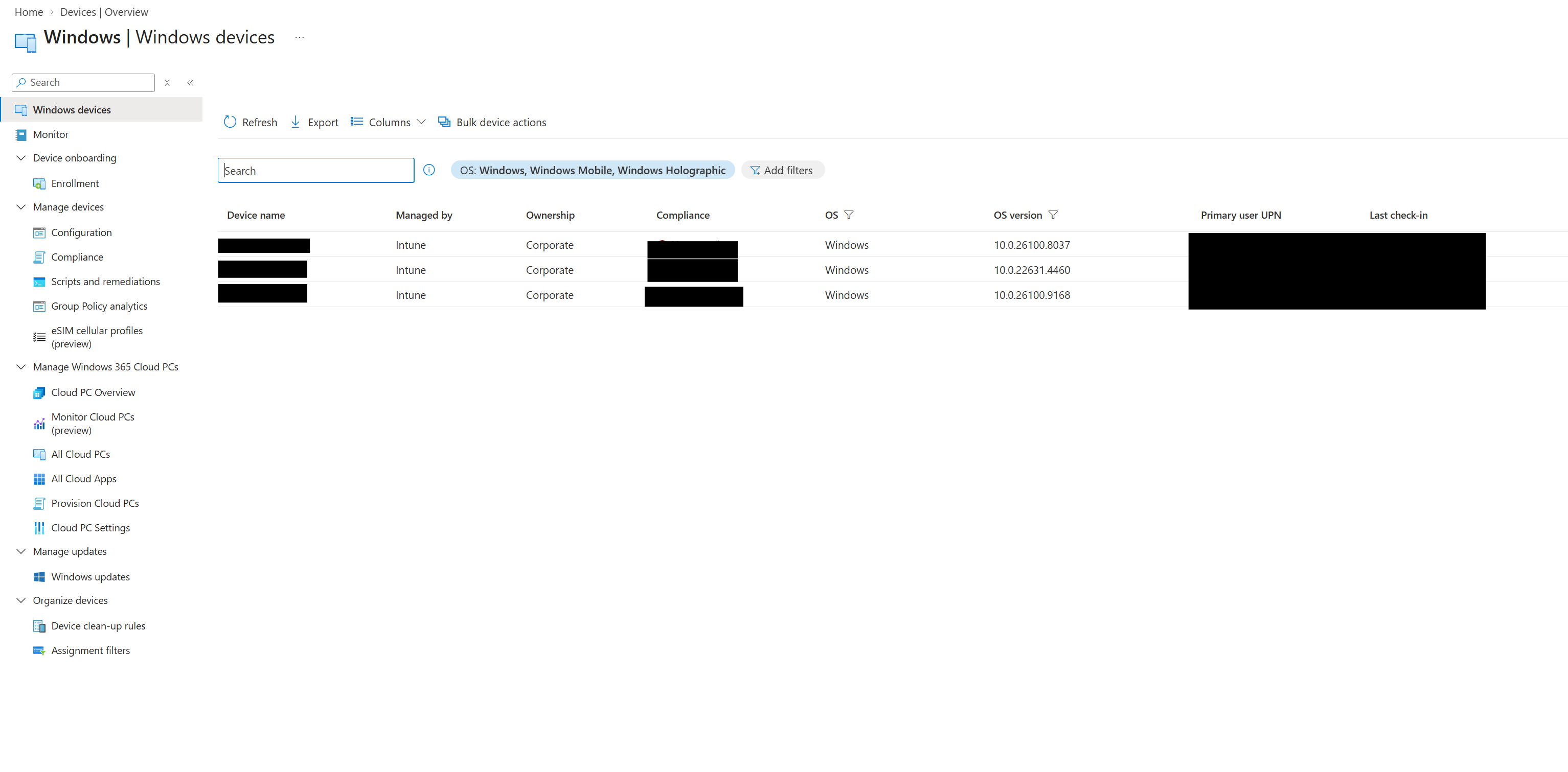
After each WorkSpace provisions, confirm in the Microsoft Intune admin center that the device appears under Devices, Windows and in the Entra admin center that it shows as Microsoft Entra joined in the regional Autopilot group.
To test sign-in, share the client registration code: the user enters it in the WorkSpaces client, authentication redirects to Entra ID through the local replica’s SAML federation, and the user reaches their desktop. Repeat for each Region to confirm that an outage in one leaves the others unaffected.
Operational notes
- Key and secret rotation: Rotating a multi-Region key rotates its material in all Regions, with usage logged in AWS CloudTrail. The Entra ID client secret expires, so plan rotation before expiry and update the secret in every Region, optionally with Secrets Manager automatic rotation.
- Naming and networking: Use a Region-aware convention such as WorkSpaces-<RegionCode>, match each directory name to its Autopilot query exactly, and give each subnet outbound access for Autopilot enrollment, Intune management, and SAML authentication.
- Monitoring: Watch SCIM sync health in Entra ID provisioning logs, alarm on replication lag in Amazon CloudWatch, and automate directory and secret creation for new Regions with AWS CloudFormation StackSets or Terraform.
Cleaning up
To avoid ongoing charges, delete resources in this order:
- Terminate WorkSpaces in each directory.
- Delete WorkSpaces directories in each Region.
- Delete Secrets Manager secrets in each Region.
- Schedule deletion of the Secrets Manager KMS keys (minimum 7-day waiting period).
- Remove Identity Center replication for Regions you no longer need.
- Remove the Autopilot device groups and deployment profiles in Intune.
- Delete the Entra ID application registration if no longer needed.
Conclusion
In this post, we showed you how to deploy Amazon WorkSpaces Personal across multiple AWS Regions using Microsoft Entra ID integration with IAM Identity Center multi-Region replication. This architecture delivers:
- Regional independence — Each Region authenticates against its local Identity Center and KMS key replicas, so an outage in one Region does not affect the others. Identity synchronization still depends on the primary Region: during a primary outage, existing users keep authenticating while only identity-change propagation pauses.
- Simplified identity management — A single SAML/SCIM integration with Entra ID feeds all Regions, giving users consistent credentials everywhere.
- Compliance and auditability — Customer-managed KMS keys provide full control over the key lifecycle with CloudTrail logs for all key usage.
To get started, see the following resources:
- Amazon WorkSpaces documentation
- IAM Identity Center User Guide
- Managing encryption keys for IAM Identity Center
- Microsoft Entra ID integration with Amazon WorkSpaces
About the Authors
 Peter Sarpong is a Sr. Technical Account Manager at AWS, supporting Global Consulting Partners, and enjoys helping enterprises build and operate resilient systems.
 Haneesh Kotha is a Specialist Senior Solutions Architect at Amazon Web Services (AWS), focusing on End-User Computing (EUC) solutions. With 14 years of experience in the EUC space, Haneesh has developed deep expertise in understanding customer requirements and tailoring AWS EUC solutions to meet their specific needs.
 Paul Morosin is a Principal Customer Solutions Manager at AWS, helping enterprise customers adopt cloud solutions. He leads multi-workstream cloud programs for global enterprise customers, spanning end-user computing, generative AI, and analytics. Outside of work, he enjoys volunteering and mentoring.