AWS DevOps & Developer Productivity Blog
Track AWS CloudFormation StackSets deployments with progress visibility
Today, AWS CloudFormation StackSets adds deployment progress visibility, a stage-by-stage view of where each stack set operation stands. You can see how much work is complete, and which accounts and stack instances need attention. Whether you target tens of accounts or thousands, you can follow a deployment while it runs and act on results without waiting for it to finish.
With AWS CloudFormation, you model and provision your cloud infrastructure as code, writing templates in JSON or YAML or generating them with tools like the AWS Cloud Development Kit (CDK). CloudFormation StackSets extends this to many accounts and AWS Regions. With a stack set, you can deploy the same template, such as a networking baseline or security controls, to every account and Region you target in one operation. Each deployment of the template to one account and Region is a stack instance. With service-managed stack sets, StackSets works with AWS Organizations to provision the access it needs in each target account for you.
In this post, we’ll explore how to read deployment progress on the CloudFormation console and through the API. Whether you’re a platform engineer rolling out an organization-wide baseline or a developer building automation around StackSets, we’ll show you how to:
- Follow a large deployment as it moves through each stage.
- Find out why a deployment that reports success did not deploy any stacks.
- Check progress from scripts and automation.
- Review how each stage ended after the deployment completes.
The walkthrough shows how stage-level progress gives you confidence that a rollout is on track at every stage.
Key capabilities
Deployment progress adds the following to stack set operations that start after launch.
- Two stages for every operation. Each stack set operation reports role provisioning and stack deployment separately, each with its own status and percentage complete.
- Counts for each stage. Role provisioning reports accounts that succeeded, failed, completed, and are pending. Stack deployment reports stack instances that succeeded, failed, completed, are pending, were skipped, and were cancelled.
- Progress for each Region. The console shows a Deployment by Region table, and describing an operation returns stack deployment progress for each Region.
- Results after completion. Progress remains available after the operation finishes. You can review how each stage ended at any time.
- Additive API change. The new fields are additive. Existing integrations continue to work without changes.
How it works
When you start a stack set operation, its overall status works as it does today. Deployment progress adds detail under StatusDetails.Stages in the DescribeStackSetOperation and ListStackSetOperations responses, and on the Progress tab of each operation on the CloudFormation console. The stage statuses are separate from the overall operation status.
To open it on the console, choose View progress report for an operation on your stack set’s Operations tab. If the operation’s details page is already open, choose the Progress tab.
The following image shows the Operations tab for a stack set. The View progress report link for a completed CREATE operation is highlighted in the Actions column.

Figure 1: Choose View progress report for an operation on the Operations tab
The following image shows the details page for the same operation while it was running, with the Progress tab highlighted next to the Stack instances tab.
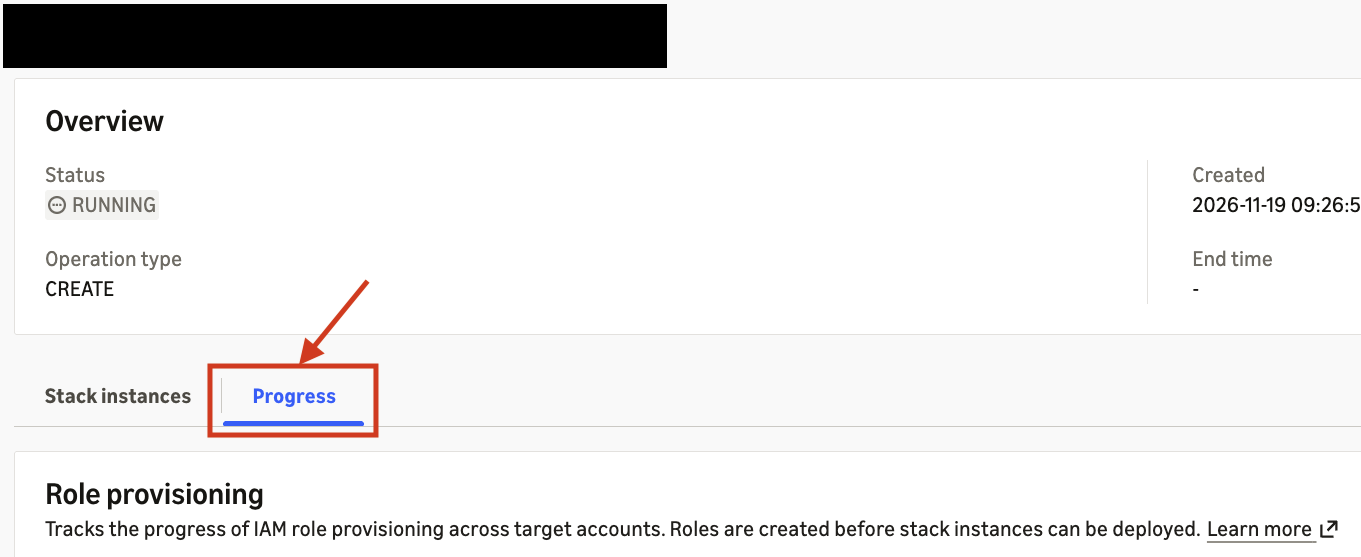
Figure 2: Alternatively, on an operation’s details page, choose the Progress tab
The Progress tab has up to three sections. Role provisioning shows the status and the succeeded, failed, pending, and total account counts. Deployment shows the status and the succeeded, failed, pending, cancelled, skipped, and total stack instance counts. Deployment by Region shows the same stack instance counts for each Region, and notes whether Regions are processed one at a time or in parallel. While an operation runs, a progress bar shows the Deployment percentage complete. When the operation finishes, the stage status replaces the progress bar. For operations on a self-managed stack set, the console leaves out the Role provisioning section and shows only Deployment and Deployment by Region. For other operations that don’t provision roles, such as updates, the Role provisioning section shows NOT_APPLICABLE. The completed count appears only in the API response, where it is the sum of succeeded, failed, skipped, and cancelled.
Role provisioning prepares access in each target account of a service-managed stack set. When StackSets has resolved the target accounts, the stage reports counts of succeeded, failed, completed, and pending accounts, and its percentage complete. In the API response, operations that don’t provision roles, including operations on self-managed stack sets, report this stage as NOT_APPLICABLE.
Stack deployment deploys your template as a stack instance in each account and Region. It begins after role provisioning finishes, and its counts appear once the stage starts. Two counts tell you why a stack instance was not deployed:
- Skipped stack instances belong to accounts that did not complete role provisioning, or to suspended accounts. Because an operation has one stack instance per account in each Region, 4 accounts that did not complete role provisioning in a 3-Region operation give 12 skipped stack instances.
- Cancelled stack instances were not attempted because the operation exceeded its failure tolerance or was stopped.
Completed is the sum of succeeded, failed, skipped, and cancelled, and pending is the total minus completed. The percentage complete is completed divided by total, rounded down to the nearest tenth. There is no separate in-progress count. StatusDetails also reports the total number of target accounts and stack instances once StackSets has resolved the operation’s targets.
Each stage reports one of these statuses: NOT_APPLICABLE, NOT_STARTED, IN_PROGRESS, SUCCEEDED, PARTIAL_SUCCESS, or FAILED. The two stages can end differently. For example, role provisioning can end in PARTIAL_SUCCESS while stack deployment ends in SUCCEEDED, because stack deployment succeeded for every stack instance that was not skipped.
Behavior by operation type
| Operation | Role provisioning | Stack deployment |
| Create operations on a service-managed stack set, including auto-deployments | Reported | Reported |
| Update and delete operations on a service-managed stack set, and all operations on a self-managed stack set | NOT_APPLICABLE |
Reported |
| Drift detection | NOT_APPLICABLE |
NOT_APPLICABLE |
This table reflects behavior at launch. To write automation that keeps working as StackSets adds features, read the role provisioning status in each response rather than inferring it from the operation type.
DescribeStackSetOperation includes stack deployment progress for each Region in RegionalStatusDetails. ListStackSetOperations returns the overall stages without the regional breakdown. Both stage progress and the Regional breakdown remain available after the operation finishes.
Scenario 1: Follow a large deployment as it runs
You’re a platform engineer rolling out a baseline from a service-managed stack set to 240 accounts in 3 Regions, which is 720 stack instances. The operation has been running for about 20 minutes and you want to know how far it has come.
On the console
- Open the CloudFormation console and choose StackSets.
- Choose your stack set, then choose the Operations tab.
- Choose View progress report for the running operation.
The following image shows the Progress tab for the operation while it runs, with the Deployment progress bar at 90 percent and progress for each Region.
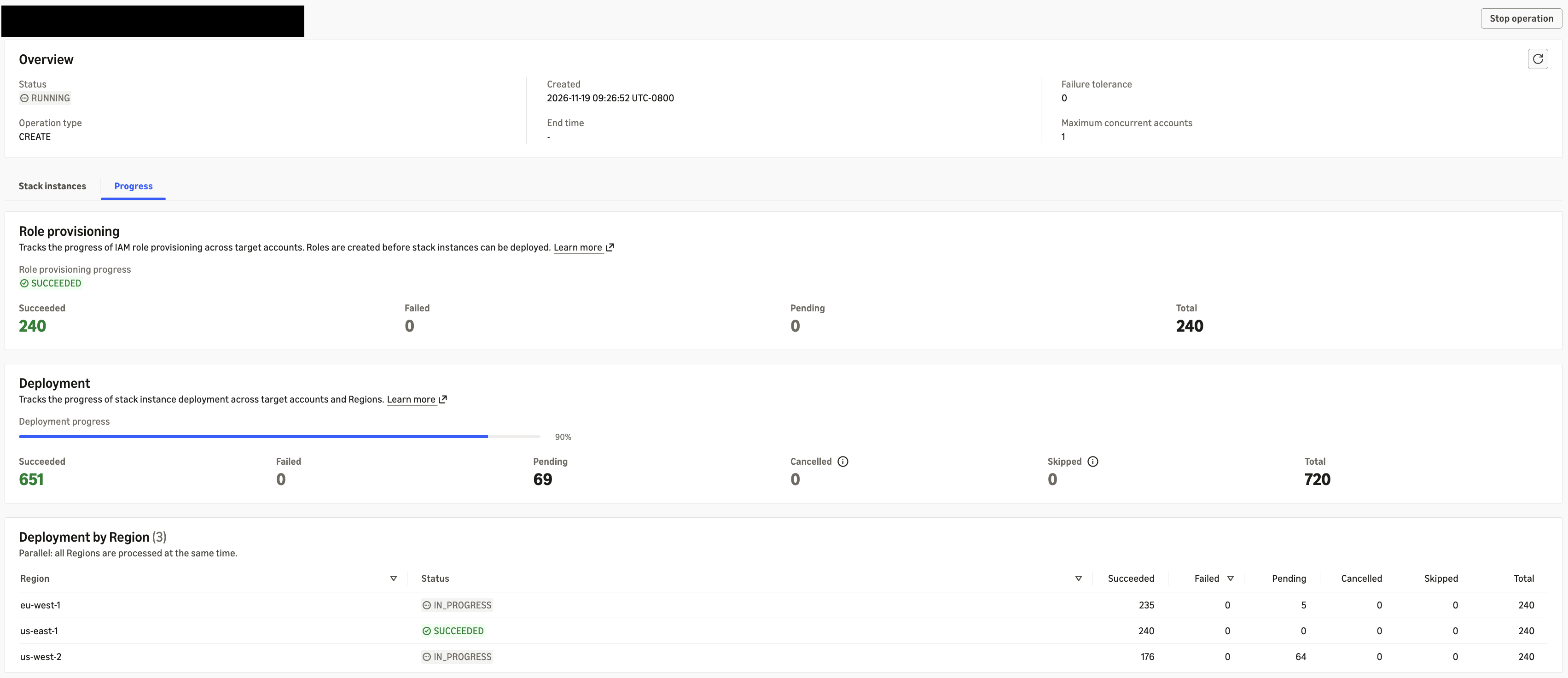
Figure 3: Progress tab for a running operation
The overall status is still RUNNING, and the Progress tab shows what that status covers. Role provisioning has succeeded for all 240 accounts. The Deployment progress bar is at 90 percent, with 651 stack instances succeeded, none failed, and 69 pending. Deployment by Region shows the status for each Region. The US East (N. Virginia) Region (us-east-1) is done, the Europe (Ireland) Region (eu-west-1) has 5 stack instances pending, and the US West (Oregon) Region (us-west-2) has 64 pending. You can let the operation continue with confidence that it is progressing.
With the AWS Command Line Interface
Sample output (abbreviated):
The API reports the percentage rounded down to the nearest tenth (651 of 720 is 90.4 percent). The console progress bar shows 90%.
Scenario 2: Find out why nothing deployed
You start a create operation that targets 4 accounts in 3 Regions, which is 12 stack instances. The operation finishes in seconds with an overall status of SUCCEEDED, but no stacks appear in the target accounts.
The following image shows the Progress tab after the operation finished. Role provisioning shows FAILED for all four accounts, and Deployment shows SUCCEEDED with all 12 stack instances skipped.
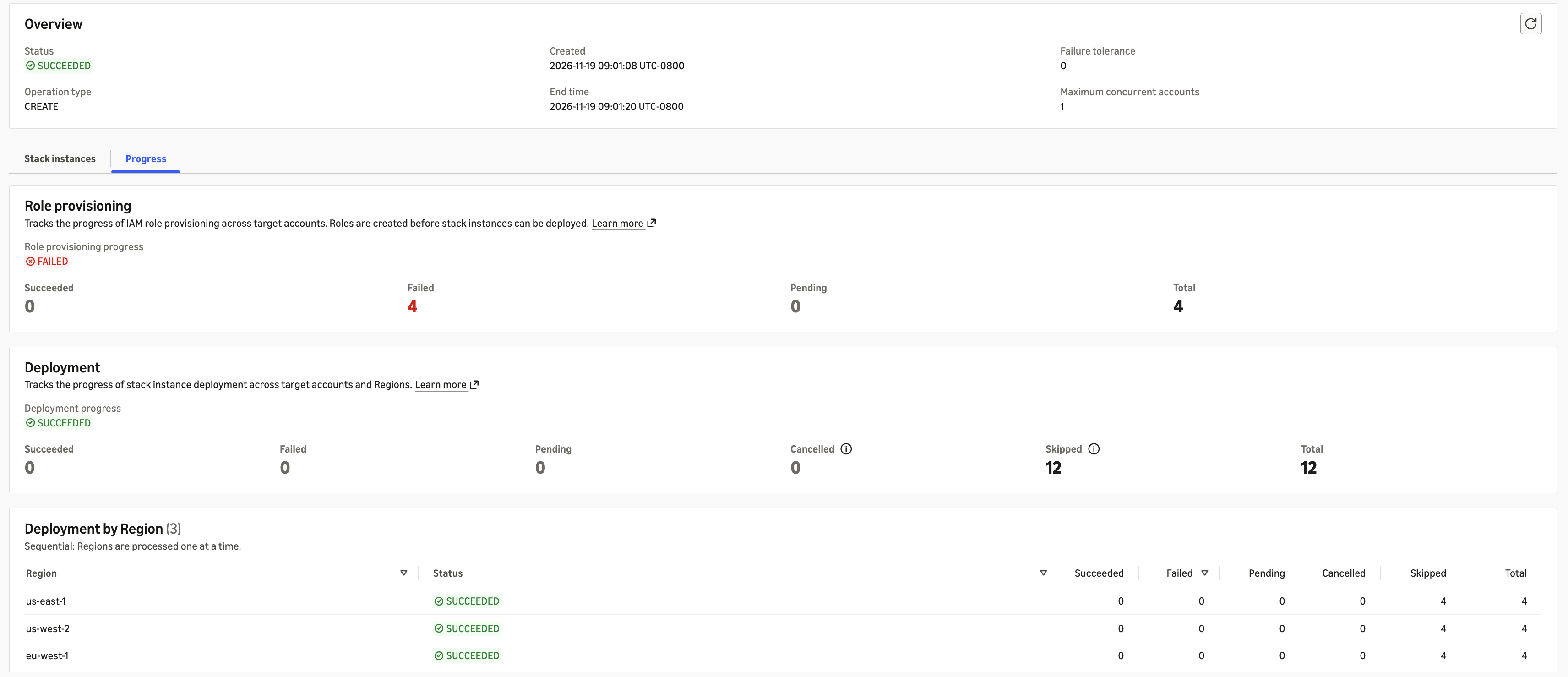
Figure 4: Progress tab after role provisioning failed in every target account
The Progress tab shows what happened. Role provisioning is FAILED, with all 4 accounts failed. Deployment is SUCCEEDED because no stack instance failed, but all 12 stack instances are skipped. Deployment by Region shows 4 skipped stack instances in each Region. Role provisioning did not complete in any account, so StackSets had nothing to deploy. In this example, all four target accounts were suspended.
Sample output (abbreviated):
To see the status reason for each account, list the operation’s results:
Your next step is to review the affected accounts, for example confirming whether they are active in AWS Organizations, and then run the operation again for them.
Scenario 3: Check progress from scripts and automation
You run StackSets operations from a pipeline and want a short progress line in your build logs. ListStackSetOperations returns the same stage details for recent operations, without the Regional breakdown:
For one operation, you can extract the stack deployment percentage directly:
Sample output, for the operation in Scenario 1:
For operations that start after launch, every stage is present in the response, with NOT_APPLICABLE or NOT_STARTED when it is not active. Your automation reads the same structure for every operation type. AI agents that call the CloudFormation API on your behalf can read the stage status to tell whether a stage is active. Operations that ran before launch don’t include Stages in their response, so check that the field exists before you read it, for example when you list older operations.
Scenario 4: Review how each stage ended
The operation from Scenario 1 has finished. You want to confirm the result before you move on.
The following image shows the Progress tab after the operation completed, with both stages and all three Regions showing SUCCEEDED.
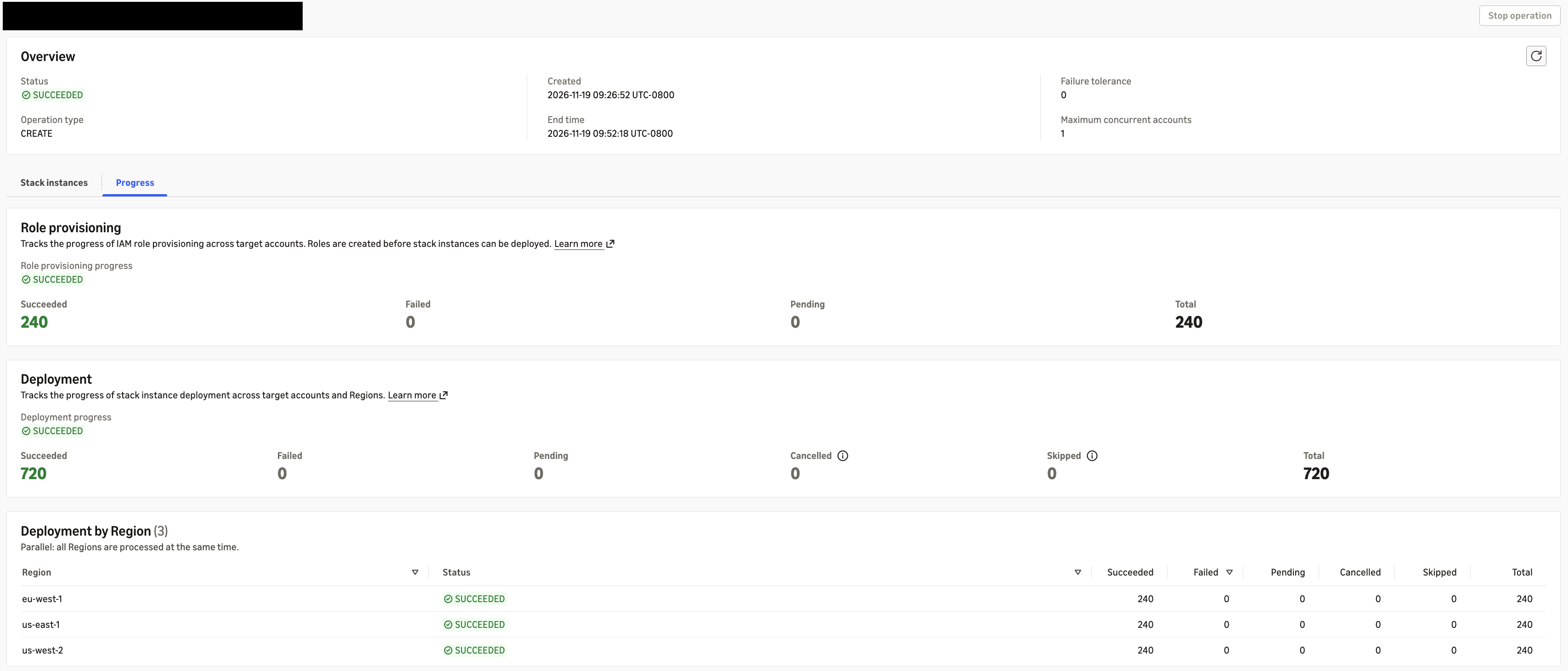
Figure 5: Progress tab for the completed operation
The overall status is SUCCEEDED. Role provisioning succeeded for all 240 accounts. Deployment shows SUCCEEDED in place of the progress bar, with all 720 stack instances succeeded and none failed, pending, cancelled, or skipped. Deployment by Region shows 240 succeeded stack instances in each of the 3 Regions. Because progress remains available after the operation finishes, you can come back to these results later.
Best practices
- Use the counts to decide your next step. Failed stack instances point to the template or the resources it creates. Skipped stack instances point to role provisioning, or a suspended account. Cancelled stack instances point to the failure tolerance, or a stopped operation.
- Check role provisioning and the overall status. If role provisioning fails for every target account, StackSets skips every stack instance. As Scenario 2 shows, stack deployment and the overall operation still report
SUCCEEDED, even though no stacks were deployed. AFAILEDrole provisioning status with a skipped count equal to the total tells you this happened. - Use
DescribeStackSetOperationwhen you need the Regional breakdown, andListStackSetOperationsfor a quick view across recent operations. - Treat
NOT_APPLICABLEin the API response as expected for the operation type, for example role provisioning on self-managed stack sets or both stages for drift detection. - Totals and pending counts appear only after StackSets resolves the operation’s targets. Handle their absence early in an operation, and for operations that ran before launch, which don’t include
Stages.
Getting started
Deployment progress is available at no additional charge in all AWS Regions where CloudFormation StackSets is supported. On the CloudFormation console, choose View progress report for a stack set operation on the Operations tab. You can also call DescribeStackSetOperation or ListStackSetOperations with the AWS Command Line Interface (AWS CLI) or AWS SDKs. To use the new fields from the command line, use AWS CLI version 2. They are not available in AWS CLI version 1. In code, use an AWS SDK version released on or after November 18, 2026.
Conclusion
Deployment progress shows where each StackSets deployment stands, stage by stage and Region by Region. You can follow a rollout across thousands of accounts, find the accounts and stack instances that need attention while it runs, and review how each stage ended afterward. Existing integrations continue to work without changes.
For a full description of each stage, status, and count, including how they differ by operation type, see Monitor StackSet operation progress in the AWS CloudFormation User Guide. If you’re building automation, the DescribeStackSetOperation and ListStackSetOperations pages in the AWS CloudFormation API Reference list every new response field. To learn more about modeling and provisioning infrastructure as code across accounts and Regions, visit the AWS CloudFormation product page.